
There may be specific zipped files that you don’t want WinRAR opening on Android devices, iOS, Linux, Windows, and Mac. One such example is JAR files. This file extension stands for Java Archive and is a few file formats that handle both audio, images, and class files. You may prefer your Java application and not WinRAR to open that JAR file. So how do you stop WinRAR from opening this file extension?
How to Stop Winrar from Opening Jar Files
Step 1: Open WinRAR
Open your WinRAR program on your chosen device. In the top menu bar, click on ‘Options,’ and a drop-down list will appear.
Step 2: Access integrations
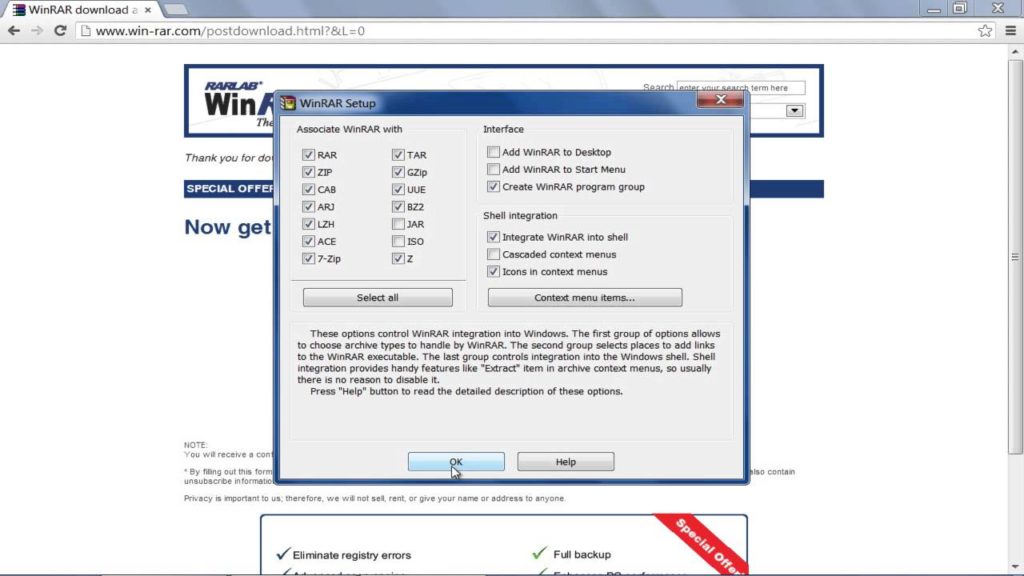
In the drop-down list that appears, click on the ‘Settings tab. Click on the ‘Integrations’ tab to open a list of all the file extensions that WinRAR will open.
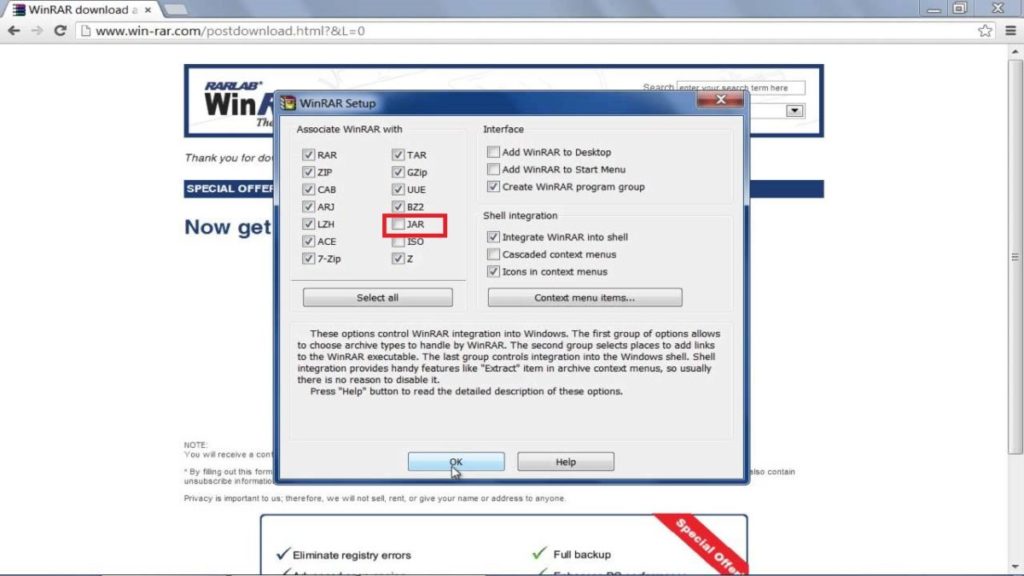
Step 3: Uncheck ‘JAR’ Files
Find the JAR files extension in the list and uncheck it. This will stop WinRAR from opening JAR files.
You can now right-click on your JAR files and click on ‘Open With’ and then ‘Choose App’ to select which program you want to open the Jar file. If you tick the ‘Always Use This App To Open .jar Files’ option, this will become the default program for opening JAR files in the future.
Customize Your File Extraction Program
As you can see from the above, it is effortless to customize your file extraction program. You can easily choose which files to open and which ones not. Why not try it now.
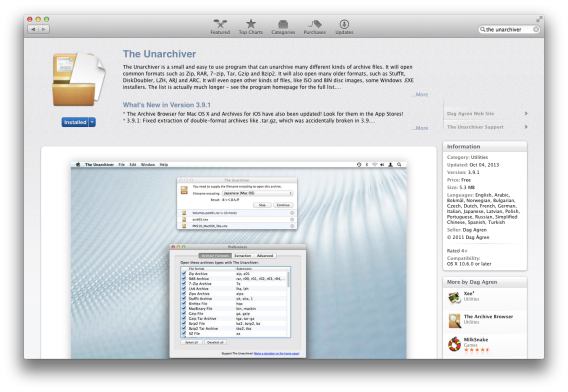
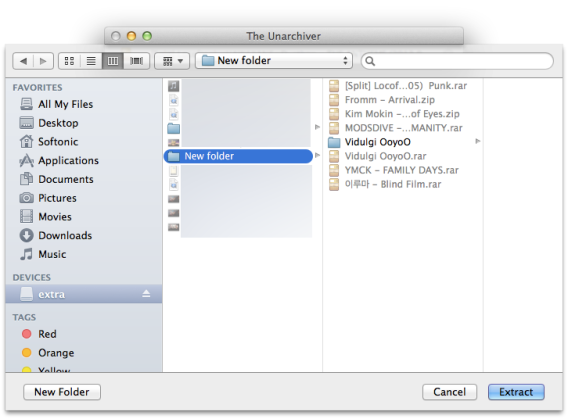
 Keep in mind that The Unarchiver is only an app that extract files. It won’t create archive files. You can create zip files through OS X’s Compress option though. If you deal with a lot of archived files, The Unarchiver is a great free option. There are other paid apps, but if all you’re looking for is a quick and painless way to extract files then this is the app to use.