 Working as software reviewer means that you have to install at least twenty new apps every week and uninstall them again as soon as you’re done with your analysis. However we all know how unhealthy this habit is for Windows, so using a virtual environment is almost compulsory. Virtual operating systems provide you with a safe sandbox where you can test as many programs without affecting the host system. What’s more, they usually feature an easy way to rid of a slow, app-ridden Windows and get a fresh, brand-new installation in a couple of clicks.
Among the several virtualization apps available today, I’ve tried VMware Player and VirtualBox. Though I’ve used the latter only for a few weeks now, I already found some interesting similarities – and its corresponding differences – between both programs that I thought would be worth pointing out.
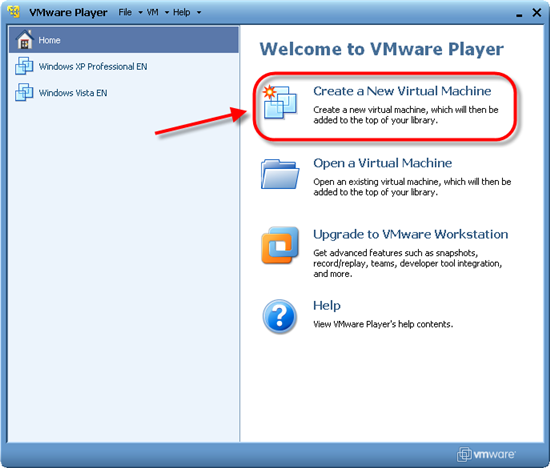
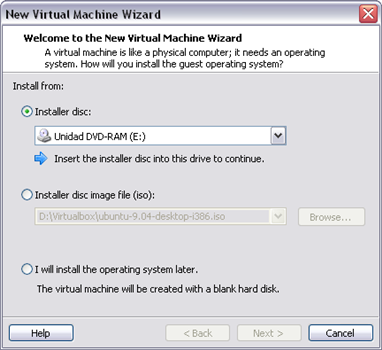
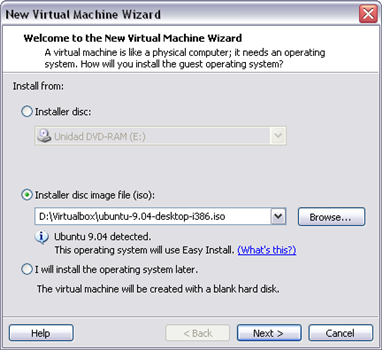
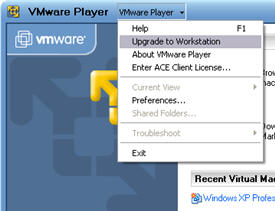 Both VMware Player and VirtualBox are free apps, which is always a good point for a start. However VMware Player is more limited, because it doesn’t allow you to create new images (i.e. virtual operating systems) while VirtualBox does. If you want to create new images for VMware Player, you’ll have to upgrade to the more pricey Workstation version.
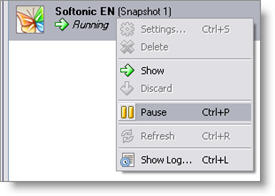
As for general performance, I find VMware Player to be more stable than VirtualBox. The first one usually runs very smoothly – except for the odd blue screen of death – while the second one has often shown a blank screen on my virtual machine, which means the system is frozen and you need to restart. Besides this stability issue, the truth is that VirtualBox is lighter on resources than VMware Player, making it easier to work with the host and guest systems in parallel. Relating to this, VirtualBox also features a really handy tool you don’t find in VMware Player: the possibility to “pause” the virtual machine, so that a good percentage of processor power and memory are released and you can then run heavy apps like Photoshop with no further hassle.
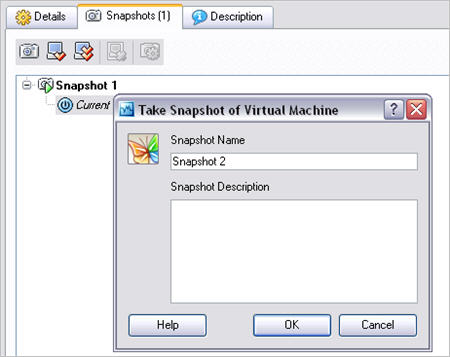
 Regarding usability, both programs have their own pros and cons. On the one hand, VMware Player supports shared folders and also lets you directly drag and drop files between both the guest and host systems, while VirtualBox only works with shared folders that you need to configure before running the program. Keyboard and mouse swapping between the guest and host machines is generally more intuitive in VMware Player, whereas VirtualBox requires you to press a hotkey. Also, copying and pasting between the two operating systems works for VMware Player, but not for VirtualBox. On the other hand, VirtualBox enables you to create the so called snapshots, which let you restore the system to a previous state at any time. This comes in really handy when the image is not working properly and you can’t bother to create a new one: simply restore it to a previous fully working snapshot and you’re done.
In general terms, I’d say VMware Player is more intended to heavy users who need a reliable, powerful virtual environment to test software or try new operating systems, while VirtualBox seems to be more focused on not so techie people, who only want to test new apps in a safe environment without compromising the integrity of their computers. Now it’s your turn to try them and make up your mind.