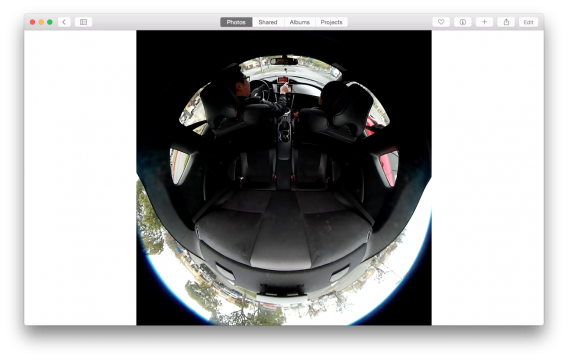
Hands-on with Photos for Mac, Apple’s iPhoto replacement

Photos for Mac is finally here. Apple let its iPhoto app languish for a long time before deciding to scrap it and create Photos for Mac. The company first announced the app back in June 2014 and today, we have the full version to play around with.

Is it a worthy successor to iPhoto? Let’s find out.

Download and Installation

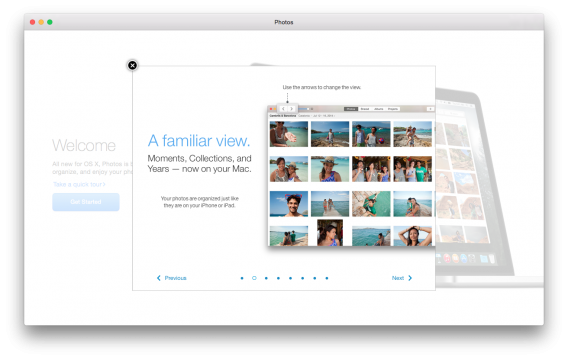
Photos for Mac welcome screen

Photos for Mac can be downloaded as a patch for OS X 10.10 Yosemite. If you haven’t updated to Yosemite, it’s required to use Photos for Mac. If you’re already running Yosemite, just head over to the Mac App Store and hit the “Updates” button. You’ll see a 2.02GB update with Photos for Mac.

Once the download starts, grab a coffee or tea because you’re going to be here for a while. In addition to the sizeable download, installation of the patch takes another 15-20 minutes.

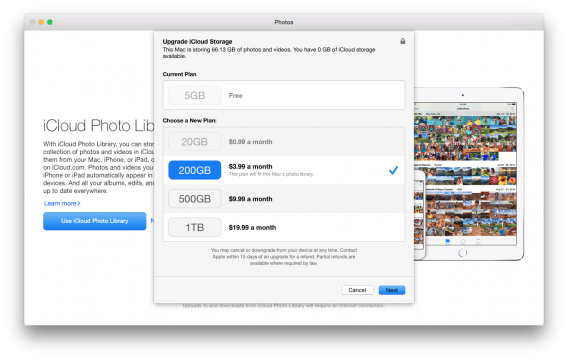
On first launch, you’re asked whether you want to import your iPhoto library or start fresh. If you select your iPhoto library, you’re greeted with an upsell for iCloud storage. Since I had over 60GB of photos in my iPhoto library, I was told to get the 200GB plan for $3.99 per month. Then wait another half hour as Photos readies your photo library.

iCloud pricing

iCloud storage prices are reasonable but it may surprise users who’ve been happy using iCloud for free with iPhoto. The free plan still exists and has confusing restrictions like only keeping the last 1000 photos and for a set period of time. Free users get 5GB of storage, which isn’t a lot. You also don’t get full resolution photos synced to your iCloud if you don’t pay. Upgrading your iCloud storage makes sense if you live in Apple’s Mac and iOS ecosystem.

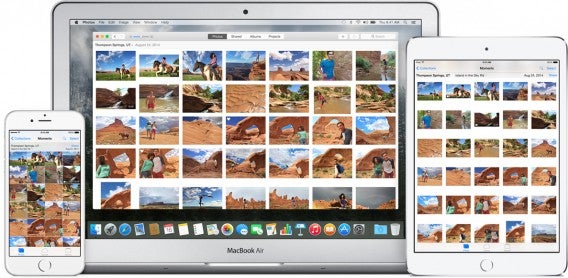
If you don’t pay for a subscription you’ll be missing out on one of Photos for Mac’s greatest features: automatic syncing between devices. If you edit a photo on one device, the changes will automatically be pushed to all your devices. For many, this is the app’s killer feature.

icloud_photo_library_large

However, if you’re an Adobe Lightroom fan, you’re better off getting the $9.99 photography plan from Adobe. This gets you access to Lightroom, Photoshop, and the company’s other mobile photography apps. And you’ll be able to sync all of your work and changes using Adobe’s Creative Cloud.

Performance

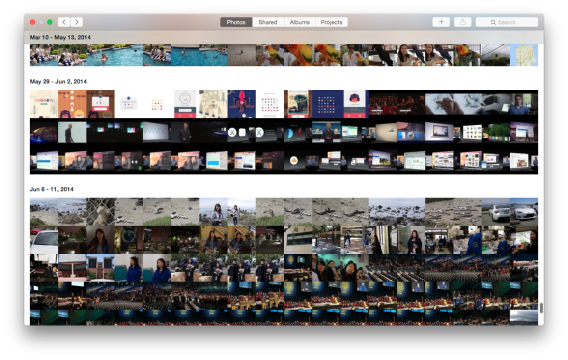
Photos for Mac tumbnails

One of iPhoto’s biggest annoyances was its terrible performance. The app took forever to launch and large photo libraries crippled it. Thankfully, Photos for Mac fixes this for the most part. Photos launches almost instantaneously and navigating large photo libraries is a breeze now.

However, I did experience annoying delays when moving between album views. Zooming in and out from thumbnails was fine but jumping between full screen photos and back to thumbnail view caused the app to chug for a second or two. I’ll cut the app some slack as I’m testing it on a 2010 MacBook Pro, which is ancient by technology standards.

Features

Apple did a good job of streamlining the myriad of features in iPhoto. Not everything made the cut, but most of it is here. I was curious to see if Faces and Places would make it to Photos for Mac since I used them a lot in iPhoto. Thankfully, they’re still in the app, but they’ve been moved around.

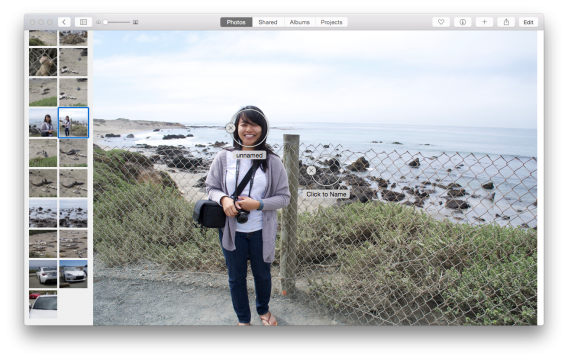
Photos for Mac Faces

That fence is not a face, Photos for Mac.

Faces is hidden from the user for the most part. You can browse your tagged faces in the album view but it was initially unclear how to tag new faces. The option to tag new faces is now hidden in the “Get info” menu. At the bottom is the option to add new faces, which automatically circles things in a photo that Photos thinks are faces.

Faces has never been the most accurate tool in iPhoto and it’s the same story in Photos for Mac. Expect the app to circle pieces of toast and carpet as faces. However, when it does recognize faces, it works extremely well. All it takes is a click to tag a recognized face. You can manually tag a face by typing in a contact’s name.

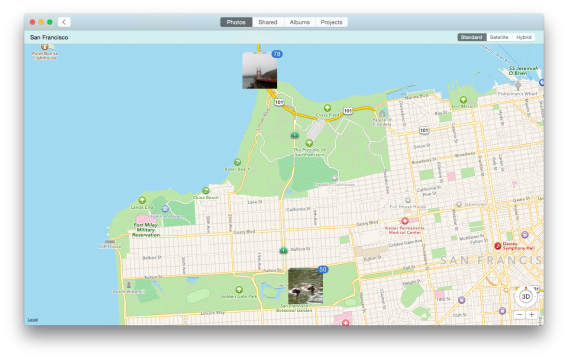
Photos for Mac Places San Francisco

The Places features was even harder to find in Photos. iPhoto had a map view to browse your photos by location, but Photos for Mac hides location from you. To view location photos by location, you’ll have to zoom out from the Photos tab and look for year and locations listed. Clicking on a location will bring up a map view with stacks of photos on top of each visited location. It works just like it did in iPhoto but it’s harder to find.

The biggest change is Photos for Mac’s editing mode. Everything has been simplified and is more newbie friendly than ever. This is either a very good or bad thing, depending on how you were using iPhoto before.

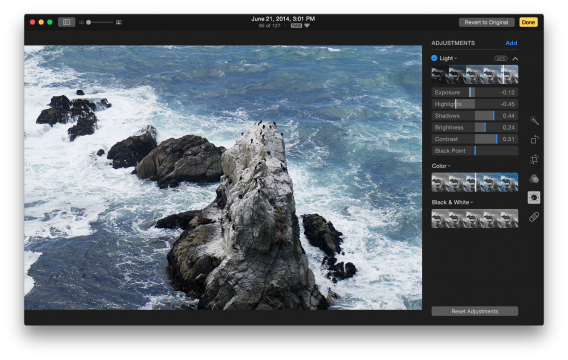
Photos for Mac editing sliders

Personally, I find the simplified adjustments great. There’s an auto-enhance button that does great work. You can also use a slider to adjust under or overexposed photos, which changes settings automatically. You can then go back and tweak individual sliders for highlights, shadows, contrast, etc. I think Apple did a good job of balancing ease of use with more advanced features. There’s even an auto-crop feature that analyzes your photos for horizons to correct tilt.

If you were an Aperture user, you’re going to hate Photos for Mac. It’s too simplified for amateur photographers and especially professionals. You’re better off paying for Adobe’s photography subscription.

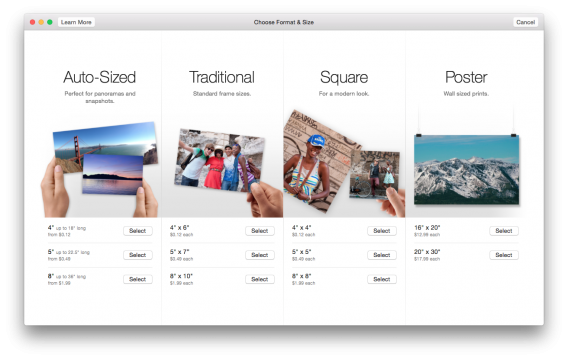
Photos for Mac print pricing

For scrapbook makers, Apple still includes the ability to make photo books, prints, cards, and letters. They’re extremely expensive but do offer professional results. Plus, it’s easy to create projects and order them from within the app.

Photos for Mac video

Videos can still be imported into Photos for Mac and now they’re better organized. You can play back videos inside the app but there’s no full screen mode, which was also the case for iPhoto. However, you can now trim your videos but you’ll want to use iMovie for more involved editing.

What’s missing?

Not much, actually. The biggest omission is the star rating system, which was something I never used. Instead, you can “favorite” a photo with a heart. This helps you organize your photos somewhat as it creates a folder for your favorite photos.

Also missing is Facebook and Flickr sharing, which isn’t that big of a deal. You’ll just have to export your photos before uploading to each service instead of doing everything in the app.

One omission that will probably upset some users is the ability to geo-tag photos. You can browse by location but you can no longer manually tag your photos. This is annoying if you have a camera that doesn’t collect geo-location data.

Wrap-up: A great upgrade for most users

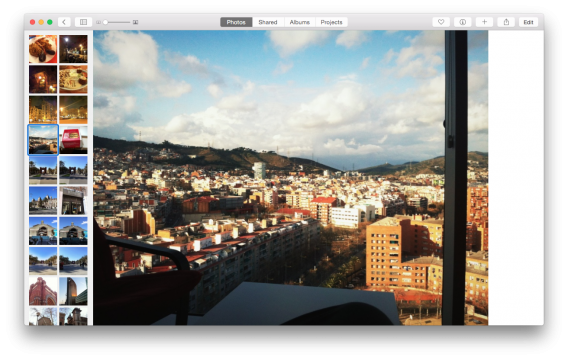
Photos for Mac Barcelona office

Apple did a really good job with Photos. It’s easy enough to use for any user while keeping some more advanced features. Pro photographers were likely using other apps like Aperture or Lightroom. In addition to discontinuing iPhoto, Apple is also giving Aperture the ax, which leaves pro photographers with one choice: Adobe Lightroom. That’s not a bad thing as Lightroom is a great program with a ton of support.

For most users, Photos for Mac is better than iPhoto in every way. It’s faster, simpler, and is distilled down to the best parts of iPhoto. Sure, you’ll have to get used to a new interface but it doesn’t take that long to do. Some things like Faces and Places could be less hidden but I’m glad Apple decided to keep them.

Photos for Mac may try to get you to subscribe to iCloud but its prices are reasonable and its killer syncing is worth the cost. However, users who wish to stay free can look to Dropbox, Google Drive, Amazon Prime Photos, and Flickr to host and share their photos.

Source: Apple

Related Stories

Internet Explorer is dying: a history of the world’s most hated browser

Office 2016 for Mac feels like the Windows version and that’s a good thing

Windows more secure than OSX? Not so fast.

Follow me on Twitter: @lewisleong

Best free apps for Samsung Galaxy S6

Samsung’s newest flagship phone, the Galaxy S6, is a definite improvement over past Galaxy S phones. Discarding the plastic of the past, the Galaxy S6 is made of metal and glass. The phone now has a premium feel, something Samsung fans have been waiting for.

If you’ve ever dropped a Samsung phone before, the phone was prone to exploding. The removable plastic back would separate and the removable battery would fly out. With the new design the Galaxy S6 doesn’t have a removable back cover or microSD slot anymore, but offers three storage options (32/64/128 GB) so space shouldn’t be a problem.

Samsung uses its own user interface called TouchWiz, a customized version of the Android OS. The S6 will ship with Android 5.0.2 Lollipop making it one version behind the latest Android 5.1 release. There are minimal changes between 5.0.2 and 5.1 so you’re not missing too much.

Even though the Samsung Galaxy S6 is an amazing phone, it will slow down over time. This is because the more you use your phone, more data is stored making your phone work harder. Take a look at these apps designed to extend your phone’s life that Samsung didn’t decide to include.

How many apps?

The Samsung Galaxy S6 is reportedly shipping with 56 pre-installed apps. This list includes S Health and S Voice. S Health is Samsung’s health app like Google Fit or Apple’s Health App. It collects various health data and can track physical activity. Samsung also developed S Voice, its own voice-activated personal assistant. Similar to Google Now or Siri, you can set appointments, update Facebook or Twitter, and ask for directions.

The S6 will come with Facebook preinstalled and a link to download WhatsApp. Samsung will include Microsoft OneDrive, OneNote, and Skype. Since it’s an Android phone, the regular suite of Google apps like Gmail, YouTube, Google Play Music, and Google Play Store are already installed. Samsung also has its own app store called Galaxy Apps. This apps store is curated by Samsung and is separate from Google Play.

Besides these pre-installed apps, what are the best apps to download to your brand new Samsung Galaxy S6? There are a lot of great apps to expand the usability of your phone so check out this list for apps that are perfect for the Samsung Galaxy S6.

Astro File Manager/ES File Explorer

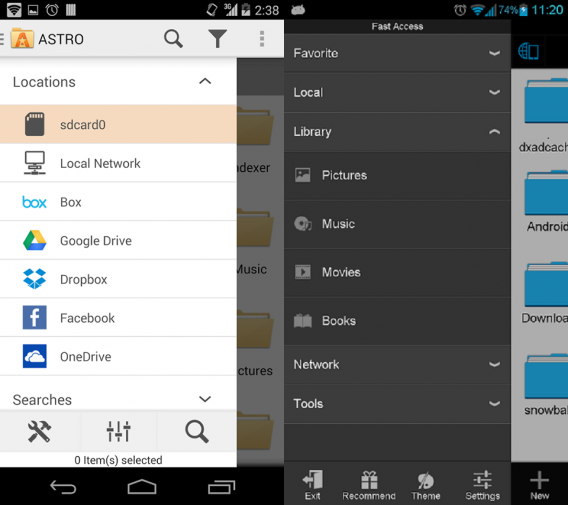
astro es

Did you know you can create folders on your phone and Android will recognize files in different apps? The best way to manage files is with a file manager. Astro File Manager and ES File Explorer are both amazing Android file managers. Both apps can manage files, copy/paste to different directories, backup apps, and connect to cloud storage like Google Drive and Dropbox. One positive for ES File Manager is that you can create or extract ZIP and RAR files and use a USB on-the-go (OTG) drive to copy files onto your device.

Download Astro File Manager

Download ES File Explorer

My Data Manager

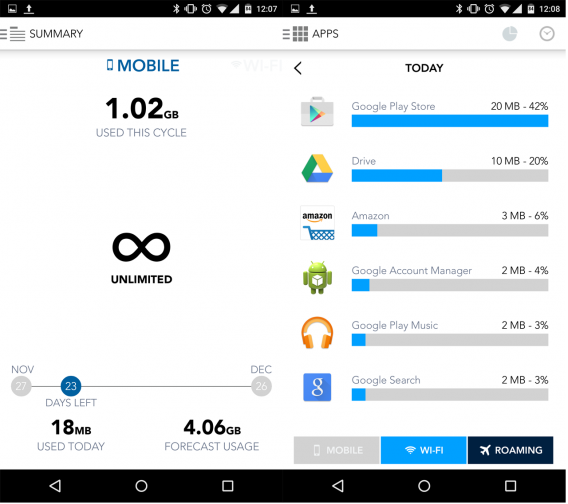
my data manager

There are a lot of different cell phone plans and some of them have data limits. To make sure you don’t max out your data in the first couple weeks, it’s good to monitor your usage. Android has its own data monitor, but it’s not always accurate. My Data Manager tracks all data used by your phone. You can set up the billing cycle to track how much data is used each month. My Data Manager can also set warnings for too much data use to remind you to throttle back until next month.

Download My Data Manager

Speedtest.net

speedtest

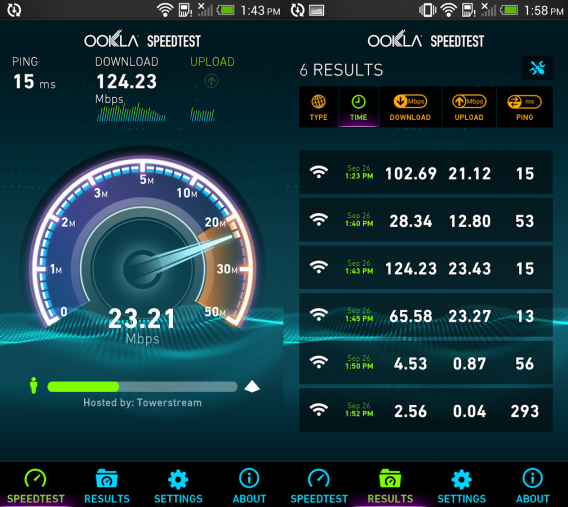
Wireless carriers promise fast data connections. A good way to check is with Speedtest.net. It’s an app that connects to different servers and tests download and upload speeds. If you think you’re phone isn’t loading apps fast enough, try a test. You may find that you’re in an area with poor reception. You can also run Speedtest.net on your Wi-Fi network to test your router.

Download Speedtest.net

WiFi Analyzer


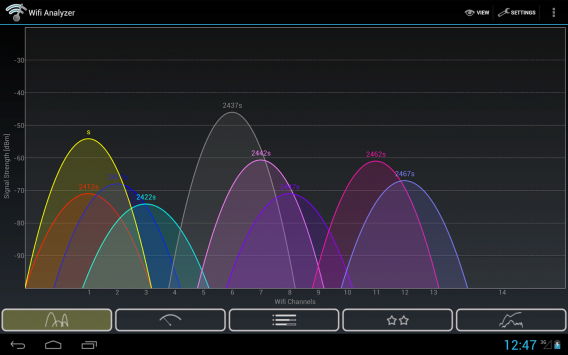
Any time you’re connected to Wi-Fi, you should expect a good connection. Depending on the wireless standard and interference, Wi-Fi speeds can vary a lot. But one thing you might not consider is signal strength. Even though you might be connected to Wireless AC, the current strongest standard, if your router can’t push the signal, you’re going to see slow speeds. WiFi Analyzer reports the signal strength of your connection. It’s an useful tool in homes to see if there are dead spots or if you need to get a wireless extender or new router.

Download WiFi Analyzer

GSM Battery Monitor

gsm battery monitor

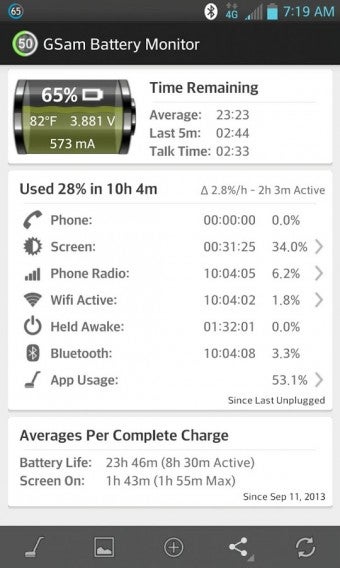
There are a lot of reasons why a smartphone devours its battery. Android includes a battery monitor, but it doesn’t have in-depth information. GSM Battery Monitor is an app that monitors your device and tracks how different apps and services deplete your battery. It will find apps that use a lot of battery in the background. GSM Battery Monitor is a great tool to monitor your phone to extend the life of your battery.

Download GSM Battery Monitor

Cleanmaster

cleanmaster

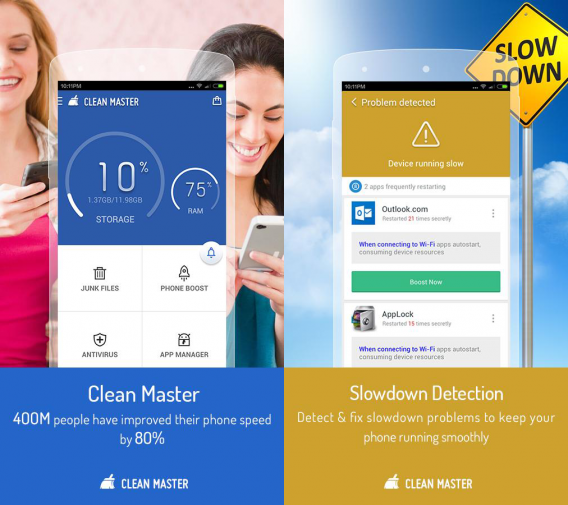
The more you use your S6, the more junk files you create. The more junk files you have, the slower your phone will run. Cleanmaster is an optimization tool that cleans your S6 of unnecessary files. Cleanmaster can also free up RAM so your phone continues to run fast. It’s a great optimization tool that you should run weekly to make sure your phone is running at optimal speed.

Download Cleanmaster

Google Camera/Focal

google camera focal

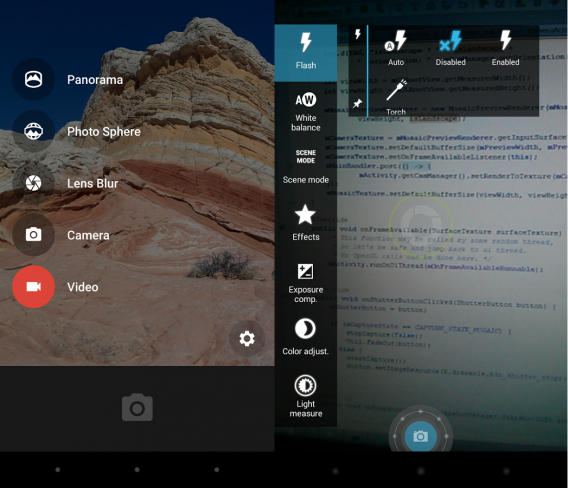
Google Camera is the stock camera app for Nexus devices. It’s also a great camera app with a HDR setting, 4K video recording, panoramas, and photospheres. If you don’t like Samsung’s camera app, give Google Camera a try. According to Softonic’s Android camera shootout, Focal is the best Google Camera alternative. “Its ability to take quick action shots, low-light images, and natural looking stills with nice coloring” helped it win our camera shootout.

Download Google Camera

Download Focal (beta)

Chromecast

chromecast

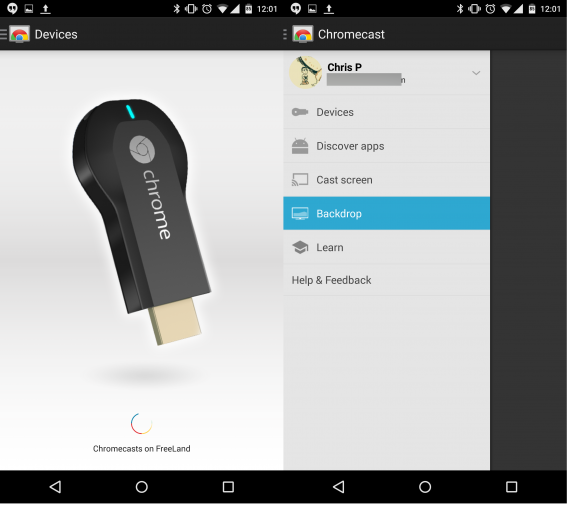
Google’s $35 media streaming dongle is one of the best and cheapest options to stream on your TV. The device supports apps like YouTube, Netflix, HBO GO, Google Play Music, Plex, and Twitch. You can also cast your screen to the TV for apps that aren’t directly supported. The Chromecast app also has a deals section that lists some great deals from supported apps.

Download Chromecast

MX Player/VLC

mx player

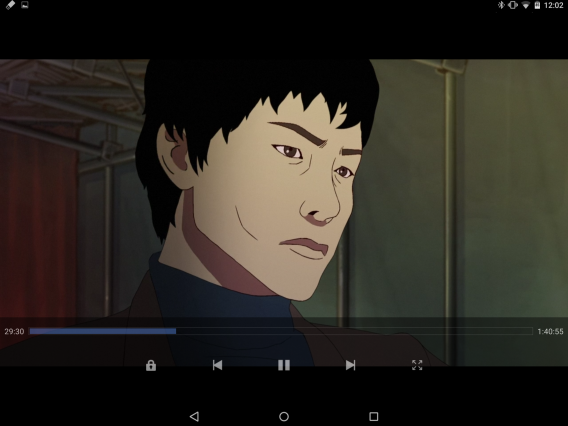
Samsung includes its own video player, but it’s a basic player without many additional options. MX Player and VLC are two of the best media players available on Android. Both support videos with subtitles and can import SRT text files for softsubbed videos. You may be buying videos from Google Play, but anytime you want to play local files, these video players are your best options.

Download MX Player

Download VLC

Inbox

inbox

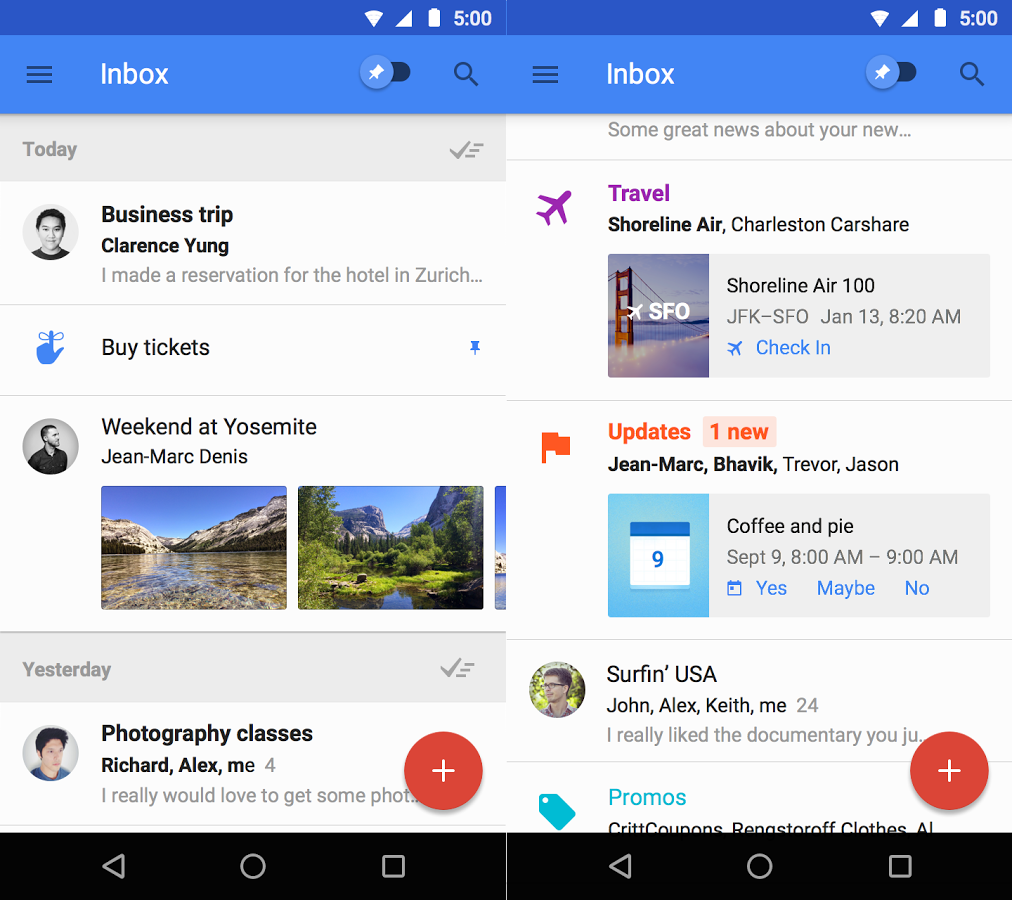
Instead of having to sift through a big list of email, Inbox sorts your mail into different categories. Obviously those deal emails aren’t important enough for your inbox and banking emails could always be sorted together. Instead of deleting emails, you swipe right to be “done” with that email, which archives the message in case you need it later. You can also create reminders directly in Inbox without needing another app.

Download Inbox

feedly

feedly

Catching up on individual websites can take a long time. RSS feeds solve this problem, but finding a good reader takes time. feedly is a great RSS reader that lets you categorize different topics and save them to read later. If you only want to read one topic, use the sidebar and select it. feedly pro has more options, but if you only read your favorite sites, there’s no reason to pay.

Download feedly

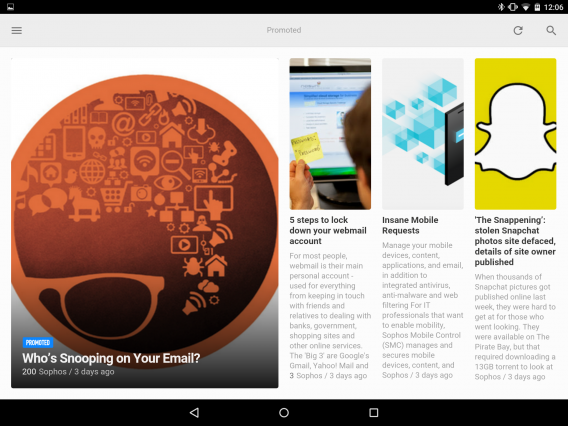
Nova Launcher

nova launcher

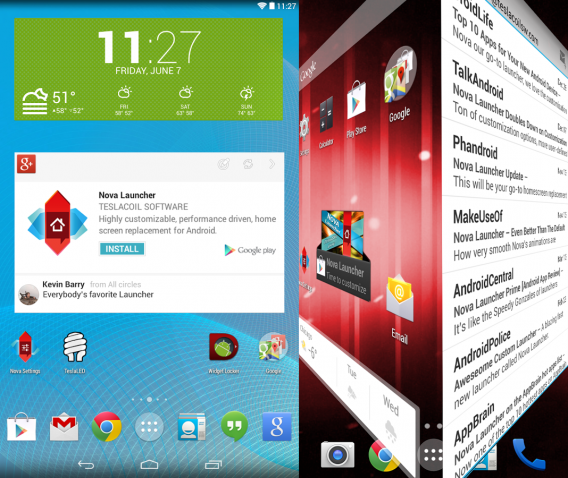
TouchWiz isn’t for everyone. Samsung’s user interface looks a little dated with giant icons and widgets. If you want something more customizable, try Nova Launcher. Nova Launcher is a launcher replacement for any Android device. Instead of using TouchWiz, Nova Launcher will replace your homescreens and app launcher. You can customize the appearance of your homescreens with options like icon size and transitions. If you’re looking for even more customization, download new icon packs to change how app icons look on your S6. Nova Launcher is free, but paying for the app unlocks more features.

Download Nova Launcher

Pushbullet

pushbullet

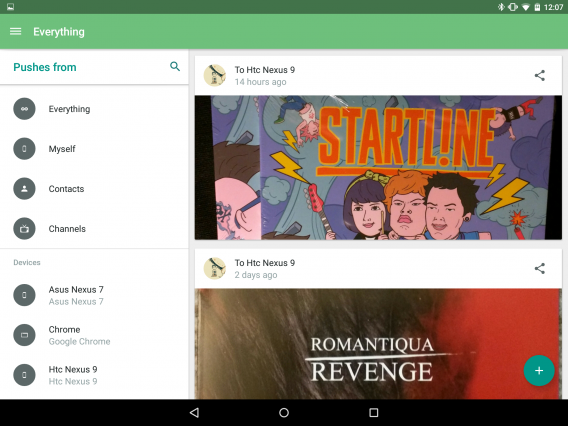
Even though the Galaxy S6 comes with NFC, it’s still difficult to transfer files from one device to another. You could email or upload a file to online storage, but that process gets really annoying. Pushbullet can connect to any device with the app like PC, iOS, and Android. It supports texts, links, and files and can also connect to your desktop and push notifications from your phone. You can also respond to text messages on your computer using Pushbullet.

Download Pushbullet

Waze

waze

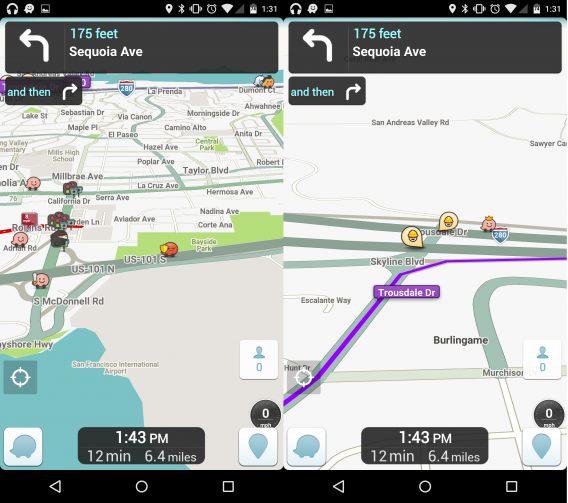
If you need general navigation information, Google Maps is great. But when you want to know current traffic conditions, Waze is the best app to use. Its crowdsourced information supplies current information like congestion or delays. It also suggests new routes quickly to pass by a huge delay. Other information that Waze includes is police sightings, traffic lights, and accidents that are all sourced from other Waze users.

Download Waze

Yelp

yelp

If you ever need restaurant recommendations, Yelp is still one of the best apps to use. It’s easy to find restaurants around you and read reviews telling you if the place is worth visiting. You can refine searches by price, type of food, and whether restaurants are currently open. Anytime you’re looking for a place to eat on a trip, Yelp is the best place to search first.

Download Yelp

This only a small selection of apps you will need for your new Samsung Galaxy S6. Keeping your phone running at top speed is important and the maintenance apps will keep everything running smooth. Android 5.0.2 Lollipop is already a fast operating system, but TouchWiz has a tendency to slow down quickly. These apps will help keeps the S6 running at top speed and help solve other problems you might encounter.

Related Articles

Best free Android games

Best free Android apps

How to use Android 5.0 Lollipop

Follow me on Twitter: @chrislikesrobot

Check out this helicopter mod for Cities: Skyline

Paradox Interactive’s Cities: Skyline has clearly taken city building fans by storm. While the latest SimCity failed to keep fans happy, with broad range of problems, this city sim from small Finnish developer Colossal Order appears to do just what EA’s game didn’t.

One of those things is explicit support for game mods by the community. This open attitude means fans can create and share additions and alterations to Cities: Skyline. Those mods are already coming thick and fast, and one user shared his upcoming mod ‘CityCopter’ on Reddit. This in-development mod will let you fly a helicopter around the city you have created. Check out the video below.

So far the mod includes a helicopter hangar and helicopter, with a visible cockpit and rotors. It already has collision detection, so the helicopter won’t fly through buildings, but creator Nisquity hasn’t announced what the full feature set will be. Reddit commenters have already asked for mission based gameplay to be included, but as it’s currently being developed by a one man team, this could take some time.

Cities: Skyline wasn’t designed to be viewed from such angles, so don’t expect the game to look like Grand Theft Auto just because you’re piloting a helicopter, but as you can see from the video it’s looking pretty cool so far.

There is no planned release date yet, but as the mod is obviously up and running we hope it’ll be available to everyone soon.

Cities: Skyline is available for Windows and OS X (and Linux!).

Source: Reddit

Related Articles

DomiNations is the best mobile RTS available

Killing Floor 2 is bloody and wonderful

http://features.en.softonic.com/should-my-kids-be-playing-this-a-parents-guide-to-games-in-2015

Follow me on Twitter: @jonathanriggall

DomiNations is the best mobile RTS available

While Big Huge Games might not be familiar to most, its game, Rise of Nations, should be. It’s one of the best real time strategy games for PC. The studio went through some difficult times after acquisitions by THQ and 38 Studios, and ultimately closed in 2012. After a couple years of silence, Tim Train and Brian Reynolds reacquired the name and re-opened Big Huge Games while working on its first new game, DomiNations.

I was able to sit with Tim as he explained the design and development of DomiNations. Using its experience with real-time strategy, Big Huge Games saw that no one was doing a true historical strategy game on mobile.

Big Huge Games has been developing DomiNations over the past two years. Even though DomiNations is the company’s first mobile game, people inside, like Tim, have mobile development experience. Development also took a hands-on approach where BHG played DomiNations every day and then talked about it. Rather than use charts and spreadsheets, BHG used its experience to polish the experience to something players wanted.

Real time strategic core

DomiNations is a great free-to-play real-time strategy game for mobile. The game requires an active data connection so there’s no offline play. According to Tim, this is to stop cheating by having the game connect to servers so player data is always synced.

DomiNations

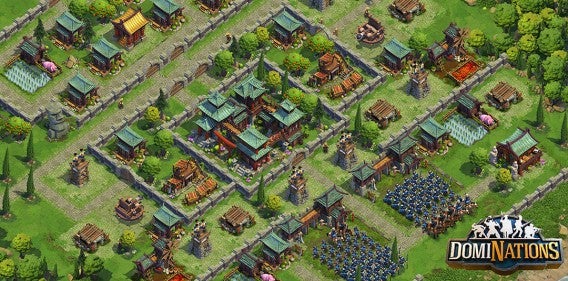
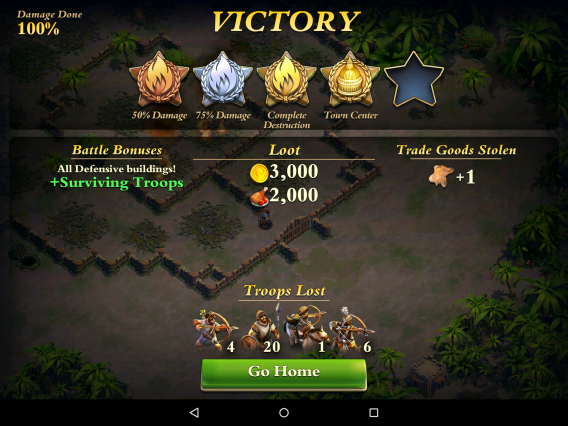
It has the recognizable RTS features you would expect like resource gathering, trade, and army management. There’s also a player-versus-player mode so you can attack other players. You can also battle alone in the single player campaign. You work to conquer a civilization by conquering each city until you get to the capital. Each map gets more difficult so you need to have the right upgrades and army to even make a small dent.

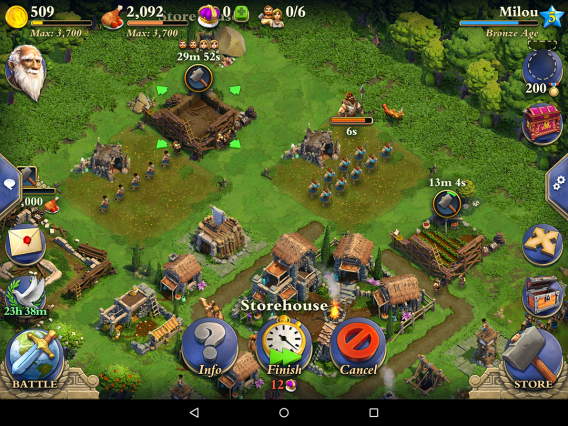
DomiNations starts at the beginning of history. You have an open map to start and a couple villagers. In the first few minutes, you establish a town and have villagers gather resources like hunting animals and mining gold. These resources are used to construct new buildings and build different upgrades. Villagers are your workforce but unlike a desktop RTS, you have a limited number of villagers.

You have to build a lot of buildings to get your civilization flourishing like markets, farms, and training camps for soldiers. You can upgrade buildings like mills and farms to store more food. The blacksmith has upgrades for stronger soldiers that you research. The entire commerce system is based off money and food. Some buildings like a garrison require money. Training soldiers requires food based off the type like foot soldier or horseman.

DomiNations

Since DomiNations is free-to-play there is a premium currency called Crowns. Crowns are used to build faster or complete tasks like training soldiers. Crowns can also buy resources. There is a separate in-game currency with trade goods. These are leather, fur, stone, or diamonds and are used to hire mercenaries.

Once you reach a specific level, you can choose to live as one of seven civilizations. Each one has a special power that can help your civilization. The civilizations you can choose from are British, Roman, Chinese, German, French, Japanese, or Greek. Right now the game only goes up to the Industrial Age, but the goal is to release updates up to the Space Age.

The impressive thing about DomiNations is that even though it’s a free-to-play game, I never felt forced to spend money (but I did already because I’m impatient about building). The single player level progression system never reached the plateau that other free-to-play strategy games have. If you don’t pay for Crowns, you’ll be waiting a lot for construction and upgrades.

It’s not force-to-play

The single player campaign is challenging and makes you want to upgrade your army to attack a city. I’ve played a lot of free-to-play strategy games butDomiNations is the only one I didn’t delete within two days.

DomiNations

When you first start DomiNations, you’ll probably play it for 30 minutes to an hour. After leveling some buildings, it’s very easy to pop in and out to take care of city maintenance. When you want a bigger challenge, jump into multiplayer and try to take out another player. Or join an alliance and attack your enemies together.

Big Huge Games still working on more content to update the game to the Space Age. But as a real time strategy game for mobile, it hit all the right points. And for a free-to-play game, it has found the right balance of gameplay and monetization. I’m looking forward to the next update to try my hand at a new age in history.

Download for Android | iOS

Related Articles

Killing Floor 2 is bloody and wonderful

Microsoft continues cross-platform, device push

What is Tidal?

Follow me on Twitter: @chrislikesrobot

Killing Floor 2 is bloody and wonderful

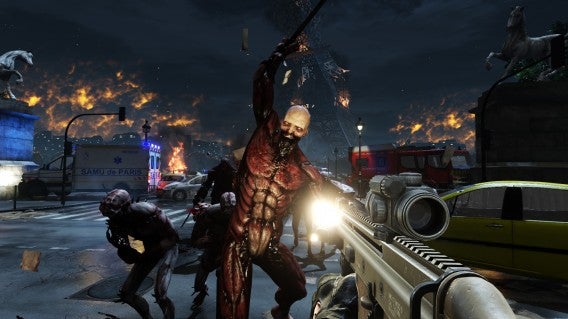
I didn’t know much about Killing Floor 2 when I saw Tripwire Interactive’s demo for the game. I knew there was a first game, obvious by the “2” in the title of the latest game. I also knew it was a shooter where you fought against zombies and other weird looking monsters.

The six player co-op game is wonderfully bloody and difficult. It requires players to work together or everyone will die. There is a solo mode, but you would have to be ready for an insane challenge. Killing Floor 2 is releasing on Steam Early Access on April 21. This build will include three levels, four perk classes, twenty-seven weapons, eight playable characters, eleven zeds, and one boss. There will also be mod SDK support for custom levels.

Default player

<!–
By use of this code snippet, I agree to the Brightcove Publisher T and C
found at https://accounts.brightcove.com/en/terms-and-conditions/.
–>

<!–
This script tag will cause the Brightcove Players defined above it to be created as soon
as the line is read by the browser. If you wish to have the player instantiated only after
the rest of the HTML is processed and the page load is complete, remove the line.
–>
brightcove.createExperiences();


Tripwire Interactive is very careful about releasing a polish build into Early Access. There’s still a lot of work to complete, but this section Killing Floor 2 is a great sample of what to expect from the finished game.

I don’t care about the story, but that’s OK

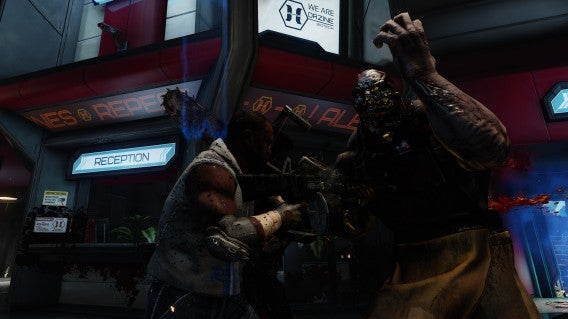
The story of Killing Floor 2 is kind of secondary to its gameplay, but explains the different environments. You play as a survivor in Europe, after “Horzine Biotech’s failed experiment has quickly spread and gained unstoppable momentum, essentially paralyzing the European Union.” In the demo, I played on a street in Paris with the Eiffel Tower in the distance. There was also a lab level and a base where you fought outside in the snow.

Killing Floor 2

Before you start a game, you set the level, difficulty, and how many waves of “zeds,” or monsters, you will fight against. The number of zeds differ depending on the wave, but the highest I saw was over 120 monsters in one wave.

I like that bowler hat

There are different characters you can choose and customize. Customizations aren’t that in-depth. There’s no true character creator, but there are enough options so you can have recognizable characters. Customizations include different costume colors or accessories like hats or glasses. You also choose a class, that aren’t locked to specific characters (which is nice). The standard assault, medic, and support classes are available, but there’s also an amazing melee class called the Berserker who gets up in the faces of zeds and beats the crap out of them.

Killing Floor 2

Killing Floor 2 has levels which are tied into the different perks. These perks are class-specific, but can give small buffs to yourself or your team. I asked how long it would take to get to level 25, the highest level, and I was told around 40 hours. You unlock new perks when you reach different levels and choose between two perk options. These perks are passive so you don’t have to activate them during combat.

Level 0 teaches you to work together

The first round of the demo had us playing as level 0 characters. I chose the support class, equipped with a shotgun and pistol. The first wave wasn’t a big problem since these zeds were mainly slow walking zombies. There were some bigger zeds with giant swords for an arm, but they weren’t that difficult to kill. But even with wave one, by the end I was running out of ammo and was forced to use a pistol.

You earn money after each wave and you run to an upgrade station as the between round counter falls. You use funds to buy new weapons, buy ammo, or body armor. A cool feature is that you can drop money for other players. This is important because you need to keep everyone alive..

Killing Floor 2

Each class has different weapon upgrades. The support class gets different shotguns like a sawed-off double barrel shotgun up to a 20-round auto shotgun. You can also sell back old weapons for a little cash which makes sense because you are restricted by weight so you can’t carry everything.

Each wave gets more difficult. This is because Killing Floor 2 loves adding new kinds of zeds. Gigantic, fat, acid-spitting zeds, screaming harpy-like zeds, and ant-looking zeds all became the norm in the last few waves. The levels are designed so they can come from anywhere and staying together is very important.

The medic class can throw healing grenades to keep everyone alive. In the first round, we only lasted until wave six. Wave six had some of the biggest and most aggressive zeds in the game. They really enjoyed punching everyone in the face and targeting one player until they died.

Killing Floor 2

By wave six, everyone had upgraded weapons and were fighting in different zones but the amount of zeds Killing Floor 2 released became overwhelming and anyone alone was picked off.

I love the Berserker

The second demo was playing at level 25 with all the perks unlocked. I decided to try the melee Berserker class. That class still gets a pistol, its primary weapon is a shovel. Melee is feels like Dead Island or Dying Light. Attacks are based on your movement. Run forward and you have a vertical attack. When strafing you attack from left and right. The secondary attacker for the Berserker is a heavy attack, which takes longer to wind up, but does more damage.

After a couple of rounds, I bought a sledgehammer with an attached shotgun. You don’t use the shotgun as gun, but use it to add power to the heavy attack swing. This is great for defending against a lane full of zeds.

Killing Floor 2

It did take some getting used to fighting in close quarters, but with a medic behind me constantly healing I was able to defend a passage by myself while knocking the heads off zeds. It was very satisfying. The downside of the Berserker is if there isn’t a medic constantly healing you, you will die quickly.

The Berserker also gets some of the best weapons. The highest level weapon is a saw blade launcher. You can also use it as a melee attack, but that attack depletes the gas tank. You can fire the saw blades and they will ricochet off wall and hit anything in its path. You can also pick them back up to replenish your ammo.

Killing Floor 2

At the very end of the demo, Tripwire offered to let us play the hardest difficulty, Hell on Earth. Even with level 25 characters, experiencing the insane amount of zeds was staggering. Tripwire said that they don’t simply add more zeds to each wave. Zeds are given new attacks that players haven’t seen before. As the Berserker, I only lasted two waves before I was killed. This was because close-quarters combat depleted my health faster than I could heal.

Blood and guts: a great experience

As someone fresh to Killing Floor 2, I found it a lot of fun. Working with your team is the only way to survive. I enjoyed the open level design too because even though there are recognizable lanes for zeds to appear, a lot of times they will climb out of places you didn’t expect.

The Early Access release is a small section of the full game, but I could play this mode for a long time. I’m looking forward to Killing Floor 2’s updates when more people jump into the cooperative madness and combat.

Killing Floor 2 will release on Steam Early Access on April 21, 2015. Retail price is $29.99 (US), ₤19.99 (UK), and €26.99 (EU). The game will be available for PC and SteamOS first with a PlayStation 4 release expected in the fall.

Related Articles

Battlefield Hardline review

Should my kids be playing this? Parents’ guide to games in 2015

Project Spartan: the start of a new era of web browsing?

Follow me on Twitter: @chrislikesrobot

Microsoft continues cross-platform, device push

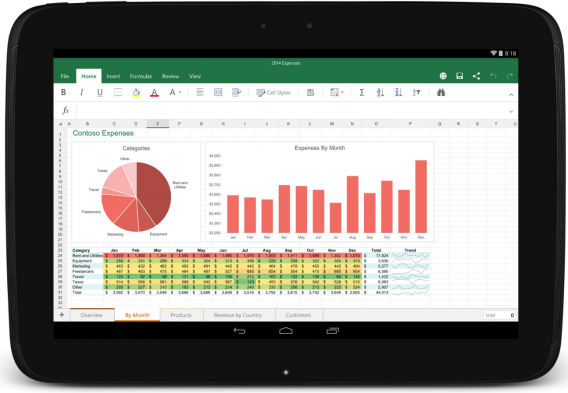
Microsoft has been increasing its efforts to get its software onto an ever more diverse portfolio of devices and operating systems, with the latest move being an agreement with Samsung and Dell last week to pre-install its productivity suite on selected Android tablets.

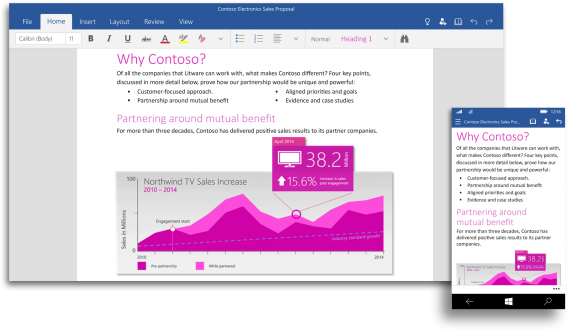
This new partnership for tablet devices covers Word, Excel, PowerPoint, OneNote, OneDrive, and Skype and follows the news announced at Mobile World Congress 2015 that Samsung’s flagship Galaxy S6 and S6 Edge devices will come with OneNote, OneDrive, and Skype preinstalled.

Cross-platform and on all devices

This forms part of Microsoft’s strategy to ramp up its Office activities across all desktop and mobile operating systems in recent months, instead of focusing on delivering products solely for its own Windows operating system. It’s part of a bid to regain market share and stem the rising tide of free alternatives such as Google Docs and Open Office.

Kirk Koenigsbauer, corporate vice president for the Office 365 Client Apps and Services team, summed the strategy up in a blog post when he stated: “Since the Office for iPad announcement last March, we’ve worked hard to bring the power of Office to every person, across every platform and device, so people can get things done on their terms.”

Mac before Windows

In early March, the company put out a preview of Office 2016 for Mac, which was a much needed update for the suite given that the last version (Office 2011 for Mac) was released in 2010. The product was also built to take advantage of unique features of Macs, instead of being a port from Windows. Significantly, the version for Mac was release before the Office 2016 for Windows preview, although this followed only a few weeks later.

The Office for Mac 2016 preview highlights another important point in this cross-platform/device approach: that the company is building its products specifically for certain operating systems, rather than adopting a one size fits all approach.

Koenigsbauer shared this in a blog post: “Similar to our recent announcements of universal Office apps for Windows 10 and Office for Android tablet, Office 2016 for Mac shares an unmistakably Office experience – but it is also thoughtfully designed to take advantage of the unique features of the Mac.”

Office for mobile devices evolution

This strategy of offering its software across all operating systems started in earnest with the relaunch of Office for iPad in March 2014 , at the same time that Microsoft announced that it would be making Office Mobile free for iOS and Android devices. While the individual iPad apps gained positive reviews, the Office Mobile versions didn’t fare so well. This then led Microsoft to release standalone versions of Word, Excel, and PowerPoint for both the iPhone and Android tablets, as well as make editing and creating free under the strapline “More of Office for everyone.”

When Microsoft unveiled Windows 10, it also took the wraps off a version of a touch-optimized version of Office designed specifically for tablets and phones. Microsoft is pre-installing the apps for free on phones and small tablets running Windows 10, and making them available to download from the Windows Store for other devices (which go all the way up to the Surface 3).

Regain market share

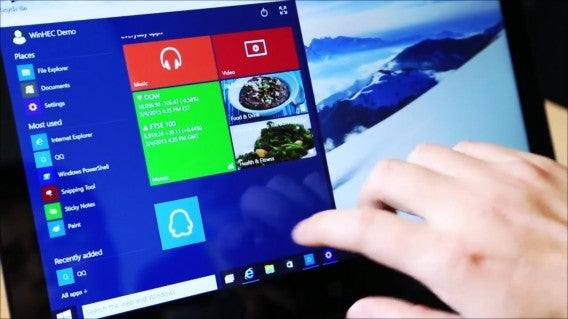
Windows 10 Tencent

This is not the only change in strategy that Microsoft has been undergoing in recent months. It announced recently that it would be making Windows 10 available this summer as a free upgrade to users, as well as possibly making it available to pirated copies of the operating system (although this remains unclear). By building Windows 10 for phones on the same core as the desktop operating system, the company will also be hoping to finally make a mark on the mobile market.

These shifts in strategy could be down to the appointment of Satya Nadella as CEO or it may be a delayed reaction to the competition, but it seems like both a wise and pragmatic approach from the company.

Related Articles

Best free office suite

What’s new in Office 2016 for Windows

Microsoft’s mobile strategy: build it better

Follow me on Twitter: @karenmccandless

What is Tidal?

What is Tidal and why should you care?

Tidal is a “new” streaming music service that offers high definition audio and exclusive content to its subscribers. The service has been around since 2009 but under the name WiMP. In 2014, the company rebranded WiMP as Tidal and it was bought by rapper Jay Z for $56 million in March 2015.

While some services like Spotify and Pandora offer free music streaming, Tidal is premium-only. You can get access to its catalog in standard definition audio for $9.99 per month, the same as Spotify. Those with more discerning ears and opt for the high definition subscription for $19.99 per month.

What type of exclusive content does Tidal have?

Tidal will feature exclusive content that is locked to the service before being released on other channels. It’ll be difficult for artists to keep their content exclusive since it’s very easy to capture and repost songs and videos to sites like YouTube or SoundCloud.

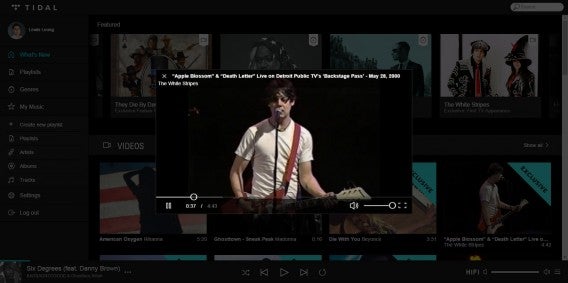
White Stripes exclusive video

In the few weeks since Tidal’s marketing push, I’ve seen exclusive content get posted and then pulled, forcing intrigued fans to sign up for Tidal since it’s the only place to get that content at the time. This will undoubtedly upset some fans who don’t want to pay for a Tidal subscription.

Tidal also features exclusive video. It’s not just new music video releases either. I found a video of the White Stripe’s first television performance from 2000. It’s neat but there’s not enough exclusive content at this time to make the service compelling. That could change in the future.

What is high definition audio?

High definition audio is uncompressed, CD-quality music. Most other competing music streaming services only offer lossy, compressed music in MP3 or AAC formats. These formats basically squash the highest treble and lowest bass notes to keep files sizes small.

TIDAL’s high def streaming tier offers uncompressed FLAC streaming. FLAC is an open-sourced audio codec that doesn’t compress audio so its files are  many times larger than MP3s. For comparison, Tidal’s FLAC files stream at 1411kbps while it’s standard definition AAC tracks stream at 320kbps.

Will I notice a difference?

It depends. If you have expensive audio gear and know what you’re looking for in terms of audio quality, you’ll likely notice Tidal’s high def streaming sounding fuller and more engaging. If you’re listening to music with the earbuds that came with your iPhone, you’re not going to notice.

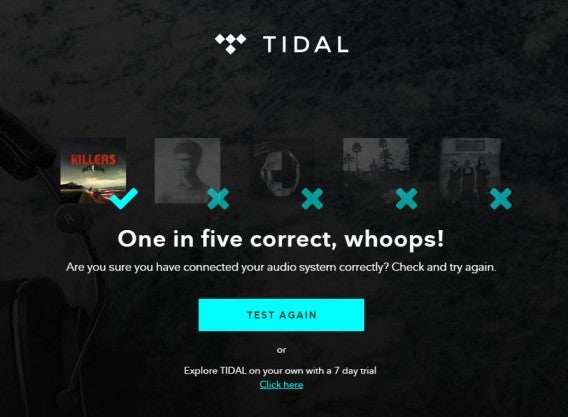
Tidal offers a free (but flawed) test for interested subscribers to see if they can tell a difference. I’ll cover if you can tell a difference in audio quality in a future post.

Tidal test failure

Why are there so many famous pop stars backing Tidal?

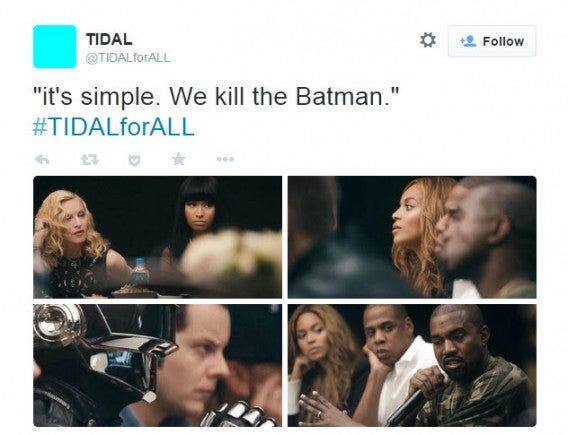
You’ve probably heard the name Tidal as there are a ton of famous musicians backing the service. Daft Punk, Kanye West, Beyoncé, Coldplay, Madonna, Nicki Minaj, Rihanna and Usher are just a few of the big names tied to Tidal. Tidal has been pushing its marketing hard with the #TIDALforAll Twitter hashtag to raise awareness.

What are they raising awareness for? Well, musicians have been getting the short end of the stick, according to Jay Z. The rapper wants musicians to be appreciated for their art and to be paid for it. “If Aloe Blacc and his writers, the guys he wrote with, are not seeing a $4,000 check from 168 million streams. They did their job, they worked, they done it. The people loved it, the people consumed it. Where’d it go? People didn’t pay or stream Aloe Blacc’s music for it to turn into vapor and go into the air. Where is it?,” asks Jay.

This argument has been stewing for years as artists report measly earnings from streaming services. Damon Krukowsky of Galaxie 500, an indie band, reportedly made $9.18 from 6,000 plays of his song. When artists are being paid fractions of a cent for each play, it’s easy to see why musicians are mad.

Tidal we kill the batman

Pop musician Taylor Swift made waves late last year when she removed her entire discography from Spotify. “I think there should be an inherent value placed on art. I didn’t see that happening, perception-wise, when I put my music on Spotify. Everybody’s complaining about how music sales are shrinking, but nobody’s changing the way they’re doing things. They keep running towards streaming, which is, for the most part, what has been shrinking the numbers of paid album sales,” said Swift. And yes, you can find Swift’s entire discography on Tidal, with the exception of her latest album 1989. You’ll have to buy the CD or download it from iTunes for that album.

With Tidal, Jay Z hopes to put artists back in control over their content.

Curious about Tidal? You can try the service free for 30 days by signing up here.

Related Stories

Best free Android music players

How to use Rhapsody

Best apps for the Apple Watch (so far)

Best free Android apps

Follow me on Twitter: @lewisleong

Best shopping and deals apps

Just because you don’t have a lot of money to spend doesn’t mean you can’t have nice things. Companies have sales all the time; you just need to know where to look.

Enter shopping deal apps to help you shop. There are tons of them out there that highlight current deals and help you compare prices from different stores.

Don’t be a sucker and pay full retail price on anything again. Here’s a list of the best apps to help you score deals.

LivingSocial

LivingSocial

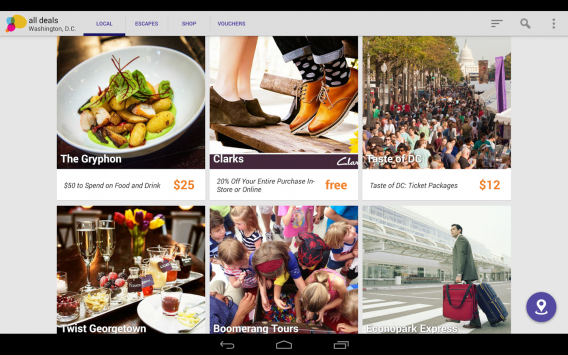
LivingSocial has been around for a long time and offers great deals on things to do like concerts, cruises, and other things. If you’re at a loss about what to do on your next date, check out LivingSocial’s deals for events in your area.

The deals are tailored to your interests and location. If you’re looking to get out of town, LivingSocial also features travel packages at a discount.

Once you find something you like, you can buy it within the LivingSocial app and it’ll be sent right to your door.

Download LivingSocial: Android | iOS

Groupon

Groupon

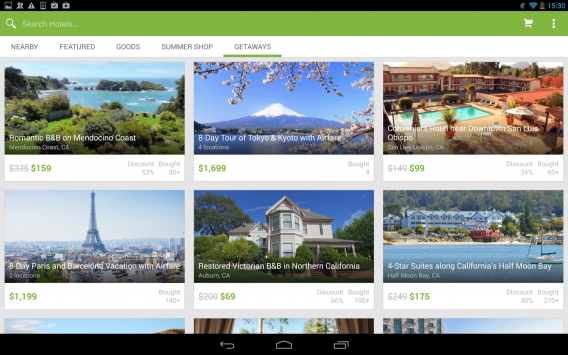
If you don’t see anything you like on LivingSocial, try seeing if you like anything in Groupon. The two apps and services are very similar, offering deals tailored to your interests and location. There are new deals everyday so you’ll want to check back often so you don’t miss something.

Many of Groupon’s deals have an expiration date so it’s nice to see the app sort your purchases by order of expiration. You don’t want to waste money by buying a deal just to have it expire on you!

Download Groupon: Android | iOS

RedLaser

RedLaser for iOS

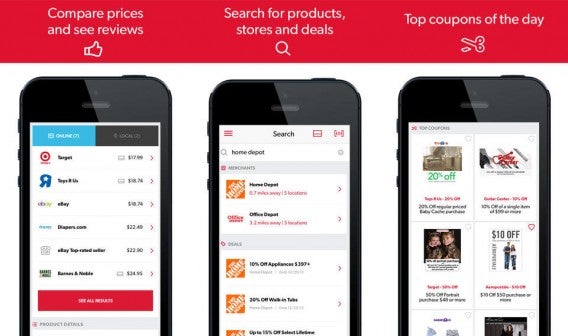
If you need something RIGHT NOW, RedLaser can help you find the best prices locally. RedLaser is a comparative shopping app that shows you prices from all the stores around you that carry the product you’re looking for.

RedLaser makes search easy with its barcode scanner. Take your phone and scan the product at one store and you’ll see prices for that product from competing stores. The app also offers alternatives in case that product is out of stock or there’s a cheaper alternative.

While RedLaser is most useful for searching products at brick and mortar stores, it also shows online results if you don’t mind waiting for the product to be shipped to you.

The app also keeps all your loyalty cards in one place so you don’t have to stuff your wallet with cards you use once in a blue moon.

Download RedLaser: Android | iOS

ShopSavvy

ShopSavvy

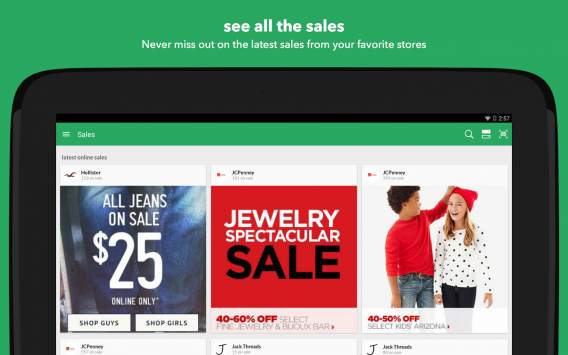
ShopSavvy works just like RedLaser but also highlights current deals on its homepage. Browse the app’s deals or start searching for something specific.

If you’re at the store, ShopSavvy is great for finding the competition’s prices for price matching. This saves you from having to drive to another store, saving you time and gas.

ShopSavvy can scan barcodes, QR codes, or you can type in the product name if the scanner doesn’t work. Best of all, you can enable price drop alerts so you don’t miss a sale.

Download ShopSavvy:  Android | iOS

Amazon

Amazon for iOS

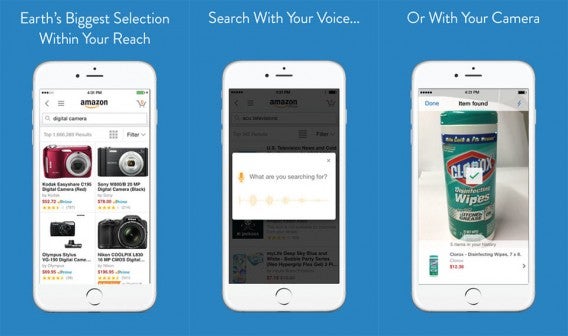
Amazon is one of the biggest online retailers in the world and will probably have what you’re looking for. The company’s official app includes a barcode scanner so you can find out how much Amazon is charging for a product.

The app lets you browse Amazon’s huge product database and lets you compare prices from different sellers on the site. The app is great just to check if you’re getting ripped off at the store. Many brick and mortar stores like Best Buy actually price match Amazon’s prices so have the app ready to show a sales associate.

Amazon also owns Woot now, a site for daily deals. Check out Woot for daily deals you won’t want to miss.

Download Amazon: Android | iOS

SlickDeals

SlickDeals app

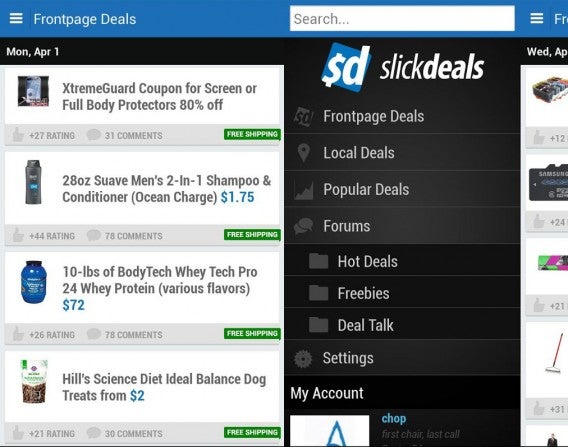
SlickDeals is a unique deal app in that it’s community driven. There are forums where people help each other seek out the best prices for a myriad of products.

SlickDeals is a great app for browsing for stuff you didn’t even know you needed. The app is constantly updating with the latest deals to keep you coming back for more. You can even set up push notifications for specific keywords so you don’t miss out on a deal, though this could get annoying if the keyword is too broad.

Download SlickDeals: Android | iOS

Smoopa

Smoopa

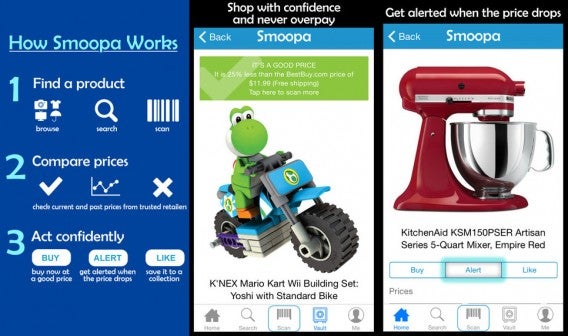
Smoopa is a hybrid of your traditional comparative shopping app and a community-driven app like SlickDeals. You can browse different product categories or by store. The app includes a barcode scanner to help you quickly find something.

Where Smoopa gets interesting is with its “collections.” People can collect different products into its own collection, which they can share with other Smoopa users. It’s almost like Pinterest but more focused on buying, rather than inspiration.

Download Smoopa: Android | iOS

ShopAdvisor

ShopAdvisor

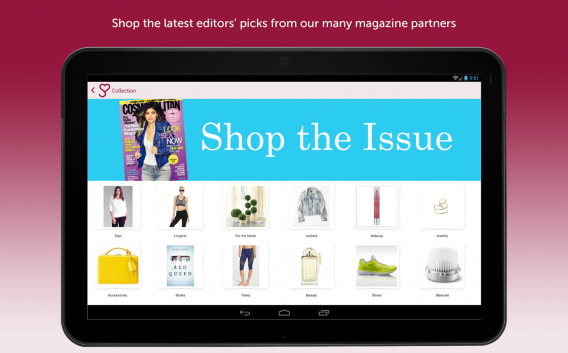
ShopAdvisor offers Pinterest-like browsing, which makes it a pleasure to browse different products. You might just get sucked in looking at items you weren’t even searching for.

The most interesting part of ShopAdvisor is its partnership with magazines. You can “shop by issue,” which lets you browse the items covered in that specific issue. Cosmopolitan, Marie Claire, Vogue, People StyleWatch, Real Simple, Men’s Health, This Old House, Cooking Light, and Parent & Child are just a few publications ShopAdvisor is working with.

Download ShopAdvisor: Android | iOS

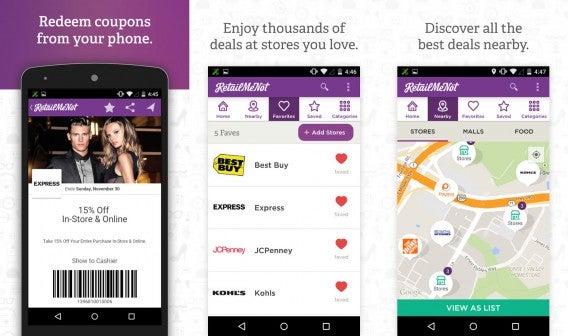
RetailMeNot

RetailMeNot

RetailMeNot provides shoppers with highly curated and accurate deals. Never miss out using a coupon or coupon code by using this app.

RetailMeNot features deals and coupons from over 50,000 retailers so you should be able to find everything you’re looking for. You can browse by curated best offers or look for something specific. Coupons are verified daily so you should only get coupons that work.

Want something now? RetailMeNot can point you to the way of the nearest store with the best deal.

Download RetailMeNot: Android | iOS

Header image credit: Martin Abegglen via Flickr

Related Stories

Best free shopping apps

Best apps for clothes shopping

You go girl! Why so many apps for women are just plain sexist

Follow me on Twitter: @lewisleong

Best free Biblical games

Most people use smartphones and tablets to communicate and play games. Whether you’re using messaging apps, social networks, or playing games, there are also educational apps to learn from. You may not realize, but there are a lot of different kinds of biblical apps on Android and iOS.

If you’ve been looking for a way to learn or teach the Bible, check out this list of games.

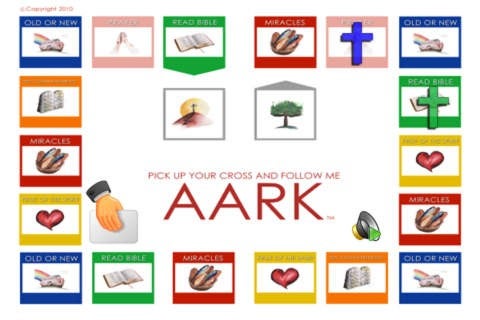
AARK

aark

AARK is a digital board game that explains words in the Bible. The app is great for kids as they start learning all the amazing and incredible stories of the Old Testament and New Testament. The simple design is easy to understand with a simple and visual design.

Download for iOS

Bible Adventures for Kids

bible adventures for kids

From American Bible Society, Bible Adventures for Kids contains ten Bible stories and twenty games. Another app for young children, the app helps them understand the most popular Bible stories. Learn about David, Daniel, Solomon, and more. You can also learn scripture that’s either simplified for reading or simplified audio to listen to. The goal of Bible Adventures for Kids is to help make the Bible easily understandable so no one confuses the words.

Download for Android | iOS

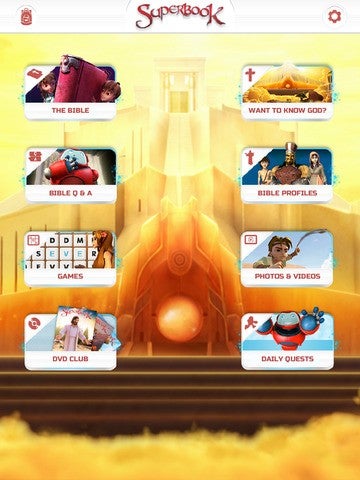
Superbook Kid’s Bible, Videos and Games

superbook

The Bible would confuse a child. Superbook Kids’ Bible uses a children’s version to present the complex writing into easy to understand lessons. The app also includes answers to common questions children may have about the Bible. Kid’s Bible is designed for kid’s so navigation is very easy. There are also dynamic video clips to watch in case they didn’t understand the text.

Download for Android | iOS

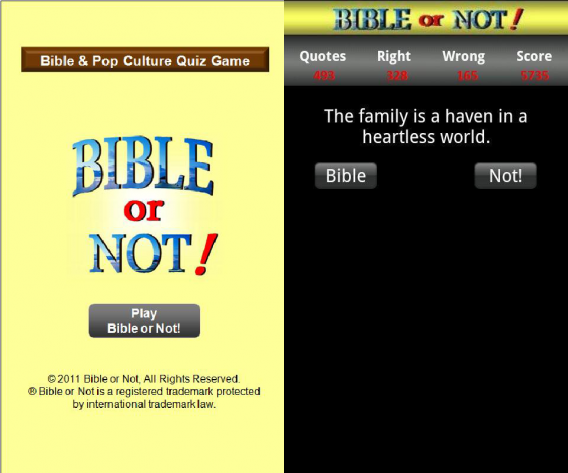
Bible or Not Bible Quiz Game

bible or not

Think you know the Bible? Put that to the test with Bible or Not Quiz Game. The quizzes include tons of quotes, figures, wisdom, and songs to test your knowledge. There’s a multiplayer aspect with leaderboards so you can boast to friends and family who’s more devout.

Download for Android

The Amazing Miracles of Jesus

amazing miracles

The full title is The Amazing Miracles of Jesus: Learn about God with Children’s Bible Stories, Games, Songs, and Narration by Joni of Joni and Friends. The purpose of the app is to teach the Bible without being boring. The goal of The Amazing Miracles of Jesus is to be engaging and interactive to teach your kids all about God’s word. There are also in-app purchases to unlock more content.

Download for iOS

Children’s Bible Games

childrens bible games

The goal of Children’s Bible Games: App with Puzzles, Interactive Stories, Trivia Quiz, Religion Activities and Educational Lessons for Kids, Christian Families, Catechism and Sunday Schools is to learn about the Bible through games. There are 60 Bible stories and 300 games. If you need Sunday School lessons, those are also included in the app. While the game is free, it costs $9.99 to unlock all the games in the app.

Download for iOS

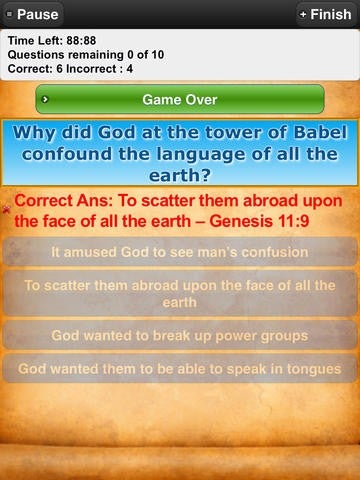
Bible Trivia Quiz

bible trivia quiz

If you think you know the Bible, Bible Trivia Quiz will put you to the test. there are close to 1000 questions of varying difficulties. There’s a timer and each round is ten questions,.You can also upload your scores online to compare your knowledge with others.

Download for Android | iOS

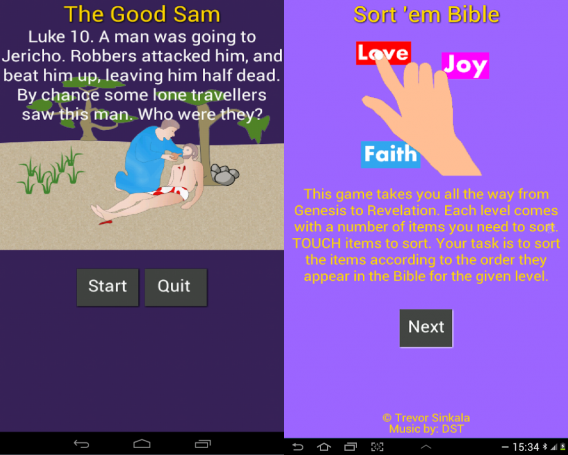
Bible Sorting Game

bible sorting

Instead of asking questions, Bible Sorting Game presents levels with different items you have to sort. This makes it more challenging because all the answers are present on the screen and you have to use your Bible experience to put everything in its right place. One way Bible Sorting Game teaches you is that you can’t unlock a new level until you complete the level you’re currently playing.

Download for Android

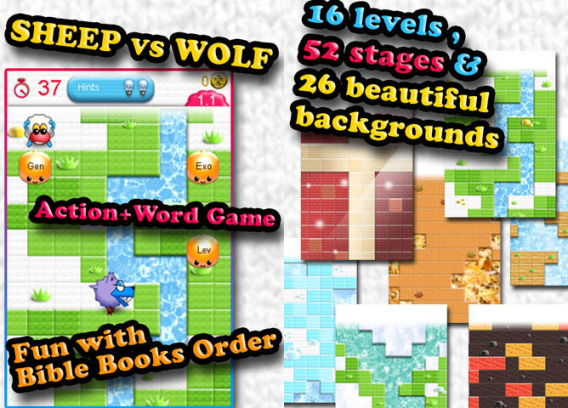
Gospel Sheep Bible Game

bible sheep

Gospel Sheep Bible Game uses one story from the Bible and creates a game out of it. It doesn’t matter how well you know the Bible because your goal is to learn. Featuring 52 levels and three difficulty levels, anyone can pick up and play the game. One of its best features is support for five languages, including Korean, Japanese, and English.

Download for Android | iOS

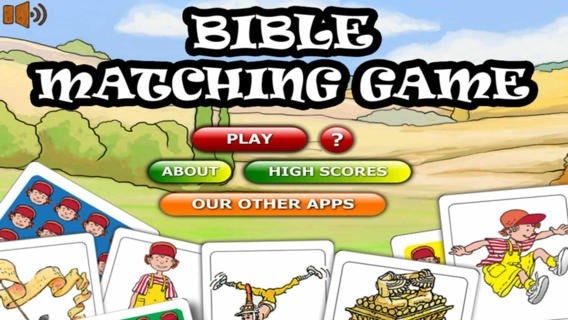
Bible Matching Game

bible matching game

Everyone has experience with matching games so Bible Matching Game should be easy to pick up and play. Playing as Mini Mike, you experience his journey through Bible stories by matching different cards. Don’t worry about it being too difficult for kids because Bible Matching Game has three different difficulty levels.

Download for iOS

Related Articles

Apps for good – the charities embracing smartphones to deliver their message

Best Facebook Messenger apps

Best free shopping apps

Best free Android antivirus comparison

Our phones house our most personal data like our address, photos, and banking information. Cyber criminals know this and are targeting our phones, especially Android devices since they make up almost 80% of the smartphone market.

Just like PCs, Android users should seriously consider running an antivirus app. Attacks come in the many forms beyond the traditional virus or malware. Tapping on malicious links may let hackers hijack your data or even control your phone.

If you stick to Google Play as the only source for downloading apps, you should be relatively safe. However, it’s nice to have a safety net. There are a ton of free antivirus solutions for Android but not all of them are good or actually free. In this list, I take a look at antivirus apps that you can use without paying and offer the best protection.
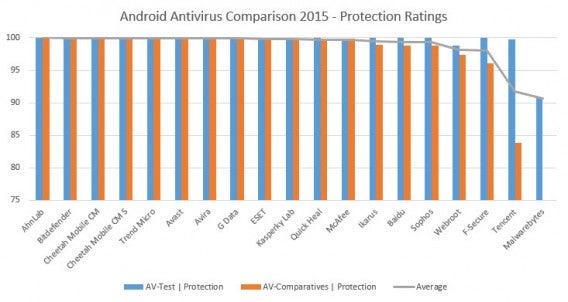
Android AV comparison chart 2015

Looking at the detection results from AV-Comparatives and AV-Test, we see that most Android antivirus products feature similar detection rates. This isn’t always the case with PC antiviruses but it’s still early days for mobile malware. What this means is that Android antivirus makers have to win users over with additional features and a great user experience.

Here are my picks for the best free Android antivirus apps that balance protection, features, and usability.
1. Avast Mobile Security & Antivirus

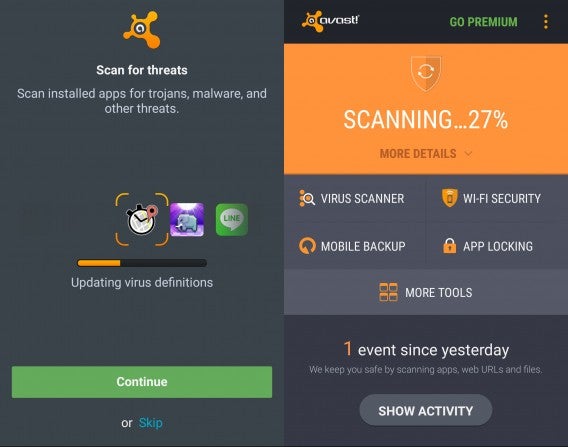
Avast for Android scanning

Avast makes a great PC antivirus and has taken its experience to Android. The interface is easy to use and its virus and malware detection results are among the best. Avast Mobile Security & Antivirus doesn’t simply scan for malicious apps. It also scans your files and you can schedule the app to rescan your phone regularly.

Avast also piles on the additional features with a Wi-Fi network checker and other premium services. The Wi-Fi checker works even if you don’t pay and gives useful tips about how you can secure your network. Analyzing our office Wi-Fi, Avast warned that the network wasn’t password protected and checked if our router was vulnerable to attack.
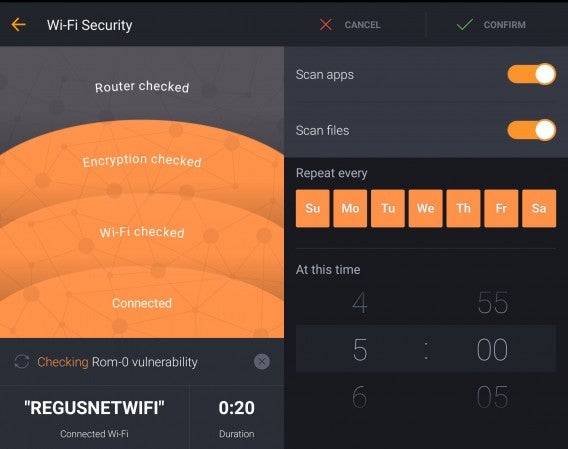
Avast for Android Wi-Fi check

In terms of anti-theft, Avast Mobile Security & Antivirus lets you locate your phone, control your phone via the web, lock your device or even wipe it if all else fails. These features are already included in Google’s free Android Device Manager but it’s nice to have a redundant system in place in case one service doesn’t work.

While the free version of Avast offers virus and malware detection, some users may find the $1.99 per month (or $14.99 per year) price for premium worth it. Paid users will get the ability to lock apps, detect ads, backup, and premium anti-theft protection. Avast can take a picture and record the voice of the thief who stole your phone and send it to you. Rooted users also have access to a firewall to control internet access on a per-app basis.

Pro: Great feature set

Con: Only truly great for paid users

Download Avast Mobile Security & Antivirus
2. CM Security Antivirus AppLock (formerly CheetahMobile CM Security)

CM security 1

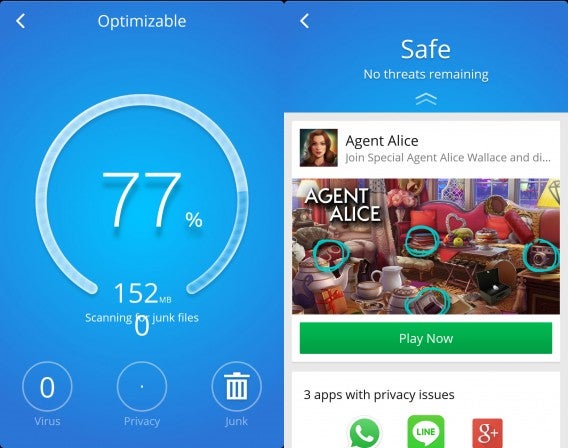
I am impressed by CM Security Antivirus AppLock’s easy to use interface. While other antivirus eschew animations for speed, CM Security balances visuals with good performance. The virus scanner scans files too, not just apps. Users are protected with real-time scanning of new apps and the option to schedule full scans.

Virus scanning is only a small part of what CM Security can do. The app includes the ability to lock apps with a pattern, phone locator, and call blocking. Cheetah Mobile also offers another app, a junk file cleaner called Clean Master. We previously covered what Clean Master can do.

I really enjoy the anti-theft features in CM Security. You’ll have to sign up to use them but you can do so easily by logging in with your Google+ or Facebook account. If you don’t have either, you can sign up with an email address. Once you do, you’ll have the ability to locate, lock, and make your phone play a sound. While Google’s free Android Device Manager does all of this, it’s nice to have a redundant system in case Google’s tool fails.
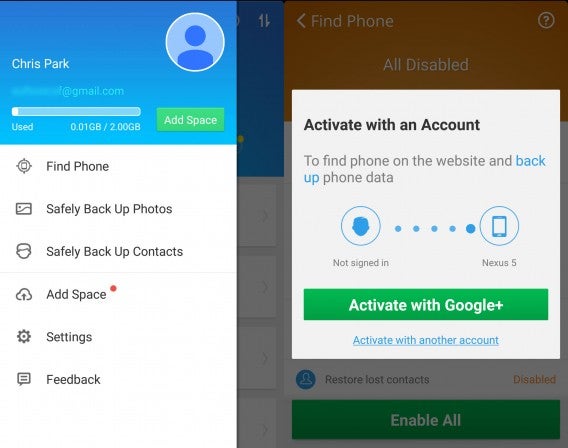
CM Security 2

It’s impressive that Cheetah Mobile can offer all of these features for free. That’s because the app is ad supported and will suggest other apps for you to download constantly. That’s a small price to pay for a great antivirus app.

There is a premium subscription service for CM Security, which costs $6 per month and gets you 1TB of storage for backup. The price isn’t bad but I would like to see more features included with the subscription price. Still, Cheetah Mobile offers quite a lot for free with CM Security Antivirus AppLock.

Pro: Ton of free features

Con: Ads can get annoying

Download CM Security Antivirus AppLock
3. ESET Mobile Security & Antivirus

ESET Android banner

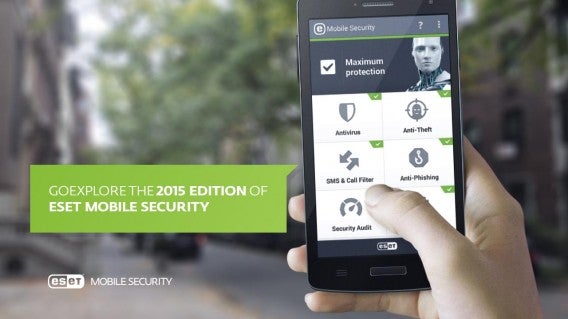
ESET Mobile Security & Antivirus may not be the prettiest app in this list but it is one of the fastest. System scans were shockingly quick and the entire interface was snappy. ESET also features the company’s “Live Grid” technology, which uses community provided data to have the most up to date virus definitions.

While ESET is free, users are locked out of most of its premium features. The free version will get you on-demand scans and some anti-theft features like SMS remote control (via texts from a friend’s phone). The premium version will get you automatic scans, auto-updates, SMS & call filtering, anti-phishing, security auditing, and remote device wipe.

If all you’re after is quick virus scanning, the free version of ESET is great but there are other free antivirus apps that do much more.

Pro: Quick scans

Con: Clunky interface

Download ESET Mobile Security & Antivirus
4. G DATA INTERNET SECURITY light

G DATA for Android

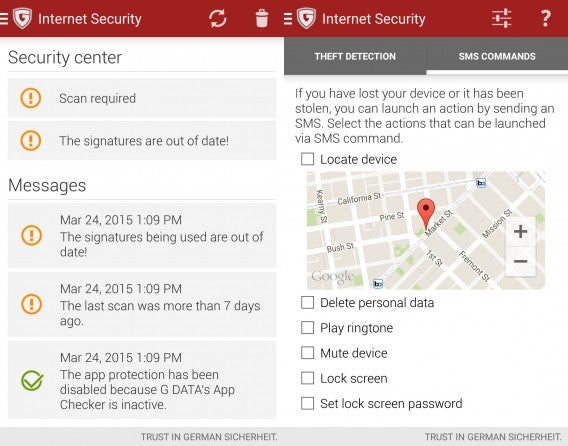
The free version of G DATA is very stripped down. New users are treated to a free 30 day trial of the premium version, which features web browsing protection, SMS/call filtering, and anti-theft features. The app also features parental controls for creating “corners” for children and teens, which just limits the types of apps and access a person has.

If you don’t pony up for the $15 per year subscription, you can continue using the basic virus scanning feature of G DATA INTERNET SECURITY. This is a nice freebie as G DATA tops the charts for virus detection.

Pro: Great protection

Con: Free version only includes virus scanning

Download G DATA INTERNET SECURITY light
5. Avira Antivirus Security

AVIRA Android hero

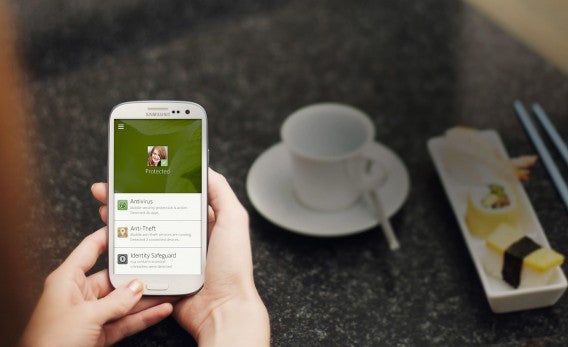
Avira is my favorite free Android antivirus in this list because of its excellent interface and well thought out features. While Avira may have fewer features than other antivirus apps, the features the company did include are implemented well.

For example, the anti-theft section is well designed and easy to use. There’s a great web interface for accessing anti-theft features so you can recover your phone from any web-connected computer, tablet, or phone. These features are available to free users, which can’t be said for many other antivirus apps in this list.

Avira also helps you detect potentially unwanted programs and lets you easily uninstall them. Another unique feature I liked is how Avira tells you which of your contacts has had their info stolen in a data breach. You’ll most likely be fine contacting your breached contacts but it’s nice to know which contacts may be compromised.
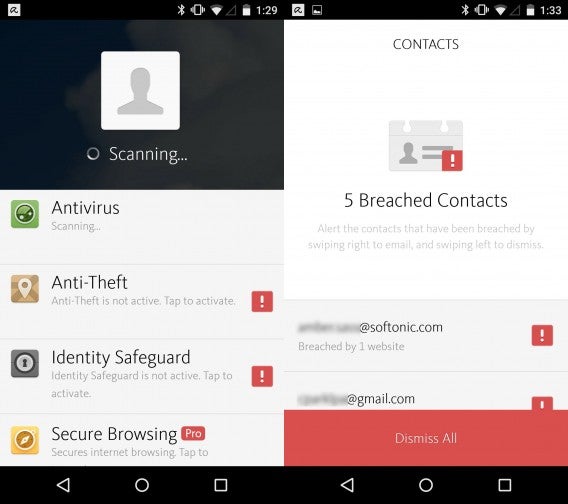
Avira for Android 1

While Avira Antivirus Security’s free features are enough for most users, some may want to pay for the yearly subscription. For $12 per year, you get secure browsing, hourly antivirus database updates, and tech support.

“Avira appears to be aiming for quality rather than quantity. The scope of functionality is relatively limited in comparison with other products, but the components that are included have been implemented very well,” writes AV-Comparatives. I agree.

Pro: Free features work great

Con: Not as feature rich as other apps

Download Avira Antivirus Security
6. Kaspersky Internet Security

Kaspersky Internet Security

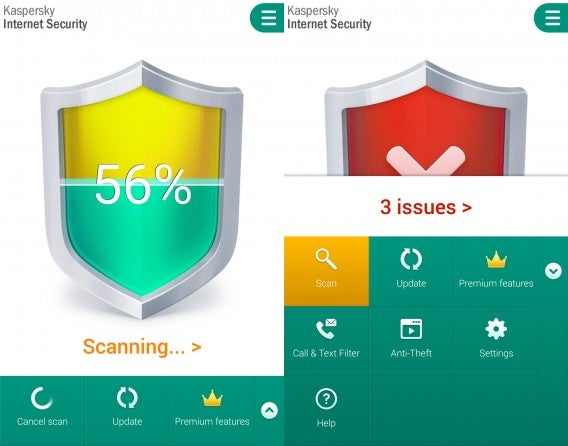
Kaspersky is a well known name in the PC security world and its mobile offering is great too. Unfortunately, most of its best features are paid. You can still use the app for free but you’ll be limited to just the on-demand antivirus scanning.

If you step up to the premium version, you’ll get anti-phishing web browsing, privacy protection, and real-time protection. This means free users won’t get active protection.

Additionally, Kasperksy’s anti-theft protection requires disabling Android Device Manager. This is disappointing as it’s nice to have a redundant system. It’s also odd since no other antivirus in this list requires disabling Android Device Manager as a system administrator.

Kasperksy’s paid version is great but leaves free users out in the cold. I recommend trying the other apps in this list if you don’t want to pay.

Pro: Great virus detection rate

Con: Requires disabling of Android Device Manager

Download Kaspersky Internet Security
7. Norton Security and Antivirus

Norton for Android

Like Kaspersky, Norton locks out most of its features to free users. You’ll still have basic antivirus protection and the ability to lock your phone remotely via SMS but that’s about it. You’ll have to pay the relatively expensive $30 per year subscription to access all the features that make Norton Security and Antivirus good.

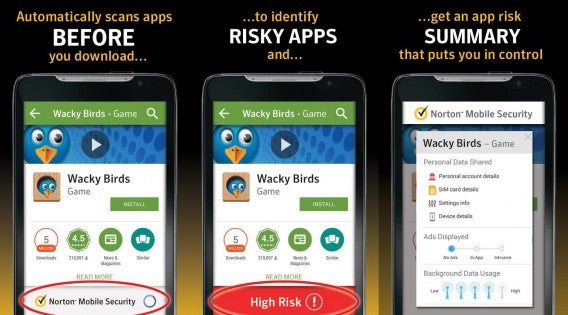
Premium subscribers will have access to a unique feature called App Advisor that lets you know which apps in Google Play are potential privacy risks, have high battery usage, or exhibit intrusive behavior. The paid anti-theft features may also make the price of subscription worth it for some users. The app can remotely lock your device and will periodically send you photos of the thief, which will help law enforcement track him or her down.

Still, $30 is pretty expensive when other apps are offering similar features for less than half the price.

Pro: Easy to use

Con: Average detection rate

Download Norton Security and Antivirus
8. AVG AntiVirus Security – FREE

AVG for Android

If you’re using AVG on your PC, you’ll love AVG AntiVirus Security – FREE. AVG spent a lot of time making its products work with each other, which means you get a great ecosystem of apps. If you use AVG Zen, you can get a dashboard to manage all the devices in your household. The user experience between PC and Android are almost identical so you should feel right at home.

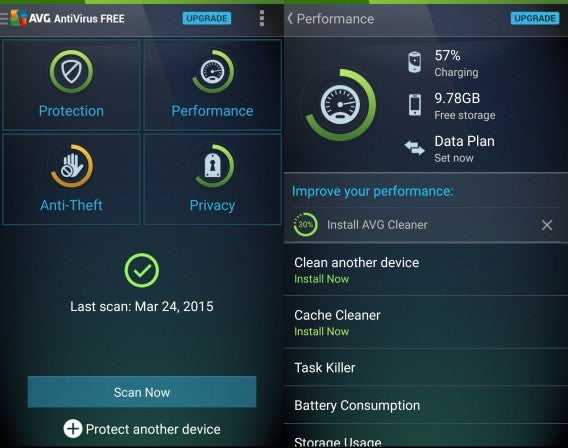
As for the antivirus app itself, it’s very easy to use and gives you a decent amount of features for free. You get an antivirus scanner and anti-theft features. You can find, lock, and wipe your phone with the free version.

The premium version gets you the ability to lock apps, backup features, and can take photos of whoever stole your phone. The price for the premium version costs $2.49 per month or $9.99 per year. Oddly, there’s a PRO version of AVG AntiVirus in the Play Store for a one-time payment of $15, which offers the same features of the subscription as far as I can tell. If you think you’ll be using AVG for a while, it’s worth it to pay $15 once and have the service forever.

Like CM Cleaner, AVG tries to get you to download its other apps to keep you inside its app ecosystem. The app really wants you download AVG Cleaner & Battery booster to maintain your Android device, but it’s not necessary if you’re just looking for security features. It’s a small price to pay for a free Android antivirus. Keep in mind AVG’s detection rates aren’t as good as the competition in this list according to AV-Test.

Pro: Great app ecosystem

Con: Complete features require other apps

Download AVG AntiVirus Security – FREE
9. McAfee Security & Antivirus – FREE

McAfee for Android 1

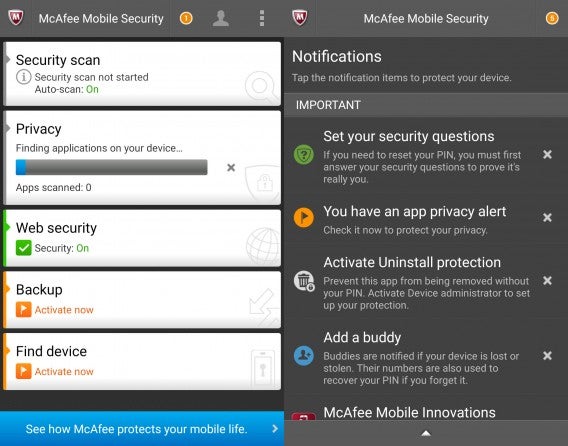
McAfee Security & Antivirus gets to work right away when you launch the app for the first time. It’ll start downloading the latest virus definitions and scans your phone for both security and privacy. While the scans are a bit slow compared to some apps in this list, it does a thorough job.

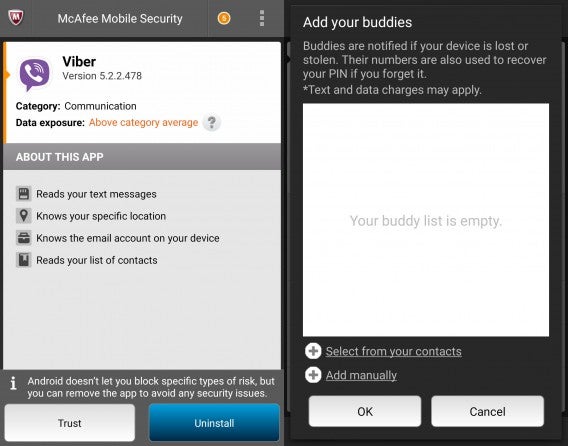
What impressed me most about McAfee is how full-featured the free product is. Users get automated scans, privacy alerts/advice, web browsing protection, backup, and anti-theft. Paying $3 per month or $30 per year for the subscription gets you 2GB of space for media back up, an ad-free experience, and phone support.
McAfee for Android 2

You’ll need to sign up for a McAfee account to use many of its features but that’s a small price to pay for such a complete suite of features. I also enjoy the logically laid out interface of McAfee Security & Antivirus. There’s a notification center that walks you through all the steps you need to take to secure your Android device. It’s not pushy and offers clear advice.

McAfee has built a well-rounded antivirus program and offers most of its functionality for free.

Pro: Most features are free

Con: Utilitarian interface

Download McAfee Security & Antivirus – FREE
10. Sophos Free Antivirus and Security

Sophos tablet

Sophos is a unique choice in this list because it’s completely free. There is no paid version and all its features come unlocked, making it one of the most complete free antivirus solutions for Android.

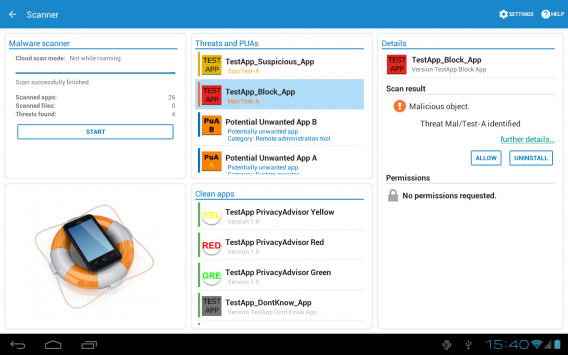
While the interface of Sophos is nothing to look at, its feature set make it worth the download. The interface is, however, quite easy to use and everything that needs an action is highlighted with an exclamation point next to it.

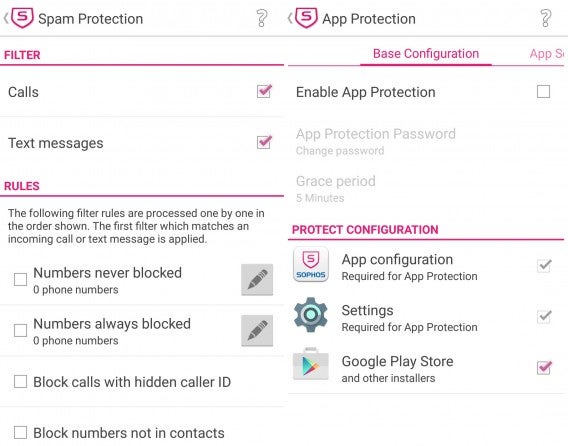
Anti-theft plays a big part in Sophos’ feature set and it’s pretty robust. You can set a friend’s phone number as a verified number to remotely control your phone via SMS in the event it’s lost or stolen. You can lock, show a message, and wipe your phone via text message. The app also sends you the last known location of your phone if the battery is about to die. This is a nice safety net to help improve your chances of tracking down your device.
Sophos for Android

Antivirus protection is also good, though Sophos’ detection rates aren’t as good as the competition. UPDATE: Sophos’ latest release puts it up to par with the best virus detection rates, according to AV-Test. Sophos scans apps as you install them, but won’t warn you about suspected apps like Norton. You can also schedule scans for your phone, which will look through all of your installed apps and files on external storage like SD cards. To keep up to date with the latest virus definitions, Sophos updates itself using the cloud. Users can tell the app only to update on Wi-Fi to save data.

For parents, there’s some basic web controls in Sophos that block inappropriate sites. Parents can also lock down specific apps with password to hide sensitive information or just for an extra layer of security. You can also rest easy knowing the app protects users against malicious websites.

In terms of privacy, Sophos provides advice and warnings about apps that may be infringing on your privacy. Privacy Advisor detects apps that have access to your contacts, ID information, and more. While most of the warnings are false positives, it could help to catch an app that has permissions it shouldn’t.

Overall, Sophos is a great security app for Android that’s completely free. Downsides include average virus detection rates the lack of backup features and overzealous warnings about your device’s security. Still, it’s nice to have a completely free option available with no ads and no nags for you to upgrade.

Pro: Completely free, forever. The most full featured free Android antivirus.

Con: No data backup features

Download Sophos Free Antivirus and Security
11. Lookout Security & Antivirus

Lookout banner

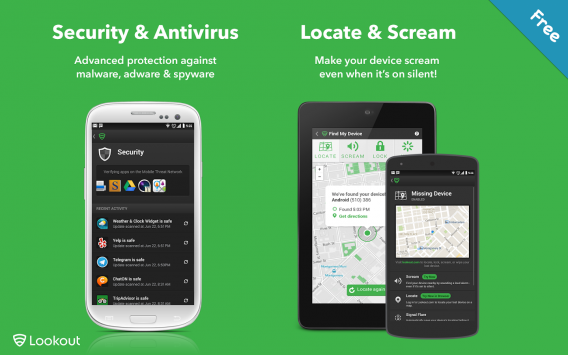
Lookout was one of the first antivirus apps for Android and it’s slowly improved over the years. While not as popular as other apps in this list, it offers a good balance of free features and a great interface.

The thing I like most about Lookout Security & Antivirus is that it stays out of your way, only showing you notifications after it scans downloaded apps and APKs. This also makes Lookout speedy and light on resources.

Like other antivirus apps, Lookout relies on community driven analytics to help detect new infections spreading across Android devices.
Lookout intruder

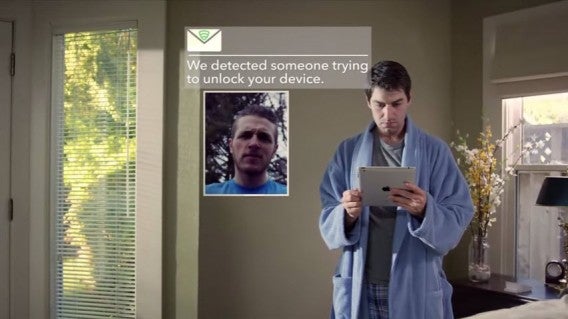
Free users will get virus scanning, contacts backup, and anti-theft features. You can track the location of your phone, make your phone “scream,” and have access to a feature called Signal Flare, which sends the last known location of your phone before the battery dies. Lookout can be installed in conjunction with Android Device Manager so you have a redundant anti-theft system.

Premium subscribers get theft alerts emailed to you, browsing protect, a privacy advisor, the ability to lock and wipe your phone, and better backup features for your photos and call log. The subscription costs $3 a month and Lookout won’t nag you to upgrade, which I like. The app simply shows you which features you’re missing with a “Premium” label over them.

Lookout may not have the most features but the features it includes are well thought out.

Pro: Stays out of your way

Con: App not submitted for independent testing

Download Lookout Security & Antivirus

Winners: Avira and McAfee
Best free Android antivirus winners

After downloading and testing the apps in this list, the two free Android antivirus apps that impressed me the most were Avira and McAfee. Both offer a ton of functionality for free and both are rated highly for detection rates by AV-Test and AV Comparatives.
Avira has the better interface, but McAfee isn’t bad, just more utilitarian. Avira impressed me with its full feature set and ease of use. While it doesn’t have the most features, the ones Avira chose to include work very well.

McAfee also has a lot of free features, even more than Avira. The app is light on system resources and is easy to use. The app walks you through everything that could potentially be a problem on your phone. You’ll need a McAfee account to get the most out of it but it’s a small annoyance for a really great, free app.

Personally, I pay for BitDefender because I like its integration between desktop, mobile, and web. Its great detection rates and premium features like password protected apps and anti-theft are worth it to me, though I understand why some users don’t want to pay for a subscription.

There are a lot of great free antivirus apps for Android so there’s no excuse to not run one. Even if you don’t think viruses are a big problem because you stick to Google Play for downloading apps, an app’s anti-theft features could save your bacon.

Related Stories

Best Windows Antivirus Comparison 2015

App of the Week: Avast GrimeFighter

Don’t fall for WhatsApp voice call scam sites

Mobile World Congress 2015 Day 3: Firefox OS and AVG Zen

Windows more secure than OSX? Not so fast.

Follow me on Twitter: @lewisleong