Best mobile games that are safe for kids

Your kids will enjoy these games

Best mobile games that are safe for kids

Smartphones and tablets can be a minefield for kids and parents. App stores like the Google Play Store and Amazon AppStore are full of mobile games specifically designed for kids, which are filled with in-app purchases, ads that could take children to websites parents are unaware of, malware, or worse. There even plenty of fake apps out there for Apple iPhones, Android phones, and pretty much all types of mobile devices. But, there are games that you can trust.

Below you will find five safe Android games and Android apps for kids that have no ads and no in-app purchases. You can also be sure the content will be suitable. They may not all be free, but they are generally very cheap, and you’re paying for peace of mind: playing won’t result in other apps being downloaded to your Android device without your permission, and there’s no danger of your kids running up huge bills.

Playworld Superheroes
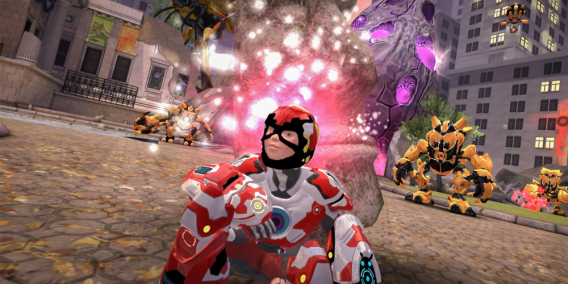
A new game, Playworld Superheroes is a neat concept. You play as a child on a normal street, who makes a superhero costume out of things lying around the garden. You’re then transported to another dimension called Playworld, to save it from evil attackers called Golumites. It really inspires creativity – kids are encouraged to design their own superhero costumes, right down to the hero’s logo, and add to it over time too. The game looks great, with excellent 3D graphics, puzzler gameplay, and a full orchestral score. Playworld Superheroes has no ads and no in-app purchases.

Suitable for 9-11 year olds.
Playworld Superheroes Download now
10

Metamorphabet

Metamorphabet is a strange puzzle game/experience which sees you work your way through the alphabet. All you do is touch, swipe, and mess around with a letter on the screen, and you’ll see it transform into an object beginning with that letter. It’s really inventive and surprising, with absolutely lovely animations that feel really tactile. Great as a learning tool as well as entertainment for young kids, it is charming enough to be fun for adults too. Your kids can play Metamorphabet on iPhones or iPads and it is well worth its $4.99 price. Suitable for kids aged 4+

Metamorphet Download now
10

Minecraft

It’s impossible to write about games for kids without mentioning Minecraft. It’s not cheap, but you get a great game that will last almost indefinitely. It has two main modes, Survival and Creative. In the former, you spend daytime mining and building so you can survive nighttime, which is full of monsters. In Creative mode, there’s nothing dangerous, you can just play around and build fantastical constructions without any pressure. For the uninitiated, it’s a little like a virtual world made of Lego, that you can play with. It’s great for creative kids, but adults can also get totally lost in the game too.

Minecraft - Pocket Edition Download and play now
8

Sago Mini Ocean Swimmer

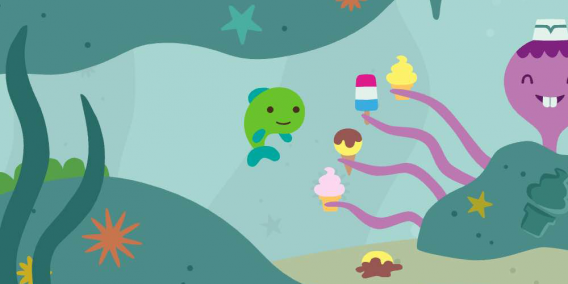
Great for toddlers, around 2-4 years, this colorful game lets them explore a cute underwater world. It’s full of cute things to discover and characters to meet, from a cat that feeds Fins the Fish a fiery chili, to a surprise birthday party. Fins is controlled easily with a finger pointing where you want to go, and there are over 30 activities/animations to check out. It’s open-world – so you’re free to do things in whatever order you want, and the ocean loops so you and your kid never gets lost. Developer Sago has a whole range of lovely apps for kids, and they all follow our rule of no in-app purchases or third-party advertising. By default, you can visit Sago’s other apps for kids from Sago Mini Ocean Swimmer, but by disabling ‘Sago News’ and ‘For Parents’ in your device settings, this disappears.
How to record internal sound on Mac OS X

Use Soundflower and Audacity to record audio!

MAc

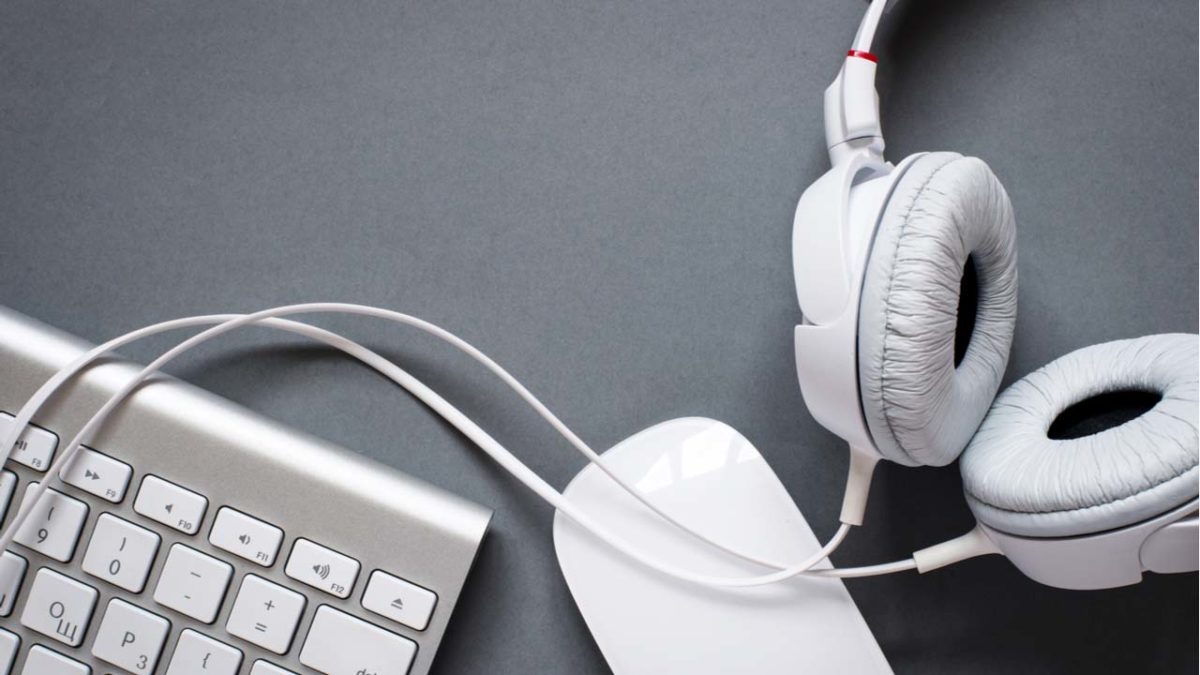
Recording internal sound on a Mac is problematic. Unlike Windows, you can’t simply record whatever noise is playing. If you’ve ever got stuck wondering how to capture streaming audio from a website or any other sound playing through your Mac, here’s how to do it:

How to record internal sound on a Mac

Using QuickTime Player

Although we will detail another method using Audacity and Soundflower, you can also use QuickTime Player to record audio.

QuickTime Player Download now ►
7

To record audio, follow these steps:

  1. Go to the File menu
  2. Choose “New Audio Recording”
  3. Click the arrow next to the record button to choose the recording and microphone quality.
  4. Use the volume slider to monitor the audio while it’s recording.
  5. Click the red Record button to start recording. Click it again to stop.

Using Audacity and Soundflower

Step 1

Download and install Audacity, an audio recorder/editor, and Soundflower, which allows your internal sound to be captured.

7
Soundflower Download Now ►
7

Step 2

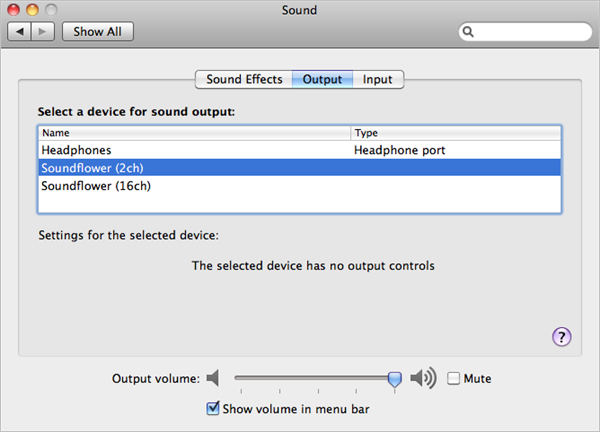
Open System Preferences > Sound > Output. Now that Soundflower is installed, you’ll be able to choose it instead of the built-in output. Soundflower (2ch) is fine for most purposes. Note that once you do this you will no longer be able to hear a sound. To make a clean recording, also turn off all sound effects here in the Sound preferences.

Soundflower

Step 3

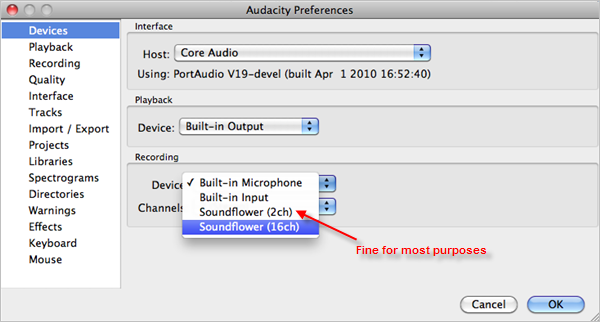
Open Audacity and in preferences, look under Devices and choose Soundflower (2ch) from the Recording Devices drop-down menu.

Soundflower

Step 4

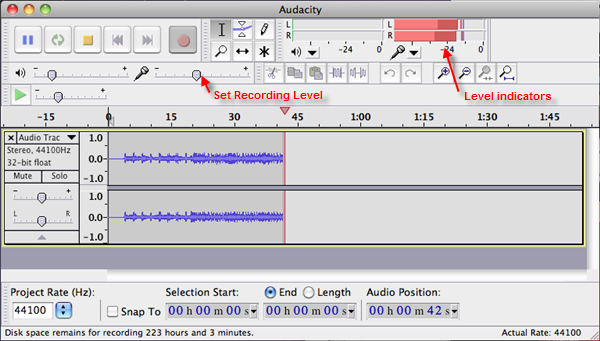
On the top right of the Audacity interface, there is a microphone symbol with a drop-down menu next to it. Click it, and hit ‘Turn on monitoring.’ You will now see red level indicators jumping whenever a sound is made. Play the sound or stream you want to capture and adjust the microphone level-slider on the left so the red bars reach close to zero when they peak.

Soundflower

Step 5

You’re now ready to capture. Stop your stream, and pause it at the start. Hit the red record button in Audacity, then play your sound stream. Be aware that if you haven’t turned off any sound alerts or effects, these will also be captured in your recording. Once finished, save the project from the File menu. At this point, you can turn on the internal audio again in System Preferences. Any editing of your recording should be done now (See this post for audio editing with Audacity).

Step 6

Again from the File menu, choose Export which allows you to convert your recording into a more useful format like MP3 or FLAC. You can now listen to your captured recording at your leisure.

How to set or restore your default browser in Windows 10

When you upgrade to Windows 10, you may find that your default browser has been changed to Microsoft Edge. There’s nothing wrong with Edge, and we’re certainly happy to see the back of Internet Explorer, but no one likes a computer overriding our choices. That’s a bit ‘I’m sorry, Dave. I’m afraid I can’t do that’.

Luckily Windows 10 isn’t really HAL 9000, as far as we know, and you can actually set or restore your default browser of choice. Here’s how:

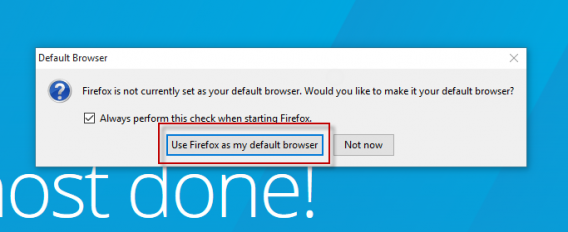
1: Open your favorite browser. We’re going with Firefox. When you open Firefox for the first time, it will ask you if you wish to make it your default browser. However, in Windows 10, this dialogue is not the end of the story. To get started, click ‘Use Firefox as my default browser.’

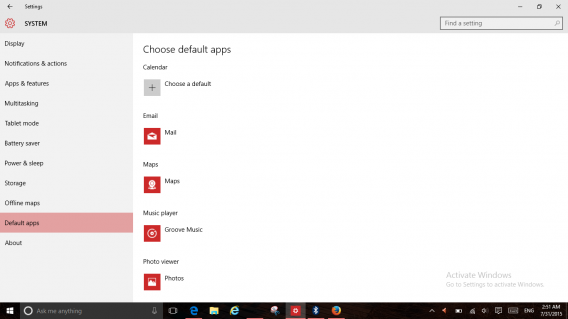
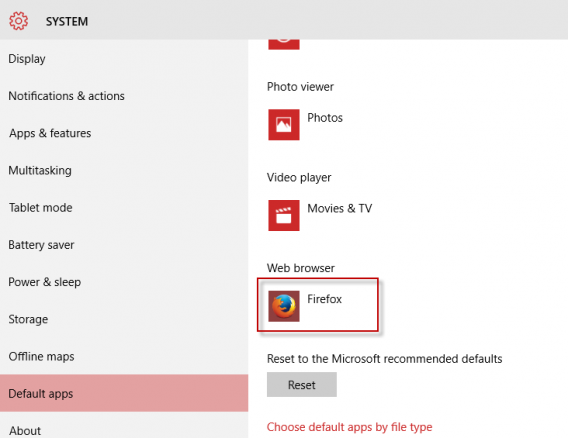
2: Windows 10 will now open the default apps setting screen. You need to scroll down this list until you get to Web Browser.

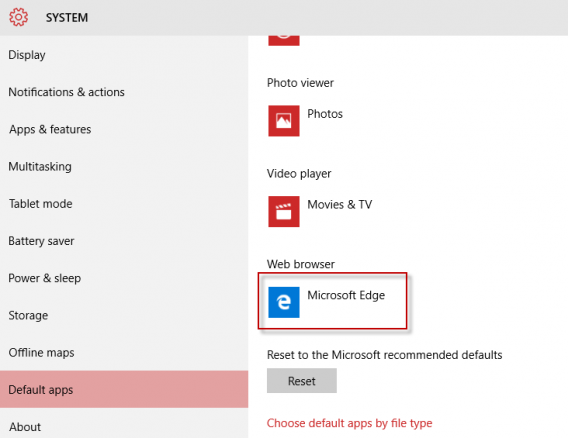
3: Click the Microsoft Edge icon.

4: A new screen will appear with all your installed browsers. Choose the one you want.

5: Your default browser is now set, and you will see it displayed as below.

There are many reasons to love Windows 10, as it’s a big improvement over 8. But adding extra steps for choosing default apps is not one of them. Any additional clicks required to perform a task make it less likely people will bother, so it’s hard not to see this as Microsoft sneakily trying to get people to stick with Edge as their browser.

Check out our full Windows 10 coverage.

B612 is a better Retrica

B612 is an app designed especially for talking selfies, and we think it should be the app you choose when you want them to look extra special.

I know, the name is hardly memorable unless you’re a fan of The Little Prince, and I also know that selfies might be a bit 2014. Or even 2013? I digress. B612 is pretty similar to Retrica, another photo app that’s taken app stores by storm, but don’t be fooled by its popularity. There are plenty of reasons to dump Retrica and download B.. 6… something…?

Never mind what it’s called: let’s check out why it’s better than Retrica.

B162 has more free filters


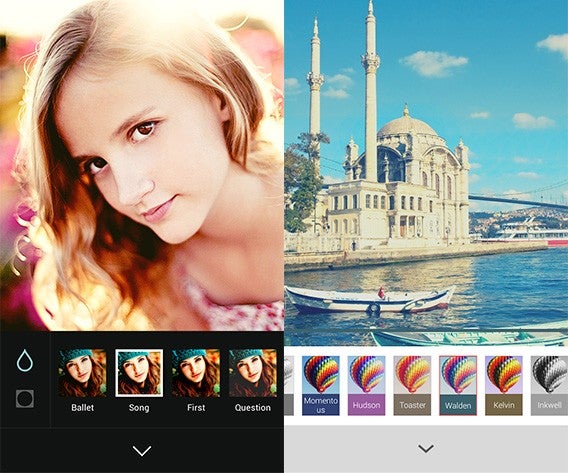
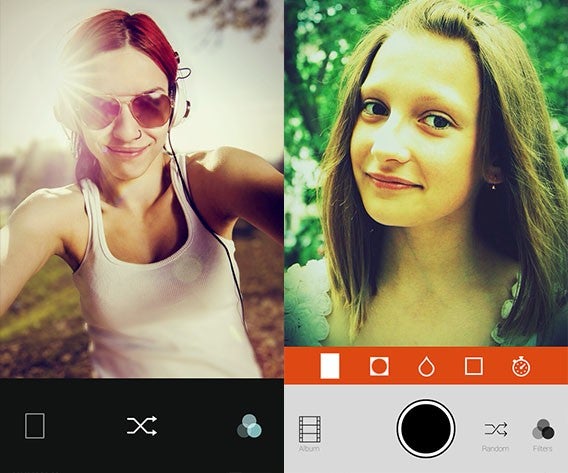
At time of publication Retrica (on the right, above) has over 100 filters, but many of them are premium features you have to pay for. Strip these away, and you’re left with 55, where as B612 has 81 filters, and they are all free. It’s not all good news, as B612 lacks the filter categories that you get with Retrica, so it may take more time to navigate around and learn which filters you really like. Luckily you can mark your favorites, so they are always to hand. We haven’t seen much difference in terms of the quality of the filters, so there’s really no advantage to Retrica here.

B612 has no ads

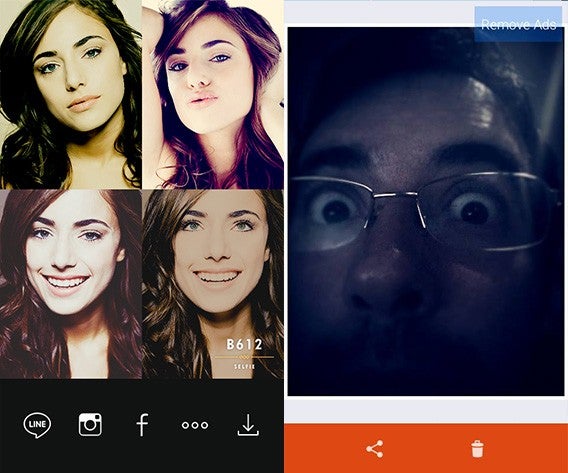
At least for now, there are no ads to spoil your peace in B612, nor are there in-app purchases. Retrica has both, and the ads especially get in the way of a smooth user experience. You can take more selfies more quickly with B612, as you are never interrupted by advertising. It’s a no-brainer, unless you want to pay to remove ads in Retrica (a very reasonable $0.99).

Options

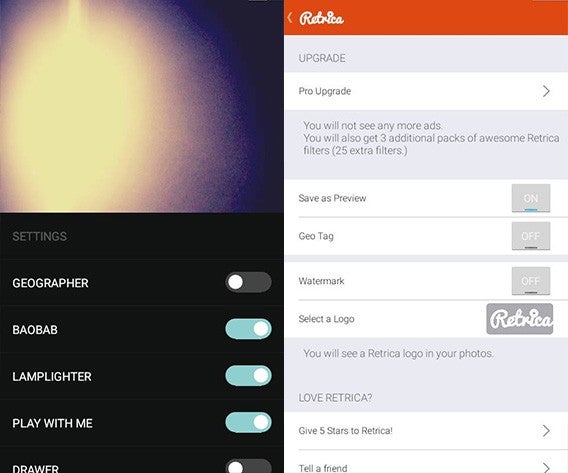
At first glance, B612 appears to have no options. To find them, you swipe up from the bottom of the screen. Here you can toggle location info, anti-shake, the B612 watermark, and more. You can do pretty much the same in Retrica too, as well as upgrade to ‘Pro’.

The options menu highlights another difference between the two apps. Retrica has buttons for everything, making it easy to understand from the start. B612 uses gestures for many things, and if you don’t learn them, using the app is tricky. This is a shame, as once you ‘get’ B612, it’s faster and more comfortable to use than Retrica.

B612 does video

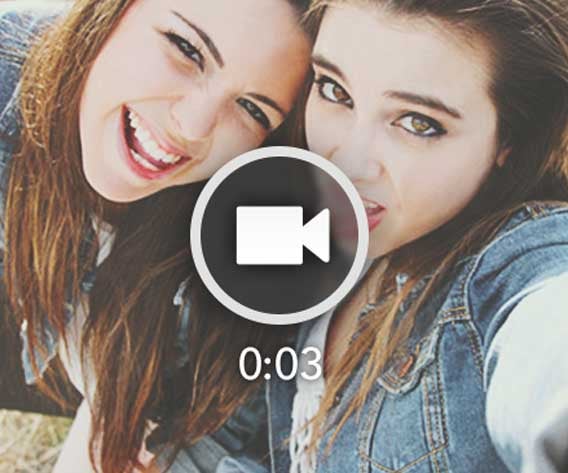
When it comes to photos, the two apps are pretty similar, but B612 also lets you record short videos. Simply by tapping and holding your finger, you can record a short video selfie of 3 or 6 seconds. You can share it wherever you like, and even convert it into a GIF, which is pretty cool.

B612 – a selfie machine

As we’ve seen, in terms of features, both B612 and Retrica are pretty similar, except for videos. However, with its streamlined interface, B612 is quicker and you get more filters too. Touch the screen anywhere to take a selfie, instead of tapping a button, tap twice to delete, swipe left or right to flip through filters and swipe down to swap cameras. Once you’ve got the hang of the gestures, it’s a breeze to use.

So, if you want to take flashy looking selfies that stand out, you could use Retrica, but we reckon B612 is better.

Download B612 for Android or iPhone and iPad

Download Retrica for Android or iPhone and iPad

How to run old software on Windows 10

Every time there’s a new version of Windows, people wonder if their current software will continue to work. The answer is a little complex, but I’ll try make it as simple as possible, and give you advice on how you can make old programs work in Windows 10.

1: Will my Windows 7/8 apps work in Windows 10?

Good news. Yes. If you have software that works in Windows 7 or 8, it will most likely work in Windows 10. It’s not for nothing that Microsoft is offering free upgrades to Windows 10 for Windows 7 and 8 users – this will keep your OS up to date, and not cause you any problems.

2: Will my Vista/XP or earlier programs work in Windows 10?

In this case, things get tricky. The best advice we have for everyone is to keep your software up to date, and use the most recent versions. The main reason for this is security – past a certain age companies stop supporting old software, which means no security patches or updates. You aged apps could be security holes that let in hackers.

But if you do want to continue to use old programs that aren’t theoretically compatible with Windows 10, there’s a possible solution. Compatibility mode.

Compatibility mode should allow you to run old software as if you were using any Windows version back to Windows 95! But don’t break out the champagne just yet, as it still might not work. Here’s how to try:

– Right click on the program file you want to open, and then click Properties.

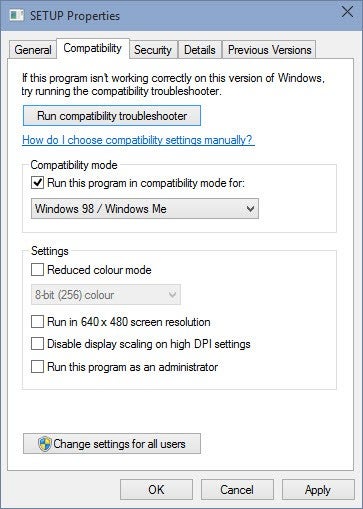
– In the Properties window that opens, click the Compatibility tab:

Here you can choose a Windows version from the drop down menu – choose the last version of Windows your app worked in.

– Click Apply, then OK.

– Now, you can try to run the program by double clicking the icon as usual.

– If the app doesn’t work, you can now try the compatibility troubleshooter, which will try to detect the necessary settings to run your app.

If your desired program still doesn’t run, then you do still have some options. Firstly you could just use it on an old PC with a previous version of Windows installed. Alternatively, you can add a second hard-drive (or partition your existing one) and install an older version of Windows on that to enable you to dual-boot your system. Or, finally, you can install a virtual machine (like VMware) which will allow you to run an old version of Windows within Windows 10.

Find out more about Windows 10 with our guide to everything you need to know.

How to upgrade safely to Windows 10 on your PC or smartphone

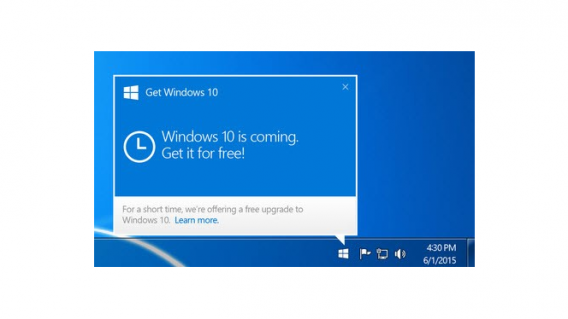
Windows 10 will be available on July 29th for all compatible devices. You may have seen a message on your PC asking if you wish to reserve it early. There’s nothing to worry about with this upgrade – it’s free for a year from launch, and installing the new operating system will be pretty much automatic.

Installing Windows 10 on PC

1: If you would like to install Windows 10 on day one, on a PC it’s best to accept Microsoft’s offer of reserving it. This will allow your PC to download Windows 10 a little ahead of time, so you can simply install it on July 29th.

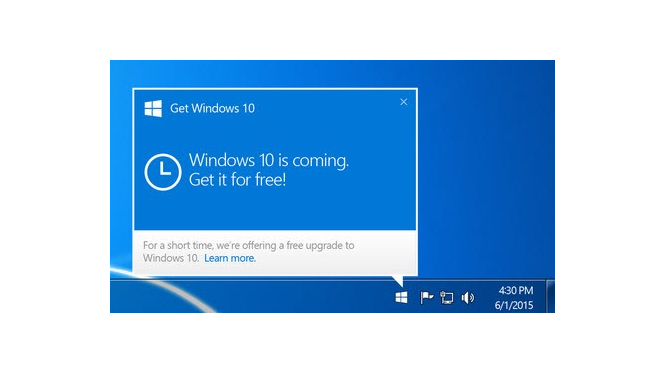
Alternatively, you can not reserve it, and still download and install it for free for a whole year after July 29th.Whether you want to reserve Windows 10, or install it after its release, the process is simple. Simply click on the Windows logo on the task bar.


2: After July 29th 2015, you’ll be notified when Windows 10 is ready to be installed. All you have to do is say ‘yes’ to installation, and the process will be automatic.

You don’t need to worry about your files or installed apps – once installation is complete, you will still have all your things!

3: Find out more about your upgrade with our guide ‘all you need to know about Windows 10.’

Windows 8.1 Smartphones

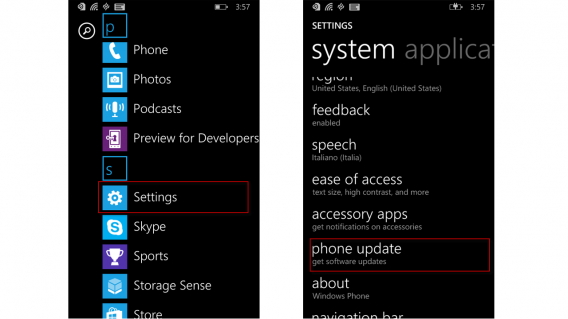
It’s just as easy to update to Windows 10 on your Windows Phone 8.1 smartphone. But when you can install it unfortunately depends on your carrier – in theory it will be available from July 29th, but you will be at the mercy of your provider. Here’s how to check:

1: Swipe left to open the App list.

2: Tap Settings.

3: Scroll down to Phone Update and tap again. Here you can see if your phone is currently up to date, and whether there are pending updates. On July 29th or later, you should see the Windows 10 upgrade available.

Once you have Windows 10, Microsoft says it will control updates, so all phones will be updated at the same time, as happens with Apple and iOS. However, this does not apply to Windows Phone 8.1, and you will have to wait until your carrier is ready to push out the upgrade.

Related articles

Which Windows 10 version should I get?

No free Windows 10 for pirates and more

Windows 10 looks awesome at Build 2015

Follow Jon on Twitter: @jonathanriggall

App of the Week: Apple Music

Our App of the Week this week is a strange one. It’s not an app at all – it’s a service. Apple Music was released this week, as part of the latest iOS Music app and iTunes update.

You can sign up for a free three month trial – which puts the entire iTunes library of over 30 million songs at your fingertips, and much more. From then on it’s $9.99 per month, and there’s no free ad-supported option like Spotify has.

Default player


brightcove.createExperiences();

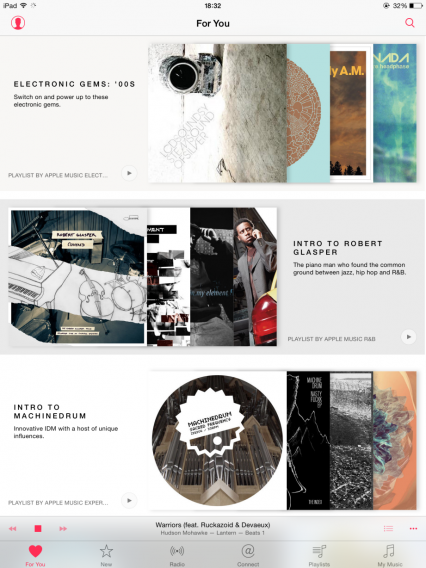
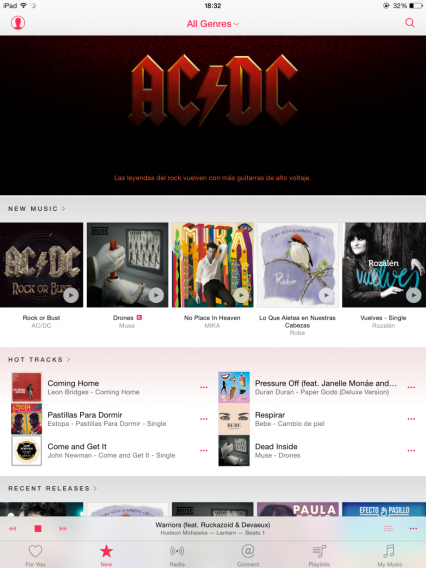
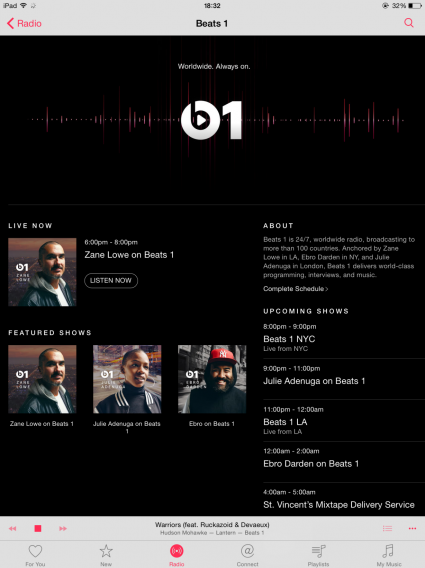
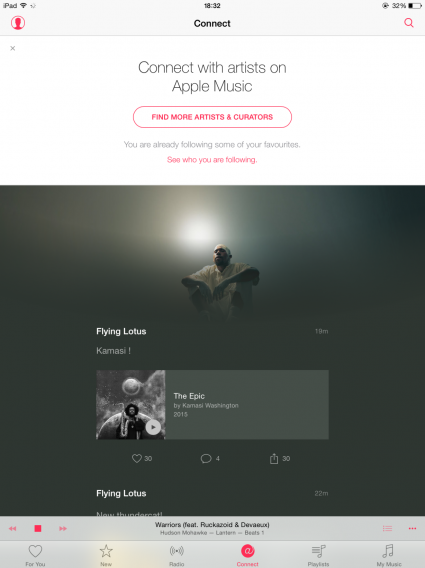
As you can see, Apple Music means a redesigned Music app and iTunes. There are new For You, Connect, and Radio tabs. These offer personalized recommendations, contact with artists, and the all-new Beats 1 Radio station, respectively.

It’s not coming to Android devices until the Fall, but Windows, Mac, and iOS users can all check it out right away.

Related Stories

App of the Week: Google Photos

App of the Week: Tysdo

First impressions: Apple Music

Follow me on Twitter: @DoFuss

Everything you need to know about Windows 10

Microsoft releases it’s new operating system Windows 10 on July 29 2015, and you can find all the articles we’ve published about it here.

Windows 8 was a huge change from 7, but Microsoft thinks that this new version so different that it’s skipping number 9 altogether. It’s also a free update for Windows 7 and 8 users. If you’re wondering whether you should make the change, you will find out below.

Which Windows 10 version should I get?

To help you decide which version of Windows 10 is for you, here are all the versions and how they’re different…

Continue reading…

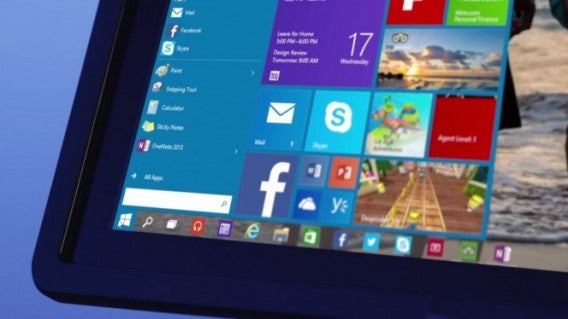
What to expect in Windows 10

Here are some of the major changes you’ll see in the new operating system…

Continue reading…

Windows 10 will be free for Windows 7 and 8.1 users for one year

Microsoft will be following in Apple’s footsteps by offering its upcoming operating system for free for one year after launch.

Continue reading…

Internet Explorer is dead. Long live Microsoft Edge
Let’s take this time to say a proper goodbye to Internet Explorer with an abbreviated history of the most hated browser in the world.

Continue reading…

Removing the Update to Windows 10 icon from your Windows 7, 8, or 8.1 PC

You might be excited about updating to Windows 10, but less so about the constant reminders Windows is pushing. Here’s how to get rid of them.

Continue reading…

Windows 10 preview from Build 2015

Microsoft revealed more details about Windows 10 at its Build developer conference back in April. We took some time to check it out.

Continue reading…

Office 2016

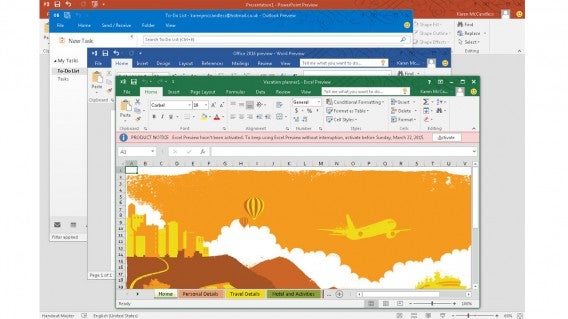
What’s new in Office 2016?

Microsoft Office is still the company’s bread-and-butter product when it comes to revenue. We take a look at the preview build of Office 2016, and compare it to previous releases of the popular productivity suite.

Continue reading…

Cortana

How to get the most out of Cortana, the Windows 10 virtual assistant

Windows 10’s new assistant, Cortana has arrived and we are here to see exactly what she is capable of doing in this series of videos.

Watch the videos here…

How to get Windows 10 when the upgrade button is missing

For some users it seems that the icon needed to get the free Windows 10 upgrade is missing. But do not panic, because we are here to help you summon the “Get Windows 10” icon so you can update your system ready for July 29.

Continue reading…

First impressions: Apple Music

Apple Music was launched today, but don’t look for a new app. It’s part of the Music app in iOS, and iTunes on desktops.

To get Apple Music on iOS, you have to update to iOS 8.4. Eventually your device will prompt you to do it, but otherwise you can go to Settings > General > Software Update, where you can download and install the update.

Once installed, you’ll notice the Music icon has changed from blood red to white. Tap this, and you’ll be introduced to Apple Music. You can choose to start the 3 month free trial, or not, and just go to your music library.

Starting the trial means you’ll automatically start paying for Apple Music from your Apple ID account after the trial is over, unless you turn automatic subscriptions off. I had hoped instead of this, Apple would prompt us to start paying once the trial is over. This method could result in plenty of people forgetting and paying for something they don’t want.

Either way, you’ll find the Music app has been redesigned, and it makes a good first impression. It’s clear and bright, with lots of images. There are new buttons at the base of the interface: For You, New, Radio, Connect, Playlists, and My Music. The last two are where you find the music you synced from iTunes or bought in the store, your ‘old’ music library. The others are all Apple Music features.

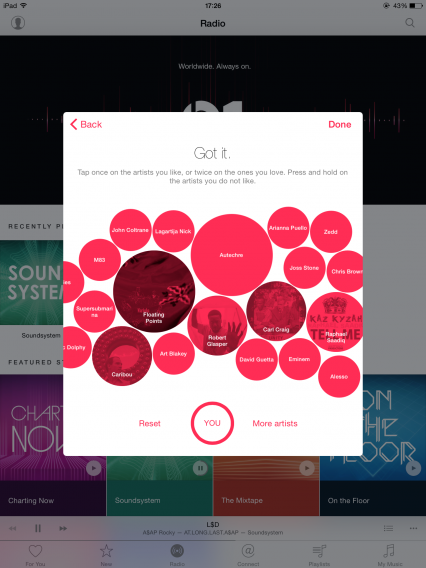
For You gives you recommendations and stations based on genres and artists you like. As with Beats Music, Apple Music asks you to pick a few genres and artists you like so it’s recommendations can begin. Beyond that, it should learn what you like based on what you listen to via Apple Music, your own library, and of course the new Beats Radio. I was disappointed to see playlists like “intro to…”, as these were based on artists I told Apple Music I like, so I hardly need an introduction to them, right?

New shows you the latest releases in Apple Music, and for now they don’t seem to be curated for your own tastes, so expect to see big names, as well as some local flavor based on where you are.

Radio is split into stations based on genre, as well as its flagship Beats 1, hosted by world famous DJs like Zane Lowe. Beats 1 sounds very much like a radio station – it’s live, DJs speak and you’re at their mercy in terms of selection. How much you enjoy Beats 1 depends whether you like the DJs’ tastes.

So far, and this may change, the genre stations are simply mixes of music from Apple’s huge music library. Here, you can skip tracks forward, but not backwards, though you can listen again to any song you hear via your listening history. If you really like a song, you can start a station based on that song. I did that with The Smith’s There Is a Light That Never Goes Out, and it was followed by songs by Blur and then Electronic. There’s a star button under all tracks, which allows you to advise the app to play more or less of this kind of song, or add it to your iTunes Wish List.

Connect is where artists share content with you. Pictures, songs, video, and more, in a feed. The artists are mixed from genres and artists you like. This is probably the biggest experiment in Apple Music. Social media has proved very successful for many artists, whether its Facebook, Tumblr, or Twitter. Connect looks like Apple’s attempt at giving them the same opportunities from within Apple Music. How successful it is depends on artist engagement. You can comment on posts, like them, or share them on your social networks as well. Watch this space, as they say.

An impressive start

The addition of Apple Music to the iOS Music app makes it possibly the most complete music app around. I still feel the lack of Spotify style community features is a mistake, but it’s still an impressive package. It’s almost intimidatingly large, and will take some getting used to, regardless of whether you’re already a Music or iTunes user.

Apple Music is available right now on iOS, and should come to iTunes on Windows and OS X in the next few hours. An Android app will be released in the Fall.

Related articles

What are Connected Cars?

Apps for women: breaking down gender stereotypes

Grad gift guide: high school grads

Follow me on Twitter @jonathanriggall

Connected Cars: the future

We now know where connected cars are today, and what’s on the horizon. How will connected cars change our lives in the next five to ten years? In the name of safety and efficiency, it seems we are headed for more and more automation. Being a driver may become a thing of the past.

The self-driving car – should you worry?

Self-driving cars are almost inevitable. Google has shown over six years of testing that they are viable, and moreover, that they make better and quicker decisions than human drivers. The main obstacles to driverless cars coming to our streets are road regulations and public perception.

With regulation, laws have been made with human drivers in mind. Computers in charge will mean regulation designed especially for that. Regulation being a government area, don’t expect a super fast response.

Fear of robot controlled cars seems widespread. Even if, as Google claim, robots are safer and do the job better, we worry that a computer might decide to kill us instead of killing other people in the case of an accident. This is fairly illogical, and misunderstands how self driving cars work and why accidents occur.

Most accidents are the result of human error, not technical failure. Human error usually results from lack of concentration, disregard for rules, slow reactions, or being under the influence. All of these disappear with self-driving cars that act in a predictable manner, cannot be distracted, and are programmed to respect the rules of the road. And they don’t get drunk.

The logical problem with stories that ‘cars might have to be programmed to kill you’, is that they obviously wouldn’t. They will be, and are, programmed to avoid accidents, and won’t make a decision based on killing or not killing anyone. Stories like this make a good headline, but have, at least currently, no basis in reality.

How manufacturers go about convincing people to let go of the wheel, is another matter – it’s not easy being told a machine is better than you!

How self-driving cars will improve your life

Bosch have showcased a system where your smartphone and car interact. When you arrive at a destination, your car will park itself, and when you want to leave, you can use your phone to tell the car to pick you up. That might sound like the Batmobile or Knight Rider, but it really seems to be just around the corner.

We may like to be in control, but let’s face it, highway driving is dull. Assisted or automated cars mean you’ll be able to relax instead of trying to stay awake staring at a repetitive, boring road. The more assisted cars we see on the road, the safer you’ll be too. Studies show that up to 90% of accidents can be directly attributed to driver error, and computer controlled cars will be able to react faster than human drivers when avoiding accidents. So, highway pile-ups should stop being a problem.

Away from automated driving, connected cars will increasingly be aware of their surroundings and nearby events. So, if any accident has been reported on your route, you and your car will know about it ahead of time and be able to avoid it, or at least be prepared. The same goes for approaching congestion.

Connected cars will send data back to central servers that will help other connected cars react to their environment as early as possible.

Environmental pollution and greenhouse gases have made cars unpopular in certain circles in recent years. But it looks like it’s not the car that’s going to go the way of the dinosaurs. It’s the driver. So enjoy driving – safely – while you can, as it may not be something you have to do in ten or fifteen years!

While we may take industry reports about driverless cars with a pinch of salt, it’s becoming difficult to ignore that travel would be easier, safer, and more relaxing if we didn’t have to drive. Not being able to call your car when your mobile battery dies could be irritating, though.

Read more about Google’s self-driving car project here.

Related articles

Connected cars: the near future

What are Connected Cars?

Google I/O 2014: Android Auto coming later this year

Follow me on Twitter @jonathanriggall