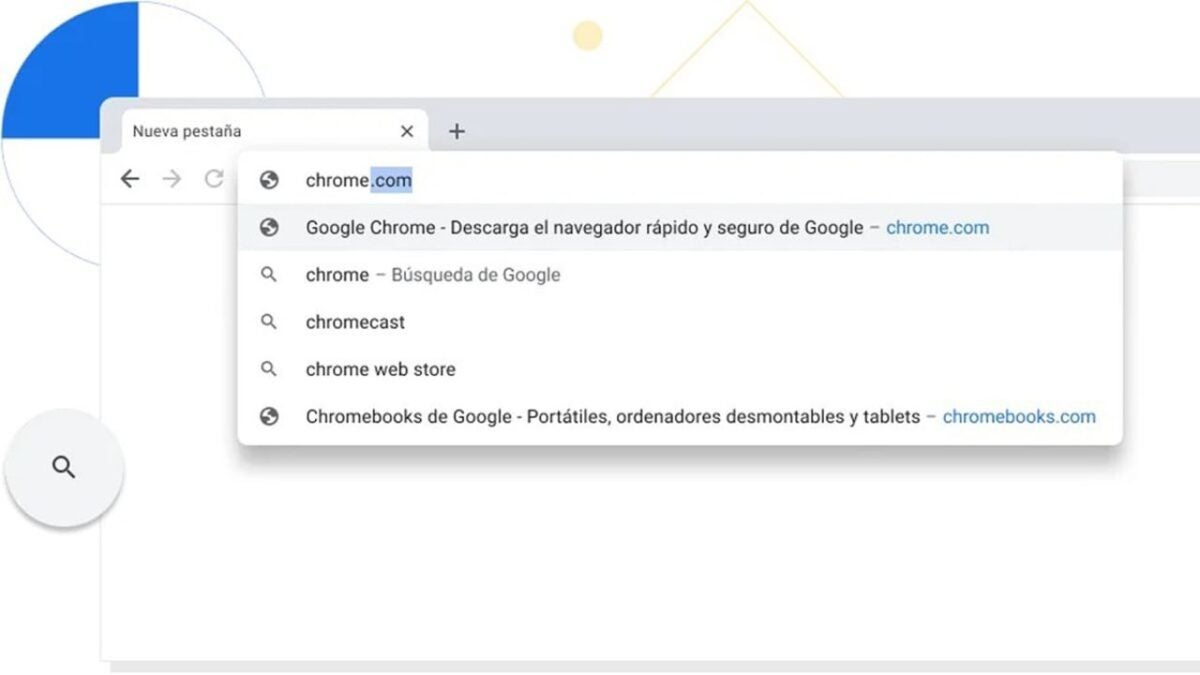
Have you ever misspelled a word in Google Chrome‘s search bar and waited for the browser to suggest the correct form? Well, that won’t be a problem anymore because Chrome has added a new feature that automatically corrects common spelling mistakes and takes you directly to the search results you wanted to see.
The new feature is useful for both web searches and searches within your bookmarks. This means if you want to search for a website with a complicated or unusual name, you won’t have to remember how it’s spelled exactly. You can type something approximate, and Chrome will show you the correct option.
For example, if you want to search for information about the Korea Superconducting Tokamak Advanced Research (KSTAR) facility, you don’t need to type out that long and difficult name. Just typing something like “kstar tokamak” or even “kstar tokamac” (with a ‘c’ instead of ‘k’) is enough. Chrome will recognize what you mean and show you the bookmark you have saved or related search results.
This feature is incredibly useful to save time and prevent frustration when you’re unsure about how something is spelled. Additionally, Chrome also provides search suggestions based on what you’ve typed, in case you want to explore other options or refine your query.
To activate this feature, you just need to go to Chrome settings, enter the Google Sync and services section, and check the box for “Autocomplete searches and URLs.” It’s that easy.
But that’s not all. Chrome has also improved its voice search system, which is now faster and more accurate. You just have to click on the microphone icon in the search bar and say what you want to search for. Chrome will show you the results instantly, without having to wait for it to finish processing your voice.
Additionally, Chrome has introduced a new feature called Automatic Captions, which allows you to see real-time subtitles for any audio or video content you play in the browser, whether it’s a song, a podcast, or a conference. This feature is very practical for people with hearing impairments or for those who want to watch videos without sound.
To activate this feature, you need to go to Chrome settings, enter the Accessibility section, and check the Automatic Captions box. Once done, you’ll be able to see subtitles at the bottom of the screen every time you play any audio or video content.
