Disk cloning tools remain essential for users upgrading hardware, migrating Windows installations, or preparing multiple PCs with similar configurations. While Windows includes built-in utilities, most users turn to third-party software for greater flexibility and reliability.
Wittytool’s free disk cloning software – Wittytool Disk Clone positions itself as a focused cloning solution for Windows 10 and Windows 11 systems, combining standard disk migration tools with a built-in Windows SID modification feature – something not commonly found in mainstream cloning software.
First Impressions: Straightforward and User-Friendly
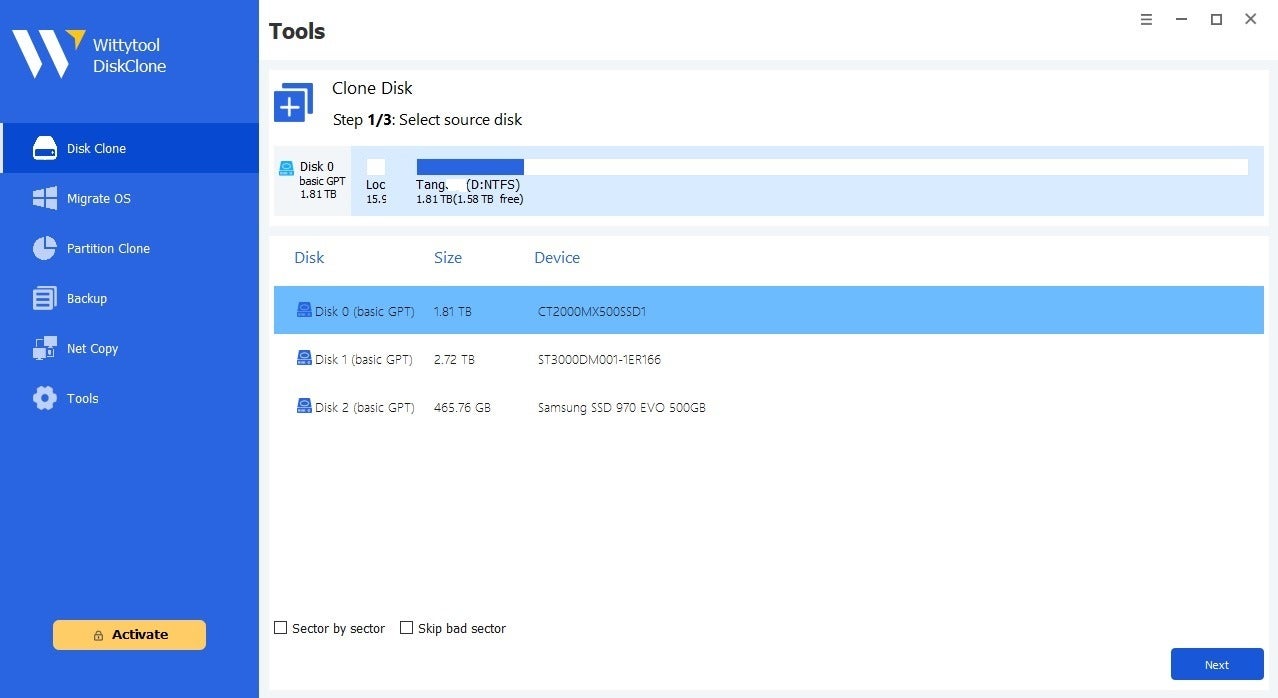
The first thing you notice when launching Wittytool Disk Clone isn’t flashy visuals, it’s clarity. The installer is lightweight (around 40 MB), clean, and free from unnecessary extras or bundled software. Installation takes about a minute, and once opened, the layout is logical and intuitive.
The main dashboard clearly presents its core features:
- Full disk cloning
- OS migration
- USB cloning
- Windows SID Changer
For many users, that transparency is a major advantage compared to alternatives that bury critical options in complex submenus or assume prior technical knowledge.
Disk Cloning: Complete and Flexible
At its core, Wittytool Disk Clone allows users to clone entire drives or specific partitions with an accessible, guided workflow. After selecting a source disk and destination disk, the software offers automatic partition adjustment and resizing if the target drive differs in size.
This is especially useful when migrating from an older HDD to a modern SSD. Not only are files copied, but the structure is optimized to take full advantage of faster hardware.
In our testing, cloned drives booted successfully without manual intervention. This indicates that Wittytool Disk Clone correctly handles system data, partitions, and boot information — a critical factor in real-world migrations.
Step-by-Step Guide: How to Clone a Disk with Wittytool Disk Clone
Step 1: Install
Download Wittytool Disk Clone from the Wittytool official website and follow the standard Windows installation process. No advanced configuration is required.
Step 2: Select “Disk Clone”
From the main panel, choose the “Disk Clone” option.
Step 3: Choose the Source Disk
Select the drive you want to clone. The software clearly displays:
- Capacity
- Partition type
- Used space
Step 4: Choose the Destination Disk
Select your SSD or target drive. If sizes differ, Wittytool Disk Clone allows automatic partition resizing to optimize available space.
Step 5: Confirm and Execute
Before starting, the program displays a summary of the operation. After confirmation, the cloning process begins. A clear progress bar keeps you informed throughout.
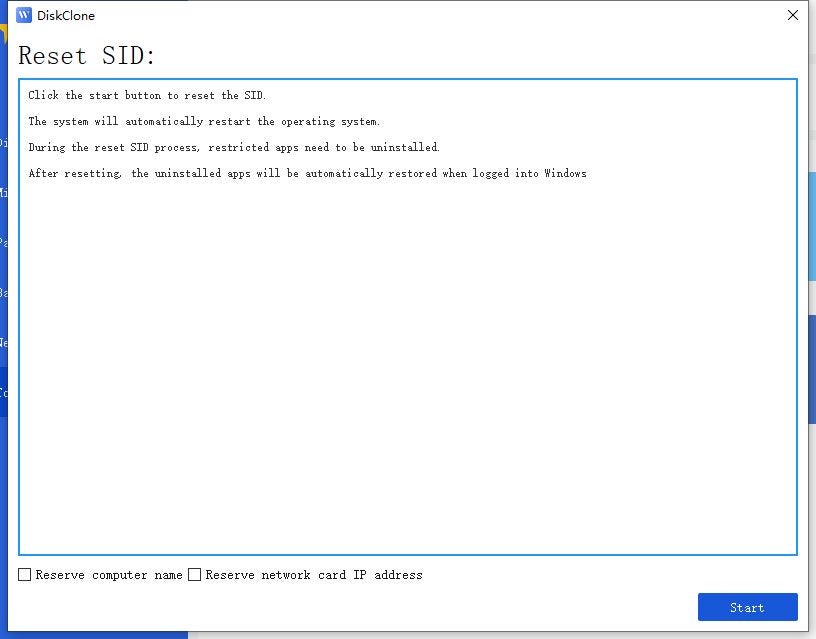
Step 6 (Optional): Change the SID
If deploying across multiple systems, you can access the “Windows SID Changer” feature. The guided process allows you to generate a new SID without resetting the system.
Windows SID Change: A Key Differentiator
One of the most compelling features of Wittytool Disk Clone is its integrated Windows SID modification tool.
The SID (Security Identifier) is a unique identifier assigned to each Windows installation. Duplicating it across multiple systems can cause network conflicts, particularly in corporate domain environments.
Traditionally, addressing this required complex tools like Sysprep, which can reset systems and impact custom configurations. Wittytool Disk Clone offers a streamlined alternative, allowing users to change Windows SID without Sysprep, without uninstalling applications, deleting user profiles, or reverting the system to a generic state.
Combined with automatic computer renaming during deployment, this significantly reduces time and complexity when preparing multiple machines for small businesses, labs, or service environments.
Operating System Migration: Ideal for Hardware Upgrades
Beyond full-disk cloning, Wittytool Disk Clone includes an OS migration feature. This option transfers only the Windows operating system to a new drive, making it ideal when you want to keep large data files on the original disk while moving Windows to a faster SSD.
The workflow mirrors the standard cloning process but simplifies partition selection and configuration. The wizard ensures the new drive is fully bootable without requiring advanced knowledge.
USB Cloning and Broad Compatibility
Wittytool Disk Clone also supports cloning USB drives and other removable media with the same reliability offered for HDDs and SSDs. This makes it useful not only for system migrations but also for duplicating recovery drives, portable backups, and prepared installation media.
This USB clone tool supports SATA, NVMe, USB interfaces, and various disk sizes, minimizing compatibility concerns with modern hardware setups.
Performance, Stability, and User Experience
In practical use, Wittytool Disk Clone demonstrates solid performance and stability. The interface provides clear progress indicators, and advanced operations like MBR-to-GPT conversion or LAN-based cloning are handled smoothly.
Testing showed efficient hardware utilization, maximizing transfer speeds without excessive CPU or memory consumption, particularly valuable for mid-range systems or workstations with multiple connected drives.
The software also includes defective sector handling, allowing users to skip damaged areas on the source disk rather than aborting the entire process — a feature not consistently available in competing free or paid tools.
A Practical Addition to Your Maintenance Toolkit
While many Windows cloning tools focus solely on sector-by-sector duplication, Wittytool Disk Clone goes further. It offers:
- Disk cloning
- OS migration
- Bootable backups
- USB preparation
- System identity management
All in a single solution.
Professional Comparison: Wittytool Disk Clone vs. Other Tools
The Windows disk cloning market is competitive. Here’s how Wittytool Disk Clone compares to alternatives like Acronis True Image, EaseUS Todo Backup, Macrium Reflect, and Clonezilla.
Approach and Complexity
- Acronis True Image and EaseUS Todo Backup are broader backup suites focused on data protection and disaster recovery. Cloning is included but not always the primary workflow.
- Macrium Reflect has long been a technical benchmark with deep advanced options, though it comes with a steeper learning curve.
- Clonezilla is powerful and free but requires significant technical knowledge and lacks a beginner-friendly graphical interface.
Wittytool Disk Clone occupies a middle ground:
- More accessible than highly technical tools
- More cloning-focused than generalized backup suites
- With a clear differentiator: integrated SID modification
The Real Advantage: SID Management
This is where Wittytool Disk Clone stands apart. Most tools allow system cloning but do not natively integrate SID modification post-clone.
For small business deployments or technical environments replicating machines, this means:
- Time savings
- Reduced reliance on Sysprep
- A more streamlined workflow
In this specific area, Wittytool Disk Clone delivers a tangible competitive advantage.
Final Verdict: Is Wittytool Disk Clone Worth It in 2026?
Wittytool Disk Clone is a must-have disk cloning solution that combines power, accessibility, and advanced functionality in one streamlined package — and it’s remarkably easy to use.
Its balance of simplicity and technical depth makes it suitable for home users upgrading to SSDs as well as technicians and administrators preparing multiple machines with unique identities.
With features like integrated SID modification, modern hardware compatibility, and a clear migration assistant, Wittytool Disk Clone positions itself between consumer simplicity and professional capability.
For users migrating to SSDs without reinstalling Windows, technicians preparing client systems, or small businesses replicating configurations without network conflicts, Wittytool Disk Clone offers a well-designed and effective solution.
