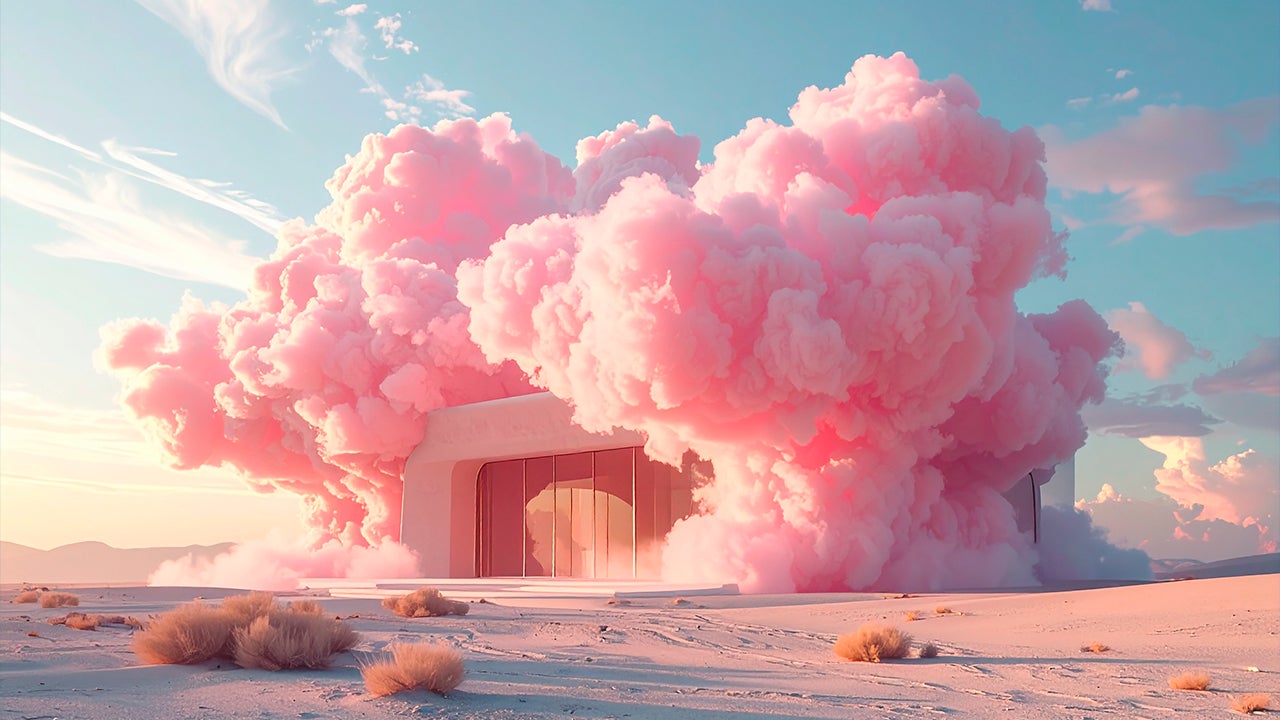
Have you ever generated images using AI? If the answer is yes, it is very likely that the results were good but with unconvincing details. It is not uncommon to see faces with strange pupils, extra fingers on hands, or people in awkward positions.
Although AI-generated images and videos have conquered the Internet, these generations still face significant problems of realism and context. Despite the good results they may yield on many occasions, human hands are still needed to create quality content, as we will see below.

The biggest problem of AI: the lack of direction and intentionality
AI can be an excellent tool, as long as you know how to use it. The great potential of this technology can blind many people who use it. How? By sidelining the intentionality in favor of the first thing that AI can create that looks good. Mistake.
One of the major flaws of AI lies in how generic its results can be. If you pay attention to that type of content, you are likely to notice certain patterns that repeat continuously. It doesn’t matter whether they are images, texts, or videos; these patterns are present in all of them.
For many, AI has become an excellent tool to get by. If what you want is to stand out and enhance your projects, you can’t let AI do everything for you.
AI does not compensate for your technical shortcomings
On the other hand, it is very important to have basic technical knowledge to improve what AI can offer us. AI can help you generate the foundation of your project or materialize ideas that you have rolling around in your head.
You must keep in mind that this content will never exactly reflect what you have in your head. Therefore, having certain knowledge will help you refine what the AI can offer you. Knowing how to use Photoshop, for example, will help you fine-tune the generated content and bring it closer to your own vision.

Get Started with Adobe Firefly
As we mentioned before, we must have clear ideas. Ask yourself what the objective of your project is, what format it will have, and for what (or whom) it is intended. Adobe Firefly, Adobe’s platform, will help us create the image we need.
For those who don’t know, Adobe Firefly is Adobe’s artificial intelligence platform, primarily focused on audiovisual creation. It also encompasses a set of models and tools integrated into applications like Adobe Photoshop, Illustrator, and more.
You can access the Adobe Firefly platform through any web browser or from the official app on iOS or Android. In both cases, the operation is very similar. Upon entering, the first thing we will see is a large sign with the phrase “What would you like to generate” along with a text box below. This is where we will need to describe what we want to generate. This description is what is known as a prompt.
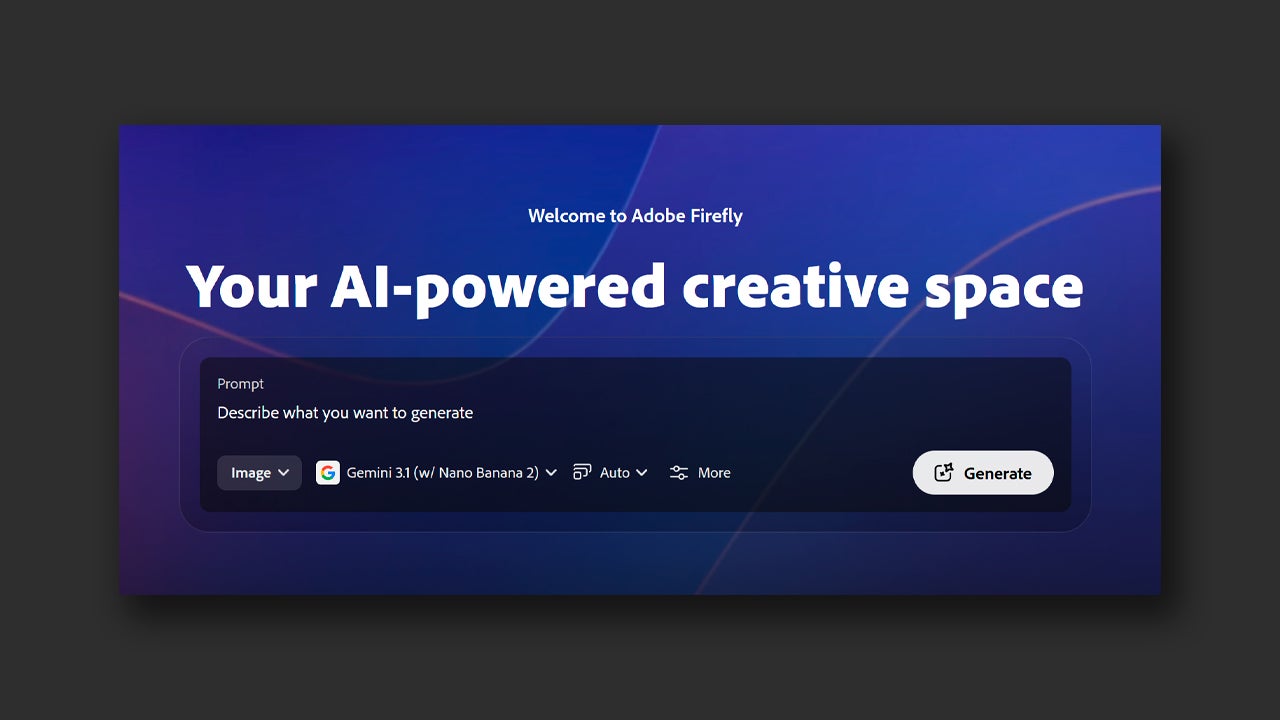
There you can also choose between Image and Video, depending on what you want to create. Keep in mind that each generation you make will consume generative credits. These vary depending on the type of generation (videos consume more than images) and the model used. You can choose between Adobe models (Firefly and its different versions) or other well-known third-party models (Gemini, GPT Image, etc).
If you already have your description clear, the chosen model, and the type of content, click on Generate and wait to see your results. Don’t obsess over perfection, use these generations as a foundation to work on and iterate. Make sure there are elements like good composition, important elements, and so on. Then we will take it to Photoshop.
The project in Adobe Photoshop continues
In Photoshop, you can take the results of Firefly and make more complex adjustments in addition to using other AI functions, such as Generative Fill or Generative Expand.
Generative Fill will help you to remove certain elements from the image or to include new ones. To use it, you just need to click on any selection tool (lasso, magic wand, marquee, etc.) and then select the area of the image you want to retouch, whether to remove an object or add one.
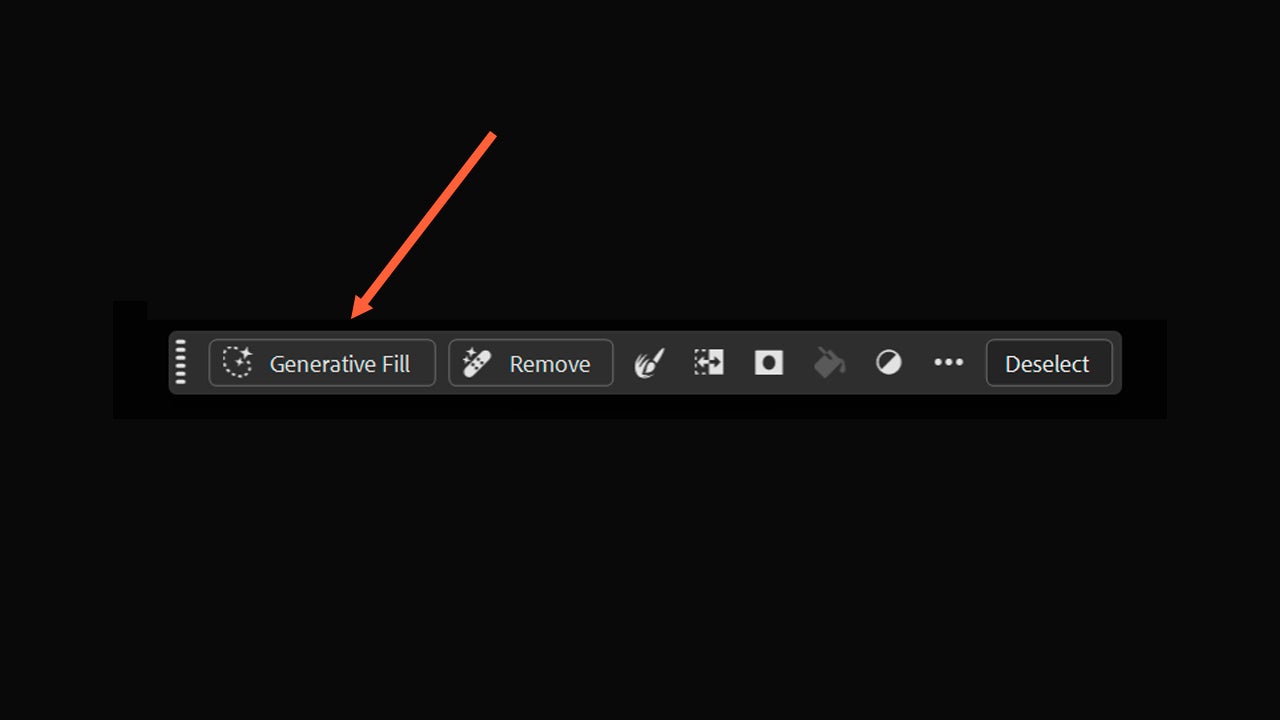
Right below your selection, a floating toolbar will appear with the Generative Fill option. If that toolbar does not appear, you will need to go to View > Contextual Task Bar to make it appear. You also have another option; after making the selection, you can go to Edit > Generative Fill.
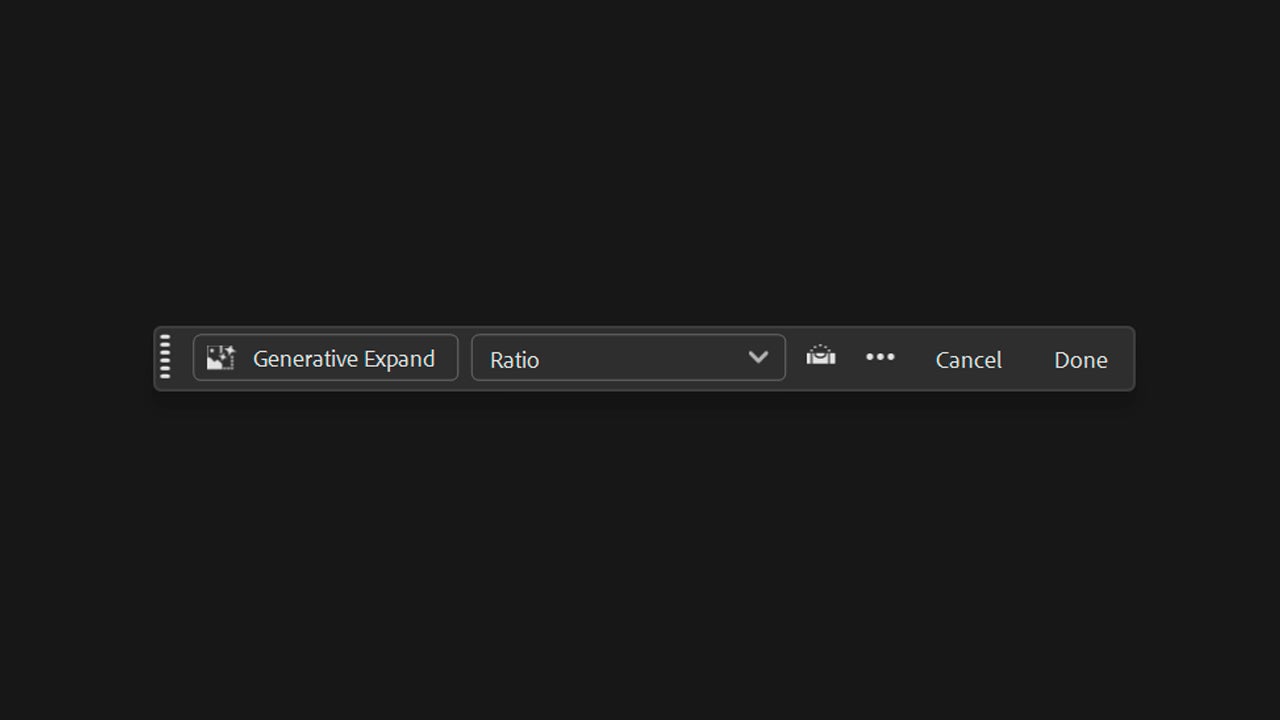
Generative Expand, on the other hand, will help you expand the margins of your canvas while the AI “fills in” the gaps. Select the Crop Tool to access this option. Again, a contextual bar will appear with the Generative Expand option. Drag the edge of the canvas outside the limits and leave it in the position you want.
Within Photoshop, you have the tools to make all kinds of retouches. A simple yet very effective adjustment can be framing adjustment. Good compositions are the foundation of a good image. Rearrange elements if necessary; the results will be better.
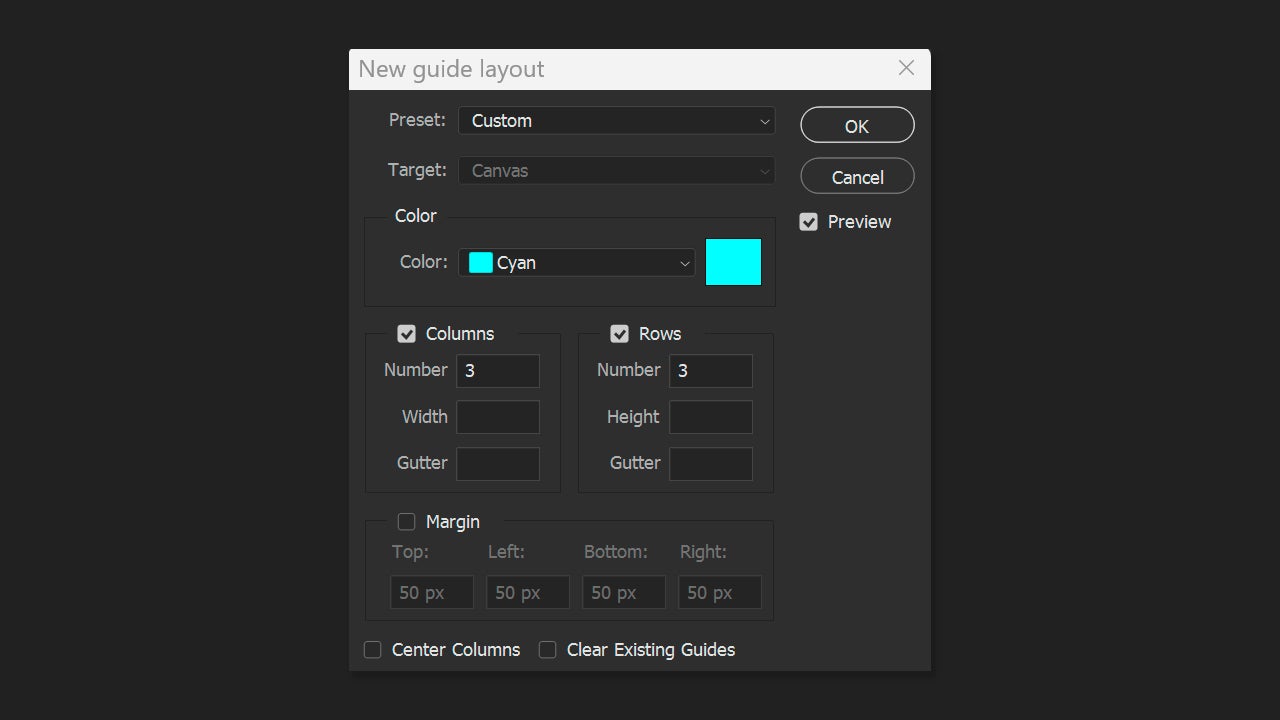
You can do this by activating the composition guides. The guides appear as floating lines that can be moved or deleted as needed. To activate the guides, go to View > Guides > New Guide. A new window will appear where you will need to designate the orientation of the guide line (horizontal or vertical), the position, and the color. To create more complex guides, you will need to go to View > Guides > New Guide Layout.
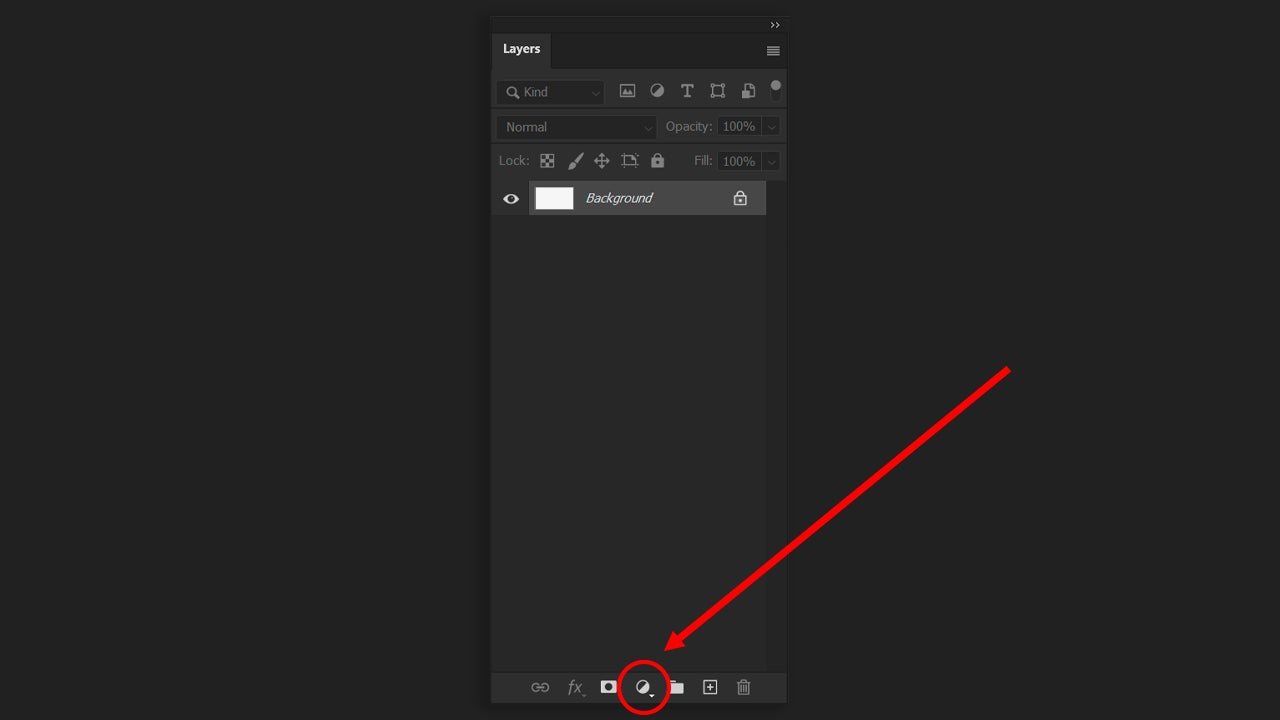
Once you have everything in place, it’s time to focus on color. Within Photoshop, we can alter curves, change color temperature, adjust brightness… In the end, the goal is to make everything have the same visual tone and atmosphere. If you scroll down from the Layers panel itself, you will see the option to create Adjustments Layers. From there, you can create specific layers that adjust everything related to color.