If you work for yourself, you know all too well what it’s like to lose hours dealing with invoices, contracts, and budgets. Suddenly, the creative side takes a back seat due to a bureaucracy that, let’s be honest, isn’t very entertaining to say the least.
Fortunately, there are tools that can help us recover that time. One of the most comprehensive (and often underrated) is Adobe Acrobat, which goes far beyond just opening or reading PDFs. Nowadays, Adobe Acrobat is also a place where you can create, edit, sign, send, and store all your documents without leaving your computer (or your mobile).

Adobe Acrobat, the freelancer’s ally
Creating invoices or signing documents is boring, but also very necessary on certain occasions. If the so-called “paperwork” doesn’t interest you, Adobe Acrobat can make your life easier, especially if you are self-employed. With Acrobat, you can create and edit documents without relying on other programs, digitally sign contracts, and much more, as you will see below.
How to create documents with Adobe Acrobat
Submitting a well-presented proposal will always help you gain points with your clients. If you follow these steps, you can create a professional-looking document in a very simple way:
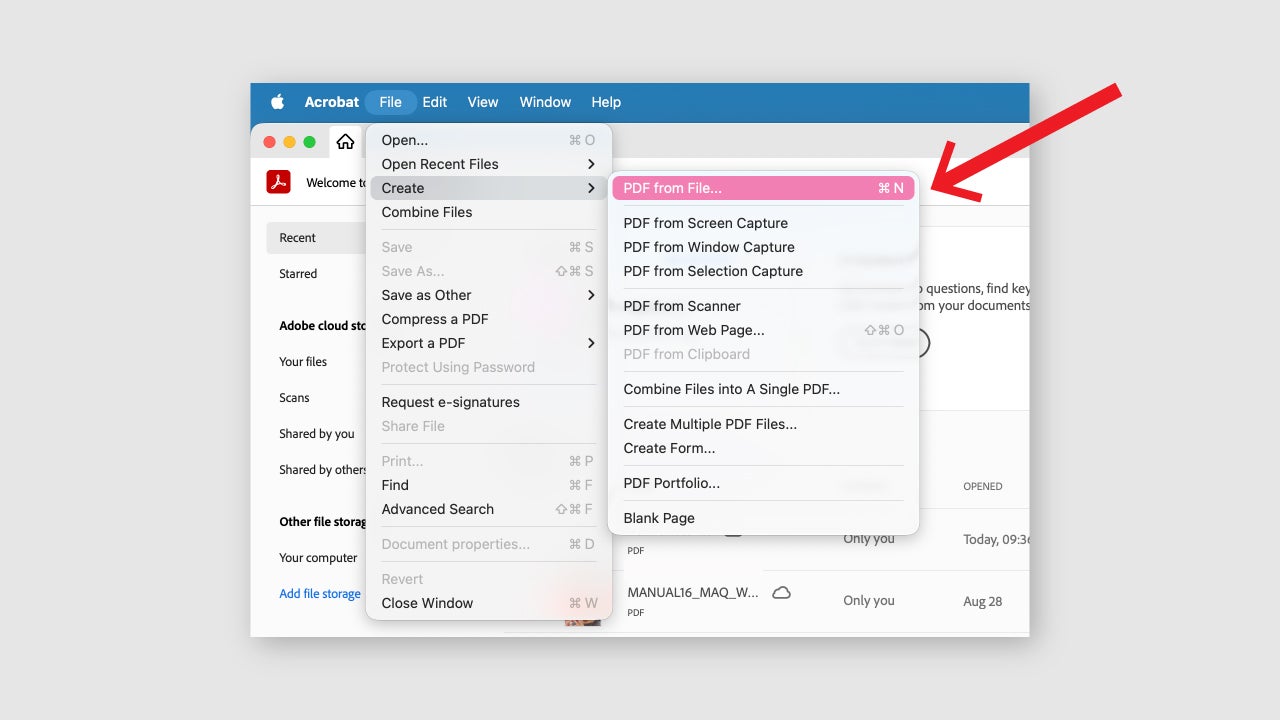
- Open Adobe Acrobat and click on the Create tab. If you want, you can start from a Word document, an image, or even a webpage by going to File > Create > PDF from…
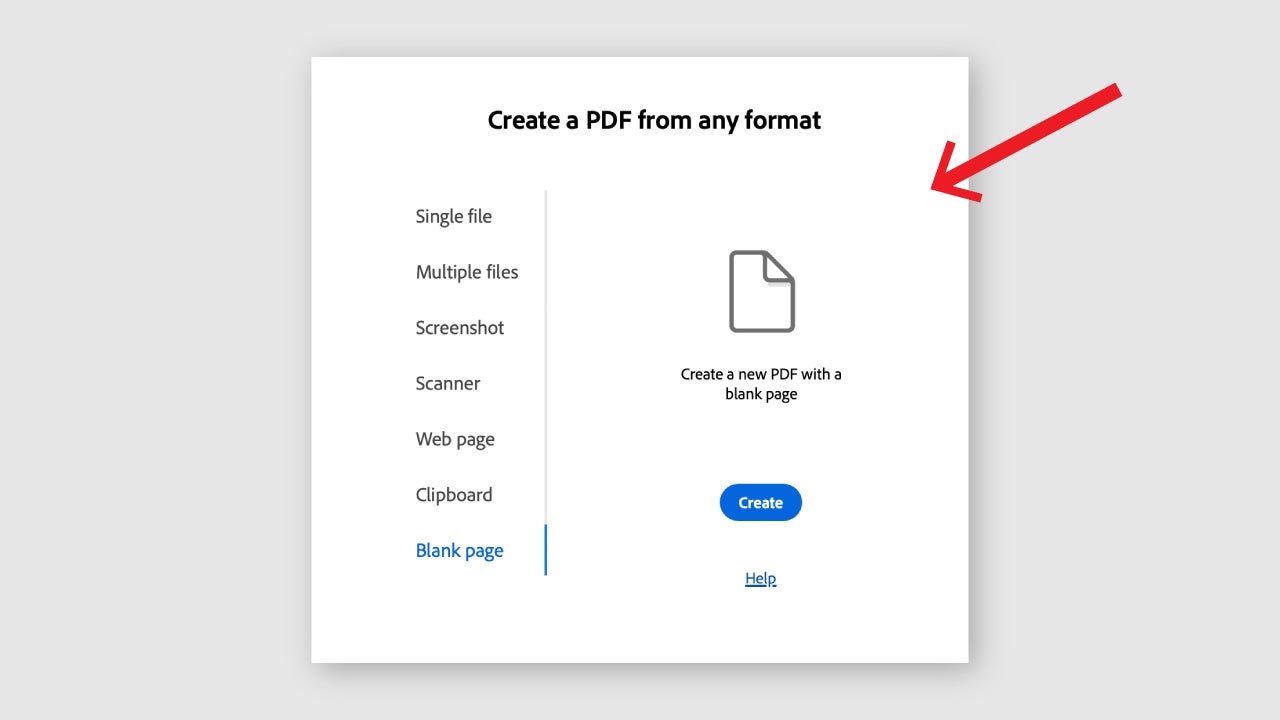
- Next, you will see that you can choose where to start to create your PDF: one or several files, screenshots…. If you want to start from scratch, you will need to choose Blank page.
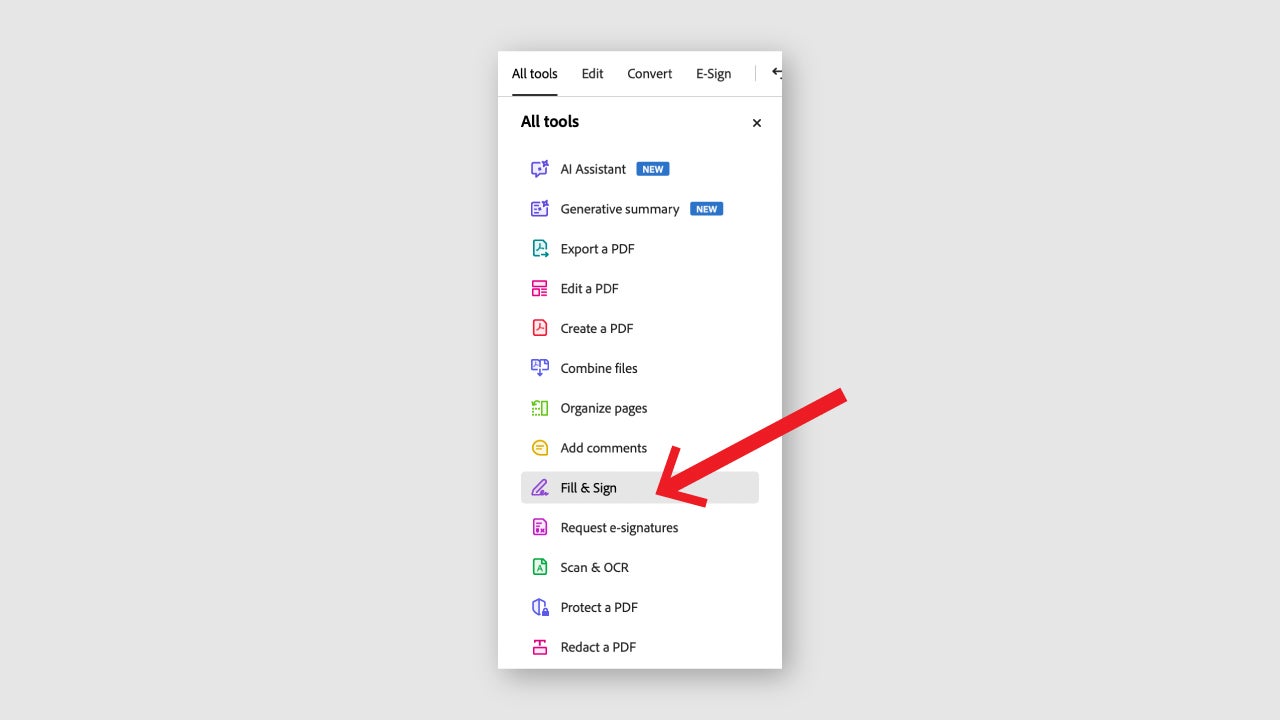
- Add the colors, shapes, and images you want to enrich your document. You can do these actions from the All tools bar that you will find on the left.
- If you are working with a client and want them to collaborate on the document, use the Send for comments option so they can leave their contributions directly.
- If you need to sign the document, click on the Fill & Sign option. You will find it in the All Tools section.
Another option that you will always have on hand is that of pre-designed templates. A template is basically a PDF document that already has a predefined structure (for example, the format of an invoice) and that you can fill out and reuse as many times as you need.
On the Internet, you can find many to download, both paid and free. However, we encourage you to try it yourself and experiment within Adobe to create custom files.
How to create invoices from Adobe Acrobat
Invoicing is one of the most repetitive tasks for freelancers, but Adobe Acrobat can help you automate it to a large extent.
- Open an invoice template with Adobe Acrobat or create your own from scratch.
- With the Edit a PDF feature, add your tax information, the client’s information, the date, and break down your services.
- Save your modified PDF by clicking on File > Save.
- You can send the invoice directly from Acrobat using the Share button. This allows others to view it without needing to download it.
- To stay organized, you can always gather your invoices and combine them into a single PDF file using Combine files, which you will find in All tools.
As you can see, with Adobe Acrobat you can improve communication with clients without leaving the document environment and without extra complications. The collaboration options are very generous and with them you can avoid misunderstandings, for example.
In addition, you can also send contracts or agreements to be digitally signed in a professional, secure, and fast manner. And if you need to add a more visually appealing touch, you can always complement your documents with Adobe Express, ideal for creating covers or custom compositions.
Other Adobe Acrobat features to consider
Adobe Acrobat contains a large number of options that can help you save time with paperwork. One of them is that it gives us the ability to save our signatures. From Fill & Sign, you can save it and even save certified copies that cannot be edited.
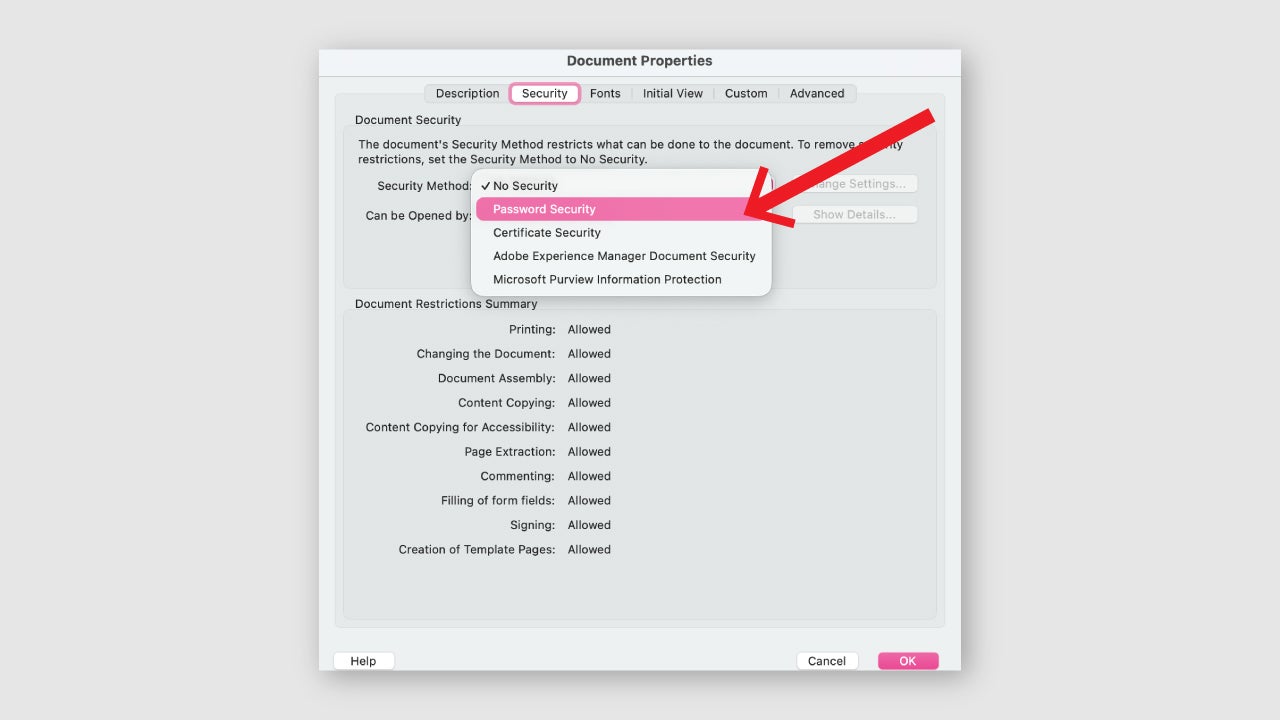
You can also password protect your files, ideal for adding an extra layer of security. If you want to add a password, go to Edit > Protection > Security properties. From Security Method, choose Password Security. A new panel will open where you need to click on Require a password to open the document. When you finish typing your password, click OK and your document will be protected.
Save time with Adobe Acrobat
Being self-employed is synonymous with freedom, but it also adds a lot of individual responsibility. Programs like Adobe Acrobat can help you reduce that responsibility by saving you hours of paperwork and benefiting other areas of your work.
