Today, the immediacy of social media has completely transformed the world of content creation. In that sense, Adobe has taken a step forward to help both novice and experienced creators with the new features of Adobe Express.
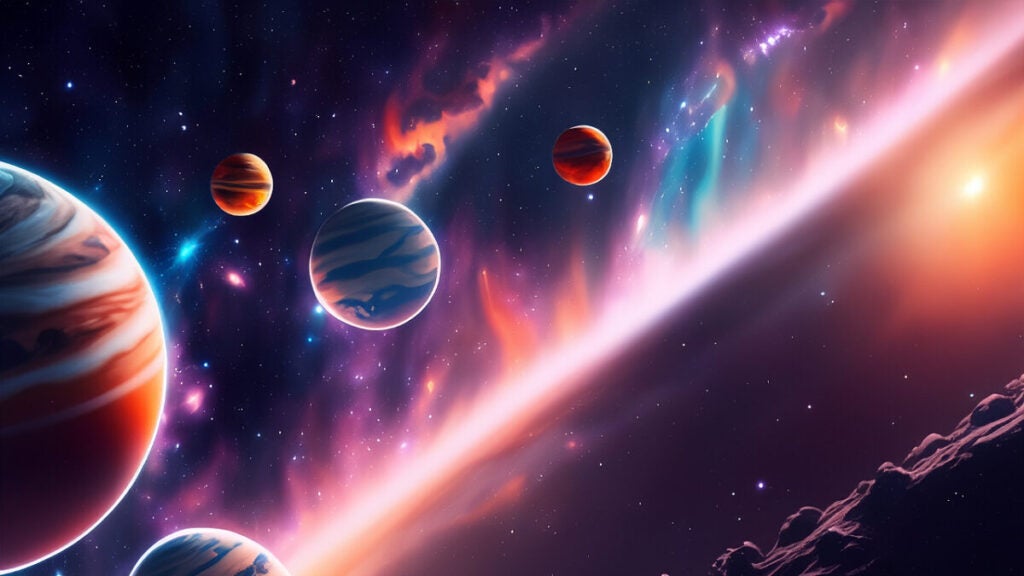
Let’s say you are tasked with creating a series of publications or posters with a specific theme, such as space. Time is of the essence and the demand for quality is high. This is where Adobe Express and its use of generative technology come into play.

Because, of course, who hasn’t gotten tired of wasting time searching for that perfect template only to not choose any and end up making it from scratch? Thanks to Adobe, you won’t have that problem anymore. In its new update, Adobe Express allows you, for example, to use artificial intelligence to generate editable templates.
However, Adobe Express goes further. Not only will you be able to create templates, but you will also be able to complement them with graphics and images also generated by artificial intelligence.
The process couldn’t be simpler: in all these cases, you just have to describe what type of content you need and Adobe Express will generate it in a matter of seconds. If you want to learn how to use these new options and make the most of them, look no further: down below we have everything you need to know.
How to create a customizable template from PC
Having a predefined template from the beginning will help you save a lot of time when creating content and also for maintaining visual cohesion. Adobe Express offers you AI-powered generation tools so that with simple descriptions, you can get the template you want. The process to follow would be as follows:
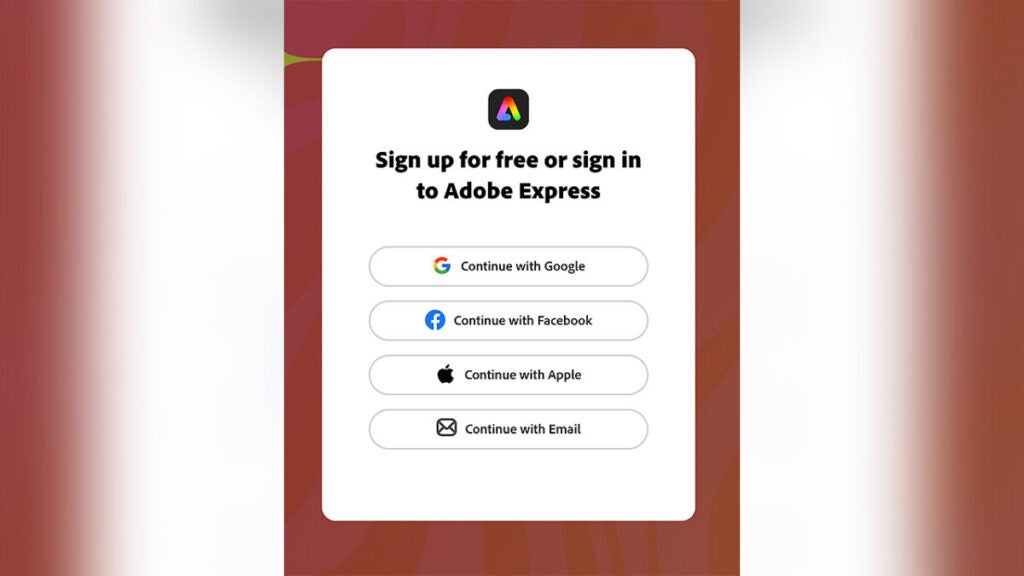
- We start with the most essential step of all: signing in to Adobe Express with your Adobe account. To save time, you can always sign in with a Google, Apple, or Facebook account. Remember that you won’t be able to use Adobe Express if you’re not registered.
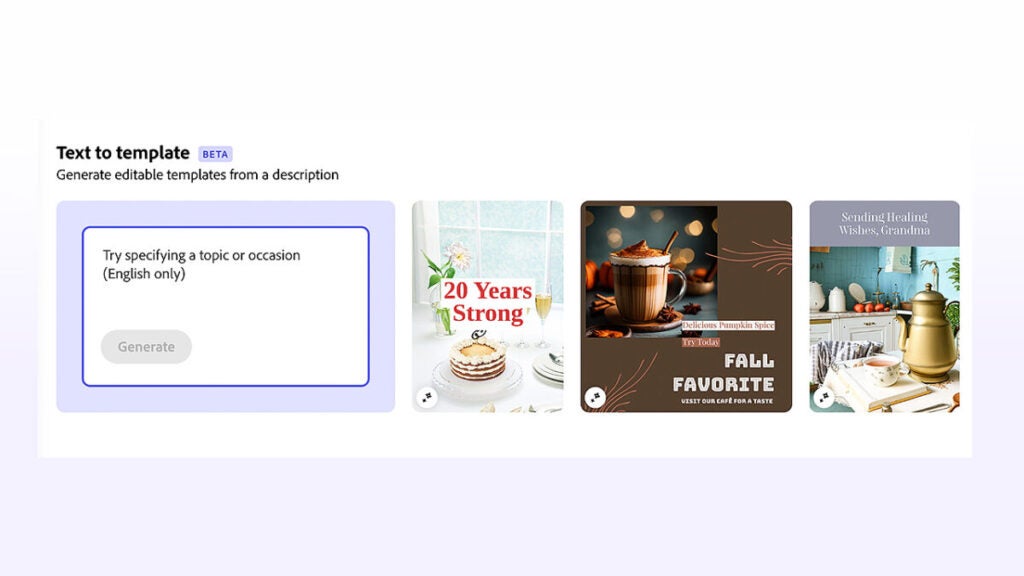
- Next, go to the From Text to Template section. There, describe the type of template you want to obtain and click on Generate. In our case, we want to create a poster with a space theme.
- Once you have finished, select one of the generated templates to edit it. You will be able to make any necessary modifications to it.
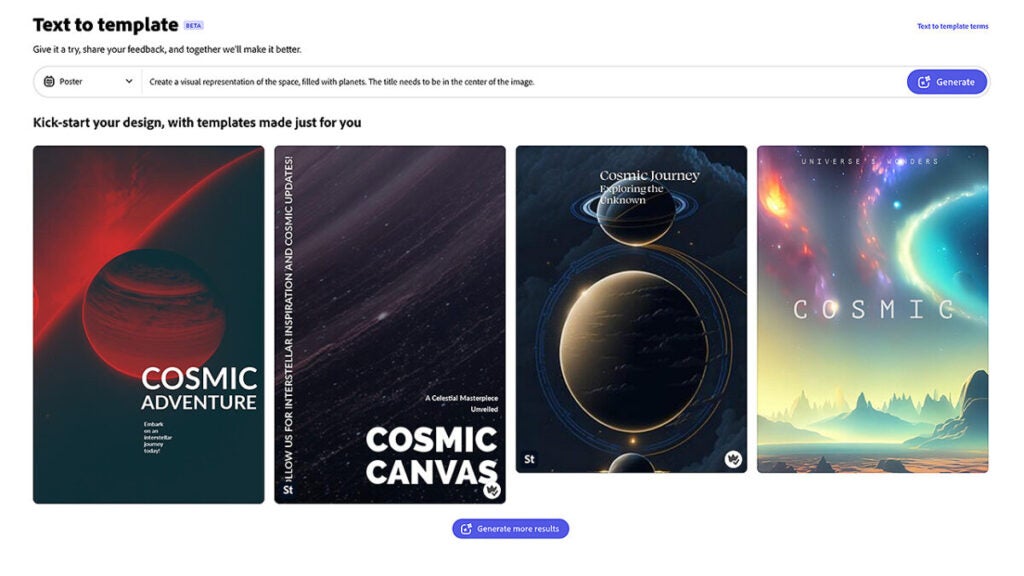
Adobe Express will give you four different results, generated based on your guidelines. If you are not satisfied, click on Generate more results and you will get even more options.
Remember that you can also iterate on the same result. Choose the template that catches your attention the most and click on Vary result. Then, the editor will show you the slight variations of the template you chose at the beginning. Finally, choose the template you like the most. Now, it’s time to start working on it.
How to customize your generations
Well, now we have our template generated. So, what’s left for us? Well, very easy: customize it to the fullest.
Adobe Express offers a series of additional options that will help you further perfect your template and therefore, your final file. Images, text, graphic resources, audios and even videos: Adobe Express gives it all to you on a silver platter.
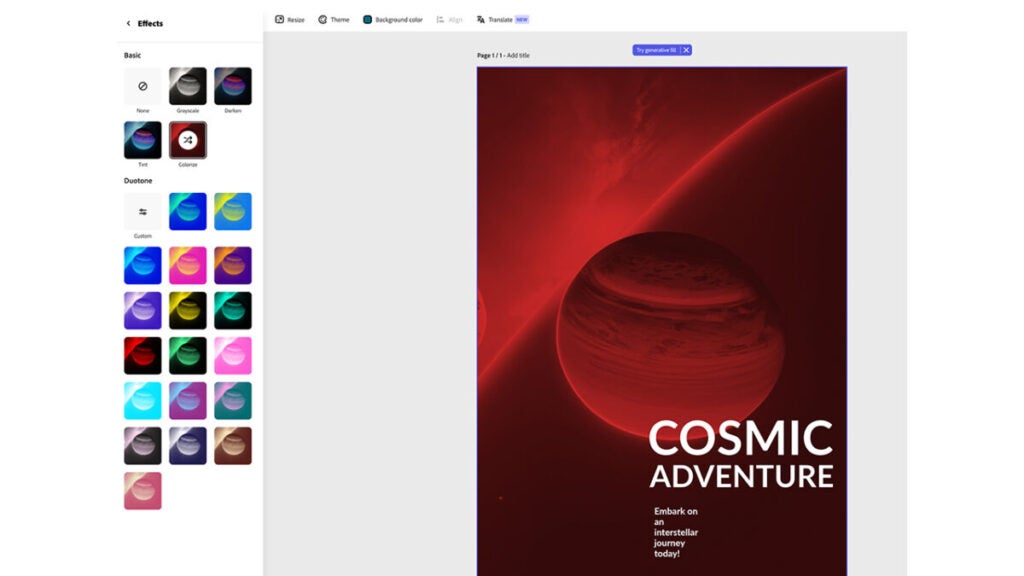
For now, let’s edit the image to give it a different visual effect. Adobe Express allows us to add visual effects and change its colors, for example. To access the effects, just click on the image and go to the left panel, where you will see the Effects section.
Adobe Express also allows us to play with contrast, highlights or shadows, as well as alter the saturation or fine-tune the image details even more. Moreover, you can even add animations, a very useful option for videos, reels, Tik Tok, and presentations.
Once you have finished editing the image, now you can modify the titles and add the text you want. Just like before, simply select the labels to modify the content, the typographic font and its effects.
How to add generated images to my template
We all know how difficult it can be to find the perfect image, the one that exactly illustrates what we want to convey.
Although Adobe Express already has a large bank of images and graphic resources, sometimes we need to use very specific and hard-to-find things. Luckily, now we can use the Text to Image feature. In our space example, we will include the image of an alien and the process to follow would be as follows:
- Just like with templates, From text to image converts what we write into an image. To use this option, we just have to go to Multimedia and click on Text to image. Then, we have to choose the screen ratio for the generation, choosing between square, horizontal, vertical or panoramic.
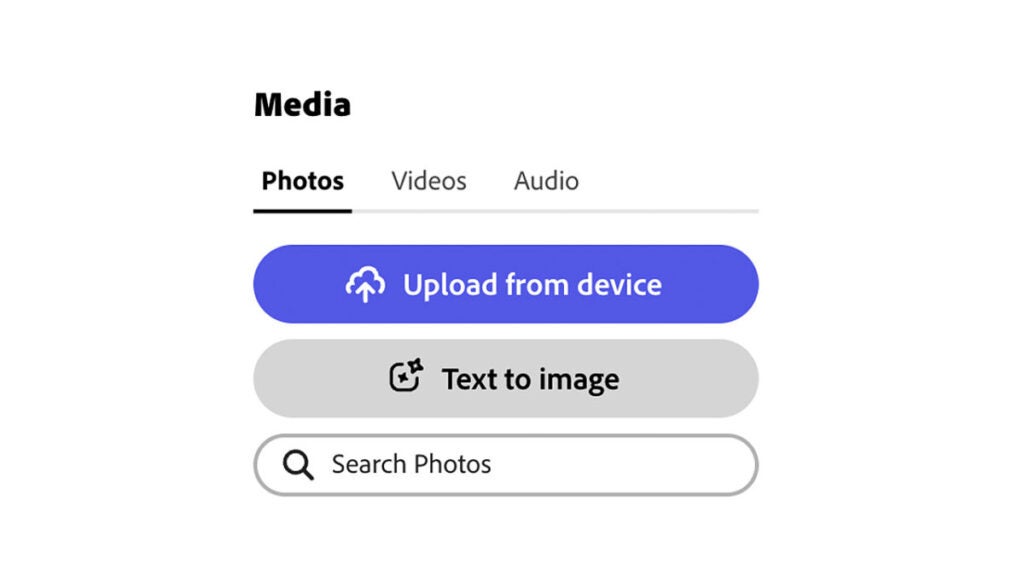
- Next, write the type of image you want to obtain. Here, the sky is the limit. Just don’t include controversial terms; Adobe Express does not allow generating offensive content.
- Also choose the style of the content. Within Adobe Express there are options for Photo, Graphic or Illustration. If you feel creative, you can also choose None and experiment with your descriptions. We are looking to generate a red alien with a stylized (or cartoon) appearance to add to our project.
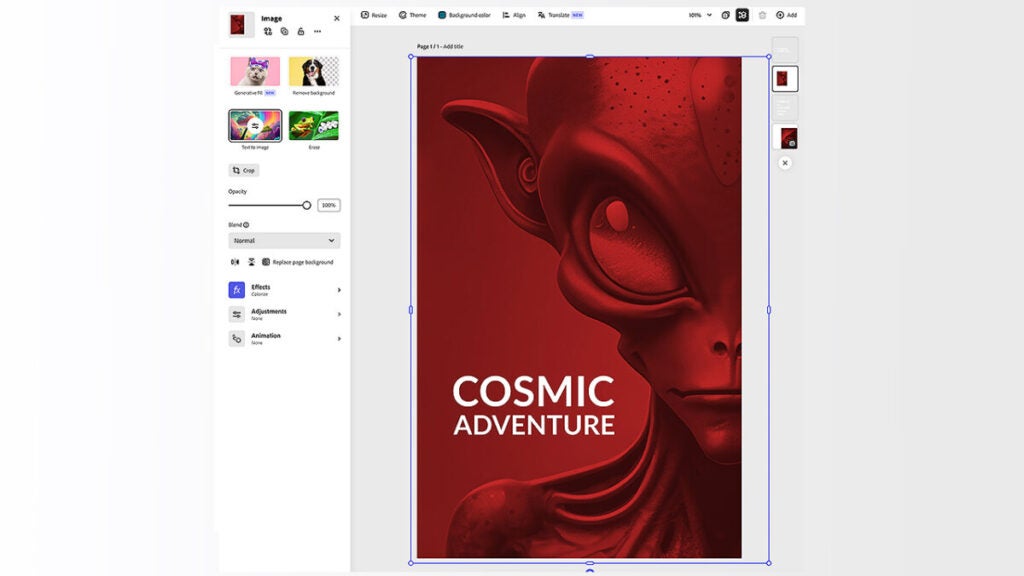
- Just like with templates, Adobe will show you four results based on your prompt. Explore different descriptions and styles until you find your ideal image.
How to create text effects
If you’re tired of using the same fonts all the time, Text Effects will help you add an extra touch of originality.
And the thing is, artificial intelligence generation is not only useful for creating templates and images: it can also help you customize the appearance of a font:
- First, add a layer of text and then go to Text Effects. Describe the type of effect you want to achieve. Neon letters, with flowers, golden, nebulous… you decide what aesthetic your titles should follow.
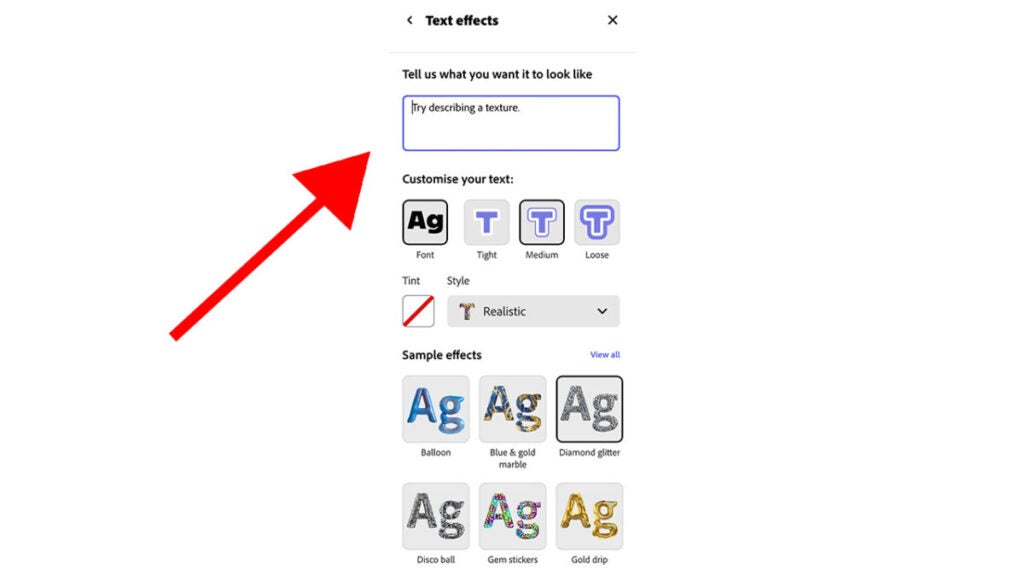
- Adobe Express uses a base typographic font on which it prints the effects you described earlier. You can change it at any time and choose from various options, as well as alter the style. Currently, you have the options of realistic, decorated, pencil sketch, neon, or colorful fine marker.
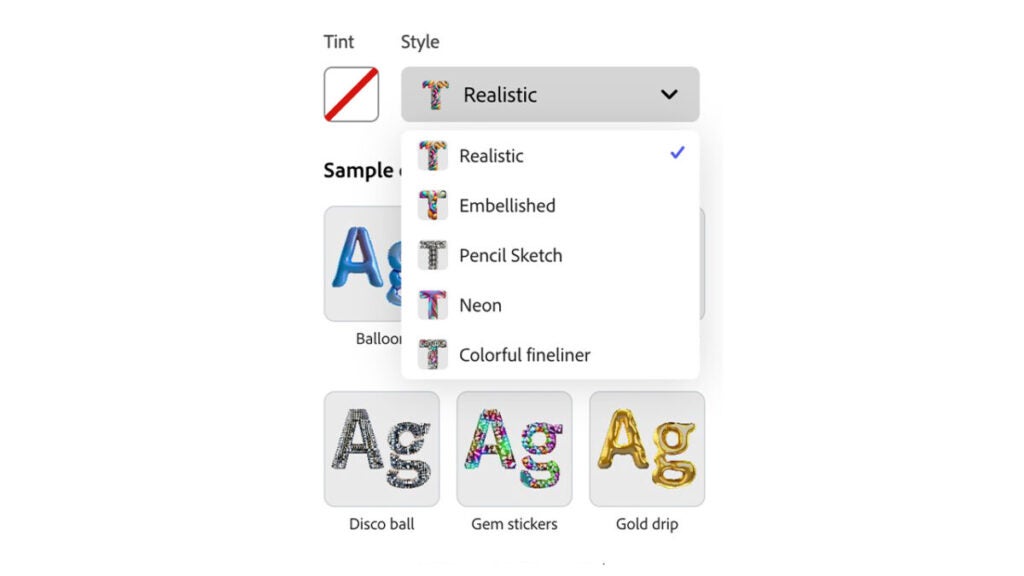
- Similar to templates and images, Adobe Express generates four results based on your description. If you’re not satisfied with them at first, you can always load more and continue experimenting with new results. In any case, Adobe Express offers several pre-made effects in case you don’t want to complicate things too much.
Even with your effect finished, the text can still be edited as if nothing happened. Whatever you do, the visual appearance will remain. This means that you can modify the font, size, or even the design of the text.
How can I improve my descriptions or prompts
Communicating our needs and what we want effectively before creating any template is essential. Knowing how to do it will save you a lot of time and failed attempts. The following tips will help you perfect your descriptions:
- Explain the type of template you are looking for: It is not the same to create a brochure than a poster or an Instagram post. Specify what the template will be used for and the theme it will follow. Remember that you can modify your description at any time if you see that the templates do not meet your expectations.
- Don’t settle for the first option: As you have already seen, Adobe Express displays several results based on your description. If you are not satisfied with the first generations, you can always load more and see the rest of the options. To do this, simply click on Generate more results.
- Be clear: Writing a good description takes time. Explaining accurately and clearly will help the image generator understand what you want. As a result, the results you will get will be much better. “Generate an image of...” or “Create a visual representation of…” are excellent phrases to start your description.
Use Creative Assistant within Adobe Express
So far, we have only talked about images. However, Adobe Express AI-powered features cover more fields. In this case, we are referring to Creative Assistant, a virtual assistant that will help you create content focused on Tik Tok.
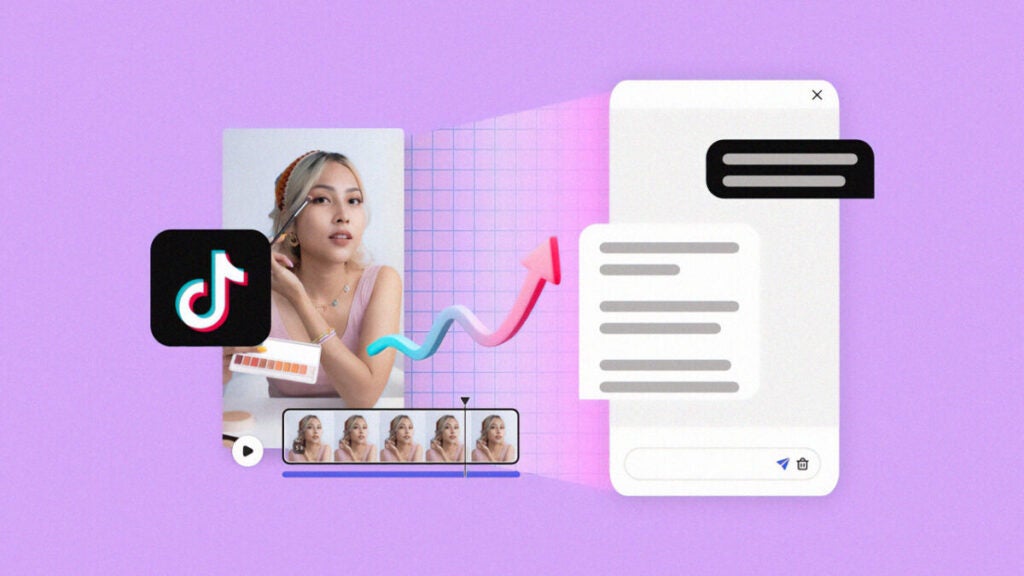
Adobe Express opens the doors to all kinds of creators so they can use audios, videos, templates, images, and more in their projects, in an easy and accessible way. Creative Assistant works hand in hand with you to give you ideas, refine your videos even more, and even schedule your Tik Tok posts without even leaving Adobe Express.
For now, this add-on is available for both those who use Adobe Express for free and those subscribed to the Premium membership. However, it is only available in English. To start using it, access it through this link.
Some of the links included in the article are part of affiliate campaigns and may represent benefits for Softonic.
