
As editors know very well, deadlines can often get derailed by spending too much time looking for images, sounds, and graphics, resulting in a bottleneck on the timeline. Usually, the problem isn’t your own skillset; it’s all about waiting for inputs.
These hold-ups show up in a lot of different ways, but mainly as slowdowns that tend to build up:
- Sourcing your b-roll
- Creating graphics from scratch
- Making changes when footage, music, or a graphic isn’t available when required
4K becomes very important here. Having 4K video provides sufficient resolution to crop, reframe, or improve stability without compromising quality. Why spend more time at additional shoots when you can use this flexibility to save time? Adobe Stock allows you to search for the missing footage, streamlining your workflow.
How Adobe Stock’s Panel in Premiere Speeds Up Your Productivity
The effect of delays in editing tends to ripple through different parts of the production pipeline. For example, a single shot that doesn’t arrive in time can affect the speed of all the deliverables—editors who can minimize this scope never lose momentum.
Adobe Stock’s panel in Premiere allows you to maintain your rhythm and explore different directions for your projects, test new ideas, and build richer edits. All of it without having to leave Premiere. Need a cutaway to bridge scenes? Search for it in the panel and then preview it right inside the edit. Found the perfect clip for your story? License it on the spot without a hassle and keep creating your masterpiece.
Thanks to its new panel, Premiere and Adobe Stock are the perfect match to speed up your workflow and unleash your creative potential.
What You Can Pull From Adobe Stock Inside Premiere
Adobe Stock integrates seamlessly with your editing tools, such as Premiere, and provides ready-to-use assets that can be directly previewed, edited, and then licensed. You can search for assets in the new Adobe Stock panel without disrupting your workflow. The range of assets on offer makes things very convenient, giving you access to:
- HD and 4K clips suitable for b-roll
- Motion Graphic templates (also commonly known as MOGRTs). Used for prebuilt graphics, which you can edit easily
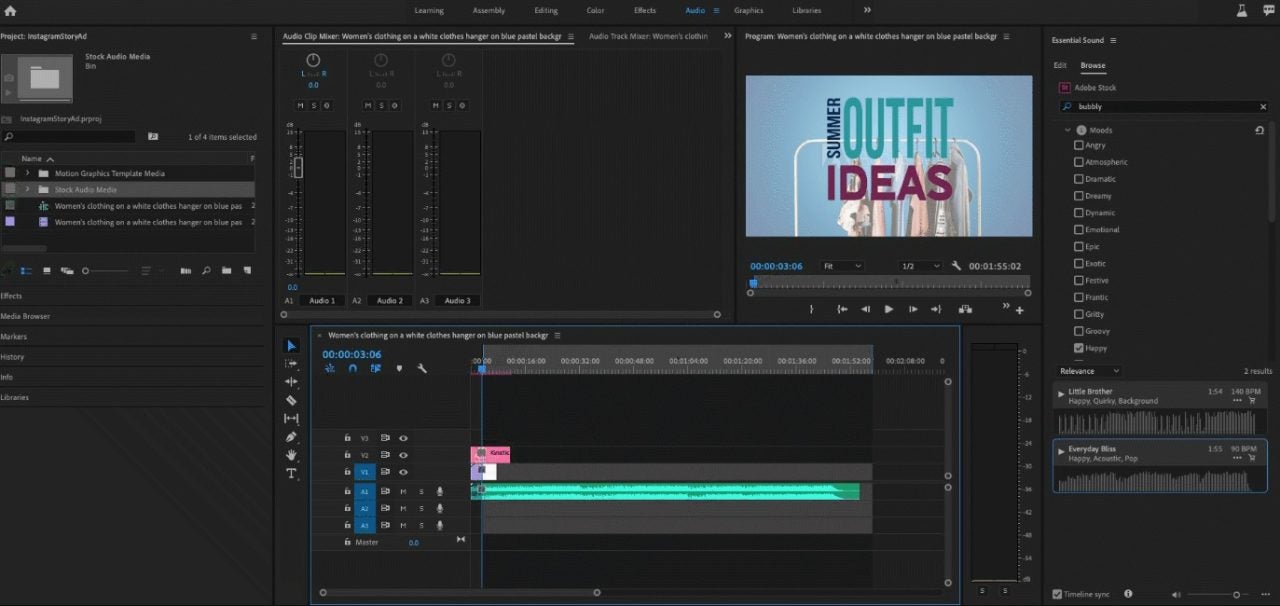
You can also add music and sound effects to your video by simply searching for them in the Essential Sound panel.
The Fastest Way to Cut with Stock in Premiere: Step-by-Step
You don’t need to leave Premiere to access Adobe Stock; it works directly in your edit. This means your workflow maintains your momentum right down to the final cut.
Keep the cut rolling fast with proxies
When you find the clip you need from the Adobe Stock panel, you can drag in a proxy to your timeline, which is an optimized version for quick editing that won’t bottleneck your project. You can apply all your edits, effects, and trims as usual.
Apply all your timing edits, color, and transition work to the watermarked versions before making a changeover to the licensed versions, so you can ensure it works before committing or seeking approval.
Stay Streamlined for Social Media
Plan your social media formats simultaneously. Replicate your timeline in 1080 × 1920 or 1080 × 1350 and reframe it using the scaled Adobe Stock 4K footage, giving you freedom to crop.
Keep in mind that working with 4K allows you to utilize tools like Auto Reframe and Sequence Duplication to adapt between multiple aspect ratios quickly.
Make Use of Stock Audio and MOGRTs
The same workspace has access to thousands of motion graphics templates and Adobe Stock Audio for scores and sound design.
Drop your MOGRTs onto the timeline and use the Properties panel for the text and color to match your brand. Audition and adjust music by dragging in just as with video proxies.
Bins and Libraries
Shortlist your assets in bins or Libraries so you can compare options and keep the edit clear for the feedback loop.
Use bins in the Project panel for the current edit. Name alternates clearly, use color labels, and stack them on higher tracks or park them in an “Alternates” sequence.
Use Creative Cloud Libraries to save the picks you want to reuse across projects and share with the team. When you license an asset, Premiere replaces the preview with the full-resolution file and retains your trims, effects, and grades. Please use only watermarked previews for internal review.
If a stakeholder requests a different tone, you can easily adjust the grade or replace the cutaway with a clip from Adobe Stock.
Make Your Picture Polished with Premiere’s Motion Graphics Templates (MOGRTs)
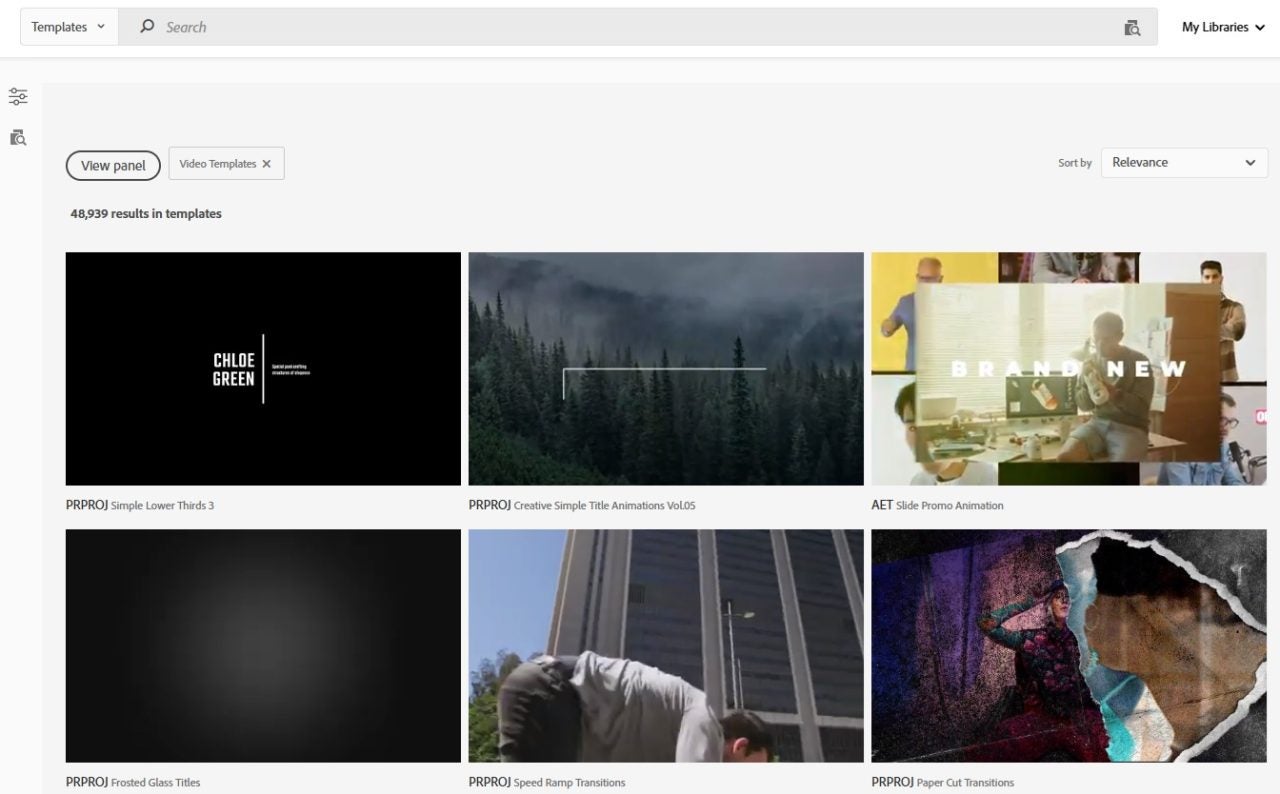
Motion Graphics Templates (MOGRTs) open you up to a world of professional motion graphics in seconds. You have full customization control over text, color, and layout inside Premiere’s Editing Properties to ensure that everything you put out fits your project. The result is after-effects-grade detail without ever needing to switch apps.
Many MOGRTs in Premiere utilize Media Replacement to replace elements such as logos, videos, and still images. Some will expose text fields that let you build different versions of text content across various languages, markets, products, or events. A single well-built template can serve as dozens of outputs without requiring redesign every time. You can save each customized version in the library for your team, ensuring you always have the most up-to-date and consistent pulls for your assets.
You can further customize a MOGRT. To do so, browse for one in the Graphics Templates panel from Adobe Stock, click Install, and then drag it to your timeline.
Clicking the sequence initiates your edits made available in the Properties panel. Set hex codes for colors, change fonts, and adjust positions to ensure they align with hints for all brands.
Save your look for your project: Once you find a configuration that works, save directly to your library. You can now use it in multiple projects.
Media Replacement makes scalability easier, while Properties Panel Editing enables changes to be made directly from Premiere.

Beautifully Integrate Music and Sounds Without Leaving the Timeline
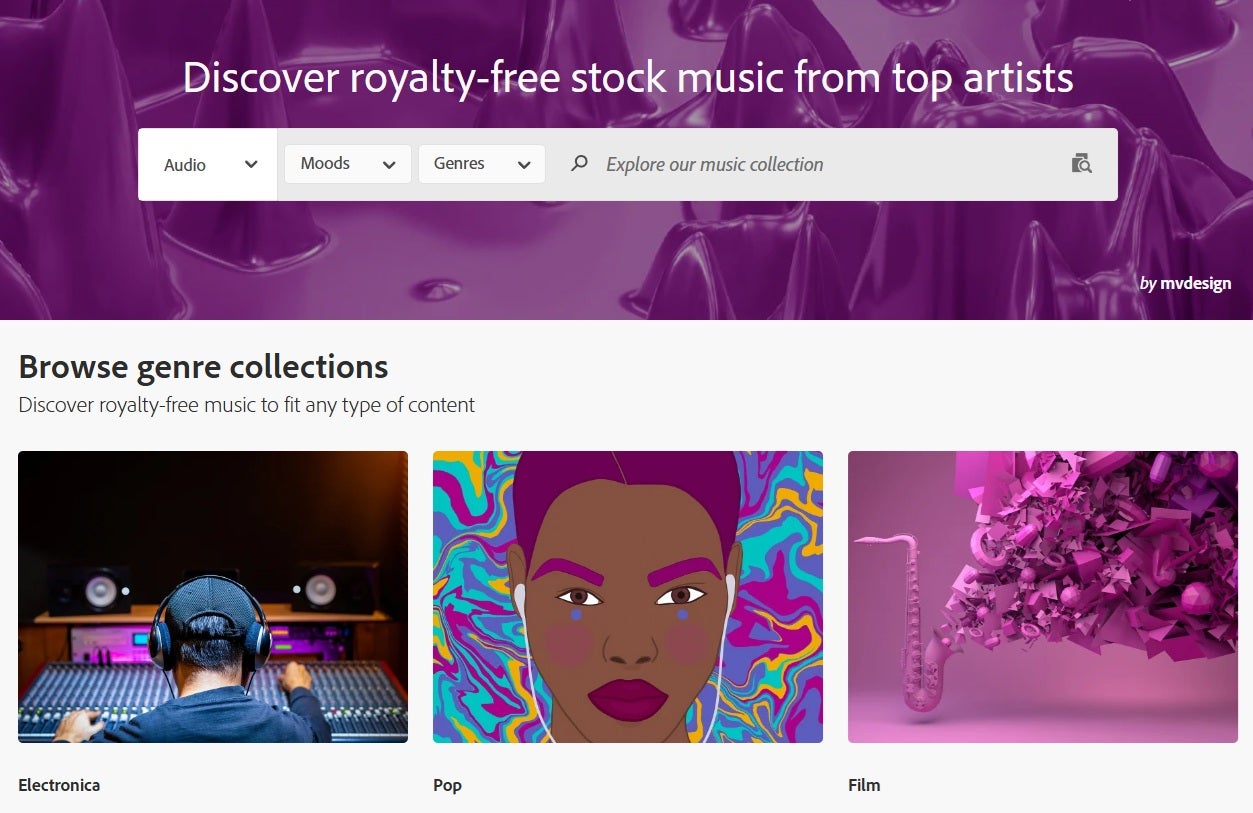
Adobe Stock provides music and audio assets through the Stock Audio workspace in Premiere. It allows you to search by mood, genre, tempo, and duration and preview in your timeline.
It’s free to preview, and when you license an asset, Adobe Premiere will automatically download a high-quality WAV file (at 44.1 or 48kHz). This is helpful for clean and detailed mixing.
You’ll only need to license the cuts, and then the full-quality WAV will be automatically imported into your work area. This is ideal for music beds, logo stings, or transitions. Stock licensing requires syncing with visuals, which means it cannot be replayed standalone in those cases.
Adobe Stock is directly integrated, offering soundtracks with one click at high speed to enhance your audio workflow.
Licensing Basics Made Simple
Licensing is straightforward and transparent. Adobe Stock’s licenses define correct usage. They include Standard (for web), Enhanced (for higher distribution, such as video), Extended for resale, and Editorial (for newsworthy cases).
To give a quick summary:
- Standard license will cover most uses for web and socials, with up to 500,000 copies or views of the asset
- Enhanced license is the same but covers 500,000 or more copies or views of the asset.
- Extended license allows use in merchandise, templates, or products for resale, where the asset being sold is the value of the product.
For editorial use, you shouldn’t modify the original file, and none of the above licenses allow you to distribute the original file on its own.
Just be sure to consult the license page for each asset within Adobe Stock and store the terms with your projects.
Post Production Tools That Work Well With Adobe Stock
Not only is the Adobe Stock workflow very robust, but it can be paired with other tools.
Some of the tools you might want to look at integrate quite smoothly:
- Adobe After Effects can be used to publish templates to your libraries. You can design powerful motion behaviours or create MOGRTs, like we’ve discussed, that are available on Stock
- Adobe Audition can be used for noise reduction and mixing. It’s the gold standard in the industry for polish audio
- Adobe Photoshop or Illustrator can be used for logos and still graphics, which can be directly used in MOGRTs
- Frame.io can be used to collect feedback and provide time-coded reviews, helping to prevent projects from getting blocked while waiting for sign-off.
Adobe Stock integrates with all of the above, so you can make edits, get feedback, and keep your project moving without leaving your apps.
Edit Faster in Premiere with Adobe Stock
Adobe Stock, when paired with a good workflow, permits moving from an empty timeline to a polished cut in a matter of hours. Search for previews, audition them, edit using saved templates, and only license what you use to maintain your budget and schedule.
Remember also that thanks to its integration with Premiere, you can speed up your projects without compromising their quality. Just access Premiere and start with the Libraries or Graphics Templates panel. Make a rough cut using previews, and then review it. Once everything is confirmed and the cut locks are in place, license those assets. This will keep your workflow sharp and on schedule.
Take advantage of Adobe Stock’s free trial and turn every edit into your best work yet!
