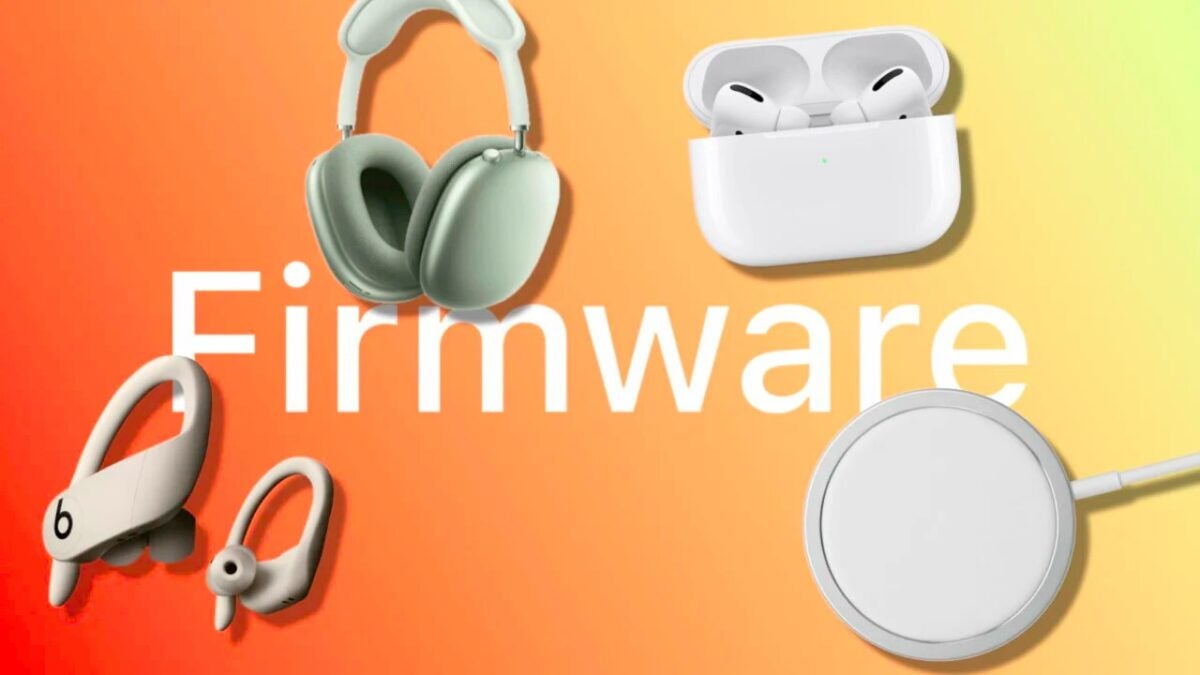
Apple has released firmware updates for its three AirPods models, including the AirPods, AirPods Pro and AirPods Max. In addition, it has released updates for several Beats headphones and also for the MagSafe charger. A round of updates of which we still do not know the changes and new features, but that we can already install on our devices.

For some years now, firmware updates for AirPods have become more frequent and have focused mainly on small fixes and improvements that affect connectivity, audio quality, and battery consumption. Something similar, although to a lesser degree, happens with the Beats and to an even lesser degree with the MagSafe charger we use for our iPhone. In this sense, it is important to be able to verify if the update has been installed, how to facilitate the installation process and also how to update the firmware of our devices if we do not have any Apple device to do so.
How to update the Firmware from your iPhone or iPad
There are several models of devices receiving updates today. On the AirPods, they all receive the same firmware, then on the other hand there are the Beats and finally the MagSafe charger. The new versions are these:
- AirPods 2nd and 3rd generation: 5E135.
- AirPods Pro 1st and 2nd generation: 5E135
- AirPods Max: 5E135
- PowerBeats Pro: 5B66
- Beats Fit Pro: 5B66
- MagSafe Charger: 258.0
In the AirPods the numbering change is minor. We go from 5E133 to 5E135, which we can understand as the changes are rather minor. Right now, Apple has not communicated what the improvements are, beyond “Bug fixes and other improvements”.
As we’ve mentioned in other articles, AirPods and Beats automatically update if they are near an iPhone or iPad. To help with the update process, we can connect the headphones to a power source, although it’s not really a requirement. Also, to make sure the AirPods or Beats are connected to our iPhone or iPad and updating properly we can simply play some music and then either store them in the case or turn them off.
In the case of the MagSafe charger, all we have to do is rest our iPhone on top of it for the update to install. If that doesn’t work, we have the option of connecting the charger to an iPad (with the cable) or a Mac.
Although the firmware update of the headphones occurs automatically, we can verify the version installed on our headphones. To do this, we must connect the AirPods or Beats to our iPhone or rest it on top of the MagSafe charger and follow the steps below:
- Open the Settings app on your iPhone or iPad.
- Go to General.
- Tap on Information.
- Tap on AirPods or PowerBeats Pro/Beats Fit Pro or Apple MagSafe Charger.
- We look for Firmware Version.
Recall that, if we have one of the devices that has received updates, but not an iPhone or iPad from which to install the updates, we can visit an Apple Store or an authorized service provider to update the firmware there. A simple visit and within minutes the headphones will be running the latest firmware version available and enjoying all the improvements it brings.
Firmware updates don’t get the same attention as iOS software updates – such as the latest Urgent Security Update for iOS 16 – however, they are equally important. Any fixes focused on improving the stability, performance, and functionality of AirPods and Beats are something to keep a close eye on. While these improvements may go somewhat unnoticed, more so while all the attention is directed at the iPhone 15, they are always welcome. And, besides, installing them is as easy as simply letting it happen.
Some of the links added in the article are part of affiliate campaigns and may represent benefits for Softonic.
