
If you have a Mac and want to edit a PDF, you may have initially tried using Preview. It’s true that it can be useful for a quick fix, but if you use it regularly, you’ve probably noticed how insufficient it can be for more complicated tasks. If you really need to work with PDFs, it’s best to have a program like Adobe Acrobat.
However, to truly enjoy Adobe Acrobat, it is necessary to pay for a subscription. If you are unsure whether it is worth it to spend money, stay and find out why having a paid tool, like Adobe Acrobat, is much better than sticking with free alternatives.

Can I edit a PDF on Mac for free?
Indeed, you can edit a PDF on Mac for free. Any MacBook with macOS includes the Preview application by default, which will allow you to open and view any type of PDF file instantly. And without installing any third-party programs, which saves you that hassle.
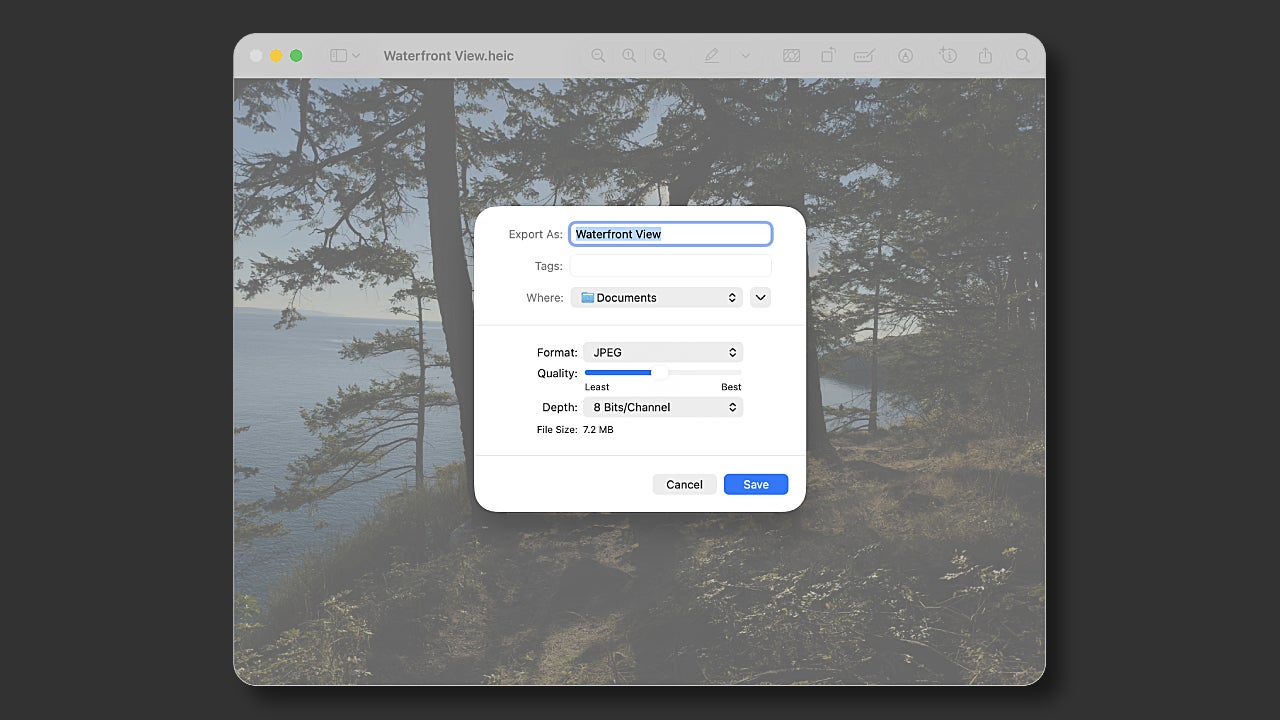
However, for more complex edits, Preview is no longer recommended. If you want to edit texts, add images, or securely sign files, you will need to use something more advanced, such as Adobe Acrobat, one of the most comprehensive options you will find for Mac.
What Preview Can Do on a Mac
Although Preview is mainly used to view images in common formats like JPEG, PNG, or TIFF, you can also use it to make very basic edits to PDF files.
Below is a list of what you can do with Preview on macOS Tahoe 26:
- Fill and sign documents
- Select and copy pieces of text
- Highlight text or strike it out
- Add notes
- Combine multiple PDF files
- Add, move or delete pages
- Crop or rotate a PDF
- Add Quartz filters (convert documents to black and white or apply sepia tones)
That said, keep in mind that Preview will not allow you to correct sentences, replace images, or convert PDFs to Word, Excel, or PowerPoint.
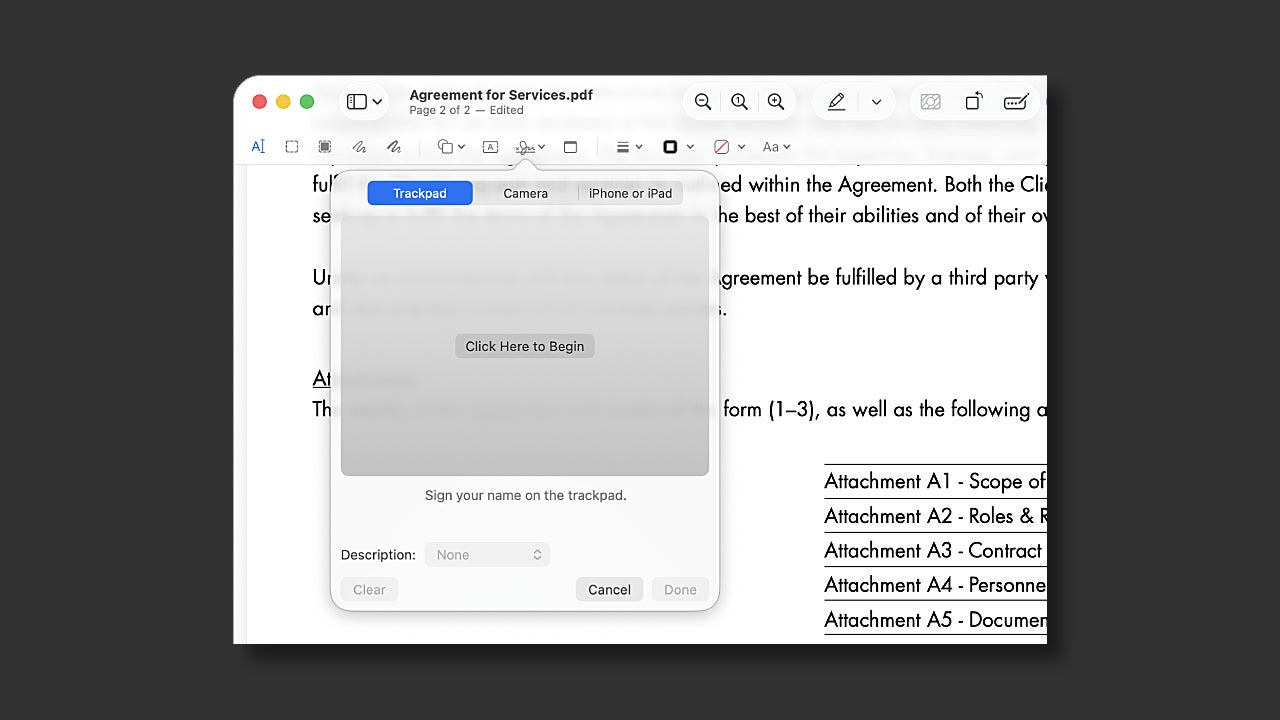
How Adobe Acrobat Works on Mac
Adobe Acrobat is available as a Mac application and also has a web version, both quite comprehensive. As you can imagine, it is much more capable than Preview in almost every way. Additionally, you won’t encounter any compatibility issues if you need to work with others using the Windows version.
Text and Image Editing
Adobe Acrobathttps://adobe.prf.hn/click/camref:1101lr4vs/creativeref:1101l130953/pubref:sponsored26article54 allows you to modify the images in a PDF document to suit your preferences. This includes:
- Vertical or horizontal flip
- Rotate left or right
- Crop image
- Image replacement
- Alignment and organization of objects
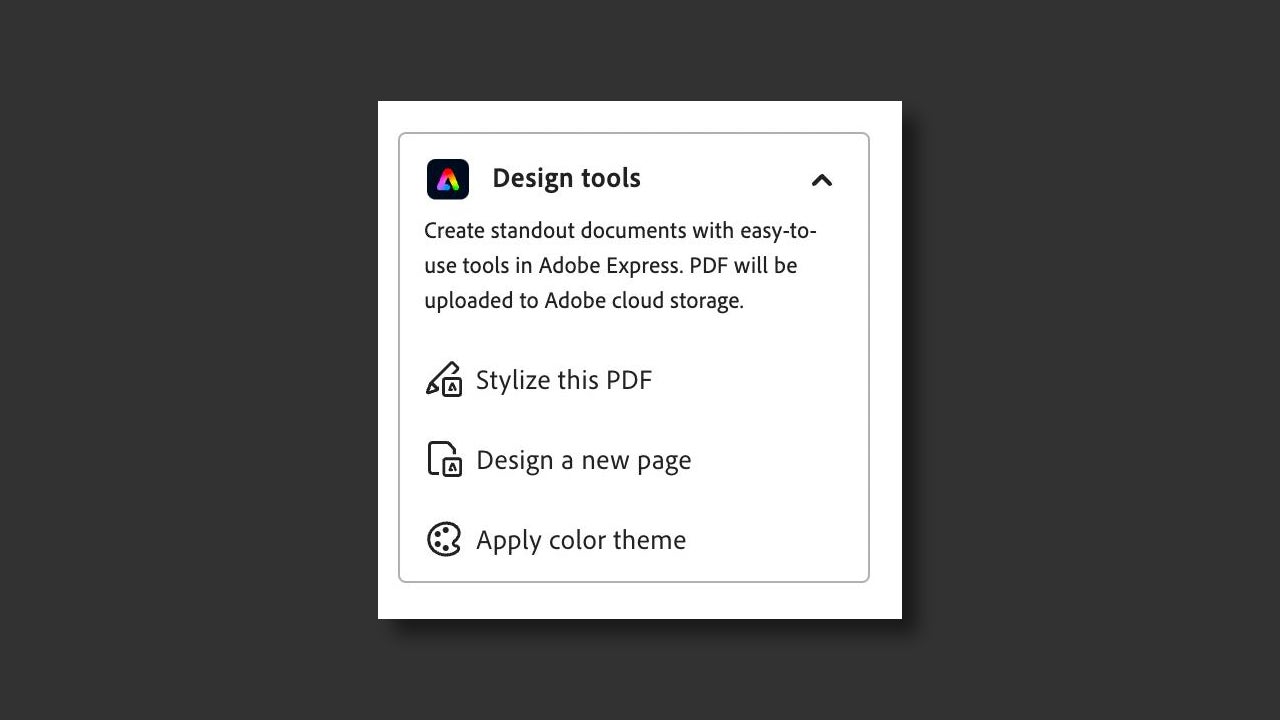
Both in the web version and in the desktop version, you can perform all these actions and many more. If you also want to be a bit more creative, you can take advantage of the integration with Adobe Express to design entire pages or change color schemes in no time.
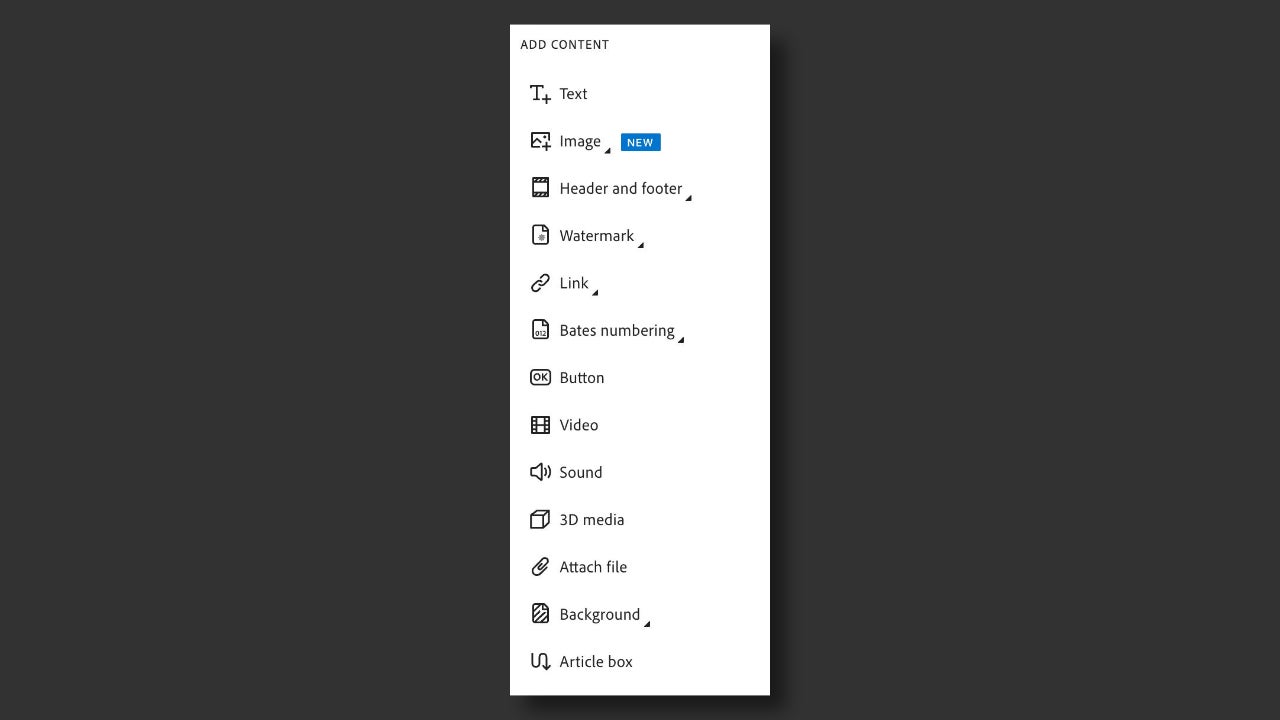
And if you want, you will be able to insert links, buttons, videos, sounds, and even 3D objects into your documents from Adobe Acrobat.
AI-assisted editing
Acrobat also has artificial intelligence features that you can use to summarize documents, generate presentations or podcasts, among other things. You will have an AI Assistant always available to ask about the content of a PDF and analyze complex data.
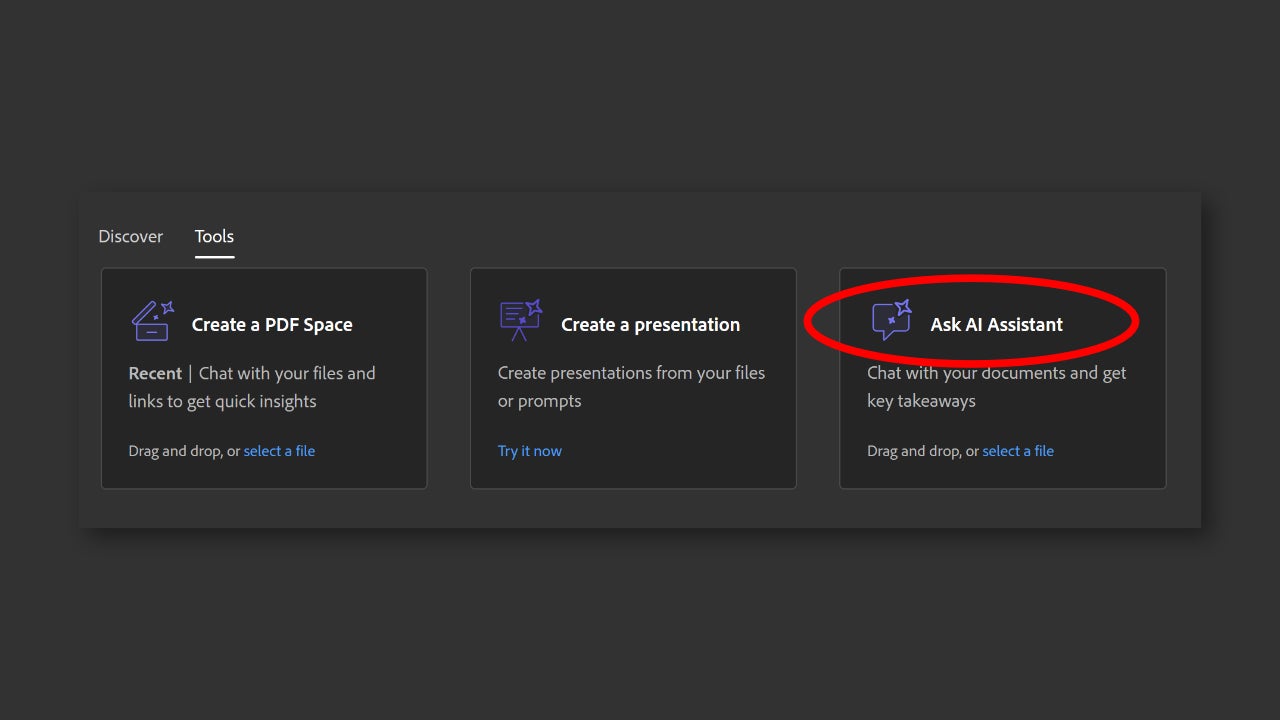
If you use the web version of Adobe Acrobat, you just need to go to the Tools section and click on Ask AI Assistant to start using the chatbot.
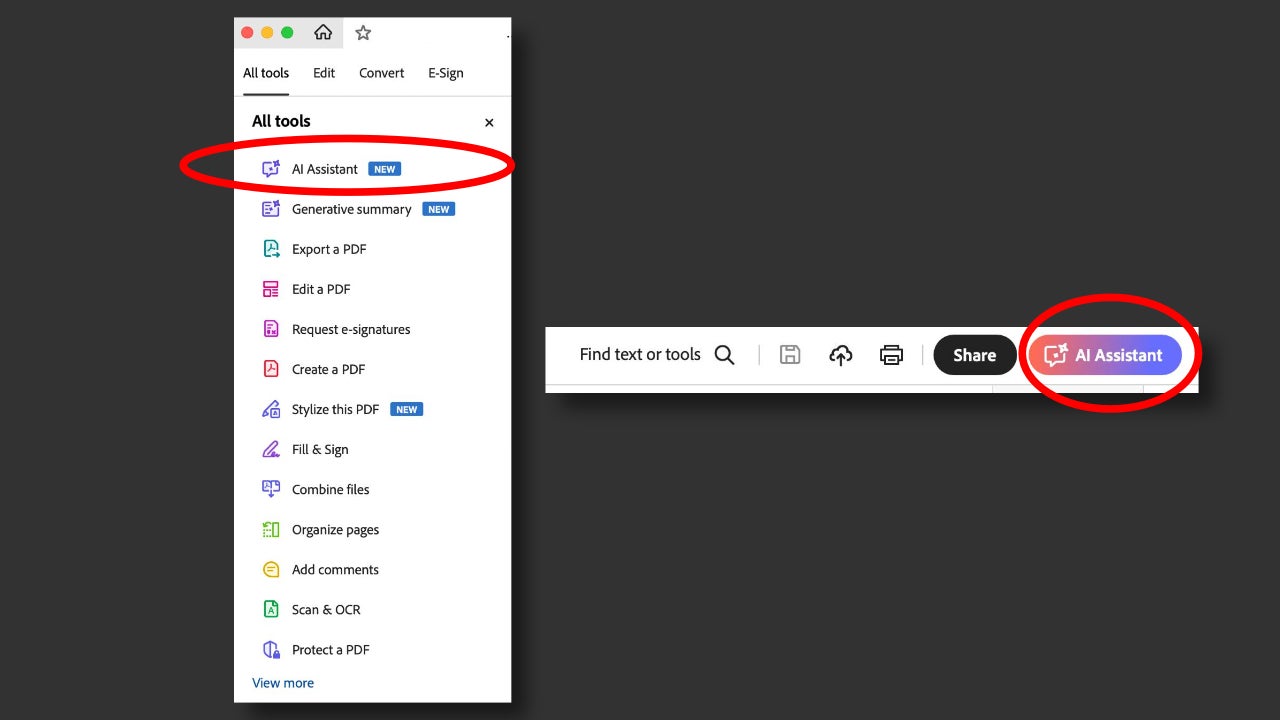
If you have the application installed on your Mac, the process is similar; when you open Adobe Acrobat, go to All Tools and select AI Assistant. You can also click directly on the AI Assistant button that you will see in the upper right corner.
Collaboration Tools
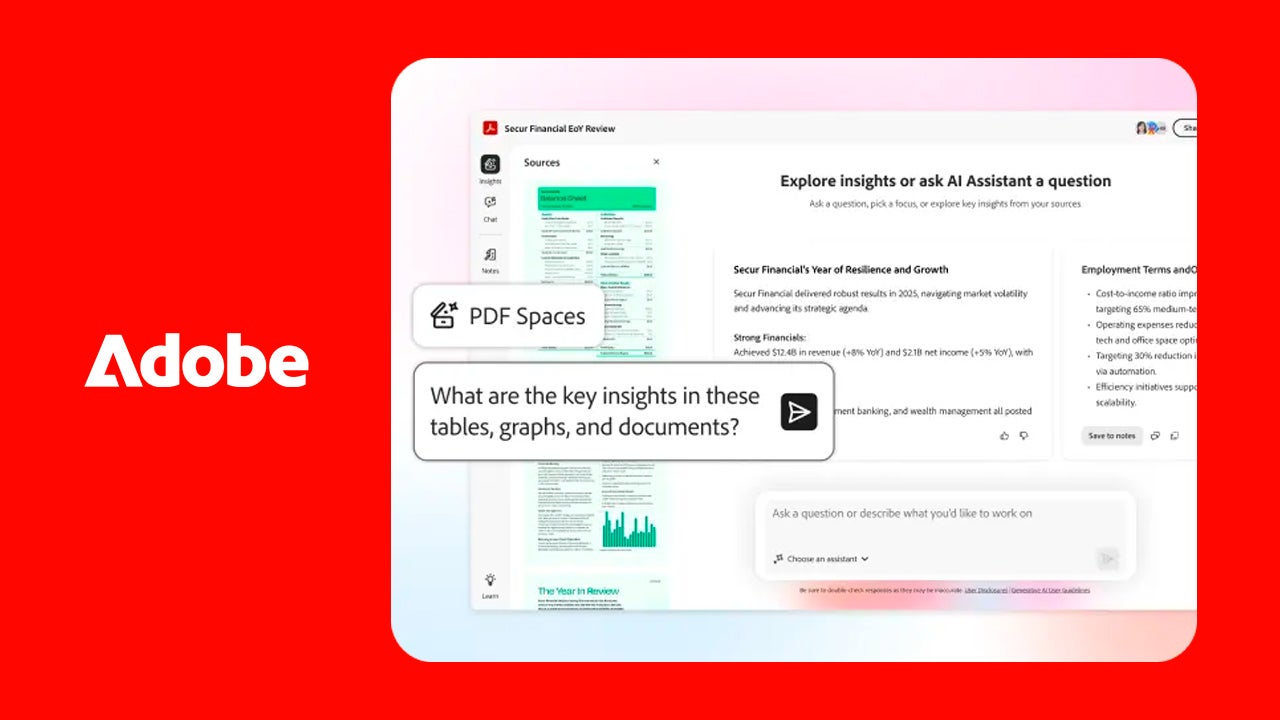
One of the key points of Adobe Acrobat is its collaboration tools. The most important one it currently has is PDF Spaces, an AI-powered workspace where you can store your files, links, and visual content in one place.
With PDF Spaces, you and your collaborators can work from a single location and ensure that you all have access to the same files, always updated. By having the AI Assistant, you can also use it to summarize documents, for example.
Electronic signatures
Electronic security is (or should be) a fundamental pillar within any serious work environment. When we talk about documents and signatures, digital signatures allow users to verify PDF documents using a certificate-based digital ID.
With Acrobat, users can securely sign documents as it complies with the data protection standards necessary for this.
Adobe Acrobat: what options do you have
It is a fact that not everyone needs the same tools or at the same time. Therefore, in addition to its paid plans, Adobe Acrobat also has a free version that is quite comprehensive and allows you to do many basic things.
This version will allow you to view your documents, make comments, or sign two documents per month, for example. You can use it to correct some text or simply view your files. However, to truly harness the full potential of Acrobat, you will need to switch to one of its paid plans, choosing between Acrobat Standard, Acrobat Pro, or Acrobat Studio. If you go to the official Adobe page, you will be able to see a very clear comparison of what each service offers.
And if you’re wondering if it’s essential to install anything on Mac to use Acrobat, the answer is no. As we mentioned before, you can access the web version of Adobe Acrobat through your browser. Just remember that to use it, you will need to have an Internet connection.
