Flappy Bird alternatives for iOS, Android and Windows Phone

Do you still want to fly birds on your smartphone even though Flappy Bird has crashed and burned, having been removed from all app stores by its developer? Here are some of the best alternatives for iPhone, Android and Windows Phone.

In only a few days, Flappy Bird became a viral phenomenon, topped the Google Play and App Store charts, and drew huge media attention. But as its fame soared, so too did the criticisms and the accusations of plagiarism. The developer couldn’t take the pressure and decided to remove Flappy Bird from all app stores. Just one day after the announcement was made on Twitter, the game was no longer available for download:

I am sorry ‘Flappy Bird’ users, 22 hours from now, I will take ‘Flappy Bird’ down. I cannot take this anymore.

— Dong Nguyen (@dongatory) February 8, 2014

Having been, or not been, a clone of other games such as ‘Piou-Piou vs. Cactus‘, and then itself being cloned by other developers, has to led to countless Flappy Clones. In this hands-on video below, Softonic Editor Nick goes through some of the alternatives. Below, you can find some other alternatives to Flappy Bird for iOS, Android and Windows Phone.

Default player


brightcove.createExperiences();

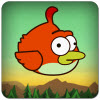
Flappy Chicken not Flappy Bird

Flappy Chicken

The developer of Flappy Chicken doesn’t care if chickens can’t fly. Although the game is very similar, there are of course some differences to Flappy Bird: the developer changed the character and the graphics –instead of having an 8-bit bird, there’s a cartoon chicken– but pipes are still the main obstacle, and gameplay is quite challenging.

Clumsy Bird

Clumsy Bird

Another game very similar to Flappy Bird, Clumsy Bird also chose to replace the old 8-bit style graphics for a more modern design, definitely having been inspired by another popular bird game, Angry Birds. Even the story seems to be loosely based on Rovio’s game: eggs have been stolen, only this time, it was by dragons.

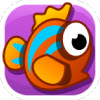
Flappy Fish

Flappy Fish Leave the sky and dive into the abyss with this less similar clone. The settings is different, but so too are the laws of physics. In Flappy Fish, you have to stop the fish from swimming towards the surface. The rest of the game, however, has hardly any differences: the same aged 8-bit graphics, pipes as obstacles, and tap on the screen to move.

Jolly Fish

Jolly Fish As in Flappy Fish, you’re in the water and have to tap on the screen to stay under the surface. Again, you have to avoid obstacles and the graphics are what you’ve seen before, but new features include a screen that moves faster the longer you play, and a sea turtle that will eat the jellyfish as soon as it hits an obstacle or reaches the surface.

Flappy Bird for Windows Phone

Flappy Bird for Windows Phone Same name, same graphics, same gameplay, but different developer. While we were waiting for Flappy Bird for Windows Phone –which in the end will never happen– someone else released their own version. Who would have thought that Windows Phone users would be the lucky ones with this copycat version?

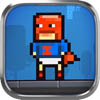
Ironpants

IronPants Ironpants is the hero, and with different looking obstacles in an urban setting, its still as hard, if not harder, than Flappy Bird. Just stopping the masked superhero from crashing into the first obstacle is a great success, which is perhaps why it’s rocketed to the top of the App Store chart.

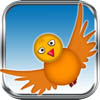
Fly Birdie – Flappy Bird Flyer

Fly Birdie

Aesthetically, this is probably the least engaging Flappy Bird clone, with a static background worthy of a motel of the lowest quality, and a bird that looks like a dead pigeon. It is, however, easier, and could be a solution for those who feel frustrated by the difficulty of Flappy Bird.

Fluffy vs Flappy Birds

Fluffy vs Flappy Birds If you’re looking for a more appealing –and easier– alternative to Flappy Bird, Fluffy is definitely the one to beat. With it’s sweet bulging eyes, the bird looks like a Disney cartoon, and the level of difficulty is quite low, with coins to collect along the way. It’s definitely a game for those looking for something with some of the charm of the ‘original’ Flappy Bird.

Many alternatives, some even better than the original

With so many Flappy Bird clones, some even better than their predecessor, we’re convinced that you won’t miss having the original on your iPhone, Android, or Windows Phone. And, as it’s happened with many other games like Angry Birds or Candy Crush Saga, it could just be a craze that’ll soon be replaced by other games. In the meantime, you can have fun with these alternatives to Flappy Bird!

Will you play one of these Flappy Bird alternatives?

What can I do with my tablet: work and organization

In this article in our Android tablet series, ‘What can I do with my tablet?’,  we’ll talk about the best apps for organizing your work.

After getting tips on how to read books, articles, and magazines on your Android tablet, it’s time to use your device to organize your work life, whether you’re at the office, at home, or on the go. We’ll go through some useful apps, as well as some tips and tricks that you can put into practice in order to be more efficient at work and have a more organized life. All it takes is a calendar or an agenda, a to-do list, an email client, a suite to open and edit documents, and a way of sharing with colleagues. We’ll use applications that require a Google Account, but if you have an Android tablet, then you should already have one.

Not sure if your tablet is Android? Read our article where we explain how to recognize the operating system on your tablet!

Cal: the calendar for appointments and birthdays

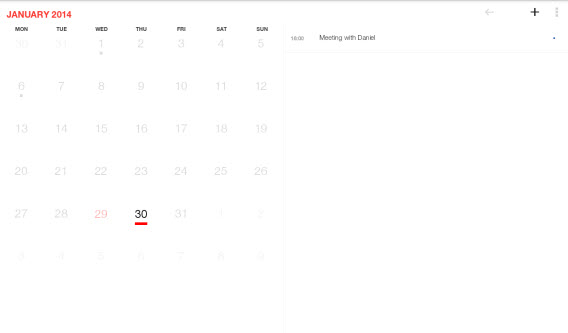
CalComplying with appointments and deadlines is critical for almost any job. Your Android tablet will have a built-in, default tool, Google Calendar, which you may already use on your computer at home or work. The problem is that aesthetically, it leaves something to be desired, and setting effective reminders isn’t easy. For this function, there is Cal, a beautiful, practical and smart tool that automatically synchronizes with your Google Calendar, importing all of its data.

Cal offers a calendar with a minimalist view of the month, where you can keep an eye on all upcoming events and appointments. The app is very simple to use, so much so that to add an event to the calendar, simply press the “+” button at the top right.

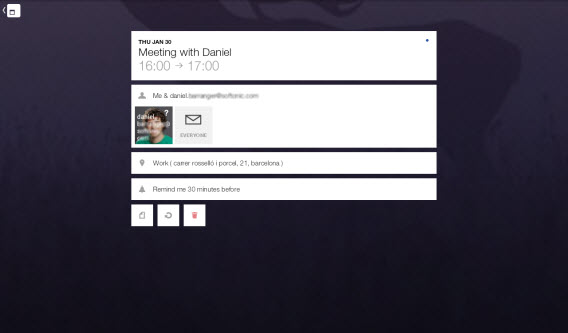
Cal calendarIn the new screen that pops up, you can name the event, set the time with a reminder, and most importantly, add a person (and send the invitation via email). The most interesting feature is perhaps the geolocation of the appointment, with the ability to navigate on the map to find the best place for the meeting. All of this is offered on a nice graphical interface, accompanied by images in the background.

Cal calendar meeting

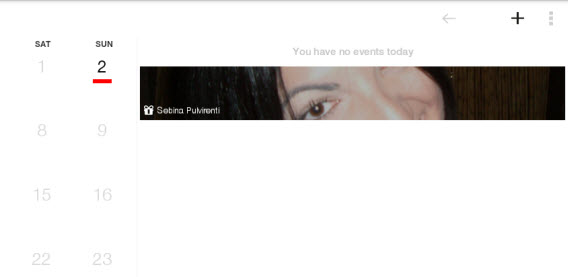
If you don’t want to forget a birthday, Cal lets you import your friends’ birthdays in your Facebook account. Then, on the home screen, you’ll automatically be able to see a picture of the birthday boy or girl.

See your friends' birthdays in Cal

Aqua mail: manage your mail and your account

Aqua mailEmails are an unfortunate yet essential aspect of (almost) any job, with which we risk losing more time than necessary. A poorly or inefficiently designed email client can lead to even more lost time, especially if you have more than one account.

Aqua Email is an app that optimizes email management, especially if you have multiple accounts. The app supports Gmail, of course, but also many other email services, letting you keep an eye on all of them at the same time.

Aqua mail imports all your inboxes

When adding accounts such as Gmail, Outlook, or Yahoo!, the only sections you have to fill in are your name, email and password. Almost instantly, the app will integrate the accounts. Simply press the icon with the two arrows in a circle, next to the name of the account, to synchronize all messages.

Aqua Mail has a Smart Folder that only shows the unread emails in all accounts, as well as many other settings, including data usage, and limited notifications during the weekend.

Smart folders in aqua mail

We Keep: take notes and create colored checklists

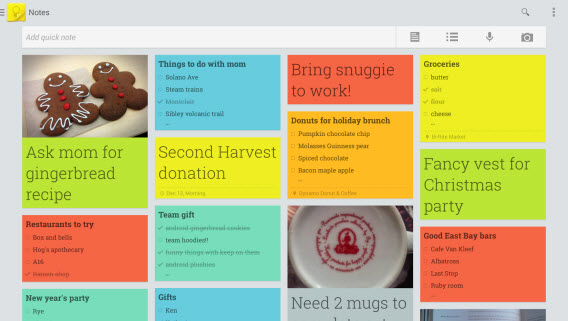
We KeepSticky notes, notepads, and lists with electronic stickers are an essential tool so that you never forget fleeting ideas or tasks. Luckily, your tablet has an app that works much better than traditional sticky notes, and it’s called Google Keep. Just by looking at the app’s icon, you can already recall the famous yellow sticky notes that are used to organize your thoughts, but this app can do much more than a simple sticky piece of paper.

Organize sticky notes with We Keep

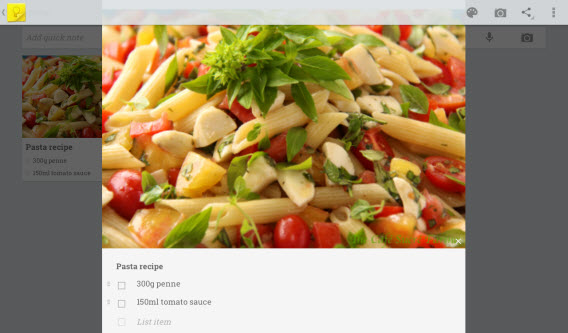
To create a new note, press the center of the application and start writing. Then, you can add an alarm (reminder), add a to-do list, change the color of the note, or add a picture.

Check out recipes immediately

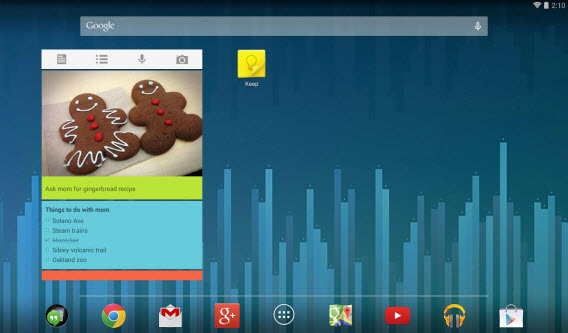
The visual impact of Google Keep is one of the best features of the app. As soon as you open it, you immediately have your notes, recipes and lists at hand. If that isn’t enough, you can also add the widget to your Android tablet’s home screen and share the note with anyone you want.

Access ntoes from your homescreen

QuickOffice: write, edit, and save documents in popular formats

QuickOffice

Creating and editing Word documents, Excel spreadsheets or PowerPoint presentations are daily tasks for many people. But who says you’re limited to doing these tasks on your computer? You can use your tablet to create tables, and anything else you need to do, all with a free app.

The big question is whether or not its better to use Office on Android using QuickOffice or Drive? Each app is useful for specific tasks, but if I’m going to simplify and choose only one of the two, I’d suggest using Drive. If you do, however, want the best of both worlds, I’d also suggest installing QuickOffice, if only for one simple reason: it has advanced editing features and even lets you create presentations.

To create a file with Drive, just press the icon with the “+” in the upper right corner, choose whether to create a text document (Word), spreadsheet (Excel) or a presentation (PowerPoint), and start creating your document as you would any Office program.

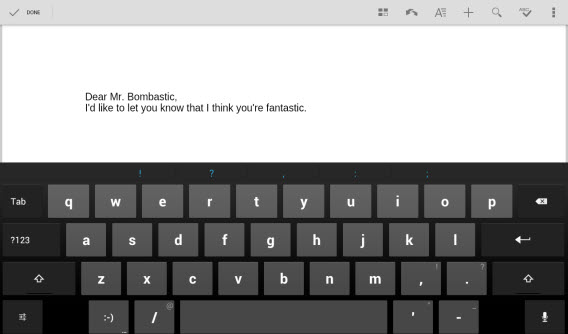
Create notes like in any Office program

Google Drive: Save and share files in the cloud

Google DriveWork and organization usually involves moving files, sending them to colleagues, and making them available on various devices. This is even more important when using a tablet. Google Drive lets you save files to the cloud, making it available for others through a simple link, which also lets you view documents, listen to audio files and play videos in the most common formats. In addition, it integrates seamlessly with QuickOffice.

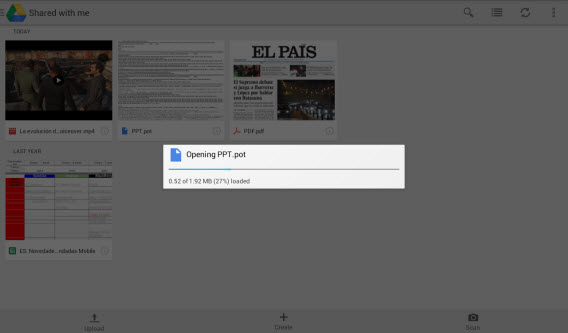
The main page of Google Drive will show you your files. To load one, simply press the Upload button in the bottom left hand corner of the screen, and choose the app you want to use to grab the item. If you want to display an item that’s been shared with you, press the app icon in the upper left hand corner, and select ‘Shared with me’. Tap on an icon to view or play the file.

View Power Point, read files or watch videos

Google Drive also lets you make the files available offline, edit and share them with other people, and send them to whoever you want. To share, press the circled “i” and then add a collaborator. For all other functions, press and hold the file icon to open a window with various options.

You have many options in Google Drive

Perhaps the most interesting part of Google Drive, however, is that it syncs to the cloud with all the documents that you load using both your tablet and your computer, meaning that you make changes to the same working file on your PC, to your tablet, or via your Mac.

As you can see, being productive and doing work on your tablet is possible. But of course, there are a ton of other function you can use your tablet for. Stay tuned to our Android tablet series, ‘What can I do with my tablet?’, to get tips and tricks on all the ways you can use your tablet!

How to disable auto-play videos on mobile Facebook apps

Among many recent changes to the mobile Facebook experience, we’ve seen the introduction of automatic video play. In this article, I’ll show you how to stop videos from auto-playing  on your smartphone when you’re using data.

Suspicions were raised in July when there were rumors of Facebook  introducing video advertising, a new feature to go hand-in-hand with automatic video playing. Sure enough, after a few weeks, suspicions was confirmed, with an update of the mobile app where Facebook introduced auto-play of videos.

For some, it’ll be convenient not having to press play on a video to watch it, but that doesn’t mean that video auto-play won’t be problematic for others. Above all, we don’t want all of our data consumed.

Luckily, there’s a way to stop auto-play when you’re using the data connection on your phone, whether you have an Android, an iPhone, or an iPad.

Block auto-play on 3G on Android

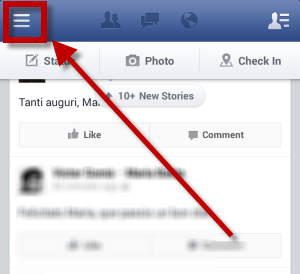
1. To stop auto-play on your Facebook timeline on Android, open the application and click on the icon with the three lines in the top left corner.

Facebook Android

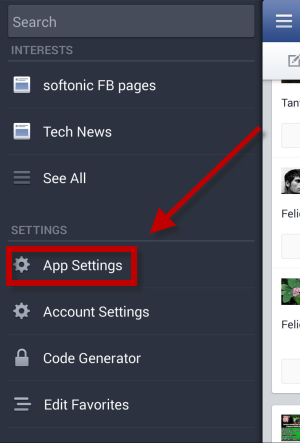
2. In the side menu that opens, scroll down to find App Settings and tap it.

Facebook Android

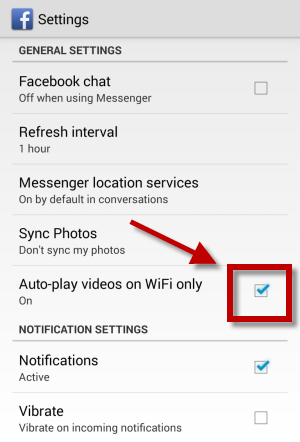
3. Make sure the box is checked for Auto-play videos on WiFi only, and that underneath it says “On”.

Facebook Android

Block auto-play on 3G on iPhone and iPad

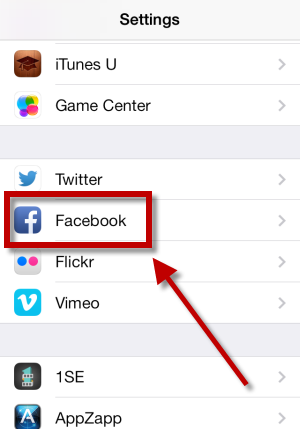
1. From the home screen of your device, go to Settings and then scroll down and tap Facebook.

Facebook iOS

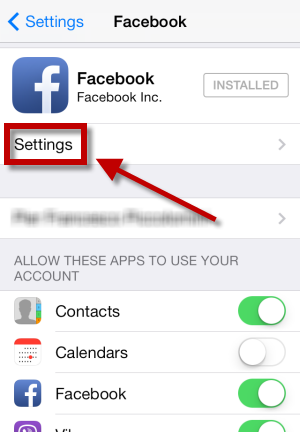
2. Once you’ve clicked on it, below the Facebook icon, you’ll see Settings. Tap here.

Facebook iOS

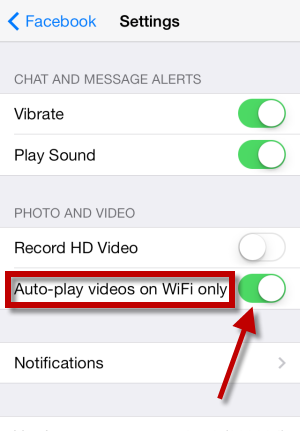
3. In the Photo and Video section, you’ll find the item Auto-play videos on WiFi only. Make sure that the switch is moved to the right and is green, just like in the image below.

Facebook iOS

Facebook has said that video advertising will play automatically as well. In this case, we’ll have to wait and see, once video advertising auto-play is introduced, if the same trick will stop ads from auto-playing, or if the social network will decide to prohibit the ability to stop auto-play to increase advertising revenue.

Could video auto-play be the ninth reason for opting out of Facebook forever?

What can I do with my tablet: read books, news, articles and magazines

Your Android tablet has a lot of potential. In this Android Guide, ‘What can I do with my tablet?’, we explain how you can fully exploit all of its functions. In this installment, we’ll go through the best applications for reading books, news and magazines on your tablet.

If you’ve recently become the proud owner of a new Android tablet, you’ve probably already been using it to surf the internet or check your email, without knowing about all the great functions you can use it for.

Your tablet actually has many different uses, some you may not even realize. If you’ve read our article explaining how to recognize your tablet’s operating system and you have an Android tablet, then you’re ready to discover how to harness the full potential of your device.

In this first installment of the guide, we’ll show you how to read on your Android tablet. Whether you like to read a good book before bed, or the morning newspaper at breakfast or during your commute, the beauty of the tablet is that you really can take easily use it anywhere.

We’ll have a look at apps that will enhance you reading experience, like saving interesting articles to read later on, others for downloading books (ebooks) and managing your library, and apps for reading the news and the most interesting articles on the web.

Pocket : Read more and read later

Reading on a tablet isn’t exactly the same as reading a physical book. The brightness of the screen can tire the eyes, and the layout of web pages isn’t always oriented to facilitate reading articles. In fact, they can sometimes be a real jumble of text, links and images that complicate reading, or are simply not well adapted to your tablet screen.

Occasionaly, you may come accross some news or an interesting articles that you don’t have time to read at the moment, but would like to save to read later on.

Luckily, there are apps which are specifically designed to improve reading on web pages, formatting them in a clean visual, taking away advertising and elements that disturb the view, and adapting it to the device screen. The same applications also let you save articles and web content to read at any time of the day.
Pocket

Pocket is one of the first (and probably best) applications with the “read it later” function. It’s also a great tool for simplifying and cleaning up web pages for easy reading on the device you’re using. Here’s how to use Pocket.

1. The first step is to download Pocket for Android on your tablet. Once you’ve installed and opened the app, you need to create an account. Enter your email, choose a username and password, and click Sign up.
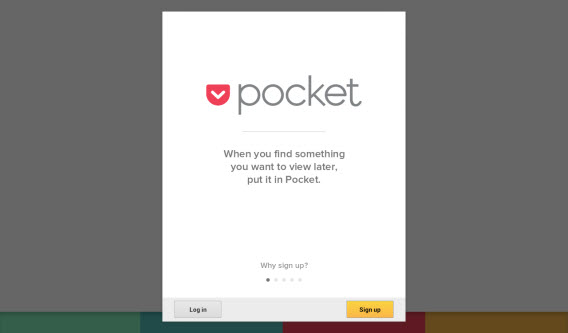
Download Pocket for Android

2. Next, close the application and look for an article online that interests you. One idea is to go to your Facebook account and open a link that a friend has shared on your wall, or open the browser on your device and go to the ‘Features’ section of Softonic and click on an article that interests you.

3. Then, press the share button on your browser. The location of this varies depending on the browser you use and your version of Android. If you’re using the default, the button’s probably in the upper right corner. Tap on Share page.
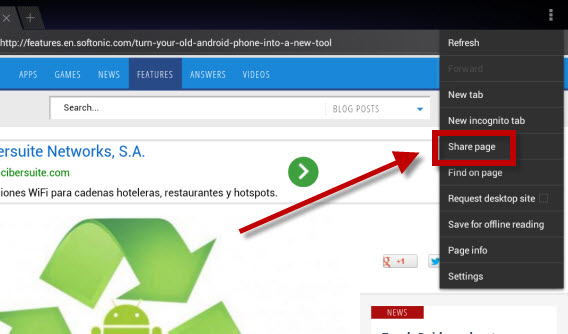
Share page on Pocket4. Pocket will be among the various applications that you can use to share the article. Tap on the icon.
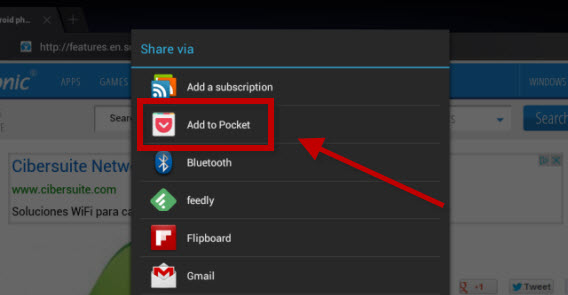
Add article to Pocket5. You’ll see the icon for Pocket in the center of the page notifying you that the item has been saved in the app. Press the icon to go directly to Pocket.
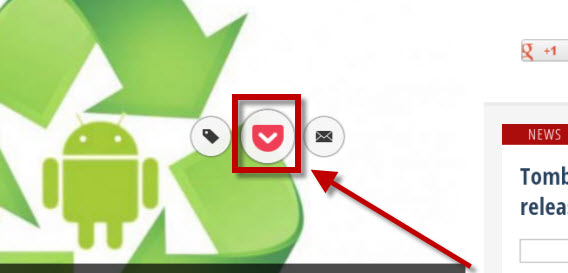
Click on the Pocket icon to access your articles6. Once you’re in the app, you’ll see a thumbnail of the article with the title and the picture. To view it, just tap above it, and voila, the item will appear for you, nice and clean.
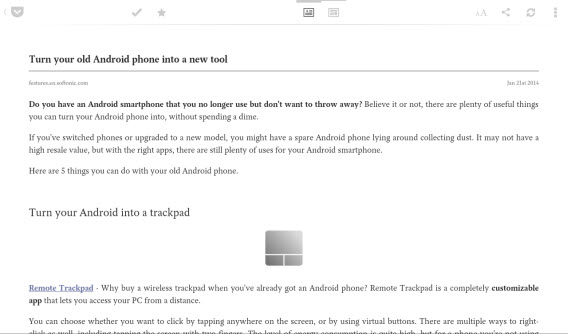
Pocket makes it much easier to read contentNow you can read the content easily, whenever you want, with a page that’s perfectly adapted to your tablet screen. In addition, pressing the button at the top right with the two “A“s will allow you to edit the reading settings (such as font size or background color).

Adjust settings as you prefer

If you tap on the icons at the top center of the screen, you can change between the original layout and the adapted layout.

To take advantage of Pocket at its best, the best idea is to install the plugin on your browser. This lets you save the articles that interest you, even when you’re using your home or work computer, and then read them on your tablet at your leisure.

There are other similar applications like Instapaper or Readability, but Pocket definitely has the edge, thanks to its organization of more structured and visual content, highlighting content, and immediately synchronizing the items you saved.
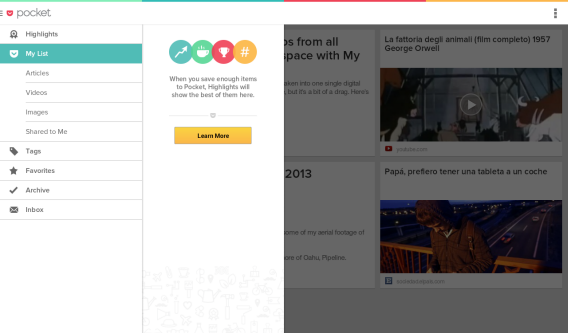
Pocket will synchronize your articles

Now you can read the articles you want at any time and in a format that’s much more pleasing to the eyes.

Download, read and organize your electronic books (ebooks)

If you’re a big fan of hard copy books, getting used to reading digitally can be a difficult task. It’s only after years of family and friends gushing over the convenience of having an entire library in a portable and lightweight format, bragging about how much money you can save, and pointing out the lack of maintenance required, can some potential nostaligic bookworms be persuaded.

If you’re someone who’s reluctant to abandon classic books in favor of electronic format, it’s good to know that there are a few apps out there that can help you change your mind, ones that let you download books (many of them free), help you organize your collection, and, most importantly perhaps, improve your reading experience on tablets.

Wattpad: the app that gives you access to thousands of books

Wattpad

Rather than being an app to improve reading, Wattpad is a huge library powered by a community of overactive readers. It has more than 10 million stories and free books to download with the aim of entertaining and helping you explore the infinite world of book, anytime and anywhere. It’s an app that’ll please both bookworms and the once-in-a-while readers among us.

N.B. Wattpad only works if you’re connected to the internet. If you want to read offline, we advise you to  skip ahead to the next section.

1. To start viewing ebooks, download Wattpad for Android on your tablet. Again, once you’ve install the app, you’ll need to create an account or, if you have one, login. If you don’t already have one, click Sign up and follow the instructions in the app.

Sign up with Wattpad2. Once you’ve chosen your favorite topics, the next thing to do is to select your language. In fact, if you don’t choose your language settings, you won’t be able to find books and stories written in your language. To do that, click on the icon on the top left-hand corner of Wattpad and press Settings.
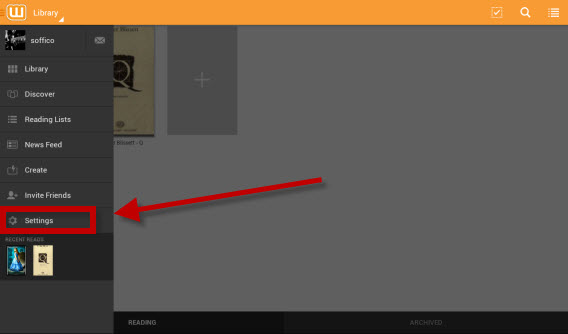
Go to settings to set your language3. Then, tap on the Language item and select your language.
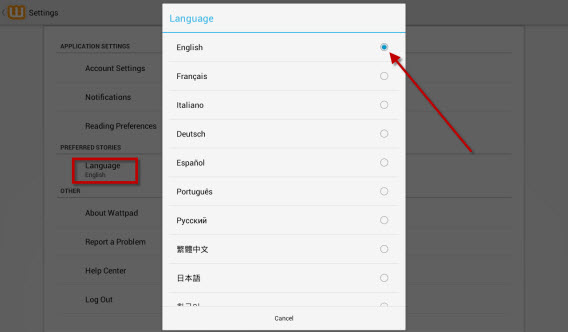
Choose language setting for Wattpad4. Now, go back and tap on the rectangle icon with the “+” in the center of the page. On the next screen, you can choose your first book. Just choose one of the ones you see on the list or explore the different categories at the bottom of the page.
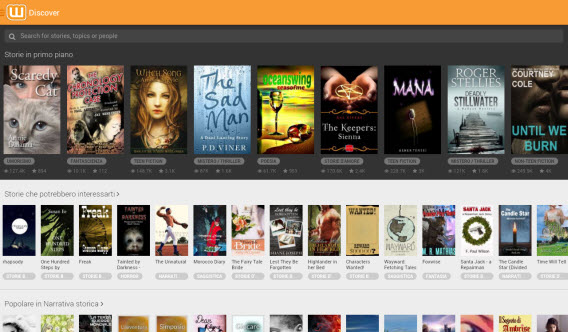
Choose a book or explore optionsIf you want to search for a specific title, just start to type the title in the address bar and then press Enter or choose one of the ones that appear in the pull-down menu.
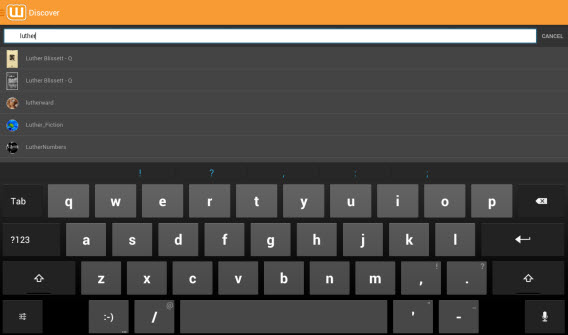
Search for specific titles in Wattpad

5. When you select the title you want to add to your digital library, just press the icon with the “+” symbol to add it to your personal collection.
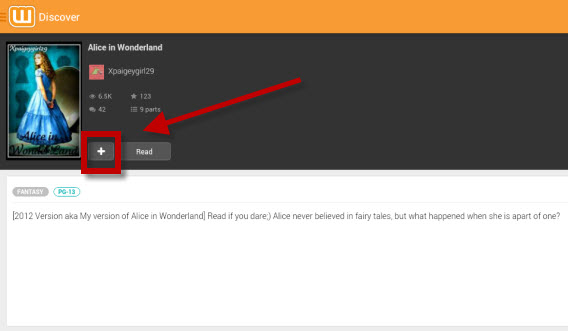
Add a title to the Wattpad digital library 6. To read the ebook, just go to your library by clicking the icon in the top left-hand corner of Wattpad and then clicking Library. In the middle of the screen, you’ll see the list all your books. Tap on one of these and start reading.

Start reading in Wattpad

Wattpad is not the best application for reading books; it only works with those downloaded using the app and only if you’re connected to the internet. To read books offline that you’ve downloaded in PDF format and ePUB, there’s an app that’s simple to use and feature rich, called Moon+ Reader.

Moon+ Reader the app for reading your ebooks like they’re books

Moon+ Reader

Moon+ Reader is an app that really enhances the reading experience on your tablet. It’s also an app to download books, but stands out as perhaps the best ereader.

Moon+ Reader has a lot of options when choosing how to display the contents of your ebook, and the details are customizable, including the color of the background and the font used for the text. It also has 10 default themes including one for night time reading, so as not to disturb those around you, and allows you to sync your books on Dropbox to make them accessible everywhere. Let’s see how to import books to read.

1. First, you need to download Moon+ Reader for Androidon your tablet. The free version does not support PDF, so if you want to read books or articles in this format, we recommend you download the paid version of Moon+ Reader Pro.

2. To read, you must first add the ebook to your library. You can do this by downloading it online (even using the same app) or by adding it directly to your device off of your PC. To get it onto your tablet, connect your tablet to your PC and transfer the file of the book into the Downloads folder of the device, as in the image.
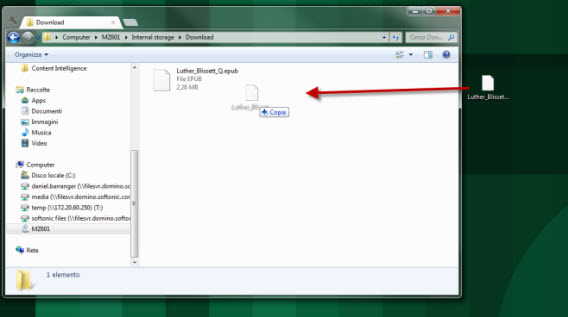
Add ebooks to your library3. Then, open Moon+ Reader on your tablet and, in the main screen of the app, press the SD card icon with the words My Files.
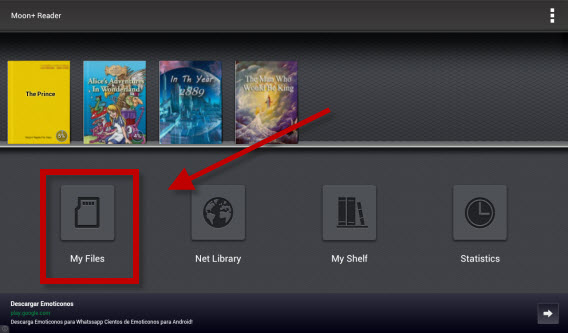
Open your ebooks in My Files4. After that, tap the arrow icon in the upper right to get to the parent folder /sdcard (step 2) and then tap on the Downloads folder.

Download ebooks from your SD Card5. Here, you’ll find the book already loaded. All that’s left to do is to add it to your library and start reading.
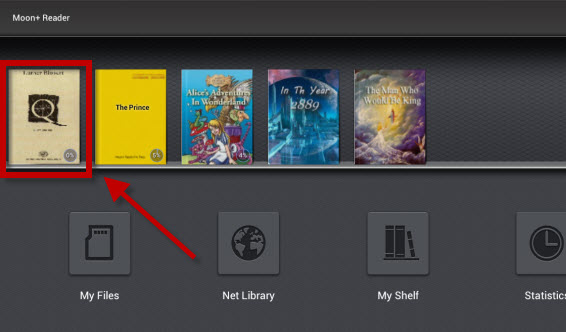
Add books to your library in Moon+ Reader

The great thing about Moon+ Reader is that it presents the book in a format that is not only easy to look at, thanks to a striped, gray background, but also has predefined modes, including several for night time reading. In addition, you can change many of the settings, like your progress through the book, to the indent at the start of a paragraph.

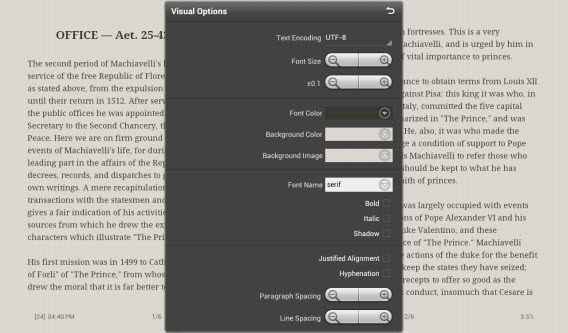
6. Once you’ve opened the book, you can change the settings by tapping the center of the page when you’re in reading mode, and then then on the wheel icon at the bottom right.

Change the layout by going to Settings

7. This will bring up a menu, where you can adjust the layout and settings as you like.Moon+ Reader lets you change reading layout
While both Wattpad and Moon+ Reader are great apps, you may prefer reading the bestsellers just recently released in bookstores. If this is the case, the Amazon Kindle app is the perfect app for you.

Kindle: For buying books on Amazon and for owners of the Kindle ereader
Amazon App for Kindle

The Amazon app for buying and reading ebooks is not the best on the market in terms of usability and comfort, but it does offer a higher level of security than other ebook stores.

The disadvantage of the app is that in order to download any content, you must have an Amazon account and then make the download via a redirect to the store, through the browser on your tablet. It also doesn’t let you import your ebooks to the app, so if you already have some, you’ll need to manage them with another app, such as Moon+ Reader.

The reading options themselves, on the other hand, are actually quite good. In fact, if you’re a fan of Amazon and you also have a Kindle e-reader, this app is perfect for you, since it also syncs with the ebook reader. But first, let’s see how to buy books.

1.Download Amazon Kindle for your Android tablet. Install the app, open it and then press the Store icon in the top right hand corner of the screen.

2. The app redirects you to your browser, specifically to the Amazon website where you can buy a book or download one for free. To do this, you’ll need to register, or log into your Amazon account.

3. Once you’ve downloaded the title, it will appear in your collection.
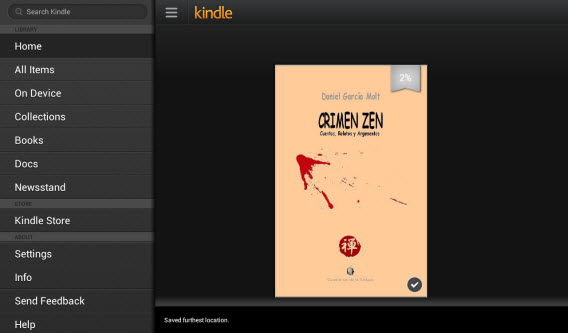
Download titles appear in your library

So, now that you know how to save articles, download books and read them on your tablet, it’s time to create your own custom magazine!

Flipboard: your tablet magazine and newspaper

The great thing about Android tablets is that they are full of reading apps of all kinds, not just for books, but for magazines and newspapers too. But it’s not only RSS feeds that will collect interesting articles for you.

There are applications that let you read news in your favorite newspapers, read stories published by your contacts on Facebook and Twitter, and even apps that will learn the types of content that interests you. A great app for this? Flipboard.

Flipboard

It’s the most famous, and perhaps the best, custom magazine on the market, according to user opinions. Select your interests using a list of tiles which are catagorized into broad topics.

Flipboard also lets you connect to Facebook and Twitter (and 10 other social networks) to present you with the news and the articles laid out elegantly in timelines, letting you read them comfortably and browse at your fingertips, without having to be catapulted between applications. Here’s how to set up the app to make it your own personalized magazine.

1. Download Flipboard for your Android tablet. Once you open the app, you’ll be asked to choose your favorite topics to begin creating the magazine. Press the thumbnail of the themes that interest you to highlight them and then tap Build Your Flipboard.
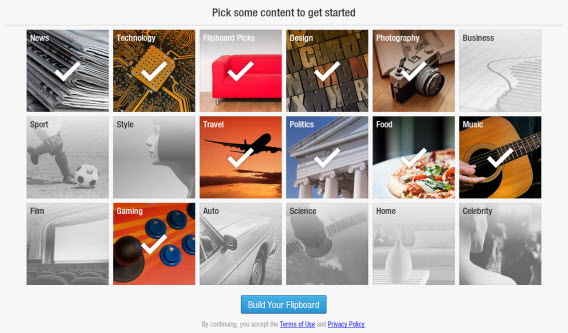
Choose the topics that interest you in Flipboard2. Choose whether to create an account. It’s not mandatory, and you can use Flipboard even without one, but in order to access your magazine using other devices and to synchronize magazines, catalogs and social network accounts, then you have to create one. To create an account, press down on Flipboard Accounts, and then click Create Account. Fill out the form and then tap on Create Account.
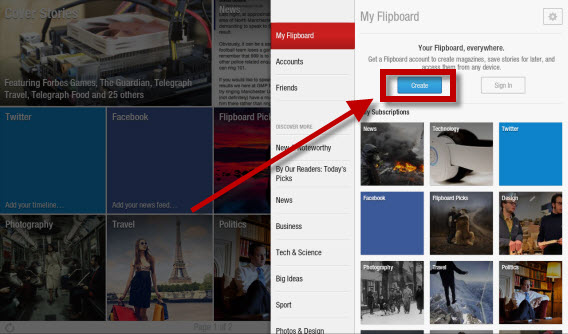
Creating a Flipboard account is recommended, but not necessary

3. Clicking on the Twitter and Facebook thumbnail lets you access the social networking timeline. If you log in using your credentials, you’ll see news posted by people that you follow, as well as your friends, directly in Flipboard in a magazine style.
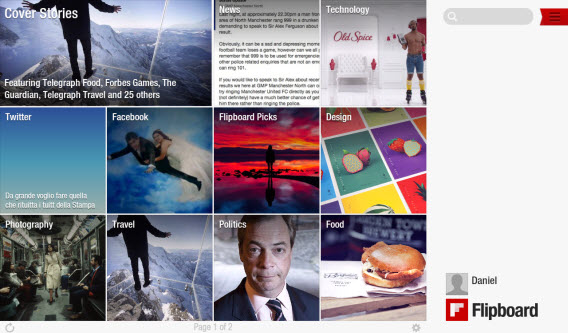
Access timeline news on Facebook or Twitter

Reading is just one of a thousand possible uses of your tablet …

In this installment of our guide to help you discover the full potential of your Android tablet, we saw how you can use it to read articles, books, magazines and news. There is no shortage of apps to do this, and through the use of one (or many) of these apps, you’ll be able to browse your favorite pages comfortably, whether lying in bed or sitting on the train.

But the possibilities offered by your Android tablet don’t stop there! In the next chapter of our Android tablet series, we’ll see how you can organize your work, sync notes, your calendar and transfer files to the cloud to make them accessible anywhere.

What do you read on your Android tablet?
Android Tablet Series: What can I do with my tablet?

If you’ve recently become the proud owner of a new Android tablet, chances are you’ve been using it to surf the internet or check your email. But your Android tablet has a lot of potential, with a ton useful functions you may not even be aware of. In this Android Guide, ‘What can I do with my tablet’, we explain how you can fully exploit all of its functions using some useful apps and a few handy tricks.

The first step: check the operating system

The first thing you need to do is figure out the operating system of your device. If you’re unsure about the operating system, read our article that explains how to recognize the operating system of your tablet.

In this guide, we’re addressing Android users of tablets like the Samsung Galaxy Tab 2 and 3, the Nexus 7 and 10, or the Kindle Fire, but also many others. Don’t have an Android? If your device is iOS or Windows, you can always use our guides for Windows 8 and iOS 7 to make the most of your operating system.

Episodes in the series

Below is a list of articles in our guide. We’ll add links to each article as they become available, but for now, you can see what you have to look forward to over the coming weeks.

How to: find your tablet’s operating system and version number

If you’ve recently become the proud owner of a new tablet, you may be wondering which operating system is installed. In this article, we’ll help you figure out which OS your tablet is running, information you’ll need to both install new apps, and use your device properly.

The first thing you need to do is avoid the most common mistake: mixing up the brand of your device with the operating system (OS). The hardware (the tablet) and software (the operating system that makes it work) are two very different things; thinking they’re the same is like saying the team and the game they’re playing are the same things.

Samsung, Apple, LG, and Kindle are some examples of hardware manufactures which make the physical product. This differs from the operating system, like Android, iOS and Windows, which is intangible and which runs programs, lets you play games, and helps you browse online.

The applications you’re able to install, the things you can do, and the way these functions perform vary depending on the operating system you have on your tablet. As a result, knowing which OS is installed on your tablet is crucial. To identify your operating system, we’ll show you the most popular tablets, as well as the appearance and characteristics of each.

We’ll also show you how to find out the version number of your OS, which will help you determine which applications you can use. Some apps, for example, are only available for the latest operating system, as well as some specific functions that may have been introduced in the latest version of the OS.

Now, let’s have a look at the different operating systems for tablets and how to recognize the version number.

Android

Tablets running on Android are, at present, the most widely used. Produced and developed by Google, Android runs on devices like the Samsung Galaxy Tab 2 and 3, the Nexus 7:10 or the Kindle Fire (very different from the ebook reader), but also on many other models.

The Android icon is a green robot, just like you see in the image on the left. If you have a tablet with this OS, you should be able to see the word “Google” in the top left corner of your home screen, as seen in the screenshot below.

Android home screen

To be sure you have an Android tablet, you can use the following method to figure out the version number. There are two ways to do it:

Method #1:

Go to whatismyandroidversion.com from your tablet. On the page that opens, you can see the OS version installed on your device. If you see “Android not detected”, your tablet has a different operating system.

Your Android version

Method #2:

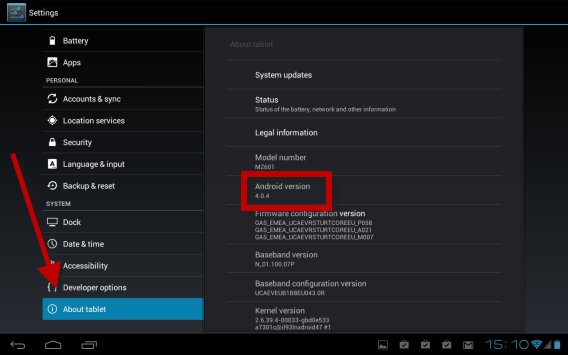
Go to the Settings of your device. You can access Settings by touching the time at the bottom right of the screen, followed by the wheel icon (or horizontal bars), and then again clicking on the same icon.
Android settings

On the next screen, scroll down the left column until the last item, About tablet, and click here. On the right, under Android version, you should see a number – that’s the Android version you have installed on the device. To learn how to update it, you can read this article.

Your Android version

What’s the Android firmware?

On Android devices, you’re not always able to update to the latest version of the OS. This is because the firmware (the code that the operating system is based on) is “branded” by the manufacturer of the tablet, meaning that once the new version of the OS is released by Google, it passes through the hands of the manufacturer of the hardware, like Samsung or HTC, and is modified.

Take this metaphor as an example: a particular pair of jeans is produced in a factory, after which it’s distributed to clothing stores like H&M, where they apply their logo to the jeans. These jeans will only be available once H&M releases the branded ones. The same is true for versions of Android: if you have a Samsung tablet, for example, you’ll have to wait until Samsung releases the branded version of the operating system before you’re able to install it.

To learn more about Google’s operating system, you can read our Basic tips for Android series, where we show you how to use Android smartphones and tablets.

iOS

The Apple operating system is exclusive to the iPad. The symbol of this OS is a bitten apple, so if you see this symbol when you turn on your device, you’ve definitely got an iPad, which runs iOS.

To be 100% certain, check out the main screen, which should look like the one below. To find out the version number of your iOS operating system, press the gears icon, where you can see Settings.

Your iPad desktop

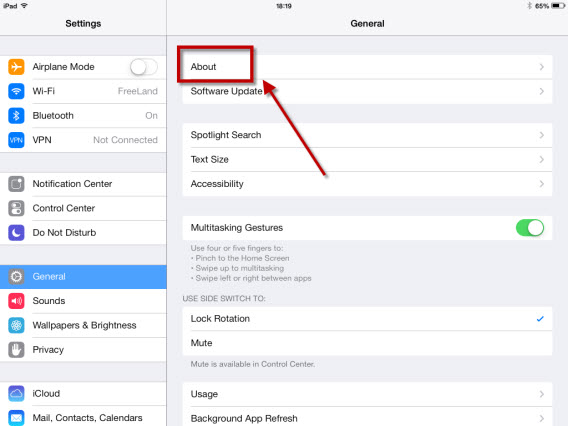
In the window that opens, under General in the left column, click About in the right column.

Your iPad settings

On the right side of the new screen, look for Version; to the right of it you’ll see a number. This will be the version of your operating system.

Your iPad settings (2)

For more information on Apple’s operating system, and to read the most important news, videos, insights and features of iOS 7, you can check out our article.

Windows 8 and RT

With the release of Windows 8, Microsoft has launched itself into the world of tablets. The interface is identical to the PC version, and if you have this OS installed on your home computer, then you’ll know at a glance whether it’s also the one installed on your tablet. If not, we can help.

Once you’ve logged onto the device using either your account or through Windows Live, the main screen you’ll see is very similar to this:

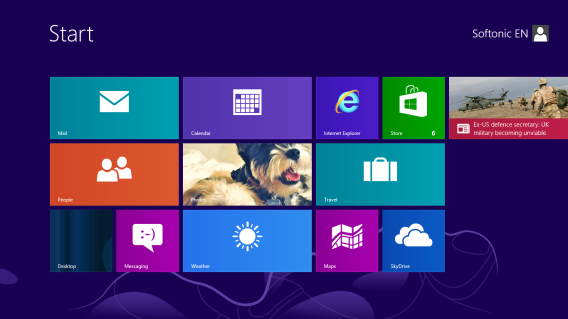
Your Windows 8 tablet desktop

The version of Windows on your tablet will be either 8 or RT, but can also be updated (or not) to Windows 8.1. To find out which version you have, just slide your finger across the screen from right to left to bring up the sidebar (also called the Charms Bar) and press the magnifying glass icon.

Search your tablet

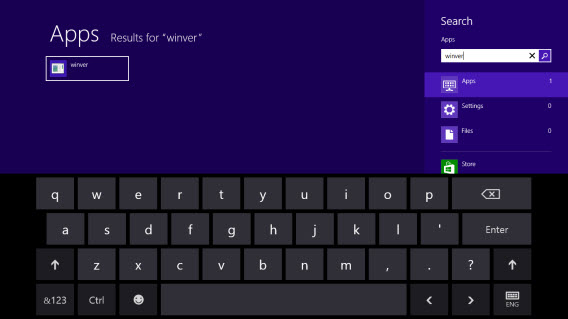
In the new screen, type “winver” and then press Enter on the program icon that appears on the left.

Find your Windows 8 version number

The program will take you to the desktop interface. In the window that pops up, you can see if you have Windows 8 or RT and the version number of your operating system.

Find your Windows 8 version number

Are you ready to get the best from your tablet?

Now that you’ve discovered which operating system you have installed on your tablet, you’ve taken the first step towards full mastery of the medium. Whether you have an Android, Windows 8 or iOS tablet, you’re now aware of the software that’s the basis of your device, the version number, and which applications you can install. The second step is to become familiar with the operating system of your tablet, which you can do by checking out these Softonic guides:

Which operating system do you have installed on your tablet? Do you have any doubts about your OS?

Sync your photos from all devices in one space with My Shoebox

Putting all the pictures you’ve taken into one single digital album may be common sense, but it’s a bit of a drag. Here’s how to do it easily.

Safety, convenience, or obsessive compulsive disorder: there are many reasons to make a single backup copy to the cloud of all the pictures you’ve taken over the years.

Thanks to a multiplatform app like MyShoebox, as well as keeping digital photos from all your machines and your smartphone in one catchy album, you’ll also have a backup copy. All in a few simple steps.

Why save the photos?

Years ago I lost all my photos. It was a tragedy of epic proportions, I suffered intensely for weeks and it still burns me up inside to think back to those painstakingly pixelated memories which all disappeared in a (not so pixelated) puff of smoke.

It was my first digital camera and I took thousands of pictures. I had saved them on my PC and I left to study abroad. While I was away, I continued to take pictures as often as I could and I saved them on my Spanish roommate’s computer.

Then, disaster struck. My friend reinstalled the operating system without telling me and, back home, I found my home computer infected by a virus that had erased all my documents, music, and pictures. I had lost more than a year and a half of photos.

How much do you value your memories?

But how do you do it in practice?

The lesson is: make sure you have the best, updated antivirus and, above all, always make a backup copy! But the problem with physical backups is that they too can suffer at the hands of fate, and with all the different devices we now have, all we do is connect and load, connect and load.

Colleagues and friends have often talked about using Dropbox to do automatic synchronization of the photos taken with your smartphone, but for me it wasn’t enough. So I started looking for a solution that works for all devices, and it was then that I came across MyShoebox, an app for PC, Mac, Android, and iPhone that makes backups of all your photos in the cloud – for free and automatically!

My Shoebox

How does MyShoebox work?

In general I tend not to trust promises of the miraculous, but after trying it, I was completely won over by this multiplatform application.

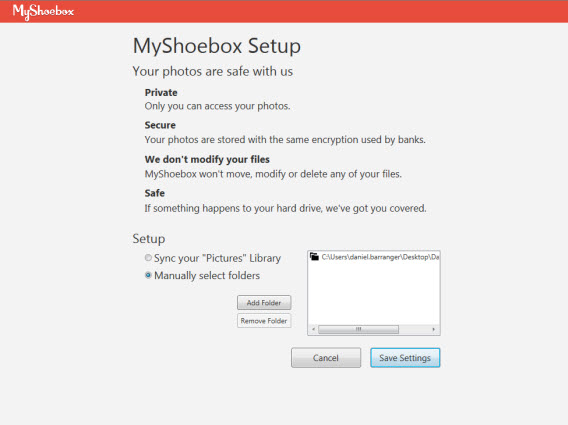
Syncing photos was easier than I expected. First thing I did was register for the web app, and then I downloaded the software to my computer. After entering my email and password, I had to choose which folders to synchronize and MyShoebox started to upload photos.

My Shoebox setup

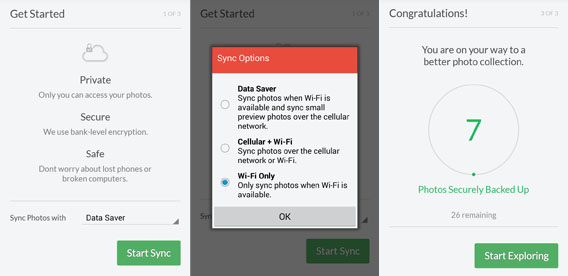
I then downloaded MyShoebox for Android. I entered my credentials in the app, I chose to upload pictures via wifi only rather than with the data connection on my smartphone and the images were uploaded to the cloud.

MyShoebox for Android

Et voila, a few hours later I had a timeline with all my photos taken over the last 10 years! A giant album accessible from your desktop but, above all, from your smartphone, wherever you are.

How is my photo collection organized?

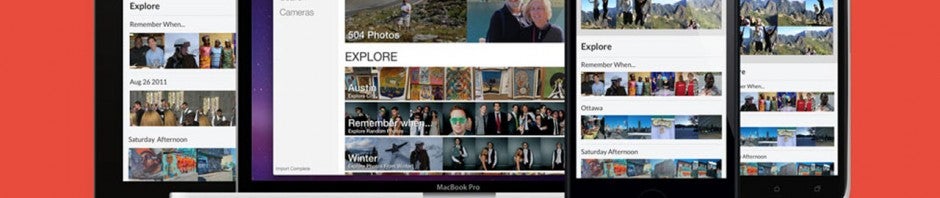
MyShoebox’s main function is the ability to organize your photos in chronological order so you can find them easily, but but that’s not all. While this is perhaps the most practical feature, the app also has other sections where you can find photos organized according to other criteria.

 MyShoebox organization options

Home: Here you’ll find a Timeline menu at the top and another called Explore below. Under the second, you’ll find lines of photos, sorted according to different criteria. Clicking on the first one, Remember when…, you can access your pictures arranged in a random order. This Day in History is a random day of the year in which you took photos and, by defining the date, you can see all the pictures taken on, for example, December 6. The bottom lines will not repeat other days in the past, traceable through the superimposed text that tells you how many days have passed from one date to another.

Timeline: When you sign in to this section there are all the pictures in your life in chronological order.

Events: In this section, the images are grouped by month. If you click on one of these, you see all the photos taken in that month of the year.

Search: Here you can search photos with different filters, such as date, day of the year, timeline of the day, camera (or smartphone) used, location, etc.

Cameras: The photos are divided here by camera used. Again, just click on any photo to see all the ones taken with that machine.

Shared: MyShoebox allows you to create image galleries and then share them with whoever you want, via email, Facebook, Twitter, Pinterest, or simply via the link. In addition, you can add friends to the gallery and invite them to upload photos.

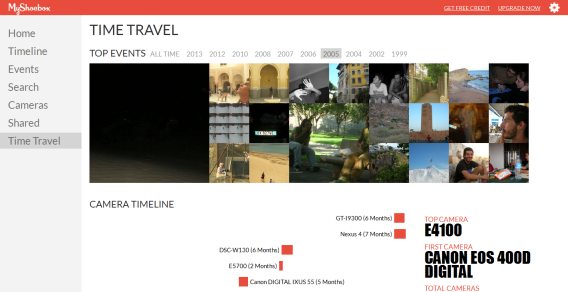
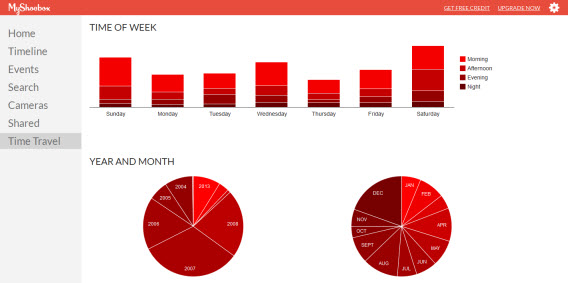
Time Travel: Perhaps the most fascinating and original section of MyShoebox. In Top events you can browse your memories year after year, and if you click on a photo you will see all the ones taken that day. Scrolling down the page, however, you have access to a range of statistics about your work as a photographer. You can view the cameras used over time in an intuitive graph, days of the week and the days on which you’ve taken more photos, as well as the years, the months and the seasons when you’ve opened the aperture of your machine most often.

 MyShoebox statistics

The ideal solution?

I started using MyShoebox to solve a practical problem, i.e. how to store all my photos securely in one place. After loading them all, I started to browse the various functions of the application and rediscovered all those photographs I’d forgotten about, hidden as they were in folders and subfolders of the dark pit that is my hard disk. The benefit was therefore twofold: I made a backup and re-discovered images of months and years past.

Not only that, but the Android app can also review the photos when you’re out and about, and store the ones you’ve just taken securely, without having to connect your smartphone to your PC. In addition, MyShoebox immediately found duplicate photos I had on my Android device and my PC.

Despite all the advantages, MyShoebox has a couple of points against it. These are generally faults where the app falters when we get it wrong, like having a camera with an incorrectly set date – this results in a timeline which doesn’t actually reflect reality. There are others that depend on the application itself. Seeing a random photo, for example, is one of the joys of the app, but not being able to go back to the date it was taken or to other images taken on the same day (to locate the photo) means that the charm of browsing an album is somewhat tarnished.

Also, if you just use the free version, MyShoebox resizes your photos to 0.7 MB with a maximum size of 1280×720 pixels. This means that after a few days of using the trial subscription you’ll probably upgrade to the pro version, because it makes little sense to let the app reduce the pictures, especially if you’re using it as a backup service.

However, after a few months of use, I can declare that overall I’m pretty satisfied with the service. My photos are safe and, above all, I dusted off some memories that were hidden in the depths of my hard drive. Thanks to the app for Android and the sharing options, I then found myself sending photos of old friends via WhatsApp, reminiscing about the good times we had. In short, MyShoebox has become my digital photo album and now I can’t imagine life without it!

What app do you use to take pictures on your smartphone?

Help, it’s Christmas! 11 Apps to survive the holidays

Despite all the good cheer and jolliness of the season, Christmas can also cause collateral damage, like stress, boredom and cabin fever. To solve some of your problems, we’ve put together a list of 11 apps to make it more fun (or simply less traumatic) this year!

The last-minute scramble for gifts, dinners with annoying relatives, friends who are offended because you forgot to send a card, the expense… there’s usually at least one part of Christmas that you don’t completely love. This year, avoid being the Grinch and approach the festive season using this set of apps.

Merry Christmas!

Xmas Frames for iPhone

We all have relatives or friends that we like to send Christmas cards to. If you’re tired of hitting ‘send’ or trudging to the mailbox, Xmas Frames will solve your problems. Xmas Frames for iPhone is a great way to wish Merry Christmas to family and friends, letting you add festive picture frames to your photos!

Download Xmas Frames for iPhone

Xmas Frames for Android

There’s a similar app for Android, Xmas Frames, but from a different developer. Simply take a photo or load one that you’ve previously saved, add the desired effects, and then send it via WhatsApp, email or bluetooth, for example.

Download Xmas Photo Frame for Android

BigOven

A huge part of Christmas is the food, and although you might be a traditionalist, it could be exciting to try new recipes and dishes too! If you want to be adventurous in the kitchen this Christmas, you could try downloading an app like Big Oven to enhance your favorite dishes or help you discover some new ones. With 250,000 recipes and counting, variety is guaranteed.

Download Big Oven for Android or iOS

Noom

Whether it’s because you’re hungover or you have a grandmother who gets angry if you don’t finish the 13 course meal she prepared, eating in excess is the norm at Christmas. With Noom, however, you can try to prevent the excesses from becoming too…well, excessive. The app is designed for those who want to lose weight and follow a diet, but you can also use the function that tells you how many calories you’re consuming to avoid having to commit yourself to a harrowing post-Christmas regime.

Noom for Android or iOS

Runtastic

Eating carefully isn’t always possible, especially during the holidays. After Christmas, you can always try to remedy it by following a diet plan like with the app Noom. Alternatively, you can try good old fashioned exercise. Runtastic is one of the best applications to help you stay fit- just choose which activity you’re doing, activate the GPS and watch the calories burn!

Download Runtastic for (Android | iOS | Windows Phone | BlackBerry)

Amazon.com

The Amazon app, as well as allowing you to shop from home and avoid the lines at the store, also gives you a way to find out the value of your gifts. If you’re feeling guilty for having bought a simple hair clip for you sister while she gave you a brand new copy of Battlefield 4, this app lets you find out the price of the item on Amazon. This can be useful in the future so that you know how much to spend the following year.

Download Amazon for (Android | iOS | Windows Phone)

eBay

So you’ve received a lace table centerpiece; it’s elaborate, sure, but ugly as hell. You don’t even know where to put it, you don’t have room at home, and, let’s be honest, some extra cash would come in pretty handy. Why not put an ad on eBay and hope that a buyer with a penchant for ugly tablecloths wants to buy the item that you’ve been given?

Download eBay for (Android | iOS | Windows Phone | BlackBerry)

Save the Children

Christmas is a time for giving and its nice to help out those less fortunate around the holiday season. It can be easy to forget, though; we end up thinking about what we want, spending money on useless gifts, and let’s not forget how much food can go to waste. Luckily, donating is easier than ever. Save the Children, for example, has an app for Android and iPhone that allows you to make donations to the famous NGO, a quick and easy way to give a little bit more this holiday season.

Download Save the Children for (Android | iOS)

ElfYourself

After Christmas dinner, with a full belly and a table full of relatives, the atmosphere can be a bit boring and heavy. To entertain and and give everyone a lift, it’s best to arm yourself before the meal and install an app like ElfYourself. Available in web app form and on iPhone (coming soon for Android), it lets you create a funny video of the people around you, turning them into “elf” versions of themselves.

Download ElfYourself for iPhone | web app

Subway Surfers

No hope of livening things up? Maybe you just don’t feel like chatting with anyone? WhatsApp and messaging services aside, you should arm yourself with a great game to load up on your smartphone and ride the boredom wave with a long gaming session. Subway Surfers is perfect for this sort of situation: easy to learn with quick games that are super addictive!

Download Subway Surfers for iPhone | Android

Skyscanner

If you’ve had enough of Santa Claus, big dinners, and family time, the holiday season is also a great time to jet off to an exotic destination, go to the mountains and ski, or just visit another city. Skyscanner is probably the best app for finding the best flights at the best prices by showing which days and times are the cheapest.

Download Skyscanner for (Android | iOS | BlackBerry)

Wishing you a Merry (Technological) Christmas

With the right apps, it’s possible to make even your least favorite parts of Christmas a big more enjoyable. If you’re a disaster in the kitchen, someone who can’t control what you eat, or if you just can’t stand another afternoon with your crazy aunt, remember to bring your (charged) smartphone everywhere you go!

Which apps will help you survive the Holiday season?

[Original article via Softonic IT]