What can I do with my tablet: train your brain

In this installment of What can I do with my tablet?, we’ll see how you can train your mind with games, keeping your brain active while also having fun.

A tablet can be useful for lots of things, from serious stuff like working and reading, to more idle pursuits such as watching movies or listening to music. Let¡s face it though– one of the most common uses of any Android device is playing games.

There are lots of titles you can download to your tablet, enough to spend entire days trying them out. You might, however, want to take advantage of those moments of downtime to train your brain while having fun, with the right games of course. Let’s see what the best brain training games are for Android tablets.

*Not sure if your tablet is Android? Read our article where we explain how to recognize the operating system on your tablet.

Pure mental training

Fit Brains Trainer

A sound mind in a sound body, as the saying goes, is all well and good, but if the brain is an organ, then it too needs daily exercise. This is the premise of Fit Brains Trainer, an app that keeps track of your progress and your brain training, just like any other fitness app. It includes lots of very challenging games, each one dedicated to training a particular skill.

Coach memory! Brain trainer

Coach memory! Brain trainer offers you several games to keep your brain in shape in different areas, each one with its own specific games. You can train your memory, attention, speed, ability to solve problems, as well as your flexibility, by playing entertaining games that are also really challenging.

Puzzle games and brain teasers

Pudding Monsters

From the same authors as the legendary Cut the Rope, Pudding Monsters is a game involving cute pudding monsters that need to be stuck together without losing any pieces on the street. The game requires you to solve increasingly difficult problems as you progress, but the satisfaction you get will increase too.

World of Goo

The World of Goo is populated by strange gelatinous beings. Here, rather than simply merging them, you have to build structures to rescue the Goo. To do so, you have to use the same beings that you’re trying to save. The methods you can use vary from level to level, and as the game progresses, the Goo will gain different physical properties.

Quell Reflect+

To be compelling, a game doesn’t necessarily have to have elaborate graphics and complex mechanics; Quell Reflect+ is proof of this. In a world of geometric mazes, you have to drag a droplet of rain through the level and collect the pearls along the way in the fewest possible moves. Sounds easy? Get ready to baffle your brain.

Puzzles and Logic

Threes!

Combining multiples of three isn’t as simple as it might seem. Threes! is similar to the viral game 2048, where you have to move tiles, combine numbers and achieve the highest score possible. Being mechanically simple, it’s really easy to just jump into a game. In theory, you’re just looking for the highest possible multiple of three.

QuizDuello

In the same vein as games like Trivial Pursuit, QuizDuello is a quiz which poses general knowledge questions. In this version, you play against another person online in the best of six rounds, each of which has three questions. It’s useful for remembering facts, dates, and concepts learned in school, but above all, it’s useful for training your mental reflexes.

Sudoku

We couldn’t leave out the classic Japanese numbers game, Sudoku. This version has a whopping 500 different puzzles and five levels of difficulty. The app also keeps track of the time it takes to solve each table, and is suitable for beginners as well, thanks to a helpful feature that provides assistance in case you get stuck.

Train your mind while you relax

If you’re using your tablet, you can play these games, all of them genuinely entertaining, to train your brain. From specific apps specifically for that purpose, to puzzles and brain teasers, installing and using these games will give you a mind gym at your fingertips.

In the next installment, we’ll take a look at the apps that we can use to talk to and get in touch with people, both near and far.

Read our Android Tablet Series: What can I do with my tablet? to find out all the cool things you can do with your tablet.
What can I do with my tablet: entertain the kids

In this episode of our series for Android tablets, I’ll explain how you can entertain the kids with your tablet, by downloading games to entertain and maybe even teach something to the little ones.

If we can use the tablet for reading, working and cooking, why not also use it to entertain the kids? Some people aren’t too keen on the idea and raise a variety of objections, like not wanting to leave such expensive device in the hands of a little child, or wondering if it’s healthy to let them spend time gazing at a screen.

But in this article we present applications that can be used with even the littlest of kids, apps that will let you teach them the basics of math, help them develop creativity or simply entertain them. Some of the apps can be used alone, but others you may want to supervise from a distance, or even up closer!

Learn the basics

One of the best ways to use your tablet with kids is when it’s fun and educational at the same time, taking advantage of the opportunity to teach something.

Kids ABC Trains Game

What better way to learn the letters of the alphabet than with much-loved trains? Kids ABC Trains Game combines the fun world of rail transport with teaching letters. There are five different activities in the game, ranging from going along the train tracks in the shape of a letter with your finger, to identifying the sound of the letter and sending the train straight into the garage.

Download Kids ABC Trains Game for Android

Numbers & Addition! Math games

Familiarizing yourself with numbers even before elementary school is important, all the better if it’s done with a game. In Numbers & Addition! Math games there are three types of activities: first you have to determine the order of the numbers by making a frog jump, in another you have to learn to count with moles and last, you learn to calculate with ostriches!

Download Numbers & Addition! Math games for Android

Gummies Playground

Having colorful gummie bears as teachers is every child’s dream. It might even make learning numbers, letters, shapes, colors and animals easier, especially when combined with games and constant encouragement. With three levels of difficulty, it can grow with the child as they progress from two to five years.

Download Gummies Playground for Android

Design, color and dream!

Math and letters can sometimes get a bit boring, and children need to vent their creativity from time to time. There are plenty of apps to color and become familiar with different sounds and music, but not all of them are the best quality. Here are some that do make the grade.

Kids Doodle – Color & Draw

Allowing children to draw without destroying the living room walls is every parent’s dream. If you’ve had enough of the sofa sporting all the shades of the crayon box, then Kids Doodle is a great replacement for markers and crayons. You can color screens or paint pictures, and there are lots of different tools available. It also includes the ability to save drawings and send them via email to share or print.

Download Kids Doodle – Color & Draw for Android

colAR Mix

Wouldn’t it be nice if drawings could come to life? Well, with coLAR Mix they do! Well, nearly. Just print the designs from the app or from the official site, color them and then scan them with the application. You’ll then see the creatures come to life in the form of augmented reality. The drawings become three-dimensional, moving animations. It’s pretty amazing, and we think your child will agree!

Download colAR Mix for Android

Kids Animal Piano Free

If you don’t have a xylophone at home, or you think that putting it in the hands of a little baby could melt your eardrums after a few minutes, then the excellent app Kids Animal Piano Free is a great way for little kids to express their musical creativity. In addition to jamming sessions with more classical sounds, you can replace the traditional sounds with the animal noises and perform pre-recorded songs.

Download Bambini Animal Piano for free

Solo play

Sometimes letting your child play by themselves is a good way to get some peace. Before you hand him or her the tablet and dedicate yourself to what you want to do, it’s best to install the right apps!

Kid Mode

If you plan to hand over your tablet to an infant, Kid Mode is a must for your Android device. This application allows you to block: access to apps, the ability to make purchases and call or delete emails. Instead, what the child can do is log on and play games installed on the tablet, draw and read books.

Download Child Mode for Android

Peppa Pig’s Holiday

We couldn’t leave out a game that stars the hit of children’s television. In Peppa Pig’s Holiday, your infant can relive the adventures of the piglets during the holidays in seven different adventures, and is as good played alone as it is with friends. The application contains no in-app purchases, and is therefore ideal to be used with casual supervision.

Download Peppa Pig’s Holiday for Android

Entertain toddlers…and older kids!

We’ve seen how, accompanied by an adult, the tablet can be a great tool to entertain the little ones. You can use it to teach them the basics of mathematics or letters through playing, to stimulate their creativity in art and music or just to keep them entertained with their favorite cartoons.

Apart from entertaining children, there are also many apps and games for older kids and adults that aim to stimulate our brains. In the next installment in the series we’ll see how you can use the tablet to train your brain.

Read our Tablet Series: What can I do with my tablet

Use WeTransfer for iOS to send photos and videos

The easiest way to transfer photos and videos to your computer (PC or Mac) or to send them to a friend from your iPhone or iPad is to send them with WeTransfer. Let’s see how to do it.

WeTransfer is a service that lets you send large files. For years we’ve used the web app from our computer to send documents, photos and videos to anyone.

What we were missing was a version for iOS. And finally we got it: the app for iPhone, iPad and iPod Touch was launched on March 5th.

WeTransfer for iOS lets you send pictures and videos from our device in their original format, meaning that this is one of the best apps to transfer photos from your device to your PC or Mac without using cables.

WeTransfer can send up to 10 GB of photos and videos at a time, although unfortunately you won’t be able to download them directly onto your device. Once you have selected and loaded the files, you and the recipient will receive an email with a download link. Let’s see in detail how it works.

1. Install and open the app

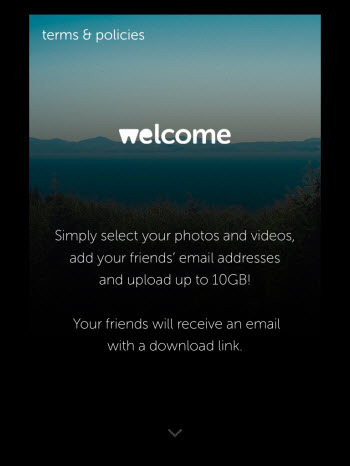
Download WeTransfer for iOS and open it. When you’re on the home screen, swipe your finger upwards.

The WeTransfer home screen

2. Select the photos and videos you want to send

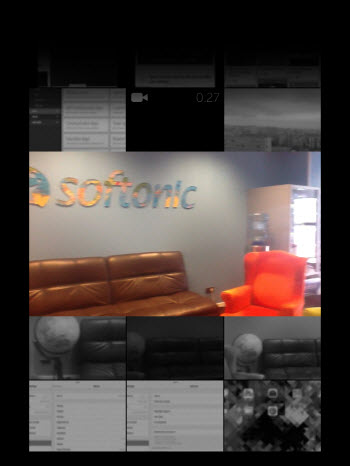
Now you have to choose the files you want to send (if WeTransfer asks you for permission to access your photos, just press OK). If you keep images or videos selected you will see a preview.

WeTransfer - preview your files

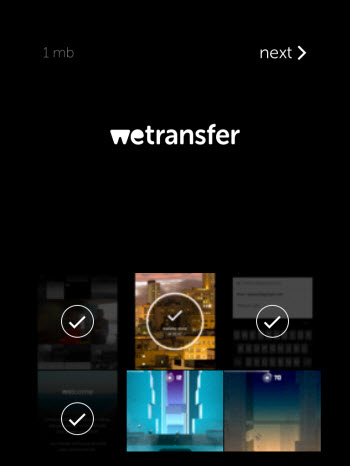
The photos and videos will be arranged in chronological order, and by scrolling with two fingers you’ll jump from month to month. If you double-tap on a photo and then double tap again on another one, all those in between will be automatically selected. Once you have selected the files, press next in the top right corner.

WeTransfer - select your files

3. Send the files

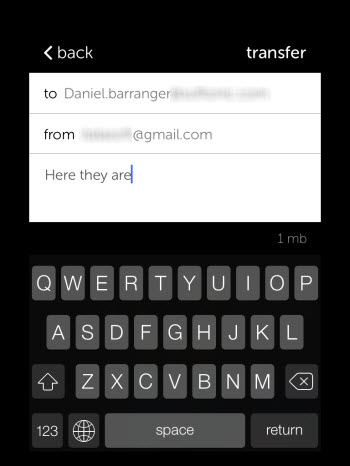
Enter the recipient’s email address, and your message (optional). Then click on transfer in the top right corner.

WeTransfer - write your message

4. Upload files

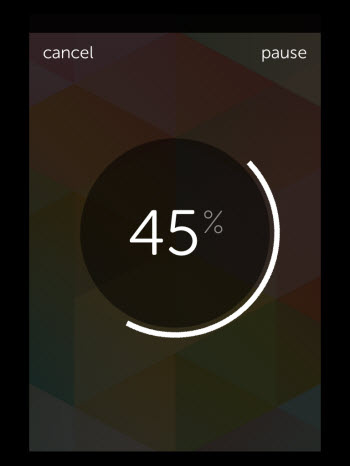
WeTransfer will start to upload the files. If you want, you can pause by pressing the button in the top right corner (pause).

WeTransfer - pause your transfer

5. Transfer done

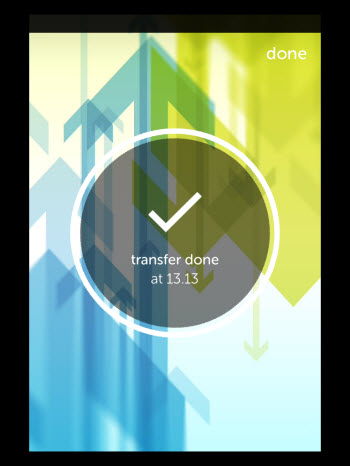
Once the files have been uploaded, WeTransfer will show a screen like the one below. To exit, press done in the top right corner.

WeTransfer - a successful transfer

The recipient will receive an email with a download button. Just press the button and, once redirected to the web app, click on download.

A safe way to share photos and videos

WeTransfer for iPhone and iPad can be used either to send pictures and videos to friends and family, to export them to your computer, to make a backup copy or even to edit them.

The great advantage of this app is how simple it is compared to other file transfer apps, such as Dropbox. It also allows you to send multiple files without compressing them, as you can do with WhatsApp.

What can I do with my tablet: turn it into a photo album

In our Android Tablet Series, we show you how to exploit the full potential of your device. In this episode, we’ll show you how to transform your tablet into a photo album.

How many years has it been since you switched from analogue to digital photography? Probably quite a few, and the result is that your old physical albums contain pictures of days gone by, captured in images that are discolored, shots which, seen through our eyes today, seem to have an Instagram filter.

And the pictures from the last few years? The older ones you probably took with a digital camera, while the newer ones are probably with your smartphone. And who knows to which folder they’ll be relegated on the hard drive, it won’t literally be dusty, but it will be pretty much abandoned.

Your tablet is the perfect device for rediscovering your digital memories, for showing your photos to friends and family at any time. In this article we show you how to import them onto your Android device, how to create albums and see them on your tablet. For convenience, we’ll start by creating the album folder .

Not sure if your tablet is Android? Read our article where we explain how to recognize the operating system on your tablet!

1. Install QuickPic and create an album

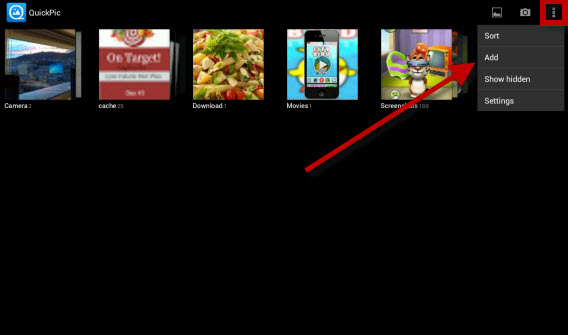
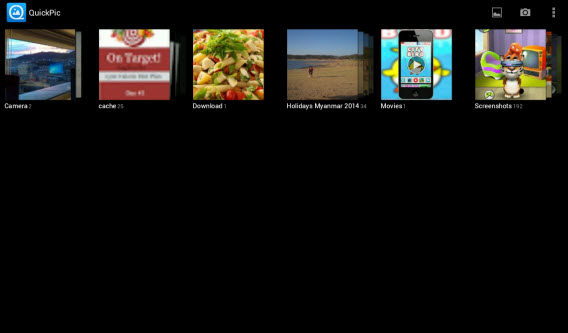
First, you need to download and install QuickPic, an alternative application to the one that’s pre-installed on your Android device for viewing the photo gallery. Open the application, press the three dots at the top right and then select Add.

QuickPic for Android

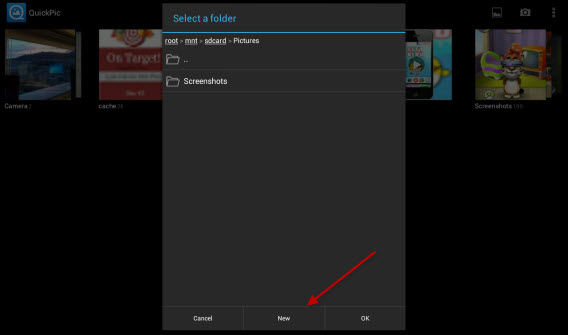
In the new screen, choose where you want to create your new folder (you can see the path at the top) and click on New at the bottom. We created it in root > mnt > sdcard > Pictures.

QuickPic for Android create a folder

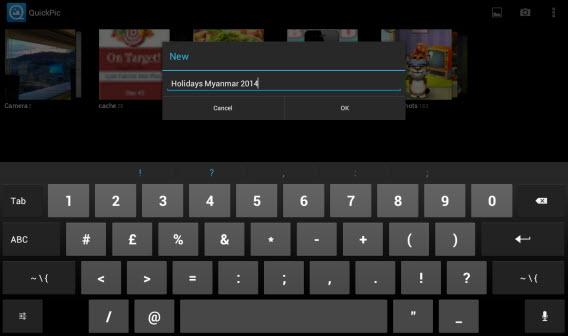
Name the photo album, and press OK.

QuickPic for Android

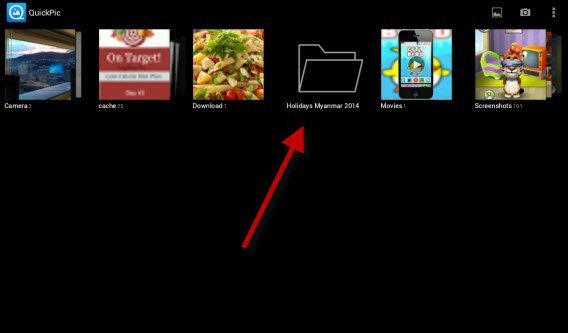
Now you’ll see the new folder among the rest of your folders on your Android tablet.

QuickPic for Android

2. Connect computer and tablet with AirDroid

There are several ways to connect your computer and your device; you can do it with a USB cable, or use an app like AirDroid. It’s simple, doesn’t require any cables and works on both PC and Mac.

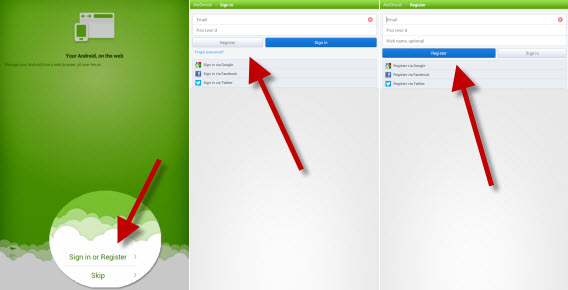
If you opt for this then first you need to download AirDroid on your device and open the app. Click on Sign in or Register (1). If you want to register with email, tap on Register (2), fill in the fields and then press again on Register (3). Alternatively, you can login with your Google account, Facebook or Twitter.

AirDroid register

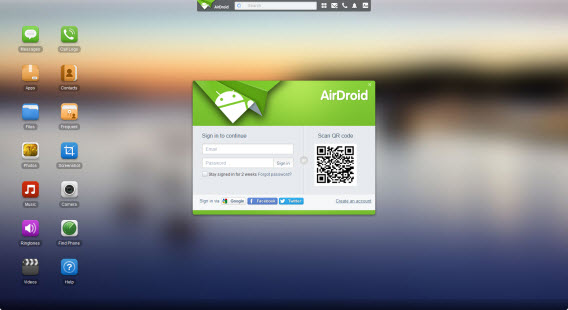
Then go to AirDroid’s registration page.

Airdroid for Android

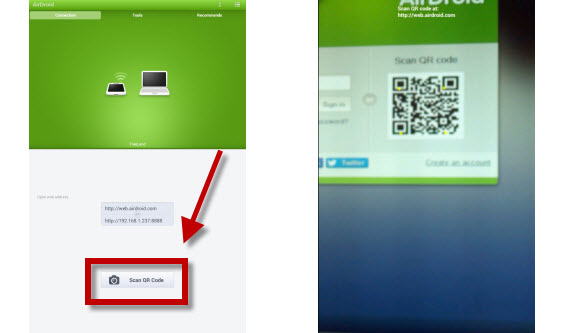
When you’re back on your tablet, open AirDroid and hit Scan QR Code. Bring the tablet to your computer screen and scan the code with the camera.

Airdroid for Android

If the tablet and the computer are connected, you’ll see your device information on the right of the AirDroid page, as in the image. Now you’re ready to copy your photos on to your tablet!

Airdroid for Android

3. Import your photos to your tablet

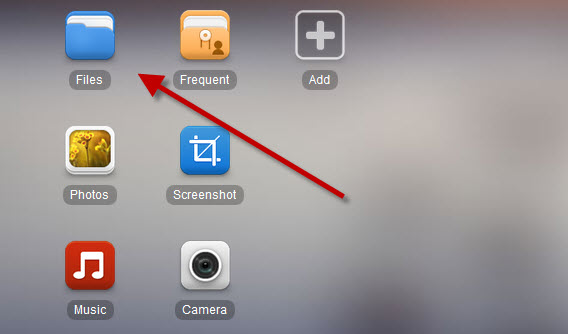
We need to copy the images to your tablet. On the AirDroid webpage in your PC’s browser, press Files.

Airdroid for Android

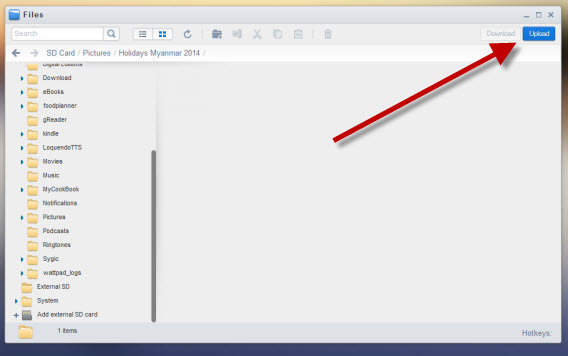
Find the folder created on your tablet. Then press the Upload button in the top right corner to start uploading photos.

Airdroid for Android

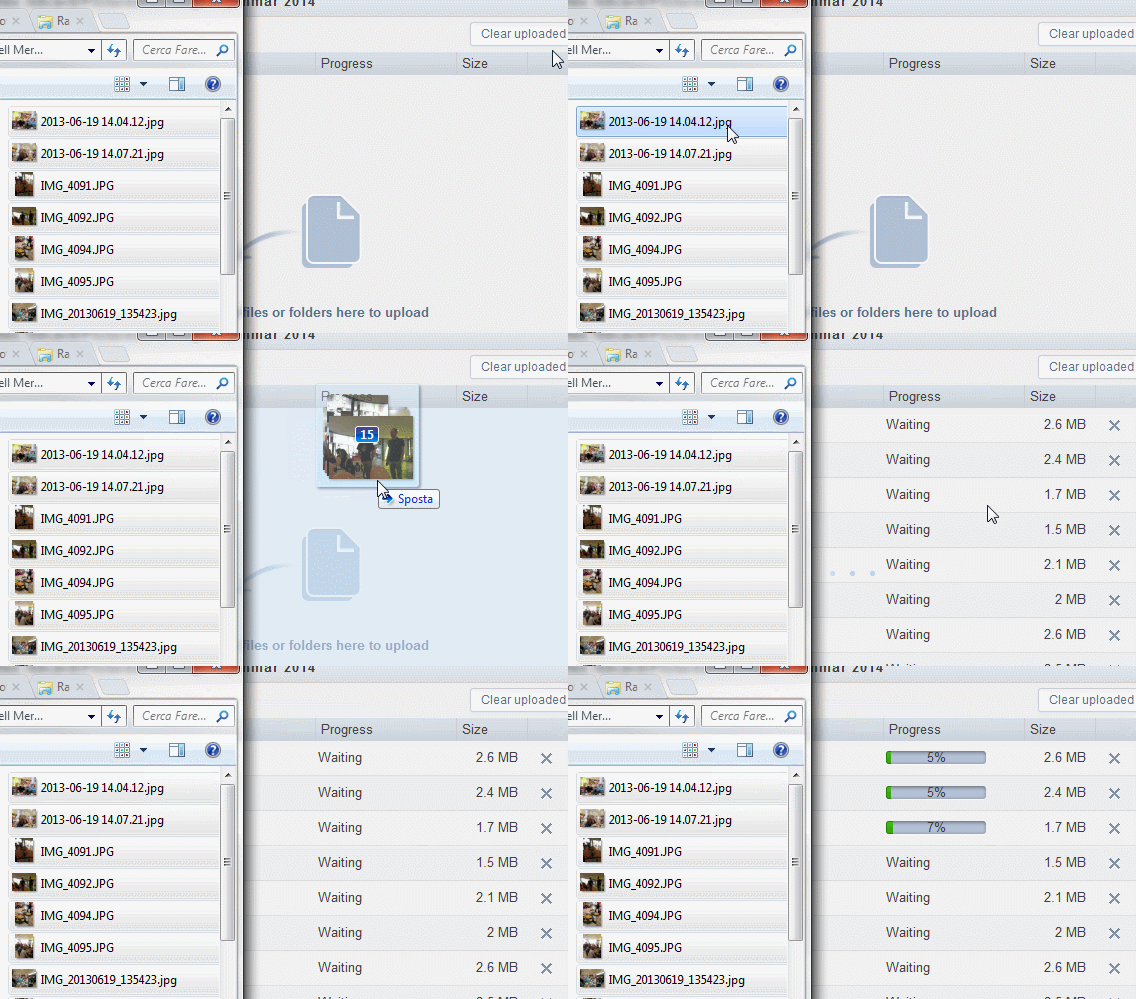
Choose the images you want to import on to your tablet and drag them into the browser screen.

Airdroid for Android

4. View photo album

You are ready to view the album on your tablet! Just open QuickPic, and the app will have automatically detected the new photos that you added via Airdroid.

QuickPic for Android

You can open the photos individually, or press the Play icon at the top right to start a slideshow.

QuickPic for Android slideshow

Transforming your tablet into a digital photo album isn’t the only trick

You’ve seen how you can easily import digital photos to make an album and put it on your Android tablet. Take a trip down memory lane and invite others to join you – it’s much easier than if you tried it with a computer.

Want to know what else your device can do? Stay tuned to Softonic to catch every single episode in our Android Tablet Series guide! In the next installment, we’ll see how you can use your tablet to entertain your little ones while you devote time to other things.

Read our Android Tablet Series: What can I do with my tablet?

What can I do with my tablet: listen to music

Our Android Tablet Series: What can I do with my tablet? gives you all the information you need to get the most out of your tablet. In this episode, we’ll show you the best ways to listen to music.

Whether you want to listen to music on the go, or you’d prefer to enjoy it at home over loudspeakers, there are plenty of different ways that your tablet can come in handy, with options to control the volume and manage playlists remotely. You can use your Android Tablet to listen to music directly from your device via streaming, or as a remote control to play music from your computer. Luckily, there are many apps that can help make these functions easier.

Not sure if your tablet is Android? Read our article on how to recognize the operating system on your tablet.

Spotify: streaming music on your tablet

SpotifyThis is definitely one of the easiest program to use, as well as one that will guarantee you one of the largest catalogs of music. If you already know and use Spotify to listen to music on your computer, you can use the same account on your Android tablet. Otherwise, you’ll have to create an account to be able to access Spotify.
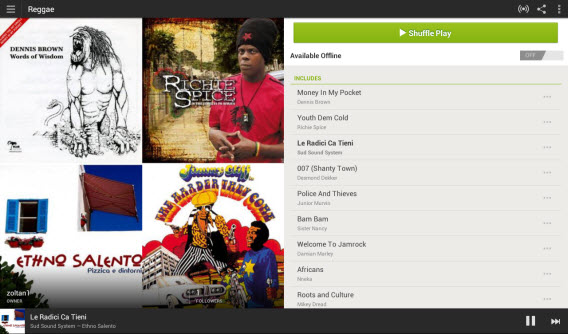

With a free account, you can play songs on random shuffle from playlists you’ve created on your PC, but you won’t be able to choose which songs you want to play, and they’ll be interrupted by advertisements every few songs. If you use Spotify enough, it might be worth upgrading to a paid account to avoid advertisements and to be able to choose the songs you want to hear, when you want to hear them, but regardless, it’s still one of the best and most popular music streaming services.

Spotify

TuneIn Radio: listen to the radio on your tablet

TuneIn RadioOne of the best ways to discover new music and not have to stress about making a playlist is TuneIn Radio. TuneIn Radio is the best app for traditional radio lovers, with access to FM, MW, LW, and SW frequencies, as well as digital ones. The best part is, you can listen to radio stations from all over the world, wherever you are. With 70,000 stations from around the globe, you’re sure to find music that will keep your ears happy.
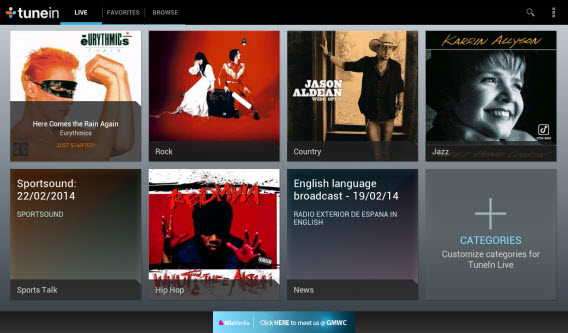

TuneIn Radio

Poweramp Music Player: play your MP3s on your tablet

Poweramp Music PlayerIf you have lots of MP3s and you’ve transferred them to your tablet, you need a great player with good bass and that’ll adapt to different musical genres. Poweramp Music Player plays MP3 and many other music file formats, has a great equalizer with 10 default presets, nice graphics that can display album covers, and many other options that you can use to manage your music collection.
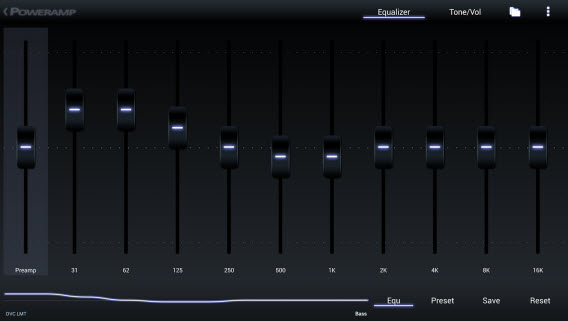

Poweramp Music Player

Google Play Music: listen to MP3s from your computer

Google Play MusicIf you don’t want to transfer your MP3s from your computer or external hard drive to your tablet, you can use Google Play Music, a free service that lets you enjoy up to 20,000 songs in your collection via streaming. With the paid version, the number of tracks is limitless, and you can listen to your entire Google music library. To use it, simply access the service from your PC and sync your collection. After installing the app on your tablet, sign in with the same account and start listening to your personal music collection from your tablet.
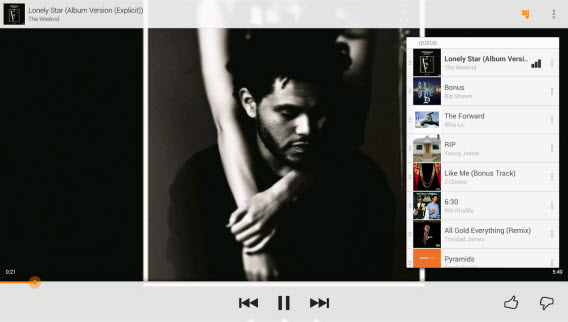

Google Play Music

foobar2000 controller: manage music on your PC from your tablet

Foobar2000 ControllerAlthough nothing can beat the convenience of a portable tablet, the quality of a tablet’s speakers just aren’t the same as that of a good sound system. If you have a sound system connected to a computer, it might be nicer to use it to play your music, using your tablet to control it from a distance. Using foobar2000 on your PC and foobar2000 controller on your tablet, you can use your tablet as a remote control to play your music. The process is simple– all you have to do is make sure to install both the PC and Android components of foobar2000 to remotely access your PC from your tablet.
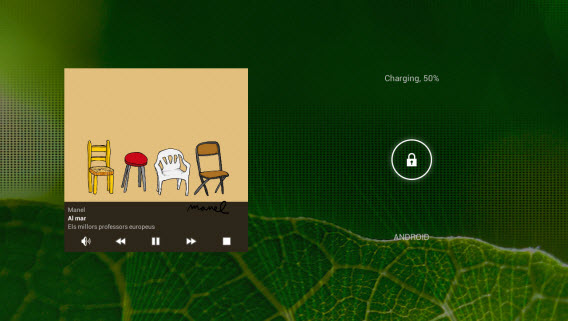
foobar2000

Spotimote: your remote control for Spotify on your PC

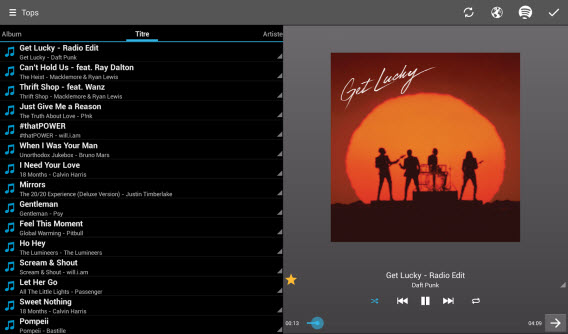
SpotimoteIf you’re a Spotify fan but again, don’t like the sound quality of music coming from your tablet,  you can use Spotimote to control Spotify remotely using your tablet. You need to install a PC app for the Android app to function, and then you can virtually manage all of your Spotify settings from anywhere in the house.

Spotimote

So, now your tablet is a stereo…what else does your device have in store?!

Aside from using your tablet to stream music, you can also use it as a remote control to access and listen to music from your computer, although as we’ve seen in our Android Tablet Series, there are plenty more things that you can do. In the next episode in our series, we’ll show you how to turn your tablet into a photo album.

Read our Android Tablet Series: What can I do with my tablet?

Preview: Hands on with 2014 FIFA World Cup Brazil

The world’s biggest soccer tournament is on its way, and with it, a new version of FIFA dedicated to the 2014 World Cup in Brazil.

We were lucky enough to try the game at EA in Madrid, Spain, to get a hands-on look at the changes to gameplay, as outlined by Matt Prior, Lead Producer for 2014 FIFA World Cup Brazil.

The game is due for release on April 15th in the U.S. and the 17th in Europe for PC, Xbox 360 and PlayStation 3. Let’s take a look and see whether the innovations make this new game worthwhile.

Atmosphere and samba rhythms

2014 FIFA World Cup Brazil is a game whose main purpose is to reconstruct the atmosphere of the world cup, and at first glance, you immediately notice the strong Brazilian influence in the game. Neymar emerges as the star instead of Messi, and you’re immediately launched into the heart of the international competition. Creating this atmosphere, the games succeeds very well.

We wanted to create a game where the main purpose was to recreate the atmosphere, so that it tasted Brazilian.

Get the stadium atmosphere in Brazil

From the menu, to the scenes on the sidelines, the atmosphere of the world cup is always palpable. Before you start the game, it’s worth taking a moment to watch the videos, complete with aerial shots over the 12 Brazilian stadiums of the tournament (these are in addition to the 21 you find in FIFA 14), as well as scenes of fans gathered at home and in front of giant screens to support their team.

The coaches of some of the most important teams appear (19 in all), and for the first time, as FIFA President Sepp Blatter. You can play as any of the 203 officially recognized national teams in 2014 FIFA World Cup Brazil.

The decision to develop the game strictly for third generation consoles, excluding PS4 and Xbox One, isn’t just a question of resources, but a tactical move to reach as many gamers as possible, especially those in Brazil, where next-gen consoles still aren’t very widespread.

Game Modes: Rewrite the history of the world

As with the latest versions of FIFA 14, 2014 FIFA World Cup Brazil also favors an online local gaming mode, although offline players haven’t been forgotten. The most interesting game play mode is probably Road to Rio de Janeiro, where you play as any of the 203 national teams, and also have the chance to play against other online players. The matches take place throughout the 12 World Cup stadiums until you reach the final match at the legendary Maracanà stadium in Rio.

Play as one of 203 international teams

Its offline counterpart, Road to the FIFA Wold Cup, begins in the qualifying stages of the World Cup, until you reach the final group stage in Brazil. This mode can be played by a maximum of 32 people.

Among other options available, one of the best is the local mode, Captain your Country, where you control a single player, train him, and take him on to become the captain of the national team. Another interesting mode is the Story of Qualifying, in which you find yourself playing fragments of matches which have actually taken place over the course of the World Cup qualifiers, meaning you have the chance to change or reconstruct the history of football.

Gameplay

FIFA 14, however, is not limited to Brazil and the World Cup atmosphere; it also includes changes to gameplay when compared to FIFA 14, particularly in terms of the much-criticized speed, or lack thereof, of the EA title, the set pieces, and the accessibility of the title to newcomers.

As explained by Matt Prior, players of 2014 FIFA World Cup Brazil will be about 50% veterans, and 50% newcomers. To make the gaming experience easier for the latter, the beginner level of the game is a bit oversimplified, the two buttons mode is activated by default. After trying it out, we can confirm its simplicity– after the first 45mins, we were up 7-0, and we were playing as Bahrain.

If you’ve never played FIFA, this is the title you can use to enter the world of EA football

Another improvement includes the shots. With a corner kick, you can use the menu (accessible using the arrows on the gamepad) to choose which set piece tactics to use with the team. You can choose whether you want to make a move outside the box, whether you pressure the goalie, or whether you want to aim for the first or second post.

Unfortunately, the corners aren’t any easier; during our tests, we noticed that you still need to steer the shot well, select the level of power and movement to coincide with your chosen tactics and, as always, you need a bit of luck.

Brazil is the star of this version of FIFA

What has changed more radically (and for the better) are the penalty shootouts. In recent years, it ‘s been notoriously difficult to shoot penalties in FIFA, and in this latest edition, developers have taken this criticism and chosen to simplify them. The mechanism reamins the same, but it’s now a lot harder to overkick a penalty.

The goalkeepers, for their part, have new animations. There are commands that let you distract players who are about to kick the ball, including actions like acting like a bullfighter, or wobbling your legs, while others let you parade up and down the field. When a goalkeeper is caught off guard, for example, he’ll still try to block the shot with a dramatic last ditch effort.

In our tests, we had just this kind of situation with Italian goalkeepr Buffon. During a penalty, we jumped in late, with the goalkeeper on the right. With momentum, however, he was able to extend his arm, and saved the penalty. He didn’t have time to celbrate, however, because the ball bounced on the ground with a strong spin and went into the goal, much to his despair.

​As for the actual gameplay, Matt Pior’s presentation pointed to a new control system called World Class, which includes a number of changes that include more responsive dribbling (Response Dribbling), more precise movement (Pinpoint Passing), and really sharp movements full of attack (Explosive Movement), as well as new animations during dribbling, stopping and passing back with the heel. In addition, there is a faithful reproduction of the physics of the Adidas Brazuka ball, thanks to the technicians at Adidas, who have worked closely with the EA team in Vancouver.

Gameplay is much faster than FIFA 14

As for the game itself, we noticed a much faster game than FIFA 14, a sort of partial return to the more exciting FIFA 13. Even though speed is increased, you don’t see the sudden reversals that we saw in last year’s title.

In addition, we noticed that the in-depth passing is easier and more efficient, although everything else, aside from new dribbling, made the gameplay seemed very similar to the title released in September. The only flaw that could possibly be resolved is the power of the shots – it’s sometimes exaggerated, especially if the shots weren’t taken by particularly skillful players.

A gift to fans of the World Cup

Electronic Arts have gotten in the habit of releasing a FIFA title at the end of various competitions, including the FIFA World Cup and the European Championship: two years ago, with DLC for FIFA 12 after Euro Cup in Poland and the Ukraine, and of course this year, where they already have a title lined up.

Even for the World Cup in Brazil, the title focuses on the reconstruction of the competition and on faithfully reproducing the Brazilian national team and atmosphere, rather than on actual changes to the game.

Even without being very innovative, compared to previous editions of FIFA for international competitions, 2014 FIFA World Cup Brazil is a title that sees more changes to gameplay, even though most of them are superficial.

If you’re a diehard fan of the World Cup, 2014 FIFA World Cup Brazil is a game worth buying to entertain yourself until the big day on June 12. If you’re actually only interested in significant changes being made to the heart of the game, you’re better off waiting for FIFA 15.

RELATED ARTICLES:

What can I do with my tablet: cook

In our Android Tablet Series, we show you how to exploit the full potential of your device. In this installment, we’ll take a look at how you can transform your tablet into the perfect kitchen assistant.

Your tablet is light and portable and easy to use anywhere, making it perfect for watching movies in bed, reading books on the train, or as a GPS for your car when you’re out.

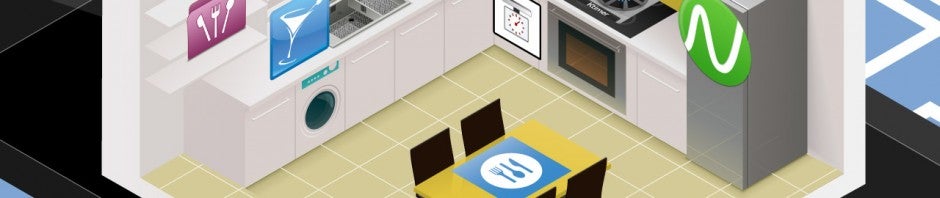
But if there’s place where you can really take advantage of your tablet, it’s in the kitchen. Not only is it small and lightweight, it can be used for a ton of different functions, including a timer, a way to search for new dishes, as a cookbook, to find out how many calories there are in your meal, to make sure that the food you’ve got in the refrigerator doesn’t go bad, or even to create new exotic cocktails.

Here, we’ll go through the best apps for turning your tablet into a really useful kitchen companion.

Kitchen Timer: keep an eye on the stove

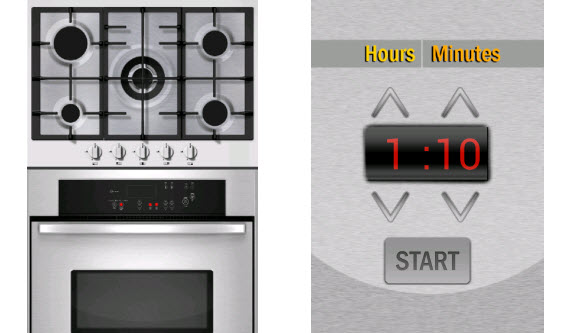
Kitchen TimerThe first thing you should do is equip yourself with a tool to keep an eye on the food you’ve got in the oven, because a dish that’s overcooked, or even worse, burnt, is perhaps the worst thing that can happen in the kitchen. Kitchen Timer lets you to set the countdown for as many as 5 stove tops and the oven at the same time. With this app, no pot can escape your watch!

Download Kitchen Time for Android

Set the time with Kitchen Timer

Allthecooks Recipes: a source of inspiration

Allthecooks Recipes

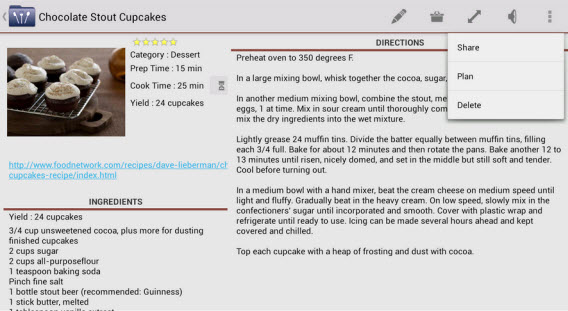
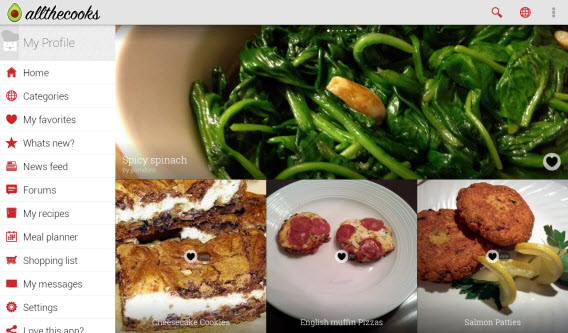
Whether you’re a seasoned chef or a novice cook, a recipe book is a must in the kitchen. Allthecooks Recipes is an app with a huge database of recipes sorted by course, from appetizers all the way to desserts. It also has a section with dishes for special diets, such as diabetics, infants, gluten-free and vegetarian options. In the app, there’s a forum to talk about food and health, as well as the option to bookmark recipes, and a section for creating your shopping list.

Download Allthecooks Recipes for Android

Get creative with Allthecooks Recipes

My CookBook: all your recipes on your tablet

My CookBook

An app for discovering new recipes is important, but being able to save the ones you like, or even create your own personal favorites, is crucial when it comes to improving your skills in the kitchen. My CookBook allows you to have your recipe book on your tablet, creating a database of your specialties. You can create shopping lists from the ingredients in the meals you want to prepare, sync recipes across various devices, and have the app read the recipe aloud using the speech synthesizer.

Download My CookBook for Android

My CookBook

Cooking Conversions: don’t forget to measure!

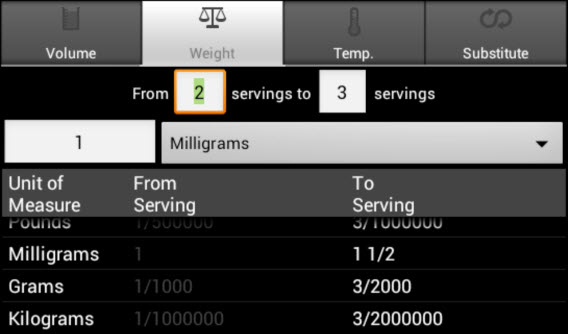
Cooking ConversionsNot everyone is a mathematician, and having to do calculations for the number of people you’re serving, or from one unit of measurement to another, is probably the last thing you want to do in the kitchen. For a quick calculation of how much of an ingredient to use or to convert units of measurement, there’s Cooking Conversions, an app that also gives you substitute suggestions for many ingredients.

Download Cooking Conversions for Android

Cooking Conversion for Android

Best Before: don’t throw anything away!

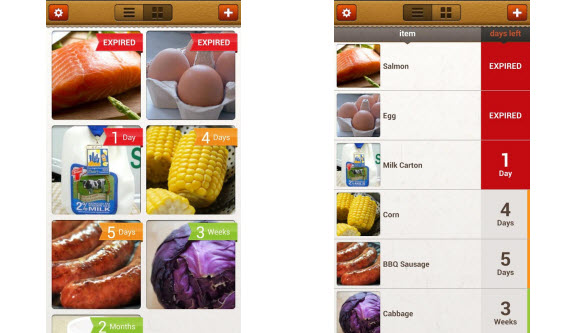
Best BeforeEven those who have a small fridge are in danger of forgetting about food. Best Before is an app that monitors the freshness of your stored food, and lets you know when a product is about to expire. Take a picture when you buy the product, set an expiration date and say goodbye to wasting food.

Download Best Before for Android

Best Before helps you stop wasting food

Recipes by Ingredients: improvised dishes

Recipes by Ingredients

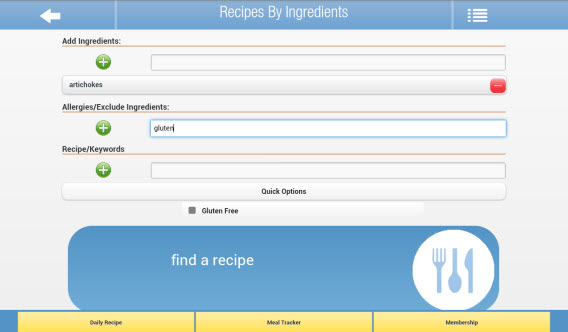
You haven’t had dinner at home for three days in a row and, suddenly, half the food in your fridge is about to expire. No problem – with Recipes by Ingredients, you can find recipes based on the ingredients you have on hand. Put them in the search bar, add any allergies or food preferences, and filter the search results for calories and any other factor you want to consider.

Download Recipes by Ingredients for Android

Recipes by Ingredients

My Cocktail Bar Drink Recipes: a drink after eating

My Cocktail Bar Drink Recipes

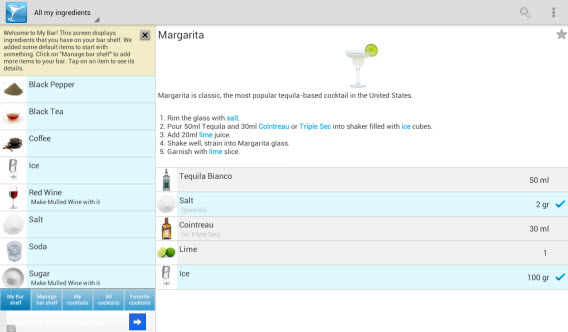
After an amazing meal, sometimes the only thing that will do is a quality drink. Unless you’re a bartender, you probably won’t remember how to make a sex on the beach or a pina colada; My Drink Recipes Cocktail Bar is the final touch to make your meal a great success. Again, if you don’t have a wine cellar in the house, just enter the alcohol and mixers you have available, and the app gives you a list of cocktails that you can make.

Download My Cocktail Bar Drink Recipes

Find out what you can make from what you've got

Noom: keep the calories under control too!

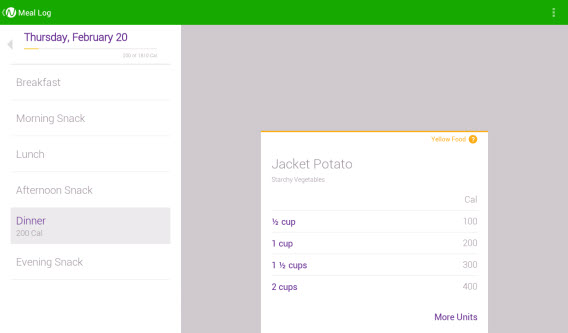
NoomCalculating the number of calories contained in your food isn’t that difficult, and other apps like Allthecook Recipes let you know how much “energy” is on your plate. But, if you want to keep track of all the calories you consume, as well as those that you burn off, there’s Noom, an essential app for anyone who wants the skill of a great chef, but not the size!
Download Noom for Android

Calculate calories in and out with Noom

Your tablet is more than just a sous-chef with a great memory

With a series of apps, you can turn your Android device into your personal kitchen assistant. The apps in this article are only suggestions, because there are plenty of Android applications for cooking, but the more you become a tablet expert in the kitchen, the more you can discover for yourself.

Like we’ve shown in our Android Tablet Series, your tablet isn’t limited to cooking. You can do many things, and in the next installment, we’ll show you how to turn your tablet into a stereo, with the best apps for music, and an almost infinite catalog of songs and artists.

Have you tried cooking with your tablet?

What can I do with my tablet: watch movies

In our Android Tablet Series: What can I do with my tablet, we show you how to exploit the full potential of your device. In this episode, we’ll show you how to watch movies,  whether you’re online, or offline.

The advantage of having a tablet is that it’s light, but at the same time, has a larger screen than a smartphone, one good enough to watch movies on. Whether from the comfort of your own couch, while traveling, or while taking a lunch break, it’s good to know how to watch videos on your Android tablet.

In this tutorial, we’ll show you how to watch movies using Google Play Movies, which lets you either stream movies online, or download them to your tablet to watch when you’re not connected. There are, of course, other options for watching movies on your tablet, but we’ll only go through Google Play Movies here.

Not sure if your tablet is Android? Read our article where we explain how to recognize the operating system on your tablet!

1. Download and install Google Play Movies

Google Play MoviesAlmost all Android tablets have the application already on their tablet by default. If you want to check if your device has the app, you’ll recognize it by the red film icon, like the image on the left. If you don’t see it, download and install Google Play Movies.

2. Search for a movie

Open the app on your tablet. On the main screen, you’ll see a list of mainstream movies. Swiping your finger to the right lets you navigate through the categories of the app, but if you slide your finger to the left, you can browse the Top Selling section, as well as New Releases.

New Releases on Google Play Movies

If you click on the magnifying glass in the top right corner, you can search for a specific movie by title. Click on the name of the movie that appears in the suggestions for more details, or press Enter to go to the search page.

Search for movies in Google Play Movies

3. Choose a movie

When you’ve found the movie you want, press on the image for more details. In the new window, you’ll find information about the movie including a synopsis, the trailer, the rating, and user reviews.

Click on a movie to get more details

In the top right hand corner, you can find the available viewing mode, whether the movie is available to rent or to buy (or both).

Rent or buy a movie in Google Play Movies

The rental period of a movie varies from title to title and can’t be changed. To find out how many days you have left to see the movie, scroll down the left column to the end, where you’ll find the rental period.

Find out the rental period of the movie

4. Buy or rent movie

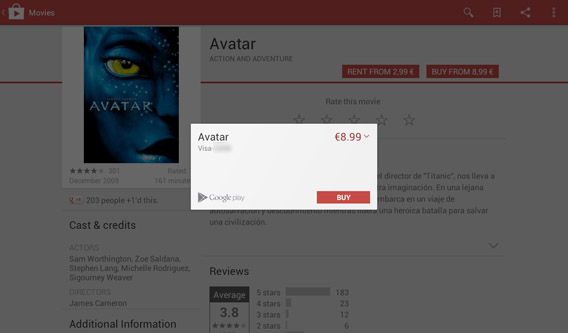
When you find the movie you want to watch, press one of the two red buttons in the upper right corner to either buy or rent it. The price varies from movie to movie and depends on the quality; a movie viewed in HD will be more expensive than one in SD (standard quality), and the price will depend on whether you want to rent or buy it.

If you already have a credit card or debit card linked to your account on Google Play, all you’ll have to do is choose whether you’re going to buy or rent the movie and then select the quality. In the pop-up window that opens, press Buy to complete the purchase.

Buy a movie in Google Play Movies

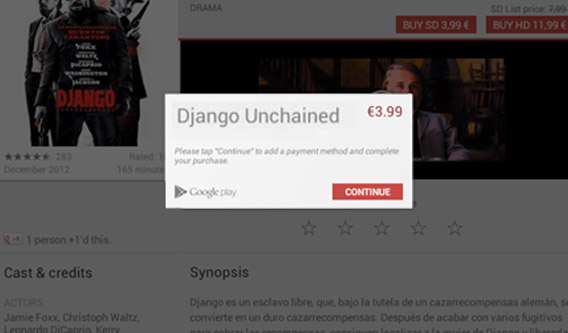
If this is the first time you’re making a purchase in Google Play, you’ll be asked to enter your details to proceed. Tap on Continue.

Continue to enter your credit card details

On the next screen, tap Add credit or debit card and enter your card number, the expiry date, the CVC code (located on the back by the signature strip). Then, hit Save.

Add a credit card to your account

If the title is available in more than one version, you’ll get another pop up letting you choose the quality of the movie, either HD or SD. Tap the one you want, then click Buy or Rent.

5. Go to your library

The movie is now available to watch on your tablet! To access your movie collection, tap Google Play Movies in the top left corner and go to My Movies.

Access your movies in Google Play

There, you’ll find your movies, as well as other information including days remaining in your rental period, or, if you purchased the movie, whether it’s been downloaded yet.

6. Watch the movie and download it

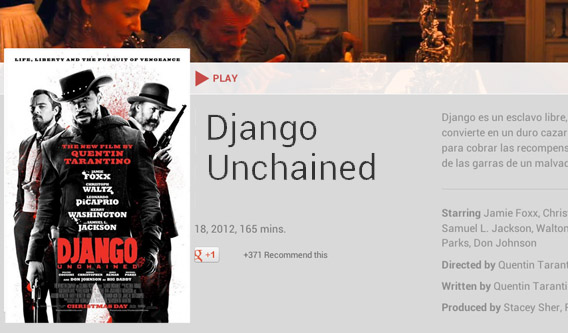
Under My Movies, you can watch movies or download them if you’ve purchased them. To download the movie, tap on the movie poster to access the information. To watch the movie, press Play.

Watch your newly acquired movie

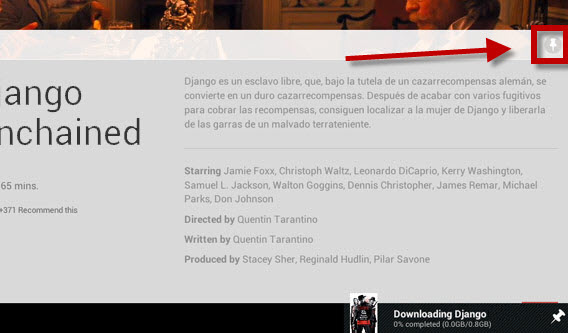
If you purchased the movie and want to download it to view it without internet connection, tap the pin icon to the right.

Tap the pin icon to save the movie to watch offline

When the movie has finished downloading, the pin on the right will turn red and change position, just like in the image below.

The pin turns red when the movie is done downloading

Now, you can watch the movie even when you’re offline: just log in to your movies on Google Play Movies, press Play on the downloaded movie and enjoy!

Your tablet’s a home cinema too!

As you can see, you can turn your tablet into your very own home cinema using Google Play Movies, which should already be installed on your device, but don’t forget, there are other ways to rent, buy and watch movies on your Android tablet.

In the next article in our Android Tablet Series: What can I do with my tablet, we’ll show you how to use it as a cookbook so that you can  become a top chef– at least in your own kitchen!

Titanfall: the next-gen shooter has arrived

We’ve recently had a chance to play Titanfall, the most highly anticipated shooter of 2014. Online multiplayer mode, giant robots, agile soldiers and spectacular graphics make this one of the must-have titles of the year.

It may not have revolutionized the landscape of shoot-’em-ups, but with the introduction of some interesting innovations and a bit of balance, at least when compared to frenetic and tactical shooters, Titanfall adds some new features to the genre that will undoubtedly inspire games in the future.

The Microsoft exclusive, due to be released for PC, Xbox One and Xbox 360, could become the next Halo, or at least offer enough extras to convince a good number of gamers to move over to one of Microsoft’s platforms.

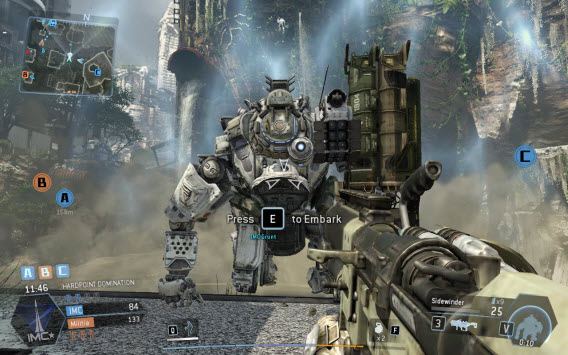
Titalfall looks spectacular

Titans and pilots

Titanfall is set in a post-apocalyptic, sci-fi world, in an area of the universe called The Frontier. Here, two factions, IMC (Interstellar Manufacturing Corporation) and the Militia, are at war.

In Titanfall, you control two different types of character – titans and pilots. Pilots are the humans that drive the huge Titan robots; both have different classes and features that you’ll be able to unlock after gaining points and experience.

Pilots are extremely agile, capable of Parkour-like movement, and using jetpacks to help them jump higher and move quicker. Aside from the ability to become momentarily invisible to the enemy, pilots are much like any other character in your average shooter.

Titanfall - embark titan

The titans, on the other hand, are giant mechs. They’re extremely powerful and boast a protective shield, but once it’s damaged, they’ll start taking hits. Their special skills let them take hits, turn them around, and use them against the enemy. Instead of grenades, they launch missiles that lock on their targets. Once a titan has been damaged, you’ll need to hit the eject button hard enough to be propelled upwards, before your titan explodes.

As the title of the game suggests, robots literally fall from the sky. In most modes, you’ll have to start as a pilot and rack up points – or wait around – before you can call a titan and see it land beside you.

Three game modes, strictly online multiplayer

Titanfall is played exclusively online and in multiplayer. In the beta, there are 3 game modes available: Attrition, Hardpoint Domination and Last Titan Standing. Each mode is playable on two maps, either Angel City or Fracture.

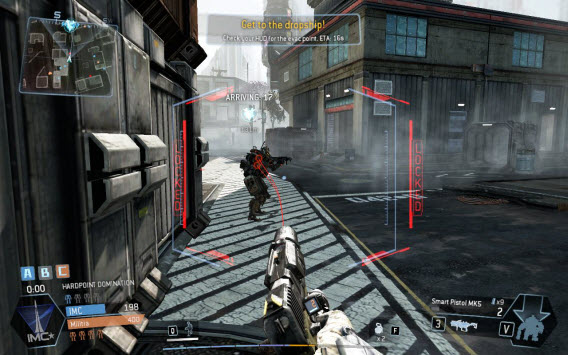
Attrition is the best mode for new players, since it relies on a points system determined in turn by the team’s number of kills. The first team to reach the target or be in the lead when time runs out wins. If you’re part of the losing team, you can still hope to get points if you can reach the rescue ship, especially if you’re the only survivor.

Titanfall - titan special powers

Hardpoint Domination mode is similar to Catch the Flag, where you must capture the key points on the map in the best possible time in order to score points. Last Titan Standing, on the other hand, is the only mode where everyone starts with a Titan. The best team after 3 rounds wins.

Dynamic gameplay that’s not too confusing

Titanfall is an all-round balanced game, but that doesn’t make it boring; in fact, it’s quite the opposite. It leans more towards action than tactics, and although it’s fast-paced with varying character features, it doesn’t tip the scales dramatically to either side.

The fight between titans and pilots, for example, might seem totally unfair, like David and Goliath, but the agility of the pilots and the various weapons classes means that the outcome is never guaranteed.

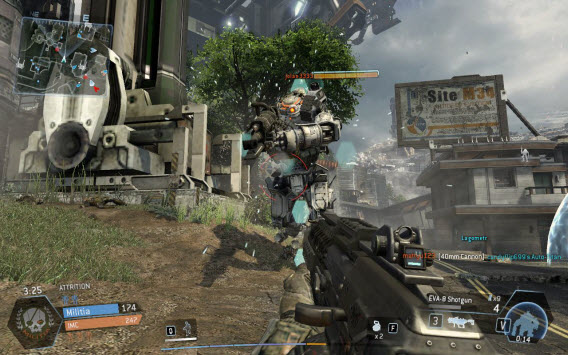
Titanfall - titans fighting

Yes, a pilot may die being crushed by a robot. One shot is enough to kill him, and soon, you’ll have the ability to mount a titan without thinking twice about it. This doesn’t mean, however, that it’s necessary to destroy another mech. Just remember that jumping on a titan can compromise him in a few seconds.

Compared to other games, Titanfall is much more accessible to casual gamers. Some weapons, such as the automatic pistol, are really affordable and easy to use, since it automatically aims when you get close enough to the enemy.

Titanfall - automatic aiming

The controls are intuitive and uncomplicated, but if you are finding them a little difficult to grasp, the excellent tutorial explains how to use pilots and robots in five minutes flat. In addition, the AI-controlled characters make it easier to kill enemies, especially in the beginning, making the game even more fun to play.

Next-gen is already here

Given Titanfall’s spectacular graphics and great attention to detail (which requires very high technical specs), this is the first real FPS of the new generation.

Of course, it’s still in beta, and the final product might be very different,  but we’ve got good reason to expect it to be even better than what we’ve seen here. All we can do now is look forward to the launch date of the final version of the game on March 11 in the US (and March 13th in Europe).

Have you tried Titanfall already?

What can I do with my tablet: use it as a GPS navigator

In our Android Tablet Series: What can I do with my tablet, we explain how to get the most from your device.

There are lots of things you can do with your tablet. We’ve already showed you how to read news and books and how to use it for work, but these devices are really versatile, and you’re not limited to using them in the living room or in the office. In this episode, we’ll show you how to your tablet into a handy travel assistants as a GPS navigator.

Following these simple steps, you can turn your tablet into the perfect travel guide that’ll take you from your front door to your destination, vocally and visually showing you the way. These tips willl work on both 3G and Wifi tablets, as long as they have GPS.

The first step, is to make sure that your tablet has GPS!

1. Make sure your tablet has GPS and turn it on

The easiest way to find out if your tablet has built-in GPS is by using an app. If you already know that your device has GPS and know how to turn it on, go straight to step 2.

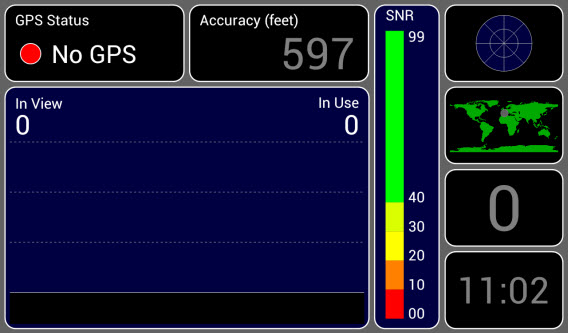
If you’re unsure, download GPS Test, an app that automatically detects the signal strength of the device. Once you’ve installed it, open the application. You should see a screen like this:

The GPS Test interface

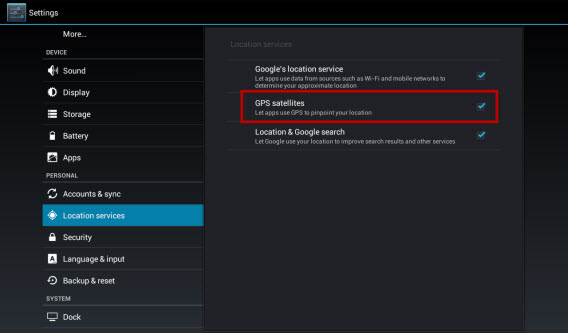
If the GPS Status pane in the upper left has a green icon, then it’s turned on; if it’s red and it says No GPS (as show in the picture above), press it. The app will automatically take you to your tablet’s geo-location options, where you have to enable the GPS satellites, as you can see below (this might look slightly different depending on the device and OS version):

Enable your tablet's GPS satellites

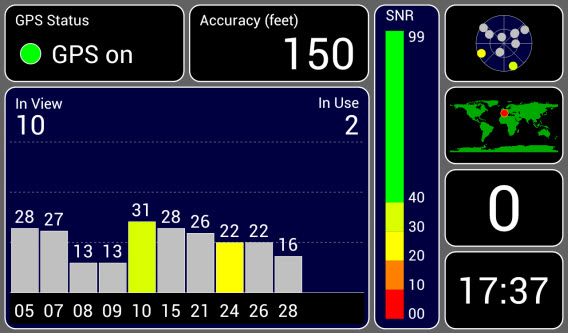
Go back to the GPS Test app. If the GPS signal has been activated, you’ll see the green icon and GPS On on the GPS Test main screen.

GPS has now been enabled

2. Install NAVFREE and download maps

Next, you have to download the GPS browser itself. There are many good apps on the Google Play Store, including the excellent CoPilot and Sygic, but almost all are either paid-for apps or offer limited functions. We’ve chosen to use Navfree: it’s free and also has voice navigation, but if you want to choose another one, the procedure is pretty similar.

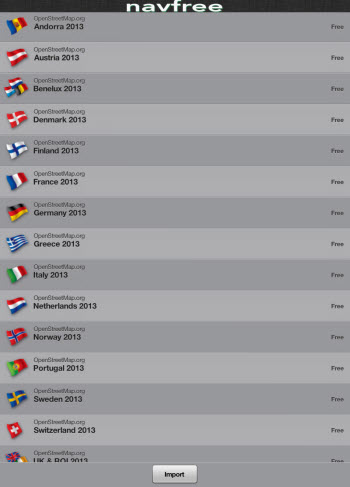
Download Navfree: Free GPS Navigation and install it on your tablet. Open the application, read the terms and conditions of use, and accept them. On the next green screen, click Next. Choose your country among those listed, and click Import to download road maps (you can download even more later).
N.B. Make sure that you’re connected to a Wifi network; the maps are pretty big and the download may consume a lot of your data (if you have a tablet with a 3G connection).

Navfree setup

The download can take a few minutes, depending on the speed of your internet connection and the size of the maps. Once downloaded, you’ll see a green screen. Swipe to the left and then press Let’s start!

3. Set your default address

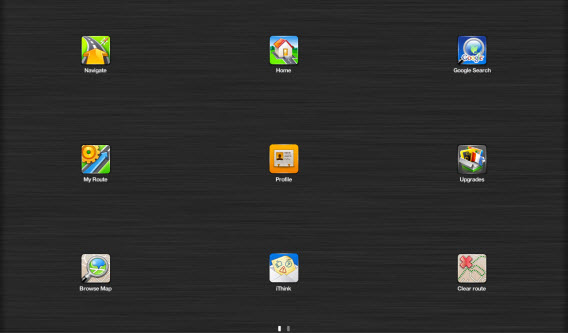
To simplify the use of the application, the easiest thing is to set your home address (or whichever address you use the most) so that you don’t have to repeatedly enter the source or destination of your route in the future. To do this, go to the main screen and click on Navigate in the upper left.

The Navfree interface

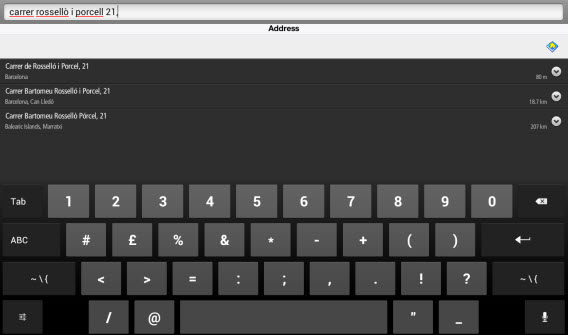
On the next screen, type the address into the search bar and then select the correct item in the list, or press Enter.

Program your home address

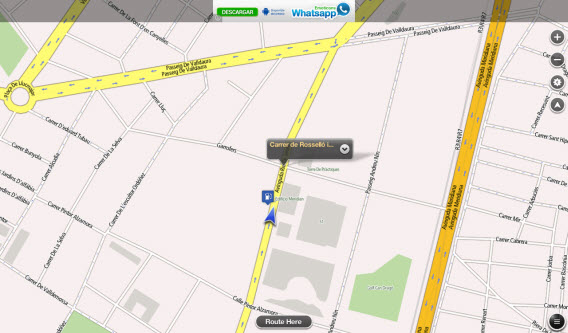
Once you’re in the map, click on the gray placeholder of your address.

You'll then be sent back to the map

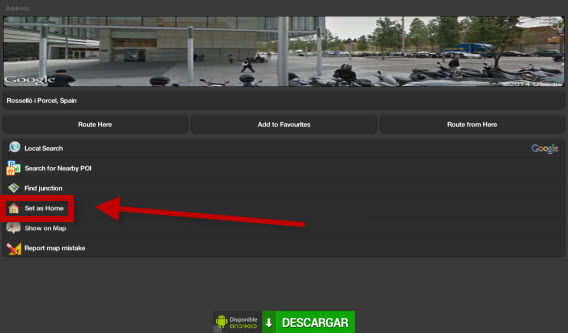
In the new screen, press the option Set as Home in the list that pops up below, and then again on Set as home (Yes) in the pop up window.

Set this address as your home address

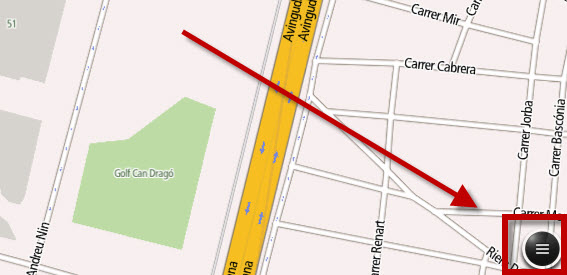
After you’ve done this, you’ll be sent back to the map. To go back, press the icon with the three lines in the bottom right.

Navigate back to the options

4. Input your trip

Now, you’re ready to plan your trip to any destination. On the main Navfree screen, select Navigate. There are two ways to choose your destination: search the address of the place you’re going, the zip code, or the name of the place (e.g. Opera House) and press Enter.

You can search for your destination...

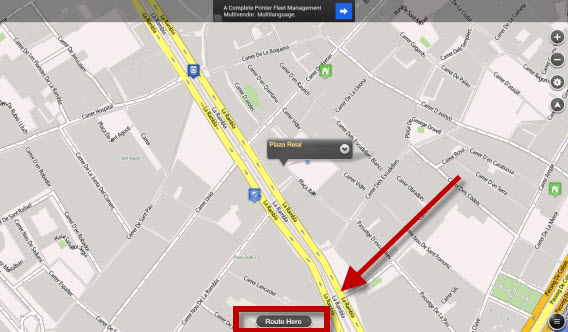
You can also go directly to the map and manually choose the destination by pressing and holding down for a few seconds. Then press Route Here.

...or pick it manually

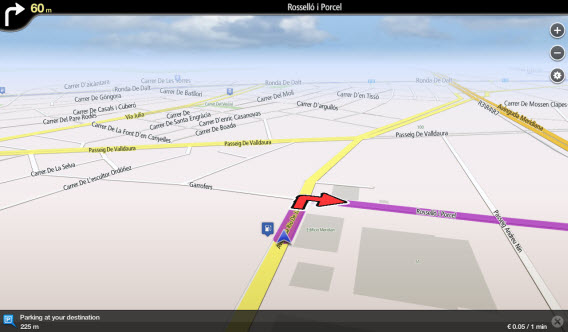
In a few seconds, Navfree will calculate the best route to your destination.

Navfree figuring out the route

5. Let’s go!

Now you’re all set for your tablet to guide you to your destination. All you have to do is get in the car and leave. But before you set off, here are two pieces of advice:

1. Make sure that the volume of your tablet is set to high, especially if you’re in the car alone. This way, you’ll be able to hear the voice directions that are being given by the navigator.

2. Check that your tablet is fully charged before leaving. The GPS system uses a lot of juice, and if it’s not fully charged, you might lose the directions to a dead battery halfway to your destination.

6. Other options

Navfree has a lot of options that you’ll learn about in time. The journey, for example, can be modified by pressing My Route: you can see a demonstration of the road you’ll be on, choose to take detours, or set up a safe mode, to name a few.

If you want to organize an international trip, you can do this by first downloading maps of other countries in the Upgrades section. Here,0 you can buy other extra features such as a radar detector, or you can even download celebrities’ voices to guide you on your travels. There’s nothing like navigating with the stars!

Navfree settings also let you set the Walking mode so that you can use the app as a GPS navigator for walks. You can also set the map to night mode so that you can still see the map but aren’t distracted by too bright a light.

Your tablet as a GPS, and much more

In this episode of our series, we saw how your tablet can even replace your trusty GPS thanks to a single application, and a free one at that!

But this isn’t all your tablet has to offer. In the next episode of our Android Tablet Series: What can I do with my tablet?, you’ll find even more uses for your Android tablet: we’ll be looking at how to watch movies and videos on your device.

Has your tablet gotten navigated you someplace safely?