What is Apple Music?

Apple has announced a new product – Apple Music. It’s a streaming music service similar to Spotify or Pandora, but does have some unique features. Launching on June 30th 2015 in 100 countries, let’s see what Apple Music offers.

The basics

Apple Music lets you stream music from your PC, Mac or iPhone, with Android and Apple TV support arriving in fall 2015. When you sign up, you get a free three month trial, and after that it costs $9.99 a month. There is also a family plan, like Netflix offers. That will be $14.99 a month, and allow 6 people to connect to Apple Music.

Apple Music has a library of over 30 million songs, just like Spotify. It will also allow you cloud access to the music you’ve bought in iTunes as well as CDs you have ripped to your collection. You can also add Apple Music content to your iTunes library, and save music for offline listening.

Expert curation

So far, so standard, you might think. Apple is hoping that artists will make Apple Music a service you want. As well as streaming anything from its huge library, you’ll be able to check out curated playlists. Artists and music experts will create playlists, and they will be recommended to you depending on your preferences. The more you listen, the better Apple Music should get at recommending music and playlists to you. You can also browse playlists based on your activity, like running or driving.

24 hour radio

Then there is Apple Music Radio. A 24 hr service, its main station is called Beats 1 and will be broadcasting from LA, New York and London, ‘led by’ ex BBC Radio 1 DJ Zane Lowe, Ebro Darden and Julie Adenuga. There will also be Apple Music stations based on genre, from indie rock to funk, but we don’t know yet how many.
Apple Music Radio will also be available to anyone with an Apple ID – so you can listen without being signed up to the service. Apple Music members will have the advantage of being able to skip through songs they don’t want to hear, as much as they want.

Connect with your favorite artists

The last part of Apple Music is called Connect. This allows artists to share stuff, directly to their fans. It’s a bit like an integrated Twitter or Tumblr – you’ll see photos, videos and songs, status updates or whatever the artist feels like sharing from within Apple Music. Apple say it’s ‘unfiltered (and) unedited’, but knowing the company’s strong family values, we’re pretty sure there won’t be anything too raw allowed in Connect.

Connect’s success of course depends on artists getting involved – they will have profile pages, which include all the content they share via connect, as well as discographies and biographies.

What about Beats Music?

Apple Music is in part based on Beats Music, which Apple bought out in 2014. Existing Beats Music subscribers will be moved over to the new service, keeping their libraries, playlists and so on in tact.

We’ll publish a full review of Apple Music as soon as it’s available.

Related articles

What are Connected Cars?

Apps for women: breaking down gender stereotypes

Grad gift guide: high school grads

Follow me on Twitter @jonathanriggall

Will Apple Music be a success?

Apple Music launches on June 30th 2015, a streaming music service entering an already crowded market. Can Apple make use of its huge iTunes user base and become a success?

We expect Apple Music to be a good listening experience, as Beats Music on which it is based already is. It’s pricing and features puts it on a par with existing streaming services, and Apple is clearly pushing expert and artist curation as its unique selling point.

Do you want to get closer to artists?

Many artists already connect with fans via social media: Facebook pages, Twitter and Tumblr. Will these artists be willing to do the same in Apple Music? This will hinge on whether Apple really does let artists connect in an unfiltered and unedited way, but this seems a little unlikely, as Apple always aims to be a family friendly place. Browse artist’s Tumblr accounts for a few minutes and you’ll quickly find things that are at the very least not safe for work!

Another reason to be a little skeptical is the description of Connect: artist profile pages, with feeds of content they have shared. The first thing that popped into my head was ‘MySpace‘, which tried the same artist curation trick when it was relaunched in 2013, a relaunch that was not a big success. In 2010 Apple launched Ping for iTunes, which was an attempt to combine social networking and recommendations, allowing you to follow artists. It was closed two years later, having failed to ignite users’ interest.

Friends or celebrities?

Spotify seems to have the social part right – having a community of your friends in the service works really well. You can see what friends listen to, share and collaborate on playlists. While Apple Music aims to get you closer to artists, Spotify is a personal and social experience.

I am sure Apple Music will be popular, if nothing else because 800 million people already have iTunes accounts, and signing up will be extremely convenient for all of them. But I can’t see it immediately stealing from Spotify, which many people already love, and have established connections and ties.

We like to think about winners and losers, but the reality is that there is space for more than one streaming music service, and Apple Music looks poised to be a major player. It can exist without beating Spotify, as Spotify can continue to exist even if Apple Music builds a bigger user base.

Related articles

What is Apple Music?

Apps for women: breaking down gender stereotypes

Grad gift guide: high school grads

Follow me on Twitter @jonathanriggall

Connected cars: the near future

The near future for connected cars will see currently existing technology being made more widely available. While most of today’s connected cars essentially link your car to your mobile device, next we’ll see cars with their own internet connection and technologies to make sure this doesn’t drop out. We’ll also see more driving responsibilities being taken over by your car.

The more-connected car

Whereas today, your car probably gets its connectivity via your mobile device, in the near future your car will have its own connection to mobile networks. SEAT’s upcoming technologies, for example, will use your car’s radio antenna to maintain connections where your phone usually drops out.

A car with its own connection and software designed specifically for driving, should be better than a car that adapts your Smartphone’s already existing apps (like Google Maps).

As I mentioned in the last article, you can expect to be able to control more of your car from your phone. Existing technologies will be brought together in a more coherent way, so for example, you won’t need one app to tell you where your car is parked, and another one to remotely turn on your air-con.

You’ll be able to manage the interior of your car too, from temperature to driving position and preferred radio stations. With the correct profile selected, you will be able to simply enter your car and drive away, without any of the setting up we do today.

All of this is possible now, but upcoming systems look to make a better integrated experience. So you won’t need a bunch of separate apps to manage the various features of your automobile, but just one.

More and more cars will be compatible with Google’s Android Auto, and Apple’s CarPlay. Both these systems give you the advantage of being made by software-focused companies. This means well integrated services, and smooth running interfaces. Touchscreens in cars are nothing new, but car manufacturers have not proven themselves as great at designing interfaces – both Apple and Google are unlikely to have this problem.

New displays

Beyond your dashboard screen, some companies, like Spain’s LABS4GLASS are creating heads-up display systems that will project onto your windscreen. This translucent display seems even better in terms of keeping your eyes on the road. This technology will work in conjunction with your smartphone too, offering you a seamless experience from the street to the cockpit. Instead of your dashboard touchscreen taking over smartphone duties, an interface will be projected onto your windscreen.

Assisted driving in connected cars

We’ve had plenty of technology assisting our driving for years, from ABS and power steering, to cruise control. Proximity sensors are also commonplace, helping us park by telling is how close objects are around us. The connected car in the next couple of years will increase the number of driver aids available to us.

Highway cruising will require little more than monitoring, as your car’s sensors will allow it to maintain safe distance from the car ahead, while keeping the vehicle in lane. This isn’t fully automated driving, but it does offer some significant safety improvements.

BMW is developing technology called ‘ActiveAssist‘, which you can see in the video below. It’s an almost self-driving car, able to navigate highways without human assistance. Of course, it does need human monitoring, which begs another question – how do we stay alert when we don’t even have the tedium of driving to keep us awake?

Default player


brightcove.createExperiences();

Sensors offer improved reaction times over humans, and cannot be distracted. This means bottlenecks of traffic around junctions should decrease, and the infamous highway pile-up should be less likely too. If you are nervous about computer controlled/assisted driving, you’ll still be able to take control whenever you want.

Still not time to hang up your driving gloves

The next two or three years will see much greater integration of connected technologies in our cars. Self-driving cars are looking more and more viable, but face regulatory challenges. Computer-controlled cars will inevitably require new laws, and governments are not famed for acting quickly. Furthermore, there’s the challenge of convincing the public that self-driving cars are safe.

I’ll look at what the fully automated self-driving car will offer us in the third part of this series on Connected Cars.

Related articles

What are Connected Cars?

See how Apple CarPlay works in this video

Google I/O 2014: Android Auto coming later this year

Follow me on Twitter @jonathanriggall

What are Connected Cars?

There’s a lot of buzz about connected cars, but what does it mean? In this three part series, I’ll take you through what it means for cars you can buy today, and later in the near and medium future, making sure to cut through the hype along the way.

Connected to what?

The concept of connected cars is a little fuzzy, but essentially it means cars that communicate with the outside world and other cars, for various reasons. They connect to your phone or mobile device, to the internet, or use sensors to be aware of their surroundings and connect with other vehicles or services. We’re pretty used to GPS and in-car displays now, but the technology of connected cars is still in its infancy.

Connected cars today

Right now, connected cars are not exactly a revolution, but they are showing signs of what will come in the future.

Spanish car company SEAT has a system called Easy Connect, which will arrive this summer. At the moment it works with Android devices (they have partnered with Samsung). Italian manufacturer Fiat also has Uconnect. Both offer a similar range of connected features and are good examples of what is available now. Google’s own Android Auto, pictured above, is also available with many manufacturers, allowing you to connect your device smoothly to your car. Check out the Android Auto promotional video below:

No more smartphone distraction

Connecting your device, your car will adapt its display for various smartphone features. This has the advantage of stopping you being distracted by your device’s display, and keeps your eyes on the dashboard and road.

So, you can make and receive calls, control your music, and receive social network and email updates and so on. SEAT’s system will read emails etc out loud to you, again, as a safety feature. You can also use your device’s internet connection to get news stories and headlines.

The general idea here is to keep you connected to the outside world while you’re driving, without distracting you from driving itself.

Better driving and maintenance

Using GPS data, todays cars will take data from journeys you make and help you be more efficient. Especially with the trips you make regularly, connected cars will act almost like an Apple Watch. You’ll get advice on how to make your journey more efficient, cheaper and better for the environment If you have a habit of high-revving, for example, the car will suggest you change up a gear to save fuel.

Today’s connected cars will also tell you when they need maintenance, and in some examples send reports to your service provider so they know ahead of time when your car needs attention from a mechanic.

In the case of accidents, systems like BMW ConnectedDrive send important information, like location and important damage data direct to emergency services. This will become standard on all new cars very soon.

At the top end of the car market, we are already seeing cars that are aware of their road position. They maintain safe distance between cars and can brake, faster than humans are able to, to avoid accidents. This technology is proven, but its cost means it will take some time to spread down to more affordable cars.

Controlling your car from your mobile device

You can use apps to control your car from a distance. Set climate control, find out where it’s parked and even configure your car for different personal profiles. SEAT, again, will allow you to set up a variety of profiles, so whoever gets in the car finds everything just as they like it.

You can, of course, lock and unlock your vehicle with these car connected apps. Though there’s very credible debate over whether this makes your life easier or not!

You are still in control… for now

Despite all the news we read about driverless cars, these are some way off yet, and we will cover why in a later article. The connected car of today is not a radical proposal. Having social media, emails and so on read out to you, or visible on your car dashboard are simply help to keep your eyes on (or at least nearer) the road. But advice on how you can drive more efficiently is great, and an excellent use of in car data.

Related articles

See how Apple CarPlay works in this video

Google I/O 2014: Android Auto coming later this year

Best Android Wear watch faces

Follow me on Twitter @jonathanriggall

App of the Week: Project CARS

Softonic’s App of the Week highlights some of the coolest, most unique, and popular apps that have been released for Android, iOS, Windows, or Mac. This week, it’s the big racing title of 2015, Project CARS.

Project CARS isn’t a pure simulator, but it’s pretty close, and certainly isn’t an arcade game. As PC gamers have not had a Gran Turismo or Forza game, Project CARS fills this gap. But it’s arguably a better driving game than either of those console exclusives, with a much more visceral feel to the racing (especially compared to Gran Turismo).

The other refreshing thing about Project CARS is that it doesn’t force you to ‘rise through the ranks’. Let’s be honest, grinding your way through licenses and classes of slow cars, before you can drive the cars you probably can’t in real life is a drag. Project CARS lets you start where you want, and that’s great.

This is quite a tough game, though, but the wealth of settings mean you can set it up just about any way you like. There’s a raft of driving aids, and you can change the sensitivity and layout of all the controls. Even on ‘beginner’ settings, this is not a casual racing game, but it’s loads of fun. We’d like to see a bigger library of cars to choose from, but as it gets the feel of driving so right, it’s difficult to complain.

Check out our Project CARS review.

Project CARS: PC specs announced with more game details

Should my kids be playing this? Parents’ guide to games in 2015

Everything you need to know about GTA V on PC

Follow me on Twitter: @jonathanriggall

The best free photo editing apps

Not everyone has the technical capacity or the money for Adobe Photoshop. Although it is still the industry standard image editor on the market, there are actually a ton of free alternatives that may not be as technically advanced, but are pretty comparable and great for everyday use.

Below are some of the best free photo editors for Windows and Mac OS X that will help you make the most of your photos, whatever your abilities.

GIMP: the free photo editor for pros

GIMP is the most comparable free alternative to Photoshop, because of its extensive and advanced editing options. From basic fixes like cropping and airbrushing, to more advanced things like creating gradients and nested layers, GIMP has almost anything you’d want in a photo editor.

When you open a photo, it’ll pop up in a single window with the GIMP toolbar and all its options in a separate window. This toolbar gives you all the most basic image editing options for easy access, and more options are accessible in the top drop down menus. Each image you open will pop up its own individual window, although there’s also a single-window mode, which makes managing all the floating windows a bit easier. The interface is now fairly simple, something which has drawn criticism in the past. For a twenty year old open-source program, it makes for a pretty straightforward user experience (as long as you know what you’re doing).
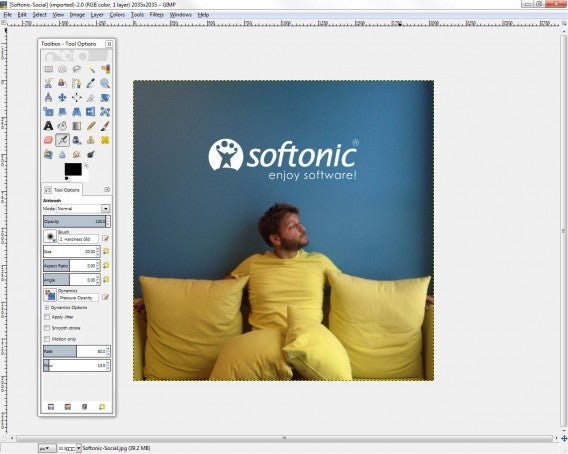
GIMP

Beginners might have a hard time maneuvering themselves around all the editing options, but if you are looking to learn a bit more about photo editing without dipping your toes (and wallet) into Photoshop, GIMP is your best bet.

Download GIMP for Windows | Mac

Paint.NET: if you just need the essential Photoshop tools

Starting life as an alternative to Microsoft Paint, Paint.NET now has so many features and functionality it’s pretty much like a lightweight Photoshop. While it’s features aren’t as extensive as those in GIMP, Paint.NET still has all the essential photo editing tools you’d need for photo editing and optimization, like color correction, contrast, sharpen, and blur. It’s also got a few extras, like special filters that make your photos look like pencil drawings or oil paintings, for example.
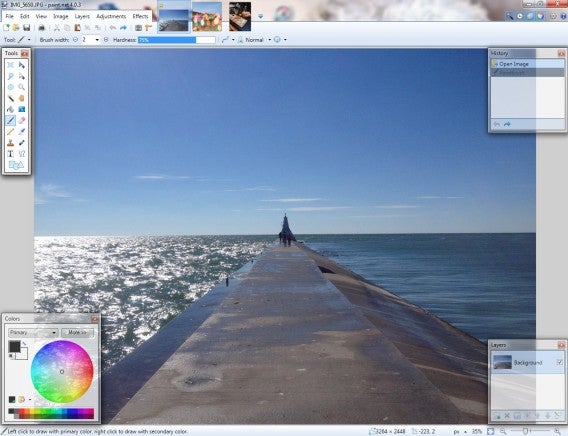
PaintNET

One of it’s biggest advantages is that you can work on multiple images at a time, with a preview tab feature that lets you easily swap back and forth between photos. It’s also layer-friendly, so you can easily manipulate sections of images.

Similar to GIMP, it’s got a really simple interface, but its layout with toolbars and boxes for layers makes it easy to dive right into editing.

Download Paint.NET for Windows.

Photoscape: a great set of editing tools for beginners

Photoscape may not be the most comprehensive software on the list in terms of editing tools, but it serves as more than just a photo editor. You can also use Photoscape to manage your photos, convert images, and create animated GIFs, all accessible through an easy to navigate tabbed menu at the top of the screen.

Editing tools aren’t displayed in the classic side-bar you’d probably expect, making it a bit harder to get the hang of. Once you’ve figured out that images can be manipulated through the menus at the bottom of the screen, it’s fairly easy to make quick edits like adding objects (clipart or shapes), text, cropping photos, and working with tools like brushes and cloning images. The nice thing about Photoscape is that it’ll give you instructions in a box on the right on how to use a tool when you click on it, making it really nice for beginners.
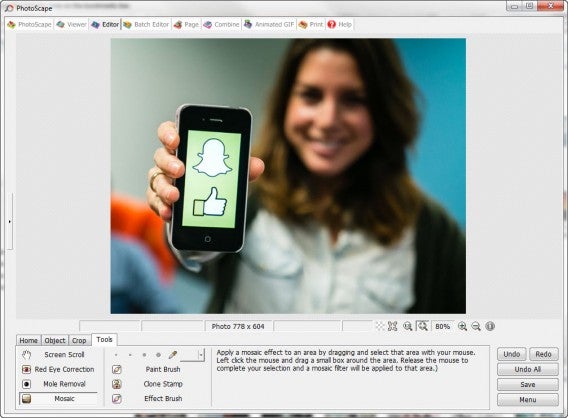
Paint.NET

Photoscape’s abilities don’t extend to layers, but if you’re looking for quick fixes with some additional functionality beyond photo editing, Photoscape is a good choice.

Download Photoscape for Windows |Mac

Picasa: simple and easy to use, with integrated sharing options

Much like PhotoScape, Google-owned Picasa doubles as a photo manager and editor. It’s best for quick adjustments and filters, much like you’d find in popular mobile editing apps Instagram or VSCOcam.

Compared to the other programs on this list, its tool set is limited, but it’s definitely the easiest to use. If you choose to use Picasa as your default photo manager, you’ll have a library that provides easy access to edit any of your photos, which will automatically sync from all your folders. Any editing you do is automatically saved as a copy – Picasa won’t let you lose your original images.

Double-clicking on a file from the library automatically takes you to a full screen view of the photo, where you can start editing immediately. You can even scroll through your library while in edit mode so that you don’t have to keep going back to find a photo.
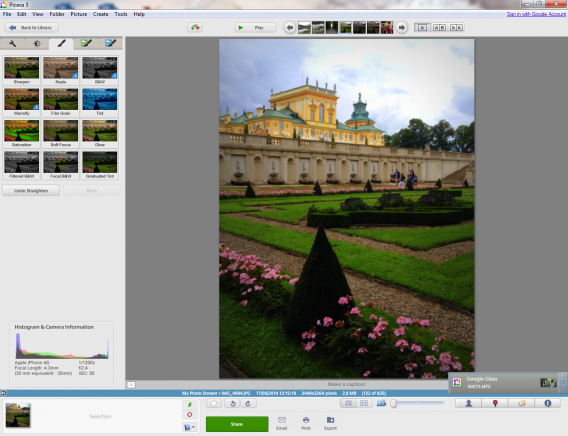
Picasa

It’s got classic filters like Lomo and Sepia, basic editing tools like straighten and crop, and things like color and tone adjustments.

Because it’s owned by Google, you can log into your Google account via Picasa and sync all your photos to Google+, making it easier to share files or photo albums. You can also easily email any photos you select.

Download Picasa for Windows | Mac

Autodesk Pixlr: the best choice if you want to add filters

Appearing first as a web app and then a mobile app, the desktop version of Pixlr has finally arrived from Autodesk.

Pixlr’s got one of the simplest, most streamlined and modern interfaces, with a basic sidebar menu that contains almost every editing option offered within the app. Autodesk Pixlr is probably best for its multitude of photo filters and effects, ranging from creative additions and Warhol-like effects, to borders and stickers, to overlays like fireworks and flames. All effects are stored in the cloud and will be downloaded the first time you use them, so initial loading will be slower than usual.
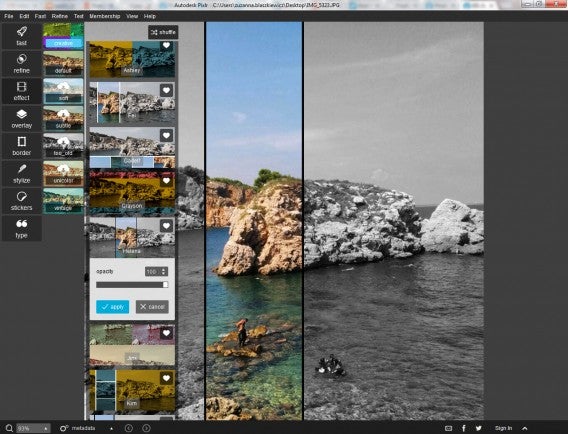
Pixlr

Autodesk Pixlr is best if you want to play around a bit with your photos, and because it’s so easy to use, you can really have some fun testing out all the different options. The essential editing options are there too, nestled under fast.

A couple words of warning though. Pixlr will ask you for permission to gather analytics about your use of the software, and while the app is free, some features require you to register for a free account or purchase the Pro version, which runs you roughly $14.99 a year.

Download Autodesk Pixlr for Windows | Mac

Photo Pos Pro: lots of tools in an old fashioned interface

Photo Pos Pro might not have the best interface of the bunch, but it’s another solid option when it comes to free photo editors. True, the interface is a bit cluttered (and outdated) with icons and buttons, but the number of tools on offer makes up for it. You can edit using these wide range of tools, or make auto adjustments, like color correction.
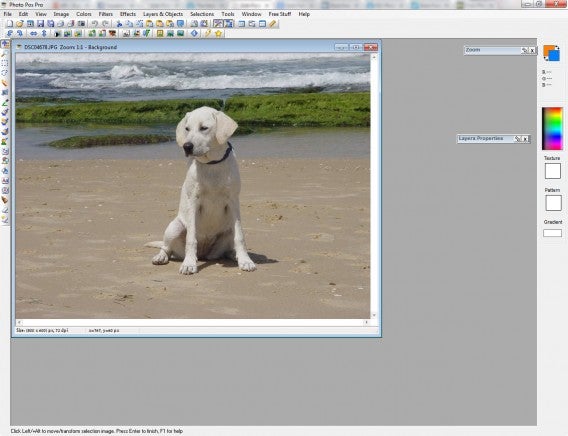
Photo Pos Pro works with layers, masks, gradients, and textures, compatible with the most popular graphic formats. You can edit multiple documents at the same time and undo/redo edits as many times as necessary.

Along with editing images, you can also create graphics from scratch and use Photo Pos Pro to design logos, banners, or websites.

Download Photo Pos Pro for Windows

Photos for Mac: Apple’s free editing and library app that’s great for most people

Photos for Mac is the replacement for iPhoto, which wasn’t a great program. Photos for Mac, however, is excellent. It’s got a really intuitive interface, showing you the most important and commonly used tools, while keeping more advanced settings out of the way but still accessible. If you have an iCloud account, it gives you cross device sync of all your photos, making it an excellent photo library.

There’s an auto-enhance tool that fixes the exposure and saturation, etc, and an auto-crop tool that recognizes horizons and straightens up your pictures. You can get manual control of your photos too, with sliders for changing lighting, exposure, highlights contrast and more. Photos for Mac also has facial recognition so you can tag people in your images, and the app lets you browse your library by location as well as date.
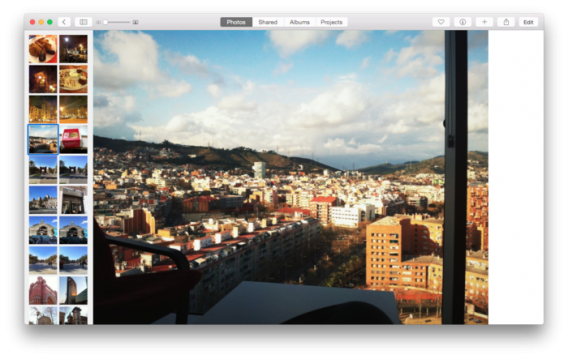
Photos for Mac is part of OS X Yosemite, read our full review here.

Photo editors for everyone

You can use apps to make your photos look great without Photoshop. At the very least, each of these apps offers the most basic editing tools you’ll need to make simple corrections to photos. Pixlr is perfect for fun and easy filters, Picasa ideal for photo management, and GIMP perfect for advanced editing. Whether you’re looking for an advanced program that’ll give you a ton of editing options, or something to simply spice up your photos, you’ll definitely find it in one of these free photo-editing apps.

Related articles

The best camera app for Android

Photo Editing: 5 mobile apps are put to the test

Instagram, the complete guide

Follow me on Twitter @jonathanriggall
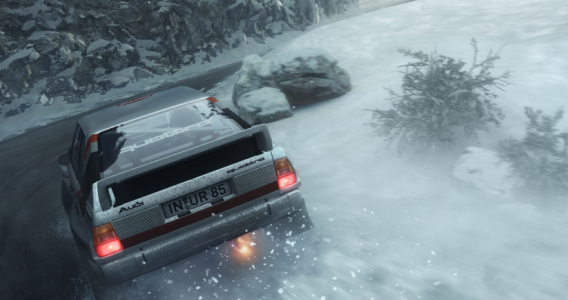
DiRT Rally is the rally game we’ve been waiting for

Iconic cars, incredible handling, brutal yet beautiful courses. If you need more than that in a racing game, DiRT Rally is not for you.

DiRT Rally is a game about realistic rally driving, and nothing else. There’s no glamor, no in-your-face EDM or punk music, no showcase events, no Ken Block or Gymkhanas. DiRT Rally puts you in a car with a copilot, and throws you down point to point tracks against the clock. It’s rallying at its most basic, and it’s great.

It’s an Early Access Game on Steam. This means it’s playable but unfinished, so there’s plenty of time for developer Codemasters to add to the game, but DiRT Rally is already excellent.

DiRT Rally has simple, functional menus. There are none of the flashy, brash menus of earlier DiRT games. This minimal approach is carried on throughout the game – everything seems designed to get you in a car and hurtling down a narrow track as soon as possible. There isn’t even a flashy garage where you can admire your cars from any angle. The only thing you’re allowed to admire is the replay of your last stage.

There’s a new physics model for DiRT Rally, and it shows. Road surfaces really affect your car: you can feel your tires eating into gravel, or struggling to find grip on icy tarmac. Every surface requires a genuine change in your driving style. You can hear your car creaking, groaning and rattling as you try to guide it to the finish line. The game screams simulation – even if you engage all the driving aids on offer, it’s still really tough and uncompromising. But it’s completely exhilarating.

The cars, which number 17 at the moment, are similarly realistic. There are front- and rear-wheeled drive cars, and four wheel drives too. Despite the relatively small number, each is a classic. When I graduated to the 1970s class, the three cars on offer presented me with an almost impossible choice. Fiat 131 Abarth, Ford Escort MK II, or Lancia Stratos? Choosing one seemed unfair to the others.

Obviously I chose the Stratos: my inner seven-year-old won out. Driving it is just as exciting as my inner seven-year-old always imagined, too. In the 1980s class, the MG Metro 6R4 feels, quite correctly, like a death trap. The cars are all totally distinct from each other. Each one has to be learned, and means finding new lines through the dangerous and narrow courses. The difference between forward, rear and four wheel drive is huge. It’s impressive how real Codemasters have made these cars feel, and how honest the game is. There’s no hand-holding, no making you feel you’re a better driver than you really are.

DiRT Rally gives you a wonderful sense of flow when everything’s going right. You feel in tune with the road and your machine, but are constantly a hair’s breadth from total wipe out. This makes DiRT Rally thrilling in ways most modern racing games aren’t anymore. If you can rewind and correct your errors, there’s not the same tension or excitement. DiRT Rally demands your complete attention. Helping this, there’s no in-game music. The soundtrack is your co-pilot, your car and the road. Listening to all three is essential. The Go! Team would not improve the experience.

I haven’t played a racing game that made me feel so bad about crashing for years. With no ‘rewind’ function, and limited time to repair between stages, you need to take care of your car as you race. Making a tiny error on one corner can put your car off-line for the next few, and easily result in you flying off a mountain road or wrapping your car around a tree. Crashes, rightly, feel major. The current locations, Monaco, Greece, and Wales, are also markedly different. They look and feel right, and affect how you need to drive just as much as your choice of car does.

The DiRT games were originally a loud and brash development of the Colin McRae Rally series. Featuring pretty much every off-road driving discipline around, they catered for everyone. But that broadness also made the games a little shallow – you barely got used to one class of vehicles before being asked to jump into another. DiRT Rally is so different, it’s surprising to see it use the DiRT brand at all. Everything about the game is unassuming and quiet, until you start your engines, and it becomes explosive.

Finally, we have a rally game that’s just a great driving experience.

Related Articles

Why video games are good for kids (and you too!)

Should my kids be playing this? Parents’ guide to games in 2015

App of the Week: Call of Duty Advanced Warfare

Follow me on Twitter: @jonathanriggall

Call of Duty: Black Ops III first details announced

Developer Treyarch is back in the driving seat for this year’s installment of Activision’s huge franchise. Call of Duty: Black Ops III will arrive on PC, Xbox 360 and Playstation 4 on November 6th 2015. You can watch the reveal trailer and read the PC specifications below.

Set in 2065, and continuing the story of Black Ops II, Call of Duty: Black Ops III looks to gently evolve the series in a few ways.

Firstly, the campaign mode will support four player co-op. Of course, you’ll be able to play solo too, but co-op promises new ways to experience the game, with each soldier taking a different role in the various scenarios. As well as playing through the story normally, you’ll be able to play any level in any order with friends. This co-op emphasis means Call of Duty: Black Ops III environments will be more spacious and open, so there should be less of the corridor-style gameplay of earlier games.

It’s good to see a Call of Duty title putting more emphasis on the campaign mode, which has sometimes just felt like a controversy-filled add-on to the multiplayer part of the series that keeps players coming back.

The futuristic setting allows Treyarch to introduce even more technology to the battlefield. Soldiers are augmented with a variety of technological upgrades, turning them into superhuman fighters. You’ll be able to double jump, wall run and thrust slide, thanks to new cybernetic limbs. This may bring Titanfall to mind, but that game wasn’t the first to introduce technologically improved super soldiers to FPS gaming either, and last year’s CoD Advanced also featured robotically-enhanced soldiers.

As you can see in the reveal trailer, soldiers will have more than super powerful limbs. Weapons will be highly technological too, and there will even be underwater combat sections. Just like we’re used to in multiplayer today, you will also be able to customize and upgrade your campaign character as you play through the story.

So far we know that the multiplayer will feature ‘Hardpoint, Domination and Team Deathmatch‘ modes, but more have yet to be announced. Zombie mode will also return.

If you pre-order, you’ll be able to take part in a multiplayer open beta for the game later this year.

These are the minimum PC requirements for Call of Duty: Black Ops III.

Operating System: Windows 7 64-Bit / Windows 8 64-Bit / Windows 8.1 64-Bit

Processor: Intel® Core™ i3-530 @ 2.93 GHz / AMD Phenom™ II X4 810 @ 2.60 GHz

Memory: 6 GB RAM

Graphics: NVIDIA® GeForce® GTX 470 @ 1GB / ATI® Radeon™ HD 6970 @ 1GB

DirectX: Version 11

Network: Broadband Internet connection

Sound Card: DirectX Compatible

Stay tuned for more features on Call of Duty: Black Ops III this year.

Related Articles

Why video games are good for kids (and you too!)

Should my kids be playing this? Parents’ guide to games in 2015

App of the Week: Call of Duty Advanced Warfare

Follow me on Twitter: @jonathanriggall

Why choosing the best eBook app is difficult: DRM

I like to be able to give definitive answers when it comes to ‘the best apps’, but with eBook reading apps, it’s simply not possible. There are tons of choices, but unfortunately the best designed ones cannot be used with the DRM (digital rights management) protected eBooks, sold by the biggest stores.

So the chances are, you’re going to use Kindle, Nook or iBooks some of the time if you buy new eBooks, depending on the platform you’re using. None are bad, but all of them have competing apps that do the basic job of being nice to read, better. Here are our favorites:

iOS: Marvin

It’s not free, though there is a limited free version, but it’s beautifully made and is the nicest reading experience you’ll get on iOS. Marvin’s settings and personalization are where it wins. You can change the brightness and warmth of your screen with a single or double finger drag up or down a page, and there’s even an ‘extra dimming’ option you can toggle. Anyone with sensitive eyes who’s tried reading on an iPad at night will love this.

On top of that, you can choose fonts and so on, and change the color of the background and text of your book. With Marvin, you really can make eBooks look just how you want. Marvin links with Dropbox, Calibre, public domain book archives like Project Gutenberg, and the web.

Download Marvin

Android: kobo

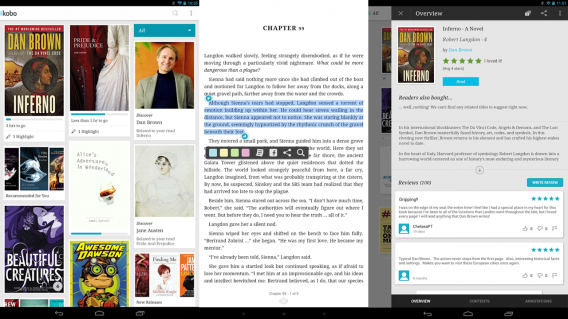
For Android, I deferred to the advice of colleagues. Aldiko is good, and is more open format-wise but kobo is a nicer read, according to our own Karen McCandless. Attractive and well designed, there’s a good selection of free modern and classic eBooks in its store, and you can also import your collection via email or a Dropbox account. As well as it’s design, kobo stands out due to its social and discovery features. It’s more than somewhere to just read your eBooks.

Download kobo

Desktops: Calibre (Mac/Windows)

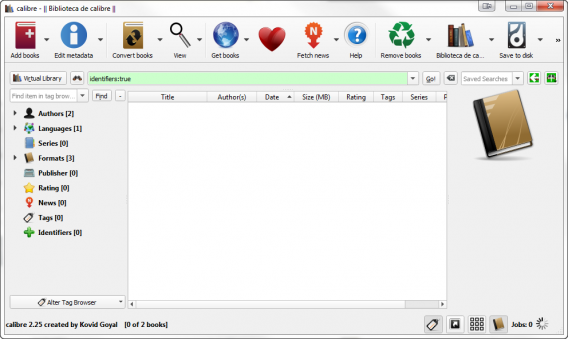
I’ve never been a fan of Calibre’s look and feel, but there’s no doubting its power, flexibility, and usefulness. It supports pretty much any text format you can throw at it, and neatly organizes your library. You can use it to convert eBooks to other formats too, which is useful for apps like the aforementioned Marvin. There are even plugins available for Calibre that will strip the DRM from eBooks you have bought, so you can use them in any app. However, that is very much a legal grey area, and we can’t safely recommend it.

Completely free, and really powerful, Calibre is easy to recommend

Download Calibre for Windows or Mac

Related Articles

Best free iPad apps

Facebook Messenger now supports apps. Here’s why it matters.

Why video games are good for kids (and you too!)

Follow me on Twitter: @jonathanriggall

4 ways to save energy with your PC for Earth Day

Earth Day is April 22. As well as recycling and using low energy light bulbs and so on, another way to save energy is to use our devices more efficiently. Even if you are one of the few people who doesn’t believe in man-made climate change, saving energy means saving money, which no one can complain about!

Computers use lots of energy – in the office workplace, only lighting consumes more – but they are also full of energy saving potential. I’ve researched PC energy usage and myths, and come up with four easy ways to save energy on your PC.

1: Turn off your PC

Some people believe that you will shorten a PCs lifespan by turning it on and off. This is simply untrue and, as an OS will perform useful maintenance during shutdown, it will actually help your computer run better, as well as cutting energy use. If a computer is on for days without a proper shutdown, not only will lots of energy be used, but it will get slower. Some PC parts, such as hard drives, last longer if computers are turned off when not in use, so you also extend the lifetime of your computer by turning it off.

Computers also draw power when turned off – which will surprise many people. Unplugging a computer when not in use therefore also saves energy. This is all manual management, but there are also ways to save energy by changing power usage settings in your operating system.

2: Use power management

When a computer is on, there are likely to be times when it’s not being used, and this is where power management comes in. A lot of energy can be saved by putting the screen into low-power mode, and by letting the computer go into sleep mode.

In Windows, power management is accessed by clicking the Power Options icon in the control panel, while on OS X it’s the Energy Saver icon in System Preferences. With both you can choose from a selection of power profiles, or set up a custom profile. Set the monitor to power down after a few minutes of inactivity, as it only takes a second to wake up and uses much less energy that way (see below). Also, set the hard drive to sleep when possible (easier in OS X, than Windows, unfortunately).

Computers – especially Windows PCs – take a little longer to wake up than screens, so you may prefer to allow more time before your PC goes to sleep. However, a lot of energy will be saved in sleep mode and as it only takes a few moments to wake up a system, it’s not such a bad trade off. On average, desktops use 70W when active and just 9W in low power or sleep mode, which is a huge saving. While laptops already use much less energy than desktops, all of this advice is still valid and can amount to significant energy savings no matter which you use.

3: Don’t use a screensaver

My apologies, but screensavers are an unfortunate and wasteful relic from the days of cathode-ray monitors. Back then, a still image on screen for hours would literally be burned into the screen. An animated screensaver was a sensible solution to that problem. With today’s LCD monitors, however, there’s no reason to have one. LCD monitors use less than a quarter of the energy required for their cathode ray counterparts, and even more can be saved because they are able to switch on much faster.

Screensavers may look nice, but they are unnecessary for LCD monitors that can go into low power mode and wake up quickly. When sleeping, LCD monitors use 90% less electricity than when active – a huge saving that is lost by using screensavers, which keep your monitor running on full power.

4: Watch your multitasking

Do you need all those programs open at the same time? Keeping applications open unnecessarily makes processors work more, creating more heat and increasing the use of cooling systems, all of which use energy. Thoughtfully managing active applications helps efficiency, as computers will run faster and be less prone to crashing.

Check which apps open automatically at startup to see if there are any that don’t need to be running. Some apps, like Spotify, open from start-up by default, but it’s much better to just open an application when needed. When browsing, watch how many windows or tabs are open. Flash and video on a site can make your computer work harder – so try not to keep lots of pages with that type of media open at the same time.

Sources: DssW, Wikipedia

Image: Allison House

Related Articles

10 apps that make you environmentally friendly

Why video games are good for kids (and you too!)

Should my kids be playing this? Parents’ guide to games in 2015

Follow me on Twitter: @jonathanriggall