
5 ways to free up space on your Android device

5 ways to free up space on your Android device

It does not make a difference if your Android phone has a lot of internal disk space or ha a microSD card slot – there is never enough space, regardless of whether it is 32GB or 200GB. In this article, we will discuss how to free up space on your Android device – looking at both internal storage and microSD cards. If you’ve got a Pixel, Samsung, or any other device running a version of Android this guide will help you clear data on your smartphone and free space for more Android apps and media files from the likes of Spotify and Netflix. This guide will only concentrate on Android devices, though, so Apple iPhone users will have to check one of our other guides.

Android phones and tablets can quickly fill up as you download applications, stock up on media documents like music and videos, and store information. Numerous lower-end devices only contain a couple of gigabytes of capacity, making this issue even more frustrating for some users.

Not much in life is as irritating as finding that your Android gadget will not let you download that new app because it does not have enough space. To counter this, you can quickly clear out several megabytes or even a gig or two by deleting unused apps, finding disconnected maps and records, clearing storage, and wiping unneeded music and video documents. Let’s got through this now but don’t worry, we’re not just going to tell you to uninstall all your favorite apps.

How to clear space on Android

1. Clear the cache

Some Android applications utilize stored data, called Cache so that they can offer a smooth experience. The cache saves time, but the files stored in the cache are not necessary. If you want to wipe space from your mobile, the first thing you should do is to clear the cache.
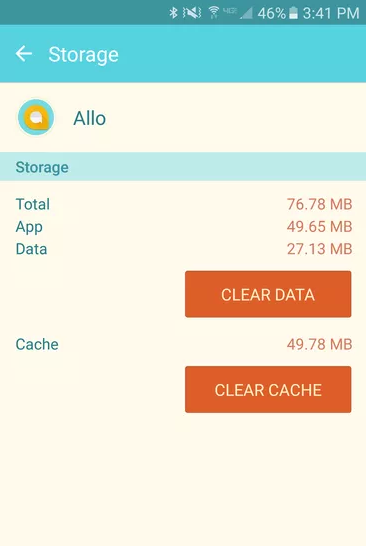
To free cached data from a specific application, navigate to Settings > Applications > Applications Manager and click on the app cache you want to alter. In the app’s info menu, select storage and then tap Clear Cache to clear the app data.
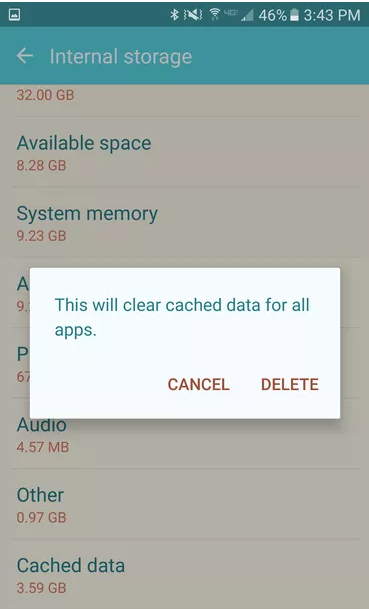
To wipe cached data from all the apps on your device, go to Settings > Storage and select Cached data to clean the caches stored on your phone.

2. Delete your downloads

An Android phone contains a download folder that stores everything you download, ranging from photos to documents. You are probably not too attached to a lot of the files you have downloaded over the day, weeks, months, and years. If this is the case, then there is much space here just waiting to be cleared.
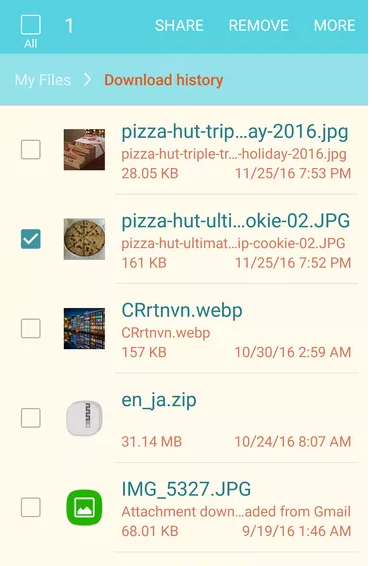
You will find your downloads record, called My Files, in your app drawer. Hold a file for a second to select it and delete it by touching on the trash icon.

3. Utilize Google Photos

You know what? Google Photos allows you to back up an infinite number of photos. You can back up every single picture you take on your Android phone and store it on your Google Drive. When you have backed up your photos, delete them from your Android device to free up space.
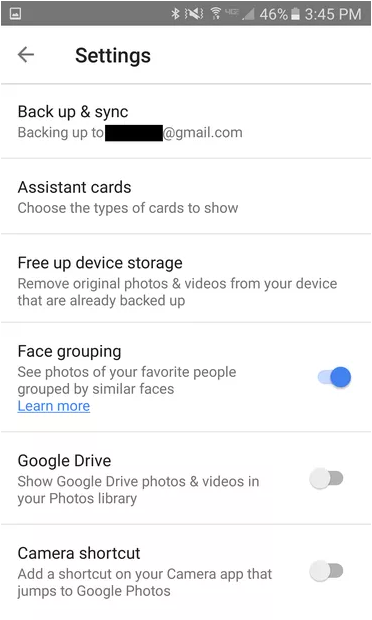
Turn Google Photos’ Back up & Sync feature on to benefit from this free cloud storage space. Open the Google Photos App, navigate to Settings > Back up & sync to turn it on.

You can choose to back up your photos at a higher resolution, of up to 16 megapixels, or at their original size. Google Photos offers the unlimited capacity to store high-quality pictures and images backed up at the original size will stand apart from your Google Drive storage limit.
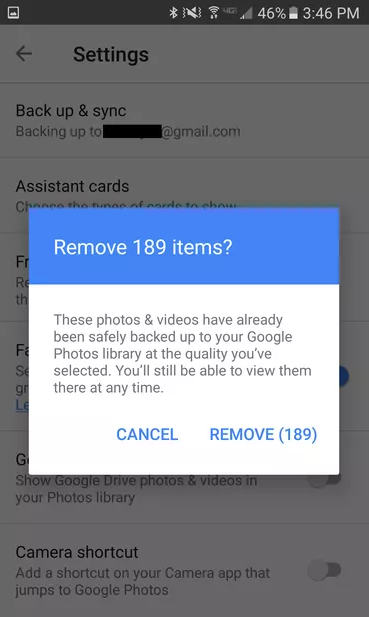
When you have backed up your images through Google Photos, navigate to Settings > Free up device storage, and Google Photos will automatically delete the multimedia that has been backed up.

Google Photos Download Google Photos
7

4. Transfer apps to the microSD card

Applications take up the most storage on your mobile phone. In most Android phones, you can insert a microSD card to add extra memory. You can then use this extra memory to store some of your disk-space-hogging apps.

To enable this, open Settings > Applications > Application manager and select the application you want to transfer.

If you can transfer the app, you will see a prompt button stating Move to SD card – this button will transfer the app to the microSD card. Not all of the app will be moved to the microSD card. How much depends on the app itself.

5. Delete some apps

Have you been through all these tips and tricks and you still lack space? Start deleting. There are apps on your Android mobile phone which you never use.
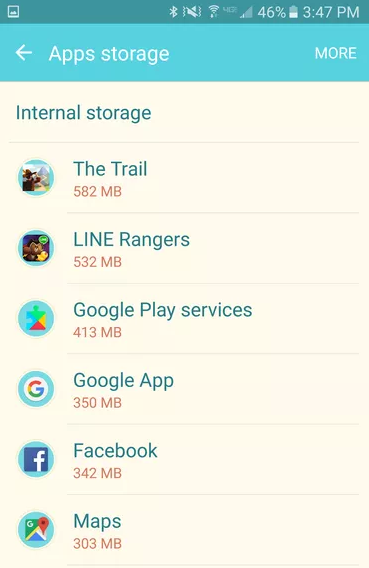
To see which applications are occupying the most space, open Settings, and navigate to Storage > Apps. There, you will see a list of apps in descending order by size.
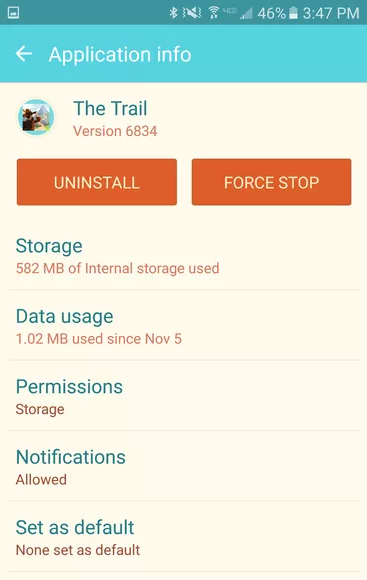
To delete an application you do not use, select the App, and tap on the i icon located next to the app’s name.

Conclusion

These tips and tricks will help you to have a little more space on your Android. You can then use this space to store the things that are most important to you, but if you are still facing storage issues, buy an Android phone with higher internal storage.

How to encrypt your internet traffic

There are many reasons why you might want to encrypt your internet traffic. You might want to conceal your internet browsing from ISP tracking, for example, or perhaps you’d like to improve your security on the internet and shield your information from cybercriminals. Whatever your motivation, we’ll explain what encryption is, why it’s important, and how to do it.

A guide to internet encryption


Why is internet encryption vital?


Encryption of internet traffic has become a critical need for many users, in light of the recent information maintenance laws around the globe that have allowed the ISP to record and maintain clients’ information. Free connectivity and openness is the right of internet users, and yet there are numerous countries and organizations that would limit this freedom by tracking users’ activity and censoring access to content. In such cases, internet traffic privacy is essential.


Encrypting your internet traffic gives you the ability to conceal your online activity from the checking of ISP, ensuring that delicate information like passwords and Visa points of interest are not passed to ISPs and potentially from there to governments or other organizations. This is one reason it is so vital to encrypt your internet traffic.


There are numerous approaches to encrypt internet traffic: VPNs, https, interfacing with Tor programs, utilizing encrypted messaging applications and browser extensions. Let’s go through each of these now.

Virtual private network – VPN


As the name suggests, a virtual private network, or VPN, is a private and encrypted route to connect over the internet to another private system. It requires initial setup and validation in order to work, and after that, it encrypts all the activity between the third-party servers. Using an encrypted VPN tunnel enables the user to browse the web using a masked IP address that seems to be coming from the VPN server, making it difficult to distinguish the user.


Your internet traffic can be seen, adjusted, and logged by the VPN services themselves,  however. Though many VPN services guarantee that they don’t keep logs of your internet traffic and utilize extra security defensive measures, this is a difficult claim to verify. And in fact, a recent investigation revealed that many VPN apps for Android contain malware designed to track users. So do your homework before choosing a VPN provider.


Tor – the onion router


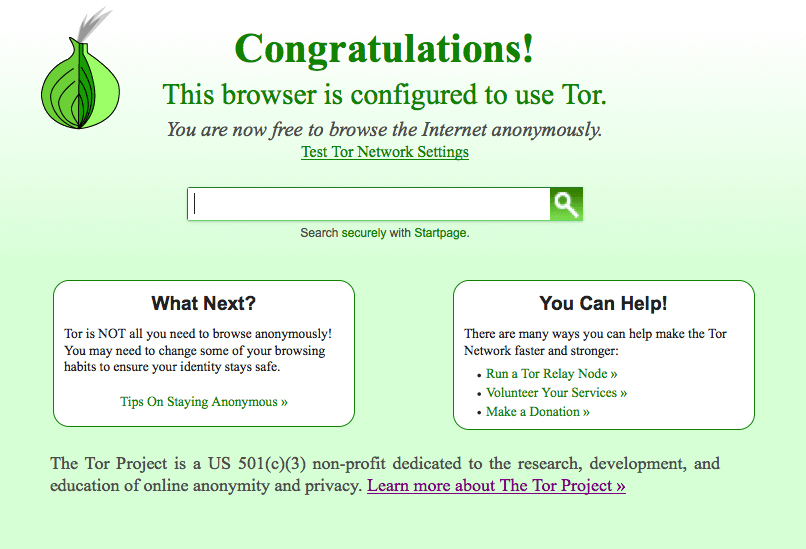
Tor is a distributed relay system that routes the movement of internet traffic by encrypting the IP address at each bounce point in the relay. At each relay, only the last and next IP station are accessible to enable routing.

Tor is one of the most secure browsers in the world since it conceals your activity from the ISPs. When you are are using a Tor browser, your ISP will just see that you are associated with a Tor system, but it can’t determine your destination.


Tor can dodge recognition from all but the most capable state-controlled monitoring machines. Even the NSA has some difficulty breaking Tor. So it’s a good solution to protect your browsing for most activities, though if an organization needs to invest the energy and assets to watch you, they can and will.


Browser extensions


Browser extensions are also useful security tools. Extensions are available that let you control your internet traffic, block ads on the websites that you visit, and kill the cookies and traces that could share your information without your knowledge. This does not imply that you can completely depend on these extensions to do everything for you, but they are good to have in your toolbox.

7
Chrome is a young, fast browser that can browse any web page. It supports all major technologies and standards such as HTML5 and Flash.


Even if you do use browser extensions, you should check to see if your DNS has a leak. DNS leaks can be a big security risk, as it might give your internet traffic data to your ISP. You can use DNS leak test to determine whether or not this is an issue with your device.


Encrypted chat apps


Many modern chat applications are encrypted using a method called end-to-end encryption, which ensures that your chats are secure from monitoring. The structures of end-to-end encryption make it virtually impossible to unravel the data being passed. For example, connections that use end-to-end encryption can’t pass on their customers’ messages to third-parties. If you’re using a chat client and you are concerned about privacy, make sure that your messages are getting encrypted.

8


Encrypting your internet traffic is fundamental, especially in an era of government monitoring and the rising danger from cybercriminals. Using these simple strategies will keep prying eyes from your data and won’t require much work from you.

How to enable private browsing mode on different browsers

Each time you open a web page on your browser, potentially sensitive information is stored on your hard drive. Data that is saved by your browser is used for a variety of purposes, such as keeping a bookmark and saving site-specific information in the form of cookies to save your preferences for the next time you visit.

Even if this information is merely used to improve your browsing experience, it can expose information you don’t want others to see.  Especially if you share a computer, consider keeping your browsing private by surfing in private browsing mode, which guarantees that your movement on the web can’t be followed.

Most people don’t need to use private browsing mode all the time, and you do lose some conveniences in doing so; for example, you’ll need to sign into the sites you use each time you open your program, as your browser won’t save the cookies that maintain your login state. But if you are in a public space, it’s good to know how to enable this mode.

What Private Browsing Means

When you browse privately, nobody else who uses your PC can see your movement. Private browsing mode doesn’t offer complete security; it simply prevents your program from saving your browsing history, cookies, data you leave in forms, and other private information between browsing sessions.

Activating Private Browsing on browsers

You can activate Private or Incognito mode in almost all browsers. Here are the simple ways you can find it in various browsers.

Google Chrome

Download Google Chrome Now

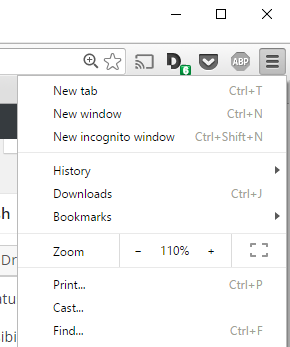
Incognito mode is what Google Chrome names its private browsing feature. To open Incognito Mode, press Customize and control Google Chrome in the top right corner of the window, shown by three vertical bars. Then click New Incognito Window.

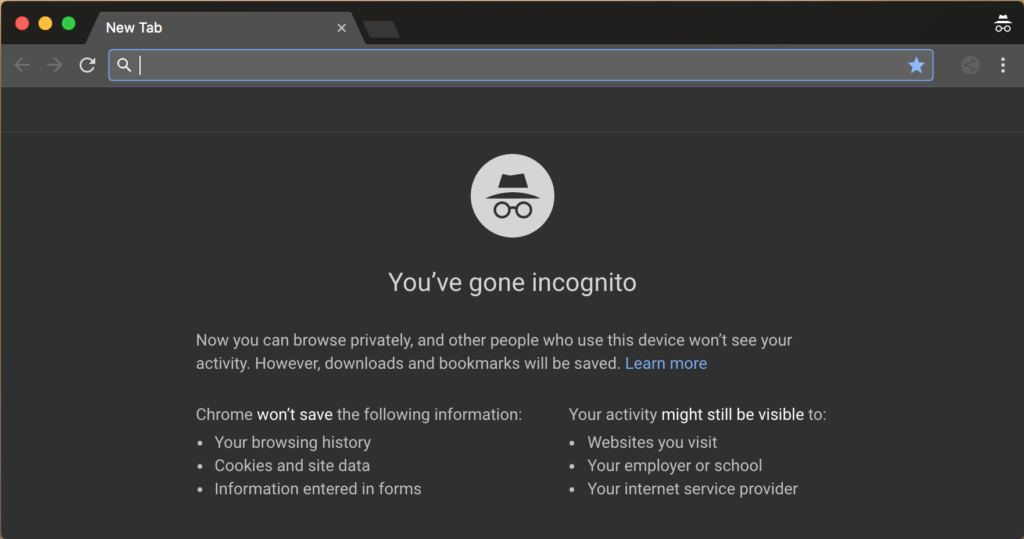
For a shortcut, use Ctrl+Shift+N. A new window will open, describing  incognito browsing:

Google Chrome: Browse in Private

Mozilla Firefox

Download Mozilla Firefox Now

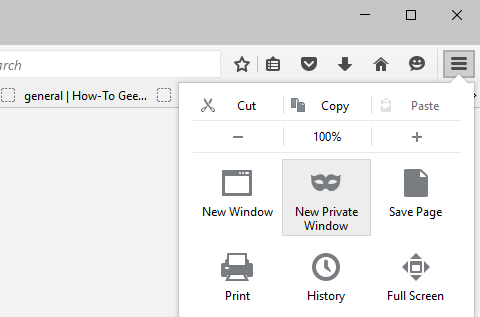
To activate Private Browsing in Mozilla Firefox, tap OpenMenu in the top right corner of the browser window. It is represented by three vertical lines. There, select New Private Window.

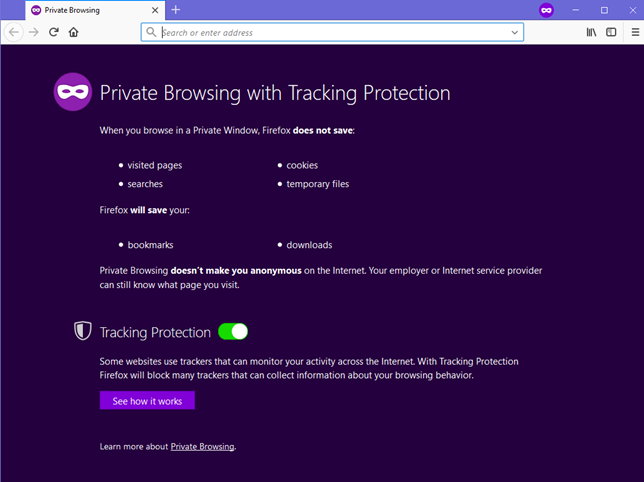
A new private window will open with tracking protection available. Firefox explains to you what surfing privately actually means. One major contrast between Firefox and other browsers is that it warns users that their ISP or employer has the authority to track the pages they visit. It enables tracking protection by default, thus online trackers are unable to collect data about your online activity. For a shortcut, press Ctrl+Shift+P to activate private browsing mode.

Mozilla Firefox: Private Browsing

Microsoft Edge

Download Microsoft Edge Now

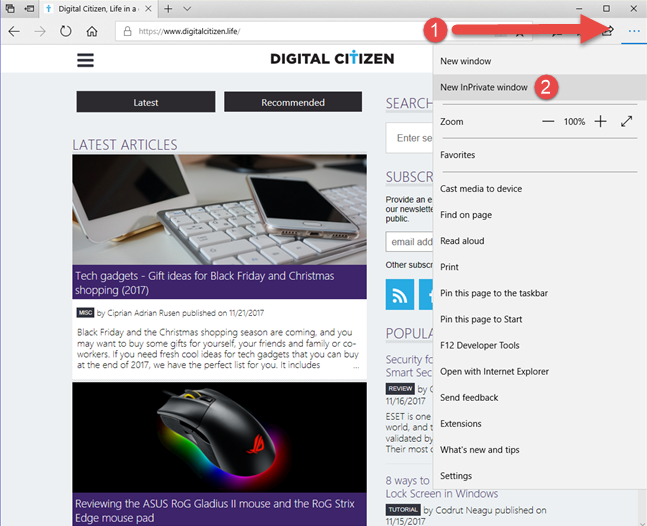
Edge has the same name for its private browsing mode as the early Internet Explorer, InPrivate Browsing. To start a private browsing session, click Settings, located in the top-right corner represented by three horizontal dots. Then in that menu, select New InPrivate Window.

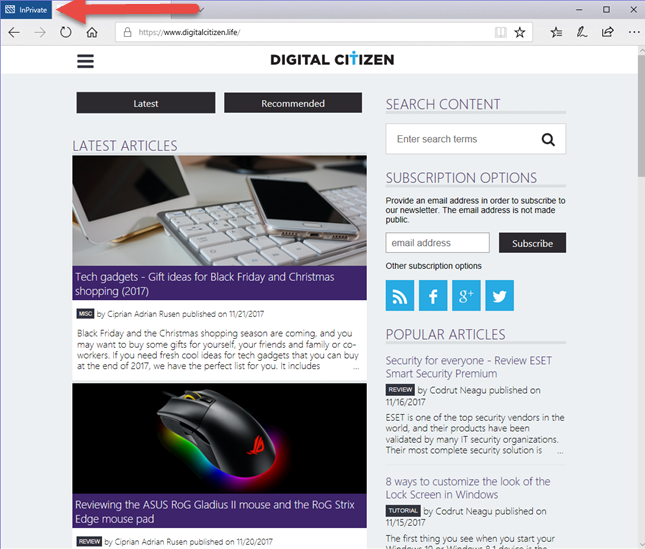
Unfortunately, there’s no keyboard shortcut available to activate private browsing mode here. Your private browsing session will be represented on the top-left corner of the window labeled in a blue square written InPrivate.

Edge: InPrivate

Opera

Download Opera Now

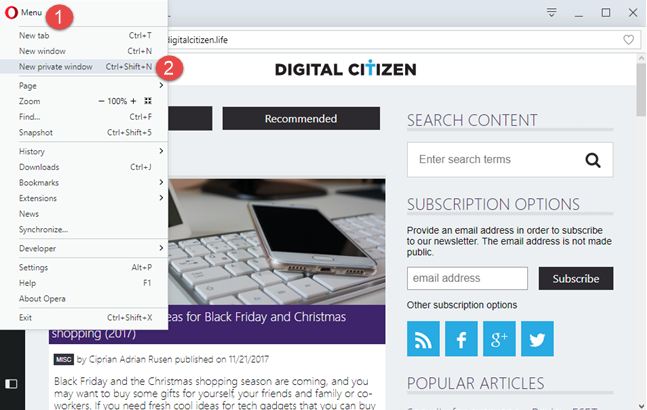
To activate the private browsing window in Opera, click the  Customize and control Opera tab located on the top left side of the browser window. Then, click New Private Window.

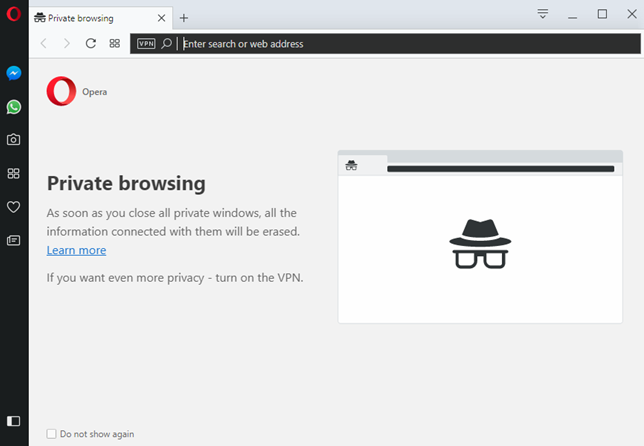
A new private browsing window will pop up describing Opera’s private browsing feature. As a shortcut, use Ctrl+Shift+N. For extra privacy, you can enable the built-in VPN. This button can be found on the left side of the address bar.

Opera: Surf Privately


Safari

Download Safari Now

Safari is the actual pioneer of private browsing and is the mainstream browser in Apple gadgets.

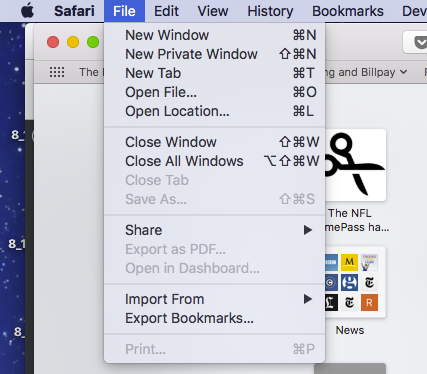
Safari on a Mac

Enable private browsing from the File menu or press Cmd+Shift+N on your keyboard.

With private browsing activated, the location bar will become grey and a band will be shown stating that you are currently in private browsing mode. Extensions will continue to run in private browsing mode.

Safari on iphone or ipad

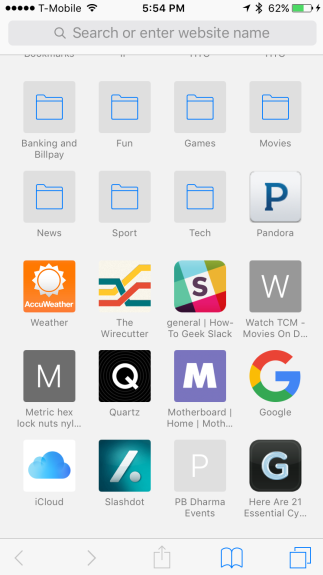
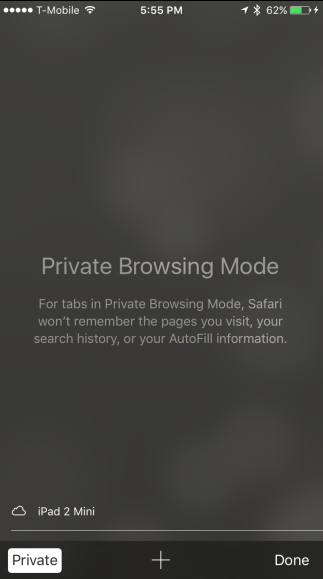
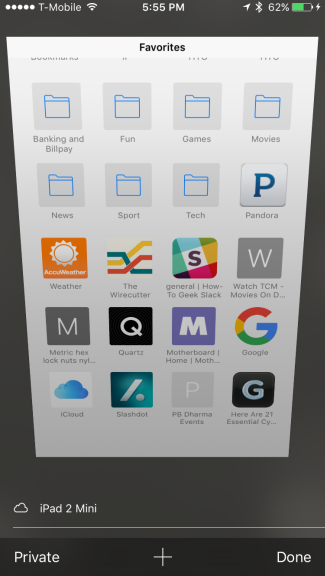
You can enable private browsing on Safari while using an iPad or an iPhone as well. Tap on the new tab icon located on the lower-right corner of the new tab window. Then touch on private in the lower left corner. Now, the browser screen shall turn grey which indicates that you are running in private browsing mode.

Safari: Browse in Private

Which private browsing mode do you prefer? Tell us in the comments.

7
Chrome is a young, fast browser that can browse any web page. It supports all major technologies and standards such as HTML5 and Flash.
7
Mozilla Firefox Quantum is a free, open-source web browser that offers numerous features and customization options. Its performance is excellent, and it's designed to protect your privacy.
6
The idea of Microsoft Edge is to be as fast, clean, and lightweight as possible to cope with the demands of different devices, whether it be a PC, tablet or phone.
Opera is a free web browser which functions in much the same way as Edge, Chrome or Firefox, but it has a handy free VPN feature which makes it stand out.
If you're new to Safari, the first thing you'll notice is how clean it feels compared to many other browsers. There are no annoying toolbars or plugins installed and the result of this is that Safari looks trim and loads pages very quickly.

Via: Lifewire, Howtogeek, PrivacyEnd, Digital Trends