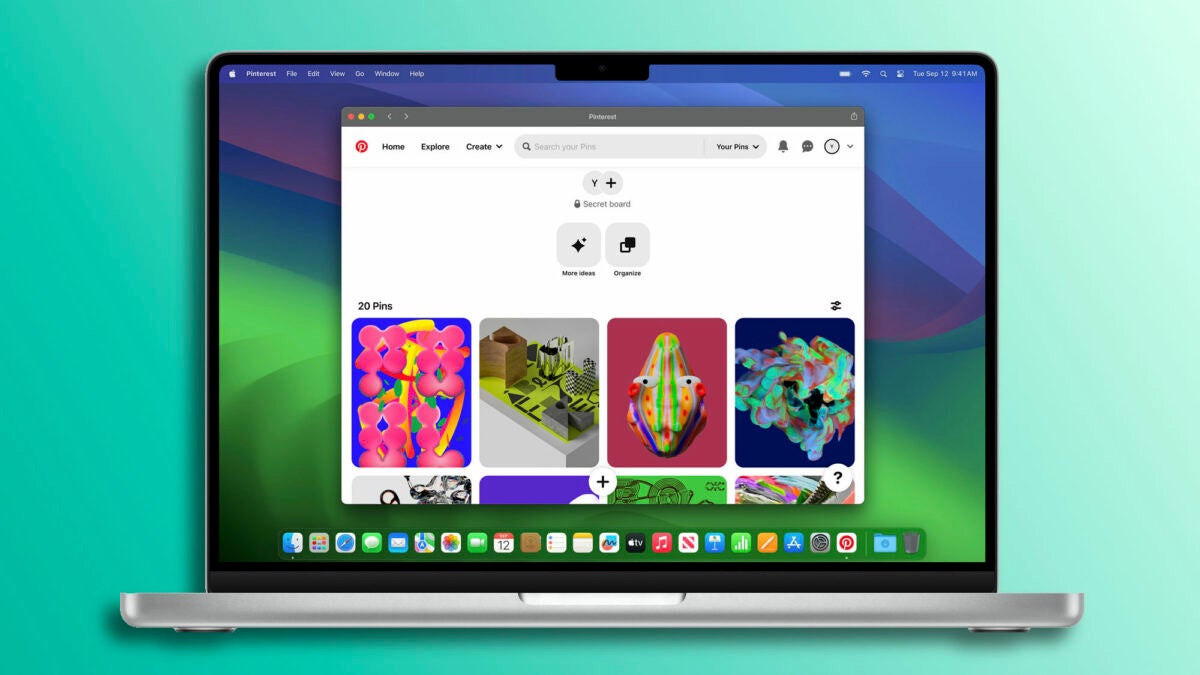
Thanks to the new operating system for our computers, macOS Sonoma, it’s now possible to turn any website we visit into a standalone “web app” that we can pin to our Mac’s Dock. These web applications seamlessly integrate with native Mac tools such as Mission Control, Stage Manager, Launchpad, and Spotlight Search, allowing us to use them just like regular apps.

How to create an app in just a couple of clicks?
Creating a web app from a website is really easy. The steps are as simple as these:
- Open the Safari app on your Mac.
- Go to the website you want to turn into an app.
- In the File menu, choose “Add to Dock.”
- Choose the app’s name.
- If desired, click on the app icon to customize it. When doing so, you can select any photo you have on your Mac.
- Click “Add.”
When opening our new web app, you’ll notice that the window has a simplified toolbar with some navigation buttons. As for navigating within the web app, it is focused on and limited to the website’s main domain. If you click on a link that leads to another domain, it will open in a new Safari window.
Logins, cookies, notifications, and other options
The website’s cookies are automatically copied to the web app and then kept entirely separate. This means that if we already have an active session on the website and then create a web app for that site, we will find it already logged in with our user account.
Push notifications from the website are integrated into the web app. These notifications will display the web app icon, and we can configure them in the Notifications section in System Preferences. Web apps also respect focus modes, allowing us to control notifications based on our activity.
In terms of privacy, Apple has integrated options to control web apps’ access to the camera, microphone, and location, similar to native applications. We can find these options in System Preferences > Privacy and Security.
With macOS Sonoma, where we can use interactive widgets on the desktop, transforming our favorite websites into standalone applications is easier than ever. It’s a very useful feature to easily access specific information or functions with just a single click on our Mac’s Dock.
