
You’ve sent a PDF to a client and heard nothing back. You have no idea if they opened it, if they read past the first page, or if it got buried under fifty other emails. The proposal you spent three days polishing might as well have gone into a black hole.
That disconnect between sending a document and knowing what happens next is something Adobe Acrobat is trying to close. The latest update introduces two features that go well beyond editing and signing: an AI Assistant that works as a conversational layer over your documents, and PDF Spaces, a workspace that turns collections of files into interactive, branded experiences you can track after you share them.

The AI Assistant: your documents, working harder
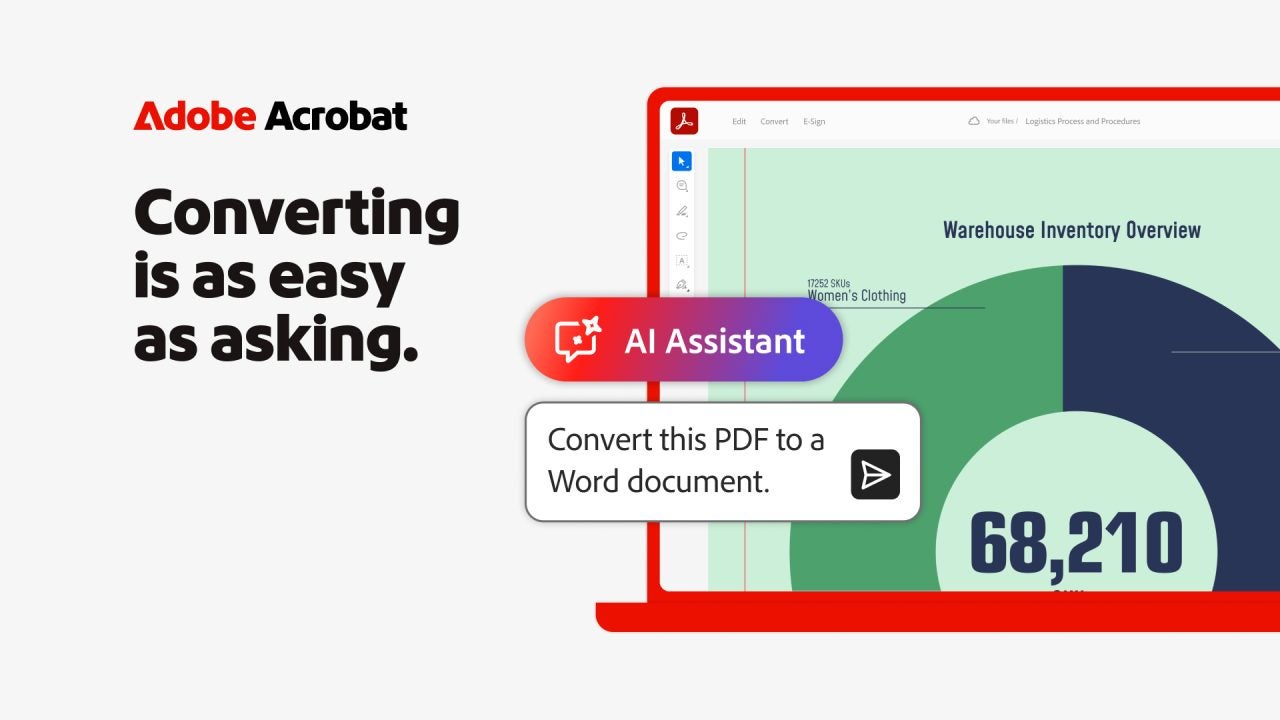
Acrobat’s AI Assistant sits inside the application and works as a conversational interface for your documents. You can ask it to summarize a 40-page report, flag changes between two versions of a contract, reorganize pages, or convert a file to a different format. The kind of tasks that eat up an afternoon when you do them by hand.
But it goes beyond document housekeeping. The AI Assistant can take what’s in your files and generate new content from it: presentations, podcast-style audio summaries, blog drafts, and social media posts. Need to turn a dense quarterly report into something a stakeholder can absorb in five minutes? Upload the document, tell the assistant what you need, and it builds a first draft you can refine.
Want a presentation? Go to the presentation creation page inside Acrobat, click Create a presentation, and select Add files to upload your source material. Write a prompt describing what you want (or pick from Adobe’s suggestions if you prefer a starting point). Choose how many slides, pick a template, add any specific images, and select Generate. From there, Adobe Express editing tools let you adjust colors, graphics, layout, and structure until it looks the way you want.
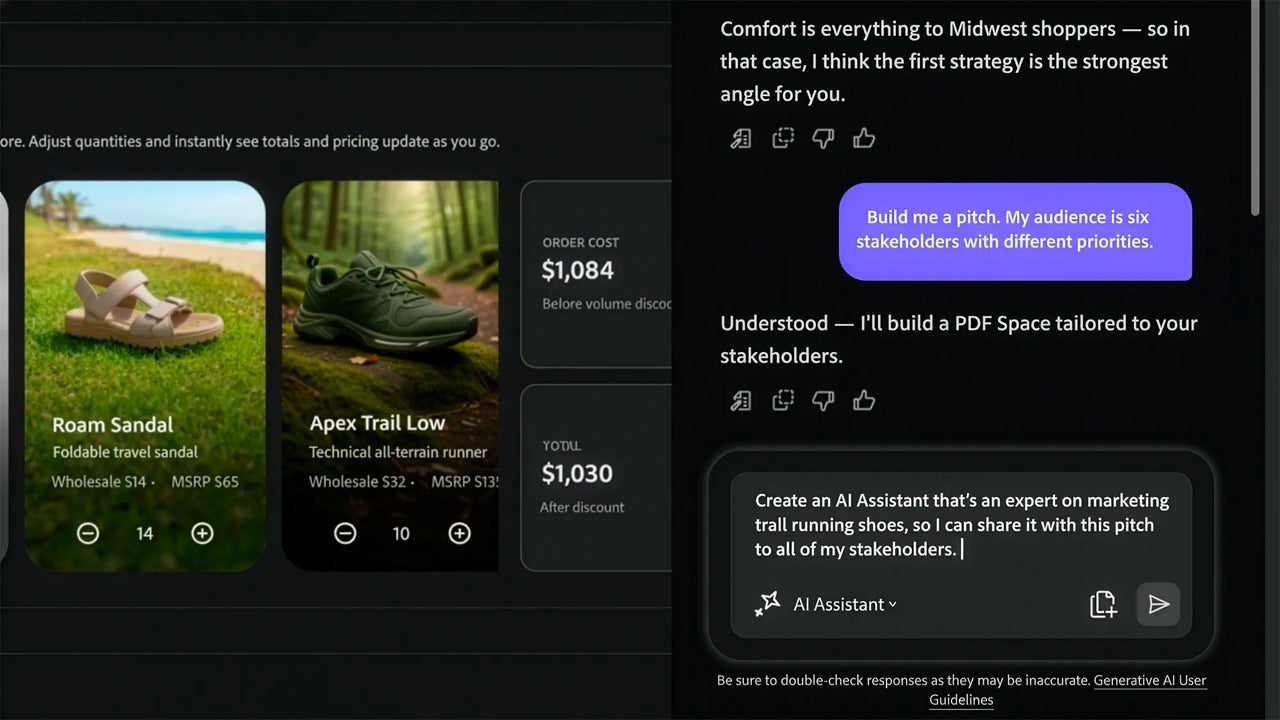
The AI Assistant also produces audio overviews from your documents. If you or your team don’t have time to read a full briefing before a meeting, an audio version gets you up to speed on the go. The script behind the audio is fully editable, so you can adjust the message before it reaches anyone.
The final decisions are still yours. The assistant accelerates the mechanical parts so you can focus on the judgment calls.
PDF Spaces: not a shared folder, but an experience
This is the feature that changes how you think about sharing documents. PDF Spaces isn’t a place to dump files so other people can download them. It’s an AI-powered workspace where you bring together PDFs, links, notes, and other documents into one environment, shape how recipients navigate the material, and turn what used to be a static file drop into something closer to a guided, interactive experience.
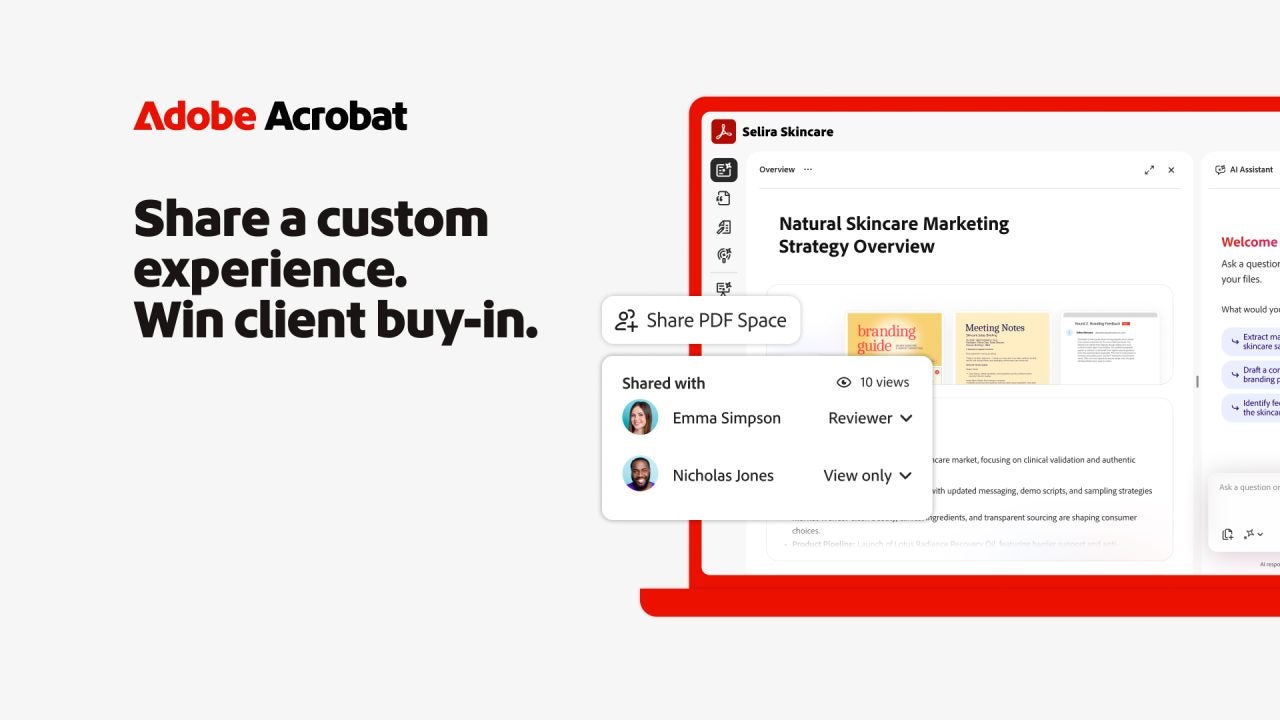
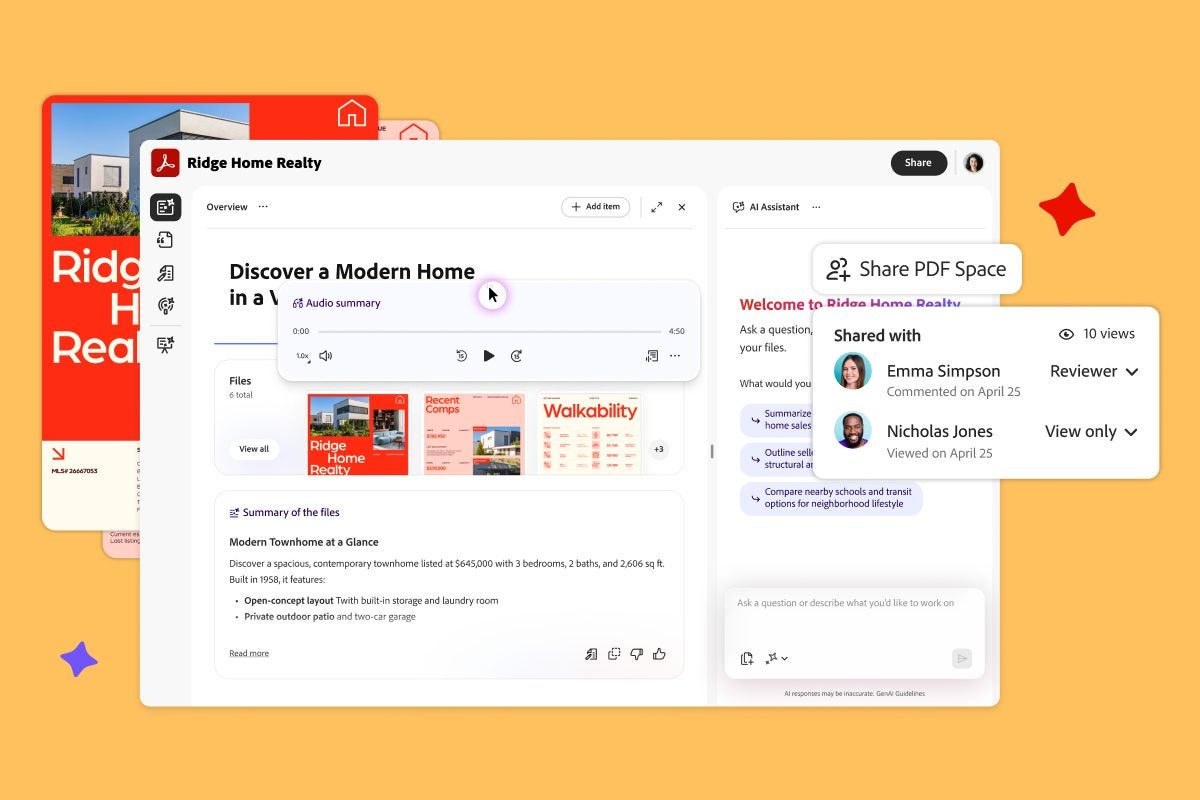
Think of it as the difference between emailing someone a zip file and walking them through a curated presentation of your work. When you create a PDF Space, the AI Assistant automatically generates a summary of the contents and an audio overview. From there, you can add context, reorder files to emphasize what matters most, rename documents to make the structure clear, and write your own summaries where needed. If you update a document after sharing, the Space updates too, so recipients always see the latest version without you having to resend anything.
Branded sharing
This is where it gets interesting if you work client-facing. You can add your company logo and color palette to the PDF Space before sharing it. Your recipient doesn’t open a generic Adobe interface; they open a branded, interactive experience that looks like it came from your organization. For agencies, sales teams, consultants, or anyone who sends proposals and reports externally, that kind of visual ownership over a document environment didn’t exist inside a PDF workflow before.
Personality modes
When you share a PDF Space, the AI Assistant comes along with it and can answer questions from anyone who accesses the space. But you don’t just flip a switch and hope for the best. You choose how the assistant behaves with that specific audience.
Adobe ships three prebuilt personality modes. Analyst keeps things tight: factual, citation-heavy, no filler. You’d use it for a Space full of financial reports or technical documentation where the person on the other end just wants the numbers.
Instructor is the opposite of that. It breaks down complex ideas, asks follow-up questions, and walks the recipient through the material the way a teacher would. If you’re building an onboarding package or a training module, this is the one.
Then there’s Entertainer, which goes looser and more conversational. Think marketing decks or internal comms where you need people to actually read the thing.
If none of those fit, you can create a custom assistant with specific instructions: what tone to use, what topics to focus on, and how to handle ambiguity in the source material. It stands in for you when you’re not there to answer questions yourself.
Engagement tracking
This is the part most people will wish they’d had years ago. Once you share a PDF Space, you can see who opened it, when, and whether they forwarded it. Total views, named recipients, individual activity, forwarding details, per-recipient view counts.
For a sales team, that means knowing which stakeholder actually read the proposal before the follow-up call. For HR, it means seeing whether employees engaged with the new policy update or ignored it. The data is at the Space level (not page-by-page), but it’s specific enough to make your follow-ups informed instead of blind. Branding, a conversational AI, and engagement data in one place: that’s what turns a shared document into an interactive experience.
Setting up a PDF Space, step by step
Go to the main page of Acrobat and select Create a PDF Space. In the dialog box, you can add files from Adobe cloud storage, third-party platforms like Google Drive or Dropbox, plus links and text notes. Click Add, and your PDF Space appears with an AI-generated summary on the right and the uploaded files listed on the left panel.
From here, customize the experience: reorder your files, edit the summary, add your logo, set up the AI Assistant and choose its personality, and add any context you want recipients to see up front. When you share, you pick whether recipients can only view or also collaborate by leaving comments and adding their own files.
Recipients don’t need an Acrobat Studio account to interact with the Space. They open the link, explore the material, and chat with the AI Assistant directly.
Plans and pricing
Adobe Acrobat has a free tier for viewing PDFs, but the features covered in this article require a paid plan.
If all you need is basic PDF editing, signing, form filling, and file conversion, Acrobat Standard starts at $14.99/month (annual billing). Acrobat Pro at $19.99/month adds the heavier tools: redacting sensitive content, comparing document versions, embedding images and video inside a PDF.
Neither of those includes the features this article is about. For PDF Spaces, the AI Assistant, branded sharing, engagement tracking, and the personality modes, you need Acrobat Studio at $24.99/month (annual billing). It bundles everything in Pro plus PDF Spaces, Acrobat AI Assistant, and Adobe Express Premium.
Adobe also recently launched Acrobat Express, a lighter plan that gives you the AI Assistant and PDF Spaces.
