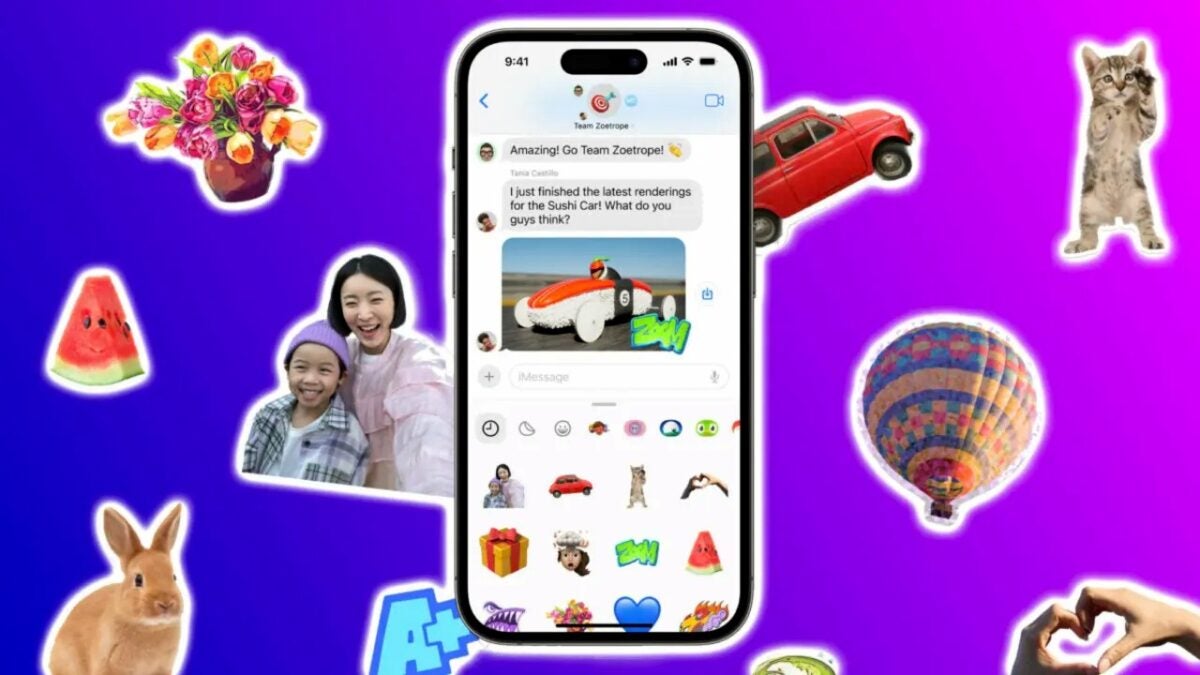
With the arrival of the new iOS 17, especially concerning the Messages app, there are several novelties in the field of communication. Aside from being able to create animated stickers from our photos, we can also add effects to the stickers. Let’s discuss how to add these effects and also how to remove them if we change our minds.
A personal touch in our customized stickers
iMessage stickers made their debut in iOS 10, and since then, they’ve advanced significantly. Initially, they allowed us to resize them, place them on chat bubbles, add them to photos, and overlay them on other stickers, all through simple drag-and-drop gestures. Now, with iOS 17, customization reaches a new level: we can create our own stickers, and in this article, we’ll focus on adding effects to modify their appearance.
The range of effects available to stylize the stickers is quite varied. Among them are included a white outline, comic-style shading, a fluffy three-dimensional look, and a shiny holographic finish. These effects also respond to the movement of our devices, displaying several animated effects with a really achieved realism.
To apply these effects to our stickers in iOS 17, the steps to follow are as follows:
- Open the Messages app on our iPhone or iPad.
- Enter a conversation.
- Tap the “+” button next to the text field.
- Choose the Stickers option.
- Long-press the sticker to which we want to add the effect.
- Select Add Effect from the pop-up menu.
- Choose one of the available effects: Original, Outline, Comic, Fluffy, or Shiny.
- Tap Done to finish.
Additionally, note that for a sticker with an applied effect, we can remove that modification. All we have to do is follow the steps we just saw and select Original in the effect options.
That’s it! Our customized stickers will be ready to showcase their new effects in any conversation where we send them. With these new effects and the ability to create our own stickers, each message can become a small work of art, making our interactions more dynamic and entertaining.
