
Videos have conquered the world, or at least, the Internet. Social media platforms like TikTok and YouTube have made video the most popular way to create content. If we add generative AI to this, it opens the doors to a much freer way of creating. In the end, you provide the idea, and the AI does the rest.
Although many do not see it in a positive light, Adobe is convinced of showing creatives that AI is not their enemy, but a tool that can streamline and enhance their work. Today you can verify if that is true by trying Adobe Firefly and its AI video creation options.

Generate videos from your words
In other Softonic articles, we have delved into how to create images with Adobe Firefly from scratch. Now, we will focus on video generation.
With Generate Video, Firefly allows us to create videos from scratch based on a simple description. Specifically, it is the Text to video option that enables us to do this. Here we will teach you how to use it step by step.
Open your browser and go to the Adobe Firefly page. Go to the central text box and change the option from Image to Video. Before typing anything, you can directly select Generate to access a more comprehensive creation panel.
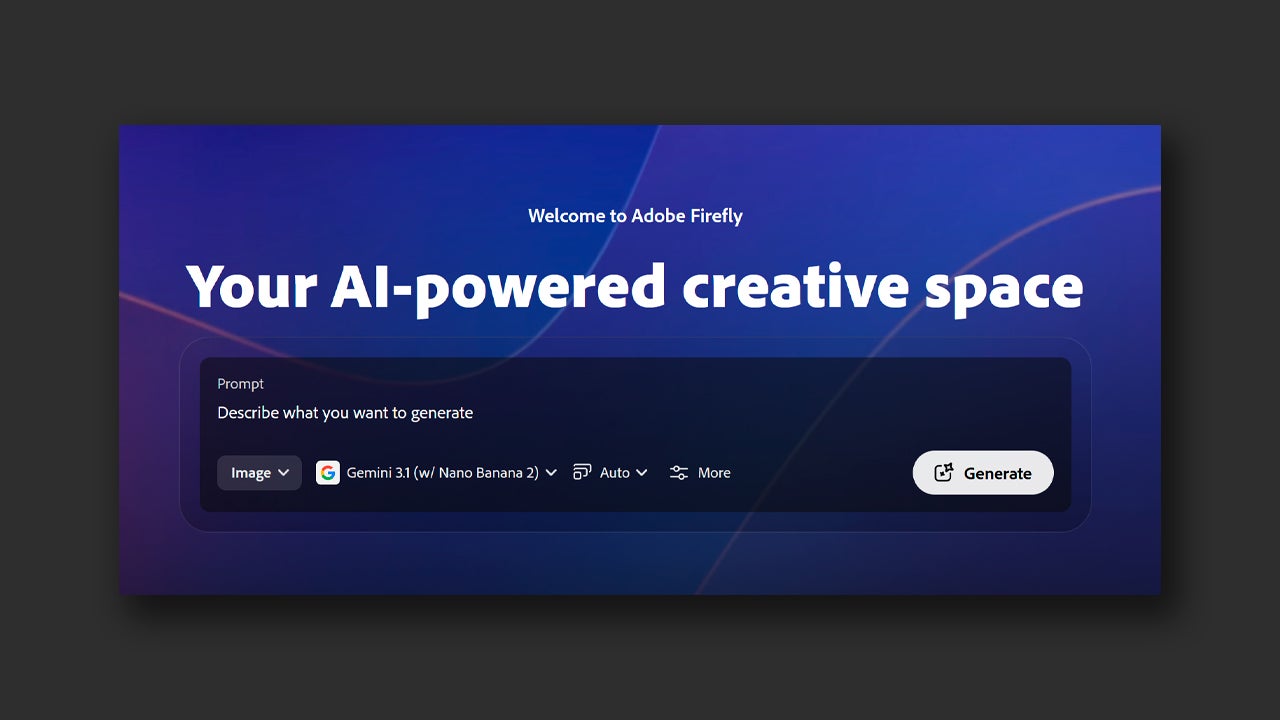
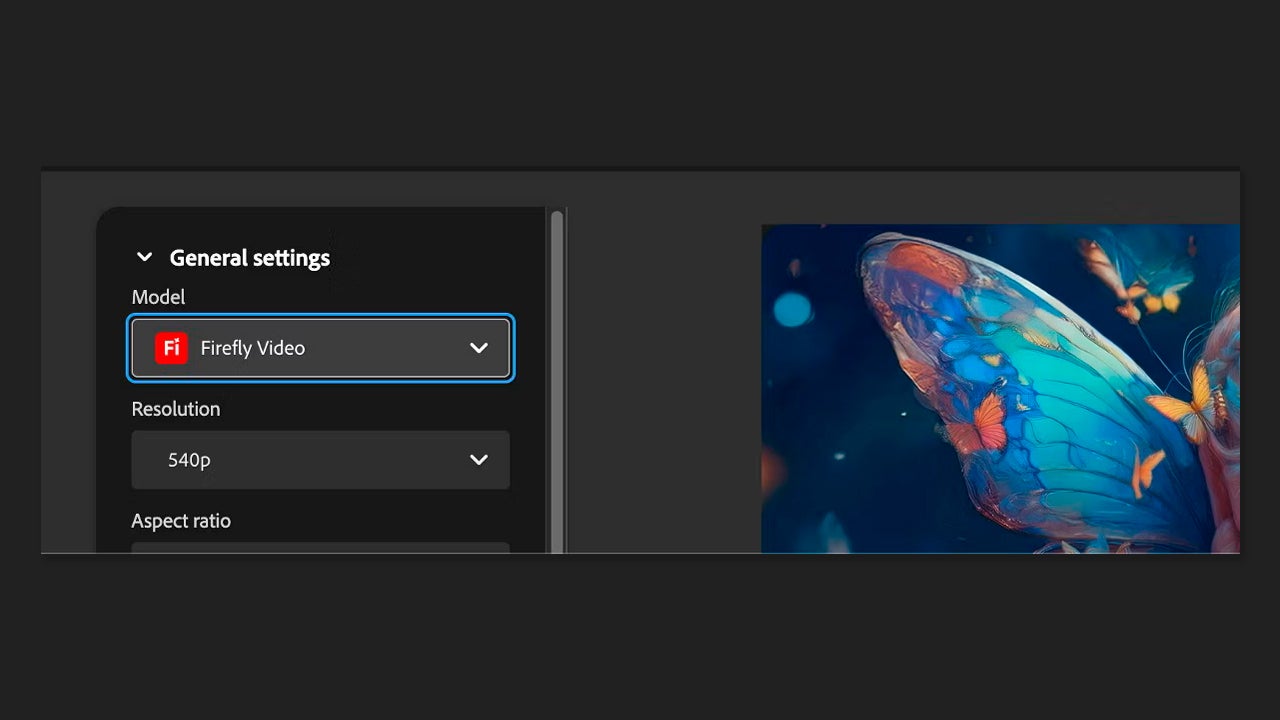
Once here, on the left you will see many options. To start, you will have the Model section, where you can choose the generative model with which to create your video. Adobe’s official one is Firefly Video, but you have many more from other companies, such as Veo from Google. Each model will give you some more or fewer options; keep that in mind for your videos.
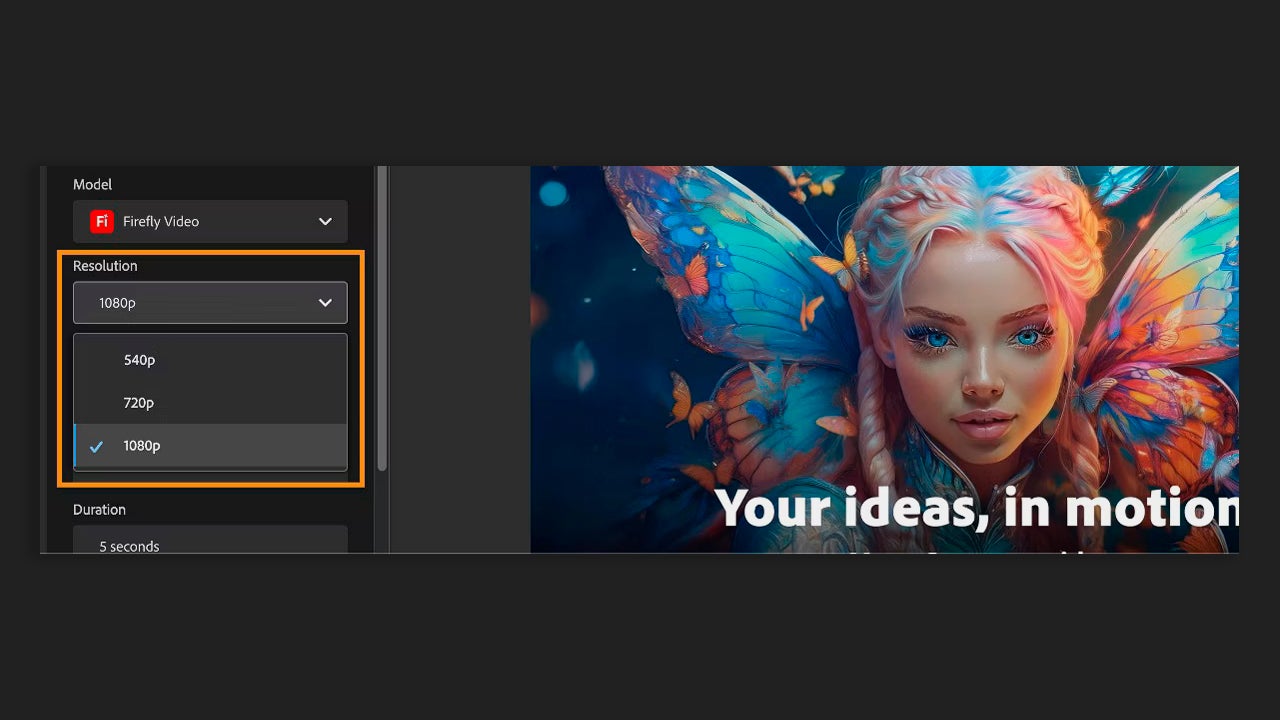
Later you will have Resolution. The resolution of a video is the number of pixels that make up the image. The more pixels, the more detail and sharpness there will be. Specify the video resolution according to what you want; these options will change depending on the model you have selected. Firefly Video, for example, gives you the option of 540p, 720p, and 1080p. With Veo, you will only be able to pick 720p and 1080p.
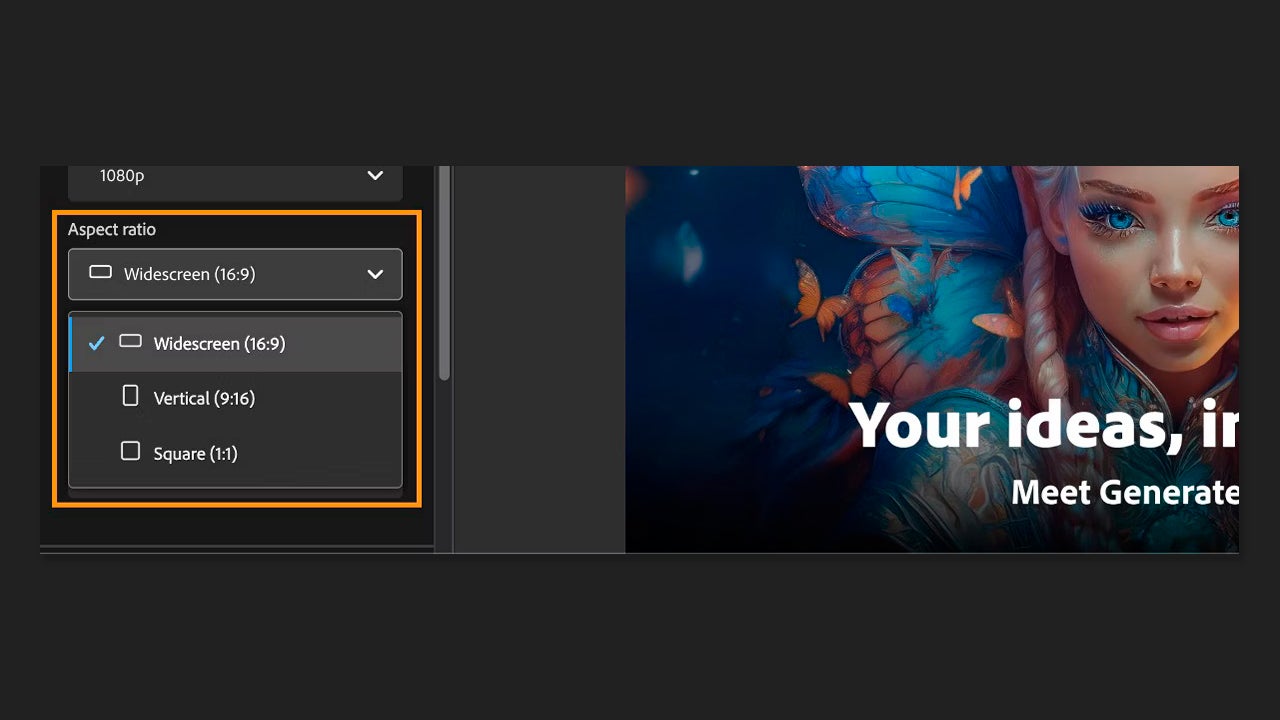
You can also select the video aspect ratio. This is basically the ratio between the width and height of the image. It does not indicate quality, but rather the shape of the frame. The vertical format (9:16), for example, is ideal for social media. The Frames per second section is locked at 24 FPS, and you will not be able to change it.
If you want to generate a video that mimics the composition of an existing one, you have the option to upload the reference in the Composition section. On the other hand, in the Camera section, use Shot Size to specify the framing of the main subject. With Camera Angle, you can select the type of shots the video will have, and finally, in Motion, you will guide the camera movement.
Don’t forget to write in the Prompt box the video you want to generate. Be specific and concise to improve your generations. In the Advanced Settings section, you can use the Seed option to add a seed number that helps to start the generation process.
The seed is a numerical value that AI uses to determine where to start generating a video or an image. Contrary to what you might believe, AI does not begin to create out of thin air. This part starts from an initial point full of noise, which you can imagine as a “cloud” of pixels. The seed indicates the starting point. If you change the seed, you change the beginning and, therefore, the results as well. You can experiment with it to see how it affects your generations.
Images that come to life with AI
If you want to give movement to an image and make it look like a video, you can also do it with Firefly. Just like before, you’ll see that it’s a simple process and won’t take too much time.
Just like before, we go to the central text box, switch to Video, and click on Generate. Here we will return to the Generate page. Now, we head to References and drag the image we want to animate. Optionally, you can also include another image that is the final frame.
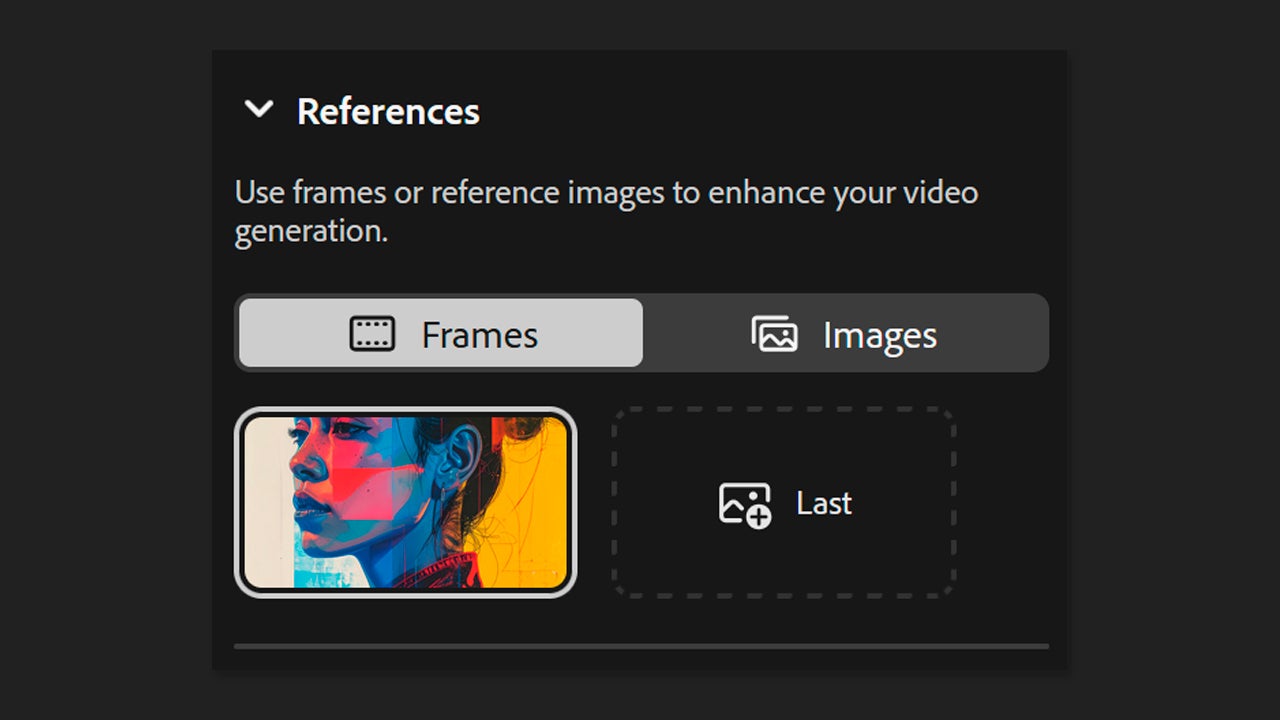
Select the resolution you want and the aspect ratio that matches what you wish to create. Just like with video generation, here you can configure everything that the generative model you have chosen allows you to.
When you finish writing your prompt, click on Generate and wait for Firefly to do its work. If you are not happy with your work, you can change the options and even your prompt to see different results. If you like what you see, click above on Download to get your animated image. Keep in mind that it will be downloaded as a video.
Generative credits: this is how they work
Generative credits is the system created by Adobe to limit the use of AI in Adobe Firefly and certain functions in Photoshop, Illustrator, and others. Every time you use an AI-powered function within Adobe, you will consume credits.
In the case of Firefly, video generations cost many more credits than image generations. This also varies depending on the model you use; Adobe’s consume fewer credits than third-party ones. Each user has a monthly credit allocation based on the plan they are subscribed to, and you can buy more from Adobe.
