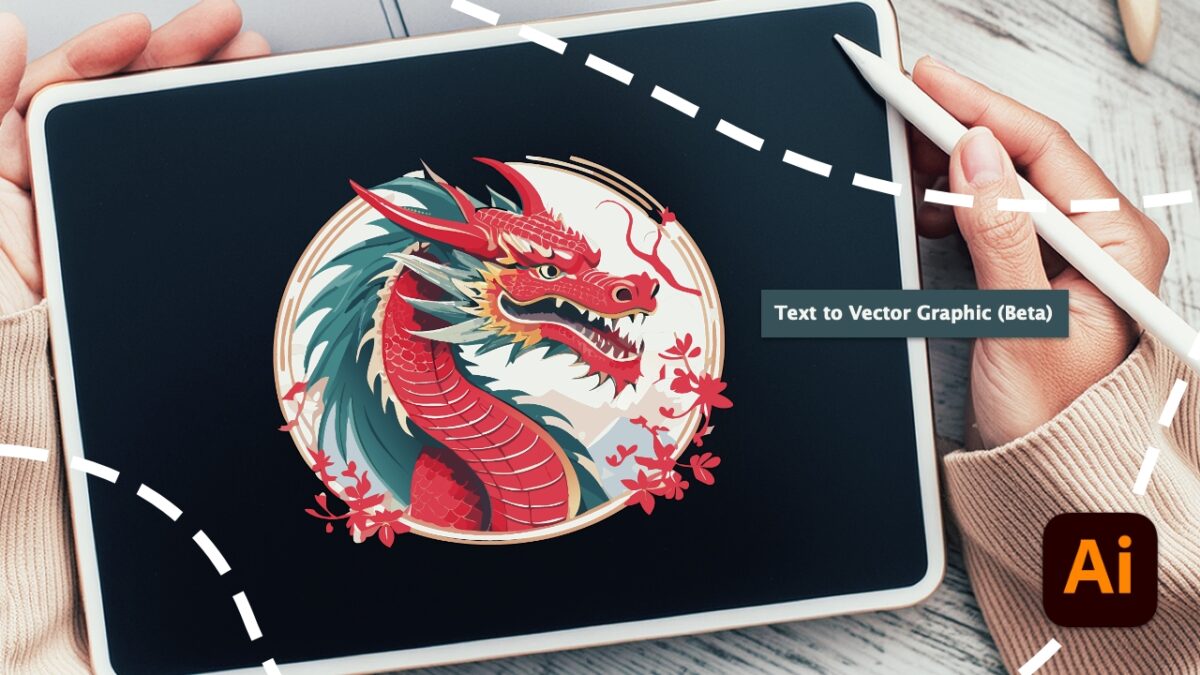
Even if you don’t believe it at first, Adobe Illustrator can help you bring the designs in your head to life. While it may seem like a complicated program to use, the features of Adobe Firefly, Adobe’s AI, have made it easier and more accessible than ever. And it doesn’t matter if you have no prior experience; you’ll be able to use it as if you were a professional.
Do you want to see how a specific design would look on a mug? Or on a wall? You can do any of these things from Illustrator. Adobe gives you the tools to materialize your ideas quickly, simply, and without sacrificing quality. In fact, I encourage you to try it by following the steps we provide below.
Design patterns with Adobe Illustrator’s AI features
Thanks to Adobe Firefly, we can generate vector drawings just by asking for them. To do this, we need to write a brief description of what we want so that Illustrator can translate it into an image. If you want to learn how to do it, follow these steps:
- Open Adobe Illustrator and create a project with the dimensions you need.
- Next, add a rectangle or another vector shape. You can use the Rectangle, Ellipse, or Polygon tool for this.
- Then, select the shape with the Selection tool.
- You’ll see a bar with new options appear. Here, click on Generate Vectors (Beta).
- In the box that appears next, describe what you want to represent.
- Soon, you’ll see several results based on your description. Choose the one you like best and use it for your projects.
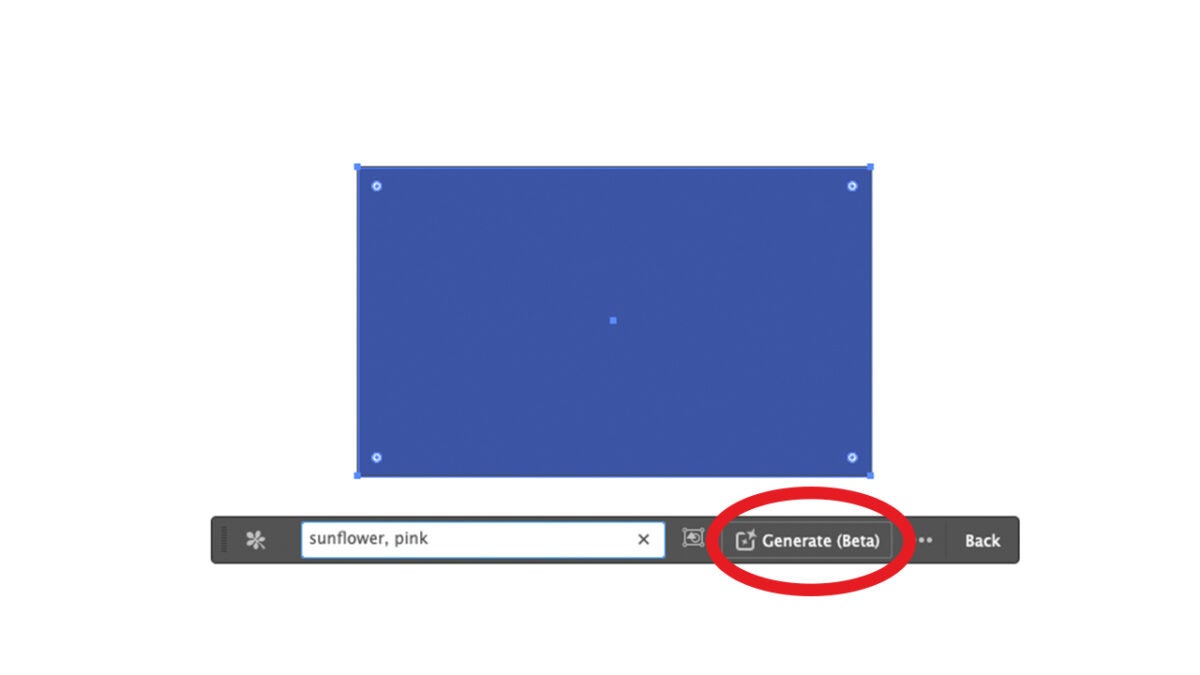
Adobe allows you to select from various graphic styles in the Content Type tab. Each one suits a specific need. Imagine, for example, that you want to create a landscape. In that case, you would choose Scene. On the other hand, the Subject option will create a highly detailed element. Icon is more geared toward creating logos.
Design a pattern for your home
Do you want to simulate how a piece of furniture would look with a specific pattern? That’s something we can easily do in Adobe Illustrator. With your previous design, you can create a pattern.
- Use the Selection tool to choose the place where your design would go. You can also create it over a specific area and then save the design to create a mockup. But we’ll cover that later.
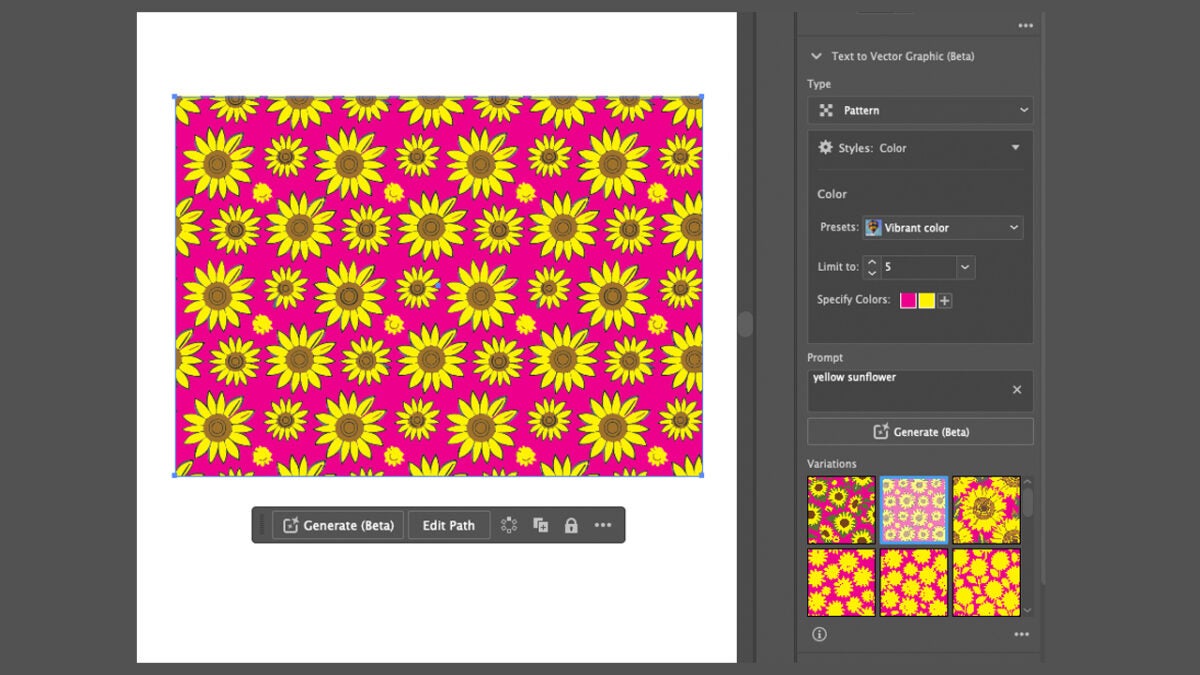
- With the area selected, go to Properties and then Type. Here, click on Pattern.
- Within Styles, we have the Presets option, which will allow us to see how different color tones would look.
- Illustrator will offer you three pattern variants; choose the one you like best.
Create your own mockups within Adobe Illustrator
A mockup is a scaled representation of an idea to see how it would look in real life. In our case, creating a mockup will help us see how the designs would look in our hypothetical home.
Illustrator’s new Mockup tool allows us to accomplish this. Thanks to this, we can see how our design would look on a wall, a cushion, or any object you can think of. Illustrator can take any vector illustration and adapt it to a rasterized image. Here are the steps to follow:
- Within Adobe Illustrator, click on Windows. Then, search for Mockup (beta) and click on it. This will make the mockup panel appear.
- Use the Selection tool (V) to jointly select your vector design and the image where you want to place it.
- Click on Create Mockup from the Mockup panel.
Through the Mockup panel, you can visualize your design on other Adobe Illustrator templates. If you like any of them, simply select it and drag it onto the canvas. The vector illustration will automatically adjust to the geometry of the object in the image.
If you want to adjust the position of the vector image, go to the Properties panel and click on Edit Content. To unlink the vector illustration from the object, click Release so that it returns to its original state. Try different positions and alternative photos: this way, you’ll get a better idea of how your idea would look if it were realized.
Save your mockups for later
Knowing how to save your mockups will allow you to use them again later. To do this, just click on the + symbol that you’ll see in the Mockup panel. Adobe allows you to save up to 20 templates.
