Here’s a hard truth about Windows PCs that we’ve all had to learn at some point: sooner or later, they all seem to slow down. If you’re the family’s “IT person”, you’ve probably heard some version of this at some point or another: “I don’t think I downloaded anything, but my computer is not as fast as it used to be.”.. Or perhaps the dreaded “Did you do something to my files?”.
That’s because even though Windows runs well to begin with, it’s easy for slowdowns to creep in. You add more programs, and typically stack up more apps that launch at startup. Temporary files and caches build up, and before you know it, your PC takes longer to do simple things.

You can manually manage these issues one by one using separate Windows built-in tools like Storage Sense, Startup settings and various control panel features, but keeping up with regular maintenance often feels like a hassle. That’s where tools like CCleaner Free come in. It is a one-source-of-truth maintenance tool for managing temporary files, startup items, and unused applications.
With its latest update, CCleaner 7 has added to most of its free features with better uninstall capabilities, duplicate file handling, and a redesigned interface. So you’re in the right place if what you need is a convenient tool that helps you keep your Windows PC running well.
Why Do Windows PCs Feel Slower Over Time?
Windows PCs feel slower over time because of gradual changes that happen in the background. These changes don’t ruin performance all at once, but they do build up to the point where longer time taken to boot or launch apps becomes noticeable.
Some causes of deceleration include:
- Accumulation of temporary files, cache, and browser data: As you use your PC, every program makes use of temporary files and cache to make programs run more smoothly. The problem is they can also pile up over time.
- Too many programs launching at startup: Most apps want to launch with Windows, and it doesn’t seem like a problem until it is.
- Storage filled with large or duplicate files: Old backups, large downloads, and duplicate files matter when a PC is at the point where available space on a drive can affect how fast a PC runs.
- Leftover files from uninstalled programs: Uninstalling programs using built-in tools is great for home users, but it typically can leave traces behind that take additional manual cleanup.
- General clutter making it harder to find and manage important files: A cluttered drive doesn’t feel like a problem when you haven’t reached the point where you’re checking where your last 5 GB went or why you last saved 59 photos to three different places.
On their own, each of the above is not a major problem. Together though, they can make a PC feel slower than it was when you first booted it. A few minutes of cleaning every so often can help you avoid the point where startup and basic tasks feel more frustrating than they should.

Regular PC Checkups Matter to Prevent Slowdown
Running a maintenance schedule for your PC isn’t about getting dramatic performance gains; however, routine tasks like clearing temporary files, managing startup apps, and uninstalling unused programs address small inefficiencies before they stack up. That’s very important.
Proactive care means that the inefficiencies don’t stack up, which does typically translate into performance drops. If you’re checking your PC regularly though, your computer is more likely to remain stable for longer.
The practical benefits of this include:
Consistent performance
Having less junk data stagnating around a system means more responsive processing performance in daily tasks. That is especially noticeable on older PCs, or systems that have been used for large downloads, browsing and work.
Efficient storage management
If you’re keeping track of duplicate or temporary files, that will help you avoid issues where a drive is short on space. It also keeps things slightly better organized because you don’t need to be looking for a file in three different places!
Faster boot times
In Windows, slow boots are a common complaint. Startup processes can contribute to this notably if you let everything you install try to start up when you load windows. Restricting start up apps to only those you actually need can make your system feel faster.
Those are the main tasks, though there are more things you can do. Windows has built-in tools for these, though they are spread across different menus and locations in settings. That makes it more difficult to stay on top of the routine. Let’s cover what those tools are first.
What You Can Do with Built-In Windows Tools
In Windows, you can maintain your computer with some basic utilities such as Storage Sense, Task Manager, and Apps settings.
Storage Sense can remove temporary files and empty the recycle bin. You’ll have to go to Settings > Storage > Storage Sense to configure it. It can run when storage gets low and will clear out temporary files every so often depending on your settings. One flaw is that it’s only system temporary files, not all your temporary files in general. Let’s say you’ve got Chrome installed and you want to remove temporary files like the Cache or cookies? You can’t do that with Storage Sense.
Task Manager can let you manage startup apps. Ctrl + Shift + Esc will open the task manager and from there you can turn off any apps you don’t want to launch with Windows. That’s fine, but it doesn’t include Scheduled tasks, which are slightly different from start up apps. For example, an app that doesn’t launch but checks for an update every time you launch Windows. That also contributes to slow down.
Finally, in Settings you can uninstall software via Installed Apps. Nothing mysterious there. You can remove apps, however it gets a bit tedious if you’re trying to uninstall multiple programmes at once as you have to go through each one by one…
So while you can maintain a lot of your system in Windows, the features are spread out and they have some limitations
It’s not that a maintenance tool such as CCleaner Free fixes something that Windows can’t do at all, but it brings those tasks into one place to make it easier to keep up and with a deeper feature set.
Core Maintenance Features in CCleaner Free
The biggest reason CCleaner Free makes for a good light PC checkup tool is that it is built around five basic upkeep tasks: cleaning system junk, managing startup items, uninstalling programs, finding what’s eating space, and tidying up duplicates.
That’s technically not all it does (as registry management is also included) but those five features are the most practical to build a routine around. They’re the kinds of checks that make sense for keeping a PC smooth and organized.
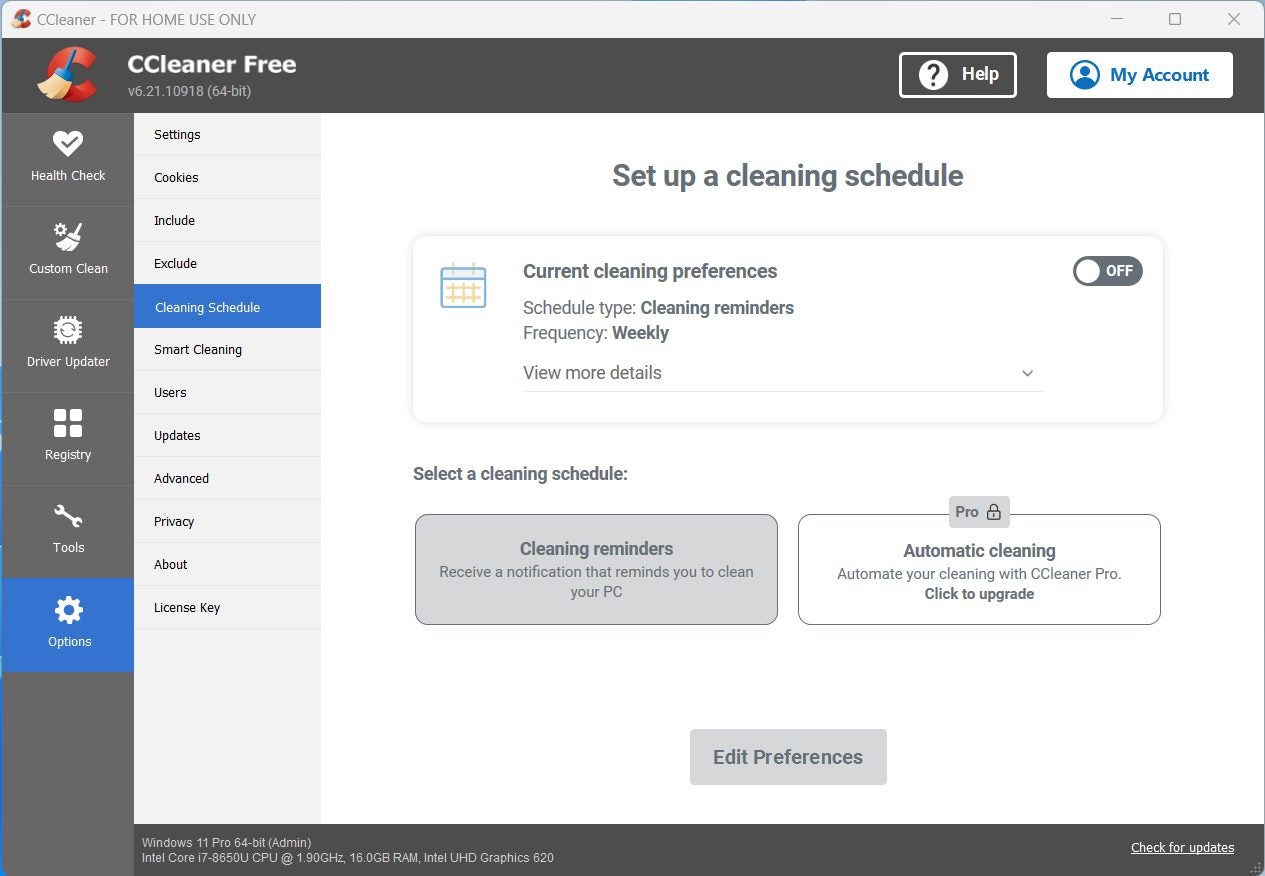
Cleaning temporary and junk files
Temporary files, system caches, and leftover data can consume critical space over time. The cleaning tool in CCleaner Free is designed to target temporary files, browser caches, and other forms of junk data. As per their documentation, these tasks are processed locally and not sent out to CCleaner’s servers.
Managing startup programs
Startup apps are one of the most common sources of “my PC takes forever to boot.” It’s easy to end up with too many over time, as every application wants to launch at startup. Startup Manager in CCleaner Free helps you review and disable them, so it can help boot times.
Uninstalling unused software
Programs that you don’t use can consume storage and add clutter to your system. The improved Uninstall tool in CCleaner Free (since v7.0) helps to delete multiple applications faster and can also clean up leftovers of files.
Analyzing disk space usage
When you already don’t have much disk space, it helps to know what’s filling it up. Disk Analyzer in CCleaner Free breaks down how storage is used so you can see which files and categories are taking the most room.
Identifying duplicate files
Duplicate files really do that, take up space without being noticed, especially in media folders or old download folders. CCleaner‘s Duplicate Finder found inside Disk Analyzer was retooled to simplify finding and reviewing such files.
A Simple Checkup Routine Using CCleaner Free
A weekly or monthly process can help keep your system clean without getting overwhelmed. It is possible to do all the listed CCleaner tasks or just the ones that feel important to your current usage. What’s mentioned below is the order usually makes sense for the most effective outcome:
- Run a cleaning scan: Clear temporary files and other software-generated junk.
- Review startup programs: Disable unnecessary startup programs that slow down boot time.
- Uninstall unused software: Remove programs you no longer need.
- Analyze storage with Disk Analyzer: Check which files or categories are taking up the most space.
- Check for duplicate files: Carefully find and delete duplicate files (after verifying them).
For most builds that are used at home, school, or for streaming, this routine can make a noticeable difference in how smoothly the computer continues to run. Balancing maintenance versus time is the trick to avoiding major performance problems.
What’s New in CCleaner Free 7 That Will Help With PC Maintenance
New to version 7.0, a cleaner uninstall engine, duplicate-handling tools, and interface upgrades make this a more refined build of CCleaner Free. This means maintenance tasks take less repeat actions, which improves the experience with a free tool when you want to keep your PC running well.
Revamped interface and improved usability
CCleaner Free 7 introduced a refreshed design and layout that is easier to navigate and more pleasant to work with. As a part of this facelift also comes a dark and an automatic mode, with greater flexibility for users who have preferences that trend toward a theme.
A more intuitive user interface can make an irregular habit easier to maintain, and that will make it easier to keep your computer in order over time.
Upgraded uninstall engine
Removing programs from Windows in the old-fashioned way is fine, but it may sometimes leave behind stray files or broken shortcuts. CCleaner Free 7 adds a redesigned Uninstaller with a scan step intended to catch some of those leftover files.
The upgraded Uninstall tool also added features such as batch uninstalling and a more streamlined process to removal with fewer clicks. So you no longer have to select uninstallers one by one, or manage every uninstallation manually, which saves time.
This efficiency means removing apps is simpler, so it’s easier to keep your setup clean.
Improved duplicate file handling in Disk Analyzer
The Duplicate Finder in CCleaner Free, has also been improved for batch deletion and added image previews. These enhancements make review easier, especially in contexts such as photo folders or downloads. Of course, it’s important to review any flagged duplicates carefully before deletion.
Native ARM64 support
CCleaner 7 added native ARM64 support for users with ARM-based hardware. That means CCleaner Free can now help with upkeep and checkups for the latest Windows ARM-based builds.
What to Keep in Mind for PC Maintenance
While routine system maintenance handles most issues, there are a few things that you should approach with care:
- Be cautious with duplicate file removal: Make sure the files flagged as duplicates are safe to delete, as some can be necessary for applications. CCleaner Free does offer options for careful review, including previews and selection by date.
- Registry Cleaning is optional: CCleaner continues to offer a Registry Cleaner tool, but Microsoft does not officially support cleaning the registry. Some CCleaner Free users stick to the more impactful temporary file and junk cleaning tools. However, more advanced users should explore
Maintain a Clean and Efficient PC with CCleaner Free
The performance of your PC degrades subtly over time, mostly due to small inefficiencies and clutter. CCleaner Free helps address these through basic but repeatable tools that, if managed often, could avoid a lot of those pains.
This is made even better in version 7 with improved uninstall management, an enhanced Duplicate Finder, and a redesigned interface. If you keep it to its core free features, CCleaner Free could go a long way in helping you keep a clean and responsive PC.
You can always customize when and what steps are used depending on the scenario. That’s even more relevant on a shared family computer. If your routines are light and repeatable, they are easier to keep in check than having to deal with the sudden slowdowns that tend to happen gradually.
In the end, keeping your PC running smoothly doesn’t require constant tinkering or advanced tech knowledge, just a bit of consistency and using the right tools like CCleaner Free
