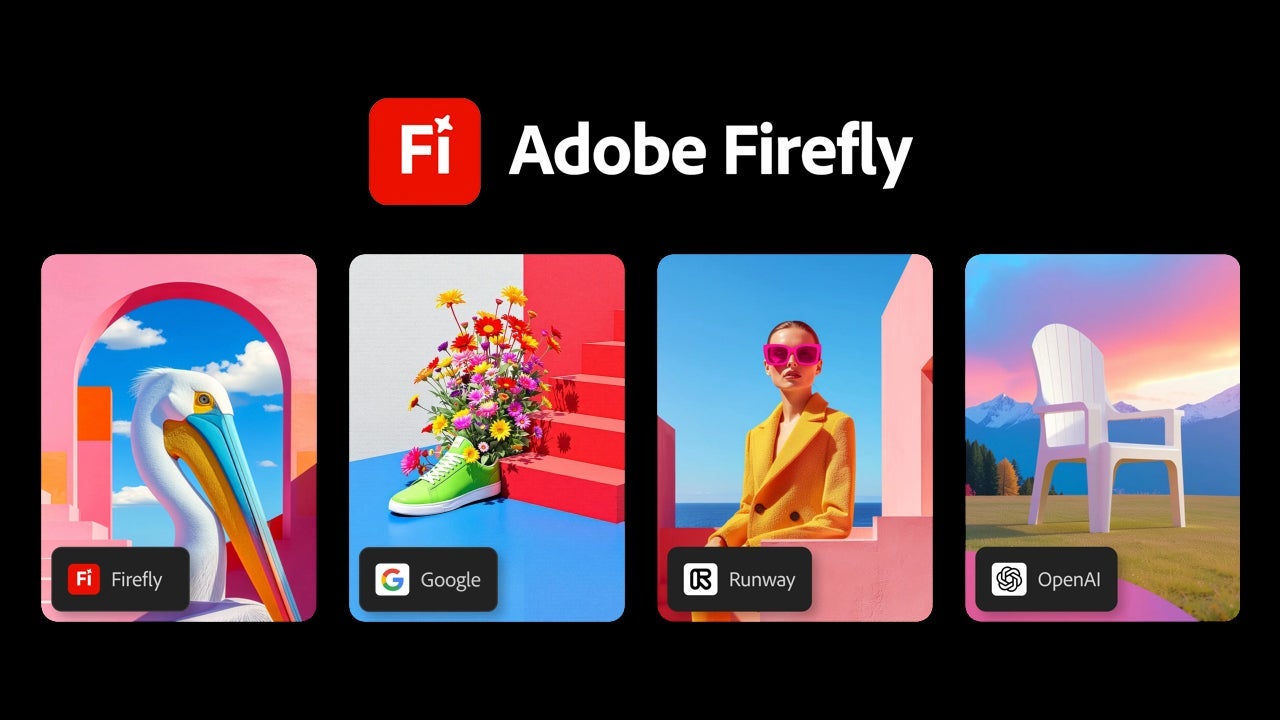
The creation of visual marketing campaigns that truly make an impact has become quite a challenge for companies. Even if you are clear about the message you want to sell, that is not the most important thing: adapting images, changing the context as needed, staying within a budget… There are many variables, and each one is more important than the last.
In this context, Adobe Firefly can become another creative ally. Thanks to Firefly, you will be able to generate visual material without the need to redesign from scratch or invest valuable time that you probably do not have at your disposal.
Next, we will see how to use Adobe Firefly for the localization of visual campaigns without them looking generic or lacking personality. Remember that Firefly is just another tool at your disposal and should be treated as such.

Location: a key piece for your marketing campaign
All marketing campaigns face the same challenge: connecting with their potential customer. However, nowadays it is more difficult than it seems.
More than ever, we have an excess of information channels, whether focused on e-commerce or social issues. There is also greater access to increasingly diverse markets and new formats. Knowing how to navigate current events and create quick responses is key to growth.
That is why more traditional methods do not have the same effect as they used to. The use of generic campaigns or the constant redesign of images can lead to delays and failures that you can avoid with Adobe.
What is visual localization?
Visual localization at scale is much more than translating your message. It involves understanding and adapting cultural nuances without compromising your product. This applies to people, environments, fonts, or even the colors used.
Redesigning a campaign from scratch according to the market is not a viable option for many companies. The key is to start from a solid foundation that allows us to generate controlled and meaningful variations, something we can do with Adobe Firefly.

This is how you can use Adobe Firefly
Many fail when it comes to focusing on the use of generative artificial intelligence. It should act as another tool in your arsenal, helping you to develop your own ideas and concepts. And it is with Adobe Firefly that we can do just that: develop visual content from prompts (written descriptions).
Firefly is also integrated into many Adobe programs, such as Photoshop, Illustrator, or Adobe Express. Thanks to it, you can reduce the most repetitive tasks and focus your efforts on other more important (and creative) areas.
Here we show you a workflow with Adobe Firefly so you can see how it can be integrated into your projects.
Creation of visuals with Adobe Firefly
First, we will need to design what will be the main piece of our campaign. To accomplish this, we must have predefined layouts, an established typography system, and our brand colors. This will serve to create the global reference.
A good example that will help us illustrate all these changes could be that of a car advertisement.

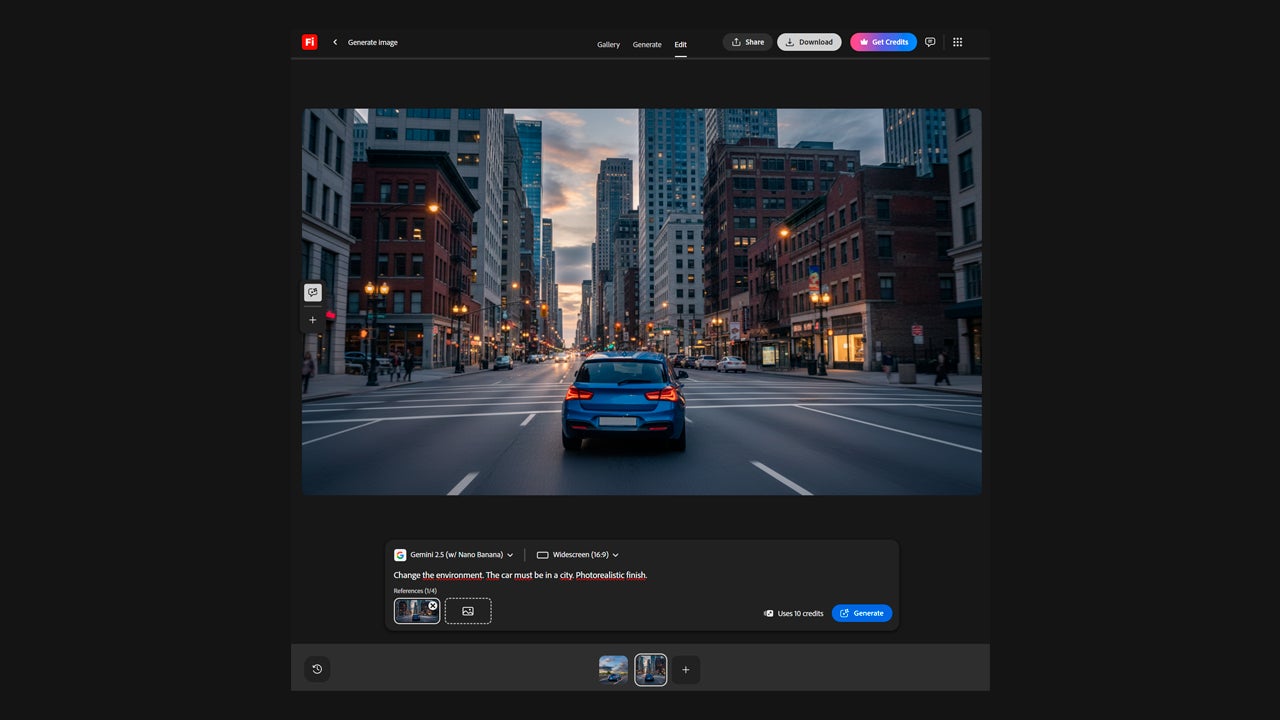
A car is a versatile product aimed at many types of customers: some will be more adventurous, others more family-oriented, etc. If we wanted to create a new image targeting the more urban dwellers, with Firefly it would be easy. From the Firefly platform itself, which can be accessed from the browser, we can upload our image and edit it, for example.
Once inside Adobe Firefly, go to Generate, located in the left column. There you can either generate images from scratch or edit your own.
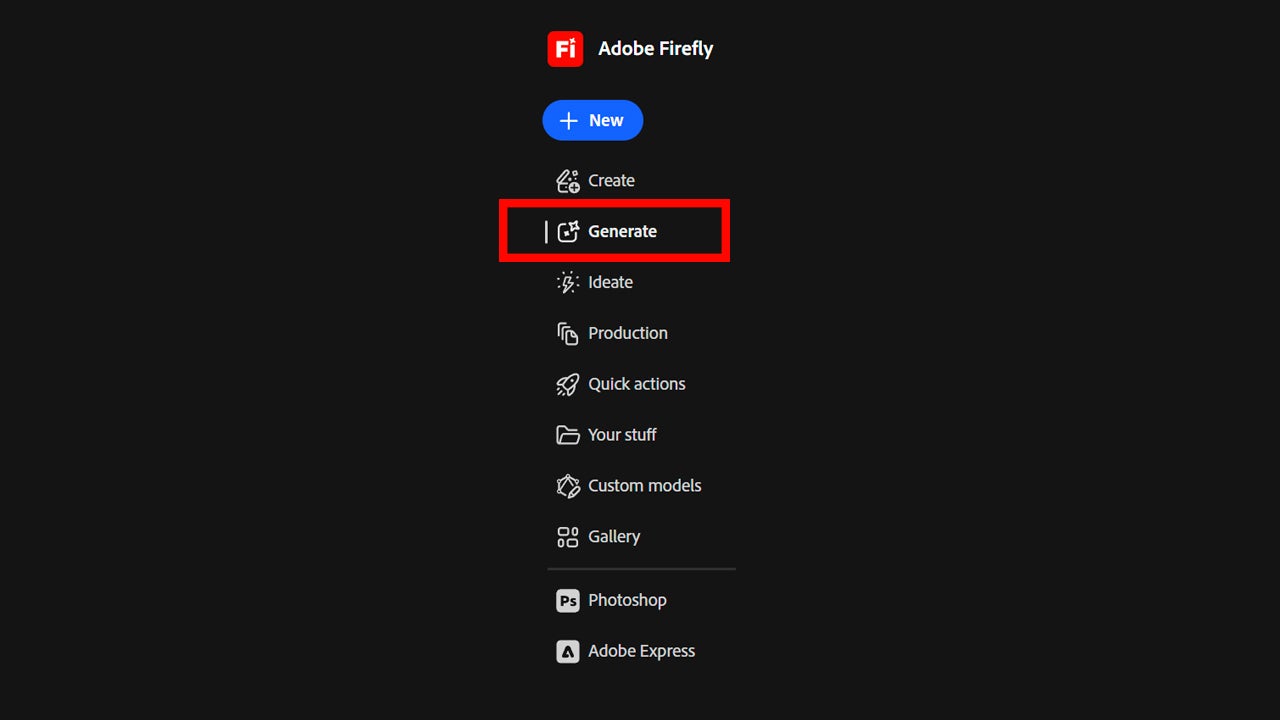
To start editing, click on the generate button directly. This will take you to a new screen where you will need to select Edit. There you can upload your image and edit it with prompts.
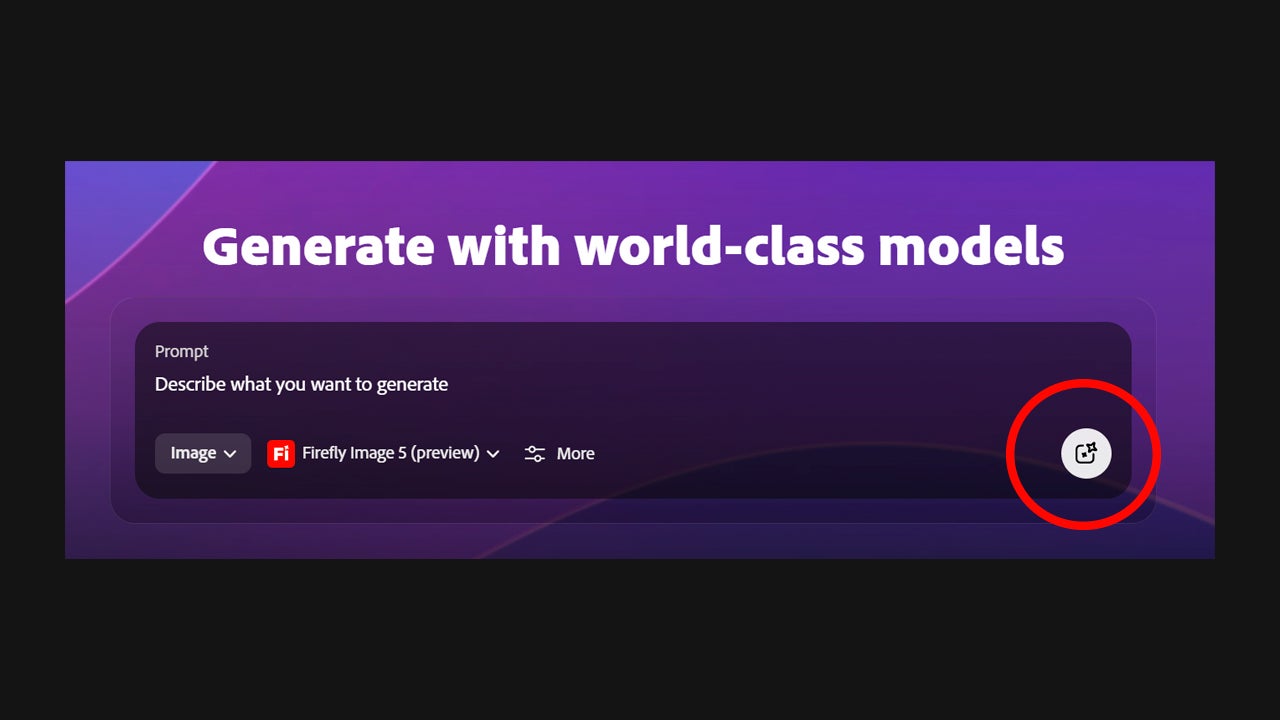
In this case, we have written to generate a new environment, specifically a city. These types of actions will be very useful when exploring new concepts, ideas, and possibilities rapidly.
Use Firefly in other Adobe programs
As we mentioned before, many of Adobe’s most used programs already have the power of Adobe Firefly. In the case of Photoshop, for example, we have very useful features like Generative Fill, Text to Image, or Generative Expand. At Softonic, we have discussed them at length, in case you want to know how to use them.
In summary, Generative Fill allows you to select an area for you to describe what you intend to add there. The AI will fill the space in a way that is coherent with the image itself and its context.
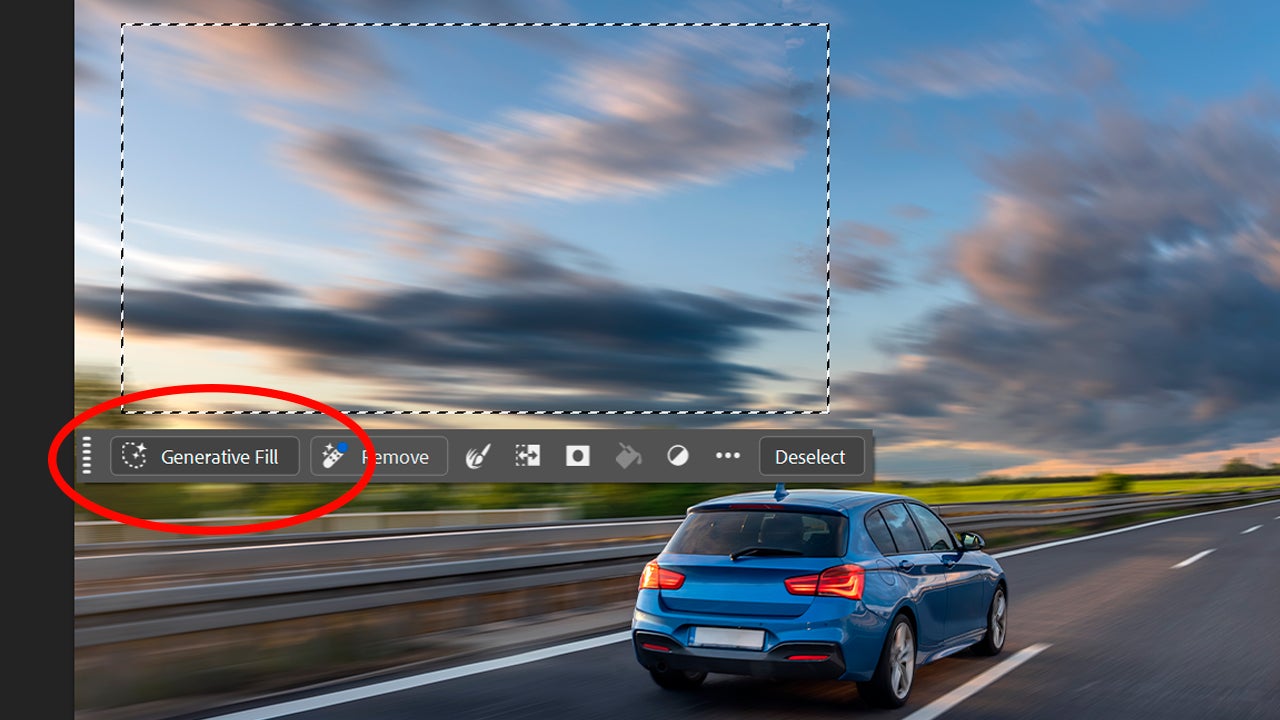
From the Generative Fill section, you can also choose from various generative models (called Partner Models) and not just stick with Adobe’s. You can switch, for example, between Gemini, ChatGPT, and many others.
This will allow you to edit the images of a campaign in a much more efficient way, as you will be able to see results instantly. With Firefly, you can generate visual alternatives adapted to local contexts (environments, landscapes, cultural scenes…).
Maintain the consistency of the visuals
Consistency is not an automatic result; it is something you must keep relevant throughout the process. Some tips we can give you include, for example, the use of strategic prompts. This means that you should focus on accurately describing the visual style, tone, and everything that should be included in your image.
Likewise, you must work on templates and your material to maintain that coherence. The iteration with AI must be controlled at all times: Firefly generates proposals, and the human team is the one that decides.
When you should use Adobe Firefly and what benefits it brings
Firefly is ideal for generating quick ideas and concepts. Adobe’s AI can help you generate quick visual variants, explore, and locate campaigns in different environments. However, you shouldn’t leave everything to the machine.
For very specific illustrations or pieces that have a high value (whether narrative or symbolic), the human hand is essential. As you can see, we never tire of repeating the same thing, since AI is the means that will help us achieve a goal, not the end in itself. Only in this way can we truly make the most of it.
