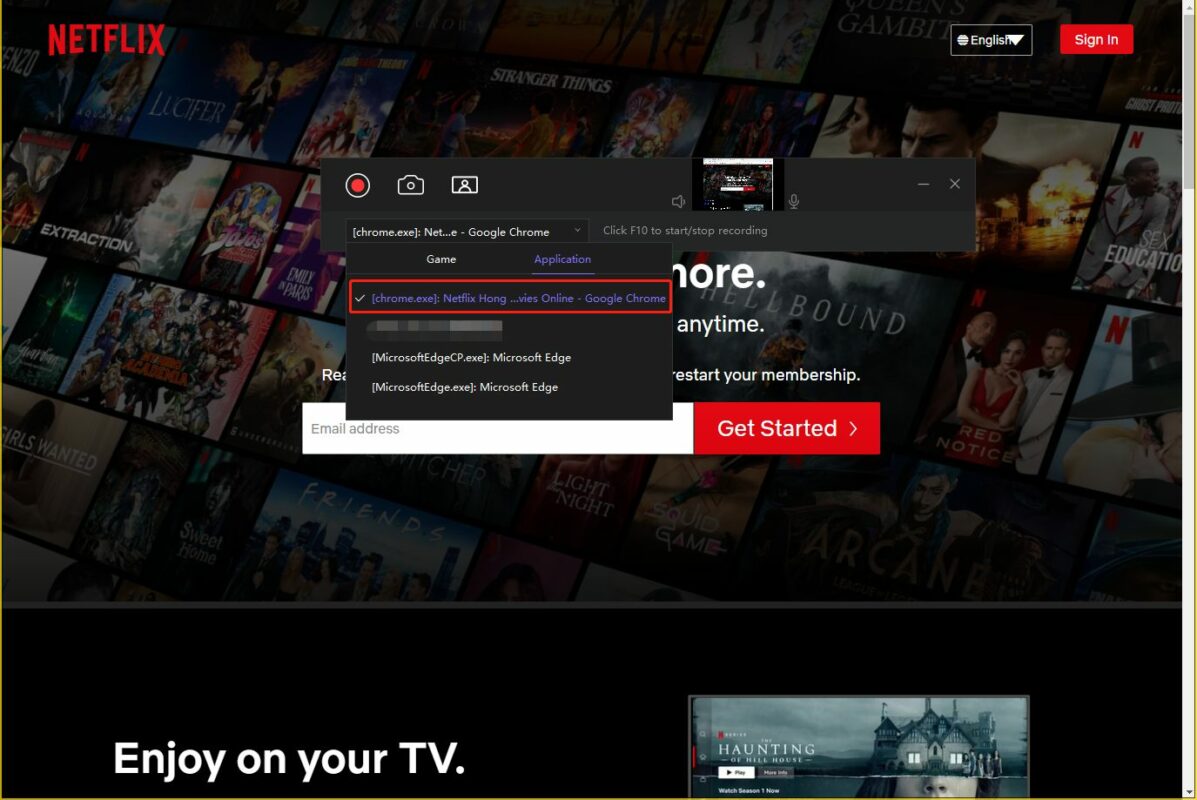
Netflix is one of the most popular streaming platforms to watch movies or TV shows on demand. Its humongous catalog offers an excellent selection of all-time classics, blockbusters, and exclusives. However, if you’re usually on the go, you’ll find it hard to access this content without an Internet connection to stream it. In today’s article, we’ll teach you how to record Netflix and keep these videos to enjoy wherever you are at.

How to record Netflix on a PC
Step 1: Download a third-party screen recorder
Most PCs include recording tools however, these are usually very limited. If you want to record Netflix we recommend that you download a third-party recorder that supports 4K video such as Wondershare UniConverter.


Step 2. Access Netflix
To record Netflix, visit the official site here and log into your account.
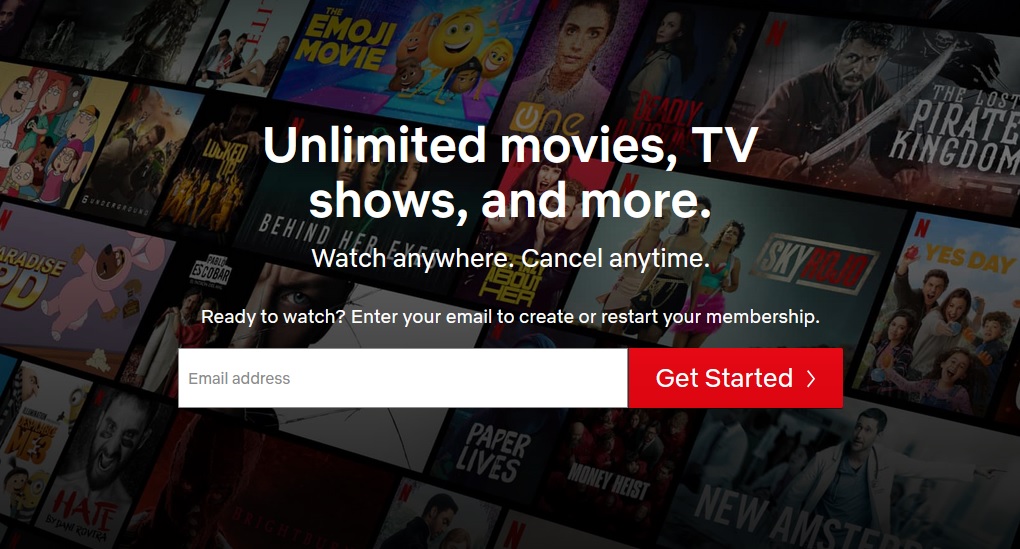
Step 3. Launch Wondershare Uniconverter
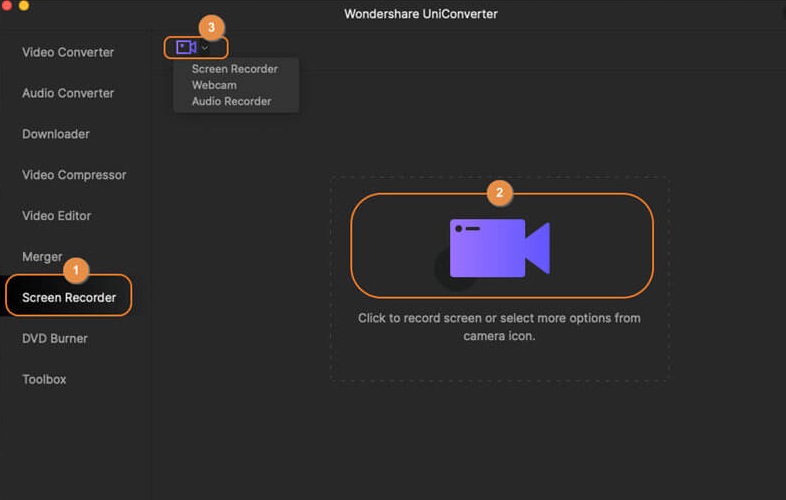
Now launch Wondershare Uniconverter and click on the “Screen Recorder” button.
Step 4. Record the movie or show you want
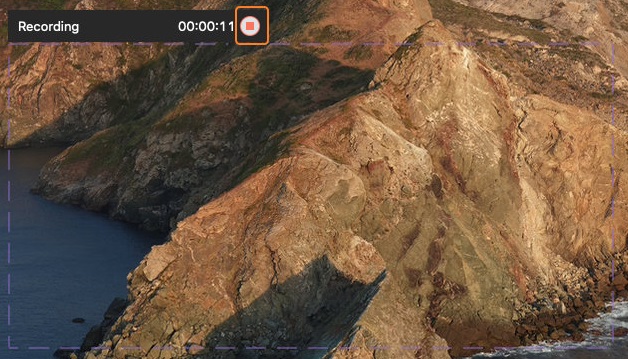
After enabling the screen recorder, you’ll see all its settings on screen. Make sure to set the height and width of the area you want to record and select the quality and frame rate of the video. When you’re done, click on the red button and play the show or movie you want to record.
How to record Netflix on your mobile phone
Step 1. Download the Netflix app
To be able to record Netlfix from your mobile phone, you’ll first need to download and install the Netflix app.
- Netflix for Android

- Netflix for iOS
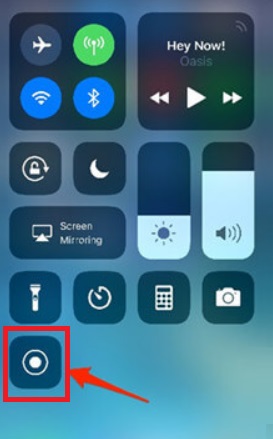
Step 2. Launch your phone’s Screen Recorder
Open the notification drawer from your Android phone, or the control center from your iPhone, and select the Screen Recorder option.
Step 3. Record Netflix
Open Netflix and go to the show you want to record. To start the recording, simply press the red button that you’ll see on the floating control panel of the Screen Recorder.

Record Netflix in three easy steps
Recording Netflix videos is a very easy process to keep your favourite movies, clips, and tv shows available for watching them later without an Internet connection.

How to Sign Out of Netflix in 4 Simple Steps
READ MORE