
If your computer takes forever to start up or applications open at a snail’s pace, you’re not alone. Over time, even the fastest PCs begin to lose their edge—files take longer to load, programs freeze for no reason, and your browser seems to crawl.

At first, it may feel like your device is simply too old and that buying a new one is the only option. But here’s the good news: in most cases, your computer doesn’t need replacing; it just needs a little care and maintenance.
A gradual slowdown is often caused by small, everyday factors: temporary files piling up, unnecessary apps running in the background, and a general lack of system upkeep. Fortunately, there are straightforward ways to reverse this and get your computer running smoothly again.
Below are five practical steps to help you speed up your PC and the best part is, they’re all easy to do with the help of CCleaner Free, a trusted tool designed to keep your system clean, efficient, and running like new.
1. Clean up temporary files and digital clutter
Each time you browse online, install software, or edit documents, your computer quietly stores temporary files, caches, and leftover data. These invisible files may seem harmless, but over time they accumulate, taking up valuable space and slowing your system.
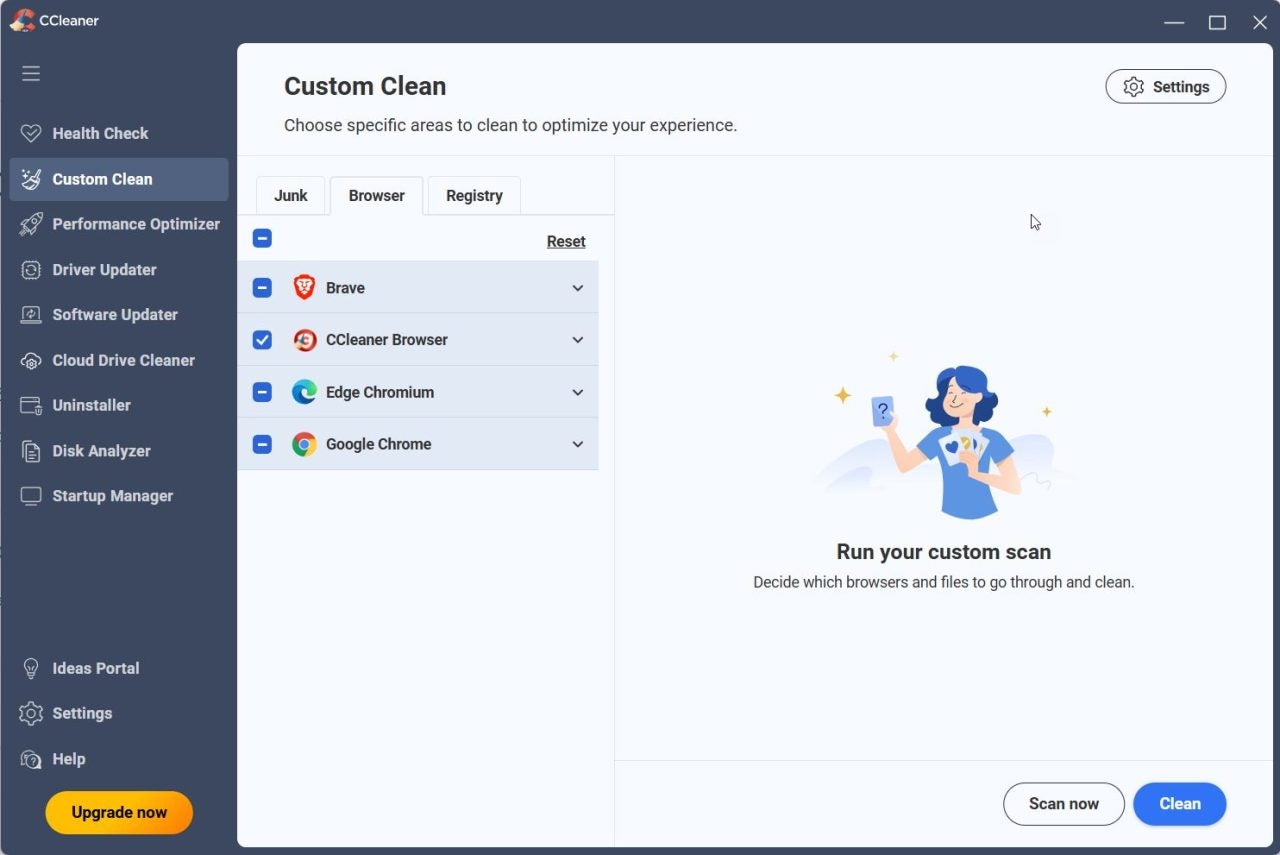
Deleting them regularly helps free up storage and improve responsiveness. That’s where CCleaner Free truly shines. Its simple yet powerful Cleaner Feature scans your system for unnecessary files—from browser histories and temporary folders to log files and installation remnants—and helps remove them safely with just one click.
The difference can be immediate: faster file access, smoother browsing, and more free space for what actually matters.
2. Manage which programs start automatically
Does your computer take ages to boot up? The culprit is often too many applications launching automatically when Windows starts. Many programs add themselves to your startup list without your knowledge, consuming memory and slowing performance before you even open your first document.
A quick cleanup of your startup items can make a dramatic difference. CCleaner Free includes an easy-to-use Startup Manager that displays all the programs that run on startup. From there, you can disable or remove any that aren’t essential, such as old utilities or apps you rarely use.
This small step often cuts boot times significantly and ensures your computer’s resources are focused on the tasks you actually need.
3. Uninstall software you no longer use
Unused applications can silently take up gigabytes of storage, create unnecessary background tasks, and even slow down system updates. Regularly reviewing and removing old software is a simple yet effective way to reclaim performance.
With CCleaner Free, this process is effortless. Its Uninstall Tool lists all your installed programs in one place and lets you easily remove those you no longer need without navigating multiple menus or the Windows Control Panel.
By trimming down unused software, your PC not only runs faster but also becomes more stable and secure.
4. Clear out your browser data
Web browsers tend to accumulate a surprising amount of data over time—cookies, caches, download histories, and other leftovers. While some of these help with quick page loading, too much buildup can slow browsing speed, cause pages to hang, or even create privacy concerns.
CCleaner Free helps maintain your browser’s performance by cleaning out unnecessary data across all major browsers, including Chrome, Edge, and Firefox. The result? Pages load faster, and you enjoy a smoother, more private browsing experience.
Regular browser cleaning also helps prevent small performance issues from snowballing into bigger problems later.

5. Keep an eye on storage and system health
Even after a cleanup, performance can dip if your hard drive or storage space becomes too full. A simple rule of thumb: always keep at least 10–15% of your disk space free for your operating system to function efficiently.
With CCleaner Free, you can easily analyze your disk usage and identify which files or folders are taking up the most space. This gives you a clear picture of where to focus your cleanup efforts, helping you manage your storage intelligently.
By making CCleaner part of your regular digital routine, you ensure your system remains optimized, lean, and responsive.
CCleaner Free: Your trusted partner for a faster PC
While each of the above steps can be performed manually, doing them consistently takes time and technical know-how. CCleaner Free simplifies this process, combining all essential maintenance tools in one clean, user-friendly interface.
From temporary file cleanup and startup management to program uninstallation and browser optimization, it can offer a range of tools that may help keep your computer running more smoothly, without necessarily requiring deep technical expertise. The result is a computer that starts faster, runs smoother, and feels almost new again. Whether you use your PC for work, study, or leisure, CCleaner Free helps keep your system running at its best.
