Google Workspace, with its fresh suite of AI capabilities quietly slid into existence. It’s been around for a while now, and brings with it a feature set that will change the way you work. You’ve probably seen the tools already and thought to yourself, “Yeah, I should probably learn to use that at some point”.
It’s not that we’re skeptical whether it will work well or not, it’s just fatigue. You’ve got enough to do already so learning four new interfaces to write an email better probably isn’t that high up on your priority list. Yet that’s exactly where Gemini, inside Google Workspace, starts to make sense. You’ll get the most use out of it for the things you never knew you could do because it’s right there in the apps you have open every day.
That email you’re avoiding replying to? That’s covered in Gmail. The doc you need to draft up from a set of notes? Google Docs has a tool for that. Got an idea for a budgeting sheet? There are shortcuts in Google Sheets. And if you’re spending 40 minutes hunting for images, you don’t actually need to in Slides.
Let’s take a look at five really simple tricks with Gemini AI in Google Workspace that can put magic into your workflow. Some of this is not what you could call groundbreaking tools of the future. These are just the features that are going to make your work easier and help put a nice polish on it, be it an email, getting up to speed with an epic thread, piecing together a spreadsheet, or if you’re trying to tidy up that presentation to make it look a bit less like a Sunday night job.

Google Workspace
Try Google Workspace Now1. Turn Rough Ideas Into Polished Writing in Gmail and Docs
One of the best ways to use Gemini is not as a ghostwriter, but more as a drafting partner with decent manners.
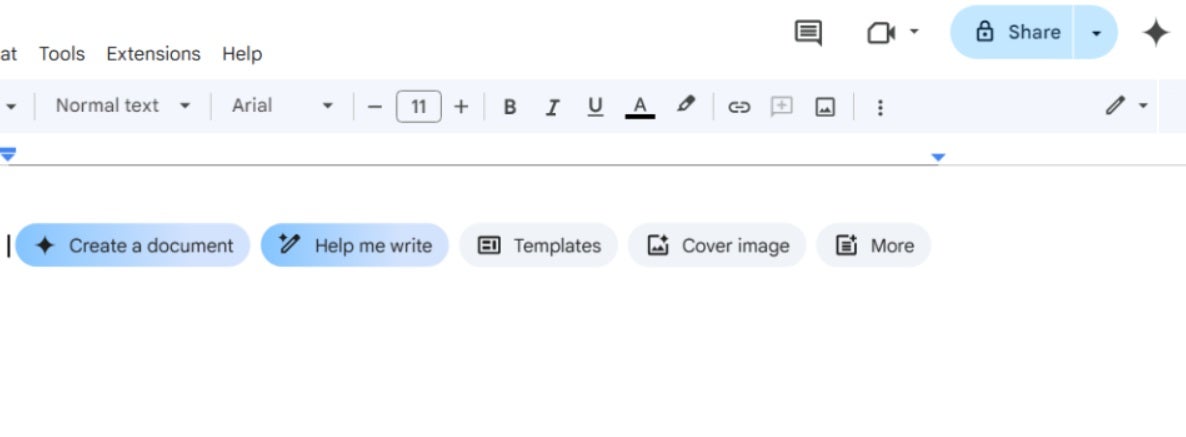
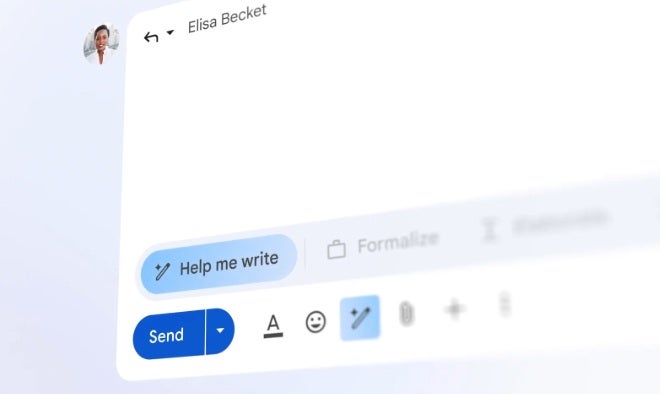
In Gmail, you’ll find the feature “Help me write”. This tool is a way to turn a few rough points into a cleaner draft or help refine something you’ve already started. It’s in Google Docs too, and here Gemini can help draft new content, rewrite existing text, or adjust tone depending on what you need. There are also simple one-click refinements for shortening, rephrasing, converting to bullet points, or making text more formal or more casual.
How might you use this? You might:
- Turn three bullet points into a full client email
- Rewrite a cover letter in a different style
- Tighten a summary that went on too long
- Make a message sound clearer, more confident, or less abrupt
Use Your Real Notes, Not Vague Prompts
The best results come from giving Gemini something real to work with. Not “write me something professional” which could mean almost anything. It’s better to give it the actual substance and a clear instruction.
It doesn’t even need to be much, for an email it could be as simple as:
- project delayed by two days
- new delivery date is Friday
- ask if they want a review call on Thursday
Those three quick sentences are enough for Gemini to create a very usable draft without inventing details you never gave it.
The same can be said for Docs too, if you give it your notes, your general goal and intended audience, it can write while you feed the facts, tone and final phrasing.
Put another way, you let Gemini do the heavy lifting, but where it cannot fill in the blanks is where you provide the facts. It is still your job to put your style and fact-check the results, the last pair of eyes on something important still need to be yours.
2. Catch Up on Long Gmail Threads Without Reading Every Reply
Now, one area of pure practicality is using Gemini on large, complex conversations. Those particular Gmail threads have a special talent for hiding the one thing you actually need buried in the midst of a multi-person reply-for-all marathon. By the time you have mercifully stitched it back together, you are ten minutes late for a meeting and your patience is threadbare at best.
So when you just need the gist or some key details from your emails like “What was the final agreed price?”, “What did we agree the next step was?” or “Summarise what has changed since yesterday.”, then Gemini can deliver you those details, showing that not all heroes wear capes.
That can save time fast, especially when you still have a small mountain of unread replies waiting for you.
The exact experience may vary depending on your account, plan, language, and feature availability. In some cases you may see features like “Help me write”, but in others only an AI thread overview feature. In some setups, Gemini assistance may appear directly inside Gmail rather than through the side panel every time.
A sensible way to use this feature is as a tool. So pull in the key details and use it to catch up, get oriented, and find what you need in the noise. Then check the original emails before acting on dates, prices, commitments, or anything else that could cause trouble later. You could CTRL+F (cmd+f on a mac) to search the email thread to verify the key facts. It’s incredibly useful, though we’d still always insist you check yourself.
3. Build Budgets, Trackers, and Itineraries in Sheets Without Formulas
Google Sheets is a really powerful tool, but it (and spreadsheets in general) have a propensity to overwhelm the average user. If you don’t know what a VLOOKUP is or how to use functions like PIVOTBY, you’re not alone.
Gemini greatly democratizes spreadsheet use. You don’t need to know formulas, or the way spreadsheets work, to get started. So if you haven’t wrapped your brain around the specifics of spreadsheet mechanics, that’s a game changer.
Natural language prompts mean you mainly just need to know what you want to do. If you can describe what you want, something like:
- “create a monthly budget with categories, planned spend, actual spend, and difference”
- “create an expense tracker for my freelance work”
- “create a content calendar built around on four week production sprints”
- “create a trip itinerary with daily activities and budget columns”
Then you can make a sheet. If your prompting doesn’t quite work the first time around you can continue to iterate until you get it right. This makes spreadsheets friendlier and more accessible for those who normally shy away from the use of such.
Where you come in would be to double-check the calculations and how the structure is working. That’s particularly true if you are using it for something important like a budget or deadline. But for people who usually avoid Sheets because they feel they don’t have the knowledge, this is a much easier way in.
Unlike planning manually a notes app, a Google Sheet is a shareable and presentable file you can update, sort, and actually use.

4. Create Presentation Images in Slides Without Endless Searching
If you’ve got a slide deck ready and then hear that sentence: “Looks great, but could you add some visuals?”. You might find that 40 minutes from now, you’ll still be scrolling through stock photos of random people pointing at their laptops very happily for some reason. Maybe they found a decent visual?
Visual assets probably slow down the delivery of a presentation more than copy does. Conceptually, you know what should go in, but usually the image in your head just doesn’t match what is available online. Gemini in Google Slides can help by generating custom images inside Slides. Look under “Insert”, then “Help me visualize”, then “Image”. You can then describe the subject, mood, and preferred aspect ratio, such as 16:9.
To make sure you nail the visual, you should:
- Prompt for the subject, style, mood, and aspect ratio
- Match the image subject to the slide’s message
- Revise the prompt as many times as you like, especially if the first result feels generic
- Use visuals where needed to support the argument, not just decorate empty space
Help me visualise is great for a class presentation that needs a clean concept graphic, a freelance pitch deck that needs a simple hero image, or a side-project presentation that needs a visual to make one idea click fast. It is not necessarily a replacement for a designer, and it doesn’t need to be. It just needs to save you from the image hunt, so that you too can be a random person pointing very happily at your laptop.
5. Save Time Because Gemini Works Inside the Apps You Already Use
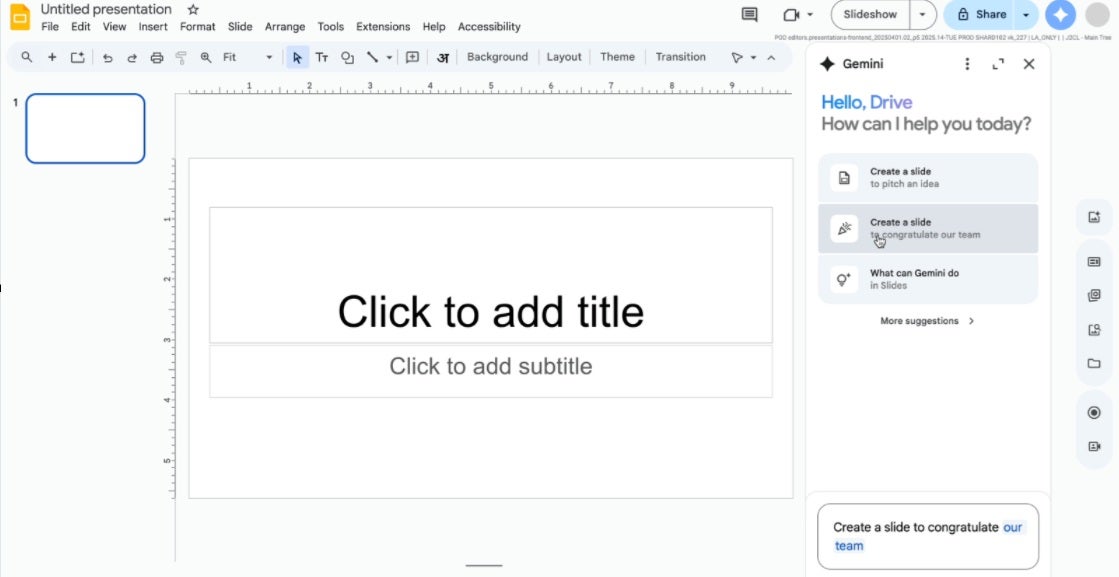
The greatest thing about Gemini is not just what it can do but where. Sure, each of the previous 4 points work great on their own, but the 5th and final trick is to build a multi-app workflow. Gemini in Google Workspace is not just about writing, summarizing, or generating content. It is about doing those things inside Gmail, Docs, Sheets, and Slides, where your work already lives.
Gemini can summarize, analyze, and generate using information from emails, documents, and other Workspace sources without switching applications or tabs. In supported experiences, it can use context from other places in your workspace like Drive, Gmail, Chat, Calendar, and the web, depending on the app and the feature.
That context means you can pull from your work ecosystem, not just what’s in front of you. Access does vary. For work and school users, Gemini features depend on eligible Google Workspace plans. For personal users, access may depend on Google AI plans, region, and feature availability. So before you go hunting for a button that is not there, that is worth knowing.
Still, the appeal is straightforward. Less setup. Less tab-switching. Less re-explaining the same task to another tool. Just faster movement inside the tools you already use.
What to Try First in Gmail, Docs, Sheets, and Slides This Week
That does not mean you have to be fluent with Gemini in Google Workspace out of the box, but a great way to start is to focus on just one real task a day.
Think of something that really annoys you that’s real in your day-to-day work, like replying to meeting request emails or summarising a report. That’s going to give you a feel for whether Gemini is really a feature worth using again for you.
Some ideas to get you started:
- In Gmail, you could use a summary to get to the heart of a thread faster
- In Docs, you could use AI to turn rough notes into a polished draft
- In Sheets, you could try to create a tracker, budget, or travel itinerary from one sentence
- In Slides, generate one custom image for a specific slide
Keep it simple and let Gemini work its practical magic and review the results. You don’t need to revolutionize your entire workflow with Gemini off the bat. Get a useful result and build from there.

AI and Privacy: How Google Handles Data in Gemini for Google Workspace
Privacy is often the main area of reluctance with regards to using AI in emails, work documents, and plans. It should be too. These are things like school work, job applications, budgeting, and client communication that people want to safeguard.
It’s important to clear this up because Google’s privacy language concerning Gemini in Workspace is more explicit than most people realize. Here are two things they say outright:
- No targeted ads result from AI features
- Models aren’t trained from your Workspace content without your explicit permission.
This reassurance applies to Gemini in Workspace apps such as Gmail, Docs, Sheets, and Slides. However, it does not mean that this same rule applies to every Gemini service. Outside of Google Workspace, conditions can change across different Gemini settings and services. You should always check such things as the account settings and the specifics of the service you are subscribed to in relation to what is most important to you.
Why does that matter? Because in the AI era it’s becoming more important to take your privacy seriously. The content people use in Workspace is often sensitive in ordinary, not dramatic, ways. Job applications. Classwork. Client communication. Budgets. Travel plans. Internal documents. This is the sort of material you do not want quietly ending up in ad systems or broad model training. The reassurance from Google here is important.
Google Workspace
Try Google Workspace NowWhy These Gemini Tricks Matter for Students, Freelancers, Teachers, and Side Projects
These Gemini features help us to create faster, get caught up quicker, and organize without changing everything. The work is still there, but now it’s more like having your very own personal assistant to help take care of the everyday bottlenecks
For students, that might mean organizing research, first drafts, or even presentations. For teachers, it could mean less time spent on administration or more focusing on their classes’ needs. For freelancers, this leaves email communication, budgets, trackers, and pitches more manageable.
This isn’t making AI the end-all, be-all to everything. It’s about using it where it makes a difference and brings efficiency in Google Workspace. Where Gemini works best is in quietly reducing the workload that exists every week.
