 GIMP has been one of my favorite image editing tools for years because of its price (free) and powerful feature set. Still, GIMP drew plenty of criticism for having a confusing interface. The developers of GIMP are well aware of these issues and have targeted this issue in the latest release of GIMP. Besides some interface tweaks, GIMP also comes with slew of technical improvements. Let’s take a look at some of the major changes in version 2.8 of GIMP. Continue reading “GIMP updates to version 2.8”
Tag: app-subdomain-redirection:gimp
Don’t like GIMP for Mac? Try SeaShore
The GIMP is one of those programs that’s either loved or hated by Mac users. Loved by many because it provides the power and functionality of Photoshop for free but hated by others because they find it difficult and awkward to use compared to Photoshop. I’ve already looked at one way of making The GIMP feel more like using Photoshop but what about if you just want something GIMP-like but simpler?
SeaShore has been developed as a simpler, easier to use photo editor based on GIMP. It’s still free to use and features gradients, textures and anti-aliasing for both text and brush strokes. It also supports multiple layers, alpha channel editing and uses the same native file format as GIMP. And due to Cocoa, it sports a much slicker OS X friendly user interface that definitely looks better than The GIMP for Mac.
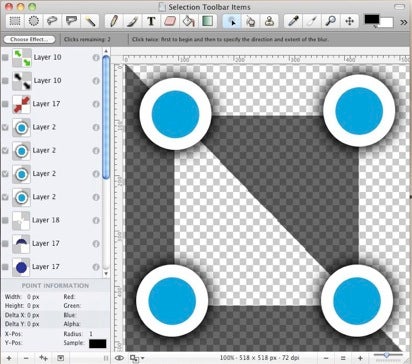
The main beauty of SeaShore is that it’s a lot simpler than The GIMP and feels closer to Photoshop in the way the menus are laid out:
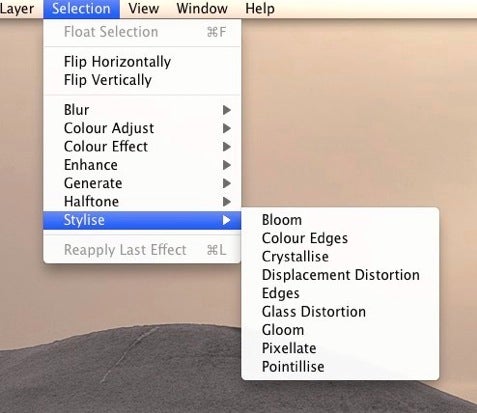
The downside of this however is that its not as powerful as GIMP and lacks certain advanced editing features. In fact, even basic features such as Color Balance and Levels are missing from SeaShore. Stability can also occasionally be an issue as the SeaShore forum illustrates but it usually manages to carry out most functions without any problems.
SeaShore feels a lot less intimidating than GIMP though and both the slick Cocoa interface and simple functionality will make it popular with anyone who has struggled with GIMP.
Make GIMP look like Photoshop with GimPhoto
 The closest free image editor to Photoshop is GIMP. However, using GIMP can be awkward for those used to Photoshop’s interface and menus and so there have been a few attempts to adapt GIMP to make it closer to Photoshop. One of them is GIMPshop (which I looked at here) and the other is GimPhoto.
GimPhoto may well be the solution for you if you don’t like GIMPshop. Like the latter, GimPhoto is a modification of GIMP which makes it feel much closer to Photoshop. It does this because by default, it includes 20 plugins which are available with GIMP.
One of the frequently cited problems with GIMP is that the interface and menu labels are a bit confusing and awkward compared to Photoshop and this is certainly something that GimPhoto has improved upon. GimPhoto looks and feels much closer to Photoshop:
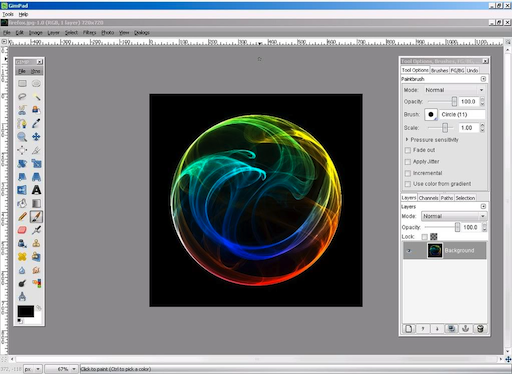
GimPhoto incorporates many of the features of GIMP but with an improved interface, batch processing, online backups, custom brushes and advanced editing options. The menu layouts are much closer to Photoshop meaning Photoshop users will adapt to it much quicker than GIMP or GIMPshop:
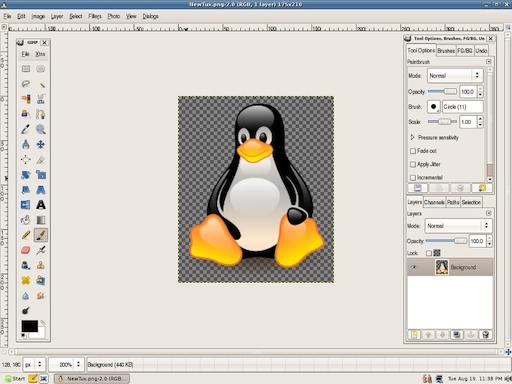
However, GimPhoto is still a quite complex package for beginners although there’s a very detailed user guide to help you get to grips with it. Obviously, it also lacks some of the most powerful editing features of Photoshop.
GimPhoto is an impressive attempt at making a free version of Photoshop and if you never really adapted to GIMP or GIMPshop, it may well be the image editing package for you. Note that GimShop is only available on Windows (including a portable USB version) and Linux. If you’d like to see it on Mac, or have any comments about the Windows and Linux versions, you can leave suggestions for the developer here.
Make Gimp look like Photoshop
 Gimp for Mac and Gimp for Windows is one of the most popular free open source image editors around and quite rightly – it’s remarkably powerful and easy to use for a free image editor. However, those Mac users used to the the luxurious surrounds of Photoshop probably have a hard time a) using a program called “Gimp” to edit their work and b) using the rather amateurish interface and weird naming conventions that Gimp uses.
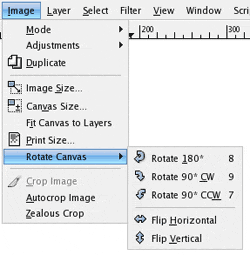 If you wish you could combine the two in someway then you should definitely checkout GIMPshop for Windows or GIMPshop for Mac. GIMPshop emulates the look and feel of Photoshop remarkably well and changes all those weird Gimp labels such as “convolve” and changes it into the more familiar Adobe Photoshop term of “blur/sharpen”. In fact, the program renames and reorganized almost all of GIMP’s tools, options, windows, and menus to closely resemble Adobe Photoshop’s menu structure and naming conventions. In addition, many of the menu options and even whole menus have been recreated to faithfully reproduce a Photoshop-like experience.
Of course, GIMPshop is no replacement for Photoshop in terms of functionality but it does a pretty impressive job looks wise.