The Google Camera app might finally be getting this cool feature

Reports are suggesting that Google might have resumed working on a Time Lapse mode for its camera app

When all other smartphone makers were loading up their flagship handsets with multiple cameras, Google stuck with just one for their Pixel line. Despite this apparent handicap, Pixel phones are regarded as having industry-leading camera capabilities. The secret behind Google’s success has been its efficient use of Artificial Intelligence. It hasn’t all been hunky-dory, however, and to demonstrate a perceived lack of actual intelligence the Google camera app has been missing a common smartphone camera feature for quite some time now. To remedy that, change is on the horizon.

Reports are suggesting that Google might have resumed work on a Time Lapse mode for its camera app

Google Camera Download now ►
8

Time Lapse photos allow you to capture more than just split seconds using your camera. They take multiple images and then stitch them all together so that you can show extended periods of time in mere seconds. They’re particularly good at capturing natural events like sunrises and sunsets.

According to the guys over at XDA, Google might be looking to finally introduce a time-lapse mode into its camera app. After tearing down the APK file for the latest Google Camera 6.1 update and looking through the code, XDA discovered some development of the particular string relating to a Time Lapse mode. This string has been a part of the Google Camera code for quite some time, but it has always remained dormant and unchanged through multiple Google Camera versions.
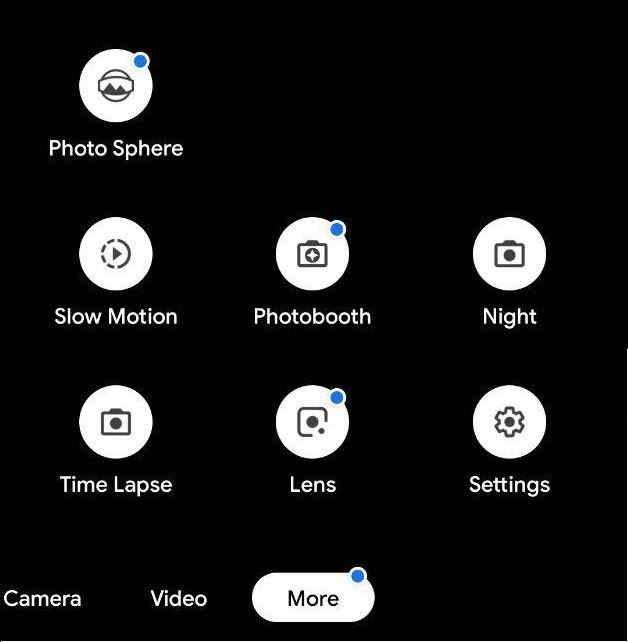
Image via: XDA developers

The Time Lapse string has acted as a placeholder across multiple generations of the Camera app but now, finally, Google is adding code on top of it. When they looked at the version of the Google Camera that shipped with review handsets of Google’s new Pixel 3 and Pixel 3 handsets XDA discovered actual code that hasn’t been present in past versions of the app.

All this means that it is highly likely that Google has recently begun working on a Time Lapse mode for its Camera app. This doesn’t mean that we’re guaranteed to see a Time Lapse mode on our Google Cameras just yet. If Google has only recently begun developing the Time Lapse mode, it could still be quite some time before it is ready for a general release. That is, even if Google has plans to introduce the new feature in the first place.

If we are going to get a new Time Lapse mode though, we’ll likely see it in a beta version of the Google Camera app first. That means if you want to hear about it first, you should keep checking Softonic for more updates on your favorite apps. Better yet, put your email address in the box below and we’ll make sure we put the latest apps and software news right at your fingertips.
Google Camera and Android Wear demonstrates potential for the platform

Android Wear is still trying to find its purpose in the lives of those who own it. It’s most basic use is as a separate screen for notifications, but Android Wear actually has a lot of potential for other functions. When Google last updated Google Camera for Android, it added a small extra feature: a remote shutter option. More than its actual function though, it appears that the remote shutter feature actually demonstrates the potential of Android Wear for other services.

Controlling Google Camera remotely

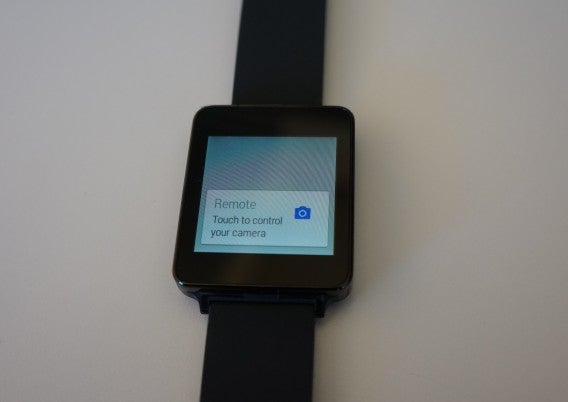
The remote shutter option lets you activate the shutter for Google Camera on compatible devices by tapping on the face of Android Wear, although it only works with standard photos and doesn’t support video recording, Photo Sphere, Panorama, or Lens Blur modes.

Google Camera

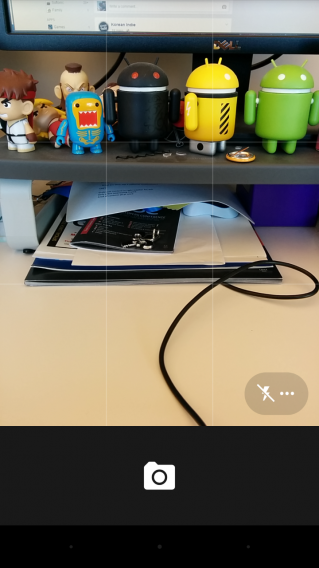
When you open Google Camera, there’s no notification that Google Camera is connected to Android Wear, but you’ll be able to tell with a small notification on Android Wear that says Remote. Tapping on the notification will open the shutter button on Android Wear. Once you tap it, a three second countdown will begin before the photo is taken with Google Camera on your Android phone. Once it’s taken, you can preview a small version on Android Wear.

Google Camera Android Wear

I suppose adding the shutter feature to Android Wear could let you take better selfies, but it wouldn’t work that well if you’re holding the camera and have to use your free hand to activate the shutter on Android Wear.

Strangely enough, Google Camera already supports activating the shutter with the volume buttons. The remote shutter option was almost added as a duplicate feature. Why? It seems like it could be more of a proof of concept for other app developers.

Lead by example

Google Camera’s ability to use Android Wear to remotely activate the shutter isn’t as much of a “must-have” feature as it is a concept for its use. It would be nice to see other photo apps like Instagram, Vine, or Snapchat include this feature to give people the ability to remotely control these apps. More apps should be adding functionality to Android Wear, but for now, Google Camera shows off one example for the expanded use of the smartwatch. In some cases, being able to take self portraits can be really useful and help get away from those horribly angled photos.

Right now, developers are able to use the Android Wear SDK to add functions from apps to the device, but I think a big question is whether or not adding a new function is compelling enough. In some cases, smaller developers may be waiting for bigger developers to announce a feature that others can build off of.

It’s only been about a month since Google officially announced Android Wear at Google I/O, and the selection of officially supported apps is still pretty small. It’s not that Android Wear needs a killer app, but the platform needs more expanded use other than notifications. It’s still too early to call Android Wear a failure, as the core functionality is great, but the platform has a lot of growing to do.

Follow me on Twitter: @chrislikesrobot

Related Articles:

Google Camera updates with Android Wear remote, improved panorama interface

Google’s Camera app is getting a minor update today, bringing subtle interface changes for panoramas and a remote shutter button for Android Wear.

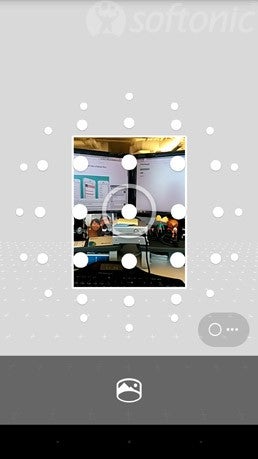
Google Camera panoramaVersion 2.3 of Google Camera tweaks the panorama interface with bigger dots to make tracking easier. A big blue dot turns white when a picture is taken. It’s a subtle change but makes it clear where the app wants you to point the camera.

More exciting is the addition of a remote shutter button for Android Wear smartwatches. It’s a simple app that triggers a three-second countdown timer. To get this feature, all you have to do is open the camera app and a card will automatically show up on your Wear device.

The update is rolling out slowly and it may be a few days before you see the update. If you can’t wait, Android Police has a list of mirrors where you can download the app. Find it at the source link below.

You will have to allow sideloading apps, defeating one of Android’s security measures so make sure you know what you’re doing.

Via: Android Police

Follow Lewis on Twitter: @lewisleong

RELATED STORIES

How to use Panorama and Photo Sphere in Google Camera

Now that Google Camera is a standalone app, downloadable for anyone using Android 4.4 or higher, using the extra modes might be a little confusing.

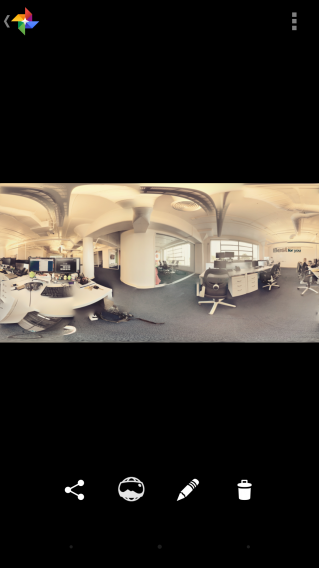
Taking panoramic photos isn’t new to camera apps, but usability can differ depending on what app you’re using. Photo Sphere is a camera mode that can combine multiple photos into one large 360 degree photo. It doesn’t work all the time, but it can create some really interesting photos when it does.

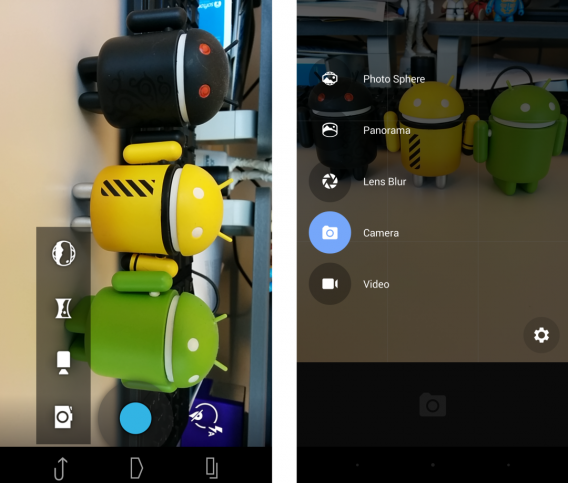
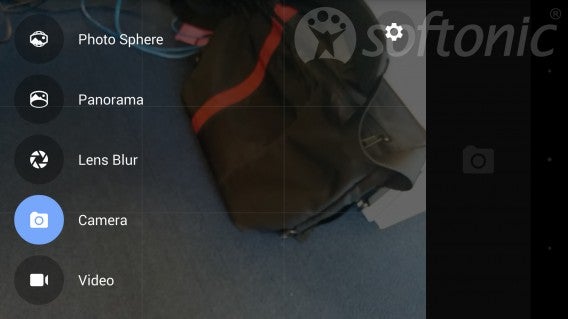
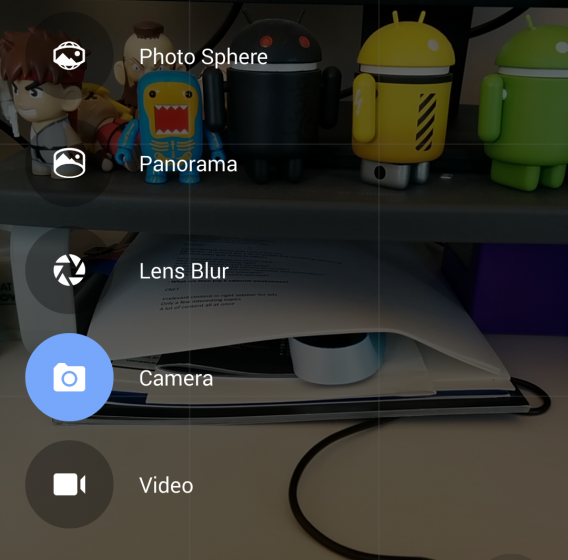
The options for Panorama and Photo Sphere are located by a swipe from the left in Google Camera. This menu will display all the different camera modes available.

Google Camera photo modes

Panorama

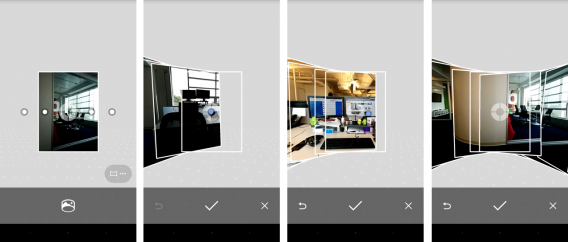
Google Camera makes taking panoramic photos really easy. You start by picking a beginning point and tapping the panorama icon. This will take the first photo. The dots on the screen are guides to keep the alignment of the photo. Continue to line up the dots and Google Camera will automatically take the photo.

Google Camera panorama

My best advice is to make sure you don’t move around when taking these photos, or Google Camera will have difficulty combining them. Once you’ve finished the panorama, Google Camera will process the image and combine them all into one photo.

Google panorama complete

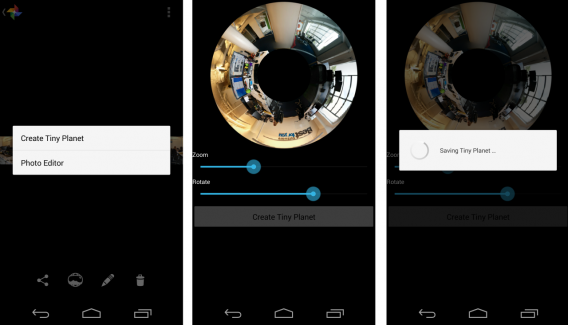
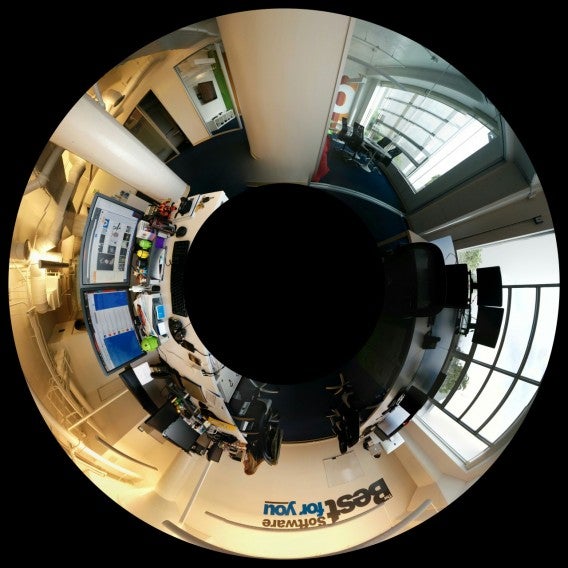
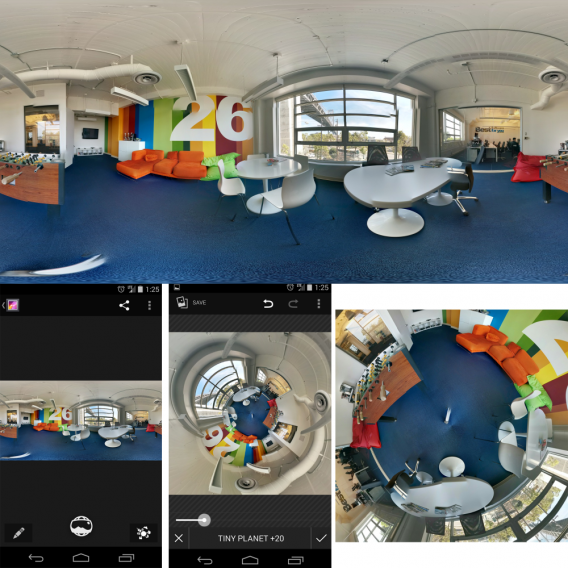
In the Photos app, you’re able to manipulate the panoramic photo or let it auto-scroll. Other options include creating a Tiny Planet which will combine the image into a circle.

Google Camera Tiny Planet

You have the ability to control the zoom and rotation of the image through the Tiny Planet editor. You can also use editing tools in Photo Editor to manipulate different settings of your photo to your liking.

Google Camera panorama tiny planet

Photo Sphere

Google Camera’s Photo Sphere expands the idea of a panorama photo by taking pictures to create a 360 degree immersive photo. It works best where all objects are stationary and taking a photo sphere outside may be the best use, because the camera can’t always process the images perfectly and outdoor photos are a bit more forgiving.

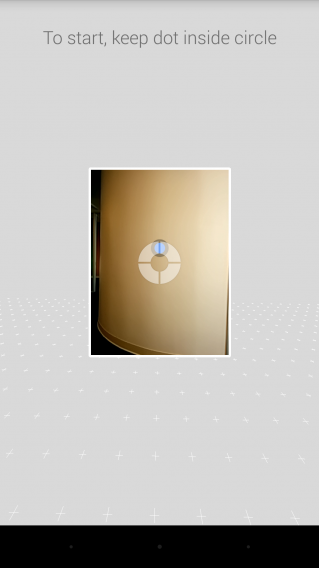
Taking a Photo Sphere starts the same as a panoramic photo. You line up the first picture with the on-screen prompt.

Google Camera Photo Sphere

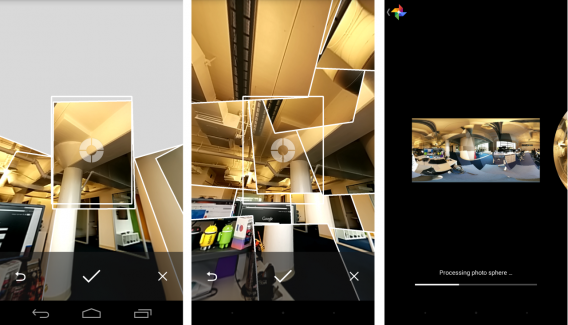
Google Camera will place dots on the screen to guide where each picture should be taken. Capturing a photo sphere doesn’t take a lot of time, but on occasion the Google Camera app crashed, losing all the previously-captured photos. Once you’ve finished taking all the photos, the app will begin merging them all together.

Google Camera Photo Sphere

It’s much more immersive when you view the image on a device, because you can move the image around or let it auto-scroll.

Google Camera finished Photo Sphere

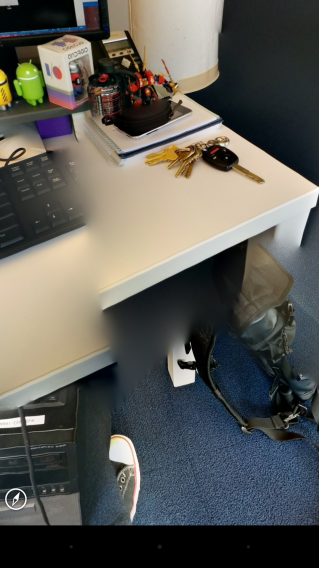
If you look closely though, you can see some image stitching problems.

Google Camera Photo Sphere problems

In most cases, a Photo Sphere works without major problems, but it’s still designed to be viewed online or on a device to get the full immersive experience.

Photo editing

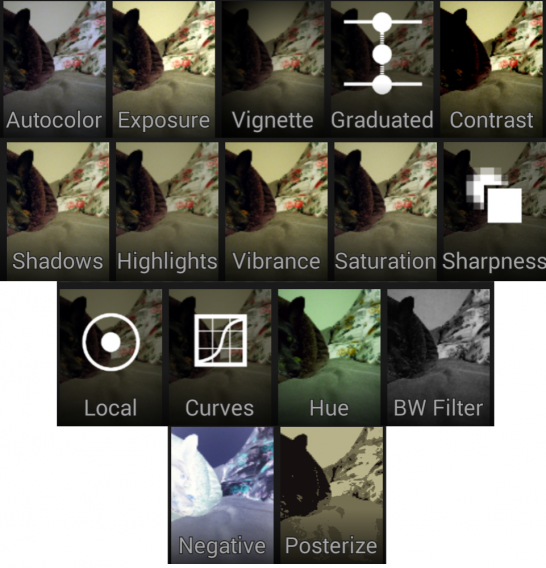
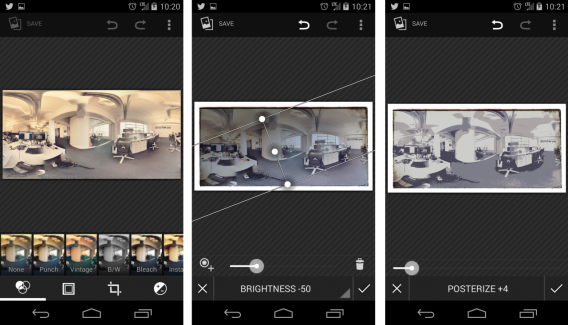
Photo editing hasn’t changed since the introduction of the Gallery in Android 4.4 KitKat. The editor makes it simple by first offering to add a number of different filters, a frame, or crop the image. The more advanced options are under the exposure icon.

Google Camera photo editor options

The photo editor offers 16 different options to fine tune your photos. Some effect the photo overall like Autocolor, Negative, and Posterize, while others can be applied to specific areas of the image.

Photo Editor

Photo Editor lets you experiment a lot because after you apply an effect, you are able to remove it by tapping the back arrow. This means that any accidental edits you make can be reversed. Some of these tools will take time to learn exactly what they do, but even if you don’t make the effort, it’s good to be able to make quick changes to an image before you share it.

A decent, quick alternative

Any camera on a smartphone can’t match the ability of a proper digital camera and desktop photo editing apps. Even so, Google Camera offers a good amount of usability and versatility. The Panorama and Photo Sphere modes offer something different than just regular pictures or video, and are interesting ways to showcase a scene. The only drawback is that Photo Sphere really only makes an impact if viewed online to experience the immersive content; otherwise, it’s just a more complex panorama.

Google Camera is a simple camera app with great options. The editing options found in Gallery’s Photo Editor add usability, but some of the more advanced edits will require some trial-and-error to use them effectively.

RELATED ARTICLES

Google Camera simplifies photography

Google is breaking up its Android operating system by removing core apps from the OS and releasing them in the Play Store. Google is doing this to reduce fragmentation by providing updates in Google Play and Google Play Services for OS updates. Users will no longer need to wait for the latest version of Android to get the latest features. The latest app to get to get separated from Android is Google Camera, the default camera app for stock Android.

Google Camera Photo Sphere Softonic San Francisco

The app is available for all devices running Android 4.4 KitKat and higher and the user interface (UI) was greatly improved.

Faster and more responsive

One annoying issue with the old Camera app was that it lagged when focusing. There was an Android update that included updates for the camera, but they it didn’t fix the issue.

Google Camera 2.0

The Google Camera app loads a bit faster on my Nexus 5. The selector for different modes like Camera, Video, Panorama, and Photo Sphere are now a swipe instead of an expanding menu with icons. The simple addition of text makes it easy for new users to know what option they’re selecting.

Google Camera 2.0 vs Google Camera 2.1

Image quality will vary from device to device. I find the Nexus 5 camera to be fine for day-to-day images. It was never meant to be a replacement for a high end point-and-shoot or DSLR camera. The old app opened quick enough for a snapshot, but focusing was an annoyance. The app would re-adjust a lot before it would finally be ready to take one photo. Now it opens and takes a lot less time to focus and snap a photo. You can also use the volume buttons to take a photo instead of  tapping the on-screen button.

A simple, direct interface

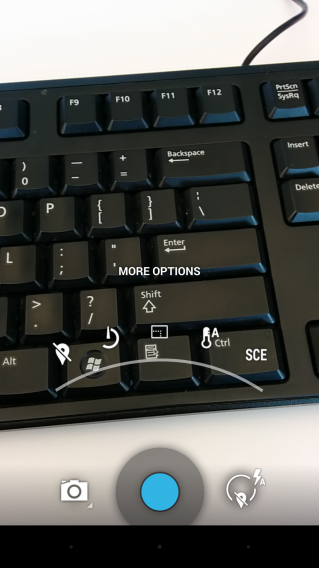
The old camera app was quick enough for photos, but camera options were hidden in menus. While the app had the most common options in the first menu level, more options for fine-tuning (like the timer) were a further level down. The new Google Camera app removes this second layer. You can turn on manual exposure in the Advanced tab in Settings, but unfortunately there aren’t any other options.

Google Camera 2.0 More Options

Android’s Photos app includes a lot of different options to customize and tweak a photo and with Auto Awesome, a lot of editing is done automatically. But with the new update, Google Camera is a bit sparse by only focusing on the act of taking a photo or recording video. Hopefully Google Camera will include more features like automatic Auto Awesome in a future update.

New to Google Camera

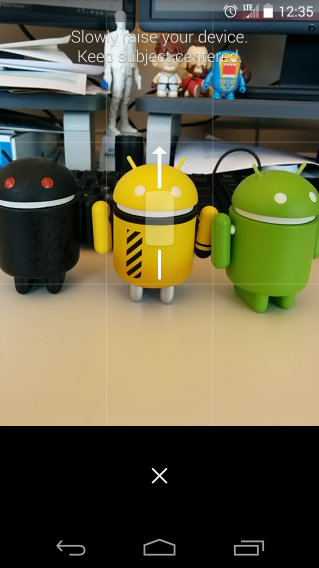
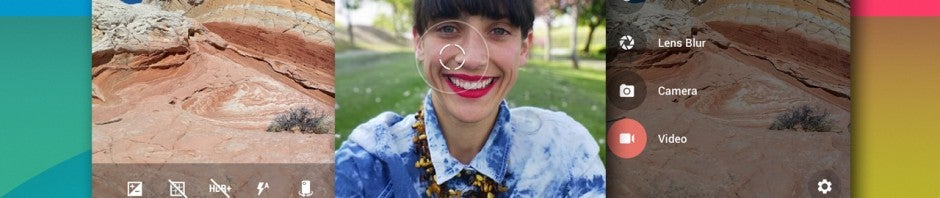
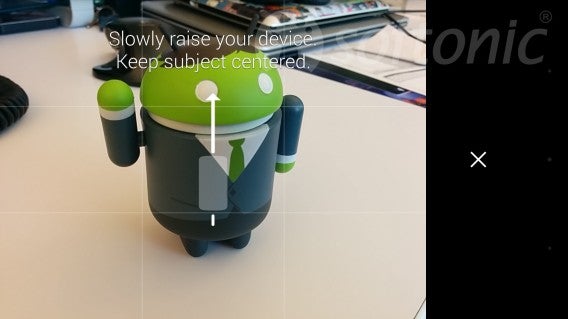
New to Google Camera is a feature called Lens Blur. It’s a mode that’s creates “SLR-like photos with shallow depth of field.” I tried it a few times with varying levels of success, but the main problem is having to slowly pan the device upward. I can’t see anything really different, but that could be because the default quality is set to Low. I’ll have to try it in better condition with on High quality.

Google Camera 2.1 Lens Blur

I did a test with Photo Sphere and Panorama. With the old Camera app, taking these types of photos took a long time to capture and process. The updated app is faster to capture, but processing time still takes a while to finish.

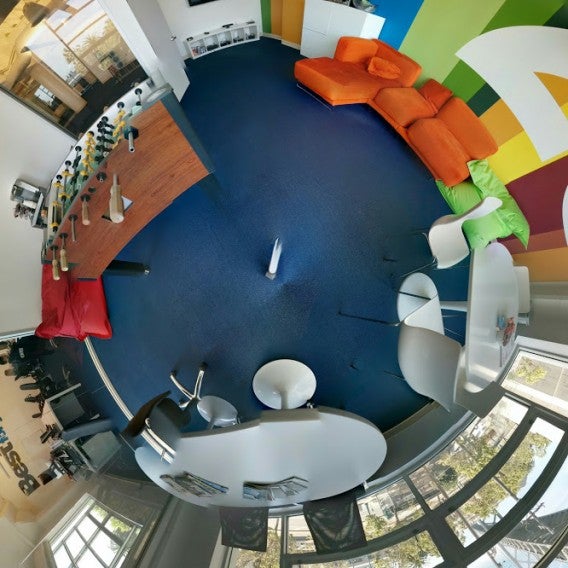
A nice feature I never noticed before is that if you edit a photo in the Gallery app (on the Nexus 5) instead of Photos, you can make a Tiny Planet. This will wrap the photos into circle with Panoramas and into a bizarre fishbowl image with a Photo Sphere.

Google Photo Sphere into Tiny Planet

The fact that Google includes a Gallery app alongside Google+ Photos on the Nexus 5 is strange. That means there are two different ways to control your photos, but app offers different features. It’s possible that the next update for Android may finally remove the Gallery app and make people use Photos.

Back to basics

The fact that Google Camera removed some of the more advanced options in the old version may be alarming to some, but most users probably never used these features. Google+‘s Photos app includes a lot of customization options and Auto Awesome is a decent tool to improve your photos by itself.

Google Camera Panorama San Francisco

Google Camera’s simplification is good for quick photos that will likely be imported to other apps like Instagram or manually add filters in other apps like Photos. Now that Google Camera is standalone app, updates should happen a lot faster than before.

If you have a device running Android 4.4 or higher, you can download the app here.

Google Camera app update features simpler design, available as separate app

Google released a major update to its stock camera app today. The interface has been completely redesigned and the app is now offered as its own download. Previously, the Camera app was built into the Android operating system, which resulted in slower updates.

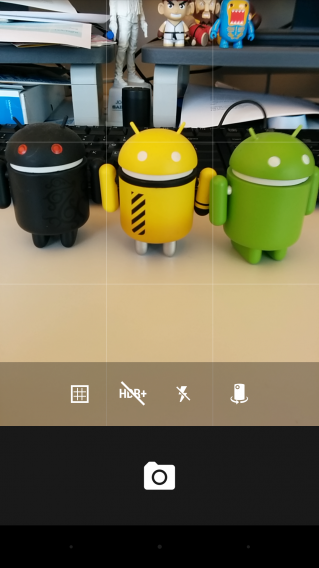
Google Camera interface

The most striking change is the interface. Gone is the hidden menu for camera options. You no longer need to long press on the screen to bring up options for exposure, flash, and switching cameras. The different modes like panorama and video are located to the left. Swipe in from the left bezel to bring up the options. Swipe in from the right to view your photos.

Google is also combating portrait shot videos with a nag screen that reminds users to rotate their device to landscape.

Google Camera Lens Blur

There’s also a new mode called “Lens Blur,” which simulates blurry backgrounds that’s only achievable with nicer cameras. Using Lens Blur takes a bit of practice as you have to slow move your phone up after you take a shot. Photos taken with Lens Blur take a long time to render. There’s an option in the settings to sacrifice photo quality for speed.

Google Camera Photo Sphere

Photo Sphere and Panorama modes are still available but have been given more options. Panoramas can be turned into a circle and Photo Spheres can be cropped into a top-down perspective.

Google Camera finally fixes its viewfinder issue as well, offering a one-to-one view of what your shot will look like. Past versions featured a full screen viewfinder that would crop photos.

You’ll need a phone or tablet running Android 4.4 and up to install Google Camera.

For a more in-depth look at the changes in Google Camera, check out our hands-on.

Download Google Camera for Android 4.4+

Via: Android Police

RELATED STORIES