How to create lists on MX Player

Watching videos and listening to music on MX Player is an enjoyable experience on mobile. We’ve waited so long for a decent audio app for so long, and not many match the functions this one provides. It even lets you create a playlist so you can access several tracks and videos after each other.

MX Player DOWNLOAD

While it may not have always been available, you can now create a list on MX Player. Once you do, you can simply sit back and listen to your favorite tunes without interruptions. It also plays in the background while you check other apps or your browser.

Creating a list on MX Player

Once you’ve worked out how to install and use MX Player on your Android device, here are the steps to create a playlist.

  1. Head to Playlist section

    How to create lists on MX Player

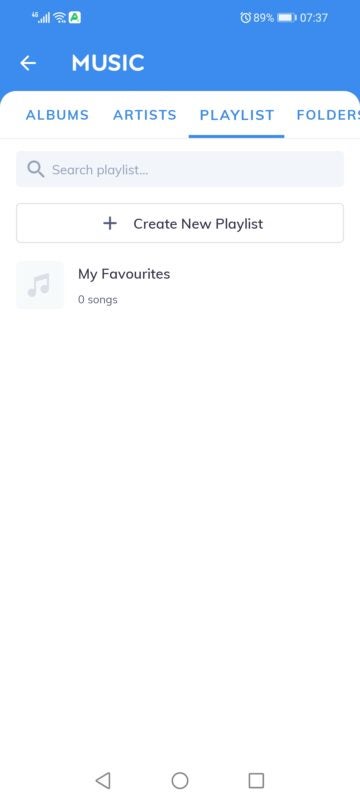
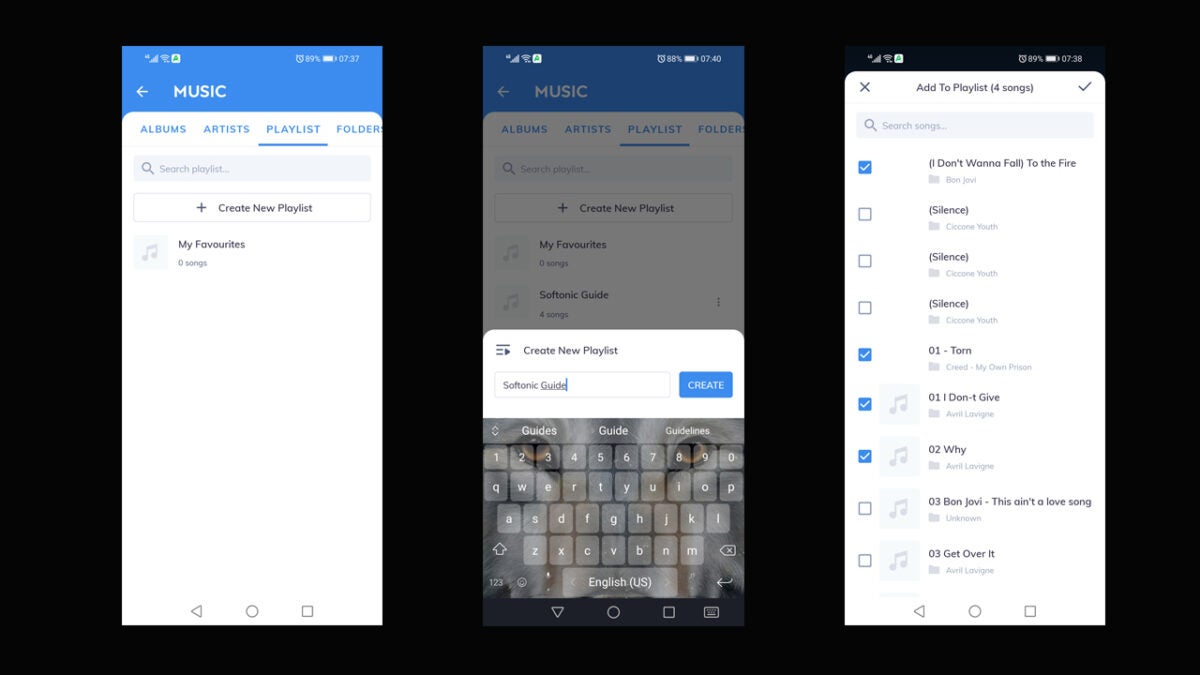
    Open the audio and video app, where you’ll see the main menu. Tap on the menu icon and select Local Music. You’ll notice a few tabs at the top, one of which is Playlist. When you access this area, it will be empty at first since you haven’t created a list on MX Player yet. You can now tap on Create Playlist.

  2. Name the Playlist

    How to create lists on MX Player

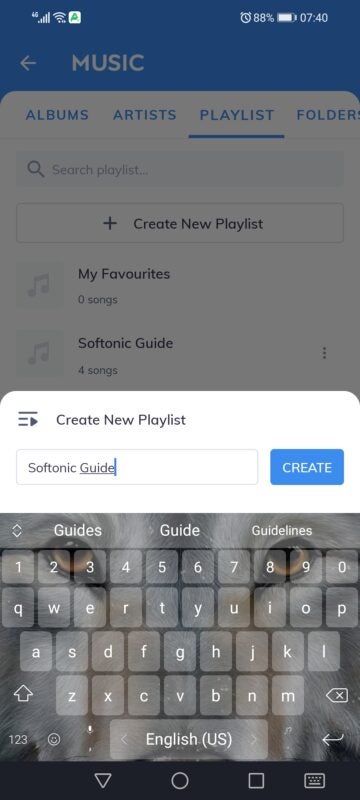
    A small window will appear at the bottom. You can name it anything you want, as long as it has some connection to the songs inside the playlist so you can remember what you called it at a later stage. As soon as you name the list on MX Player, the playlist will open and let you add songs when you’re ready.

  3. Add songs

    How to create lists on MX Player

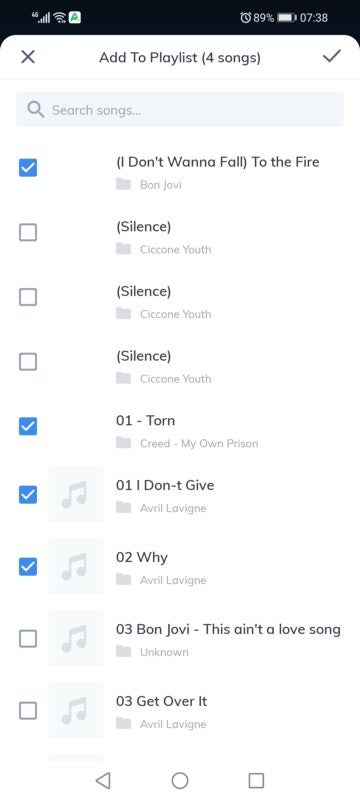
    Tap on the Add Songs icon. You’ll need to give MX Player permission to access the Android’s storage. When you do, you’ll see all your media appear. Feel free to tick all the boxes so that the app knows which ones to send to the list. You can save the choices when done. To save video playlists, head to the menu and choose Video Playlist. You’ll perform the same actions, but select video files instead.

Tips for using lists on MX Player

Now that you see how easy it is to create a list on MX Player, there are some functions related to it that you should know about. These will make the tunes or videos easier to manage, and most of the features are easy to find. 

Switching tracks or videos

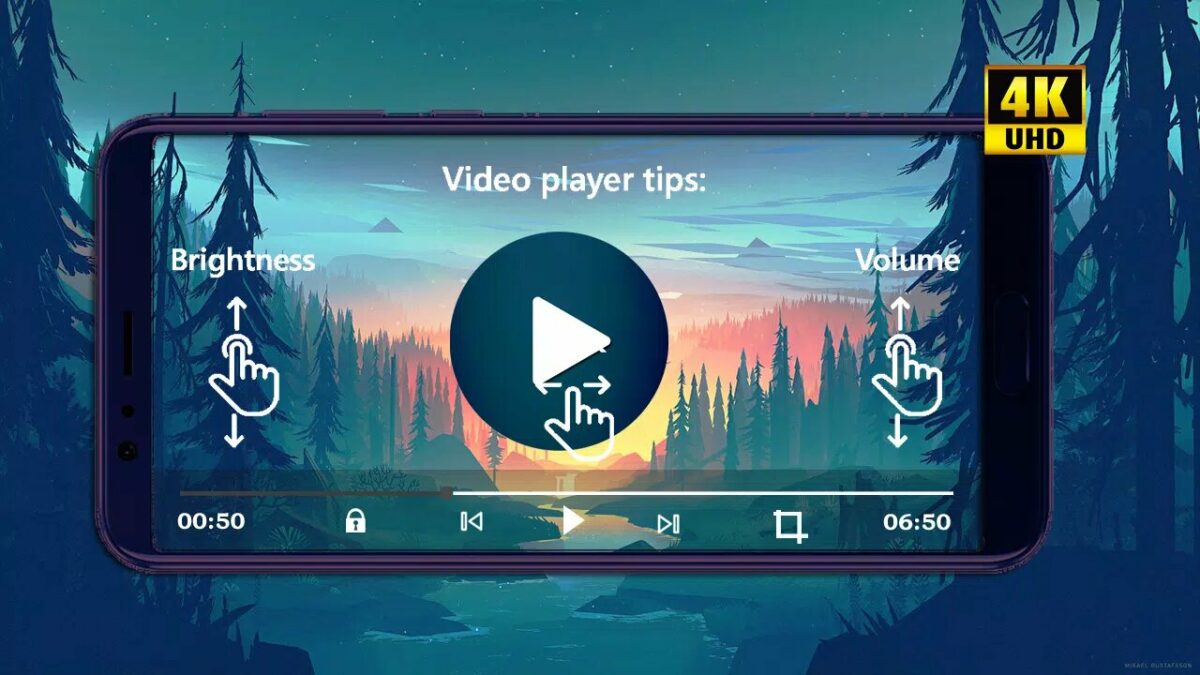
While you’re playing music or videos, you may not be particularly interested in a specific file at that moment. If you want to skip to the next song, just swipe the small menu bar at the bottom to the right. If that doesn’t work, you can just tap the arrow to the right or left, depending on if you want the next or previous track to play.

Adding new files

We’ve all had that moment when we hear a new song we love and download it immediately. It may suit a playlist you created on MX Player, so you can add it at any point. Just open the specific list, select the small menu icon in the top right, and select Add Song. You’ll need to browse for the location of the new content.

Removing from playlist

Tired of a specific song in your mixtape playlist? You don’t need to sigh every time it appears on your phone. Head to your list and open it, finding the track you no longer want to listen to. You’ll see the menu icon next to each song. Tap on it and select Remove From Playlist.

Clearing the playlist

You may think this will never happen to you, but it happens to the best of us. Perhaps you created a list on MX Player that reminds you of someone you love. When the romance disappears or they dump you, you won’t want to be reminded of them. Open your playlist, tap on the menu icon, and select Clear Playlist. It will only remove the tunes from your list, not your phone.

Adding to MX Player favorites

There’s a different type of default playlist on MX Player called Favorites. If you hear a song you love that you want to listen to again later, tap on the menu icon for the song and choose Add To Favorites (or Favourites, depending on your location). You can then head to the Favorites section when you want to access it again.

Make life awesome with a list

With a playlist created on MX Player, you can chill by your pool and listen to tracks without touching your phone. Even if you are browsing the internet on your device, they’ll continue to play in the background without your intervention.

We hope this guide has made it easier not only to make your own list but to change it the way you want. You can also check out how to install and use MX Player if you haven’t done so yet.
How to install and use MX Player READ MORE

How to install and use MX Player on your Android

MX Player is an app developed by MX Media & Entertainment (formerly J2 Interactive) for watching videos and listening to audio on your smartphone or PC. It’s so popular that more than 280 million people use it worldwide. It’s free to download and supports nearly all video formats, so you won’t have to install multiple media players to watch videos made in different formats.

MX Player DOWNLOAD

Once you’ve downloaded MX Player, you’ll be able to watch videos from streaming sites downloaded from the internet or your own videos that you’ve shot with the camera on your phone. An extra bonus is that you’ll be able to share them with others.

  1. Download and install

    How to install and use MX Player on your android

    Head to the MX Player download page and click Download to prepare it for installation on your Android phone. Once the app has been downloaded, install it on your Android phone. You’ll be asked to give various permissions (listed below in this article) while downloading. There are quite a lot but don’t skip them. You need to give the permissions for the app to work properly on your device.

  2. Move around

    How to install and use MX Player on your android

    Easily zoom in and out by using your finger to swipe across your phone’s screen. You can also pan and scroll forward or backwards to move to the next or previous text or move text up or down. You can also zoom in or out to change the size of the text.

  3. Watch content

    How to install and use MX Player on your android

    Relax and enjoy the exciting range of videos that will be available to you without worrying about the format they’re recorded in.

Features of MX Player

MX Player has many features that make it the most popular video streaming app for Android phones. Here are some of them:

  • It’s a powerful video player with advanced hardware acceleration and subtitle support.
  •  It can apply hardware acceleration to videos with its HW+ decoder.
  • MX Player is the first Android video player that supports multi-core decoding, which works up to 70% better than single-core decoding.
  • Zooming in and out is easy.
  • It allows the fast transfer of files without using mobile data. You can share files, music, and video.
  • You can change the size of the text.
  • There’s a child lock to prevent children from touching other applications.

Subtitle formats included

Subtitles come in many formats and MX Player can handle most of them, including  DVD, DVB, SSA/*ASS* subtitle tracks, SubStation Alpha(.ssa/.*ass*), and SAMI(.smi) with Ruby tag support, to name a few. It means you can easily view subtitles when watching your favorite videos. 

Permissions required during download

When you download MX Player, you will be asked for many permissions, which some users find irritating. But don’t ignore them. They are necessary to ensure that the app runs properly. Here is an explanation of what they are and why you need them:

  •  READ_EXTERNAL_STORAGE: to read media files in your storage areas.
  • WRITE_EXTERNAL_STORAGE: to rename or delete files and store downloaded subtitles.
  •  LOCATION: to find nearby friends for file transfers.
  • NETWORK and WIFI: to get network status for activities like licence and update checking. Wifi is also used for faster file transfers.
  • BLUETOOTH: to improve AV sync when Bluetooth is connected for file transfers.
  • CAMERA: to scan QR codes for file transfers.
  • INTERNET: to play internet streams.
  • VIBRATE: to control vibration feedback.
  • WAKE_LOCK: to stop your phone from sleeping when you’re watching a video.
  •  KILL_BACKGROUND_PROCESSES: to stop MX Player services used in background play.
  • DISABLE_KEYGUARD: to prevent secure screen lock when Kids Lock is on.
  • SYSTEM_ALERT_WINDOW: to block some keys when Kids Lock is on.
  •  DRAW OVER OTHER APPS: to block system buttons when input blocking is activated on the playback screen.

Why install and use MX Player?

This video player is popular for a very good reason. It runs really well and is easy to use. It opens up a wealth of video material to you on your phone for maximum enjoyment and easy accessibility. It’s vastly superior to the standard app your phone comes with for watching videos. It’s also free unless you want to upgrade to a paid version with no ads.

You may also want to make a playlist for your top tunes. Here’s a quick guide on how to create a list on MX Player.

How to create lists on MX Player READ MORE