How to downgrade from Lion to Snow Leopard

So you’ve upgraded to Lion, got all excited, but then found that important applications like Microsoft Office and Adobe Flash aren’t working properly. We did try and warn you but don’t worry – bugs like this are normal with a new OS release and updates will surely be released in the next few weeks and months to fix them. However, if Lion is making your life hell, you can always downgrade back to Snow Leopard in a few simple steps.

1. Backup your files to an external drive

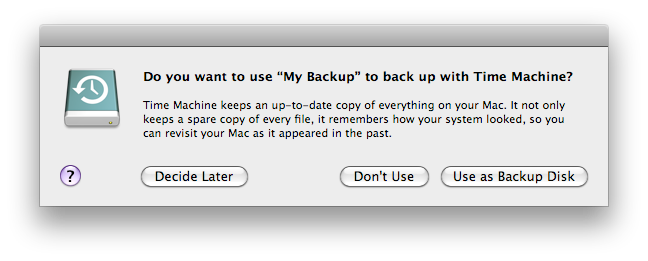
Make sure you’ve got a backup of your files using a tool such as Time Machine, SuperDuper or Carbon Copy Cloner. If the last time you backed-up on Time Machine was with Snow Leopard, your life will be a bit easier. If you’ve overwirtten it since then with a Lion backup however, you’ll find that you can’t restore a Lion Time Machine backup in Snow Leopard because of comptability problems. In this case, just drag your user folder (Macintosh HD/Users) from Lion into an external drive and then you can just drag it back into Snow Leopard. Note that it’s important to backup to an external drive because shortly, you’ll be wiping your hard drive.

2. Boot from a Snow Leopard Disk

Insert the Snow Leopard disk. Shut-down your Mac, switch it back on and hold down the “Option” key and select Snow Leopard.

Continue reading “How to downgrade from Lion to Snow Leopard”

How to configure a Cisco VPN client in Snow Leopard

One of the great things about Snow Leopard is that you no longer need Cisco’s VPN Client to connect over a private network. Snow Leopard has its own Cisco VPN network configuration tool that works within OS X 10.6. Cisco’s VPN client doesn’t even work with Snow Leopard so if you’ve still got it on your system, you can dump it in the Trash. However, setting up a Cisco VPN network might be a little tricky for those doing it for the first time so here is a simple guide.

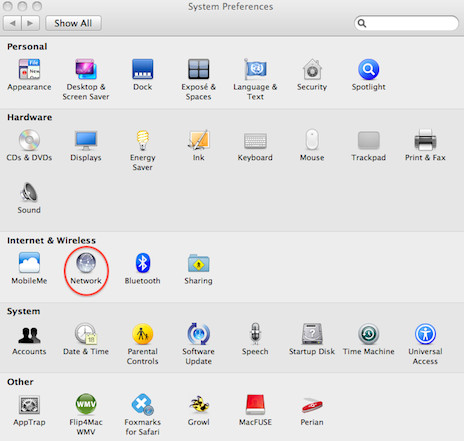
Go to System Preferences and select Network:

system-pref2.png

Use the “+” symbol at the bottom of the list of network connections on the left-hand side to add a new network. Continue reading “How to configure a Cisco VPN client in Snow Leopard”

Ask OnSoftware: Problems with Mail in Snow Leopard

Apple Mail logoMonths after the release of Snow Leopard, it still seems that many Mac users are having problems with Mail in Snow Leopard. An earlier post we wrote on Solving Problems with Mail in Snow Leopard attracted many users who discussed some of problems they were having and possible solutions. One user however, Francis in Australia, wrote directly to OnSoftware in quite a pickle:

I have a new MBP which came with Snow Leopard, and then I did a migration assistant from my previous MBP from Leopard. After that was done I loaded Mail to get on with things and Snow Leopard performed some first time upgrade to my mail files – to make them play with Snow Leopard. Is this upgrade to my mail irreversible?

Unfortunately for Francis, the update is irreversible. The obvious solution would be to use Time Machine to roll-back to her Leopard installation for now but Francis adds:

However I only have backups now from my Snow Leopard as after I was up and running with Snow Leopard all looked OK on day one so I backed up with Time Machine with a fresh Snow Leopard backup.

This is one of the obvious dangers of backing-up to Time Machine too quickly after a new OS install. Users should wait at least a week or so before backing-up to Time Machine after they’ve installed a new OS. Otherwise, the advantages of using it to rescue situations like this are zero. Finally Francis adds:

I need to get back to Leopard so I’m thinking of doing a clean Leopard install and then bringing across only my home folder and all contents from a clone backup I’ve made of Snow Leopard. Will my mail files – which have been upgraded inside Snow Leopard – work on Leopard’s version of Mail. Or am I screwed?

The chances are, that mail files modified in Snow Leopard’s version of Mail won’t work with Mail on Leopard. It’s already been established that, due to the way Mail handles plugins for Mail, many Mail plugins have been broken by Snow Leopard and it’s updates.

The obvious question to Shirley here is whether the mail is backed-up to a server. If so, it should be possible to delete the “~/Library/Mail” folder and then when Mail is reopened, it will rebuild all of the mail from the server. However, the best solution all-round would be to specify exactly what are the precise problems Shirley is suffering in Snow Leopard. There’s a good chance that whatever it is, can be solved by reading the post and discussion in our first post on this issue.

The overall moral of this story though – don’t rush into making Time Machine backups after installing a new OS!

[Alternatively, stop using mail clients altogether. Ed. ]

Snow Leopard is Apple’s Vista

X Incompatible logoOne thing you can usually guarantee with Apple’s OS releases is that they will work properly. That wasn’t the case with Snow Leopard – released exactly two months ago today – and the compatibility problems that have dogged it hark back to Microsoft’s disastrous release of Vista. I’m not for one minute arguing that the functionality of Snow Leopard is as bad as Vista and the incompatibility problems are far fewer. But the number of problems being discussed by users on this site alone suggest that for the first time in Apple OS releases, they got it badly wrong.

Apple Mail in particular has caused a huge number of problems as the comments following a post I wrote addressing Snow Leopard incompatibility issues with it prove. Mike’s frustrations are typical of many:

Massive problems here. Mail crashes occasionally, Aperture crashes all the time, especially when trying to export. CS3 has crashed. I mainly see the crashing when going into the dialog boxes (i.e export etc). I am not going to go into work-arounds, that’s not my job, I paid a fortune for all of my apple gear to get away from this type of issue. Apple should have gotten this right before releasing it.

He’s absolutely right to be so angry. The least Apple users deserve is that Apple’s own software works with what was merely a revised version of Leopard. And as he found out, it’s wasn’t only Mail that caused problems. Adobe’s CS3 was a well publicized victim of Snow Leopard. Since we update programs on a regular basis here at Softonic, it’s been unavoidable for us to notice the large number of updates rushed-out by developers in the wake of Snow Leopard’s release and the volume of frustrated users finding that programs suddenly aren’t working anymore.

InformationWeek reported that at least 100 applications were incompatible with Snow Leopard on its release. Users at Wikidot are keeping track of those programs still incompatible including at the time of writing major packages such as Adobe After Effects and Adobe ColdFusion. And to complete the surreal Vista-esque scenario, there were even security issues on Snow Leopard’s release. We had the security hole created by Guest Accounts and a vulnerability in Java both of which put your Mac at risk of hijacking.

Don’t get me wrong. Snow Leopard was far less problematic than Vista on balance. Minor incompatibility problems are to be expected with completely new OS releases but Snow Leopard was hardly a revolution – it was merely a tweak of Leopard so it shouldn’t have been hard for Apple to get it right. That is, unless they rushed it out in advance of Windows 7 which seems like the most likely reason for the problems.

For many Apple users, the release of Snow Leopard will forever be remembered as the mark of the devil – 10.666. Let’s hope they get it right next time.

How to: Fix Mail problems in Snow Leopard

Apple Mail logoLast week I looked at a few potential pitfalls to watch-out for when installing Snow Leopard and asked you to report any new ones you’d discovered. Overwhelmingly, you identified Apple Mail as the main causality with many users reporting they either can’t send anything (some receiving the message “Error 54: Connection Reset By Peer“) or that it simply crashes on opening. How on earth Apple didn’t test this is not clear but as some of us at Softonic think, maybe they just presumed only dinosaurs use a Mail client nowadays 😉

As regards sending problems, it may not be Apple’s fault however. It seems that it could be related to a SMTP issues specific to different ISPs. Obviously, there’s no way that Apple could have tested Mail with every ISP in the world beforehand. One Apple forum user explains:

With some ISP, notably those that are cable, the SMTP is not separately authenticated, but rather is trusted based upon the IP address of the Modem they provide you. For such ISPs and SMTP, the authentication must be set to None, and no password or username enter for the Outgoing Server. It is simple for Mail to guess wrong about this, and you must set it right in the settings for the SMTP.

However, other uses have reported that changing SMTP settings still hasn’t worked for them. Here’s a collection of suggestions to help you get Mail working again:

Update SMTP Authentication

This is Apple’s only official response on issues related to sending problems. Go to the “Mail” menu and select “Preferences”. Click “Accounts” and then select the account the one having problems. From the SMTP server pop-up menu at the bottom choose “Edit SMTP Server List”. Click “Advanced” and then select the “Authentication” pull down menu and select the appropriate authentication type (from your ISP or the Mail Online Setup Assistant). Fill in the username and password and click OK.

Edit Outgoing Mail Server

Go to “Mail”  and “Preferences” and select “Edit Outgoing Mail Server”. Select “Advanced” and then change the radio button to Custom Port 25 (depending upon your ISP). Se the Authentication to “None” and click OK.

Move Mail folder to desktop

Sounds simple but apparently it’s worked for a number of users. Locate your mail folder in “/username/libary” and then move it the desktop. You can then import your mail messages by going to “File” and then “Import” and browse to the Mail folder on your desktop. You may find your mail is a bit disorganized after importing but you’ll just have to put everything back in it’s right place and folder manually.

Repair Permissions

Ideally this should be done just before and after your upgrade to Snow Leopard. If you’ve already upgraded however, you’ll just have to use Disk Utility to repair them afterwards.

Use Time Machine

If all of the above fails, then just use Time Machine to rollback to reliable old Leopard.

Don’t upgrade to Snow Leopard until you’ve read this

Snow Leopard BoxTomorrow is the day Mac users have been anticipating for the best part of this year – the release of OS X 10.6 Snow Leopard by Apple. At $29, the speed improvements and subtle enhancements it will bring are a snip. However be warned – it seems the Leopard will come with a bite and there will inevitably be some nasty incompatibility surprises in store in terms of software and possibly even hardware.

Engadget and Wired have been two of the first sites to give Snow Leopard a test and have discovered quite a few problems along the way. Here are some of the most important things to be aware of before you upgrade:

  • Don’t expect a visual revolution. If you’re expecting an entirely new looking Operating System to Leopard then don’t bother. Most of the enhancements in Snow Leopard are under the hood.
  • PowerPC Macs are not supported. As Wired point out:

If you own an older Mac powered by a PowerPC chip (rather than Intel), then you’re out of luck: Snow Leopard won’t run on your machine. The requirements are as follows: You must own an Intel Mac equipped with at least 1GB of memory, and the install requires at least 5GB of free hard drive space for the install. And of course, you’ll need a DVD drive to be able to read the disc and run the installation. (MacBook Air owners: We hope you have an external optical drive.) Not sure what kind of processor you own? Click on the Apple icon in the upper-left corner and select “About This Mac.” If the word “PowerPC” comes up in the “Processor” field, then you can not run this upgrade. If it says “Intel,” you’re fine.

  • Don’t be in a hurry. You’ll need 45 minutes to an hour to complete the installation (so make sure your battery is fully charged if you intend doing it unplugged)
  • iMacs will struggle the most. Engadget report:

We didn’t have any problems with the more pristine MacBook Pros in our fleet, but one of our production machines is a cranky older iMac that’s been in constant use for over two years without a system rebuild, and when it restarted the desktop pictures were all set to the defaults, the System Preferences app wouldn’t launch from the Apple Menu, our MobileMe sync states were a little confused and Spotlight began reindexing all the external drives. Fixing these problems didn’t take much, but if your machine is already acting up don’t expect everything to go perfectly.

  • Hard drive space gains will vary. Apple promises you will get around 7GB of hard drive space back after installing Snow Leopard but it seems the reality could be a lot lower (only 3.5GB in the case of Wired) or a lot higher (up to 20GB in the case of Engadget!)
  • Make sure you’ve got all your printers handy. Snow Leopard only installs drivers for those printers that you’ve used in the past.
  • Get rid of your tweaks and hacks. If you’ve hacked or tweaked Leopard significantly, then expect a lot of ironing-out to do when you’ve upgraded.
  • QuickTime Pro will be replaced by QuickTime X. If you performed a Standard Upgrade and got QuickTime Pro, it will be replaced by the new version QuickTime X for which there are no preferences meaning you can’t view videos on a second monitor, choose a default full screen setting or export to as many formats anymore. You can however apparently re-install Pro from the Snow Leopard disc or the “Utilities” folder.
  • InputManager plugins won’t work. This includes many extensions for Safari and applications such as 1Password won’t work under Snow Leopard.
  • Growl alerts may not work properly. Although this will surely be remedied by the developers very shortly.
  • WiFi and Spotlight may act erratically. Depending on the model you use. Engadget reports:

On a 17-inch unibody we were putting through the paces, the WiFi inexplicably has gone out and we have yet to get it working again. On a 15-inch, older generation MacBook Pro (3,1), Spotlight will only fetch search results in the dropdown – — results in a Finder window come up empty.

As both tests found, most applications will work fine on Snow Leopard and those that don’t will rapidly be updated to do so. As a general rule, if an application is older than 3 years, then there’s a good chance you’ll experience some problems with it but for most people, that will be a minority of their apps. Such teething problems are to be expected with a new OS install and are nothing to be unduly concerned about.

Let us know any further bugs or problems you’ve found after upgrading!

Snow Leopard to be released on Friday

Snow Leopard DiscA little earlier than expected perhaps, Apple have officially announced that the next release of Mac OS X 10.6 Snow Leopard will be released on Friday at Apple’s retail stores and Apple Authorized Resellers. Apple’s online store is now accepting pre-orders. The Unofficial Apple Weblog set tongues wagging earlier today when they noted that the Apple Store was down signaling something big was in the pipeline.

Bertrand Serlet, Apple’s senior vice president of Software Engineering announced:

Snow Leopard builds on our most successful operating system ever and we’re happy to get it to users earlier than expected. For just $29, Leopard users get a smooth upgrade to the world’s most advanced operating system and the only system with built in Exchange support.

To get an idea of what to expect in Snow Leopard, check-out my posts earlier this year about the new features and the sneak preview at the WWDC in June. If there’s one thing that will definitely make Snow Leopard worth upgrading for it can be summarized in one word – speed. For the modest sum of $29, I’m looking forward to an altogether faster and smoother OS X if not a particularly different one visually. For those with an eye to working with Microsoft Exchange, it’s an absolute must since it’s the first Mac OS to support it.

Here are just a few other good reasons to upgrade if Apple’s claims are to be believed:

  • A more responsive Finder
  • Mail that loads messages up to twice as fast
  • Time Machine with an up to 80 percent faster initial backup
  • A Dock with Exposé integration
  • QuickTime X with a redesigned player that allows users to easily view, record, trim and share video
  • A 64-bit version of Safari 4 that is up to 50 percent faster and resistant to crashes caused by plug-ins
  • 7GB extra hard drive space – Snow Leopard is half the size of the previous version and frees up to 7GB

Look out for a full review coming soon!

Snow Leopard struts its stuff at Apple’s WWDC

Snow Leopard logoApple’s prestigious Worldwide Developers Conference got underway in San Francisco yesterday and delegates finally got to see the long awaited next incarnation of Mac OS X – Snow Leopard – in action. I wrote about what to expect from Snow Leopard a few weeks ago and there seems no reason to refute any of the claims made there, except that Safari will no longer be in beta stage when it will be released, probably in September. There are however some new revelations that weren’t originally mentioned:

Higher Resolution iChats – Better video quality yet only consuming a third of the bandwidth

Support for Chinese – Including those written on a trackpad writing and predictive typing

Enhanced Exposé – Click and hold a dock icon to reveal windows for that program

Drag and Drop Features – Drag and drop items and images between different programs

Cheap Upgrade – Leopard users can upgrade for just $29 (family license is $49)

Those that we already knew about but now have more details on include:

Enhanced Stacks – Handles a larger range of files and allow you to drill-down sub folders

Microsoft Exchange Support – Browse global Exchange addresses and integration with iCal

More Discreet Quicktime – The interface hides as soon as your cursor leaves the window

As I mentioned before, the most noticeable benefit for most general users will probably be speed enhancements. That said, the long-awaited support for Microsoft Exchange is bound to be a big pull for business users. And for programmers, Snow Leopard presents the most exciting developments of all with support for 64-bit architecture, Grand Central Dispatch and OpenCL. Many of the other subtle enhancements mentioned above aren’t exactly essential but they will streamline your workflow. And for just $29 dollars to upgrade, you can’t really go wrong.

What to expect from Snow Leopard

osx-logoAlthough Apple haven’t given an official release date, Mac OS X 10.6 Snow Leopard is widely expected to be unveiled this summer. As Jon wrote a few weeks ago, Apple’s Worldwide Developers Conference takes place in early June where the unveiling will almost certainly take place. However, this doesn’t mean it will necessarily be released in stores at the same time and Apple may well wait until after the summer to launch it.

So what can we expect? The first thing Mac users should be aware of is that there’s nothing eye-popping in Snow Leopard that’s going to have you scrambling to upgrade. The focus of OS X 10.6 is simply to improve overall efficiency and reduce it’s footprint. However, there are a few interesting new features that will certainly interest some users. Here are some of the most notable:

Slimmer QuickTime Player

Maybe inspired by the success of VLC Player, “QuickTime X” will feature a simplified GUI with a greater focus on codec support

Cocoa Based Finder

Finder is expected to include a glossy new Cocoa Desktop Window and Contextual Menu

Safari Beta 4 Default Browser

In an unusual (and some might say slightly desperate move) Apple will include a beta version of Safari 4 with Snow Leopard presumably in a bid to give it a leg-up against Firefox.

Microsoft Exchange Server Support

A smart business move that will surely attract more corporate users. Mac users will now be able to connect to Microsoft Exchange 2007 servers via Mail, Address Book, and iCal

Faster Installation Time

May not be of much interest to single users but network administrators installing Snow Leopard on multiple machines can expect to install it in around 15 minutes compared to around an hour for Leopard. Testmac.net completed an install in an incredible 13 minutes.

More Stacks Control

Stacks will be improved to allow users to drill-down the contents of sub-folder

In view of all these relatively minor revelations and for the expected cost of around $130, it’s unlikely Mac users will be flocking to upgrade. However, if you’re finding your Mac is operating increasingly slowly, then for speed alone it might be worth the upgrade. Those that have tested Snow Leopard confirm that its the under the hood improvements that you’ll really notice when trying Snow Leopard. Testmac.net reports:

Snow Leopard is fast. Very fast. Like, surprisingly fast. From boot times to general application usage, Snow Leopard was noticeably quicker than Leopard when using the same system. Apple and 3rd party applications alike, they all launched faster and performed smoother. I’m sure this can be attributed to the new 64-bit architecture, but its amazing how much of a difference it really is.

In addition, its also fair to say that developers will find much to be happy about about in Snow Leopard. The integration of Grand Central, OpenCL and a 64 bit kernel will finally allow them to take full advantage of the dual processing power of Intel Macs and produce some stunning applications.

So there you have it, we’ve already got a pretty good fully formed picture of what Snow Leopard will look like. Now the only question that remains is when will Apple run out of cat names for their operating systems?
10 new features to expect in Mac OS X Snow Leopard

So there’s one year to wait till Apple releases its next operating system, Mac OS X 10.6, also known as Snow Leopard. Although it was claimed that the new version would more or less be a more effective, faster and stabler update, nothing as big as the switch from 10.4 to 10.5, it seems we can still expect a number of significant improvements. RoughlyDrafted Magazine lists ten new features that we should find, come July 2009, in the shiny new Mac OS. Here is a quick round up of them:

  •  Use of the Low Level Virtual Machine (LLVM) architecture project should ensure faster and more effective code.
  • The integration of version 1.4 of the Common Unix Printing System (CUPS) will guarantee better and safer printing performances.
  • Read and write support for Sun’s 128 bit ZFS file system should replace the Mac native HFS+.
  • Apple’s Push Notification Service (PNS) will keep your iPhone and iPod always connected to receive updates of events any time.
  • Integration between mobile devices and desktop products, most probably via Bonjour.
  • Even better than widgets, Snow Leopard could include self contained web apps.
  • Integration of the best new Microsoft application features, like Fast User Switching, which came in Panther.
  • Presence of Data Detectors anywhere there is text on your Apple computer.
  • A new framework for Multi Touch trackpad gestures. Expect to put your fingers on the screen even more.
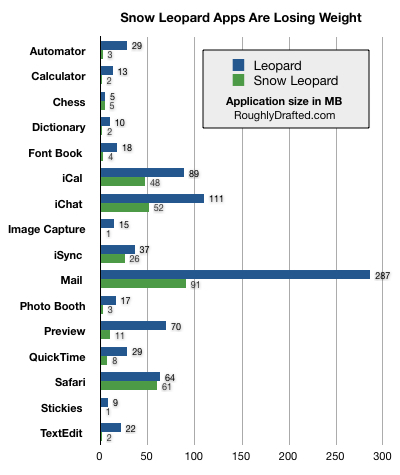
  • Last but not least, Snow Leopard should bring with it much smaller applications. Just take a look at the graph below to get an idea.

200806182326.jpg