Sometimes downloading files in bulk can be a pain, but I’ve found the quickest, safest and sleekest download managers for you. What you’re looking for in a download manager is a program that will automate the process, relieve bandwidth usage, and organize how files are being downloaded.
Most of the apps we cover here offer features like download scheduling, automatic disconnect after download, batch downloading, and speed optimization. If you tend to install lots of new programs, games, or videos and music, it’s probably a good idea to set one up on your PC.
Flashget: The fastest of all download managers
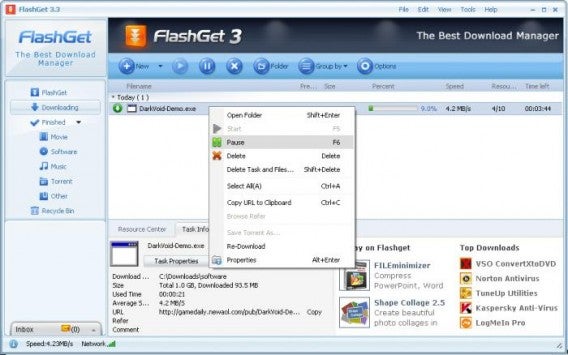
FlashGet promises download speeds of six to ten times faster than downloading normally through a browser. The program supports basically every download protocol including HTTP, FTP and MMS. This is one of our highest rated download managers, so check it out.
Download Accelerator Plus: Squeezes the best out of your Internet connection
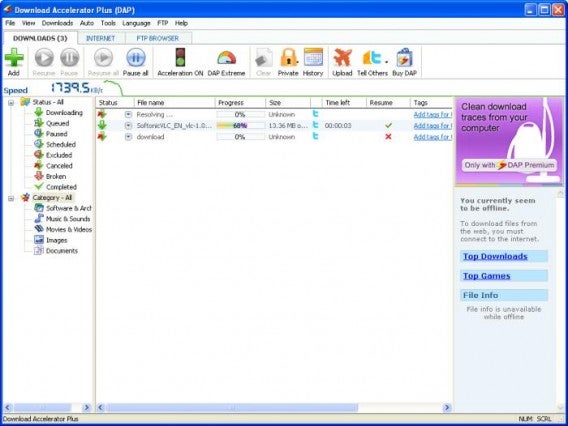
Download Accelerator Plus has a ton of cool features. You can watch a video while you’re downloading instead of waiting for it to finish, and can convert videos into MP3 to be compatible with other devices.
Download Download Accelerator Plus for Windows
Internet Download Manager: Works with all major browsers
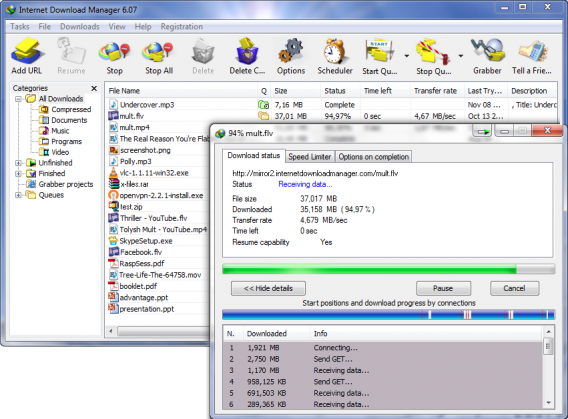
Internet Download Manager has been around for a long time, but it’s still being supported for modern operating systems. The app works with Windows 8.1 and all the major web browsers. Beyond offering faster downloads an an interface to manage them all, it can pick up on downloads when your connection gets interrupted.
Download Internet Download Manager for Windows
Free Download Manager: A free and solid all around download application
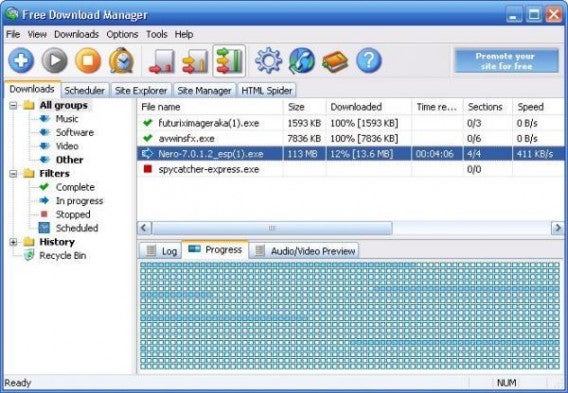
Free Download Manager works much the same as the other download managers, offering increased speeds and support for tons of download protocols like BitTorrent and FTP. This software is open source and available under the General Public License, meaning a community of developers can always improve it. The app even has a remote control feature that lets you view the list of active downloads from any computer.
Download Free Download Manager for Windows
Website Ripper Copier: Automatically download all content from a web page
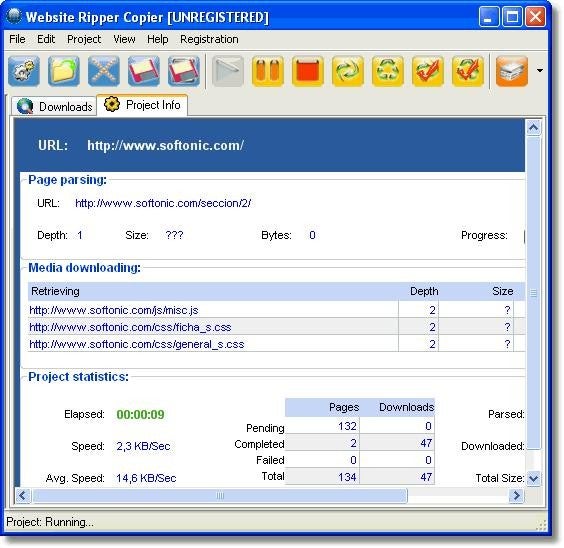
Website Ripper Copier is unique in that it lets you download entire websites for offline browsing or archiving. WRC offers pop-up free browsing and speeds up general browsing as well. The app is paid, but you can download a free trial before you make the commitment.
Download Website Ripper Copier for Windows
WebZIP: Collect web content to browse offline
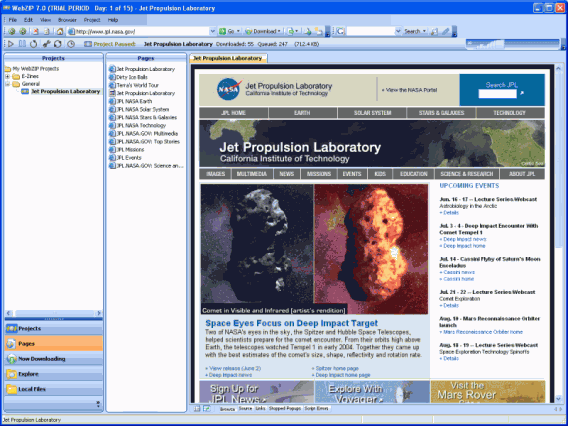
WebZIP is light on resources and basically runs on any computer. Save images, music, and other media files to keep for offline use. The app even downloads entire websites like Website Ripper Copier.
GetRight: Compact but fitted with all the necessary download features
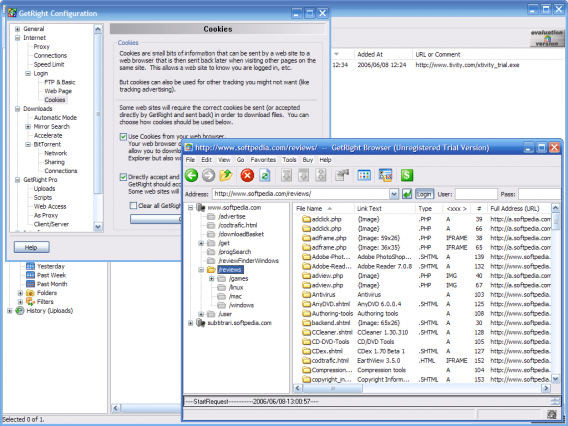
GetRight helps users with an unreliable internet connection continue their downloads where they left off, instead of having to start over from the beginning. Sometimes downloads can take hours, and having to restart from the beginning can be devastating. GetRight has automation tools to let you turn off your computer when downloads are done, saving you on your power bill. The app quickly hunts for items on the webpage for you to download.
Whether you’re looking for speed, convenience, or organization, every download manager will have something for you. You can also check out the download managers now automatically available in most browsers like Chrome, Firefox and Safari for more options.
If you want to know how to safely backup all your files, then check out our guide for creating your own backup recipe.
Original article published on April 19th, 2007.



 What are the best ways to get your MacBook to run faster? You could always buy extra RAM, but that means spending a few extra bucks and can be a bit hazardous if you don’t know how to do it right. There are the obvious tricks of stopping important processes in your Activity Monitor, cleaning the trash and removing unnecessary applications, but those will probably not result in noticeable changes.
 If you were to ask me to name one good reason to ditch MSN Messenger it wouldn’t be too difficult to come up with an answer.




 There are so many burning programs out there, that it can be tough to separate the wheat from the chaff. To be honest though, the quality and speed at which you burn CDs or DVDs almost wholly depends on your optical drive. I like how easy it is to burn discs on a Mac, but I still prefer to use a third party application, simply because they offer more features to work with. Here is a roundup of the best five burning programs for your Mac:
 The Terminal isn’t known to be the most exciting application on your Mac, even though if you know how to use it it can be a pretty powerful one. Now most people that make use of it will probably not really worry about the way it looks as long as it works and lets them enter their commands the way they want. That shouldn’t stop you from wanting to spice up your Terminal a bit.
 Ok, so we’re still in the middle of summer, so why would I want to talk about research papers? True, it’s not the most exciting of topics at this time of the year, but unfortunately it’s what many scholars around the world are working on right now. You may have a deadline and the important thing is to reach it with your paper completed.
 The release of Apple’s MobileMe service, which was meant to replace .Mac, has been pretty disappointing and is still not up to the standards you’d expect from an Apple product. To keep its users quiet, Apple have therefore decided to offer a free 60 day extension of the service. This will only be available to those that had a MobileMe account as of August 19th 2008. Users that have recently purchased an upgrade, plan to buy an upgrade or whose trial period is set to expire soon will also benefit from the 60 day extension.
 Mac Tricks And Tips have published a list of
  Out of multimedia I’d single out the ultra versatile VLC player, Aperture for professional image editing, Google Earth for its originality and Pixelmator as an enjoyable alternative to Photoshop.