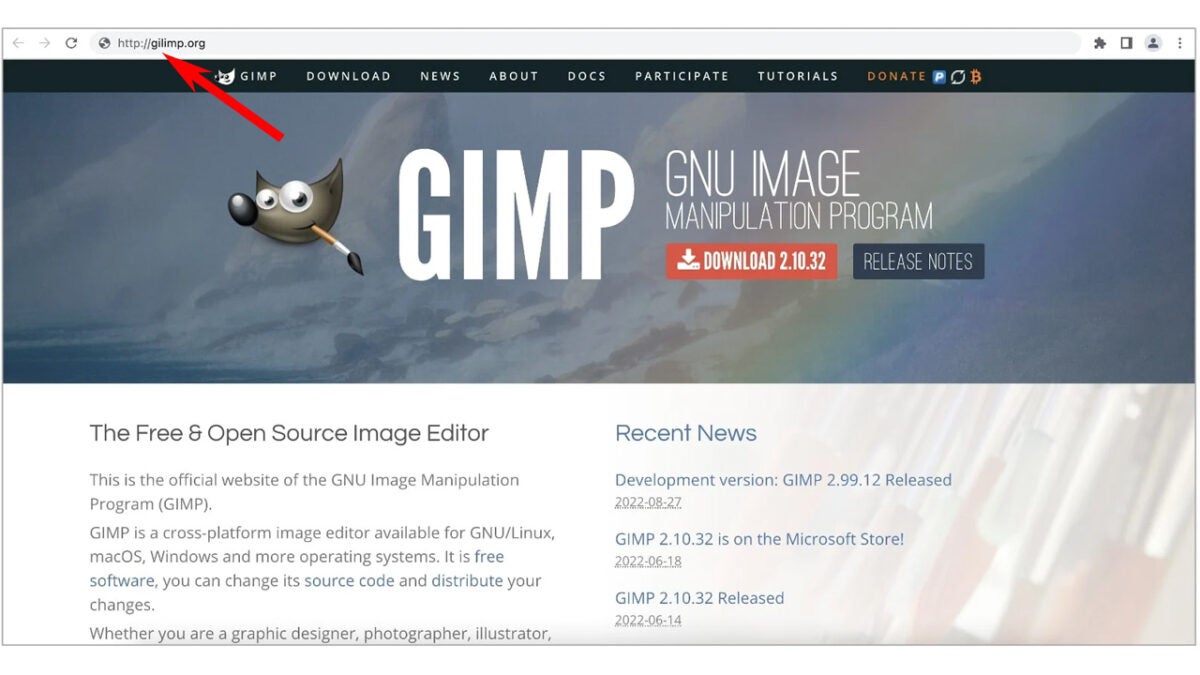
We’ve covered a series of innovative cyber attack methods recently, from hiding malware in fake job offers to ‘malvertisers’ pushing fake ads across advertising networks in a bid to trap unsuspecting victims and infect their devices with malware. Unfortunately, today we bring you news of a particular malvertising scam, that has been able to break into the Google ads network and is pushing malware in fake ads for the Photoshop alternative program GIMP.
.png)
According to a report on BleepingComputer, which cites a Reddit post by ZachIngram04, up until just last week, Googling the popular and free photo editing tool GIMP, widely seen as a reputable open-source alternative to Adobe Photoshop, would serve up fake ads that would take you to a fake version of the GIMP homepage.
Once the victims land on the fake homepage, they are shown a fake Download button that will install malware onto their computers and cause a wide variety of security issues and problems.
What is interesting to note is the innovative ways the scammers have been able to bypass the security features of the Google ad network, which included bulking out the malware file to 700 MB in size so that it more closely resembles the true size of the real file.
The main problem here is that the scammers have been able to serve up a malicious site that very naturally points you to a malicious download in one of the most common internet settings, the results of a Google search. Here, you are highly likely to just thoughtlessly go through the motions and download the file, but there are key aspects to look out for that could give away the dangerous nature of the site you are on and the file you are about to download.
In this case, the actual URL of the fake site is gilimp.org, which is different to the real address, which is gimp.org. It even sounds strange when you read it, which is a real red flag. The other red flag in this instance is the download domain gimp.monster. Again, this domain is fake with the giveaway being that it goes to a .monster domain instead of a .org domain. Often scammers will try to trick users by serving up a fake root domain.
To learn more about these two detection methods as well as a wide variety of other red flags to look out for, check out our phishing scam detection infographic.
Image via: BleepingComputer

 Adobe Photoshop is one of the most popular graphic editors in the world, but it’s certainly not the only one. There are several good alternatives for those who cannot afford Adobe’s flagship product. Two of them are
 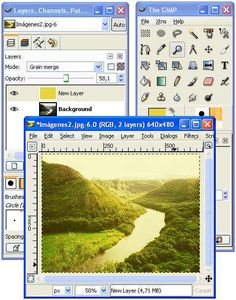 The Gimp has always been considered as Photoshop’s open source substitute. It was launched in 1995 and is now maintained by a very active user community. As for PhotoFiltre, its first version was released in 2004 as freeware. This program is currently also offered as a shareware version with extra functionalities.
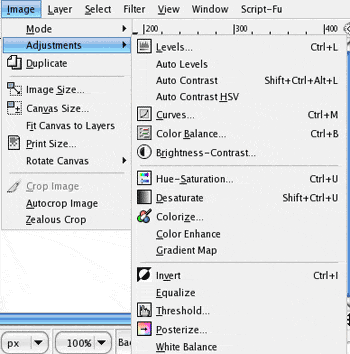
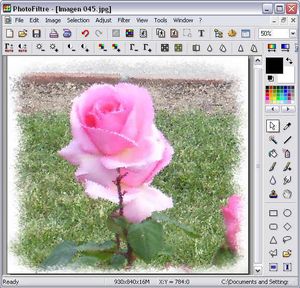 Regarding the functions offered by both programs, on the one side The Gimp features support for layers as well as a bunch of tools that Photoshop users will find very familiar: smudge, blur or clone stamp, to name a few. Just don’t forget that many of these tools have different names from the ones you’re used to in Adobe’s application. On the other side, PhotoFiltre also offers many Photoshop-like tools but has no support for layers. It does have, however, a huge amount of filters and effects of all kinds ready to be applied to your pictures with a couple of clicks.