How to Customize Download List on Tubemate in 5 Steps

It’s easy to download videos with Tubemate on Android. However, sometimes you want to automate things and make the downloading more efficient. That’s when customizing your download list can be very useful.

Let’s look at how you can customize your download list with Tubemate.

  1. Launch Tubemate

    How to Customize Download List on Tubemate

    Open the app on your Android phone by tapping on the icon in your app menu. Signing in with your Google account, using the email/password combo linked to your first name and contact number is the easiest way to see all your prefered Youtube videos.

  2. Select ‘Download List’

    How to Customize Download List on Tubemate

    From Tubemate’s main screen, tap on the ‘Menu’ tab and choose ‘Download List’ from the available options.

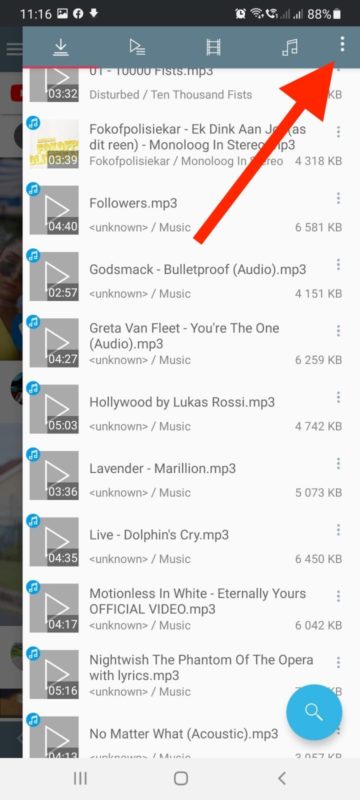
  3. Choose ‘Menu’

    How to Customize Download List on Tubemate

    In the Download List, you can tap on the menu to find many different features for downloading your videos.

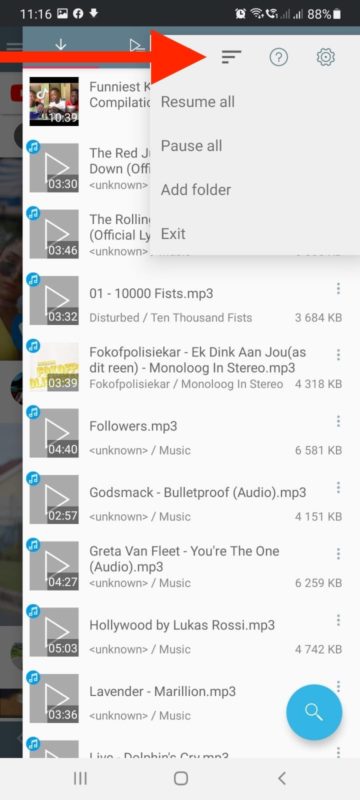
  4. Choose ‘Playlist’

    How to Customize Download List on Tubemate

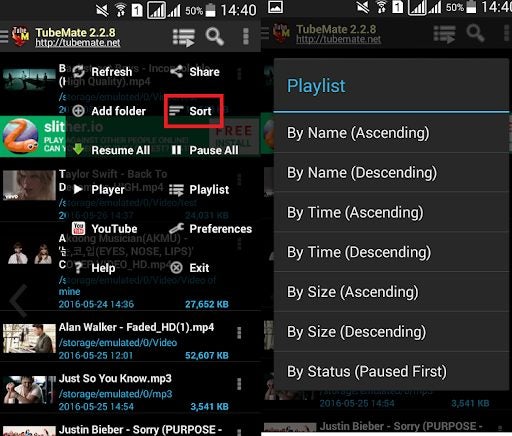
    Choose the ‘Playlist’ option that is represented by the three horizontal lines that are staggered. This will show you all the customization options that you can choose from.

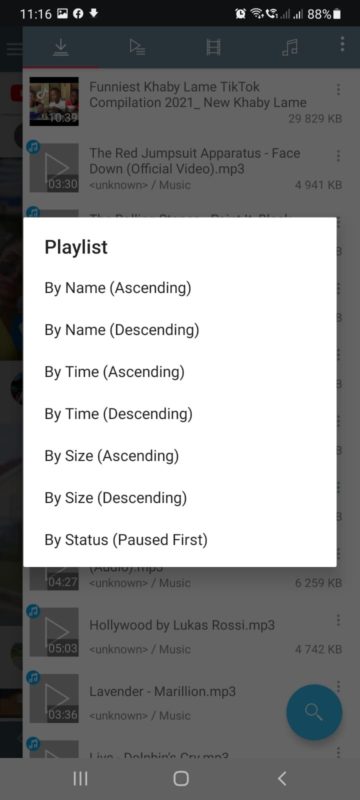
  5. Choose Your Customization Option

    How to Customize Download List on Tubemate

    Choose how you wish to organize your download list on Tubemate. Tubemate will continue downloading according to your customization.

More Freedom to Choose How You Download

Tubemate offers you more freedom and customization options so that you can download your favorite videos easily without issues and exactly how you want. Why not try using Tubemate as your Youtube downloader now?

How to Share Videos on TubeMate in 3 Fast Steps

Your curiosity led you to download TubeMate, you’ve learned how to use save YouTube videos, and now you’re ready to roll. We’re sure you’ve found many items that made you laugh, cry, or sing. 

The next step is working out how to share videos on TubeMate with your family and friends so they can enjoy it with you. We’re going to spend a brief moment showing the best way to so do.

  1. Search for video

    How to Share Videos on TubeMate

    Before you can share anything, you’ll need to find a video that’s interesting, hilarious, or thought-provoking. How it works is that TubeMate will share a link to the video with the recipients. All you need to do at this stage is insert text into the search bar for any topic, band, or song.

  2. Select Share button

    How to Share Videos on TubeMate

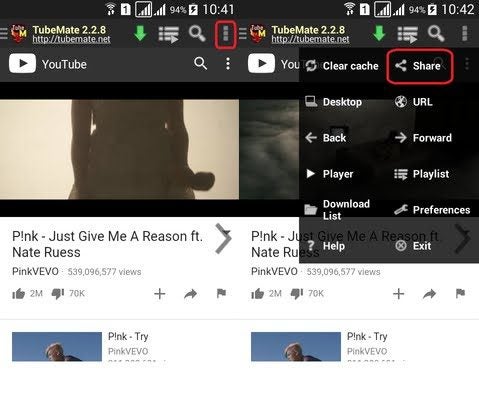
    When you find the video you want to share with someone, select the Menu option on the bottom of your screen. You’ll see several options available, one of which is “Share.” After a new window appears, you’ll need to click on “Share this video.”

  3. Choose sharing platform

    How to Share Videos on TubeMate

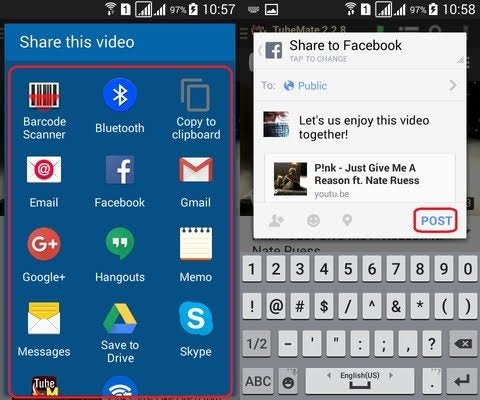
    You’ve reached the final step. A new window will appear that shows the message that the recipient will receive. Once you’re happy with it, click on “Submit.” TubeMate will provide you with a list of options as to where or how you would like to share it. 

    After you click on one of them, you’ll need to insert the last details and tap on “Post” or “Send.” It all depends on which option you chose. A social media platform will post to your feed, while an email will require an email address.

Share far and wide

TubeMate is an excellent YouTube downloader when you’re wanting to save any media to your phone. Of course, sharing the content is just as much fun, especially if you have a close friend that enjoys the same things as you. 

So, head on over to your favorite videos and start making them go viral!

How to Change the Download Order of Tubemate

When you download Tubemate videos from YouTube on Android, it sets the list in the order of when you requested the files. However, there may come a time when you have so many selected, and you prefer a different order. Perhaps you want the smallest files first, or you want it to download alphabetically.

If you already know how to use Tubemate as a YouTube downloader, then changing the download order should be easy.

  1. Find the download list

    How to Change the Download Order of Tubemate

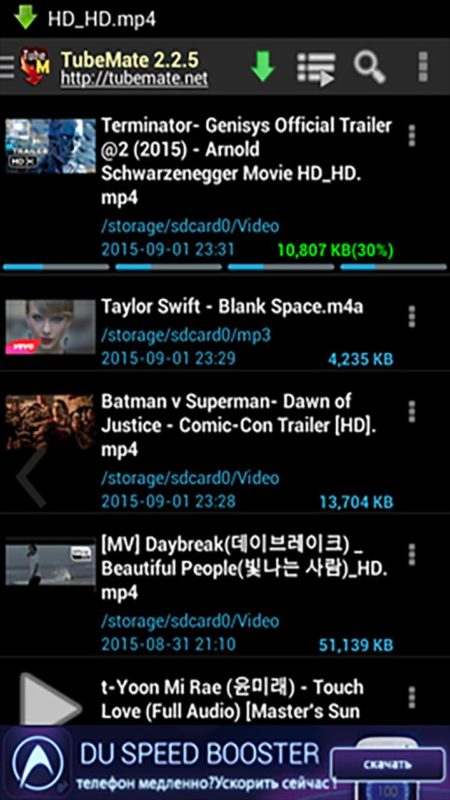
    When you open Tubemate, you’ll usually land on the main screen. In the menu, look for the tab “Download list.” You’ll see all the YouTube videos you are currently downloading. It also shows you the order in which you’ll receive the files.

  2. Select Menu

    How to Change the Download Order of Tubemate

    In the download list, you’ll see a Menu option too. There are some features you can work through here to optimize the download speed if you want. Read through all of the options to see how you can improve your experience.

  3. Choose the order you want

    How to Change the Download Order of Tubemate

    Within the Menu option, you’ll see that you can change the downloading order. There are selections for name, paused, and time, which you can sort in ascending or descending order. Feel free to also shift any around manually if you wish.

The way you like it

Now that you know how to change the download order of YouTube, the online video world is your oyster. We don’t recommend adding too many to your list, as it may affect the outcome or performance of your device. Still, it’s a handy tool to have if you want some movies to appear first before others.

How Do I Download from YouTube Using Tubemate

After you download Tubemate, you can easily save YouTube videos while in an area with Wi-Fi to watch later when you don’t have access to the internet. Not only that, but you also have more control over the videos you download. You can choose the quality, file size, and even if you want to download the audio-only. 

You may want to look at our guide on using Tubemate in three fast steps. For now, let’s go over what you need to do to download from YouTube using Tubemate.

  1. Download Tubemate

    How Do I Download from YouTube

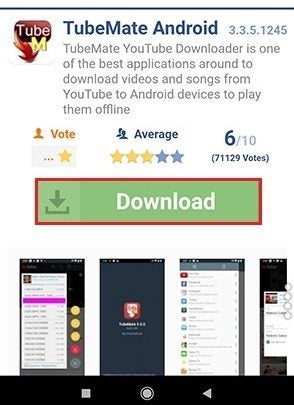
    First things first, you will need to download the Tubemate APK file on your Android device. Unfortunately, Tubemate is not on the Play Store, so you will need to look at third parties to download the app file. Remember only to use reputable sources such as Softonic when downloading APK files.

  2. Install Tubemate

    How Do I Download from YouTube

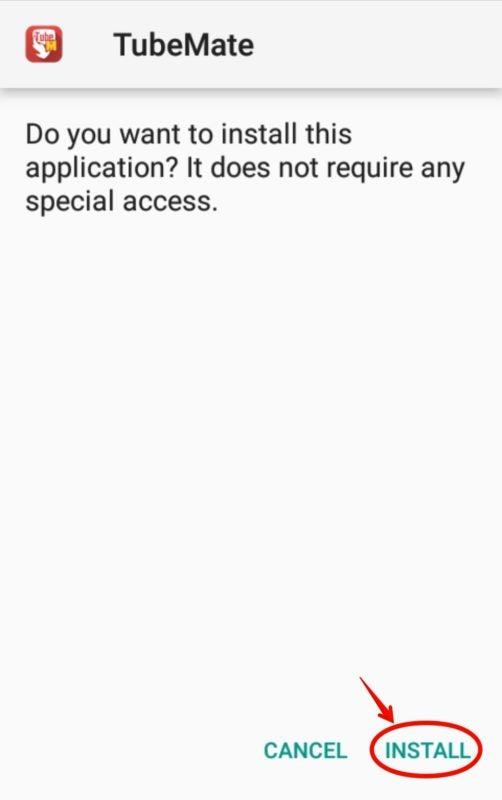
    Find the Tubemate APK file in your downloads, and tap it to install on your Android device. You may need to allow your device to install apps from different sources during the installation.

  3. Download the Video

    How Do I Download from YouTube

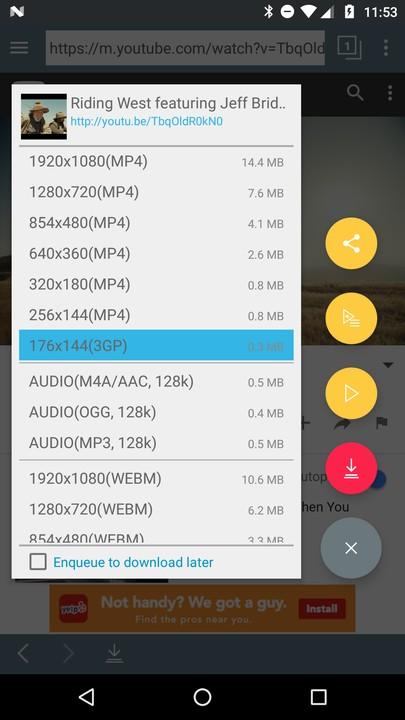
    Open the Tubemate app by tapping on the icon in the app menu on your mobile device. Once Tubemate has opened, search for the video you want by typing the search words into the search bar. Tap on the download button and then choose the video quality you want to start the download. Once the download has finished, you will be able to watch the video from your phone without having to use Youtube or an internet connection.

Downloading With Tubemate Is Quick and Simple

Using Tubemate to download your favorite Youtube videos easily is a quick process. And, by using this app, you can now watch all your favorite Youtubers, channels, and videos anytime without an internet connection. So why not try Tubemate now?

How to Download TubeMate 3 for Android in 3 Steps

TubeMate is an easy-to-use downloader tool that allows you to store YouTube videos on your Android phone, among other devices, so that you can watch them whenever you like without connecting to the Internet. 

You need Android 4.0.3 or higher to download TubeMate. It uses multiple connections, which enable you to download videos very fast.

  1. Where You Can Get TubeMate

    How to Download TubeMate for Android

    You may not go to Google Play Store to download TubeMate, as it is not available there. To install it on your phone, you have to download an executable file with the .apk (Android Package Kit) extension.

  2. Change Your Security Settings

    How to Download TubeMate for Android

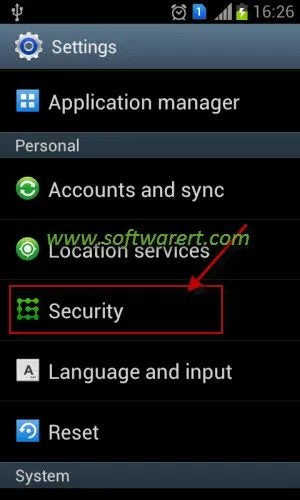
    To install an apk file from outside the Google Play Store, you have to change your phone’s security settings to allow App installation from other sources. Under the Security heading in your Settings menu, you have to check the box Unknown Sources. This will allow you to download Apps from outside the Play Store, including APK files.

  3. Specify Which Factors You Want

    How to Download TubeMate for Android

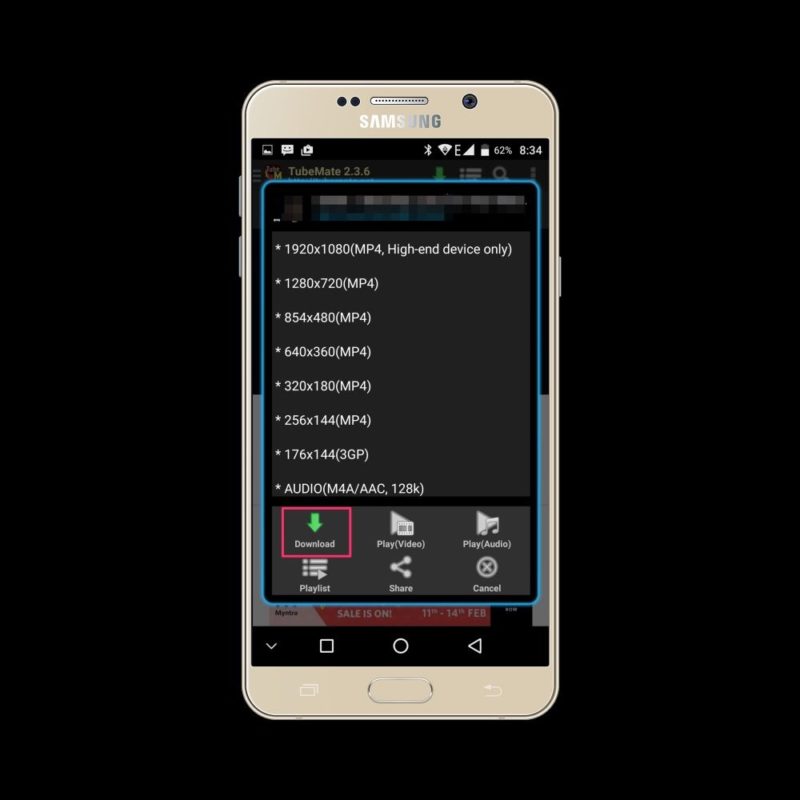
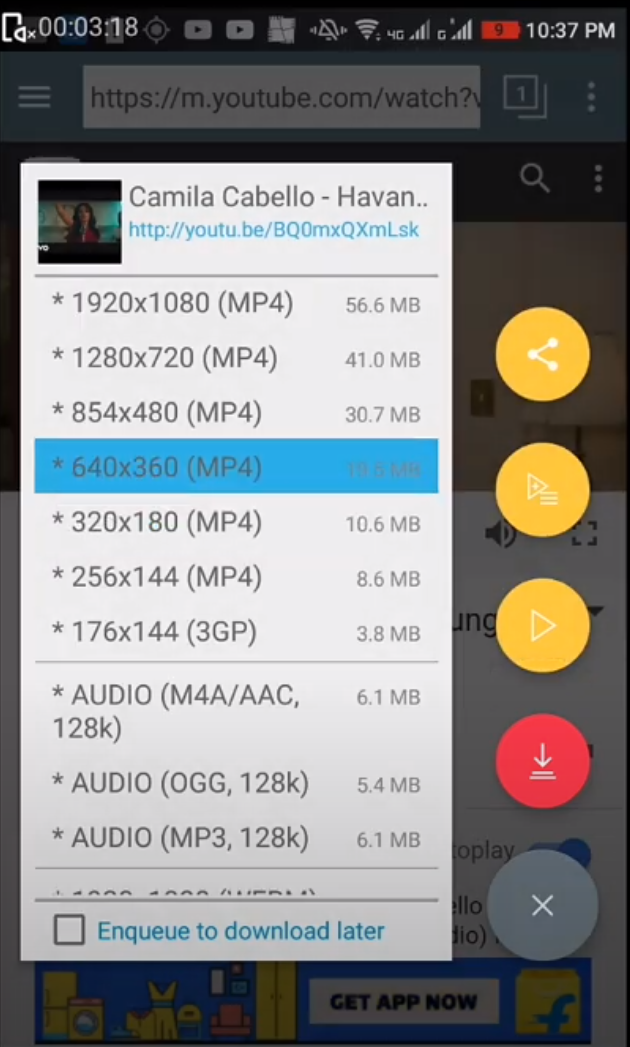
    When you download TubeMate 3, you can select the factors you want. These include the video quality and resolution. You will be able to choose from: 1920×1080, 1280×720, 640×360,176x 44, and more. You can also designate which file format you would like your videos to be in, such as MP3, MP4, WEBM, OGG and others.

Why you should use TubeMate

TubeMate is a top-rated App for downloading and storing videos on your phone’s system memory or a memory card. The latest version of the App has an excellent interface that’s much better than its earlier versions.

It now supports Facebook and Instagram, where you can find any video you like. TubeMate keeps your search history, and you can bookmark your favorite sites. Please note that you cannot connect to it on 3G.

Now that you have TubeMate, learn how to use it to download YouTube videos.

How to Delete Tubemate Search History in 5 Easy Steps

You may want to delete your search history from time to time. Any app that you browse on YouTube, Tubemate, Facebook or even your internet browser stores information about you. Advertisers and hackers can use this information. You might also want your data and searches to remain confidential. These are both reasons why you may want to clear your history.

How to Delete Tubemate Search History

Step 1: Launch ‘Settings’

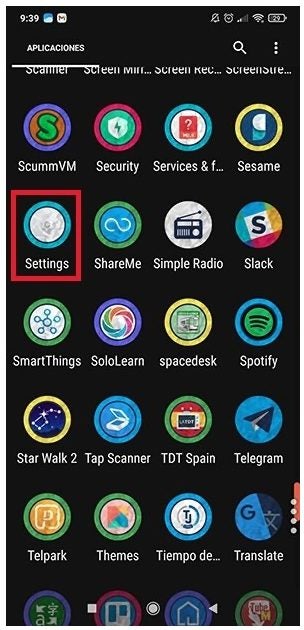
Open Settings on your Android device.

How to Delete Tubemate Search History in 5 Easy Steps

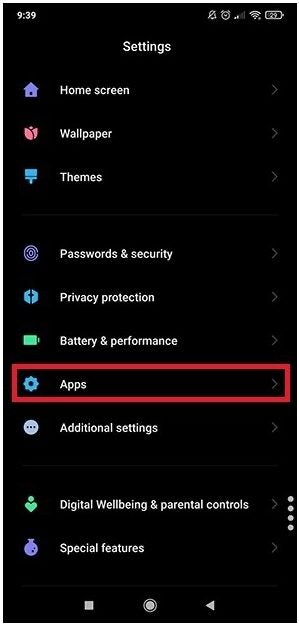
Step 2: Go to ‘Apps’

Next, navigate to the Apps section in the list.

How to Delete Tubemate Search History in 5 Easy Steps

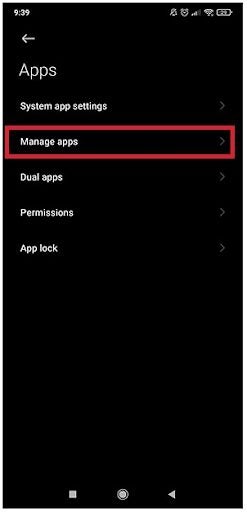
Step 3: Tap on ‘Manage Apps’

In the following list, tap on the ‘Manage Apps’ option.

How to Delete Tubemate Search History in 5 Easy Steps

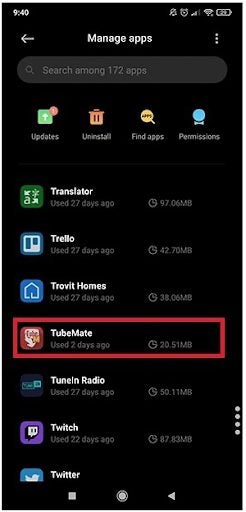
Step 4: Search for the ‘Tubemate’ App

A list of all your apps will appear. In this list, search for Tubemate and tap on it.

How to Delete Tubemate Search History in 5 Easy Steps

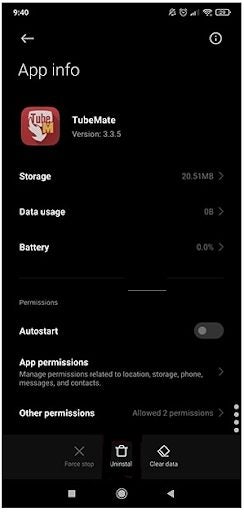
Step 5: Clear Data

On Tubemate’s app info screen, at the bottom will be an option to clear data. Tap on this option. This will clear your search history, cookies and cache all in one go. The next time you open Tubemate, it will be fresh like it has been newly installed.

How to Delete Tubemate Search History in 5 Easy Steps

Stream, Download and Enjoy

TubeMate is currently available on Android devices. Not only can you download videos, but you can also decide how to download them, choose only to download the audio, and many other features. It has a very intuitive user interface, making it very easy to use the app. However, if you are unsure about how to start downloading videos from Youtube, we have a guide with instructions to get you started.

How to Use Tubemate to Download Youtube Videos in 3 Fast Steps

We all know how easy it is to get lost on Youtube. You go in to watch the latest trailer for a movie, and next thing you know, it’s 2 am, and you’re watching a video on how cheese is made. Luckily, Tubemate allows you to easily download videos directly from Youtube and store them on your phone as an mp4 file. In this guide, we’ll show you how to use Tubemate to download videos safely.

How to Use Tubemate to Download Youtube Videos

Please note that this app is not available on the Google Play store, but it can be downloaded on Softonic. Once you’ve downloaded and installed the app, you can jump right into the next steps of our guide!

Step 1: Search for videos

Startup your Tubemate app, and it should automatically take you to Youtube within the app. Use the Search function in the top right-hand corner to search for the video that you want. Then tap on it to open it, the same way you would when browsing Youtube normally.

Step 2: Start the download

Tap on the red download button on the right-hand side of the screen and, when it’s finished parsing, select the quality that you want to download in. Then tap the red download button again, and your download will start.

Step 3: Play the video

Swipe left to monitor the status of your download. Wait for it to finish and unpack the files, then you’ll be able to scroll to your phone’s native video library and play it through the video player, entirely offline.

Youtube Wherever You Go

This app is a game-changer for anyone who doesn’t have access to the internet 24/7 because it allows you to store the videos safely on your phone to watch whenever you want. Of course, you should always take caution when downloading anything from the internet because viruses and copyright infringements are a thing, but Tubemate allows you a layer of safety from the scary stuff lurking on the internet while allowing you to download your favorite Youtube videos in peace.

How to use TubeMate YouTube Downloader

When you don’t have a data connection, you lose the ability to stream videos. A quick solution is to use TubeMate YouTube Downloader, an app that can download your personal YouTube videos to your device for later playback. TubeMate YouTube Downloader can also encode audio from YouTube videos and create an MP3 of the video. The app is a great option when you want local copies of your videos without having to worry about connecting to a data network.

If TubeMate doesn’t work for you, you can also download other youtube downloaders.

Here’s how to use TubeMate YouTube Downloader.

Installation

TubeMate YouTube Downloader isn’t on Google Play so you have to go directly to its download page. You can also use the website to download the apk file to your computer and copy to your Android device. If you’re using Windows 7 and Android 4.0+, simply connect the device to your computer and it will appear as a removable drive. Copy the apk into a folder that you can locate.

For Android 2.3 or 3.0 users, downloading the file directly from TubeMate’s mobile site is easiest way, or you can use the installation method described for Windows XP.
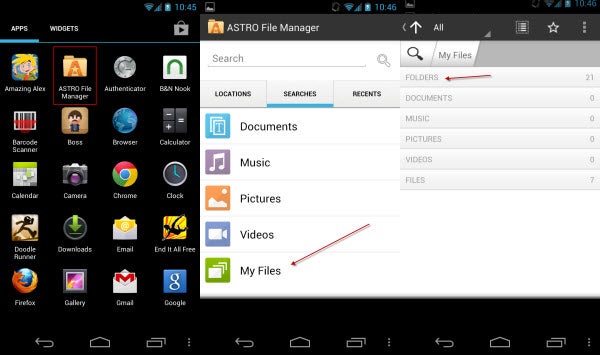
After you download TubeMate YouTube Downloader’s apk, open Astro File Manager. In Astro File Manager, open the “My Files” option and select “Folders.” Open the folder where you saved the apk to and install it.  Make sure you have allowed installation of apps from unknown sources or the Android OS won’t allow it.
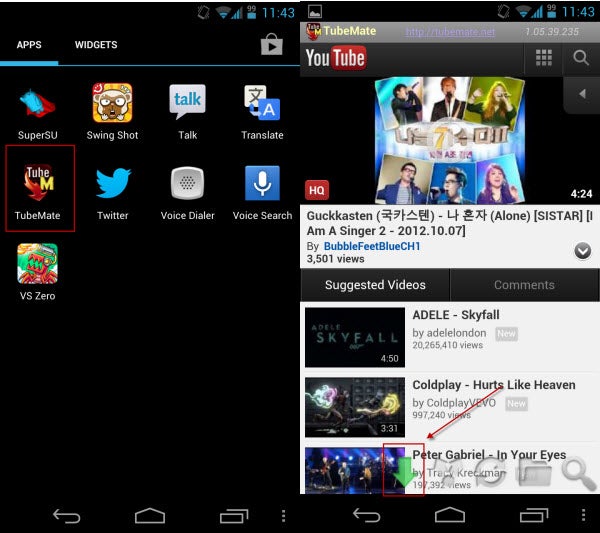
Once installed, you are ready to use TubeMate YouTube Downloader.

If TubeMate doesn’t work for you, you can also download other youtube downloaders.

Downloading Video

TubeMate YouTube Downloader accesses YouTube as an overlay. When selecting a video, you are given the choice to download or watch a video. Since you’re here to download videos, click on the green arrow on the bottom of the screen.
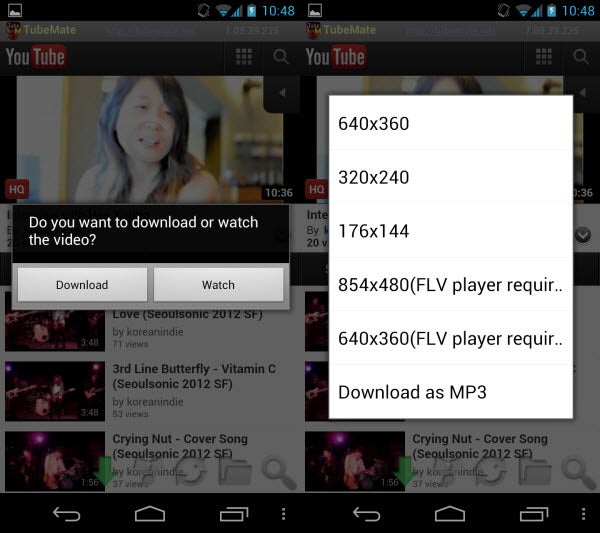
The pop-up menu has two options: Download or Watch. The quality of the video file depends on the source of the video. YouTube gives different streaming options; those are also the same options you are given when downloading the video.
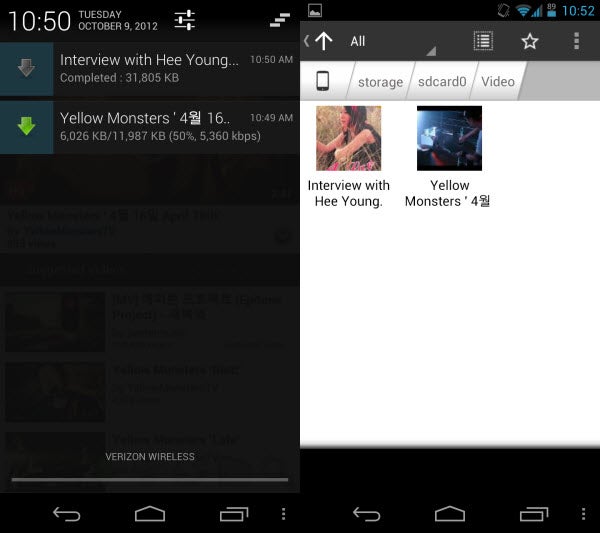
TubeMate YouTube Downloader’s downloads videos in MP4 format. They are saved by default in the Videos folder.

Downloading Audio

Follow the same steps to download videos except choose Download as MP3. The audio quality will differ based on the quality of the video. It’s not uncommon to import a slightly lower quality MP3. It will be listenable, but not worth keeping for a long time.
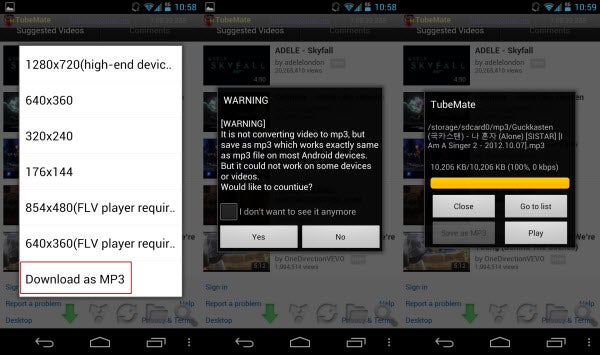
TubeMate YouTube Downloader saves the files in a folder called MP3 on the device so you can transfer them at your convenience.

Great utility for offline content

Saving your videos is easy with TubeMate YouTube Downloader. The different number of video quality options is great so you can have a lot of high quality videos. Audio sounds more like streaming previews, but is passable when you want to sample an audio clip.
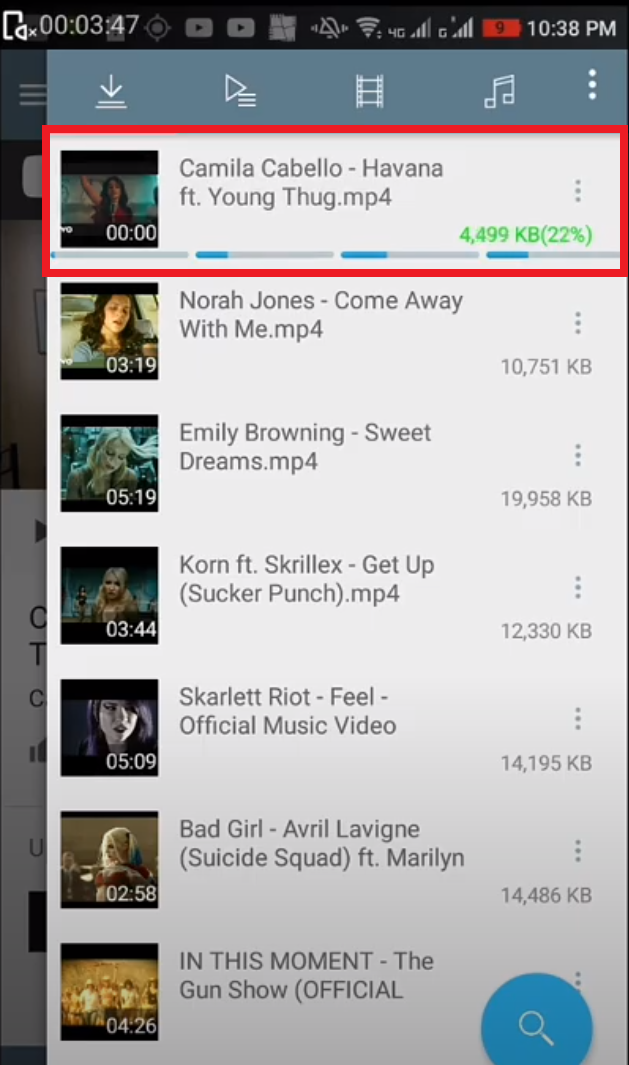
If TubeMate doesn’t work for you, you can also download other youtube downloaders.

TubeMate YouTube Downloader is an excellent app for people constrained by data caps, but who want to watch their videos.