How to Share File With Xender Application

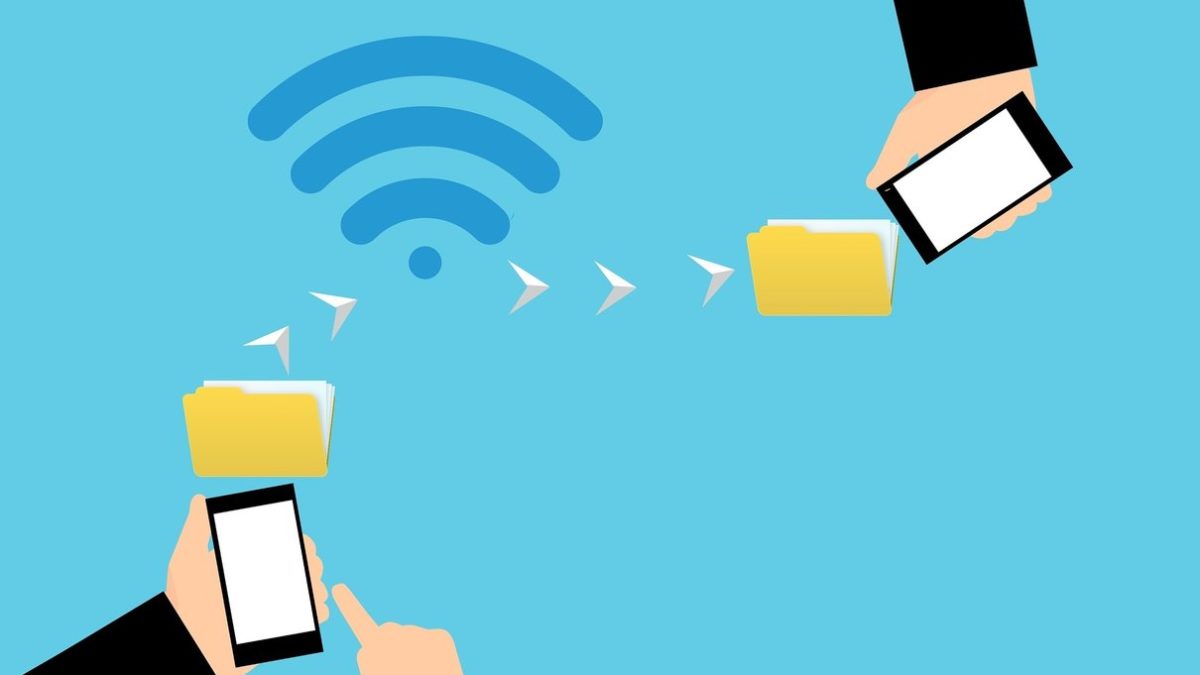
Xender is a lightning-fast file transfer app available cross-platform on Android, iPhone, Windows, and Mac. Using Xender makes it easy to send music, videos, files, and more from your device to another one. Similar to how Bluetooth used to transfer files, but faster and more secure. 

You may be wondering how to use the app after you download Xender? First, let’s look at the steps you need to take to share a file with Xender.

  1. Android to Android

    How to Share File With Xender Application

    – Before using the app, you will need to install it on your Android device.

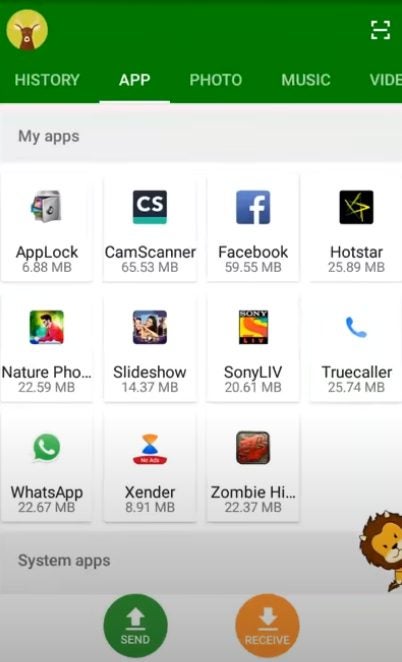
    – Start the app by tapping on the Xender icon in your Android app menu.

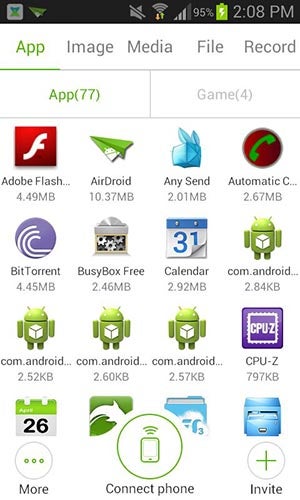
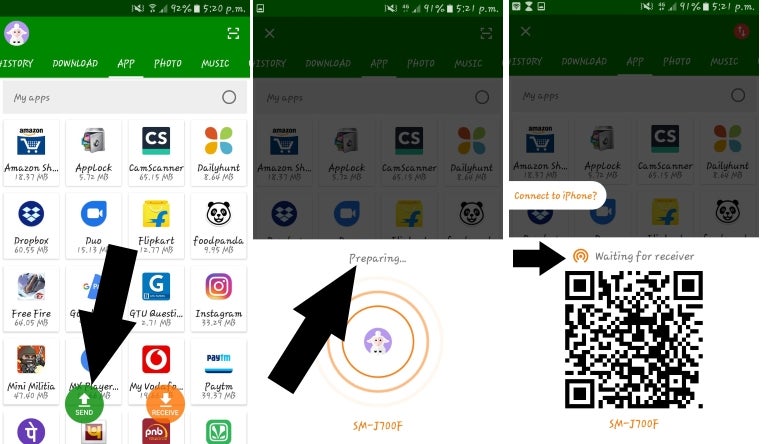
    – Tap on the ‘+’ icon to add the person you want to share the files with and create a group. Once you have made the group, the person you will be sharing files with will need to join the group from their device by tapping on the ‘+’ icon.

    – Choose the device that you want to share the files with by searching for the user.

    Now you can transfer files to your chosen contact.

  2. Android to Other Devices

    How to Share File With Xender Application

    – Start the app by tapping on the Xender icon in your app menu.

    – Tap on the ‘+’ icon and choose to ‘Connect WP.’

    – Open WP and go to Wi-Fi settings, and set up a hotspot. Then, make sure to connect the other device to the same Wi-Fi hotspot.

    – Choose the device that you want to share the files with by searching for the user.

    – Now you can transfer files to your chosen contact.

Send Files Fast and Secure With Xender

Using Xender to transfer files, music, and videos is easy to do, and even better, it is fast and secure. To transfer files has never been easier or quicker than it is with Xender.

How to Send Xender Through Bluetooth in 3 Easy Steps

Sharing files can be a pain in your back, especially if the files are too large. Xender solves that problem with its fast transfers. However, how do you get the app itself? While there are a few ways you can get it, including a QR code, Wi-Fi hotspot, WhatsApp, and the good old message, you might prefer Bluetooth. 

How to send Xender through Bluetooth

We have one of the most straightforward ways of sharing the sharing app with other Android devices in this article. Follow the steps below, and you’ll get it in no time.

Step 1: Open Xender and go to user settings

From your home screen or whatever folder you have Xender in, tap to open the application. Click the user icon and tap the “More” button. Under the list, you should see several options.

How to Send Xender Through Bluetooth in 3 Easy Steps

Step 2: Select “Share Xender to other phones”

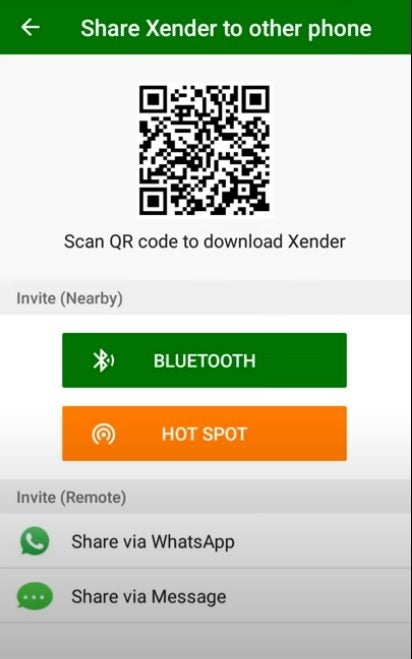
Find the “Share Xender to other phones” and click it. The screen you’ll see should contain a few options, including “Hot Spot” and “Bluetooth.”

How to Send Xender Through Bluetooth in 3 Easy Steps

Step 3: Tap “Bluetooth”

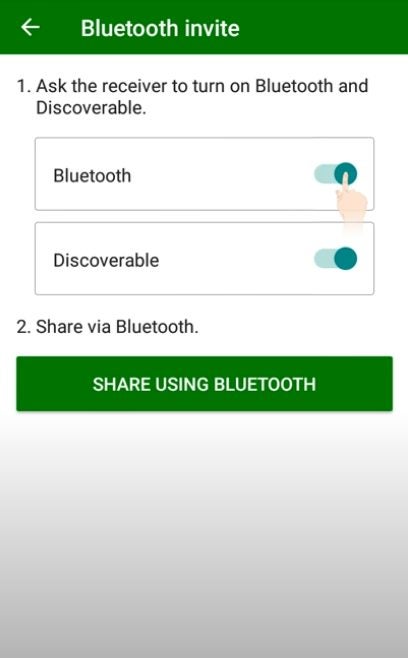
Once you click the “Bluetooth” button, the app will prompt you to select the receiving device from the list. If the Bluetooth isn’t working, you’ll need to turn it on and proceed like you would during the usual pairing.

How to Send Xender Through Bluetooth in 3 Easy Steps

Receive and roll with the Xender app!

During this process, the sender’s phone is as important as the settings on the receiver’s. Check the paired Android device and turn on the Bluetooth if it’s off. This will ensure that it’s visible to everyone nearby. Once the file is received, your friend will be able to download the app, install it and share apps and send files further.