CapCut: why is the editing app so popular among TikTok users?

CapCut, ByteDance’s video editing app, is very popular among TikTok users. We explain to you why this great success is due.

Do you know CapCut? The video editing app from ByteDance, parent company of TikTok, enjoys great popularity among the pre-short video community. With more than 200 million active users, the app enjoys unprecedented success among Instagram, YouTube and TikTok users, where they can upload their perfectly edited short videos. But CapCut is especially popular among users of one of these apps: TikTok. Why is that?

CapCut DOWNLOAD

We’re not exaggerating: when you open TikTok and go to the For You feed, most of the videos you find will probably have a hashtag that alludes to CapCut, indicating that the video has been edited with this app. Beyond the basic editing functions of the TikTok app itself, CapCut offers an added value for content creators who want to attract attention with their videos: a wide variety of options accessible to the general public.

Yes, there are video editing apps like Final Cut Pro X or Adobe Premiere Pro, but if you’ve ever used these editing programs for professionals, you’ll have noticed that they are indeed for professionals. To perform any kind of editing, you’ll have to spend quite a bit of time figuring out how it’s done, plus you’ll have to use a PC or Mac. But CapCut offers a middle ground between the huge range of features of a professional editing app and the basic editing tools of TikTok.

With functions as varied and practical as Auto Velocity, which allows us to automatically adjust the speed of the videos so that they are synchronized with the music of our choice, fans of short videos have in their hands a very versatile video editing tool, capable of creating very colorful videos without having to spend a lot of time figuring out how it works.

And if you don’t know very well how to use them, don’t worry, you can find many tutorials on YouTube that will teach you, step by step, how to edit videos with the app. If you haven’t used it yet, try it and start uploading high quality videos to TikTok.

CapCut DOWNLOAD

Some of the links added in the article are part of affiliate campaigns and may represent benefits for Softonic.


Say goodbye to manual editing: This new CapCut feature will change the way you sync music to your videos!

Auto Velocity is a function of CapCut, the most used app for editing TikTok videos, with which you can automatically synchronize the video with the music.

As we have already mentioned above, TikTok is a place of trends. The social network of short videos has popularized fads such as disinfluencers (people who recommend you not to buy certain products), things that have “low vibes” and even some dangerous trends such as BORGs, which involve alcohol consumption.

TikTok DOWNLOAD

The latest trend that’s really hot on TikTok is Auto Velocity (#capcutvelocity), a feature of CapCut, the most widely used video editing app for videos on the social network, which allows us to automatically adjust the speed of our videos so that they sync with the music we use.

How to use CapCut Auto Velocity

Using this feature is very simple. To start, you must have the latest version of the CapCut app, so if you are still “dragging” an old version of the app, you will need to update it in the App Store (iOS) or the Play Store (Android). Once you launch the CapCut app, you’ll need to have the video you want to use at hand. Click on “New project” and select the video to start editing it.

CapCut DOWNLOAD

After choosing your video, you will need to select the song you will use in your video. To do this, click on “Add sound” at the bottom of the editor. In the menu you will see, you can choose between songs from the app itself, included in categories such as “Vlog”, “Promising” or “Travel”; upload them from your device, and also extract the music from a video you have. Think of a song that you think fits well with the tone of the video and what you will show.

With your video and song selected, it’s time to add the Auto Velocity effect. To do this, just click on “Style” and select “Auto Velocity”. After waiting a while (depending on the length of your video, the music you choose and other factors), you will see the final results of your creation. Remember that you can also add more video or sound effects to make your clip the next TikTok sensation.

The Best CapCut Video Editing Tips and Tricks in 2023

CapCut is an interesting app for Android and iOS devices that allows you to edit videos, and it also has a browser app for your PC. It was developed by ByteDance, the same company behind TikTok, and it’s clearly geared towards you using the app to release videos on that platform, but you can use your edited content anywhere.

Why bother with this app, instead of using others, including your built-in video editor? Because CapCut makes it really easy to edit and has a big library of copyrighted songs that you can use for your videos.

In this article, we’ll check the best tips for video editing on CapCut, including new things you may not know. All tips will be explained with the online browser editor.

1- Convert Text to Speech

Isn’t this amazing? You can write a phrase on CapCut and the app will say it aloud, and you can even select what kind of voice you want to use. Doing it is straightforward, too. All you need to do is select the text tool, write something, and drop it on the timeline.

After that, you can click on Text-to-Speech on the top right and it’ll allow you to choose voices. These go from children to adults, both male and female. They also come in different styles, such as storyteller, charming, and others.

2- Overlay Videos

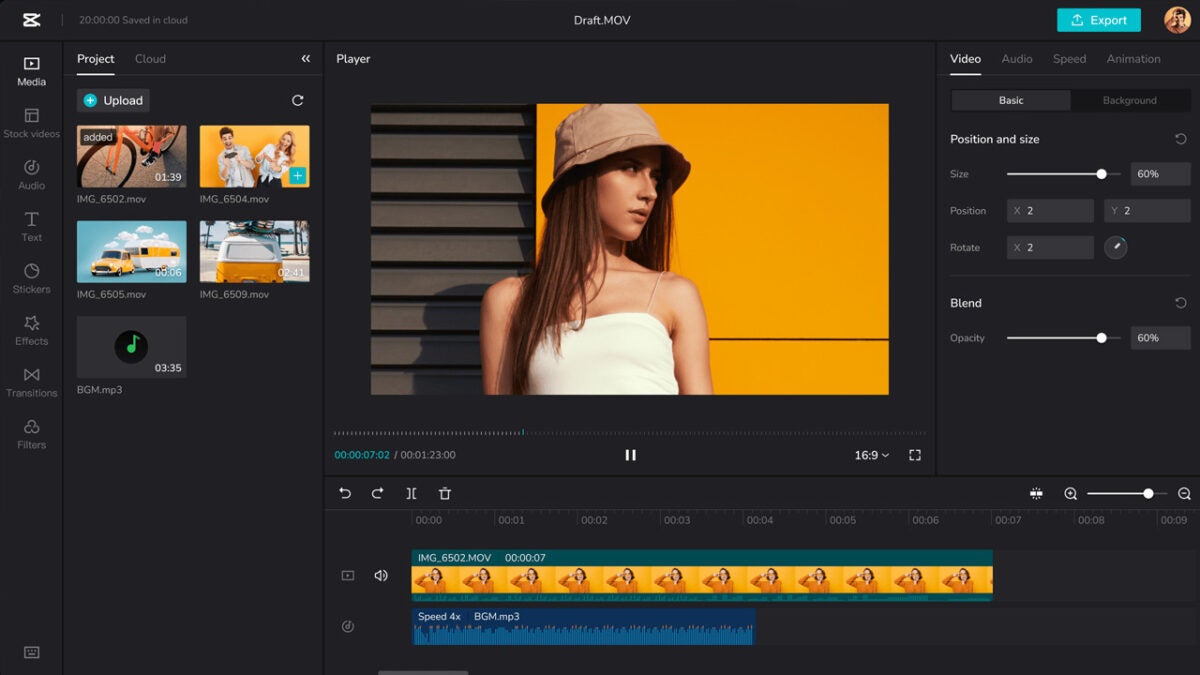
Overlaying means adding something on top of something else. In this case, it means one video on top of the other. This is very useful for many situations, such as picture-in-picture (like when you want to show your face on top of your computer screen recorded with Camtasia), using a video loop as a background, and much more.

What you need to do is simply put one video on top of the other in the timeline. After doing that, you can click on the video on top to show its controls. You can drag the corners to make it smaller, and move it around to place it wherever you want.

CapCut enthusiast? Take a look at these tips and tricks

3- Animate your videos

If you have a more static video, such as landscape footage or a quiet place, you can add some spice to it by adding animations. These go from creating a shaking effect to fading your video to black, and more.

To use this feature, simply drag your video to the timeline and go to the Animation tab on the top right. You can choose specific animations for the beginning, the end, or both parts of the video.

4- Add stickers to videos

Stickers are all the rage on social media, and CapCut lets you easily add them. Unlike other software specializing in a sticker type, you have all kinds of sticker styles such as emojis, seasonal, travel, illustration, and many others. These are of high quality and are animated, too.

To use them, select the Stickers section on the left. There you have a list where you can look for your favorite one. Bear in mind the Sticker sticks (no pun intended) at the center, and you can’t move it around.