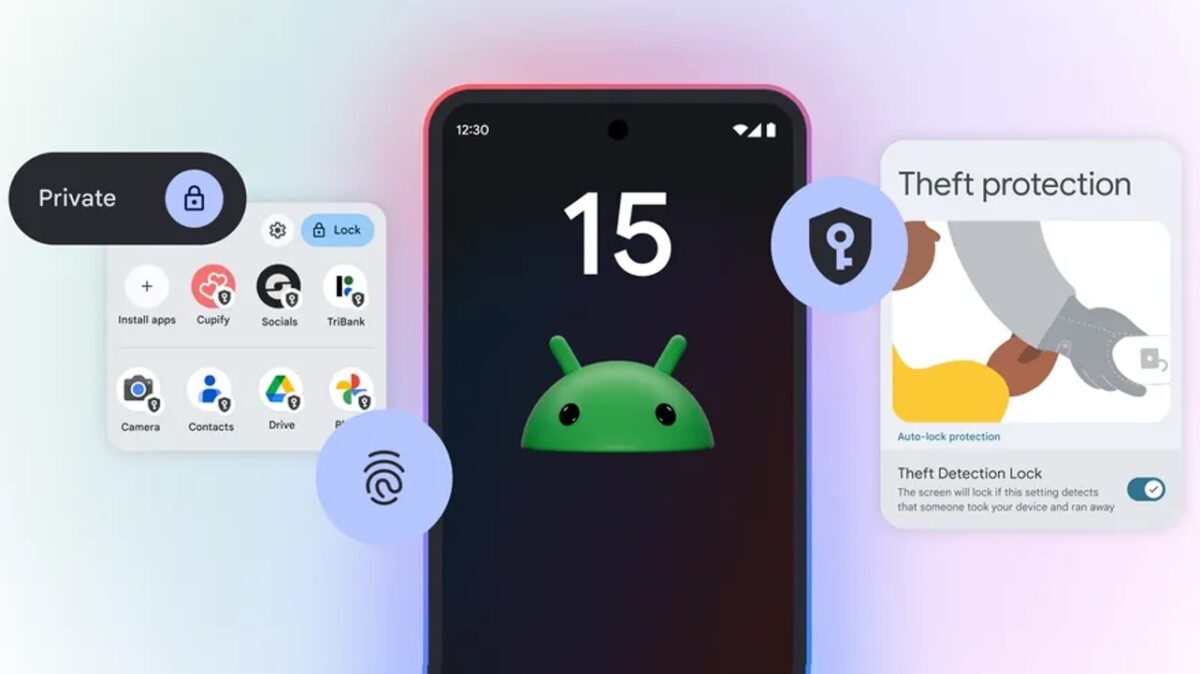
For those who don’t know, Google gives you quite a bit of authority over how and when it accesses your information associated with Android. And we say this because Apple has been boasting for years that they are the user privacy-friendly company, but Google has improved a lot in this regard over the last 4 years.

Subscribe to the Softonic newsletter and get the latest in tech, gaming, entertainment and deals right in your inbox.
Subscribe (it's FREE) ►Ultimately, it all comes down to being informed about the possibilities and then determining what balance between privacy and functionality makes the most sense for you.
And the responsibility falls directly on you, which means you have to make an effort to understand your operating system and how you can get the most out of it without giving up all your privacy along the way.
By default, most of Google’s privacy options are turned off, as Google thrives on ads and the better it knows you, the better experience it can offer you as an individual user.
This is not necessarily bad, but it may not be what you want or are looking for. And navigating through the layers of settings, not only with Google itself but also with the various third-party services that interact with the phone, is often easier said than done. So let’s go with the best options when it comes to securing your phone and your Google account:
1. Uninstall all the apps you don’t use
This first step of privacy on Android is a no-brainer and something everyone should do periodically: review all the apps installed on your phone and delete the ones you haven’t used in the last two months.
Applications that you do not use not only consume resources on your device, but they can also leave doors open to confidential information that would be better closed.
So open the app drawer and examine all the icons you see. If you haven’t used an app in a while, press and hold its icon and select “Uninstall” or, if you don’t see that option, select “App info” and look for the “Uninstall” button.
2. Check the applications with access to your Google account
In addition to specific phone permissions, applications and services may request access to certain types of data from your Google account, such as your contacts, your Gmail messages, or even your Google Drive storage.
Once again, this access may be completely justified and not a cause for concern (and would only be present if you explicitly authorize it at some point), but once you are no longer actively using the associated application, you won’t want to leave that avenue open.
Luckily, it is especially easy to close, and another painless privacy measure that is worth doing periodically. You just have to open the Google account connections page and review everything that appears on the list. For items you no longer use or do not recognize, click on their title and then on the “Remove all connections” option on the screen that appears next.

3. Ensure your lock screen does not display sensitive information
By default, Android is usually set to display all the content of your notifications on the lock screen, which means that if someone else picks up your phone, they could see sensitive information without even having to enter a PIN, pattern, or passcode.
To change this situation, open the Display section of your phone’s settings, select “Lock screen” and then “Privacy” and change the setting to “Show sensitive content only when unlocked” or “Do not show notifications at all,” whichever is more convenient for you.
4. Reset or delete the Android advertising ID
Many people don’t know it, but you can reset or delete something known as your “advertising ID” on Android.
That ID is a unique string of specific numbers from your phone that apps can use to identify you. They may not know your name or anything personal about you – unless you choose to share that information – but that advertising ID allows them to understand your interests and behaviors, and then use that data to show you ads that are supposedly more likely to appeal to you.
When you reset or delete that ID, all that data is lost, and the apps have no way to relate your behavior to any consistent identifier associated with you. Once again, that doesn’t mean you won’t see ads within apps or on the web. It just means that those ads won’t be programmatically selected based on your ongoing activities and what they suggest about your interests.
5. Review the permissions of your applications on Android
Let’s think about those apps that you actively use, because even those may have permissions that you once granted, but no longer need.
So open the Security and Privacy section of the system settings and tap “Permission Manager”. Depending on the software and device you are using, you may need to first tap a line that says “Privacy” or “Privacy Controls” before you see it.
Next, go through each type of permission on the list one by one, review the applications that have access to it, and consider whether the access of each application still seems necessary to you.
If you see something that seems questionable, tap the app’s name and change its setting to “Deny”. There is a possibility that the app may no longer be able to perform some of its functions as a result, but in the worst case, it will ask you to re-enable the permission at some future point and then you can reconsider it.
Starting from Android 12 in 2021 onwards, you can specify whether you want an app to have access to your exact location or just the approximate one, in case you’re very concerned about them knowing where you are at all times.
