 A while back Elena wrote a useful post about how to get more out of the Firefox web browser. This included tips on how to increase your productivity through extensions and keyboard shortcuts.
The one thing that adding more extensions does however is inevitably slow down Firefox. The more extensions and toolbars I add, the slower I notice Firefox becomes, the more RAM it consumes and the more unstable and liable to crash it becomes. Here then are 5 tips that in my experience, have helped prevent these problems:
- Uninstall old toolbars. This is arguably the major cause of slow downs in Firefox, the dangers of which I discussed in an earlier post. I recently uninstalled a couple of toolbars that I suspected were causing problems and the stability and speed improvements in Firefox were quite dramatic. It now opens in half the time and I’m not subject to the increasingly frequent instability issues I was before. One of the problems is that toolbars are crammed with dynamic links – sometimes ads – and when these change or rotate, Firefox can hang whilst it processes the “updates”. To uninstall toolbars can be a little tricky though. Most have a drop down menu on the far left of the screen where you can change options, buttons and uninstall it. However, some do not in which case you have to go to the “Tools” menu in Firefox and view whether it appears under “Firefox Add-Ons”. From there, you can uninstall or disable it. For those stubborn and sneaky ones that have neither of these options, the only way to remove them is to go to your Windows Control Panel and “Add/Remove programs”. However, the sneakiest toolbars sometimes don’t even appear in there in which case, I recommend using the “Add/Remove Program” tool in CCleaner which shows absolutely everything installed on your PC including Windows Updates.
- Uninstall old add-ons. It’s likely that you’ve got at least one or two extensions or “add-ons” installed in Firefox. I had a couple of video downloader extensions which no longer worked but I had completely forgotten about. Removing such add-ons speeds up the time Firefox takes to start and should improve performance. If you’re not sure what to remove, ask yourself if you really need all of your add-ons such as that Welsh dictionary or built-in PONG game.
- Change Firefox’s configuration. If you didn’t already know, you can tweak Firefox in a very precise way by accessing its advanced configuration interface. To do this, type about:config in the address bar. The most common tweak is to find these three entries: network.http.pipelining, network.http.proxy.pipelining and network.http.pipelining.maxrequests. Change the value of the first two to “true” and the last one to a value of “30”. Finally, right click and add a new integer. Name this integer nglayout.initialpaint.delay. Make the value “0”. Both of these tweaks basically reduce the amount of time that Firefox waits when making requests to websites.
- FireTune for Firefox – This small program is not an add-on. It works separately from Firefox but tweaks the browser’s internal settings to make it faster. You’ll notice an increase in speed after the first time you use it but over time, the effects wear off so you’ll have to run this program once a week to ensure optimum performance. The plus side is that it only requires one click and you’re done.
- Fasterfox – This add-on allows you to change Firefox’s configuration settings without going through the about:config route. It presents the available fields in an easy to use interface including pipelining, caching and even a speed testing tool to see whether your changes have really made any difference. It also includes an “Enhanced Prefetching” function which basically take advantage of “pre-fetch” tags in web pages that Firefox usually ignores.
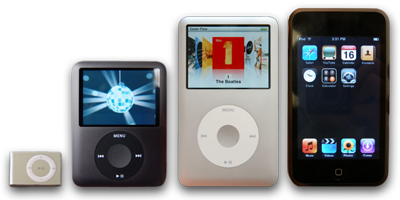 Since the release of the original iPod back in October 2001 the line of portable devices from Apple has extended to the minute iShuffle, the slim Nano and recently the classy iPod Touch. iPods have really changed the world of portable music players and turned them into full fledged multimedia devices. Nowadays you can enjoy your music on the go as much as you can watch movies and video clips or all your recent photos.
 One of the best things about
  It doesn’t seem to matter how many external hard drives I buy, I fill them up no sooner than I’ve connected them. Most of the time, I don’t even have a clue how full they are either – I just keep adding videos and music until I get that dreaded “Disk Full” message, usually whilst trying to do something in a hurry.
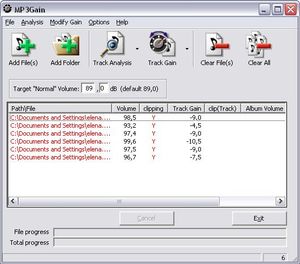 Not all MP3 files have the same sound quality, let alone the same volume. And there’s nothing more irritating than having your eardrums suddenly pierced by an awfully strident MP3 that sounds too loud in your iPod, only to be followed by one that can’t hardly be heard at all.
 Buttons are a handy and attractive way to add shortcuts and functionality to a website or desktop. In the past, it used to be a complicated process requiring at least some programming knowledge but nowadays there are plenty of programs to help novices create them.
 Because most applications like word processors, mail clients or internet browsers now almost always offer an automatic spell checker you barely ever find yourself opening up a dictionary to double check a word.
 Inventories are a useful way of keeping track of exactly what you have got and what you haven’t. For businesses they’re essential but for network administrators, they’re also useful to keep track of what is connected to your network. As people come and go, new equipment arrives and old is shipped out, it’s easy to lose track of what’s going on. The same goes with your household possessions, music and film collections and anything else that you surround yourself with. With this in mind, here are 5 top programs for keeping an inventory: