Top 10 virtual desktop apps

Top 10 virtual desktop appsI personally like having very few icons on my desktop, so that I can show off a nice wallpaper image and I don’t get lost among dozens of shortcuts. But I know other people have a strange tendency to collect as many desktop icons as they can, eventually running out of space.

If you’re any of them, check out this list of virtual desktop tools and you’ll always have a few spare pixels for one more shortcut.

  • VirtuaWin Portable – An open-source tool that lets you have up to 20 virtual desktops
  • Shock 4Way 3D – Four virtual desktops that show up in an attractive 3D environment
  • CubeDesktop – Have up to six desktops, one for each side of a 3D animated cube
  • Deskspace – Another 3D virtual desktop utility for improved productivity
  • Virtual Desktop Manager – Multiply your desktop by four with this Microsoft powertoy
  • XDESK – Virtual desktop manager with some interesting extra tools
  • Dextop – Have up to 20 virtual desktops with this easy, simple tool
  • 9Desks – A handy manager that lets you have up to 9 virtual desktops
  • ManageDesk – Organize your work more effectively with 4 independent desktops
  • Microdesk – For those who really need loads of space: up to 99 virtual desktops!
Mac keyboard shortcuts galore

After a while, Mac users, just like their Windows counterparts, pick up on a few keyboard shortcuts, simply because they make working with your computer much easier. I prefer using keyboard shortcuts on a Mac much more than on a PC though as they feel more natural to learn and use. Most have now become second nature to me and replaced mouse movements and clicks. In January, I told you about a guide to 200 new Leopard shortcuts, that experienced users have hopefully learned to master so they can quickly reach all the new features of Mac OS X 10.5. Another very complete guide I came across, this time from applesource, lists up all the keyboard shortcuts you should know.

keyboard shortcuts

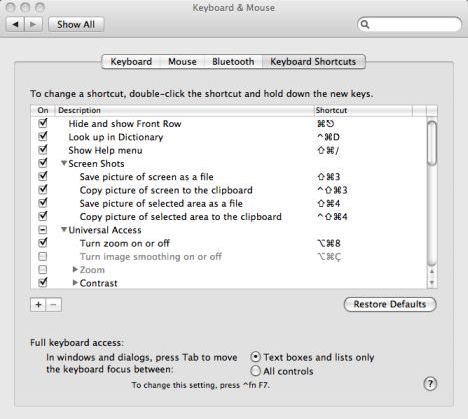
The best way to start is from the basics, by looking at the keyboard shortcuts indicated next to every action in your Mac. Start by knowing how to open and close a file, edit text, access preferences and shut down, or log in or out of your Mac. Take a look around at the keyboard shortcuts in Preferences>Keyboard & Mouse. You’ll soon realize that the same keyboard shortcuts can be used in different applications to perform the same actions. The guide lists all keyboard shortcuts for Finder, essential for finding and acting upon any file in seconds. I also encourage you to learn the shortcuts relating to the Dashboard, Spotlight and the Dock. If you’re like me you probably use these functions of your Mac almost all the time. Applesource have also included keyboard tips for Front Row, Spaces and Exposé.

How to: disable StickyKeys, FilterKeys and ToggleKeys

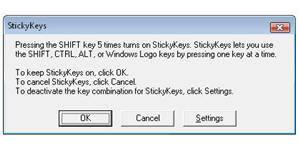
How to disable Sticky KeysWindows have a series of keyboard accessibility options (namely StickyKeys, FilterKeys and ToggleKeys) that are supposed to improve user experience for people with certain limitations in their vision, hearing capacity or mobility.
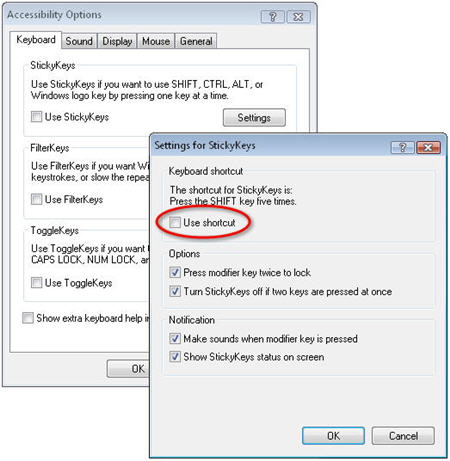
While this is a truly laudable aim, these options can become an annoyance when triggered involuntarily while you’re playing your favorite game or concentrating on some important document. This is why I was happy to read a post on OnSoftware Spain that explains how to disable accessibility keyboard shortcuts so that they don’t bother you anymore.

So, next time you get any of those annoying dialog windows – by repeatedly hitting the Shift key, for example – click on the “Settings” button. You may also go to Control Panel > Accessibility options, and you’ll open the Accessibility configuration menu. Click on the Settings button for the first one (StickyKeys) and uncheck the “Use shortcut” option.

How to disable Sticky Keys

Then repeat the same process for the other two (FilterKeys and ToggleKeys) and your working or gaming sessions won’t be interrupted by these windows again.

Wise up on Leopard security

LeopardKeeping your Mac safe isn’t the most difficult of things. As I previously wrote, Macs are generally well protected against any sort of threat, and if you’ve followed my advice on tightening up security by configuring your firewall and making sure your screen is locked, you shouldn’t have any problems.

Those of you who still feel a little paranoid, and have time on their hands, should take a look at the Leopard security configurations guide released by Apple today. This guide is clearly aimed at experienced Mac users though as it really goes into details on Mac’s security architecture and each and every sensitive areas. Consider it like a map of the bank and how to keep it safe from robbers. Leopard offers a number of security improvements, including better Trojan horse protection, stronger runtime security, easier network security and improved secure connectivity, that this guide takes into account.

An interesting read, the security configurations guide for Leopard conscientiously takes you through each and every security issue: global system settings, accounts, system preferences, data and encryption, system swap and hibernation storage. For the ultra geeks out there there’s even a security checklist for action items at the end of the document. This can actually be very useful if you handle systems in a company, but I wouldn’t really worry about it on your home computer.

The advanced security management section will teach you all you need to know about managing authorization rights, maintaining system integrity detecting intrusions or auditing system activity.

Worth a read if you’re curious as to how your Mac handles security, to check out the improvements in Leopard and to keep your Mac safe at all times.

Weblin: chat while you browse the web

Weblin: chat while you browse the webI used to chat a lot when I was younger, but now I’m really out of practice. However this hasn’t discouraged me from trying out a very original browser plug-in called Weblin, with which you can chat with other people who are simultaneously visiting the same website as you.
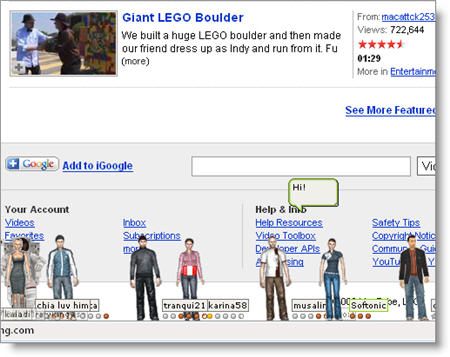
Weblin is very easy to install and configure, though it has two main requirements: one, you need to create a user account on the Weblin website (which makes sense in a chatting tool and, besides, is completely free) and two, remember to run the program before launching your browser, so that the plug-in is properly loaded. By the way, Weblin is supported by both Internet Explorer and Firefox, something you don’t find very often these days in browser plug-ins.

Once Weblin is loaded, here comes the challenge: find someone to talk to. You may as well visit your favorite sites to try your luck, though the best option is taking a look at the Topcloud on the Weblin website. The Topcloud is a kind of tag cloud that contains all the websites where you can currently find other Weblin users to talk to. In any case, by the time you’re browsing this list you’ll probably have two or three chats opened from other Weblin website visitors.

Weblin: chat while you browse the web

The plug-in features all the typical features in a chat tool, such as customizable avatars, private chat windows, actions (laughing, dancing and the likes), contacts list and different user status. There are also some special characteristics like the ability to send gifts to other users and also an inventory to store and trade objects.

As I said at the beginning of my post, it’s been ages without chatting and now I feel kind of weird when using chatting tools. However Weblin didn’t make me feel uncomfortable at all and provided me with a very rewarding experience. I liked the way the plug-in has been embedded into the browser’s interface and also the wide array of available tools. My only complaint, if any, is that popular websites (such as Youtube, eBay or Yahoo) are so crowded that chatting is too difficult and the browser is overloaded. Other than that, Weblin is certainly a recommended plug-in for all chat addicts.

Firefox wants to set a Guinness World Record

Download Day - EnglishFirefox surely has many stats with which to set a world record, but now the Mozilla developers are pursuing a higher aim: obtaining an authentic Guinness World Record with the highest number of software downloads in 24 hours.

Of course, they can’t achieve this goal on their own, so they’re kindly requesting help from all Firefox users worldwide – which is something they’re used to, being an open-source project. So if you’re willing to help Firefox to obtain this record, head over to the special Firefox World Record website they’ve set up and sign the pledge to get your copy of Firefox during the Download Day. At the moment I’m writing this post there are currently more than 578,000 pledges, but I’m sure they’re going to grow very quickly. Then, after doing your bit, you can contribute to the campaign by downloading any of the available banners and logos.

Now, when is that Download Day going to take place? Bingo: it’ll be the day when the official Firefox 3 is finally released. This means we don’t know the exact date yet, but apparently if you subscribe to the download pledge you’ll be notified by e-mail (if you leave an e-mail address, that is). Otherwise, you can always check the site on a regular basis until the great day comes… can’t wait anymore!

Adobe Acrobat 9 coming soon!

acrobat 9Acrobat 9 was officially announced by Adobe today, as AppleInsider managed to reveal before anybody else last week. The new version of the famous PDF reader now comes with native support for Adobe Flash, so you can include Flash videos and applications in your PDFs, live collaboration with other users on the same document via Acrobat.com and unification of all sorts of content into one file. You can already sign up at Acrobat.com to be notified once Acrobat 9 is released and to try out the ConnectNow environment.

Very similar to Photoshop Express, ConnectNow is built completely in Flash and offers a clear interface from which you can create and share new documents thanks to Adobe Buzzword, invite participants to an online meeting, and share your webcam or desktop.

Acrobatcom

You can now blend all sorts of content in Adobe’s new Portfolios, called Packages in previous versions of Acrobat. Portfolios look likely to be a more central part of Acrobat 9, with Adobe encouraging users to blend content together, including video and 3D, and share their documents with other users. Acrobat comes with a number of layouts but you can also customize your own by choosing from a set of color schemes. As pointed out by AppleInsider, Adobe have finally integrated Optical Character Recognition (OCR) of scanned text, so you can make any one of your PDF files searchable. Almost all files, including paper documents and web pages, can now be converted to PDF and two PDFs can easily be compared, with varying text automatically highlighted for you.

Acrobat will come in three versions: Pro Extended, Pro and Standard, with the starting price, for the Standard version, being $299. If you’re ready to pay the price and see some use in the extended collaborative tools on hand, it’s probably worth making the jump. We’ll have a hands on review of Acrobat 9 for you as soon as it’s released.

Are Facebook and Badoo useful or just a waste of time?

All online social network sites claim to be useful because they allow you to stay in contact with friends you wouldn’t otherwise hear from. Having a profile online allows you to post photos, videos and write thoughts or experiences available for anybody to read or see. They can all know where you are, what you are up to and so on. It’s cool and time saving, isn’t it?


Badoo

Although it is true that Facebook is mostly used to maintain contacts with people you know, the ‘temptation’ of enlarging your social network is always there. It’s surely not like LinkedIn where you just invite work colleague and you really want to maintain your profile linked just to specific people. In Facebook most users leave their profile open for others to see and it can happen that complete strangers ask you to be their ‘friend’. Sometimes you may think, ‘why not’, so you accept the invitation, simply basing your willingness on the other person’s picture.

Even though people say they use social networks just to maintain contacts with family and mates, the possibility of knowing ‘new friends’, or of being ‘on the market’, really stands behind the popularity of these social websites. If this weren’t true, if the possibility ‘to flirt’ were not an option, people would just have a personal blog, a mailing list or a private forum to stay in contact with whoever they wanted.

This trend is even clearer with Badoo, a ‘new’ service which is becoming extremely popular, and taking ground on Facebook. It is actually a free dating web site, under the appearance of a social network. Of course the service is meant to create your community of friends, share photos and videos. With this site you rate other people’s pictures, which can actually be funny, and post a brief profile. Within minutes you receive dozens of messages of people asking to be your friend and so on. Not that they will write more than ‘Hi, how are you’ though. Users can even pay to have their photo in the site’s home page, so they can be in contact with the entire world. The human omnipresence delirium has its chances to be fulfilled.

Continue reading “Are Facebook and Badoo useful or just a waste of time?”