A sneak peek at Plurk

As if we didn’t have enough with Twitter, Tumblr, Pownce and other micro-blogging, time-consuming services, here comes the latest state-of-the-art social community tool to keep us badly hooked on for now on. Its name is Plurk and this is what it looks like:

Plurk

The top-down design we’re all used to see in blog and microblogs has now been replaced by a horizontal timeline you can scroll with your mouse. Like in Twitter, you can customize your profile’s colors, add a personal avatar and embed a Plurk widget on your website. So is there any difference with the micro-blogging pioneer? Well, in Plurk followers are “fans”, there’s support for colorful emoticons, you can share videos and images that are displayed right on the Plurk interface… oh and there’s also karma.

Karma is a nicer way to say user ranking. You earn points by taking an active part in the Plurk community (using instant messaging, uploading your avatar, sharing videos and pictures) and of course also by inviting friends to join Plurk. The higher karma you have the more tools and features you can access. Continue reading “A sneak peek at Plurk”


Best Internet Explorer add-ons

best-ie-addons.png

So you thought that add-ons were just a matter for Firefox, eh? Well actually you were partially right as there are many more extensions, themes and functions you can install to Mozilla’s popular browser. Nevertheless, IE also has some free applications you can install and play with, to enjoy a richer experience while web surfing. I have looked at what is on offer and have chosen what I believe to be the most interesting tools you can try… enjoy!

  • Me.dium – a social-browsing add-on that lets you surf with your friends like never before. In the real world, doing things alone feels, well, lonely. So why do we do everything alone when were online? Start navigating the web with the people you care about. Bump into your friends and interact with the crowds, wherever they are – just like in the real world.
  • StumbleUpon – discovers web sites based on your interests, learns what you like and brings you more. With StumbleUpon you can also connect with friends and share your discoveries, meet people who have similar interests, and check out what other people are discovering.
  • PicLens – instantly transforms your browser into a full-screen, 3D experience for viewing images on the Web. Photos and videos will come to life via a cinematic presentation that goes well beyond the confines of the traditional browser window. With PicLens, browsing and viewing media on the Web will never be the same again.
  • Browse3D – Why browse the Web one page at a time? Browse3D works like a tabbed browser but the open Web pages are easier to find and use since their image is always visible on one of the 3 walls. Advanced search and anti pop-up features are integrated with XP SP2. Pre-load Web pages and eliminate the wait. The center wall is the main browser, the left wall is for history pages and the right wall is for other open and saved page groups.
  • Rip Clip – Need to save Web articles? Focused more on article extraction as opposed to Web site extraction, Rip Clip has specific features for this task that make it superior to other offline browsing tools. Features include the ability to get information about the structure of your Web article to easily determine whether you’re missing any pages; the ability to control precisely which pages you want; and a simplistic interface for collecting Web pages while you surf. This ensures you download only the pages you want, without missing the pages you need; saving on download time and disk space. Continue reading “Best Internet Explorer add-ons”

Expectations for this year’s WWDC

Apple’s much awaited WorldWide Developer Conference (WWDC) starts today at 10:00 am Pacific Time. The event which takes place at Apple’s favorite exhibition complex, the Moscone Center in San Francisco, will last from the 9th to the 13th of June, and will gather developers and IT professionals from the world around to learn about Apple’s technological innovations. Just like last year, the iPhone will be the main focus of the conference, but developers will also have the chance to work with Apple engineers and attend over 150 sessions and labs on everything else Mac.

WWDC 08

The exciting thing with the WWDC though is all about predicting what Apple will reveal. There’s always a great deal of secrecy, Apple-style, during the event, and always something that Steve Jobs pulls out of his sleeve. Last year Apple surprised us with the complete feature list for Mac OS 10.5 (Leopard), Safari for Windows, and the iPhone SDK. So what can we expect this time?

  • iPhone 2.0 – Expectations run high for what should be the second release of Apple’s star product. We could very well see the mobile device finally run on 3G networks and big changes in the software development kit. Also expect an App Store in iTunes and GPS support.
  • Mac OS X 10.6 Snow Leopard – There’s been talk of Apple releasing a new operating system. However, according to many sources, the so called Snow Leopard would not offer drastically new features but would show significant improvements in security, reliability and design. The big question then is how much will Apple charge for it?
  • Mobile Me service – Remember how we told you the .Mac online service would change? Apple should announce a complete revamp of the service including better integration with the iPhone and more powerful syncing capabilities.
  • Design Awards – Extremely valued by software developers, the Design Awards recognize the best apps built for Mac. We tried to make a guess for this year, but there really are no clues as to which software will win the prize.
  • 4″ and 7″ Multi-Touch devices – According to a Wall Street analyst, Apple could release new highly portable devices which make use of its new trackpad technology seen in MacBook Air. These devices could run on 3G networks.

Master RAM in your Mac’s Activity Monitor

Activity Monitor Is your Mac running slow? Maybe there are some applications that are eating up all your memory and leaving none for others. The place to check this out is in your Mac’s Activity Monitor, which can be found in Utilities. At the bottom of the interface press the ‘System Memory’ tab.

You’ll see four types of memory: Wired, Active, Inactive, Free. Used is the total of the first three. Add up all four and you get the amount of RAM in your computer (which you can also verify by pressing Apple>About This Mac from the top left of your desktop).

You’ll also see something called VM size. This is the virtual memory in your Mac. Your computer can put it in your RAM or cache it to your hard drive to obtain the best running performance possible. This is called memory allocation. Pages ins and pages outs shows this distribution. For example if I see 879 MB of pages ins in my Activity Monitor, this means this same amount of RAM has been called up by an application.

You’ll notice that free memory is normally quite high right after starting up your Mac. Also, if an application needs some memory it will normally take that which is inactive. The only time you should really worry and think about adding more memory to your machine is if both free and inactive are low.

Activity Monitor isn’t the only application that can inform you on the state of your Mac. Also check out our list of alternative applications for Mac.

[Via: Apple]

Disable the automatic restart after Windows update

Having your operating system updated with the latest security patches Windows releases is always a good thing. The problem comes when the update is done and Windows politely asks you to restart the PC… or maybe not that politely.

Disable automatic Windows restart

This is in fact the message you get: a window that compels you to restart the system, either right now or in five minutes, after a dreary countdown is finished. Even worse, if you select the “Restart later” option, the window appears again after a short while disturbing you with the same boring message. But what if you don’t want to restart now, nor in five minutes? Say you’re in the middle of an important work project, or you’re downloading a 2 GB file, or you’re simply not in the mood of a system restart in that moment. Is there a way round this message?

Luckily there is! Whenever you get this window after a Windows update, all you have to do is click on the Start button, select the Run… option and write sc stop wuauserv. The window will disappear and won’t bother you again. Just remember to restart your system whenever you have some spare time – no pressure at all.

Thanks to OnSoftware Spain for this tip!

Youtube adds video annotations

Youtube Video AnnotationsYoutube just announced the implementation of a new service in their video sharing website: the ability to add interactive comments right onto your videos. This new service, known as Youtube Video Annotations, brings a wide range of possibilities in terms of video creativity and value-added services for users. That is, you can use these notes to include extra details about the video, give the viewers some background information, add some fun dialogs over a certain scene or even link to other Youtube videos, channels or search results.
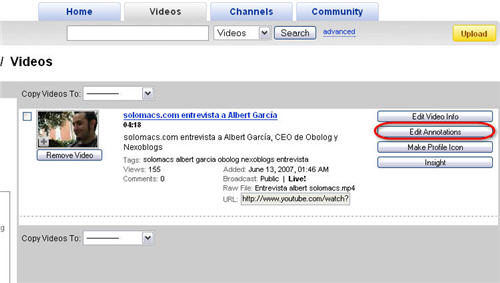
Youtube Video Annotations are really easy you use. Simply login into the website with your username and password and access your videos in the Account > My videos menu. Find the video you want to annotate and click on the “Edit annotations” button. You’ll enter a new webpage with a built-in video player on the right side (to preview your video) and a note creation tool on the left.

Youtube Video Annotations

There are three kinds of video annotations: notes, which are simple rectangles with text inside; speech bubbles, which are a kind of comic-like speech balloons; and finally spotlights, which are similar to the Flickr notes on photos. Adding any of them is as easy as playing the video up to the point where you want notes to appear and clicking on the corresponding button. Continue reading “Youtube adds video annotations”

Microsoft launch Windows Search 4

Windows Search 4 logoSearching in Windows has always been painfully slow but Microsoft have just announced the launch of Windows Search 4 which aims to bring searching up to speed with applications such as Google Desktop. Windows Search 4 uses the same indexing style approach that Google Desktop does meaning that your data is always indexed and instantly searchable. Search results are now returned in seconds rather than minutes under Windows older search tool.
Be warned however – the indexing file can be huge especially if you have a large amount of data on your PC so make sure you have plenty of disk space free before installing Windows Search 4 otherwise you’ll find it locks up your system before finally warning you that your disk space is low. In this release, Microsoft have finally ensured that you can also index and search encrypted files which was something missing from previous versions.

This is something that should have already been included in Vista and is yet another area where Microsoft are adding and completing aspects of the system that should have been ready before it was released. I don’t quite understand how tools such as Google Desktop and Copernic Desktop Search have been on the market for years now and yet Microsoft have only just been able to implement such a basic feature into their operating system.

You can see Windows Search 4 in action here.

Easily split and join large files with HJSplit

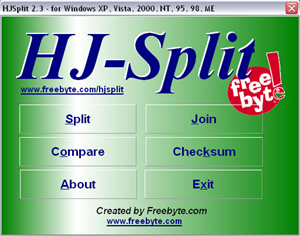
HJ-SplitSince time immemorial, computer users have had problems sharing large files. Whether trying to fit Sim City on floppy disks, uploading binaries to newsgroups or sharing home movies via email, you may well have suffered the inconvenience of a file that’s just too big for what you’re trying to do.

This is where HJSplit comes in. It’s a remarkably simple and easy-to-use little application which can split any file you like into parts of a predefined size, so that sharing them or storing them is made easier. It can also join split files back together and compare parts to see if they’re the same.

Based in just one small executable (there’s no installer for this old school app!), the utility weighs in at a piffling 300kb and doesn’t have the world’s best design. But it works surprisingly well and splits files into chunks of your chosen size, very quickly indeed. Its joining, comparing and MD5 tools all work just as efficiently.

A small but very effective little utility which will split and rejoin any file you like.

Softonic rating: 8/10

How can I use Windows File Sharing on my Mac?

SharingHow can you share folders from your Mac with PC users on the same network as you? Windows File Sharing’s the name! This allows a computer running Windows to connect to your Apple computer using its native sharing protocol. Connecting a Mac to a PC is easier now than it was five years ago, but can still encounter some compatibility issues. Hence why you should run Windows File Sharing. Let’s see how you set it up.



First make sure both the PC and the Mac are on the same subnet, that is that the first three octets of their IP addresses are the same (for example 174.21.7.1 and 174.21.7.2). Then, you’ll need to make sure you use your own account on your Mac. If you don’t have one just follow the next steps. Go into System Preferences>Accounts and just click on the ‘+’ button. Then simple enter a name and short name (preferably the same for both and in lower case) . If you login to your PC with a specific user name, then try using the same one on your Mac. Enter your password then press ‘Create Account’ and close System Preferences.

You then need to turn on Windows File Sharing. Go to System Preferences>Sharing. Before Leopard you simply needed to check the ‘Windows File Sharing’ option. In Mac OS 10.5 though, you’ll have to check ‘File Sharing’ then press ‘Options’ and check ‘Share files and folders using SMB’.

To connect to your Mac files from your PC, go to Start>My Network Places, then select ‘Add a network place’. A wizard will pop up to guide you. When it comes to entering an address, just type the Mac’s IP address followed by a slash and its name, for example: \\192.168.0.10\IMAC. You’ll then be asked to enter a name. Leave the one that appears or just type your Mac’s name. Here it would be IMAC. Click next and close the wizard. A folder with your Mac’s name should now appear. You can now share Mac folders on your PC!

Today’s downloads for Windows, Mac and Mobile

Download Ad-Aware 2008Windows: There are many anti-malware tools, but none as popular as Ad-Aware. This powerful security app protects your system from all sorts of intrusive elements that put your privacy to risk. Its new version, Ad-Aware 2008, features enhanced threat detection tools, embedded anti-virus and a better resource management.

PulpMotion AdvancedMac: Today’s pick is PulpMotion Advanced, a more powerful take of the program with the same name. PulpMotion Advanced offers the same sleek and intuitive interface, that allows you to make professional looking slideshows. An excellent choice of themes, perfect interaction with programs like iPhoto or Lightroom and easy exporting in all sorts of ways make this an excellent pick.

Conquer the world on your mobileSymbian: If you’re a fan of games like Civilization and Populus and fancy playing God while you’re sat on the bus then get hold of Revival. This military-style strategy game sees you build up a community from scratch and expand in your effort to conquer the seven planets. It’s packed with great graphics and is perfect for megalomaniacs everywhere.