Create morphing effects with your photos

Create morphing effects with your photosYou’ve probably seen morphing effects a hundred times, even if you don’t know how to describe them in words. Put simply, a morphing effect is an animated transition between two pictures, so that it seems that the first one is gradually transformed into the second one. Morphing effects are widely used on all kinds of multimedia productions, but that doesn’t mean they’re difficult to create. In fact, you can create easily create your very own morphing effect with FotoMorph.

The first and most important step in creating a morphing effect is selecting the appropriate photos. Not all images are suitable for morphing: you should make sure they’re approximately the same size and the subjects appear in more or less the same position. Once you load your images on FotoMorph, you’re ready to start anchor dots.

Create morphing effects with your photos

Now what’s this dots thing about? Anchor dots mark the exact points the program will use to create the transition between both images. Obviously, the more dots to add to your images, the more accurate – and therefore realistic – the transition will be. In any case, try at least to add dots around the most important areas on your subjects’s faces: face oval, eyes, nose and mouth. [Caution: animated GIF below the fold!] Continue reading “Create morphing effects with your photos”

Mac tip – Use Quicksilver and Flickr Uploadr

QuicksilverQuicksilver is one of the most beloved apps of Mac users, even though it hasn’t been updated in a while. If you know how to use it well, the productivity tool can not only help you find anything in a matter of seconds but also gives you complete control over all your files. Consider it as a really powerful Swiss army knife for your Mac.



People who have mastered it know that it realizes its full potential when it’s used to control another program, just like Mac’s Automator tool can. Automator is more complicated to work with though, because you actually need to create rules and filters, so that it performs a specific action. Quicksilver is more organic, and while you can not automatize anything, you can use the program as a Dashboard from which you launch and perform actions.

Just as an example of how you can work with Quicksilver and your favorite programs, UsingMac have written a clever post on how to couple Quicksilver with Flickr Uploadr. Select your pictures, open up Quicksilver (Option+Space),  find Flickr Uploadr via the 1st pane, then choose ‘Open File’ from the second pane. Then press CMD+G to bring the photos to the Flickr application. The photos will load up automatically in the application. Once they’re ready, all you need to do is upload them to your Flickr account. It’s a shame that you can’t actually perform the upload process directly from Quicksilver, unfortunately the application does not have access to this specific function.

Video: Tweak your Vista appearance

What does it take to change the appearance of your Vista computer? Is there a way to play around with the taskbar’s transparency level? A while back Nick gave us some tips on how to tweak transparency on Windows XP.  Elena also came up with the Transbar application and explained how you could use it in XP. In the following video we show you how you can make your Vista taskbar transparent with Transbar and give you a few quick tips on changing the appearance of your desktop. Enjoy!

insertvideo(“vista_appearance”, “1017”, null , null, true, “false”, url + “images/watermark_final.png”);

Today’s downloads for Windows, Mac and Mobile

Download Letter Rack 3DWindows: if you like word puzzles in general and Scrabble in particular, you’re going to love Letter Rack 3D. This awesome three-dimensional puzzle challenges you to achieve the highest score by creating words, just like the original board game. Letter Rack 3D features highly realistic graphics and a multilingual dictionary to which you can add new words.

Audio Hijack ProMac: Looking to record sound from any piece of software or hardware? Audio Hijack Pro can get the job done for you. The application creates automated actions for each program. You can then add any effect from the large library available and choose one of the preset audio formats to export the sound. It really works with anything so there are no limits to what you can do with.

Manage your contacts iPhone-stylePocket PC: The scrolling contacts function is one of my favourite features of the iPhone. Now you can replicate the effect on your Pocket PC thanks to PocketCM. The app lets you list all the contacts on your device using only your finger as a resource. You can apply filters for even faster access (again, all done with just one finger) and there are lots of contact managing tools.

Set CCleaner to run automatically

I recently installed CCleaner on one of my computers and ran it after months of intensive usage. The results were impressive: CCleaner found and erased almost a GB of junk data! Of course, the only way to avoid such a pile of dirt is to run CCleaner more often, but being honest, I hardly remember to use it as long as my PC works fine. Fortunately, I found a way to make this process automatic, which combines CCleaner’s settings and Windows’s built-in scheduling tool.

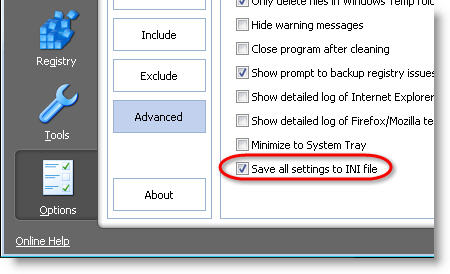
First you have to select what CCleaner tasks you want to run in the program’s interface, including the Registry and Cleaner areas. Then go to Options > Advanced and make sure the “Save all settings to INI file” option is checked.

Set CCleaner to run automatically

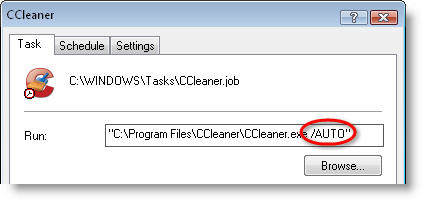
Now open the Start menu in Windows and browse to Accessories > System Tools > Scheduled Tasks. Double click on the “Add Scheduled Task” icon and follow the steps in the wizard. You’ll have to select the program (CCleaner), give the task a name, select its periodicity and starting time, among other options. Once the task is finished, right click on its link, select Properties and add “/AUTO” in the Run field.

Set CCleaner to run automatically

Your task is now ready to work. CCleaner will launch automatically and run in the background according to your schedule, but you can also test it right away.

Today’s downloads for Windows, Mac and Mobile

Download FoxyTunesWindows: if you usually listen to music while browsing the web, then FoxyTunes is made for you. This handy Firefox extension lets you control any media player from the browser’s interface, without having to switch between apps every time you want to pause the music, skip a song or adjust the volume.

Assignment PlannerMac: Was your school year marred by lack of organization? It’s never too late to learn from your mistakes. Assignment Planner allows you to organize your courses, homework and course books, stay on top of projects and assignments. The application lets you filter by course and includes calculators for your GPA and Finals. Get it before the start of the new school year.

Make Skype calls on your mobile iSkootSymbian: Skype is great for making free or cheaper calls from your computer. But what if you’re out and about and want to speak to your Skype contacts on the move? Then you need iSkoot. The app lets you make calls to people, chat via IM and even receive Skype calls to your mobile. You can also use iSkoot to make cheaper international calls using the SkypeOut service.

How to: Downgrade from Vista to XP without reformatting

XP and VistaIt’s a crazy situation – and one that you feel only Microsoft could have created – but there are many users who feel that Windows Vista is so bad, they’ve actually gone to the effort of replacing it completely with Windows XP. It’s a controversial step that shouldn’t be taken lightly because Microsoft have now discontinued production of XP.
However, if you’ve decided you just can’t take Vista resource hogging, sluggish performance and software incompatibility issues anymore, here are some steps to downgrade to XP. Windows doesn’t allow you to install an older version of it over a newer one so normally, downgrading would involve a lengthy and drastic blanking and reformatting of your hard drive. However, here’s how to do it in 6 steps without having to reformat anything at all.

1. Backup your entire hard drive – Just in case – I recommend using Norton Ghost.

2. Get an XP installation CD – You’ll either have to buy this or borrow it from a friend.

3. Insert the disc into your drive – You’ll be prompted if you want to to “boot from disk”

4. Press “R” while XP is booting – Enter your admin password to get the XP Recovery Console

5. Prepare your hard drive – Type the following commands remembering to press Enter after each one: “fixboot, fixmbr, cd \, ren windows winvista, exit”.

6. After restart boot from the XP CD – Continue with XP setup normally and you’re done!

The only thing that’s left to do is manually move all of your old folders and documents from the old C:\Winvista folder to your new C:\WinXP folder. Of course, you’ll also have to install any programs or applications again but this is a far more expedient and hassle free way of downgrading to Vista without formatting your hard drive.

Mac Tip – Choose which apps start-up with your Mac

Ever wondered why some programs start automatically every time you launch your Mac? Why these and not others? Is there a way to choose which ones start when I log in? Here is where we help you answer these questions. You can easily select which ones start once your Mac is put into first gear. For instance you can have Apple Mail and Skype launch automatically, or get your browser to open up first thing. For the lazier among you it means you don’t even have to worry about opening those programs.

login items

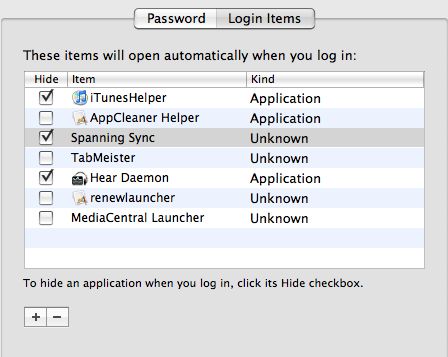
Here’s how you can set your custom login items. Go to Apple>System Preferences and select Accounts. Choose your account name then press the ‘Login Items’ tab. You’ll see the programs that automatically launch at startup. Uncheck the ones you don’t want to start at login. If you want to add more programs, simply click the ‘+’ button and add them from your list of applications. If you want to remove a program, select it and press the ‘-‘ button. Make sure that the programs you have added are checked, otherwise they won’t start up at login.

If your chosen program requires a password, be aware that you won’t be able to launch it at startup. Similarly, avoid adding too many login items. Your Mac will probably not like being requested to open up ten programs all at once.