The Dangerous Motherboards You Need to Replace Immediately

Hackers have been using a computer’s UEFI firmware for years… now Gigabyte has installed its own backdoor.

Hackers have been using a computer’s UEFI firmware, the hidden code that instructs a PC on how to boot its operating system, for years to infiltrate computers worldwide.

CCleaner DOWNLOAD

When a motherboard manufacturer installs its own hidden backdoor in the firmware of millions of computers, they are essentially doing the hackers’ job for them.

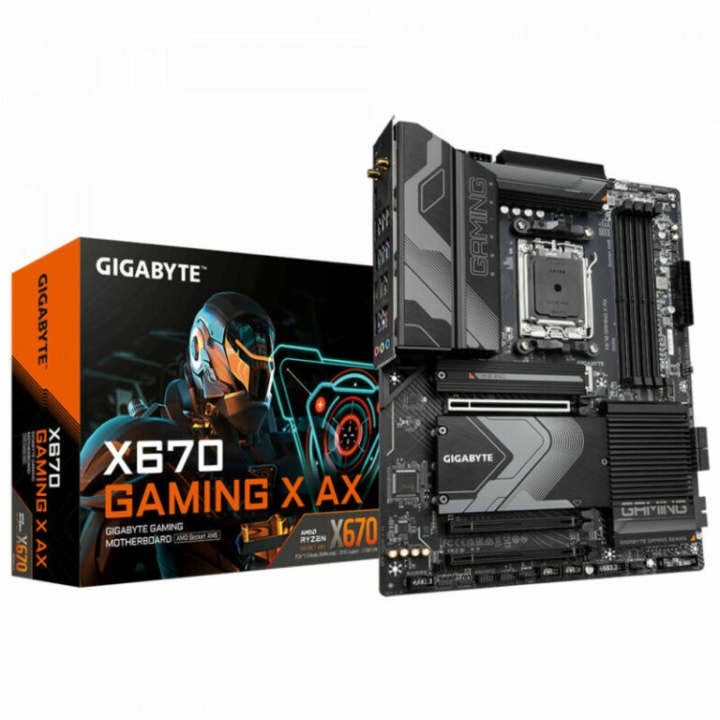
Researchers from cybersecurity company Eclypsium have revealed today that they have discovered a hidden mechanism in the firmware of motherboards sold by Taiwanese manufacturer Gigabyte. This brand is commonly found in gaming computers.

According to Eclypsium, every time a computer with the affected Gigabyte motherboard is restarted, a firmware code initiates an invisible updater program that runs on the computer and, in turn, downloads and executes additional software.

While Eclypsium claims that the hidden code is intended to be a harmless tool for keeping the motherboard firmware up to date, researchers discovered that it is implemented in an insecure manner, potentially allowing the mechanism to be hijacked and used to install malware instead of the intended program by Gigabyte.

Since the updater program is activated from the computer’s firmware, outside of its operating system, it is difficult for users to remove or even detect. Here’s how you can find out which motherboard you have.

In their blog post about the investigation, Eclypsium lists 271 models of Gigabyte motherboards that, according to the researchers, are affected. Loucaides adds that users who want to check which motherboard their computer is using can do so by going to “Start” in Windows and then selecting “System Information.”

Eclypsium states that they discovered Gigabyte’s hidden firmware mechanism while tracking customers’ computers for firmware-based malicious code, which is becoming increasingly common among sophisticated hackers. Take a look, just to make sure you haven’t been inadvertently hacked…

CCleaner DOWNLOAD

Some of the links added in the article are part of affiliate campaigns and may represent benefits for Softonic.

The Best Settings for CCleaner

Is your computer running slow? Want to optimize your PC and keep it junk free? CCleaner is a tool for you. This powerful system utility suite lets you remove temporary files, uninstall programs, control your startup processes, and find duplicate files, all from one user-friendly interface. This makes it very simple not only to spring clean your computer, but also to speed it up and make it run like new.

CCleaner logo

As with most Windows optimization and cleanup tools, the trick to using CCleaner most effectively is to choose the right settings. This might be overwhelming to new users, but don’t worry. In today’s article, we’ll help you easily use CCleaner and give your computer the boost it deserves. Here we go!

CCleaner DOWNLOAD
9

A Word of Caution

CCleaner is a very powerful tool that can make changes to your system’s startup and registry files. For that reason, it’s always recommended to back up your entire hard drive or set up a recovery point on Windows before making any changes.

Warning Sign

Step 1. Analyze Your Computer for Junk Files

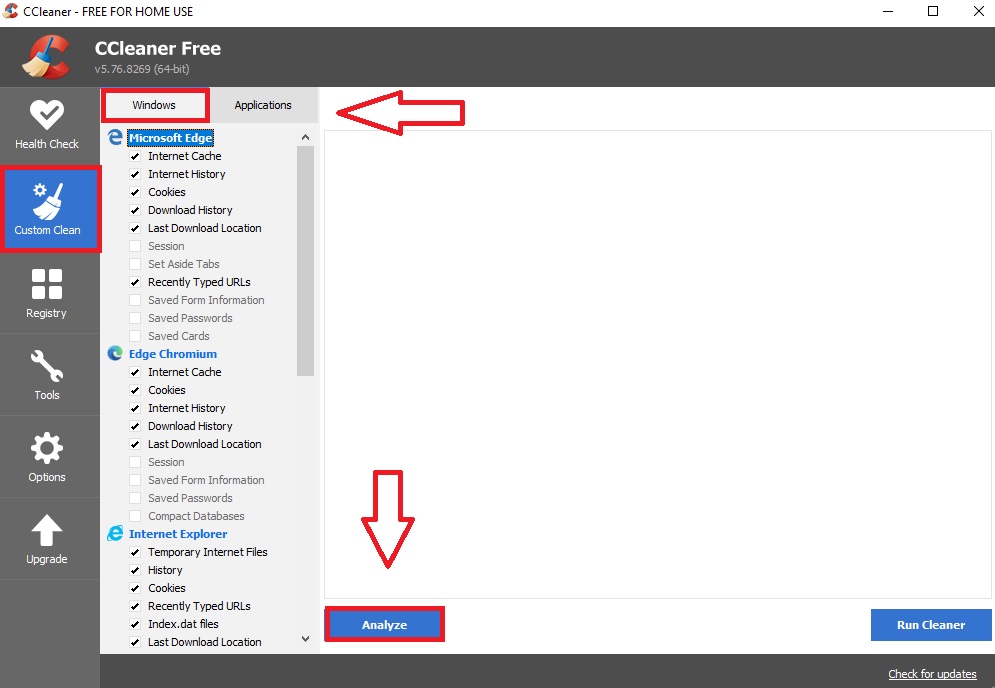
Let’s get started. Open CCleaner and click on the “Custom Clean” option that you can find on the lefthand menu. Once you’ve done this, select the “Windows” tab and check all the boxes you want CCleaner to inspect. Repeat this process for the “Applications” tab as well. After that, click the blue button “Analyze” and let the program check every nook and cranny of your computer.

CCleaner Custom Clean menu

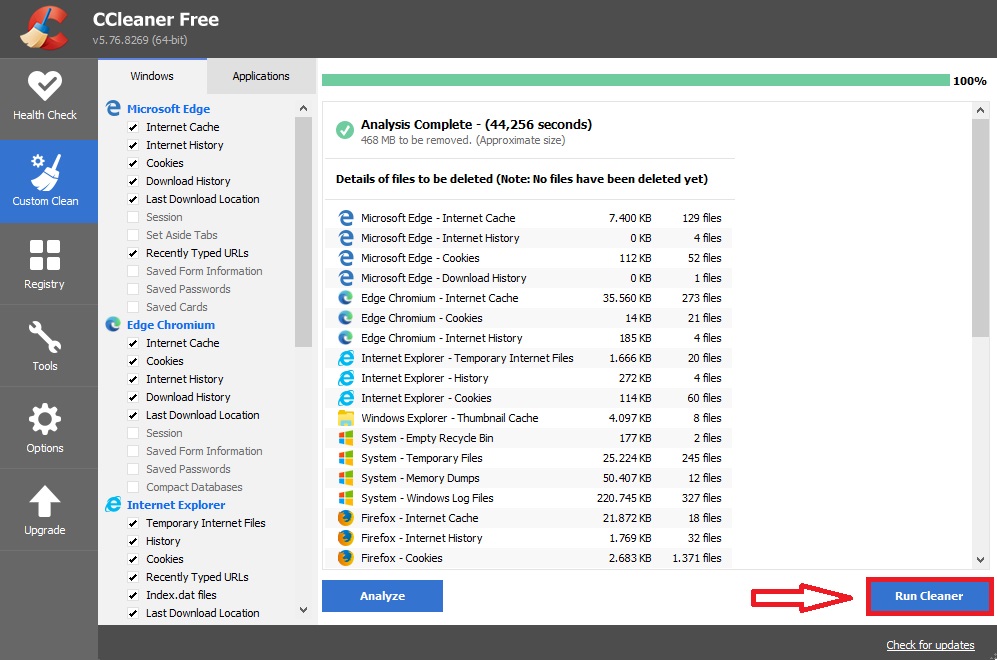
After a few seconds, CCleaner will show a list of all the files that can be removed from your computer and how much free space you can gain by deleting them. If there are files that you do not want to remove then go back and check different boxes. Once you’re happy with what is being deleted, click the button “Run cleaner”.

Custom Clean from CCleaner

Step 2. Clean Your Registry

Broken or corrupt registry entries can slow down your system, make it freeze, or even crash. Fortunately, CCleaner can help to fix this by locating all these troublesome entries and assist you in getting rid of them.  To perform a scan, first open CCleaner and click the “Registry” option followed by “Scan for issues”.

Once the scan is finished, review the results and deselect any that you don’t feel are actual issues.  Now, simply click on “Review selected Issues” and it’ll give you an option to back up your registry. It’s highly recommended you carry out this step. Afterward, a dialogue will pop up that will run through each individual issue. You can either scroll them one by one or select “Fix all issues”.

Registry menu from CCleaner

Step 3. Use the System Tools

CCleaner gives you easier access to your computer’s existing system tools. Here’s how to make the best use of them.

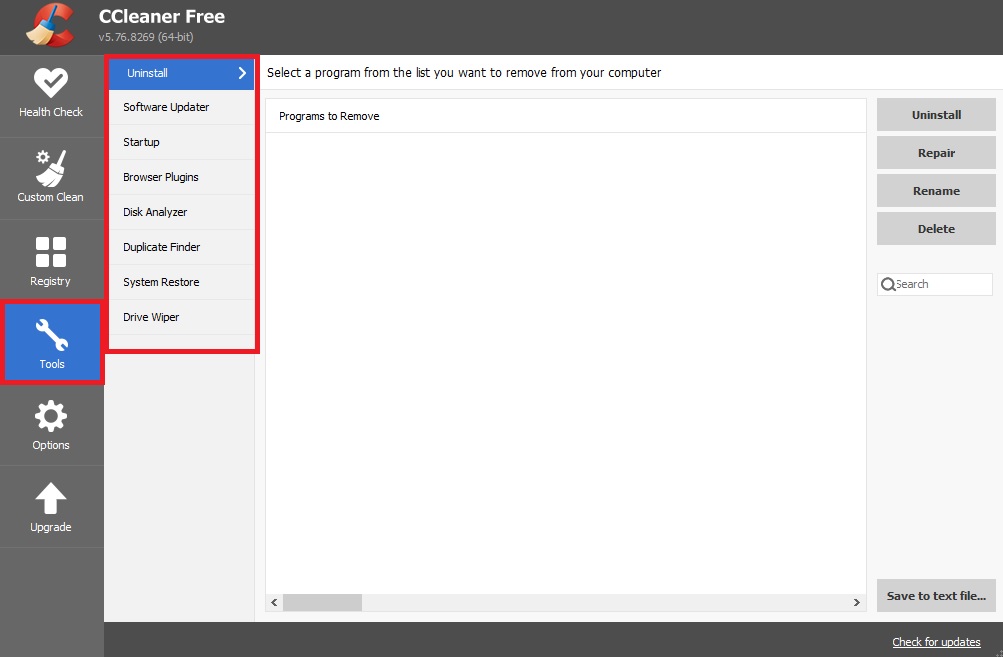
If you’re struggling for space, use the Uninstall tool to eliminate unneeded programs. If you still need more space, use the Duplicate Finder to search for duplicate files that can be deleted from your system.

If any of your programs or apps are crashing and giving you problems, try the Software updater tool. With just a few clicks you can locate any outdated software on your PC and be able to install the latest version.

The Browser Plugins disabler tool is especially useful, as it cleverly presents all your browser plugins in one simple interface. Handy if your internet browser is grinding to a halt.

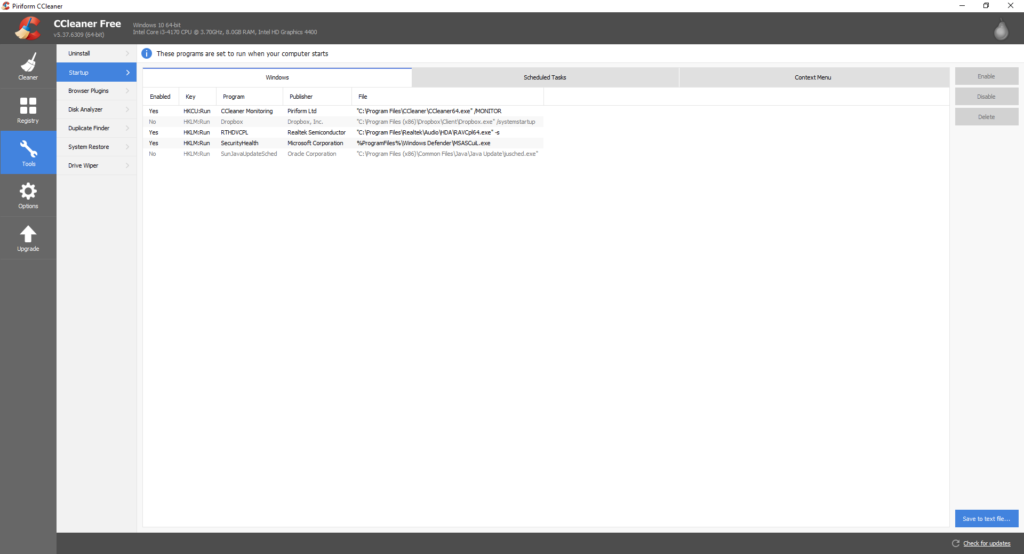
If your startup process is slow, you’ll find the Startup tool convenient for stopping useless programs from using your computer’s resources upon booting Windows. You might be surprised by just how many non-essential programs start up when you boot your PC or laptop.

As for Drive Wiper, if you have any highly sensitive documents that you’ve recently deleted, this tool can be used to make sure they cannot be recovered. Make sure you’ve selected “Free Space Only”, otherwise you could end up completely wiping your PC. Increasing the “Security” setting will improve how well the data gets wiped, but can significantly increase the time it takes to complete.

Finally, with System Restore, you can achieve the same results by using Windows’s System Restore settings, so feel free to ignore this tool.

CCleaner tools

Step 4. Customize the Options Menu

There is very little to customize in the Options menu, but be sure to check out the settings to see if there are any options checked that you don’t want. Don’t forget to also check the “Advanced” section. We recommend the settings as shown below:

We hope our guide has helped you clean and speed up your computer. If you’ve never tried CCleaner, why don’t you give it a shot? You can download it easily from the link below.

CCleaner DOWNLOAD
9

Options from CCleaner

Get started with CCleaner

Many people think that CCleaner is a great piece of software simply because it speeds up your computer, but in the era of fast modern computers, that’s not where its greatest value lies.

Unless your computer is littered with ludicrous amounts of temporary and junk files, there is little chance of this program making a modern computer any faster. Most modern computers have enough disk space and RAM to handle large numbers of junk files without a problem. Where Piriform’s CCleaner really shines is in its byproduct effect:  It helps protect your computer from malware.

The easiest way to infect a computer these days is to have a user download segments of malware in different parts of their computer. Each part is harmless on its own, but when the malware is sufficiently downloaded in fragmented parts, it can be activated with little more than a cookie from a website. CCleaner allows you to clear out the junk from numerous areas in your computer, which dramatically lowers the chances of your computer ever receiving a full malware download.

If you’re using CCleaner for the first time, here are some tips on how to make the most of this valuable software to keep malware at bay.

CCleaner installation tips

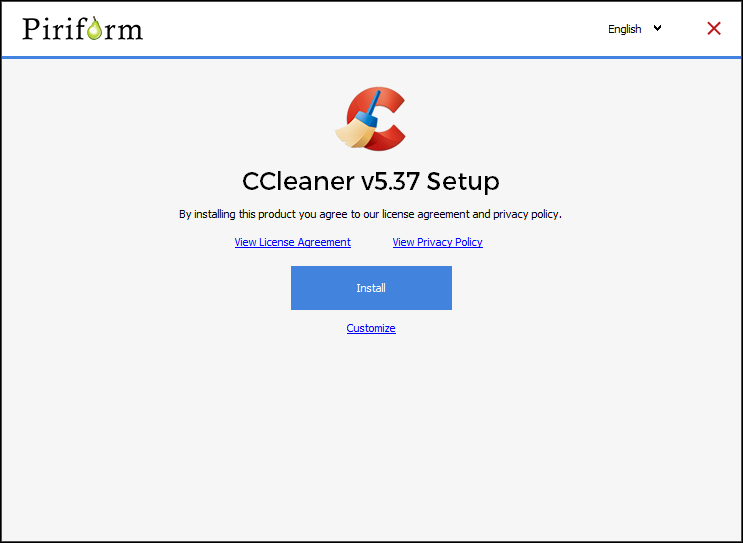
Is this your first time using CCleaner? Download it here. When you first install CCleaner, make sure you read all of what is presented to you – always a good idea when you’re installing software. For example, there is a box that you need to uncheck unless you want to install Google Chrome on your computer, too.

Click the Customize link during the installation process to choose where you’d like to access the tool. For example, you might not want the CCleaner to appear in the context menu when you open your recycle bin.

Do your cleaning chores on a regular schedule

Once you’ve installed CCleaner, decide on the frequency of your cleanings. If you want to protect yourself from having pieces of malware floating around your computer, you need to routinely clear things such as your cache files, temp files, and cookies.

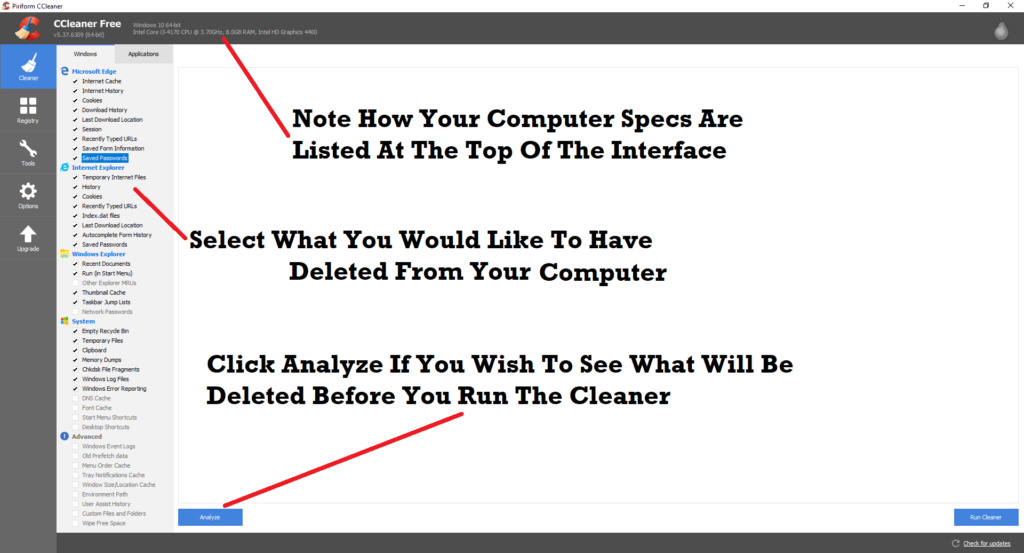
Fortunately, CCleaner makes this task pretty easy, putting the deletion and cleaning tools in one place. Instead of cleaning your browsers one at a time, you can clean them all at once by going to CCleaner and selecting what you want to clean. As you can see from the image below, you can even choose to have your saved passwords deleted in case you’re worried about spyware gaining access to your passwords.

First do a Windows scan, then an Applications scan

To get started cleaning out the junk, keep the default tab, Windows, selected in the left panel of the CCleaner interface, and select the files you would like to delete. If you are concerned about the possibility of deleting important files, click the Analyze button to see a preview of what will be deleted. If there are files that you would prefer to keep, simply uncheck those files in the list, and re-run the analyzer before clicking on the Run Cleaner button.

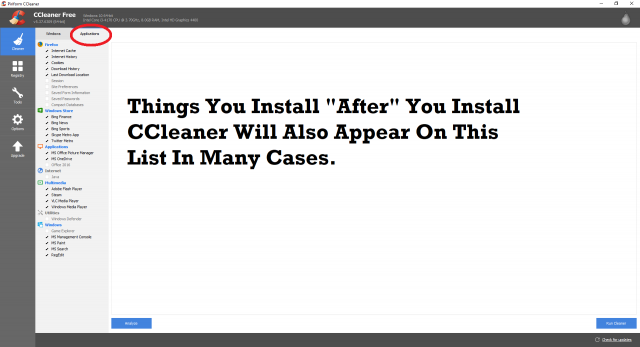
Once you’ve finished, select the Applications tab on the panel, which includes a limited number of your apps. Some apps do not appear on the list for a number of reasons – for example, because CCleaner can’t find them, or because they do not leave fragments of junk/temporary information in your device. Now click the Run Cleaner button again.

Check out the other tools in CCleaner’s toolbox

In addition to the basic scan functionality, CCleaner has a few other tools up its sleeve. The Registry tool allows you to scan for issues and then remove them. Be cautious using this tool; messing with the registry can have consequences. The scan is usually harmless, but save a backup of your drive so you can restore it if things go wrong.

If your computer starts up very slowly, the Startup tool allows you to see which programs are slowing down your startup process and then lets you disable them. And the Browser Plugins tool speeds up your web browsing by helping you disable the apps, add-ons, and plugins that are slowing down your web surfing.

Once you’ve completed your first scan, remember to schedule future scans at regular intervals to keep your PC free of dangerous file fragments that could let in malware.

CCleaner Has Been Hacked: Update Now if you Haven’t Already

If you use CCleaner for Windows, update the application immediately because a backdoor for hackers has been installed on the software. This malware then allows them to install other dangerous programs, like ransomware or key loggers, onto the infected machines. According to Avast, who own CCleaner, 2.27 million users could have been affected by this incident. Avast are quick to add, however, that users should not worry.

CCleaner is a file cleaning tool that has been downloaded 2 billion times and averages about 5 million downloads a week. Cisco Talos, who discovered the vulnerability, raised the alarm on September 13th when version 5.33 of CCleaner triggered their detection systems.

The affected version of CCleaner, that has the malware, was launched on August 15th but the latest version, version 5.34, which arrived on 12th September no longer has the problem. This is why it is important to update immediately if you’re not using the latest version of CCleaner.

Download CCleaner

Piriform, the Avast subsidiary has called for calm. Piriform also informed users that CCleaner Cloud (web version of CCleaner) version 1.07.3191 had also been infected by the same malware but that it has since been updated and the problem has already been solved.

“In other words, to the best of our knowledge, we were able to disarm the threat before it was able to do any harm.”

Piriform explained that the malware was preparing a second phase that would do something “bigger” but that they were able to shut it down before the second phase could launch.

Some experts don’t share Piriform’s calm outlook, however. Martijn Grooten, Editor at Virus Bulletin said:

This is very serious. Of course, it may be that they really only stole … ‘non-sensitive data’ … but it could be useful in follow-up targeted attacks against specific users.”

The Cisco Talos blog spoke in a similar pessimistic tone:

“Supply chain attacks are a very effective way to distribute malicious software into target organizations. This is because with supply chain attacks, the attackers are relying on the trust relationship between a manufacturer or supplier and a customer. This trust relationship is then abused to attack organizations and individuals and may be performed for a number of different reasons.”

Nobody knows how the hackers have been able to pull this off. Talos suspect that it could even have been a Piriform employee.

Curious about other options? Softonic Solutions has a list of the most popular alternatives to CCleaner.

Via: The VergeForbesElMundo

9 tricks to use CCleaner properly – it does more than you think

If all you do with CCleaner is set it to automatically clean your system and then assume the job is done, then you are seriously wrong. You can endanger valuable information and slow your system performance if the program is not properly configured. And we all make this mistake, because very few people know how to use CCleaner properly – myself included. That is, until recently, because I have been reading a lot of tutorials to get myself up to speed (links at the end).

I have distilled my learning into 9 easy tricks to learn how to use CCleaner super effectively.

Download CCleaner

CCleaner does not do what you think

Many people believe that CCleaner is a maintenance tool that automatically improves the performance of their computer. Actually, CCleaner cleans your discs by deleting temporary files, or files that take up a lot of space. This frees up room on your hard disk, which can result in improved performance.

Why is it important to understand this? Because if you use CCleaner every day believing that your computer will run faster, you are mistaken; indeed, in many cases, it may run slower.

This is what you should do BEFORE cleaning with CCleaner

Before running CCleaner’s… cleaner… think of exactly what you want to clean. If you are not interested in deleting your cache and cookies, then set the program to ignore them. Alternatively, if you do not want others to spy your browsing history, then clean them frequently.
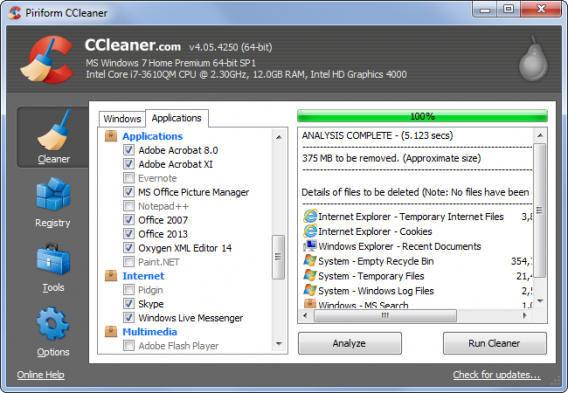
However, what happens if you clean your machine and it runs slower? This is because your computer needs some files to perform efficiently. If you delete these files with CCleaner, performance will suffer. If you visit some favorite pages every day, but clean the cache every few hours, you’ll find these pages take longer to load.

This brings me to my next point.

Protect the important cookies

CCleaner deletes all cookies by default – but you may well want to keep some of them around to keep your browsing quick.
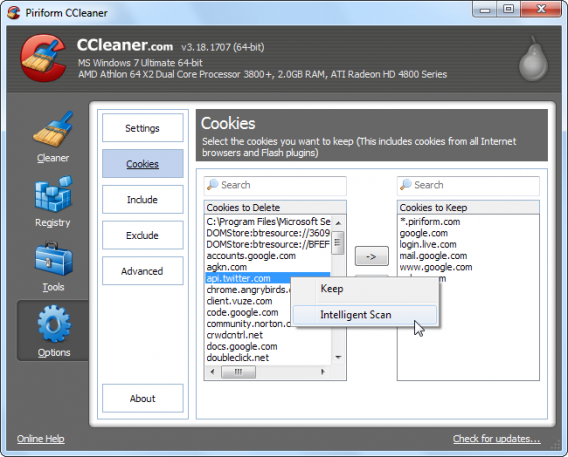
You have two options for this. On the one hand, you can use CCleaner’s Smart Scan to detect the cookies you use most and protect them from most common cleans (such as Google). Alternatively, you manually flag the cookies that do not want to be touched.

Do the same with programs

You can apply protection to programs and files. This feature is particularly useful if you find that CCleaner is obsessed with trying to eliminate a file that you actually want. You can exclude whole disks, folders, files, or records. You can also protect specific file extensions.

If you use Registry Cleaner often, you’re going to get in trouble

I do not recommend that you regularly use CCleaner’s Registry Cleaner. After all, who cleans their house every day? A clean registry can help if your system is damaged, but it doesn’t improve your performance under normal circumstances and – in some cases – it can be harmful. Leave this feature alone unless you have problems running a particular program.
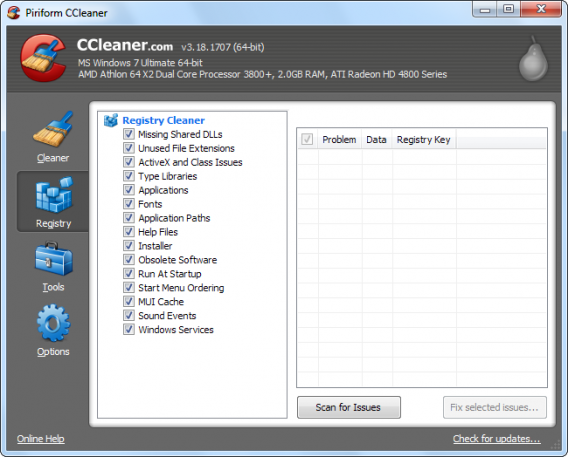
Registry cleaner

This feature offers much more than its name suggests

Startup is an optional tool that, in theory, lets you disable programs that run automatically when you start your computer. In this way, you can access and edit your PC boot process.
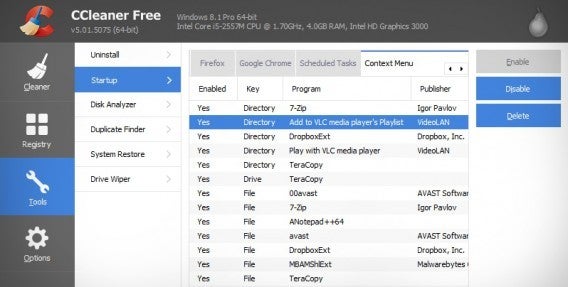
Startup

What few people know is that Startup allows you to disable or remove scheduled tasks and browser extensions. These options are already included by default in Windows, but you can have a look during one of your regular cleanings.

Breaking the myth of Cleaner Hard Drives

One of the great myths behind hard disk cleaners is that you need to perform multiple scans to get the drive really clean. But there is no need for this with CCleaner’s Drive Wipe, because it can clean your drive with a single click, completely removing unwanted files while leaving programs untouched.
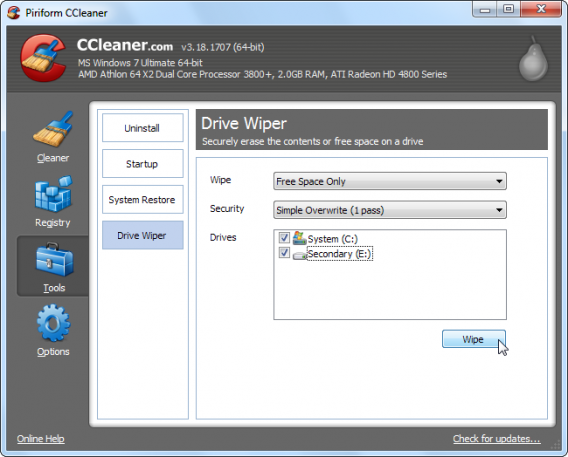
Note that when you delete a file in Windows it doesn’t actually delete it; it simply removes the path to it so it can’t be seen by the system, freeing the space it occupied and allowing it to be overwritten. This allows files to be restored by those who know how. That does not happen with CCleaner, which overwrites old files as it deletes them. Great for security, but please be sure that you want to delete the selected files.

Forget this tool

CCleaner has many secondary tools, the most redundant of which is Uninstall Programs. This is totally dispensable and does not work as well as the Windows Uninstaller. There are better uninstallers out there, like Revo, which you can download from Softonic.

You see? You do not need to know everything about CCleaner.

… and finally, the Golden Rule

It doesn’t matter if you use CCleaner or another cleaning tool – never do any cleaning without making a backup of important files first. If the program deletes something important, the consequences can be catastrophic. Fortunately, with a backup or a restore point, you can recover the state of your computer in a couple of clicks.

Sources: TechRepublic, How To Geek (text 1, text 2, and text 3), Guiding Tech, Life Hacker

Related Stories

3 Productivity Hacks for Office 2007

How to clear the cache on Safari for Windows

Windows 10: The 45 most useful keyboard shortcuts

How to delete your browsing history and protect privacy in UC Browser
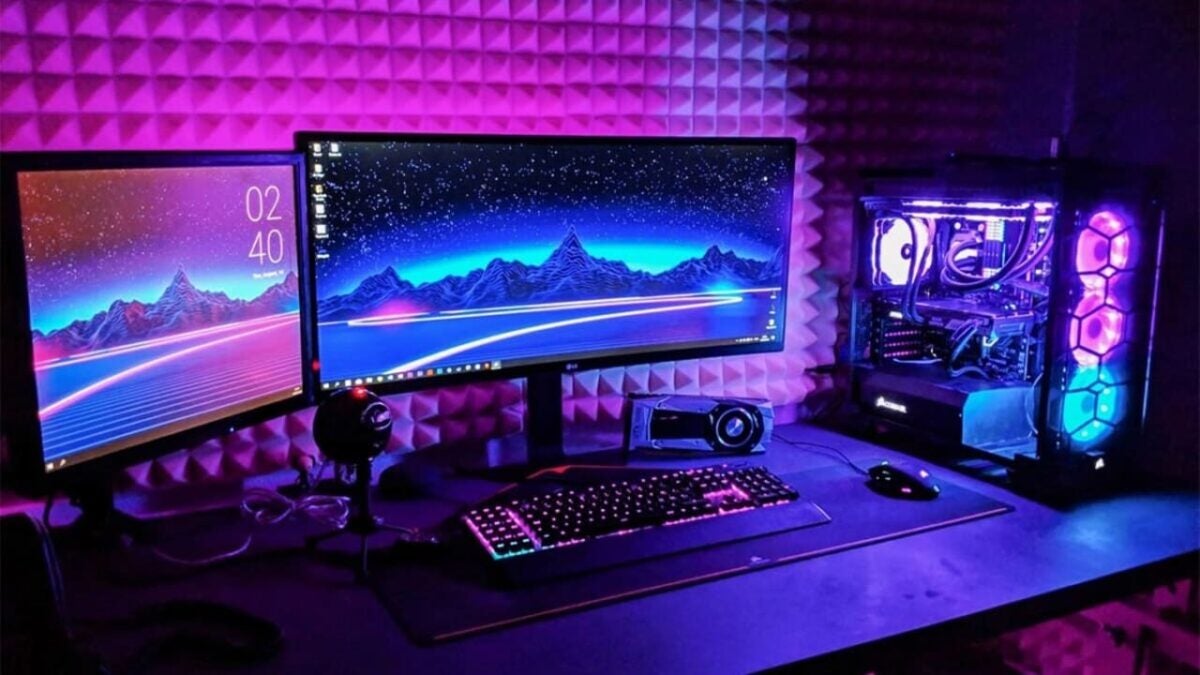
Download the new CCleaner 5 now

If you want to clean up your Windows PC, there is a good chance you’ve tried CCleaner at one point. We’ve always rated this free app very highly, and now, there’s a brand new version with a brand new interface.

Happily, the basics of CCleaner are unchanged. You can use it to clean up temporary files taking up space on your hard drive, clean up your registry, or use it as a startup manager, among other things. The new flat interface means CCleaner now looks the part on a Windows 8 (or 10!) PC.

As well as a new interface, CCleaner 5 also manages your Google Chrome plugins and extensions. The app has always been able to do things like cleaning history and caches, but now it extends to managing what you have installed on Chrome too.

CCleaner is still one of the best cleaning and optimizing tools for Windows. Download it here.

Related Stories

The top 7 download managers

The gamer’s kit: improve the performance of your PC

Goat Simulator 1.1 update out in June, brings more goats

Follow Jonathan on Twitter: @jonathanriggall

CCleaner for Android: too little, too late?

CCleaner for Android is out and available for download. It’s taken years of begging and pleading, and finally, it’s arrived. Now the only question is, is it worth installing?

Look at this phrase closely: CCleaner for Android. Doesn’t it sound natural? For many users, Android is the Windows of the mobile world: a popular system that’s often full of holes, especially in older versions like Gingerbread. It’s pretty natural, then, that an optimizing tool like CCleaner seems like an absolute necessity.

During all the years of conspicuous absence, CCleaner for Android’s throne has been filled by some excellent cleaning and optimization apps, like Clean Master, an app with a malware scanner that lies at the top of the store charts. CCleaner’s competition is fierce.

So, in a bid to find a good alternative, I decided to try CCleaner for Android beta. This is what I found.

Austere looks for a cleaning classic

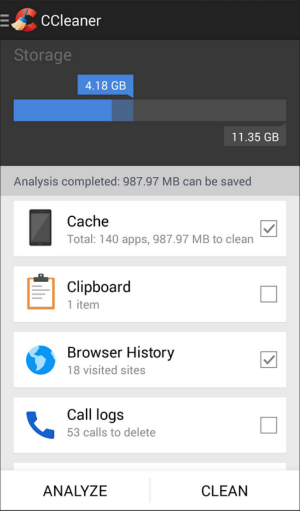
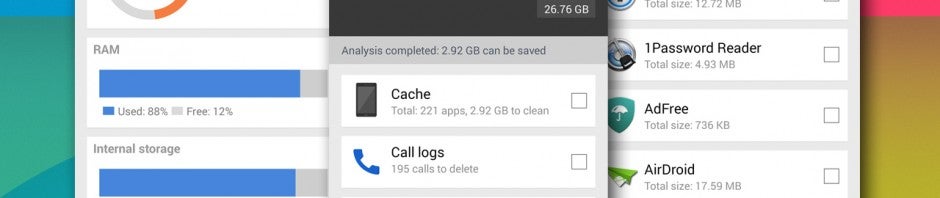
Analysis is still the starting point for any optimization. With one tap, CCleaner searches for junk files: the cache, clipboard, and browsing and calling history. If you want to see specific details, just tap the item in question.

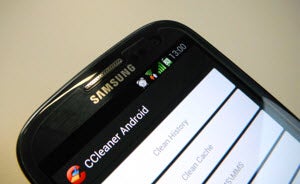
CCleaner for Android

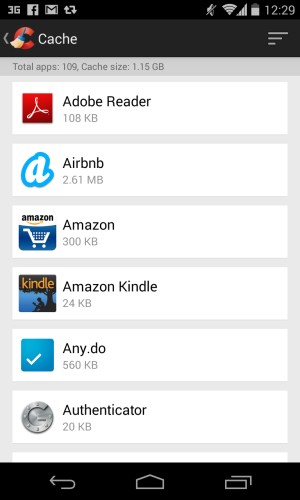
Unfortunately, this is where we found the first problem – you can’t uncheck apps that will be cleaned. There are no blacklists, or more details about the files that are going to be erased. What you can see, however, is the space that each app’s junk files take up.

Cache cleaning with CCleaner

Not so hot on features or essential options

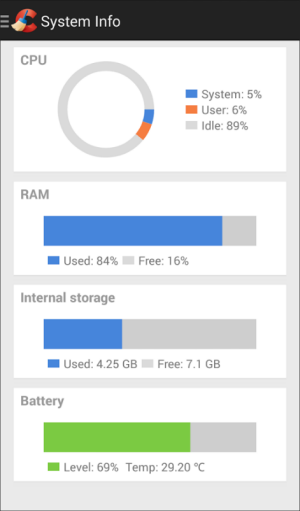
If you tap the CCleaner icon, you’ll open a side panel where, as well as the junk file cleaner, you’ll see an application manager and a system information panel. The latter shows you the phone’s use of CPU, memory, and storage in real time.

CCleaner's system usage info

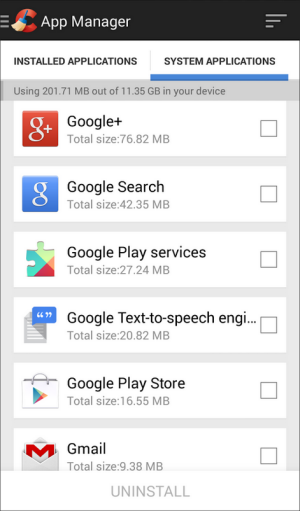
CCleaner for Android’s App manager does exactly what Android’s default manager does, with one addition – you can uninstall multiple apps in one go, thanks to a batch select function. System apps can’t be removed – you can only reset the factory settings.

CCleaner's app manager

CCleaner for Android beta lacks features that we find in other Android cleaners, like secure delete, memory optimization, or the option to remove system apps via root access. We don’t know if these are issues that will be remedied in future versions of the app.

Too little, too late

Four years ago, in the era of Froyo and Gingerbread, we would have welcomed CCleaner for Android with open arms. But things have changed. Low-end Android phones now have much more space, so the need for a simple file cleaner has shrunk. These days, cleaners can’t “just” be cleaners, they need to innovate.

Unfortunately, the version of CCleaner for Android that we tried, 1.00.9, neither innovates nor surprises. It’s an app that’s ok, but nothing special. The only thing we can really praise is its speed and simple design, which is really welcome when you’ve seen how cheesy its competitors are. Otherwise, CCleaner for Android is completely devoid of interest.

In the face of fierce competition, and mobiles that need the services of traditional cleaners less and less, the only card that CCleaner might have to play is privacy protection. Unfortunately, going on what we’ve seen in the beta, there’s still a long way to go.

RELATED ARTICLES

CCleaner beta for Android restores space on your device

The popular Windows maintenance tool, CCleaner, is now available on Android as a beta. The tool helps recover space on your device by clearing cache files and letting you know which apps are taking up the most room.

The app analyzes your phone or tablet, looking for cache files, phone logs, text messages, and other things you may not need. CCleaner offers one-tap cleaning to make things easy. If you want to keep your phone history and texts, do not check mark them to be cleaned.

CCleaner for Android beta also includes an App Manager, which allows you to uninstall apps in bulk. There’s also a System Info section that shows CPU, RAM, and storage usage.

My Nexus 5 contained a whopping 2.9GB of cache files. Cleaning the files only took a few seconds.

To get participate in the beta for CCleaner, you must join the CCleaner for Android Beta community page. Then click on this link to download the app from the Play Store.

RELATED STORIES

CCleaner coming to Android

The popular Windows/Mac cleaning and optimization app CCleaner is on it’s way to Android, says developer Piriform.

No release date has been set, but Piriform say the app is already looking good in testing. Their intention is to create a ‘one-click’ cleaner for Android, and it will be interesting to see how it stacks up against the very complete Windows app.

CCleaner is one of the best cleaning and optimization apps for Windows, automating the cleaning of your PC in a few clicks. It’s a quick way to find extra space on your hard drive, and would be welcome on Android too.

If you’re looking for a maintenance app for your Android, you can try Advanced Mobile Care, which also offers virus scanning, or Clean Master.

Head to head: CCleaner vs Mz 7 Optimizer

ccleaner vs mz 7 optimizerCCleaner has been one of my favorite tools to maintain PCs. It is simple to use and offers powerful tools. It has a small footprint and it can be installed on a USB drive to clean up PCs on the go. CCleaner can clean up files that are left behind from uninstalled apps, fix the registry, and uninstall apps but it is by no means the last word in PC maintenance. There’s no defragmentation or optimization option within CCleaner. Enter Mz 7 Optimizer, an app specifically designed to tune up your Windows 7 PC. Can it replace CCleaner as our PC maintenance app of choice? Let’s find out. Continue reading “Head to head: CCleaner vs Mz 7 Optimizer”