3 parental control tools for Mac reviewed

Parental ControlsThe web is an amazing space, with truly endless possibilities. Yet if you have young children it can also be a pretty dangerous place. It’s clear that there is a lot of undesirable content, and unfortunately most of it is only a few clicks away, from all the spam you get in your inbox everyday to simply what comes up in search engine results, ads in pages, links in web pages or badly intentioned people lurking around. It’s simply too risky to let your kids surf the web without any sort of monitoring, until they are old enough to conciously decide what to look at.

With Leopard, Apple has introduced some settings to help parents protect their children while they use the computer. Parental Controls, found in System Preferences, let you adjust a content filter, set safe browsing times during the day, and give login in keys to each one of your children. Set up is simple, doesn’t take much time, and ensures that your children never end up on the wrong kind of websites.

Those of you who haven’t made the jump to Leopard will probably deplore the lack of Parental Controls in their Mac. However, you can still monitor your kids’ use of the computer with a few other very effective applications. Here is a quick roundup of three useful programs.

CutX for Safari is an add-on that will only work with Apple’s browser, so if you use Firefox, then it won’t work. Safari users however will like how it lets you set up simple lists of banned words and sites, select sites to authorize and block downloads. You can even prevent access to the Safari preferences as an extra precautionary measure.

Mac Minder is not tied to any browser and not only lets you block what you don’t want your kids seeing on the internet but also lets you monitor their usage, logins and logouts. You can also schedule specific usage times and block certain users at certain hours.

Last but not least, ContentBarrier lets you create custom profiles for each one of your kids, giving different logins, access times and privileges. You can block offensive and undesirable content from the web and closely monitor what your children have been up to on your Mac.

Video: Create a blending effect between two photos

If you read us on a regular basis, you’ll have seen, and maybe even tried, our Photoshop tutorials. This week though we wanted to do something different, so we decided to publish our weekly tutorial as a video instead of the usual step-by-step written post. This first Photoshop tutorial on video shows you how to create a really nice blending effect between two pictures in just two easy steps. Hope you like it!

insertvideo(“outtest9″,”1018″, null , null, true,”false”,url+”images/watermark_final.png”);

5 free ways to store data online

syncplicity-logo.jpgTraveling with software or data abroad is becoming an increasingly risky act – especially if you’re going in or out of the USA. The Washington Post recently reported that The Department for Homeland Security has quietly passed a new law which means that storage devices, including USB drives, hard drives and laptops, can be confiscated for an unspecified period of time with no suspicion of wrongdoing needed. For a developer, this could mean losing weeks or even years of hard work on a piece of software and for more general users, this could mean losing all your backed-up data. Not to mention the inconvenience and gross invasion of privacy a search of your storage devices would entail. Therefore, if you’re worried about having your data confiscated at an airport, here are 5 free ways to store your data online instead.

Mediafire
– Excellent online storage and file sharing site which allows unlimited file storage and easy sharing of data via links you can send in an e-mail. To upload single files bigger than 2GB in size (Mediafire is limited to 100MB per file) however you’ll have to upgrade to MediaPro.

Syncplicity – An online backup and synchronisation tool that offers 2GB of free space. You can also upgrade to 40GB for $9.99 a month and receive more free space online for every friend you refer or who subscribes.

Omnidrive
– Cross platform online storage with only 1GB of free space but a great option for documents as it allows you to edit them online using Zoho.

Allmydata – 1GB of free storage but offer unlimited storage from $4.99 per month. This includes automatic backups, 24 hour remote access to your files and no ads.

Mozy – 2GB of free online backup space and unlimited storage plans from just $4.99 per month.

Don’t forget either that if you’ve got a Gmail account, you can also use it as a handy online storage tool as I mentioned last week.

Downloading and managing Mac fonts

humanoid fontIf you work in design, illustration or publishing you tend to need new fonts frequently, even if you have a few favorites. It’s always nice to discover new fonts as you might find a design that you particularly like and that you can use for a specific project. In my opinion, the best fonts are the ones created by independent designers, who take time to really craft something that stands out from the rest. But it’s not always easy to find them. Let’s face it, most font packs also have to be bought, because you know somebody has spent some time and effort creating them. That’s why it’s always great to find lists of free fonts to download.

I found one today, on Free Mac Fonts, which is organized alphabetically and easily has hundreds of fonts to download. All are saved as .sit files, which can only be opened up on Mac. Instead of downloading like crazy until you don’t know which one is which and where to save them all, I suggest you download a font manager to handle them. Luckily there are a lot to choose from.

Typeset is great to preview and print out lists of fonts, FontAgent Pro has Photoshop CS3 and handles large sets of fonts while Suitcase offers its own Font Doctor repair tool and auto-activation with FontSense. Try them out and see which one you feel more comfortable working with. Once you’ve made up your mind, you can start grabbing those fonts online.

Create your own gadgets for iGoogle

Create your own gadgets for iGoogleSince Google first published its customized homepages service, later known as iGoogle, they have been constantly improving it with new tools and options. I must say I’m not very fond of these homepages – though they may be really useful for some people – but I recently discovered something that made me reconsider my position: the possibility to create your own gadgets for iGoogle, with no technical or programming skills required.
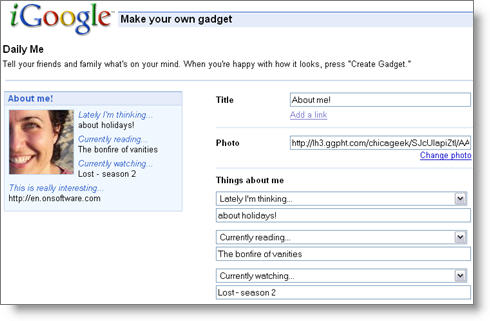
Simply open your iGoogle homepage and click on the Add stuff link on the right side of the page. You’ll enter the iGoogle Gadgets and Themes repository, from where you can access a wizard to create your own gadget.

iGoogle features several templates to get you started, each one of them specially designed to display different kinds of content: pictures, videos, text, lists and so on. Choose the one that suits your gadget-to-be best and start customizing it. The good thing is that you can preview the gadget as you work on it.

Create your own gadgets for iGoogle

Once you’re happy with the result, click on the Create gadget button and send it to all your friends. Also, if you’re really proud of your work, you can choose to publish it to the iGoogle Gadget directory, which means it will be available for everyone to download.

Host your own Olympics – Beach volleyball

Take on an M&M at beach volleyballAs the Beijing Olympics get underway this weekend, I’ve finally conceded that I probably won’t ever make it to the games as a sportsman. Instead, I’ve decided to put my feet up and become the ultimate Olympian on my PC by conquering a series of different event. Over the course of the 2008 games I’ll be trying my hand at different disciplines, starting today with beach volleyball.

Any sport where you get to fall about on the sand in your swimming trunks sounds perfect to me. However, for risk of being sunburned, or getting sand everywhere, I think it’s even better to play beach volleyball on your computer. There are several decent volleyball sims around and I was out to win at all of them.

None of the games I played were particularly realistic, but all were great fun. I started off by destroying a lump of goo in Blobby Volley, a Windows volleyball game, which you can play against an AI opponent or a human player. I then moved on to the graphically excellent Volley Balley, which features the two little guys from the M&M adverts knocking a ball about on a beach. Having made light work of this, I finally met by nemesis in Pikaball. The Pokemon characters featured in this volleyball game may look cute and unassuming, but get them on the court and they turn into athletic superbeings. In fact this is one of the hardest computer games I’ve ever played – I didn’t even score a point. Oh well, maybe I’ll fare better luck in my next event…

Time waster: TypeRacer, a racing game for fast typers

Most online games are basic pastimes designed to keep you entertained for a short period of time. However some of them stand out for their graphics, their playability or because they offer something more than just plain entertainment.

This is the case of TypeRacer, a surprisingly addictive racing game in which you not only have fun competing against other players, but also practice your typing and learn interesting quotes from famous books and movies.

Time waster: TypeRacer

TypeRacer doesn’t require registration – only the nickname you want to use. The aim, as in every other race, is to arrive first to the finish line and the trick to do it is typing the given text faster and more accurately than the other players.

TypeRacer features a training mode to practice and two gaming modes: race against random opponents and race against friends, with support for chat. It also keeps track of your stats (number of races completed and average speed) and can be played from Orkut, Hi5 and MySpace.

Play the chef in this frenetic Japanese restaurant

Many people declare themselves as Japanese food lovers, but I’m not sure whether they would say the same if they had to work in such a busy sushi restaurant as the one you have you manage in this fun Flash game.

Sushi Go Round

Sushi Go Round puts you in charge of a Japanese restaurant. Your main task, should you accept this challenge, consist mainly of cooking different types of sushi according to your customers’s orders. Each sushi recipe is explained in a cook book, though after preparing 20 servings you’ll know them by heart and won’t need to look them up any more. Besides cooking, you’ll also have to keep an eye on stock and order ingredients when you’re starting to run low on them.As you progress through levels, the number of recipes and dishes grow and your aim becomes increasingly difficult… but nothing a ninja sushi cook like you can’t deal with, right?

Mozilla releases Snowl messaging extension

SnowlWith their new Snowl add-on, Mozilla want you to organize the flows of conversations you have on the web. The extension, which is only yet a  prototype, can still be downloaded and tested if you have a Mozilla Add-ons account. Once set up and your Firefox browser restarted you’ll be asked to configure Snowl. You can add as many RSS feeds as you want, import OPML files and access a Twitter account.

Snowl offers you two different views:  Message List and River of Messages, both accessible from the ‘View’ menu in Firefox. The River of Messages view is great for quickly browsing through multiple feeds and updating on news. Message List is more of a traditional mail client sort of view, with the list of new items at the top and a preview pane at the bottom. While RSS feeds are displayed in a classic way, I like how Snowl divides tweets by friend, although somehow not all of mine were displayed.

Over on the Mozilla Labs blog,  the developers of Snowl explain that the ultimate goal of the extension  is not only to display feeds, after all you can already do that in Firefox, but also to simplify how you engage in conversations. Yet I couldn’t find any option in the add-on that would allow me to interact, like by commenting on a post or twittering a piece of information. I’m a little surprised that Mozilla would have released the Snowl prototype so early. Wouldn’t it have been better to release it with at least some conversational features implemented? That might have spawned more useful feedback from users.

Anyways, if you follow a number of message groups, have a twitter account and like to engage in conversations, Snowl might just be the extension for you. Give it a try and make sure to let the Mozilla guys know what you think of it so they can improve it.

Three free alternatives to SmartFTP

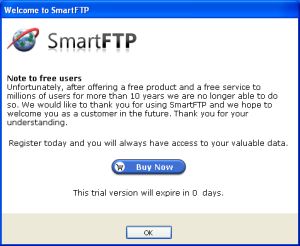
Not so smartWhen I started my favorite file transfer app, SmartFTP this morning I discovered to my horror that the software is no longer free. Now, I’ve been something of a loyalist to the program for years now so I thought about paying for a full licence. However, I then remembered how much I begrudge paying for something that I’ve been getting for free for years. So I decided to look elsewhere for my FTP needs and came across three cracking alternatives that won’t cost you a bean (for now, at least).

I imagine most SmartFTP users will flock to Filezilla as their first choice replacement. The open source software has built something of a reputation for its reliability, speed, and ability to manage large file transfers. What’s great about the program is that you can set both local and remote filters for things like images, explorer files or CVS and SVN directories or even create your own. FileZilla also includes a tool to compare directories in terms of file size or modification time.

Core FTP Lite is another popular free FTP client. It’s pretty easy to handle thanks to its straightforward drag-and-drop interface, and there’s a bunch of cool features such as auto retry of failed transfers, bandwidth control throttle, remote file searching and .htaccess/.htpasswd editing. Core FTP is probably best known for its superb security features though, and the free app supports a wide range of security protocols.

Both of these aforementioned tools make for decent alternatives to SmartFTP. However, for sheer convenience I ended up plumping for FireFTP, a neat Firefox plug-in that gives you handy access to FTP servers from within your browser. While perhaps not as fully-featured as the other two stand-alone apps, I reckon FireFTP has more than enough for the average home user and the ability to call upon it at any time from your Bookmarks Toolbar makes it a real winner for me.