Whatever happened to…Eudora?

Eudora failed to keep up with the likes of Outlook and HotmailDrop the word ‘Eudora’ into a conversation with any computer user and a heartfelt smile will probably spread across their face. As one of the first mainstream email clients Eudora really captured the imagination of early Internet users and it became one of the most popular ways to communicate on both Windows and Mac. But how many people do you know who still use the client? Not many, I would imagine. Here I’ll attempt to set the record straight on the demise of this much-loved app.

The rise to fame

Eudora was born in 1988 from the brain Steve Dorner, an employee of the University of Illinois. The program was named after the author Eudora Welty, because of her short story, Why I Live at the Post Office. In 1991, Eudora was acquired by Qualcomm, who released the program as freeware, making it one of the first mail clients to be available as a free download. It was a big hit on both the Windows and Mac operating systems, and well as some early mobile systems, such as the Newton and Palm OS. Eudora enjoyed the best of its success during the early days of the Internet in the early Nineties, when it was generally regarded as the best solution for sending and receiving emails.

Why people liked it

Aside from the simple fact that it was one of the first mail clients to market, Eudora owed a lot of its success to its simple user interface and innovative features. Both PC and Mac versions of the client were very small, meaning it could be run pretty quickly, even with large numbers of messages and mailboxes. The Eudora client worked slightly differently to rivals such as Outlook in that email was stored in the “mbox” format, which uses plain text rather than databases, meaning users could back up just a portion of their messages rather than the entire database – another great time-saver.

Eudora was also famous for its ‘Stationery,’ which allowed users to create ready-made messages or replies that could be sent ahead of time. There were plenty of ways to customise your emails by fiddling with the “x-eudora-setting” URIs.
All of these factors served to make Eudora the king of email clients during the early-to-mid Nineties and it’s estimated that more than 20 million people used the app. Continue reading “Whatever happened to…Eudora?”

How to play MKV files

MatroskaUsually, I find there’s nothing that VLCPlayer can’t handle. Whenever I download or find an unusual video file type, I can always rely on VLCPlayer to open it. However, that’s not the case with MKV files.

If you’ve never heard of it then you will soon as MKV is a format rapidly growing in popularity due to its high compression rates and excellent reproduction quality. MKV is just one format that’s part of the Matroska Multimedia Container standard is an open standard free container format. According to Wikipedia such formats can:

Hold an unlimited number of video, audio, picture or subtitle tracks inside a single file. It is intended to serve as a universal format for storing common multimedia content, like movies or TV shows. Matroska is similar in conception to other containers like AVI, MP4 or ASF, but is entirely open in specification, with implementations consisting mostly of open source software. Matroska file types are .MKV for video (with subtitles and audio), .MKA for audio-only files and .MKS for subtitles only.

While open source players such as VLC should have no problem playing such files, according to After Dawn:

While VLC will work for most MKV files you will find, the package does not include any proprietary codecs. RealVideo and ON2 VP6 are examples of codecs not packed with VLC for this reason. Therefore with VLC, if you get a Matroska file that contains RealVideo, you are pretty much in the dark and will have to look for another playback option.

The simple answer I found was to download the CCCP codec pack which provides support for a whole range of media formats including all possible Matroska formats. With this installed, VLCPlayer should be able to handle it but if it doesn’t, Windows Media Player will.

Today’s downloads for Windows, Mac and Mobile

GspaceWindows: Have you ever thought of using all that generous Gmail space for online storage? Gspace is the FON friendly site that provides free online storage to access your files everywhere. Gspace turns the 2GB of your Gmail account into free online storage. With Gspace you can manage unlimited Gmail accounts to store all type of files within its simple, user friendly interface.

Check the news on your BlackberryBlackberry: If you’re the kind of person who likes to keep up with the latest news then perhaps Journal Bar should be the next app to install on your Blackberry. The program automatically downloads the latest news, weather, and stock information for you to peruse whenever you like. As a result, you don’t need to pay for Internet charges just to read the news.

iPhotoMac: If you own a Mac, chances are that you’ve already discovered the simple joy of image organisation that is iPhoto. While not exactly built for the professional photographer, iPhoto’s packed with enough features to keep anyone from beginners to pro-amateurs happy, and all in a clear, easy-to-use interface. iPhoto 7.1.5 Update includes enhancements to the way iPhoto offers print services for books, cards and calendars ordered through the program.

Track the US election online

Today, in case you hadn’t noticed, is the day of the United States general election. Many pundits are already calling today “historic”, so there are doubtless many people out there keen to keep up-to-date with the results as they come in. We’ve found some cool apps and widgets you can use to do just that on your PC, Mac or iPhone.

First up, check out this page at NPR, which is packed with links and tips for tracking the election. Our favourite suggestions are the BallotVox plugin which you can place on your own website or on your desktop, and the Engage 08 Budget Hero widget for websites, which allows your visitors to play the Budget Hero fiscal management game from your site.

google-election-1.png

Google has some cool apps available, including this .kmz file which you can use to see voting data by county for the last seven Presidential elections in Google Earth, as well this special map which will show election results, live as they come in (starting around 6pm EST). Google is also providing a special new mobile app for voters with directions to voting centres in your local precinct. Just go to (http://m.google.com/elections) in your mobile phone’s browser. If you’re an iPhone user, you should take a look at the US Election & World News app, which is available for download now from the AppStore.

yahoo-political-dashboard-1.png

Meanwhile, the best-looking interactive site for election results is probably Yahoo’s Political Dashboard. Though it doesn’t have any downloads available, it features some pretty cool interactive elements, including the ‘Create Your Scenario’ tool which allows you to become the pundit and predict the outcome of the election state by state. You can also share your predictions and check out some celebrity scenarios from observers like Arianna Huffington and Newt Gingrich.

How to extend Parallels capabilities for free

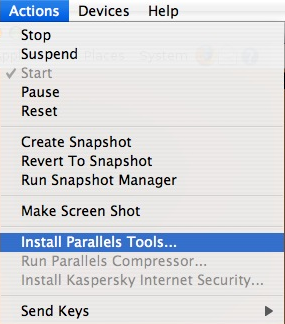
ParallelsA few weeks ago I wrote about how impressed I’ve been with Parallels. The other day I discovered an incredibly easy way to make Parallels twice as useful as it already is, for free. All you have to do it go to the “Actions” menu in Parallels and select “Download Parallels Tools”.

Parallels Tools Menu

Parallels Tools is a collection of little utilities that vastly improve the performance of Parallels and make it generally much quicker and easier to use. The installation of Parallels Tools takes no more than a few minutes although you have to restart Parallels for it to take effect.

Amongst others, there are 3 major benefits of installing Parallel Tools are:

1. Instant OS switching

You can switch from MAC OS to Parallels without touching the keyboard. Just moving the mouse into Parallels activates it automatically – no more pressing “Ctrl-Alt” to change between Windows and Mac OS.

2. Hardware Acceleration

If you’ve been having problems with your mouse moving slowly or sluggishly, it’s simply because Windows is not using all of the hardware acceleration capabilities available on your Mac. Parallels Tools instantly solves this. Continue reading “How to extend Parallels capabilities for free”