Discover new music with MTV Music Meter

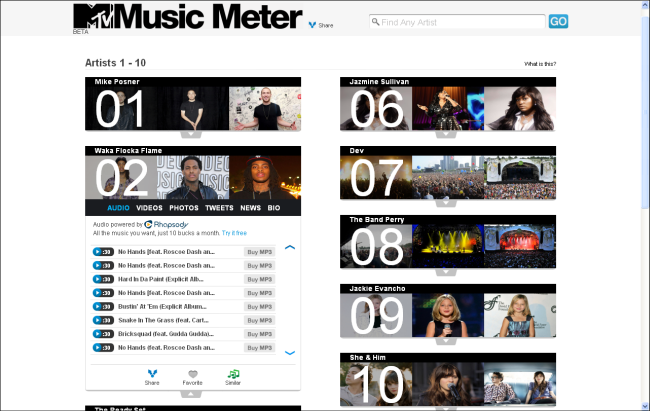
MTV has unveiled an interesting looking new online music discovery service called Music Meter. The service trawls social media web sites for emerging bands and musicians.

Music Meter tracks social media sites, looking at increasing numbers of comments written about individual artists to see who is growing in popularity. Users can checked out music videos and 30-second song samples of artists on the Music Meter site.

Once upon a time, MTV was a great champion for upcoming artists, before its programming schedule got crammed full of reality shows and celebrity spin-offs. So it’s refreshing to see the corporation investing in a new service like this.

Music Meter

How to use WhatsApp on Windows


WhatsApp offers a great way to chat with friends for free from your phone. But did you know you can also use WhatsApp on a Windows PC?

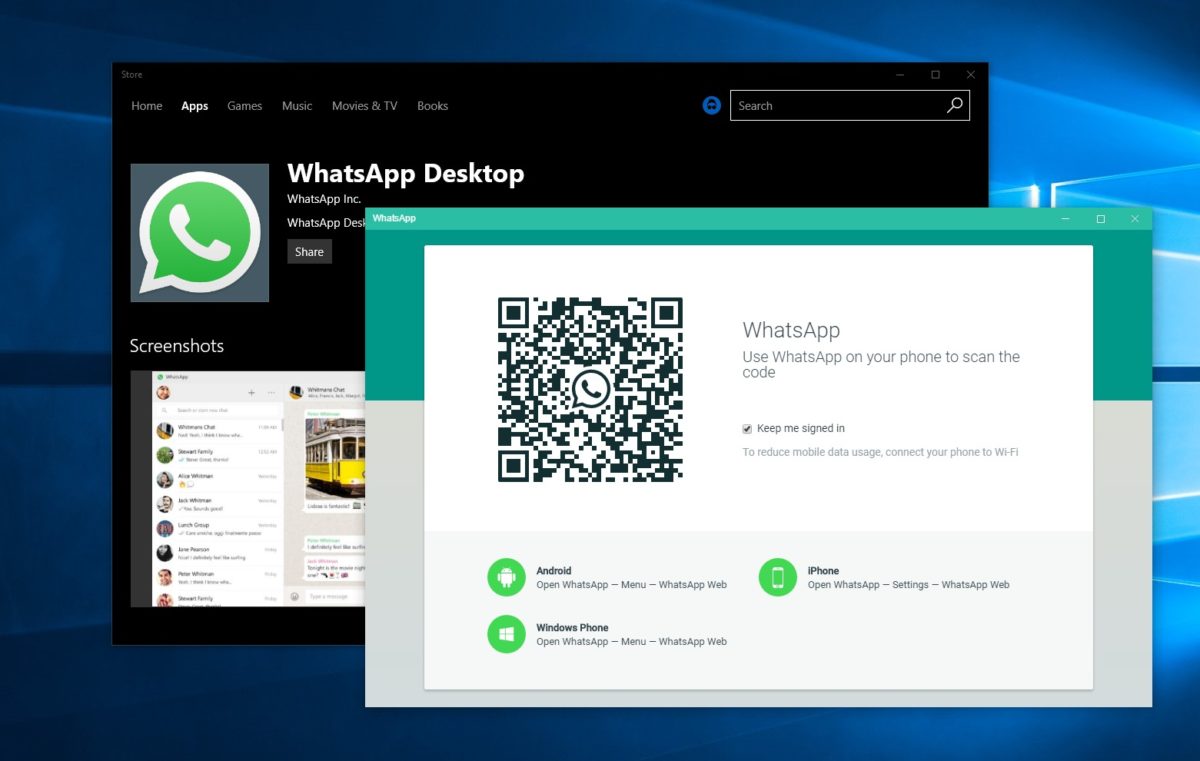
Using the BlueStacks App Player for Windows, it’s possible to install WhatsApp on your computer. This gives you the ability to send and receive WhatsApp messages without having to pull your phone out of your pocket.UPDATE: WhatsApp has come out with an easy way to chat from your computer. It’s called WhatsApp Web and you’ll need Chrome, Firefox, or Opera and the latest version of WhatsApp for Android, BlackBerry, and Windows Phone. Learn more about WhatsApp Web and how to use it here. If you prefer to download WhatsApp on your computer, have a look at WhatsApp for PC instead!

[materials]–>

How to install WhatsApp on a PC

To get WhatsApp on your computer you first need to download and install BlueStacks App Player. This is a free program that emulates Android applications on your PC. You can use it to run many Android apps and games through a windowed interface on your computer. Don’t worry, it’s very easy to use, as you’ll see.

The next thing you’ll need is a mobile phone number. This is used to verify your account and the app looks at your mobile phone contacts to find out which are using WhatsApp. If you already have WhatsApp installed on your phone it won’t work, since you can only run one instance of the app per phone number.

<!–[/materials]

–>

[body]–>

Setting up BlueStacks

Once you’ve installed BlueStacks App Player you’re ready to get WhatsApp onto your Windows PC. Here’s how it’s done:

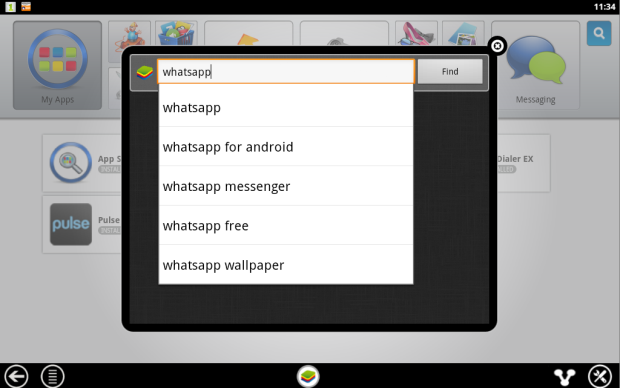
1. Click on the App Search icon in BlueStacks and perform a search for “WhatsApp”. Click Find.
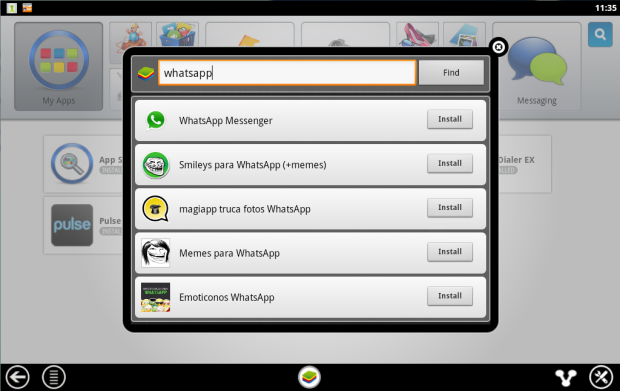
2. In the results list you should see WhatsApp Messenger as the top result. Click Install.
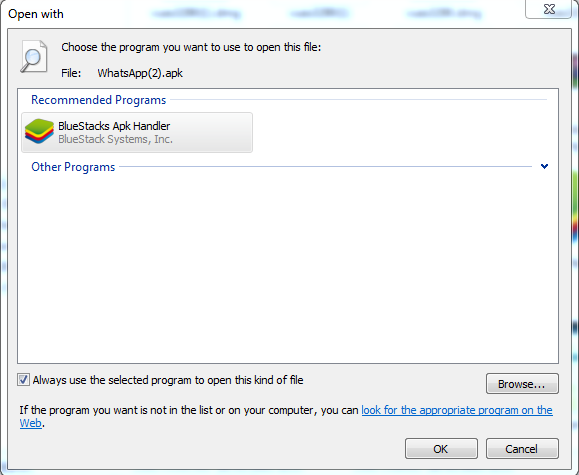
3. If you can’t find WhatsApp Messenger in the BlueStacks search, or if it won’t install, go download the WhatsApp APK file from the official site. Right click on the icon once downloaded, select ‘Open with…’ then choose BlueStacks Apk Handler. Click OK and WhatsApp will be installed in BlueStacks.
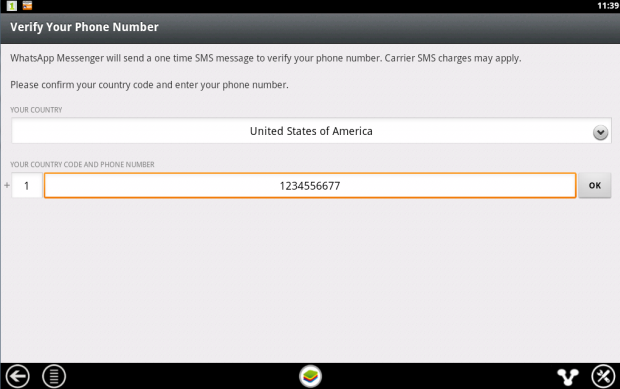
4. Once installed, clicked the WhatsApp icon in BlueStacks to launch it. When you run it for the first time you’ll be asked to verify your phone number. Select your country followed by the phone number you want to use for WhatsApp.
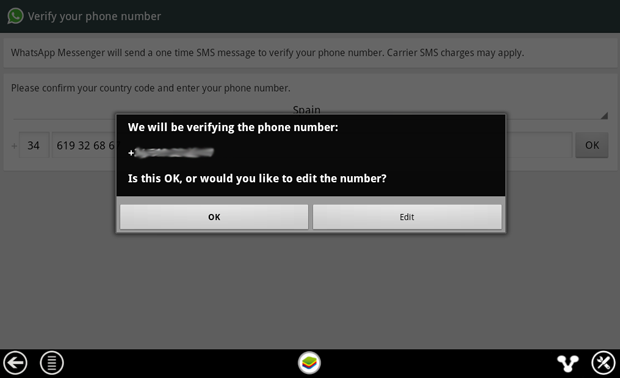
5. When confirmation of your number comes up, make sure the number is right then click on OK to proceed.
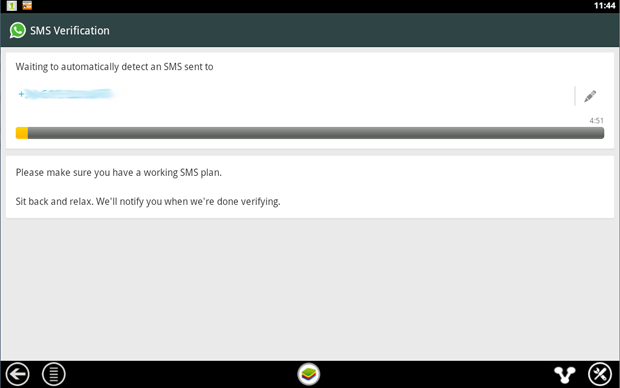
6. WhatsApp will now attempt to send you an SMS verification message. This will fail but you need to wait until it’s finished anyway.
7. When the SMS verification fails, you’ll be given the option to be contacted by phone with the verification code. When you click the Call me button your phone will ring after a few seconds and a recorded message will read you the code. Type this code into the space provided.
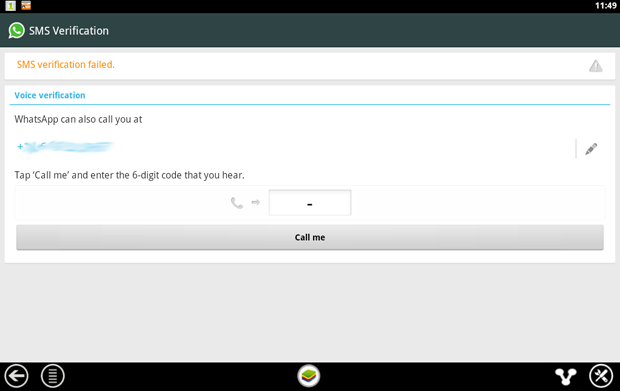
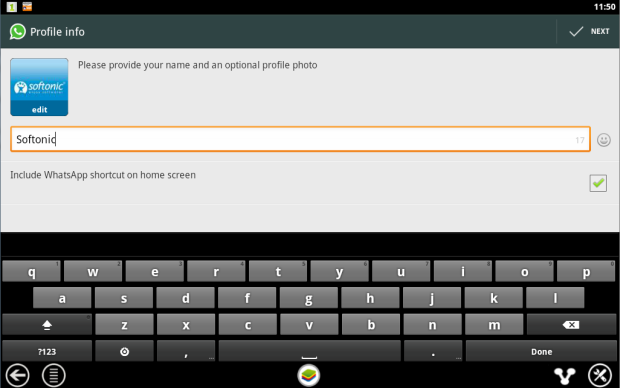
8. When you’ve correctly entered the code you’ll be prompted to set up your profile information. Enter a name and add a profile picture if you like.
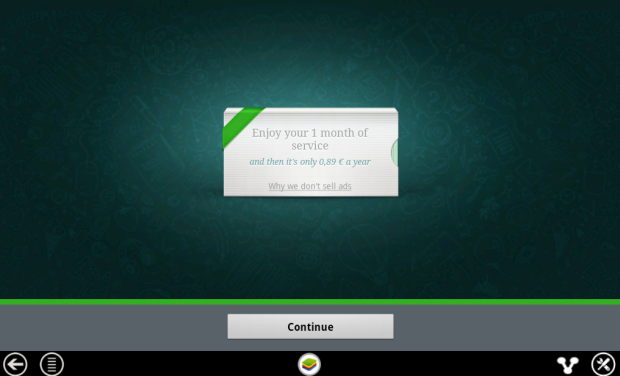
9. You’ll be reminded that WhatsApp is free to try for a month, after which time you need to pay on an annual basis.
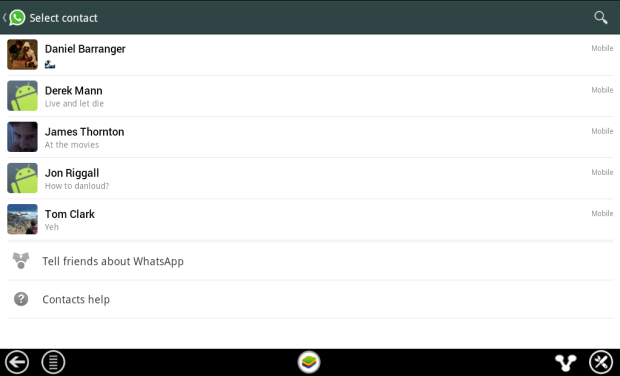
10. After clicking Continue your WhatsApp contacts list will be loaded. This is based on your phone contacts (on the number you used) who have WhatsApp installed. Click on a contact to start chatting to them.
11. Now you can chat away to your contact on WhatsApp, in just the same way as you would on a mobile device. You can switch between the keyboard and emoticons using the icon next to the message input box.
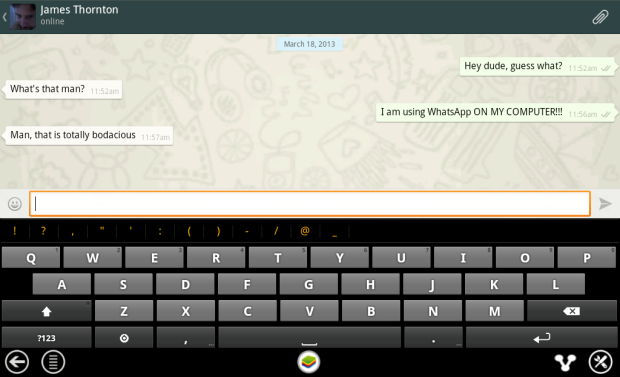
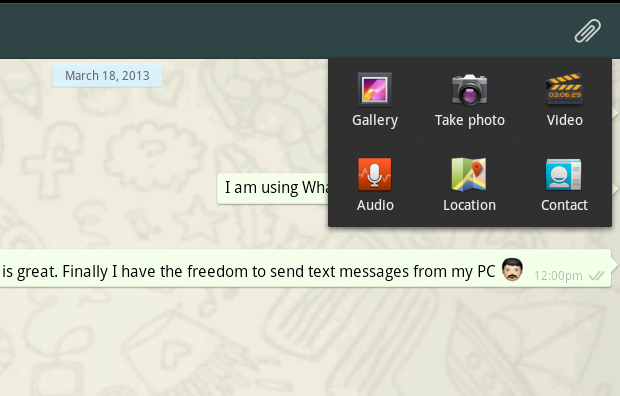
12. It’s possible to use some of the file sharing features of WhatsApp on your PC. In our tests we were able to send photos, video and audio. To send files using WhatsApp click on the paper clip icon in the top-right corner.

<!–[/body]

–>

Conclusion

There you have it! That’s how you can run WhatsApp on your PC. While it might be a work-around, it performs well and will tide most users over until WhatsApp decides to release a desktop client.
What’s the best browser for Android phones?

Your Android’s default browser is fine, but if it’s your only option, you could be missing out. Granted, it’s fast and functional, but it’s not the easiest way to look at the web on your phone, and it lacks the features of some of the other browsers that are available. Here are some alternatives that you should try if you want a faster and more comfortable way to browse the web on your Google phone.

Opera Mini

One of the first web browsers to hit the Android market, Opera Mini is already a trusted name on many other mobile platforms.

Opera Mini is much more usable than Android’s rather clunky browser. The speed dial feature lets you set up on-click shortcuts to your favorite sites. Other navigational aids have also been added, such as an auto-complete feature in the address bar, and a built-in search bar.

Page load times are very impressive, too. Before being served to the browser, sites are run through a compression test on the Opera servers, making them load super quickly. Opera Mini is rammed with options and settings, too. You can alter image quality, font size, and screen orientation, and there is a wealth of privacy settings too. As you’d expect, there’s support for bookmarks and browser history, too.

Pros: Fast performance, speed dial, tabbed browsing, lots of options, address auto-complete

Cons: Search bar not customizable, some minor bugs

Skyfire

Skyfire is an interesting alternative, notably because it’s the only Android browser that supports Flash video. You can use the browser to watch clips on YouTube, Google Video, Vimeo, and more. The FLV support isn’t perfect though, and some sites block Skyfire from accessing their video content. Skyfire supports other web standards, such as Ajax, Java, and HTML 5.

Skyfire has a menu bar at the top of the screen where you can quickly access all the features for bookmarking pages, accessing settings and managing open tabs. Interestingly, cycling through the tabs you have open in Skyfire is a very similar experience to Safari on the iPhone, allowing you to quickly flick through pages and launch new ones with the tap of a button.

Pros: Flash video support, quick page rendering, Explore feature, Smooth tab management tool

Cons: Unstable and unresponsive at times, doesn’t support all Flash content

Firefox

Firefox on Android is designed to provide a smoother web browsing experience. The Firefox for Android app has gone through a huge number of changes, but seems to be gradually coming to a more stable resting point.

How does Firefox look on a mobile? The browser looks a lot like Firefox for Windows. For instance, pages can be opened simultaneously in the form of tabs, which you access by tapping the number icon next to the address bar. It’s an intuitive way to control multiple tabs without filling the screen.

Another neat feature of Firefox for Android is its support for Firefox Sync. This grants you access to all the bookmarks, history and running tabs of the desktop version of Firefox, so you don’t have to worry about entering addresses manually.

Pros: Add-ons, nice interface, sync support

Cons: Some minor bugs, bad reputation

Dolphin Browser

Dolphin Browser is a fast and easy-to-use web browser for Android phones. There aren’t a huge amount of advanced features built into Dolphin Browser, which may be part of the reason for its streamlined performance. The ones that are there, however, are very useful, and you can beef up its capabilities by installing add-ons. Among the downloadable extras are a password manager, YouTube search, ad blocker and Google Translate.

The latest version of Dolphin Browser adds even more support for touch gestures. This allows you to draw a letter or a symbol on the screen to access a particular site or perform a function. For example, writing an ‘f’ will open Facebook; or drawing left and right arrows will move you back or forward through pages. You can even create your own custom gestures!

Pros: speedy, good tab options, multi-touch support, lots of add-ons

Cons: Some small visual bugs

Chrome

Much like its partner for desktops, Chrome is dedicated to loading websites and allowing you to browse quickly. If you’ve used Chrome before, Chrome on Android will be familiar. The interface is optimized for small screens and most websites load in their native versions, meaning you are not going to be looking at mobile versions of sites.

As always with Chrome, it looks good and loads fast. It’s got all the benefit of Chrome sync and bookmarks, meaning that if you also use the browser on other platforms, browsing the web on your mobile device is a seamless experience. That said, many users complain about more recent versions, lamenting the fact that it seems buggy and has an irritating tendency to crash. Give it a try and see if you’ve got the same issues.

Pros: speedy, Chrome sync, excellent bookmark management

Cons: Some users report frequent crashes

For the moment, I would choose Opera Mini over anything else, but feel free to disagree with me and argue the case for a different Android web browser.

You might also be interested in:

Basic tips for Android

Google Play – everything you need to know

[Original article published May 20, 2010]

How to restore deleted WhatsApp chats on Android

If you’ve accidentally deleted or lost one or more WhatsApp chats on your Android phone, there’s no need to worry- it’s relatively easy to restore your chat history!

WhatsApp automatically makes daily backups of your data and stores them on your Android phone. You can recover the most recent backup by uninstalling and reinstalling Whatsapp, and then following these simple steps.

1) Uninstall WhatsApp

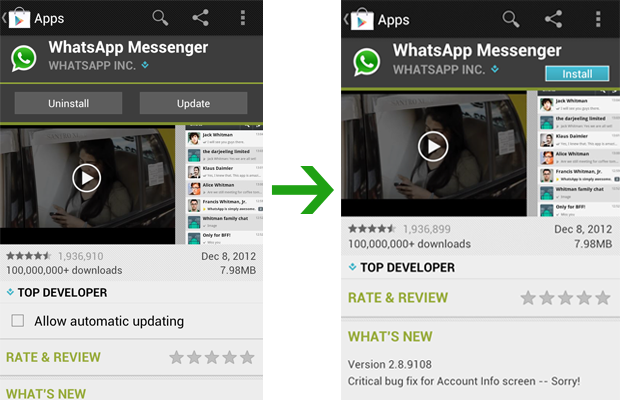
Uninstall WhatsApp from your Android phone. The easiest way to do this is by searching for WhatsApp in the Google Play Store on your mobile device and clicking the Uninstall button. Once it’s been uninstalled, click on the blue Install button to reinstall WhatsApp.

2) Restore your history

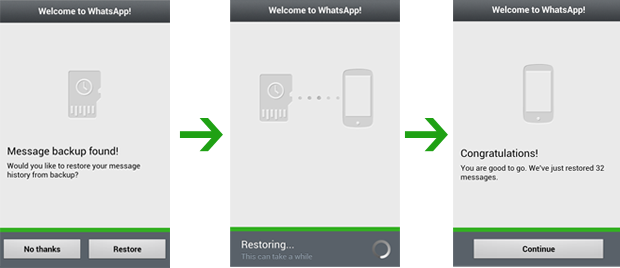
Once WhatsApp has been reinstalled on your Android device, a message will appear asking if you want to restore your message history from backup. Tap ‘Restore‘ and wait patiently while your messages are recovered.

3) Restore from older backups

It’s possible that the chat you were hoping to restore still isn’t there. If this is the case, you can try restoring chats from an older WhatsApp backup. Backups are kept for seven days on your memory card, so there is still a possibility to get the chat back.

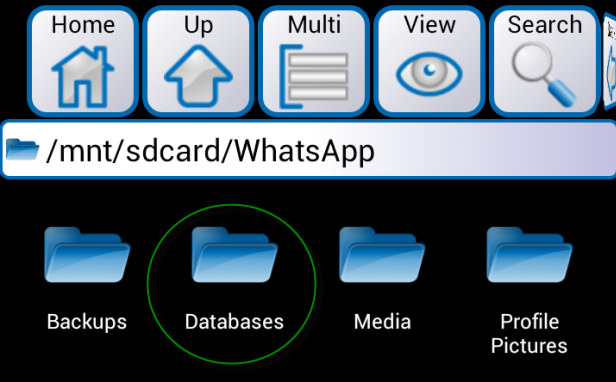
First, you have to find and rename the backup file. Install a file manager app such as ASTRO File Manager or AndroZip File Manager and find the WhatsApp backup folder. It should be saved here: /sdcard/WhatsApp/Database.

4) Rename the backup file

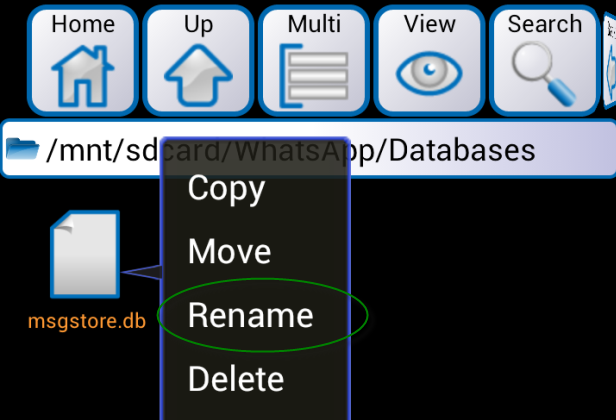
Find the backup file by searching the last day you had the chat saved, as long as it’s within the past seven days. Rename the file, from “msgstore-YYYY-MM-DD.1.db.crypt” to “msgstore.db.crypt”, using your file management app.

5) Reinstall Whatsapp

Once you’ve renamed the backup file, go back to step one and uninstall and then reinstall WhatsApp. When it comes to step two, WhatsApp will restore your chat history based on the backup file you’ve specified. And voilà, your WhatsApp chat should be restored!

Because WhatsApp Messenger’s backup feature doesn’t archive your entire chat history, this is a good workaround to keep backups of all your chats.

If you need more useful WhatsApp or Android tips, check out our Android landing page for everything you need to know about Communication, Games, Social and Utilities.

RELATED ARTICLES:


[Original article published on December 13, 2012]

The Softonic Minute: Flickr gets generous, Twitter ramps up security, and more

The Softonic Minute: Flickr gives out 1TB of free storage, Twitter tightens security, and some good news for fans of Call of Duty and FIFA.

Here’s your Friday dose of this week’s top news in the software world.


brightcove.createExperiences();

Flickr is giving you a Terabyte…completely free. Flickr has been redesigned from top to bottom. Along with the new design, Flickr is offering up to one Terabyte of online storage which you can fill with your high resolution images. The new version of Flickr gives more attention to your images. Updates for Android and iPhone versions of the photo sharing service will arrive soon.

Twitter has just got a whole lot more secure. Thanks to its new two-phase verification system, Twitter has reduced the possibility that your account can be compromised. You can access this new security feature through the options menu.

A new trailer for Call of Duty: Ghosts has been released. There have been significant graphical improvements in Call of Duty: Ghosts and we’ve seen already some impressive screenshots of the game during the presentation of the new console from Microsoft, the Xbox One. Finally, Call of Duty has some quality graphics that should live up to expectations of fans.

FIFA 14 will have a new graphics engine. The new engine is called Ignite and was announced during the Xbox ONE presentation. The first gameplay shots in FIFA 14 have not disappointed so far. Artificial Intelligence is now capable of more complex gameplay but the bad news is that Ignite won’t be a feature of the PC version.

New iOS version of HotSpot Shield released, adds iPad support

HotSpot Shield VPN for iOS received a major update today, optimizing the app for iPad and adding useful new features. The popular VPN (virtual private network) application allows you to browse the internet securely, save data and access web sites and apps that are blocked outside of certain countries, such as Netflix, Hulu or Pandora.

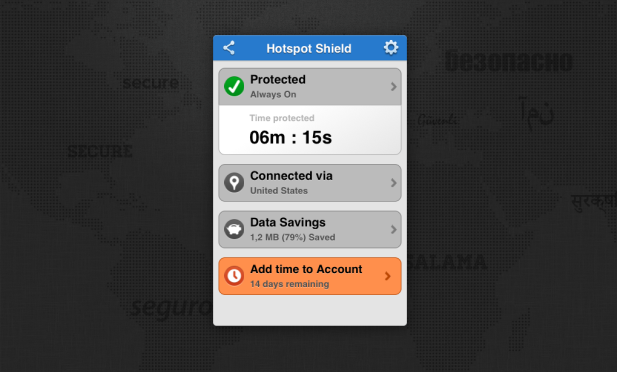
Once enabled, HotSpot Shield VPN lets you protect your identity when using the internet on your iOS device by encrypting all traffic, allowing you to communicate privately. HotSpot Shield compresses all the data sent through the connection so your connection devours less data – the developer claims savings can be up to 50%.

What’s new in HotSpot Shield VPN 2.0

The new version of HotSpot Shield boasts a tablet-friendly user interface for iPad users, which makes it very easy to set up and start using the VPN client.

HotSpot Shield VPN 2.0 now allows you to choose the country of the IP location, between USA, UK and Japan. This means that no matter where you are you can browse content normally restricted to users in that country.

Other changes in the new version of HotSpot Shield for iOS include iCloud support, improved malware protection and the ability to check your data savings and protection status more easily.

If you’re a student it’s well worth considering installing HotSpot Shield on your iOS device. The developer, AnchorFree, is offering a free annual subscription of the service to students in the US and UK. In conjunction with this, it’s offering scholarship awards for colleges and universities as part of a scheme called the ‘College Privacy Challenge’.

Top 25 apps for your Android tablet

If you’re lucky enough to have just got hold of a new Android tablet, you might be wondering which should be the first apps you install on your shiny new device. Google Play is awash with great applications but figuring out which are the best Android tablet apps is tricky.

Fear not though, because we’ve drawn up a collection of apps that will turn your tablet into a powerful companion to make life easier. Covering everything from simple tools that tell you what the weather will be like today, to productivity apps that help you work on the move, this selection will convince you that splashing out on an Android tablet was the right thing to do.

Continue reading “Top 25 apps for your Android tablet”

Which Opera browser for Android to install?

The new Opera browser beta for Android was released last week. It’s a fine looking mobile browser that allows you to access the web quickly and painlessly on a phone.

If you’ve looked for the new Opera browser on Google Play you’ll have probably noticed there are now three versions of Opera for Android – Opera Mini, Opera Mobile, and this new one, Opera browser (currently in beta). You’re probably wondering which version of Opera to download and what the differences are between these versions.

Continue reading “Which Opera browser for Android to install?”

Mobile app of the week – Sonic Dash

This week saw the release of two big behind-the-back endless running games for mobile. On Wednesday Temple Run: Oz came out – which takes the original Temple Run format and applies an Oz the Great and Powerful theme to it. Then yesterday Sega’s Sonic Dash was released –  which takes the original Temple Run format and applies a Sonic the Hedgehog theme to it. And they said that innovation was dead!

The two pretty much follow the same run-as-far-as-you-can-while-collecting-stuff approach. But of the two, Sonic Dash just shades it in terms of originality. It’s beautifully designed and recreates the gorgeous worlds of Sonic games of old, from the scenery down to the appearance of baddies from previous Sonic titles.

Continue reading “Mobile app of the week – Sonic Dash”

The best apps of Mobile World Congress 2013

As the Mobile World Congress 2013 draws to a close, we’ve been discussing what were the best mobile apps we saw featured at the show. Here are the ones that really caught our eye (in no particular order):

Nokia Cinemagraph on Lumia 520

Cinemagraph is a lens application that we saw being demoed on the new Nokia Lumia 520 device.

The Cinemagraph app allows you to add movement to still images. You capture a short video with the phone then scrub out all the parts of the video you want to remain still. The parts that aren’t selected will animate, and you can export the finished creation as a GIF file and share it with your friends and contacts. Check out the video demo we saw to see exactly what you can do. Continue reading “The best apps of Mobile World Congress 2013”