2013 in news: online security and privacy

Online safety, security and privacy were hot topics in 2013. Scandals, large-scale hacks, and system vulnerabilities were the order of the day (or the year). But what was the most important news when it came to software and online issues? Softonic lays it out for you.

MEGA

In early January, Kim Dotcom launched the MEGA cloud service. The service was to be revolutionary in the field of privacy, but shortly after the launch of the service there were already whisperings about password issues. After several defensive responses from Kim Dotcom, the developer closed the discussion on online privacy. He also encouraged users to secure their account with a strong password to protect it properly.

Passwords need to be secure

Two-step verification

This year saw the transition from a standard password to two-step verification. Companies like Facebook, Twitter, Dropbox, Google, and Microsoft switched to a new system of users having a password and verification code to log in. The extra step in security ensures that hackers have more difficulty in accessing personal information. Unfortunately, the method is not without flaws: online security guard F-Secure reported that it was easy to hack Twitter’s login authentication.

iOS

The mobile operating system from Apple, iOS, also experienced security issues in 2013. Update 6.1.2 was released to fix battery problems from the previous version, but proved hugely sensitive to lockscreen hackers. This, however, didn’t hold Apple back. The American company launched iOS 7, a completely new operating system with a number of problematic security issues: even a way to access photos, email, and Twitter on a locked device. It was later discovered that it was possible use a linked credit card without entering a password – therefore enabling the hacker to make purchases.

Adobe

Software giant Adobe had a difficult year. In early October, the company announced that the account information of 2.9 million users had been hacked in a large-scale cyber attack. Adobe announced that the company did everything to secure the accounts. Users whose information had been stolen during the attacks were informed and, in addition, all payment details encrypted.
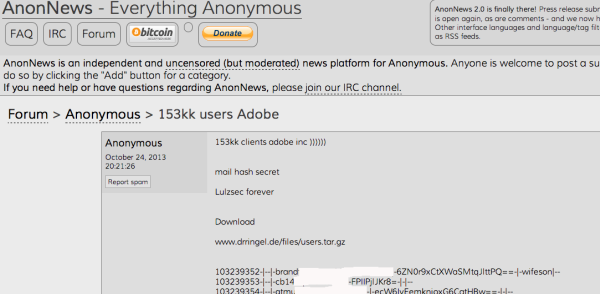
Hacking problems for Adobe

However, the same month it became clear that many more profiles had been hacked: 38 million Adobe accounts seem to have been affected by the attack. The truth came to light as AnonNews.org got hold of the original file with all the data. The information service from Anonymous also reports that more than 150 million locked passwords had been stolen. Shortly after, in order to win users back, two popular Adobe programs (Lightroom and Photoshop 5) were offered at a discounted price.

NSA & PRISM

And last, but certainly not least, the scandal that set the online world on fire: the PRISM files that were leaked by whistleblower Edward Snowden.

The world’s perception of online privacy changed overnight. The world wide web was no longer a place where you could display all your information without a care in the world, no, it was announced in June 2013 that the U.S. government was watching. Your Facebook, Google, Microsoft, Apple, and many other accounts were suddenly in the public domain. Snowden’s files showed that it’s not only terrorists who are being monitored.

The NSA was found to have access to a huge proportion of databases on the internet (voluntarily and involuntarily). It began with the rumor that the government had access to certain servers, but more information was quickly released. Not only did the NSA look for information on Google and Microsoft users, but the government’s watchdog was even spying on the virtual world of World of Warcraft and Second Life users.

Even gamers aren't safe

A number of internet companies rallied behind a new law that internet users should get more insight into the information collected about them. All this commotion led to the question: is it too late for online privacy?

2013 was a turbulent year in the field of online and software security. Many major attacks on established names such as Microsoft, Adobe, and Twitter gave users the feeling that even their familiar, trusty software was no longer safe. The revelations from Edward Snowden on the scale of the NSA’s spying on individuals just added to the feeling of insecurity. Services such as DuckDuckGo, an anonymous browser, and Dark Mail, an encrypted e-mail service now seem more important than ever for people who like to safeguard their online privacy.

We’re wondering what 2014 has to offer in the area of ​​privacy and security! Softonic will be looking into it and keeping you informed in the New Year too.

Original article created by Sophie Notten for Softonic NL

How to: use Gmail’s old ‘Compose’ screen

The new popout ‘Compose’ screen in Gmail has come in for some criticism, especially since it’s now the only option available to write your emails. But, as expected, there’s already a solution for those who use Google Chrome and Opera: an extension called Old Compose.

What is Old Compose?

Old Compose is an extension for Google Chrome and Opera which reverts to the old Gmail interface for writing emails. Since it’s an extension, it only works on the PC where it’s installed.

How to Use Old Compose

1. Download the CRX file for Old Compose

You can download the extension here in CRX format.

2. Open the Chrome Extensions screen

Click on the Chrome menu (the ‘lines’ icon) and go to Tools > Extensions.

3. Drag the CRX file to the Chrome window

Open the folder which contains the CRX file and drag it to the Chrome Extensions screen. The browser will ask you to confirm the installation. One click and you’re done!

For Opera, the process is pretty similar. Make sure that you enable the installation of Chrome extensions, as we explain in this article.

4. Reload Gmail in your browser

To apply the changes, reload Gmail in your browser. Now, when you click Compose, the interface for writing emails will be the same as before!

How Old Compose works

We’ve analyzed the source code of Old Compose, and as it turns out, the extension changes the identity of your browser so that it appears as an old one, which forces Gmail to show the old ‘Compose’ screen.

More specifically, the identity of the Old Compose simulated browser is Mozilla/4.0 (Windows NT 8.0, Windows NT 6.0), which uses the old Internet Explorer 8. You can get the same effect by using User-Agent Switcher for Chrome.

A convenient extension

I actually like the new “Compose” screen, but if you prefer the old one, the Old Compose extension is perfect for you. It’s not in the Chrome Store yet, but another good alternative is Fix Gmail Compose.

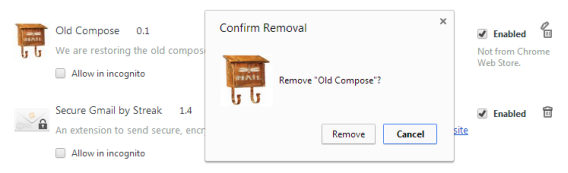
If you want to remove Old Compose, either because it’s not working, or because you don’t trust an extension that hasn’t yet been approved by Google, go back to Tools > Extensions and click on the trash icon next to Old Compose.

Which do you prefer? The old screen or the new one?

Original article written by Fabrizio Ferri-Benedetti on Softonic ES.

Why you should (and shouldn’t) download BBM

BlackBerry Messenger has been downloaded by millions of people since its multi-platform launch, but the 64 million dollar question everyone’s been asking, is where or not it’s worth switching from WhatsAppLINE or the myriad of other messaging services that have popped up since BBM started the trend in 2006? We’ll give you the good and bad of BBM so that you can decide for yourself.

BlackBerry Messenger in 30 seconds

BlackBerry Messenger (BBM), the instant messaging app originally made for RIM’s BlackBerry phones, including the new BB10, now has more than 70 million active users. With the huge shift to Android and iOS devices, BBM is hoping to expand its user base, aware of the mass exodus of users to Google and Apple ecosystems.

After hinting at a launch date of September 2013, BBM officially launched on October 22, 2013. BBM actually exhibits very similar characteristics to WhatsApp in terms of emoticons, delivered (and read) notifications, and the option to send files, photos, and voice memos.

Why you should download BlackBerry Messenger

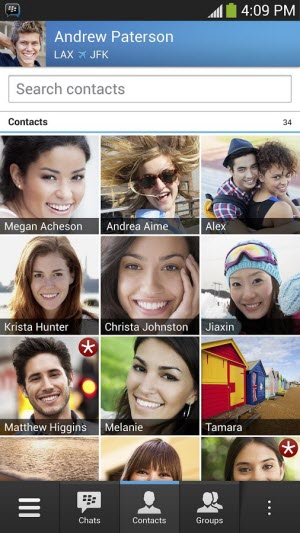
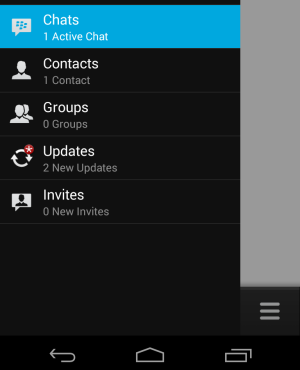
With a professional, fast and very neat interface, BlackBerry Messenger has an excellent graphics interface which is very well suited to the professional world. The side panels, bottom menu and tiled contacts view allows easy access to many of the features of BBM. And everything is very fast.

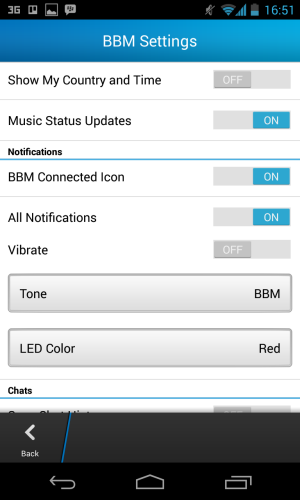
The quantity of customization options

The number of options available in BBM is impressive. In BBM for Android, for example, the color of the notification light can be changed from within the app. Other options let you change the hue or the design of your contact list.BBM Settings

Protect your phone number

When you sign up with BBM, it generates a BlackBerry ID that is associated with your email address, but not your phone. This means that whoever has your number won’t automatically be added to your contacts the same way they are in WhatsApp.

Tells you when someone has read a message

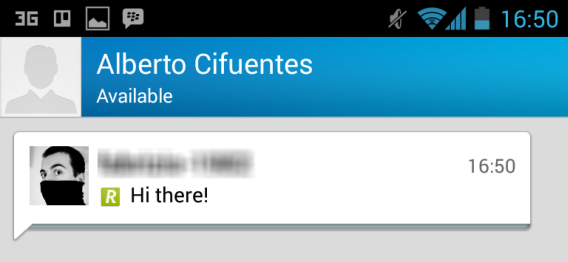
For lots of people, the two WhatsApp checkmarks tell very little. BBM, on the other hand, not only informs you when a message has been received (with a D), but also when the message has been read (with a R).

BBM shows you if your message has been read

Why you shouldn’t download BlackBerry Messenger

The process is long and laborious

If you’ve never used BlackBerry Messenger, it’s a good idea to sign up from the website and not your phone. Either way, the experience of filling out a long form with your personal details will discourage even the most enthusiastic of users.

If you’re new, you won’t have any contacts

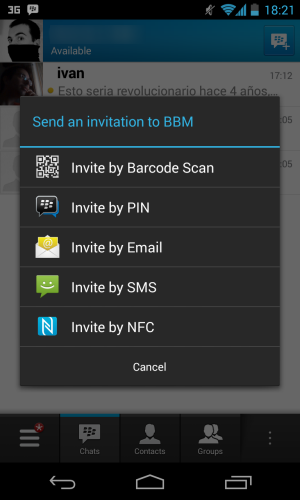
Since BBM is not linked to a phone number or a phone book, new BBM users won’t have any contacts, even if other friends are already using the application: you have to invite them via email, SMS, or by using some fancy technology.Adding contacts in BBM is complicated

How to add contacts

Those fancy technologies that were just mentioned? QR and NFC codes. They’re not exactly the most comfortable or most reliable technologies, and don’t always work.  If you do give up, you can always send a PIN to your friends. You can add BBM contacts in many ways

It doesn’t offer anything radically different If you’re looking for something new, BBM might not be for you. It’s a very solid and reliable messaging app, but it’s not revolutionary. If you want to try something different, you might prefer LINE, Snapchat, or WeChat.

At the moment, only for BlackBerry exiles

BBM is an app for users who’ve already been using BBM on their BlackBerry, who already have a BlackBerry ID and contacts, or for those ex-BBM users nostalgic for the service. For everyone else, BBM’s features just aren’t worth it, especially with the convoluted way of inviting and adding contacts.

Download BlackBerry Messenger for Android

Download BlackBerry Messenger for iPhone

Grand Theft Auto V for PC in March 2014 – rumor

Gamers waiting to see GTA V released for PC may have been given an extra gift this holiday season. A new rumor, based on a live chat between a Reddit user and an Amazon.co.uk employee, has the record-breaking game appearing on PC in March 2014. The game was released on September 17 of this year, on xbox360 and PS3. Rockstar Games is yet to confirm that the game will even be released for PC.

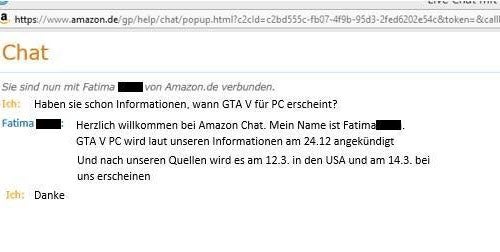
GTA V on PC - the German Amazon chat

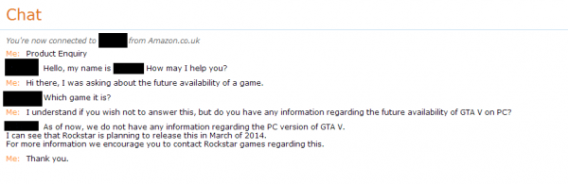
The latest rumor started with an Amazon.de user asking a support agent if they had any information about Grand Theft Auto V on PC. The agent replied that the game would be released on PC in the US on March 12 and in Europe on March 14, but that these dates are subject to change. Following up on this, a Redditor contacted Amazon UK and received ‘confirmation’ from another support agent that GTA V is expected on PC in March. The transcripts of these chats have not been verified by third parties.

GTA V on PC - the Amazon UK chat

As John Papadopoulos of DSOGaming comments, were this information accurate, it wouldn’t be the first time that Amazon has leaked release date information for major PC titles. Similar leaks happened for Mortal Kombat and Injustice on PC. However, the rumor also suggests an official announcement from Rockstar Games on December 24th – a date that has come and gone with no news. This could be less evidence of the rumor being false and more a simple marketing decision. December 24th isn’t the best day to make major product announcements, even for a title as keenly awaited as GTA V.

Playing the traditional numerology game that accompanies any news related to Grand Theft Auto titles, I see that GTA IV and San Andreas were both released for PC on Tuesdays in the US. March 12 2014 will be a Wednesday. So perhaps March 11 is a more likely release date. One thing’s for sure: the level of demand for this title to appear on PC.

[Source: Reddit]

The Softonic Minute: A Year in Review

This has been a year of big changes for some of the biggest software companies, apps and games in the market. Microsoft updated to Windows 8.1, Apple completely revamped its operating systems, Google further integrated its myriad of services, and the highly anticipated GTA V was finally released. Check out this year’s biggest software news in a special ‘Year in Review’ edition of the Softonic Minute.

Default player


brightcove.createExperiences();

Apple revamped its operating systems

The arrival of iOS 7 saw radical changes to the familiar iOS interface, eliminating textures in favor of a flat, functional design. OS X also got some updates: the newest version, Mavericks, incorporated many new features and, along with iWork, was made available for free.

GTA V is Game of the Year

After various leaks, rumors and much anticipation, Rockstar finally released GTA V in September with record-breaking sales: one billion dollars in the first three days. The game features the largest map of the series, three characters, and an online mode that, even after being released, keeps bringing us more news. The latest? A trick to access North Yankton and a content creator to make new missions.

Microsoft launched Windows 8.1

Windows 8.1 was a major update to its operating system that brought, among other things, the start button back. It seems like Redmond has big plans for SkyDrive and Bing, which are no longer external services, but are increasingly integrated within the system. The year ends with rumors of a possible Windows 9, which would come in 2015 and for now, is codenamed Windows Threshold.

Google strengthened its flagship products

Google moved all of its Android apps to Google Play, a service which was already installed on 99% of devices. Meanwhile, improvements to Google+ weren’t enough to convince users, especially the need to sign into the social network to make YouTube comments, a point which angered many users.

Check out all of this year’s Softonic Minutes here, and have a happy holiday season!

2013 in news: a year of ups and downs for Windows

2013 will be seen as a pivotal year in Microsoft‘s strategy – alongside hesitation and change, Windows users were able to feel equally at home on PC or mobile. It was a difficult challenge, but overall, we think Microsoft has come out on top, even though it wasn’t easy.

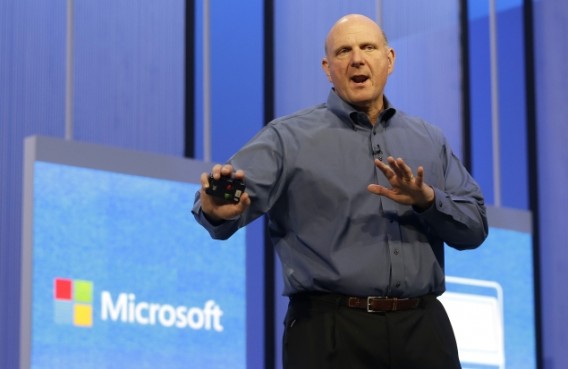
While that was going on, Microsoft also had to deal with the closure of MSN Messenger, one of its most used programs, in favor of the previously acquired Skype. In short, things haven’t been easy for Mr. Ballmer. Let’s look back over 2013.

Steve Ballmer Microsoft

Windows 8.1: the savior?

2013 was a year marked by a rather disappointing first review for Windows 8. Launched at the end of 2012 in an environment marked by declining PC sales and the rise of mobile devices, Windows 8 faced a tough challenge.

Despite a modern user interface, Windows 8 received a lot of criticism. We’re obviously thinking of the glaring absence of the Start button.

Guilty of wanting too innovate too much, Microsoft frightened its users. Windows 8.1 was released to respond to the criticism without actually solving the problem. Worse still, the system failed to convince the corporate market, a crucial sector for Microsoft.

Despite this, Windows completed its integration with SkyDrive and revamped its Store. Windows responded decisively to at least some of the criticism, its app store, for example, is now well stocked and continues to attract developers.

2013 hasn’t been synonymous with success for Windows 8, but speaking of “failure” is too strong. If we were teachers, we’d probably tell Windows that it “could do better”. The post-PC era isn’t so easy to get a good grip on, after all.

Windows RT : an OS with an uncertain future

Windows RT, one of three OS versions offered by Microsoft (alongside Windows 8 and Windows Phone), also remains one of the great mysteries of 2013. Designed for tablets, it has many features in common with Windows 8 without, however, offering the key features that users seem to enjoy.

Microsoft Surface

Given the failure of tablets offering this OS, manufacturers have announced their decision to gradually stop offering Windows RT. Microsoft certainly had huge difficulties selling its Surface tablet, providing even more proof that RT just wasn’t a runner. So what’s next for the future of Windows RT?

MSN/Skype and the case of the unhappy users

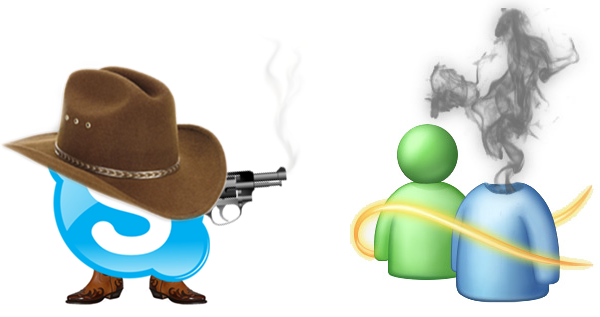
Another major issue in 2013 was the end of Windows Live Messenger (formerly MSN Messenger), set aside in favor of  Skype. Forced migration began in March after a final reminder was sent to users of the service. Regular users saw this forced transition in a very dim light and didn’t hesitate to make their dissatisfaction known, on social networks or right here on Softonic.

A non-customizable, austere interface with a limited number of emoticons and various features that have to be paid for, Skype is a far cry from being a unanimous success! Add to this the technical problems seen around the time of the switch and the inability of some users to connect, and you get a totally catastrophic outcome.

Skype replaces MSN Messenger

Despite saying all the right things, Microsoft failed its fans. Many users have moved to other messaging solutions, with Facebook being a particularly popular choice.

Almost a year after the migration, Microsoft has finally got the message and has significantly improved its VoIP software to bring it up to speed. 2014 could therefore mark an interesting resurgence of Mircosoft in the battle for messaging app supremacy.

What about you? Do you think 2014 will be a good year for Microsoft?

Original article created by Pierre Vitré for Softonic FR

How to: install CyanogenMod in 10 minutes with CyanogenMod Installer

Until now, installing a ROM on a smartphone was tricky, but with CyanogenMod Installer that’s a thing of the past. The process is very simple and can be carried out in just a few minutes. I’ll explain how.

CyanogenMod (CM) is the name of the most famous custom ROM for Android. It’s an open-source Android variant, which adds features and options that can’t usually be found in the ROM provided by the manufacturers. With CM, for example, you can manually increase CPU power or change the look completely. Phone performance tends to improve and in some cases, CyanogenMod is superior to the pre-installed one.

In addition, CyanogenMod adds root to the phone – in other words, it allows you to be a superuser. As I said, there are many good reasons for rooting the phone: you can do things that are normally forbidden, such as complete backups, uninstalling operator applications, or recovering deleted videos and photos. The freedom that it gives you with your rooted Android phone is immense.

What you need to use CyanogenMod Installer

To use CyanogenMod Installer you must first install its two applications, one for the phone or tablet and the other for the computer:

At the same time, you must do the following:

  • Make sure you have a good USB cable ready to connect the device to the PC
  • Disable the antivirus so it doesn’t interfere with the procedure
  • Make sure your phone is fully charged
  • IMPORTANT: make a backup of your Android
  • IMPORTANT: temporarily disable two-step verification or you’ll run the risk of being locked out of your phone and your Google account (see here)

Finally, you need to check if your mobile phone or tablet is compatible with CyanogenMod Installer. The list is regularly updated on the official CyanogenMod website. Don’t worry, your device doesn’t need to be rooted.

1. Installing CyanogenMod Installer on your Android

The first thing you have to do is install CyanogenMod Installer on your phone or tablet. If you’re not able to, it means that the app is not compatible with your device.

CyanogenMod Installer for Android

If CyanogenMod Installer freezes after running it, it’s waiting for you to connect the device to the PC. Go to point two of the tutorial below.

2. Installing CyanogenMod Installer on Windows

Next install CyanogenMod Installer on Windows Vista, 7, or 8 (the Mac version is coming soon). The wizard will need administrator permission.

CyanogenMod Installer for PC

The process is simple and fast, and ends in a screen that asks you to connect the phone to the PC. Temporarily disable your antivirus and use a good quality USB cable, making sure to only connect to built-in USB ports.

3. Connect the phone to the PC and follow the prompts in Windows

By connecting the phone (or tablet) to the PC via the USB cable, CyanogenMod Installer for Windows should be able to detect the model of the device. From that point onward, everything is automatic: the program starts to download the necessary files and transfers them to your phone, which will reboot in recovery mode (don’t worry, and most of all DON’T DISCONNECT!).

CyanogenMod Installer for PC

When everything is ready to go, you will see a message appear in CyanogenMod Installer and a button to confirm that you want to continue with the installation.

Confirm that you do.

CyanogenMod Installer for PC

4. Start the installation process

Don’t restart the PC or disconnect the USB cable: after pressing the “Install” button, CyanogenMod Installer will start to move files and configure your device.

CyanogenMod Installer for PC

5. Confirm that you want to unlock the bootloader

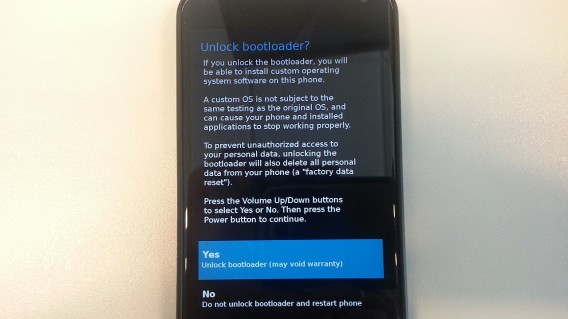
You’re now coming to perhaps the most complicated part of the process: unlocking the bootloader, in other words, the operating system manager of the phone or tablet you’re using (changing the OS of your phone is also known as “flashing”). CyanogenMod Installer explains it clearly: using the volume keys to move, select the “Yes” option and press the power key to confirm.

CyanogenMod Installer for PC

This is how it looks on a Nexus 4. Note that I’ve already moved the selection to “Yes” but have not yet pressed the power button to confirm.

CyanogenMod Installer for Android

After confirming, this is what you will see on your phone screen (don’t panic, it’s normal). Look at the message “LOCK STATE – unlocked”: this indicates that the bootloader has been successfully unlocked.

CyanogenMod Installer for Android

6. Wait a few minutes and enjoy

After a few minutes, the installation process will be complete. On your Android screen you’ll see the friendly blue CyanogenMod men waving at you – this means that the installation has been successful.

CyanogenMod Installer for Android

Wait for the CyanogenMod Installer wizard in Windows to tell you that the installation has been successfully completed before disconnecting the phone:

CyanogenMod Installer for PC

On your phone or tablet you’ll finally see the CyanogenMod boot logo. It’s worked! And it took less than 10 minutes in total.

CyanogenMod Installer for Android

It’s a fast, easy and safe system for installing CyanogenMod

From this point on, your Android device will have already installed CyanogenMod. As you can see, you don’t need to root or unlock the phone with complicated tools: the entire process takes less than ten minutes.

What’s been your experience of using CyanogenMod Installer?

2013 in news: alternative mobile operating systems

In 2013, Android settled into its place as the absolute ruler of the world’s mobile operating systems. Apple maintained the pace with iOS, especially in the US, but rest of the market was the setting for an interesting battle for survival.

The strongest competitor was undoubtedly Windows Phone. The Microsoft operating system took a solid 3rd place with a little over 4% of the market. Although it didn’t launch any major new features in 2013 (just three small updates), it made strong a presence in Europe, where it reached nearly 10% of the market.

Apps and Nokia rescue Windows Phone

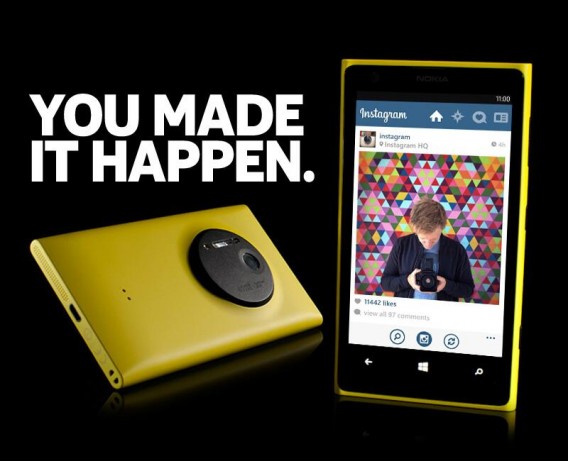
Windows Phone’s trump card in 2013 was undoubtedly the arrival of the apps that users wanted most: Instagram, Vine, Waze, and Papyrus. These and other apps have begun to make WP a mobile ecosystem that has a real chance of competing with major players. Thanks are due almost exclusively to Nokia, most of which was bought by Microsoft. Both HTC and Huawei, on the other hand, have pulled back from Windows Phone development.

Instagram on Windows Phone

BlackBerry’s twilight years

BlackBerry

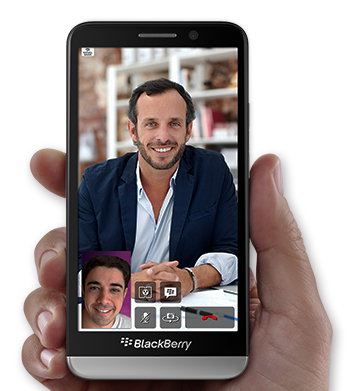
On the other side of the coin lies Blackberry 10, once slated to be the 3rd most popular mobile operating system, but has actually sunk spectacularly. Blackberry’s complete makeover, complete with Alicia Keys, couldn’t even begin to stem the bleeding – Balckberry 10 was ignored by users and developers alike. Perhaps the success of Blackberry Messenger, a multiplatform app, will serve as consolation to the Canadian firm. The launch of BBM for iPhone and Android, and the company’s business solutions are now their last hope.

Firefox OS, the mobile for all

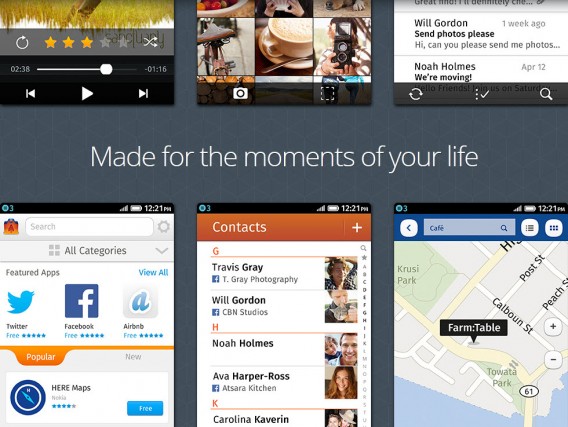
Mozilla’s Firefox OS has jumped into a very different battle. With the support of Spanish firm Telefónica, Firefox OS wants to be a middle of the range operating system capable of attracting users in emerging countries. Its biggest challenge is ensuring developers of popular apps make versions for the OS, but it’s not going to be an easy task. Even though Mozilla has promised WhatsApp, for example, WhatsApp are denying all knowledge.

FireFox OS

The Nokia leftovers: Sailfish is in, Symbian is out

While some are just arriving, others have already left. Symbian bid the ultimate farewell after Nokia decided to focus its efforts on developing Windows Phone devices. The Finnish company confirmed it would be abandoning Symbian, leaving us with a bad taste in our mouths – a system we thought had life in it yet is vanishing for good.

Symbian

From another Nokia leftover, Meego, Sailfish OS is born. The future of this alternative operating system will be decided in 2014. This year, we saw the company taking at least one intelligent decision – it will be able to run Android applications, meaning it will be born in to a solid app ecosystem and you’ll be able to install it over Android.

CyanogenMod against the giant

CyanogenMod can also be easily installed over Android, but Google doesn’t seem so happy about it. While Cyanogen announced an agreement with Oppo to offer Cyanogen  Mod as a default install on the Oppo N1, Google removed Cyanogen Mod Installer from Google Play because it violated the terms for developers allowing users to “void their warrenty.”

The Ubuntu mystery

Last, but not least, Ubuntu Phone ended the year as it began, as the great unknown. Canonical led a campaign to develop a phone, but in reality it was just some free publicity. The system received an update or two during 2013, but apart from a  few small changes, it’s exactly the same one we saw during the 2013 Mobile World Congress.

2013 in news: social networks

We’re about to see the curtain come down on a busy year in social networks. 2013 has seen Facebook change and become more “mature,” Twitter aim high, and Google+ take aim… at the world. Or at least try to. And how was 2013 for social network users? What are people looking for in a social network? And who was the most retweeted person in the world? Here’s a look at social networks in 2013…

Facebook – time to change

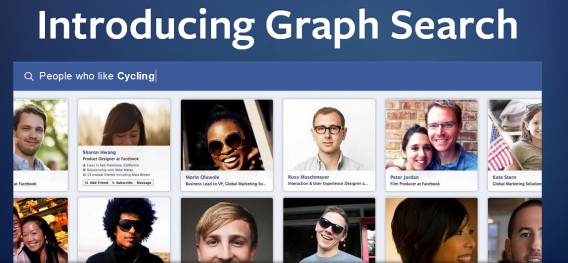
Time waits for no man… even Facebook. Facemash recently turned 10 years old – this was Mark Zuckerberg’s first experiment and the predecessor to the social network that has conquered the world. Facebook was born soon after, on 4 February 2004. On the eve of its tenth anniversary, Zuckerberg’s social network is still the star of the social world, but alternatives such as Snapchat are waiting in the wings (and in the meantime are taking a significant share of the audience among teenagers). “Innovate or die” seems to be Facebook’s battle cry, and in 2013 they changed (almost) everything. Goodbye old news section and hello to News Feed, a new, completely revamped home page that offers larger images, multiple feeds and a uniform appearance between web and mobile versions. News Feed was launched last March, but many users are still waiting to have it activated on their profile. Graph Search, the new search tool for Facebook that lets you find anything and everything, from discovering which of your friends are “fans of Star Wars and Harry Potter,” to also finding “friends of my friends who are single and live in my city” launched in January. Graph Search is not available to everyone, but you can take a look at the preview image here.

Facebook Graph Search

2013 also saw the arrival of Facebook Home an ambitious project launcher for Android, which has not yet found favor with the general public – and improvements to Facebook Messenger, which has a new style, lots of additional functions, and the now seemingly inevitable stickers. It would also seem that the time is ripe for a social network with fewer kittens and more news, as shown by the recent algorithm rehash from Facebook, which tries to promote the quality of news and content. Facebook is becoming very serious. Or is it? All we can do is wait until 2014 to know how the most popular social network in the world will evolve.

Twitter – the little bird is spreading its wings…

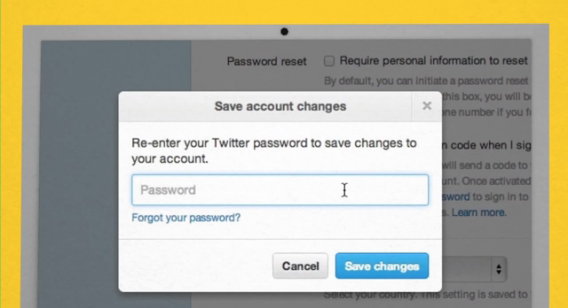
The blue bird with 140 characters has started to branch out. In 2013, Twitter launched its video sharing service, Vine. The app soon started to get noticed, not just for the spread of porn that accompanied its debut (now slowing down), but also for its immediate popularity, which has meant the app has now been taken up by Android and, recently, by Windows Phone. Twitter has also steadily improved the usability of the web version of its app, for example allowing the direct synchronization of messages between all devices. It’s more convenient,  as well as safer, thanks to the introduction of the new log-in verification system.

Twitter log-in security

And, in an effort to fly high, the social network also launched its music streaming service, Twitter #music, although this doesn’t seem to have gone down too well in the general public. With a constantly growing number of users, however, the sun continues to shine in the Twitter sky. But there are clouds on the horizon, especially now that Facebook seems determined to steal a piece of the action by copying… ahem… introducing hashtags and trending topics. How will 2014 look for Twitter?

Google+ – my dad says…

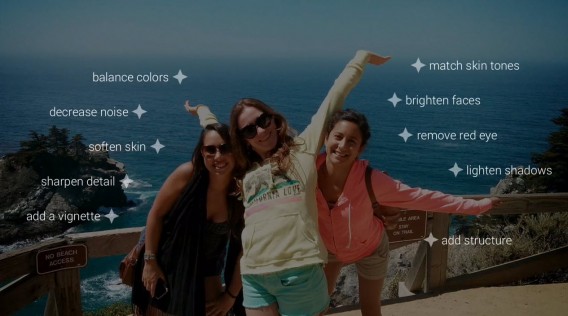
The social network from Google wants to get rid of users’ Cinderella complex, and win over users who until now have remained happily satisfied by Facebook News Feed and Twitter timeline. Google started thinking big and in 2013 staked a really big claim, totally revamping Google+. The Big G social network ​​is now all new, and offers SMS integrated with Google Hangouts, GIF conversations, HD calls on any device, and more. In fact, Google+ is actually a pretty nice network, and also offers interesting photo editing tools.

Google+ Photo Editing

But Daddy Google insists that we use its social network even when we don’t feel like it, for example by integrating Google+ into the YouTube comments. Now, those who want to leave a comment on YouTube will, by necessity, have to have a Google+ profile, so have to give up their anonymity. Goodbye to trolling? Perhaps, but in the meantime the network is protesting: the new system of YouTube comments would seem to encourage spam. How will 2014 treat Google+? We hope it will continue to improve, but give up on trying to impose its presence at all costs …

Users – Free to Choose

Meanwhile, what have the users made of social networks? Loyal but not always so, they have continued to use Facebook, Twitter and Google+ convincingly, but have not given up looking for alternatives. Like, for example, Snapchat, the photo messaging app that’s increasingly popular among teenagers and has recently introduced its own version of the Timeline. And speaking of loyalty, users of 2013 have shown particular interest in somewhat spicier apps. This was indeed the year of Bang with Friends and Tinder, two applications based on Facebook that help set up intimate encounters between third parties. All this anonymously, more or less… Confronted with this somewhat bleak scenario, it’s comforting to know that Instagram recently celebrated its third birthday with the hashtag #love. Love always triumphs, even among social network users… A tribe that never cease to surprise us, even when it comes to unpredictable spiritual inspiration. The most retweeted person in the world on Twitter? The Pope. Wow, maybe we’re even deeper than we thought!

Happy 2014!

Original article created by Laura Ceridono for Softonic IT

How to: set up your Windows PC as a wireless hotspot

So you want to surf online from the comfort of your own home using a smartphone or tablet, but you don’t have a wireless router? With Windows, you can turn your PC into a Wi-Fi hotspot in a few easy steps. You can also use this trick at work or in college to get fast mobile internet access. We’re going to show you how to do it.

Here we explained how you can make your Android Smartphone into a hotspot

1. Check if your network driver supports hosted networks

On individual computers, Virtual Router Plus can’t access the local network. The driver for your network card must support hosted networks. You check if this is the case in two simple steps.

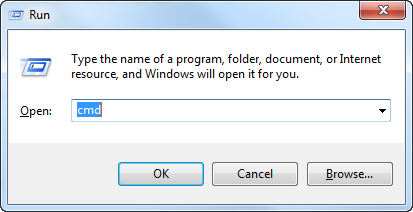
  • Press the Windows key and R. Type CMD in the character field Open and click OK.

Open the Run command

  • A window appears with the Windows command line. Enter the command netsh wlan show drivers and press Enter or Return. Windows then lists details of your network drivers. If at Supported Hosted Networks the entry is Yes, then you can set up a wifi hotspot.

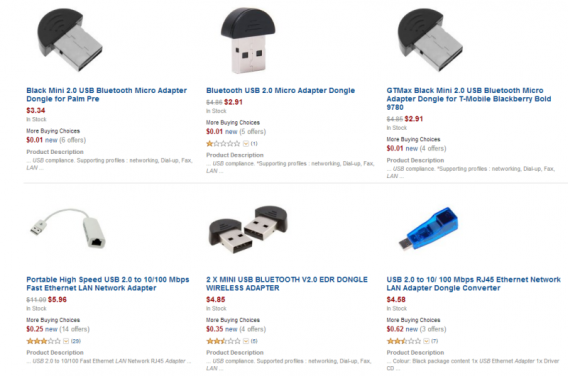
2. If your PC has no wireless adapter: Buy a USB wireless adapter and connect it:

You can buy a USB Wireless LAN adapter online for less than five dollars. Insert the adapter into an available USB port and you’re ready to go. Drivers are unnecessary in most cases – Windows automatically detects the device.

Buy an adapter online

3. Install Virtual Router Plus

Download Virtual Router Plus and install the program.

4. Starting and adjusting Virtual Router Plus

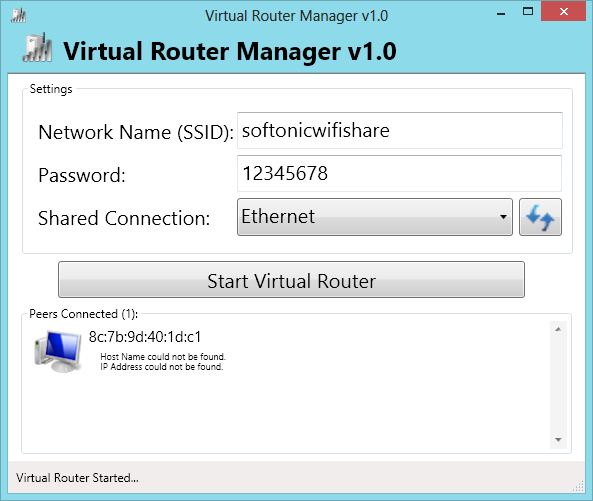
The freeware requires only three simple pieces of information: Under Network Name (SSID), enter a name. Then enter a secure password (as secure as possible) and choose your internet connection for Shared Connection. Click on Start Virtual Router to activate your personal Wi-Fi hotspot.

Virtual Router Plus

5. Connect the mobile device

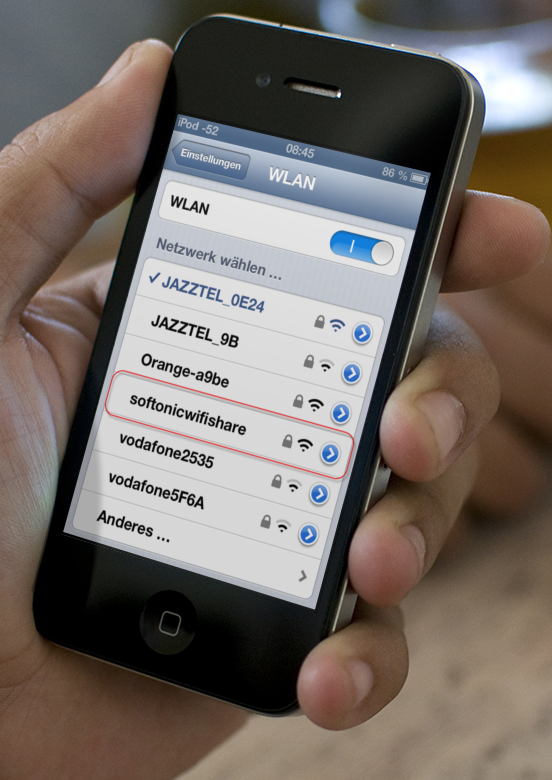
Your Windows Wi-Fi hotspot now shows as an available network on your mobile device. After entering the password, you can use the internet connection from your PC on your tablet, laptop, or smartphone.

Wi-Fi connection through PC

Image: Private screenshot via Placeit

Troubleshooting: Hotspot cannot be found

If your mobile device can’t find the Wi-Fi hotspot, click on Stop Virtual Router in Virtual Router Manager, and then on Start Virtual Router again. Use this method to solve any connection problems, but we’re fairly confident you won’t have any.

Have you tried this method of creating a Wi-Fi hotspot? Did it work?