The best productivity apps of 2014

As part of our best apps of the year series, our expert app editors voted for the best apps in 8 different categories. After choosing a top 5, they narrowed it down to one winner in each category. Here, we’ll go through the best productivity apps of the year, those that help bring organization and order into our lives.

Picking the best app was difficult, mostly because we all swear by different apps that help us get our work done and stay organized on a daily basis. After a lengthy discussion, our editors were able to decide on 1Password as the best productivity app of the year. Why? Read on to find out, and check out the other 4 apps that made the top 5 list.

Default player


brightcove.createExperiences();

1Password

1Password LogoPassword manager 1Password emerged as our best productivity app of the year, mostly because there were a ton of security threats in 2014 that using a password manager could have circumvented. Never before were there as many password thefts as in 2014, with over a billion hacked or stolen passwords. This was reason enough to put 1Password at the top of our list.

With 1Password, you can create and save credentials for websites and store an unlimited amount of secure information in an encrypted file. The fact that it’s available for almost every platform makes 1Password seamless across devices. The icing on the cake is an excellent user interface.

Download 1Password for Android | iOS | MacWindows

Microsoft Office Mobile

microsoft office mobile - logoMicrosoft Office is a name familiar to almost everyone. In 2014, however, Microsoft’s flagship suite found its way onto mobiles, for free. With the latest version of Office for iPad, Redmond ensured that things will stay free too. The individual apps bring almost full functionality of the Windows version to tablets. Tablet versions optimized for Android and Windows 10 are just about ready to be released.

Even if all you want to do is have a quick look at working documents in Word, Excel, or PowerPoint, it’s worth having Office for Mobile installed on all of your devices.

Download Microsoft Office Mobile for Android | iOS

OneNote
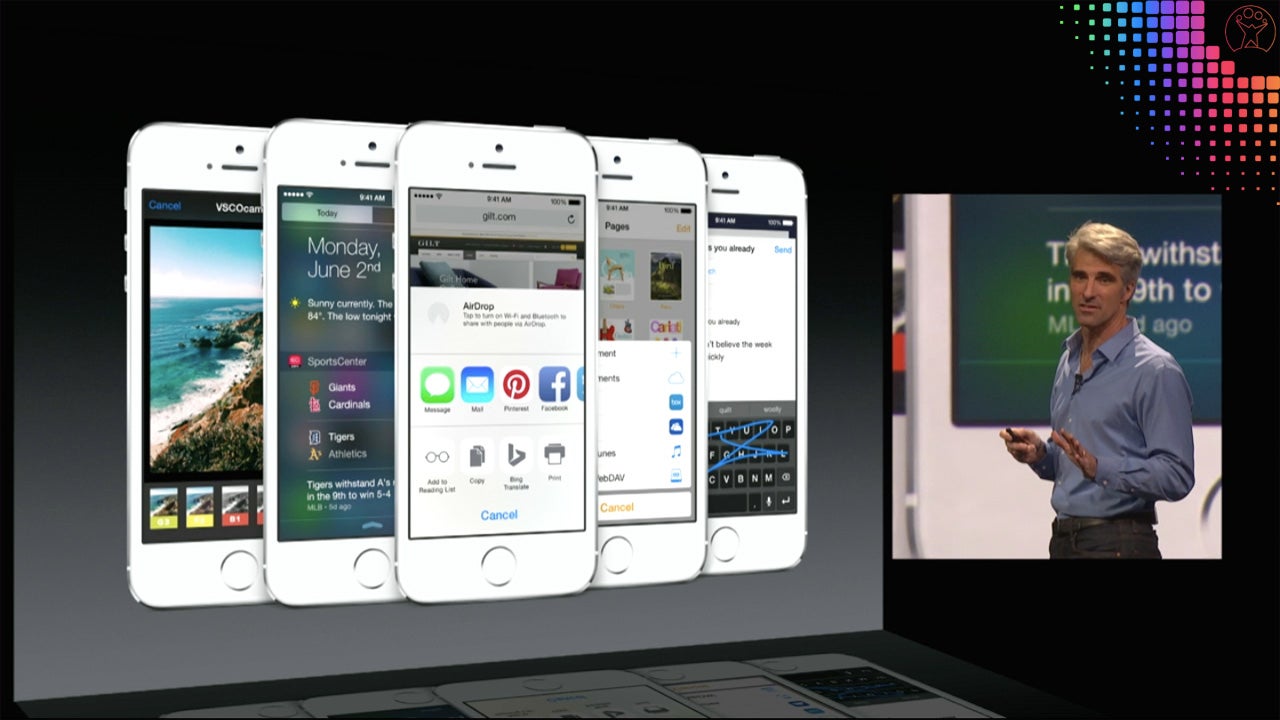
onenote - logoOneNote is one of the best note-taking apps on the go. With OneNote, you can not only make grocery lists, but do anything from take notes in class, to brainstorm ideas at work.

The Windows classic, after a year long wait, was finally made available for Mac OS X and all other major operating systems this year. OneNote is perfect for group collaboration, and the fact that it’s free means that it trumps any other competition in the category.

Download OneNote for Android | iPhone | iPad | Mac | Windows 8

Inbox by Gmail

inbox by gmail - logoThis year, Google managed to bring a completely new conceptualization of email to the table with Inbox.  Inbox combines e-mail with task management into a single app, letting you reply to mails or edit tasks in one common inbox. Instead of sending yourself email reminders, you can simply add them to Inbox to get notifications.

Swipe gestures help define the usability of Inbox, where almost every movement is attributed to an action. Moving a message to the right marks it as done, while a swipe left lets you save to edit later.

Download Inbox for Android | iOS

Sunrise Calendar

sunrise calendar - logoCalendar apps are far from sparse, but there’s rarely one as well thought out and easy to use as this year’s Sunrise Calendar. By syncing with a ton of services including Google, iCloud, Exchange, and Evernote, you can manage multiple calendars in just one app. Thanks to a uniform interface for iOS and Android, you can use Sunrise Calendar as easily on one device as you can on another.

On Android, the app goes beyond a handy widget for your home screen: you can add contacts from your address book to meetings, and then use a link to Google Maps to find your way there.

Download Sunrise Calendar Android | iOS | Mac | Webapp

More innovation on the horizon

With the proper apps, your smartphone can become a practical working tool. Don’t settle for Whatsapp, pre-installed email managers, and a few lackluster games, when your smartphone can actually bring productivity to your fingertips, on the go.

While 2014 saw some great productivity apps, however, there was nothing really game-changing. In 2015, we expect a whole new trend. With wearables hitting the scene in a big way, we now have a portable control center for productivity, something that’ll surely unleash a whole new set of apps next year.

Check out the rest of the best apps of the year in our Best apps of 2014 series.

Follow me on twitter: @mkasanm
Microsoft Office Touch: All the rumors and facts

Microsoft’s already released Android and iPad-specific versions of Microsoft Office, but a version for Windows tablets and touchscreen laptops is still missing. While Microsoft Office for Android and iOS continue to be good productivity tools, the biggest gap is the lack of a physical keyboard, which can slow down an otherwise useful tool.

Could a touch version of Microsoft Office unify platforms and make Microsoft Office more productive for iPad, Android, and Windows tablets? Here’s what we know about the forthcoming rumored ‘touch’ suite from Microsoft.

The official name and possible release date

According to Paul Thurrot, the touch-based version of Office will simply be called Office “Touch.” It’s been rumored that an updated version of Microsoft Office is coming in the spring of 2015 and will also include a touch version of Office, but with Windows 10 set to be released in the summer of 2015, that date could be pushed back.

Official and leaked screenshots

Office Touch was just a rumor until Microsoft Build, where the company showed off the first screenshots in PowerPoint.

Microsoft PowerPoint in Office Touch

It has a similar look to Office for iPad, but keep in mind that the iOS Office suite was specifically designed for the tablet. Office Touch will probably offer more features than the Android and iOS versions.

Unofficial screenshots were also leaked from an internal Microsoft presentation in May. In the screenshots, you could see that the ribbon interface from Office on desktop was visible.

It’s likely that this presentation was probably an old version of the app and not what Microsoft will release to the public, and even though the app’s tabs aren’t very visible, the images show a common design for all platforms.

Office Touch for Windows: which apps?

As opposed to just Excel, PowerPoint, and Word, Office Touch should include all the major Office apps like OneNote, Outlook, Publisher, and Lync. For apps that currently exist, expect an updated and optimized version for the Touch suite.

The Radial Menu in OneNote

DirectX support

Kirk Koenigsbauer announced at Build 2014 that Office Touch would provide better performance by using DirectX. The proprietary API provides tools for high quality visuals and performance. In theory, Office Touch with DirectX should run very smoothly.

Rumor: combining the finger and stylus

The leaked presentation also showed a combined selection of tool for a stylus and finger input. It’s still unknown if this feature will be included in the final version, but it could offer extended use of the Surface 3 or other tablets that are compatible with a stylus.

Long time coming

Microsoft has been lagging with a proper touch version of Office for any platform. While there is an optimized iPad suite and Android version for phones, Windows still doesn’t have a native app for its devices.

Considering that many people already have a lot of options for productivity on their devices, whether Office Touch will make a difference won’t be known until the suite is finally released.

Related Articles

How to get Windows 10’s best features right now

Students and teachers: check if you qualify for free Microsoft Office

3 free alternatives to Office for iPad

Originally published in German on Softonic DE.

Windows Tip: how to find your Wi-Fi password quickly

When you have multiple devices connected to your wireless router, you may forget what your Wi-Fi password is. Then when you need it, you have to try to remember what it was.

For some people, the password is stored on the computer’s desktop in a text file or on a small note near the computer. If you can’t find it, you’re forced to reset the wireless router back to its original configuration and reset the password.

But you can avoid all the trouble by finding the wireless password from an already connected computer.

1. View network connections

Using Windows, search for “network connections” and then click on View network connections. On Windows 7, you can type in your search in the Start Menu. On Windows 8, you can activate the Start screen and start typing anywhere.

2. Select the wireless connection

In the open window, choose the name of the WLAN access point. Normally this will be the network name of your router.

3. View wireless connection details

Click on the icon with the right mouse button and select Status.

windows - find out wifi password

This will open a new window. Click on Wireless Properties.

Clicking on Wireless Properties will open a new window. Click on the Security tab.

4. View the wireless password

Under the Security tab, the Network security key will be visible. It’s hidden and you will have to click on Show Characters. You will need administrator privileges to view the password so be ready to enter your password.

You will be able to see the wireless password for the router that the computer is connected to.

Related Articles

How to restart Windows Explorer if it isn’t responding

How to automatically update drivers in Windows 7 and 8

How to get Windows 10’s best features right now

Originally published in German on Softonic DE.

Follow me on Twitter: @mkasanm

How to set up AVG Antivirus 2015 for optimal protection

AVG Antivirus is one of the best free antivirus programs but even the best programs won’t work unless it’s setup correctly. Using AVG Antivirus Free 2015, we’ll show you how to customize and optimize its settings to make sure you’re properly protected.

The default settings in AVG Antivirus Free 2015 are good, but they only cover general settings. It’s important to customize settings to setup the best security possible.

1. Open Settings

The interface of AVG Antivirus Free 2015 uses large icons to easily display types of protection. But what you need to open is the more advanced settings. In the top right corner, click Options, then Advanced Settings.

AVG open advanced settings 00

2. Adjust antivirus

In the left Settings menu, click Antivirus. This will load options for the Shield, which monitors background system actions.

The most important settings are already activated, but add the Report enhanced set of potentially unwanted programs option. This adds another level of security by watching for harmful programs. Some examples are web browser toolbars or hidden programs installed along with other programs.

You don’t need to activate Enable through scanning because it may warn AVG about old software that isn’t dangerous anymore. If you install updates to all your programs, you don’t necessarily need to increase your protection level.

But if you’re using Windows XP or haven’t installed updates, this option can be beneficial.

AVG settings - antivirus

You don’t need to worry about the settings located under Expert Settings. If you choose to Scan all files, AVG may try to continuously scan files on your entire computer. The default option is for AVG to only scan infectable files and avoid files that aren’t known to carry viruses.

AVG settings - antivirus - expert settings

The settings for Anti-Rootkit shouldn’t be changed for maximum protection.

AVG settings - anti-rootkit

You can also leave Cache Server alone. This will mark files as safe so AVG doesn’t have to rescan them. AVG will only scan when there’s a change and saves PC performance.

3. E-Mail virus protection

Email Protection uses AVG to monitor your email and protects it against dangerous attachments. The only problem is that many people don’t use an email program and prefer to use web services like Gmail.

If you only use webmail

If your main email is only accessed online, you can disable the option in Email Scanner or ignore it. Checking incoming email is only required if you have a separate email app installed.

AVG settings - email protection - email scanner webmail

Optimal settings for email programs

If you use an email program, it’s recommended that you enable options for full protection. This requires your program to connect to AVG Antivirus Free 2015.

Make sure you have Check outgoing mail checked which protects your contacts from possible infections.

Modify subject of virus infected messages adds ***VIRUS*** to the subject of potentially dangerous emails so you can recognize them easily.

Report enhanced set of potentially unwanted programs warns of software that may be embedded in email attachments. Be aware that mails will also be tagged as ***VIRUS***.

Enable thorough scanning will scan emails of possible dangerous programs in your emails.

AVG open advanced settings 00

You can also choose to add Report files containing macros and Report hidden extensions. This will let AVG look at files with specific code that can tell if the files are dangerous.

It’s important to note while AVG may flag some emails as dangerous, these emails may be safe. It’s important to know who is sending you these emails since spam emails usually come from people you don’t know.

Server Settings

For email scanning to work, you have to set AVG as a middleman between your email program and the provider (like Gmail).

  • Set up AVG with the proper server options: POP3, SMTP, and IMAP.
  • In the email program you have to set up the AVG email server instead of directly with the provider.

You can find details of how to do this on the AVG help page.

AVG settings - email protection - email scanner - servers

4. Scan Settings

You can specify the virus scan settings under Scans/Whole Computer. Instead of AVG just scanning files as they load, this scan will look at all the files on the computer.

Select Report enhanced set of potentially unwanted programs to make sure you’re not getting unwanted programs installed and Scan for tracking cookies if you want to disable cookies being stored.

Be aware that some sites use tracking cookies to remember your settings. If you always delete the tracking cookies, you will have to reenter your information because the site will think you are visiting for the first time.

Scan inside archives will search through compressed files like ZIPs or RARs. You should have this option enabled just in case so you don’t accidentally let a malicious file loose on your computer.

Enable thorough scanning should be enabled if you don’t know if your computer is always up to date.

Scan for rootkits is another layer of protection. Setting AVG to scan All file types will lengthen the scan time, but will ensure that AVG is scanning every possible file for infection.

AVG settings - scans - whole computer scanl

5. Antivirus for removable media

Enable Removable Device Scan. This will let AVG scan external flash drives once they’re connected to the computer. This is important if you trade USB drives with friends or connect a lot of different digital cameras.

Make sure that the Heal/remove virus infections without asking me isn’t activated. This could cause AVG to accidentally delete files from external USB drives.

You can enable Report enhanced set of potentially unwanted programs, Scan for tracking cookies and Enable thorough scanning if you want. Scan inside archives doesn’t make sense because scanning external media can take a long time.

AVG settings - scans - removal device scanl

6. Plan scans

Under Schedules/Scheduled Scan you should click Enable this task. This will activate the feature.

It’s recommended that you run one scan a week. Select Run at specific times and set a time when your computer is on, but you’re not doing any heavy processing. This helps AVG run in the background while you’re not trying to do any work, which could slow down your computer.

If the option Run when computer starts up if task has been missed is selected, AVG will start running the scan once the computer boots up if the scan wasn’t able to run. If the scan starts and you don’t want it to run, you can manually stop or pause it.

AVG settings - schedules - scheduled scan

7. Taskbar icon

When AVG is scanning your hard drive, you’ll see a white AVG triangle icon in the taskbar. If the computer is running, you can adjust the scan speed, pause the scan, or stop it completely.

Pause/Stop: Click the icon twice and in the window choose between Pause or Stop.

Scan slow: Click with the right mouse button on the AVG icon and then on Running Scans/Set priority for all scans.

  • Dynamic: AVG Free automatically adjusts the scan speed.
  • Basic: The scan takes longer, but doesn’t use as many resources.
  • Fast: The scan runs at maximum performance, and you will see a performance decrease.

AVG settings - tray icon settings

With these settings, your computer will be well protected. The always-on shield will cause a slight decrease in performance, but it shouldn’t be noticeable. The deep scan by AVG should find any dangerous programs on your system.

Be aware that every warning message doesn’t mean you have an infection. AVG’s database is very good, but in some cases you may get a false-positive (incorrectly flagged alert).

Related Articles

Why the Shellshock Bash bug is even scarier than Heartbleed

How to protect private pictures on your phone

Google is tracking your every move but you might want it to

Originally published in German on Softonic DE.

Follow me on Twitter: @mkasanm

How to get Windows 10’s best features right now

Windows 8 wasn’t as successful as Microsoft had hoped, but with Windows 10 it will try to correct its mistakes. Windows 10 contains a lot of new features, but many of these improvements are already available on Windows 8.1 with some useful third-party apps.

The Start Menu, easier navigation, and apps in windowed mode are all improvements that Microsoft will push in Windows 10. But you don’t have to wait until 2015 to experience these updates. App developers have already fixed these problems with apps.

Windows 10 Start Menu

Back in April 2014, Microsoft showed off the return of the Start Menu. Essentially it’s the Start Menu from Windows 7 with support for Windows Store apps.

If you don’t want to wait until 2015 to get your hands on Windows 10, there are already apps available for Windows 8.1 that give you most of Windows 10’s features. The apps look different, but offer almost the same functionality as the Windows 10 Start Menu. The only thing missing is Live Tiles.

Windows Store Apps in windowed mode

Windows 10 will let you use all programs and apps in windowed mode. The separation between Modern UI apps (now called Universal apps) and legacy desktop apps didn’t make it easy to navigate in Windows 8.1. Now everything will be able to be displayed in familiar windows, making it easier for new users to understand.


There are two apps available that let you use apps in windows: ModernMix and Actual Multiple Monitors.

windows_8-apps-in-desktop-window

Windows 10 – with or without the Charms Bar

Many Windows 8 users didn’t like the Charms Bar. Microsoft claims there will be improvements in Windows 10, but there aren’t any known details. According to rumors, Microsoft wants to automatically disable the Charms Bar on PCs without a touchscreen, which makes sense since features in the bar already exist elsewhere in the operating system.

Windows 10 Task View for Windows 8.1

Another new feature in Windows 10 is the Task View feature for switching between apps. The feature should make it much easier to organize your windows and apps in Windows 10. It’s basically a copy of OS X’s Mission Control, but developers have already created apps that do this in Windows 8.1.

Emcee for Windows 8 is an useful app for switching between apps. Desktop programs and Windows Store apps appear in different views. The app is also compatible with touchscreens.

Emcee for Windows 8.1
Windows 10 isn’t a revolutionary operating system, but it fixes a lot of issues people had with Windows 8 and 8.1. When the new operating system releases in 2015, Windows users should expect a more polished and well-designed OS.

The question is if there will be a substantial reason for Windows users to want to upgrade. It’s possible that Windows 10 will be a free upgrade, but Microsoft is staying quiet about pricing for now.

Related Articles

Meet Windows 10, Microsoft’s most ambitious operating system yet

Windows 10 Preview available for download

Microsoft previews Sway, the first addition to Office for a decade

Article translated from German for Softonic DE.

Follow me on Twitter @mkasanm.

How to use old Windows programs on Windows 8

When switching from Windows XP or Vista to Windows 8, some old programs don’t work anymore. This is especially painful for expensive specialized software. There are, however, ways around it.

This problem seems to affect software developed for Window XP more than others, as WinXP is very different from Windows 8. In many cases, you’ll be able to install programs in Windows 8, but you’ll get an error message when you try to launch it.

Windows compatibility mode

If you rely on legacy software, you have two options: the compatibility mode in Windows 7 and Windows 8, or a virtual machine.  Compatibility mode is fairly easy, but using a virtual machine is a bit more complicated. Check out both options below if you want to use older programs on a newer OS.

Execute programs with Windows Compatibility Mode

With Windows Compatibility Mode, you can modify the program to make it think it’s using an older version of Windows and provides some specific functions.

1. Open Properties

With the right mouse button, click on the program icon and then click Properties.

Windows properties

2. Enable the compatibility mode

Go to the Compatibility tab and enable the compatibility mode box.

Windows compatibility mode

3. Select the desired compatibility mode

You can select the OS you used to run the software on. If it still doesn’t work, you can try Vista or Windows 7 instead of Windows XP. Accept the setting with OK and close the window.

Windows compatibility mode os version

Your old software should also work on Windows 8. If the compatibility mode doesn’t help, you can try Windows XP mode as an alternative solution.

Alternative: The free XP mode as a virtual machine

I found issues moving to Windows 7 with old programs no longer working. I tried XP Mode, which is Windows XP functioning through a virtual machine, and it seemed to work quite well. This means that Windows simulates a complete computer, along with hard drive, CPU, memory, graphics card, and other hardware. There isn’t an XP mode for Windows 8, but there are way around it using programs like VMLite.  Check out the tutorials below if you want to run XP Mode on Windows 7 or 8.

XP mode

Related Articles

How to use Windows XP Mode in Windows 8 using VMLite

There are no more updates for Windows XP. As a virtual machine and with the help of freeware like VMLite and the free XP mode, however, you can use XP as if it were installed on your PC.

The XP mode was once donated by Microsoft as a bonus for Windows 7 because some programs had compatibility issues with newer versions of Windows. In Windows 8, unfortunately, Microsoft wasn’t as generous: XP mode is nowhere to be found. Luckily, with VMLite, you can cheat a little bit and still run a virtual machine with XP on Windows 8.

1. Download Windows XP Mode from Microsoft (ca. 500 Megabyte)

The download is a self-extracting archive in .exe format with a patch for the Microsoft virtual machine. For now, only download the file– don’t run it yet.

2. Download VMLite and install XP Mode

The VMLite XP Mode is a free virtual environment similar to VMware or VirtualBox. With VMLite, you can run the XP mode from Microsoft without much effort on Vista or Windows 8.

3. Launch VMLite

4. Import XP mode

Click Machine in the top menu and then click New.

In the next window, select the second option and chose the previously downloaded file, ‘WindowsXPmode’.

VMLite XP Mode automatically unzips the package and prepares the device.

Before installing, you must still accept the license terms of agreement with Microsoft (although XP mode is free, you’re still using a different version of the operating system).

VMLite will now have installed the full XP OS as a virtual machine. Unlike a classic Windows installation, you need to set an administrator password. If you use XP mode with only one user, you probably won’t need the password again, but keep the password safe just in case.

In the next window, specify the amount of RAM you’d like to allocate to the virtual machine; 512MB is the minimum. Anything more than 2GB you probably won’t need, but the setting can always be adjusted later.

In the next window, you can enable Automatic Updates for Windows XP. The last update for Windows XP was released in the spring of 2014, so I recommend deactivating the option and manually installing all the updates when first launching VMLite.

The final step is the initialization of VMLite XP Mode’s virtual disk. After this, the installation is complete.

5. Start VMLite XP Mode

At the top of VMLite, you’ll now see the XP mode as a virtual machine. By clicking on the green arrow, you’ll be able to start running Windows XP.

You can run the Windows XP Mode either in full screen or in a window. VMLite will automatically adjust the screen.

6. Fast access in Hibernate and a desktop icon

If necessary, you can turn your virtual machine on and off without actually rebooting it. VMLite pauses the XP Mode and saves it to the hard drive, meaning you can use XP mode only if you really need it.

Related Articles

How to create app folders in Windows Phone

Even though Windows Phone uses a Live Tiles system, it’s possible to combine apps on the home screen into folders. The function should be included in the next Windows Phone 8.1 update, allowing you to group your apps, but until then, there’s an easy fix: installing App Folder.

1. Check if you have the Windows 8.1 update

You may not know if you have the latest Windows Phone 8.1 update. The quickest way to test this is to try and group apps into a folder natively. Tap and hold an app, and then drag it on top of another one. If the two apps are automatically added to a folder, then you have the update.

If Windows Phone doesn’t create a folder, you can install App Folder.

2. Install App Folder

Install App Folder here.

windows phone 8.1 app folder

3. Open App Folder after installation

When you first start the app, you will only have a blank view. Tap the + icon to create a folder.

windows phone 8.1 app folder

4. Create a folder name

Type the name for the folder and confirm the name by tapping on the check mark at the bottom of the screen.

windows phone 8.1 app folder

5. Select the apps you want

App Folder will display all the apps that you’ve installed. You can select as many apps as you want: simply tap the selection box and when you’re finished, click on the check mark.

windows phone 8.1 app folder

You can sort apps with drag-and-drop so that the most important are at the top. For large collections, only the top apps are displayed in the folder icon.

windows phone 8.1 app folder

6. Put App Folder on the Start Screen

Now that you’ve created your folders, you can pin the folders to the start screen.

windows phone 8.1 app folder

Just like other Live Tiles, you can resize your folders to display a different number of apps. Depending on the size of the Live Tile, you can preview four, six, or twelve icons.

windows phone 8.1 app folder

App Folder is really a workaround until the next update to Windows Phone 8.1. Android and iOS are ahead of Windows Phone in terms of home screen organization, but App Folder is a great intermediary solution.

Check out news about the rumored Windows 9 preview for PC.

Create animated GIFs from YouTube videos

The popularity of animated GIFs still hasn’t let up, and one of the easiest ways to create your own animated GIF is by using YouTube videos and free online GIF converters.

When it comes to creating GIFs from your own video clips, Softonic Editor Jan-Hendrik already took us through the process of creating your own GIFs on both Mac and PC using web apps or a webcam to record things live. If you’re already found the perfect video online, however, there’s an even easier way to make your own GIFs. With any one of the three online converters below, you can create your very own animated GIFs from a YouTube video.

Gifsoup

With Gifsoup, you simply copy any YouTube link into the text box, and then click Create Gifs.

Then, you can use any section of the video up to ten seconds. Select the section by picking a start and end time within the clip. Then, click on Generate Animated GIF to create the GIF file.

There aren’t any other options, so creating the GIF is incredibly easy. The only downside: Gifsoup adds its own watermark to your creation. With a paid premium account, you can create animated GIFs that are up to 30 seconds long with no watermark.

MakeaGIF

MakeaGIF works on the same principle as Gifsoup, but offers a slightly fancier interface. A slider lets you select the start time and specify the desired duration of your GIF animation. If you register for free, the maximum playing time is 10 seconds. Otherwise, you have a limit of 5 seconds.

Unlike Gifsoup, MakeaGIF displayed no watermark and creates longer animated GIFs, although the web app works much slower.

IMGflip

A more comfortable online converter for YouTube videos is IMGflip. Like MakeaGIF, this service offers free access, as well as premium access for an additional charge. The free version will generate 10 second GIFs with dimensions of 260 or 360 pixels with watermark, with the option of making 100×100 square images as well.

Especially practical about IMGflip is that before making your GIF, you can set the expected frame rate and file size You also have the option of adding small text messages at any point in the animated GIF. The paid version (IMGflip Pro) creates clips of any resolution and up to 40 seconds long, without watermark.

While there may be a ton of GIF websites out there, sometimes it’s still impossible to find what you’re looking for, and with these three services, you can create GIFs that perfectly express your emotion.

If you still can’t get enough of GIFs, make sure to check out our article on How to make animated GIFs on Mac and PC.

Get a move on: 7 car-sharing and social taxi apps

For short trips, more and more people are relying on the services of the so-called ‘social economy’, using their peers to save or make money while making things a bit more convenient. There are a ton of websites and apps that make ride-sharing, car-sharing, or getting a taxi super easy, and not only are they cheap, they can also be better for the environment. Here, I’ll show you 7 of the best apps and services to help you hitch a ride.

P2P Taxi

Uber Uber

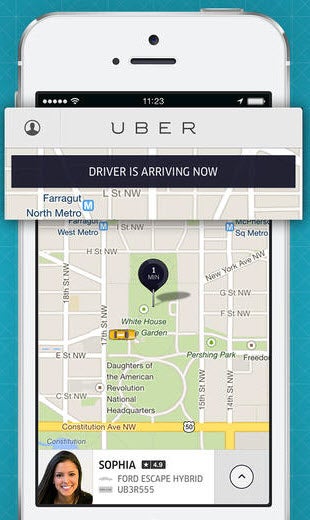
Uber turns all of its members into potential taxi drivers. With its recent integration into Google Maps, you can order an Uber-taxi at the touch of a button, and as a registered driver, you can offer taxi rides.

Uber automatically hones in on the nearest available drivers using GPS, and sends them a request. If the driver accepts, Uber takes over all other tasks, including notifications and payment processing.

Uber

Sharing a ride

BlaBlaCarBlaBlaCar

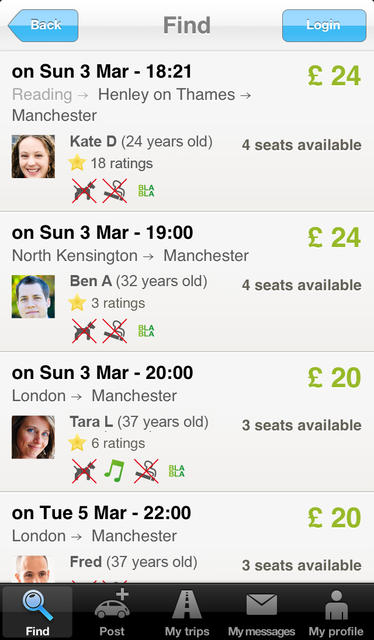
BlaBlaCar is one of the largest car-sharing platforms in Europe, and it’s perfect if you’re looking to take a Euro Trip for cheap. For longer trips, you can even offer free places to interested fellow passengers. With its cleverly thought-out system, BlaBlaCar proposes prices based on supply and demand. The service can even manage payment processing on request.

BlaBlaCar

CarpoolingCarpooling

Hailing from Germany, what’s known as Mitfahrgelegenheit.de in its home country is simply called carpooling in many other countries around the world.

As with BlaBlaCar, you can offer rides, or catch a ride as a passenger. Besides car rides, carpooling also lets you take people using group tickets for buses, trains and flights.

Carpooling

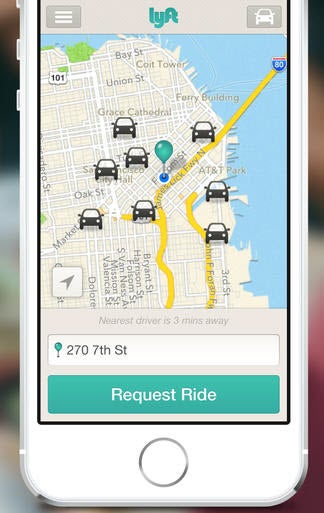
Lyft Lyft

Lyft is one of the most popular carpooling providers in the U.S. Unlike BlaBlaCar and carpooling, Lyft relies on short trips. To avoid legal problems with taxi services, no prices are agreed– instead, passengers make donations.

Unfortunately, on this platform, a kind of shadow market has emerged with reasonably fixed prices.

Lyft


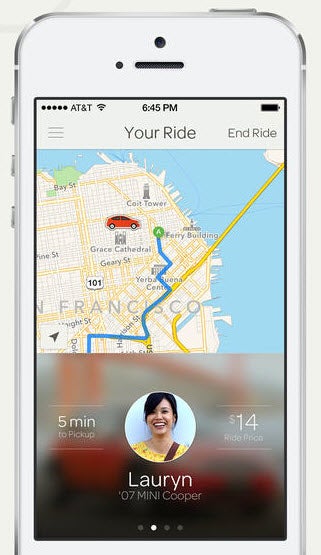
SidecarSidecar Ride

Sidecar Ride is another U.S. provider in direct competition with Lyft. Once again, this app focuses on short distances in cities. Thanks to an ingenious system and geo-location on maps, Sidecar Ride allows you to find trips at very short notice, although similar to Lyft, the success of the app depends on the size of the user base.

Sidecar Ride

Car sharing

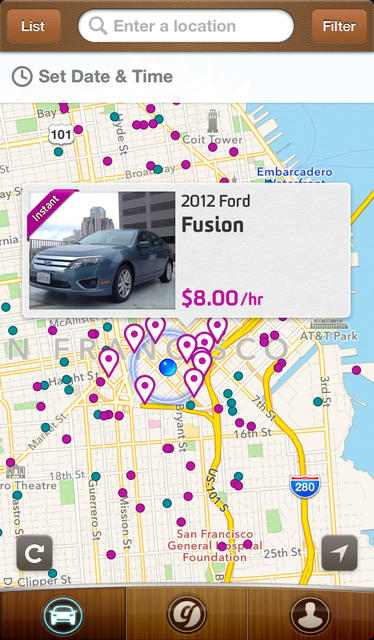
Relay RidesRelayRides

RelayRides works as a rental agency for private cars in the U.S. The user base isn’t clear yet, but RelayRides has strong partners on its side.

So far, General Motors and Google Ventures have appeared as investors. However, international expansion is probably only a matter of time.

RelayRides


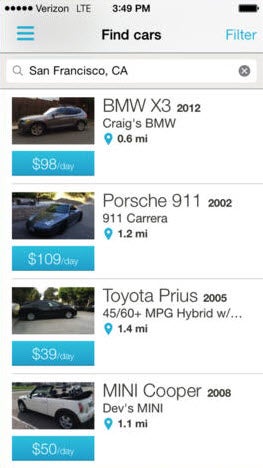
GetaroundGetaround

With Getaround, car owners can rent their cars for a few hours, days or weeks. Unfortunately, Getaround whacks on a hefty commission of 40% of the rental price.

Amongst other things, this pays for comprehensive insurance. The service is currently only available in major U.S. cities like San Francisco.

Getaround

Whether you’re looking for a ride, looking for some company, trying to make a few extra bucks for gas, or trying to save some cash, there are a ton car-sharing options that’ll help you get where you want to go.

If you’re looking to get around the city, check out our idea of the perfect public transport app.