Minecraft for Parents: 7 tips to help you get involved

Minecraft by Mojang isn’t just another stupid, popular game your kids are obsessing over. It’s actually a huge source of creativity, and it’s the perfect opportunity to get to know your kids a little bit better. Let me explain with a parents’ guide to Minecraft.

Minecraft has been defined in many different ways: a video game, virtual LEGO, a world builder, a mining simulator, and a graphic adventure. It’s true, Minecraft contains elements of all of these things, but its gameplay is also about the freedom to create, build and explore in a virtual sandbox.

Minecraft Download now ►
7

Like many video games, however, as a parent, you can be both perplexed and concerned the first time you see Minecraft. All of a sudden, your children are racking up hours of screen time, playing in a virtually infinite world. While some may chalk it up to just kids playing video games, others may choose not to ask about it for fear that they won’t understand the answer.

On the contrary, there’s little to fear as Minecraft is a kid-friendly environment that can actually be a powerful educational tool; a playing field in which both you and your young children can learn, communicate, and develop problem-solving skills together. Here’s what you need to know if you want to play Minecraft with your kids

Observe and question, but don’t judge

It may be difficult to figure out what’s going on at first. Everything is moving very fast. You’ll see things that seem absurd and cartoon-like that you won’t understand, like catching pigs with a fishing rod or plugging up holes in the water. Your child may suddenly start flying over mountains or set fire to stone. All this is normal. You’ve just landed in a different virtual world.
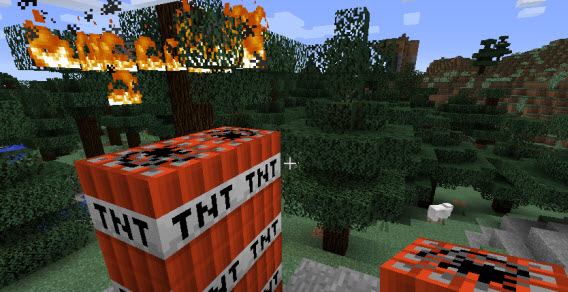
Sheep, dynamite and a tree on fire. It makes no sense, but there’s no cause for concern.

Look closely at everything that happens. After a while, you’ll become familiar with the essential elements of Minecraft, like the fact that monsters, zombies, and creepers come out at night, and objects are constructed from basic ingredients and recipes. Ask your child what they’re building every now and again, along with what it’s for, but don’t judge: this isn’t your adventure just yet.
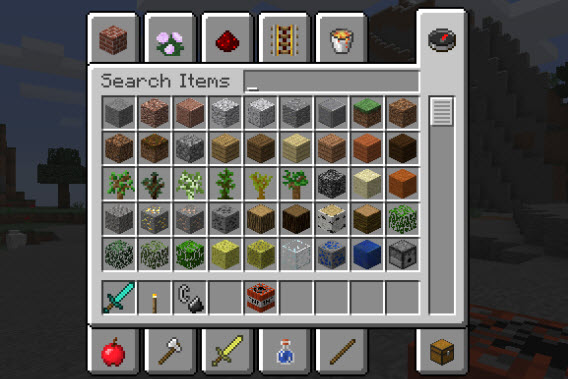
There are plenty of building blocks and items in the game, but it takes time to know them all.

Also, remember that Minecraft has two different editions: Standard, and Pocket. The standard edition is for PCs, Macs, and consoles like the PlayStation 3, Xbox 360, PS4, and Xbox One, Windows PC, while Minecraft Pocket Edition is the smartphone and tablet version for Android and iPhone (it has a few limitations, like smaller worlds, game modes, and a lack of certain blocks, but in essence, it’s the same version of Minecraft for smaller devices).

Minecraft - Pocket Edition Download and play now
8

Learn everything you can about the game

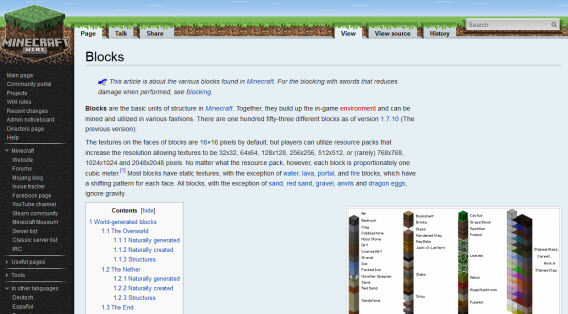
Nothing in Minecraft is explained beforehand; there are no maps or instructions to tell you what to do. As a result, finding and sharing information online is an essential part of the game. You’ll often see your kids spending lots of time on YouTube Minecraft channels and in the Minecraft wiki to find info. In this way, even the single-player game is very much an online multiplayer game too.
Both YouTube and Twitch.tv have channels where you can find in-game Minecraft videos with gamers commenting on various aspects of the game and sharing their adventures using specific terms that your kids will most likely already be using.
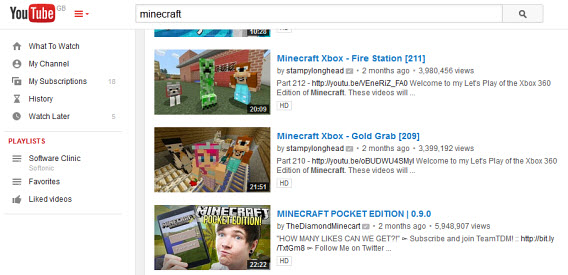
The YouTube channels dedicated to Minecraft have millions of viewers.

Why not try and watch a few of these videos with your kids? If you’re worried about strong language (an unfortunate inevitability in some videos), just turn down the volume. Take the time to find channels that you like and feel are appropriate. You can also hide comments or watch videos in TV mode.

Help your child plan and build

Minecraft is more complex than it seems. As is the case with LEGO, for example, children can get easily frustrated if they don’t realize their vision quickly enough. Your presence could actually help your kids enjoy the game more if they’re stuck with a “creative block”.

It’s good to let your kids build and explore freely, but every now and then, you should set them challenges or goals to work towards, and then help them out if they need it. You could ask them to reconstruct something you’ve seen while traveling, or maybe something from a movie. Minecraft’s creative mode is ideal for this, as there is no block limit and you can’t die.

Via: Source – Planning can be as fun as building

By helping them plan their constructions, not only will you be setting a good example, but you’ll also have the chance to share gaming experiences while your child plays. Teamwork can also make it easier to disconnect: by setting goals and objectives, you can decide when it’s time to take a break.

Install the most interesting Minecraft mods

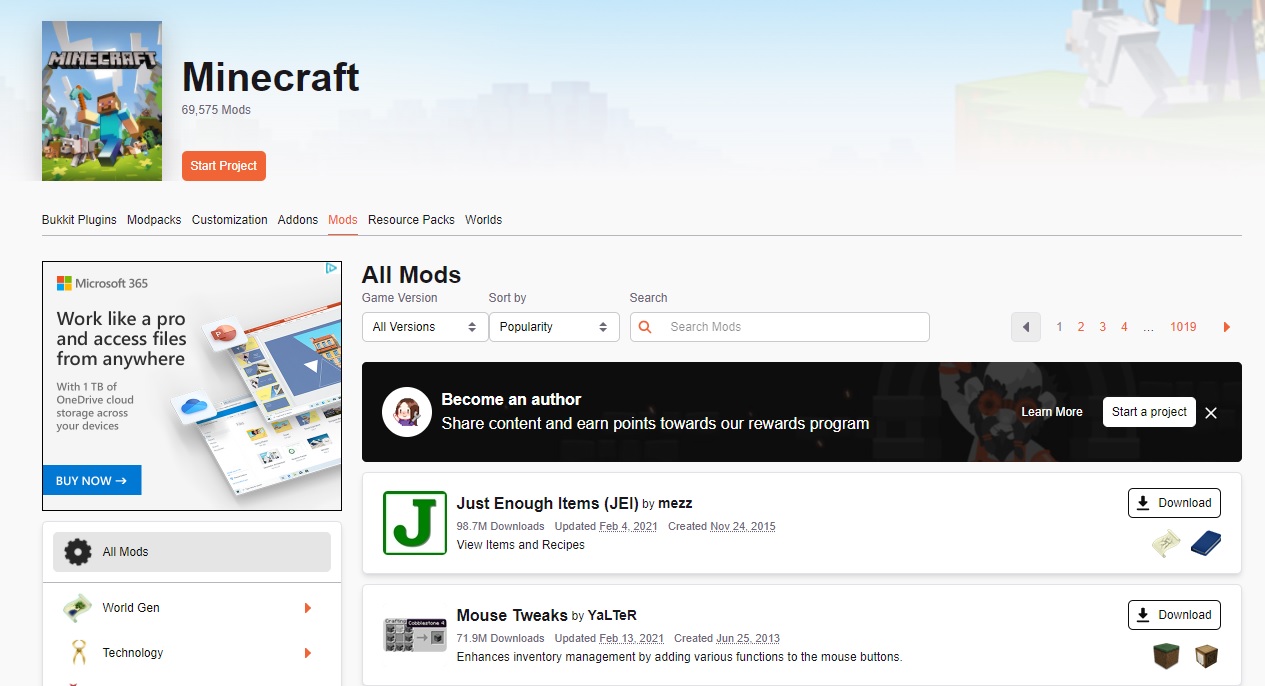
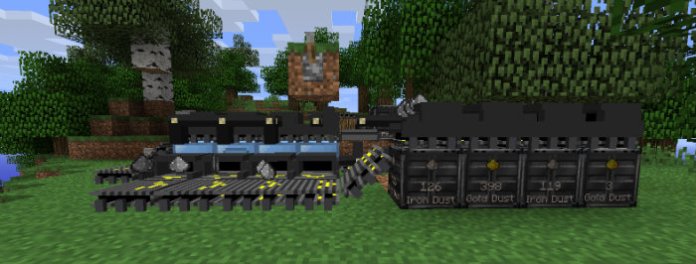
Minecraft is a game that can be expanded by mods (non-official accessories). Thanks to mods, you’re able to improve the graphics, add towns with characters who speak, and add new objects and creatures. Other mods can help facilitate the construction of complex structures and speed up repetitive tasks.

Minecraft Forge Download now
7

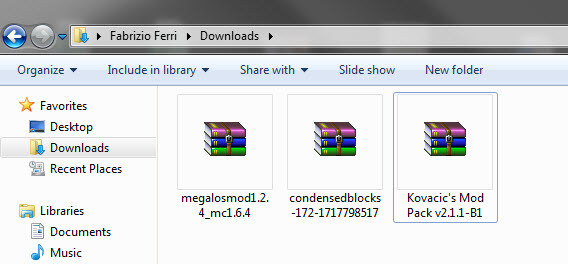
Installing mods for Minecraft is safe and easy, as long as you only use mods from reliable sources. Using Minecraft Forge is probably the easiest way to install mods, an accessory that makes it much easier to modify the game. Simply download a zip file and copy it to the Minecraft mods folder when using it.
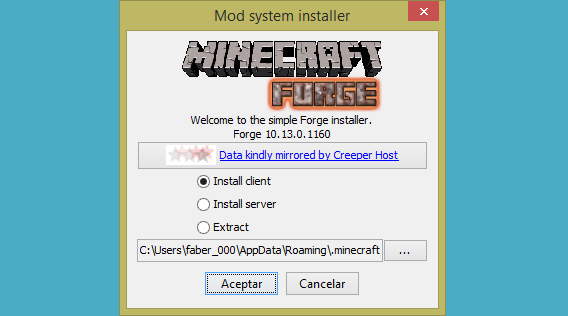
With Minecraft Forge, installing mods is very simple (see our tutorial).

The world of mods is fascinating but complex, and it requires a bit of technical skill. As there is no official support for mods in Minecraft, they can sometimes cause the game to stop working properly, especially if it gets updated. Make sure you back up the worlds created by your children, as mentioned in this tutorial.

How to get to the folder where the worlds are saved. Make regular backups!

Create a world/kingdom only for your family

An important part of the Minecraft experience is to play with other people. There are thousands of multiplayer mode servers around the world that allow anyone to connect, but these are worlds with all types of players of which you have no control. Some encounters could be abusive or unpleasant, something you and your children should be aware of.

Luckily, you can enjoy the game with your family– without any intrusions– by using your own private server, a Minecraft world just for you and your kids. This means that you’ll have complete control over the universe: you can choose when to turn it on and off, how it will look, and what monsters it’ll have. You can even decide when it will rain. Check here to see how one’s created.

Some servers are spectacular, like this one that replicates Game of Thrones.

There’s also an even easier way to have your own permanent world: Minecraft Realms. For $10 a month, you can create private worlds that friends and family can connect to, without the need for a server at home and all the technical problems they often generate.

Remember that building isn’t everything

Minecraft can be played like LEGO, but construction is only one aspect of the game. Your kids also have the possibility to explore new lands, kill monsters, and carry out many different exploits, such as training horses or discovering treasures.
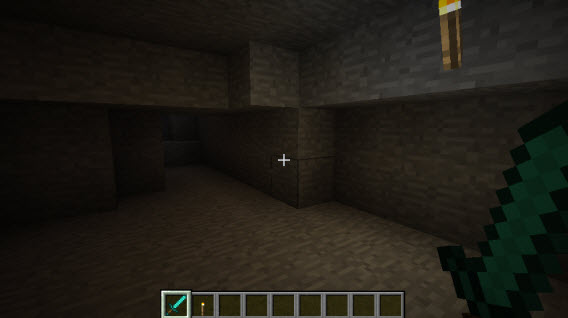
Minecraft has plenty of caves and dungeons: it might be best to explore them together.

If you want to create lasting memories of these adventures, you can record them through Twitch.tv or with a local video recorder like Fraps. Two useful tips for recording your video-adventures: change the characters’ skins so that they look different, and change the camera view using the F5 key (from first to third-person).

Fraps Download now
7

The resulting video diary can be uploaded to YouTube, much like the Minecraft Dad series, in which Paul Soares plays Minecraft with his son (he’s already added more than 100 videos in the series).

Minecraft Dad posts videos of games with his son on YouTube

Complement Minecraft with real life

Bec Oakley, the mother of two Minecraft players, gives some excellent advice on her blog: try and get your kids to use their skills in Minecraft to help them with activities in the real world. Applying what your kids have learned in Minecraft to the real world can be very useful, and it actually helps prevent your kids from staying glued to the screen for too long.

The possibilities are endless: Minecraft cakes, paper dolls, and LEGO constructions are just a few creative ideas. You can even find dozens of ideas for crafts related to the Minecraft universe on Pinterest.
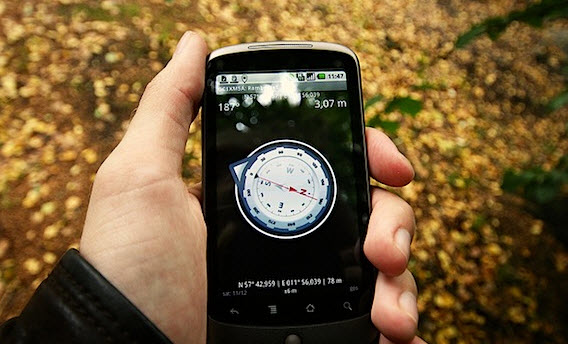
Navigate through a real forest, one of the ideas suggested by the blogger MineMum

Embrace the craze

Not all video games are bad, and Minecraft could just be the perfect opportunity for you to get in on the action with your kids. The key is to accompany them not just in Minecraft, but also in the transition between Minecraft and the real world, really helping them apply what they’ve learned.
Your 10 most burning WhatsApp questions, answered

10 WhatsApp questions and answers

Sometimes it can feel like WhatsApp was designed by a sadist. Honestly, the amount of drama that a messaging app can produce is ridiculous. Have they read my message? Can they see if I’ve read theirs? What a stressful nightmare!

Of course, it’s possible (and probable) that WhatsApp was designed with the best intentions, and that you’re freaking out for no reason. Although, on top of knowing when someone read your messages, there are plenty of other potential mishaps and confusion that the WhatsApp messaging service can produce for any discerning smartphone user.

Determined to clear up some of these mysteries, we’ve thoroughly investigated and compiled a list of the most frequent and distressing issues about how to use WhatsApp, that people Google, in a bid to help you keep your stress level at a minimum.

WhatsApp Messenger Download Now ►
8

1. Can I stop somebody knowing I’m on WhatsApp?

No.

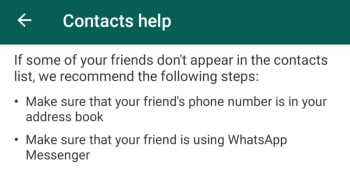
With WhatsApp it is all about the contacts you have in your phone’s contact list. Even when you block a contact, they’ll continue to have you in their contact list, if they still have your number in their phone book. The only way you won’t show up for the other person is if they don’t have your phone number saved in their phone.

WhatsApp Contacts Help

This means it has nothing to do with who you can see in your WhatsApp contact list as that doesn’t reflect the numbers, they have in their contact list on their phone. If they have your phone number, they’ll be able to see you have WhatsApp. As far as we’re aware, there is no way to delete your number from somebody else’s phone remotely.

If you don’t want somebody to know you’re on WhatsApp, don’t give them your number and don’t send them any messages.

2. Can I appear as invisible on WhatsApp?

Yes.

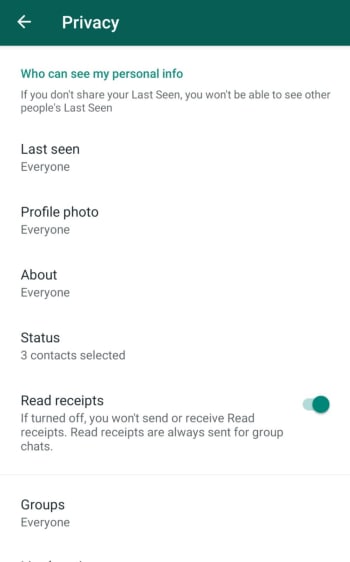
The WhatsApp FAQ page is quite clear. Unless you block a contact, there is no way to hide when you’re online or typing. You can, however, stop sharing your “last seen” status and read receipts that show when you’ve read a WhatsApp message. Doing this, however, will stop you from being able to see the corresponding statuses from your contacts.

WhatsApp Privacy Settings

To change these settings on both Android and iOS iPhones you need to open WhatsApp, then go to Settings, then Account, and finally land on the Privacy settings menu. You’ll then be able to toggle your privacy settings including when you were last online and who can see your profile picture etc.

3. If someone is given my old number, will they be able to download my messages and see my contacts?

No.

They won’t see contacts or be able to access old chats – that data is saved on your phone – but they can receive messages sent to your old number (without knowing who sent them).

WhatsApp gets its contacts from your phone book, so it’s unlikely that the person taking your old number will have the same contact. On the other hand, if the other person has WhatsApp installed, your friends will see that this person isn’t you.

To avoid any problems, WhatsApp recommends the following:

A) Post a status update with your new phone number.

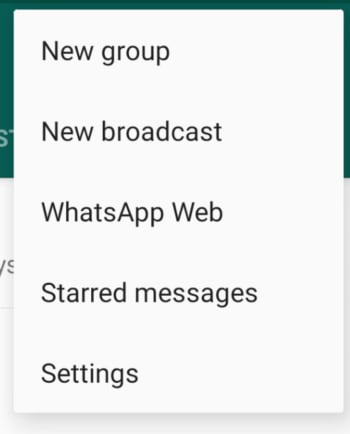
B) Tell everyone you’ve changed your number using a broadcast message.

New WhatsApp Broadcast

C) Delete your account using the following methods:

Android phones: Settings > Account Info > Delete my account

Apple iPhone and iPad: Settings > Chat > Advanced > Delete my account

Deleting the account removes all chat history on your mobile, payment information, and participation in WhatsApp groups. It will make your account disappear.

4. Is WhatsApp free or paid for?

WhatsApp is free. The app used to have rolling free trial periods, but these long since been scrapped. Making money from WhatsApp is a problem that has dogged Facebook ever since it bought what is now the most popular messaging app on planet earth. Soon, however, we’ll see ads showing up on the WhatsApp Status page and there is also the new WhatsApp Business app, which charges businesses to use the platform to communicate with clients and customers.

WhatsApp Business Download Now ►
7

5. Is there a way to delete contacts forever?

Yes.

To delete contacts, simply remove them from your phone book. If you then want to stop that person messaging you at all, you’ll have to block them.

But remember, if they have you in their phone book, then they’ll still see you on their contact list.

6. Is there any way to tell if someone has read my messages?

Yes.

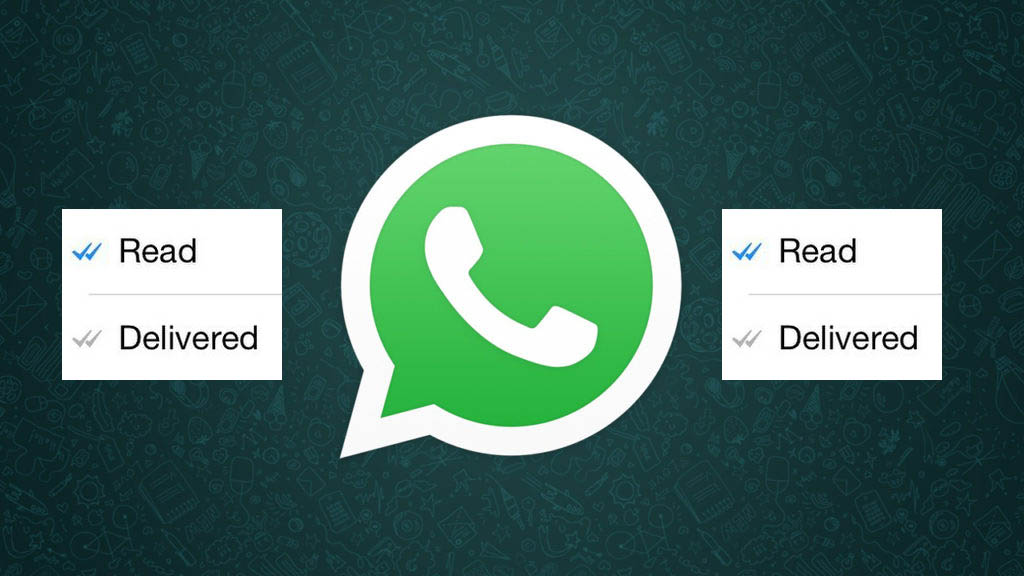
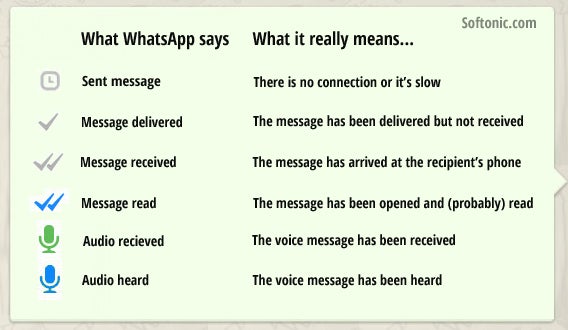
Theoretically, there is no way to know for sure if someone’s read your message, but the introduction of the double blue check mark indicates just that. Here’s a quick summary of what WhatsApp’s icons mean:

Clock: The message hasn’t left your phone yet, meaning there’s either a problem with data or Wi-Fi connection. You can delete the message before it’s sent.

Single grey check mark: The message has been delivered to the WhatsApp server. It’s left your phone but hasn’t yet been received by the other person.

Double grey check mark: The message has been delivered to the other person’s phone, but they haven’t necessarily read it yey.

Double blue check: A new icon that indicates that the message has been read (or at least opened in your conversation) by the recipient.

In addition, if you hold down on the message and tap Info, you’ll be able to see what time the message was delivered, and what time it was read. Remember though, that just because the message is ‘read’, doesn’t mean that the person has definitely read the message. Chances are they have, but they may also have left open your chat and gotten the message without actually reading it.

7. If I block a person, can they tell?

No.

A common symptom of blocking is that you can’t see the “last seen” or “online” status. As we’ve already seen though, this might be because they’ve deactivated those privacy settings.

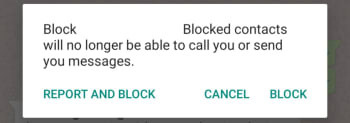
Whatsapp Block contact

Another result of blocking is that messages are left with only one tick and never get a second, although this could also be due to other causes, like the phone being turned off or lost.

If you know it’s neither of these reasons, the chances that you’ve been blocked are high, but it’s still not 100%. If you really want to know, you’re going to have to try calling them or sending them a message.

8. Is there any way to silence a group and still receive messages?

You don’t need to.

When you mute a group, you’ll keep receiving the messages, you just won’t receive notifications when you get them.

To silence a group, just tap the menu button (on Android) or info (on iPhone) and press Mute or Mute Group. It’s a useful feature to prevent your phone from vibrating incessantly.

9. When you invite someone to a group, will they be able to read previous messages?

No.

When you enter a group, you can only see messages from the point you entered the group. You don’t get access to the chat history or any media sent before you joined the group.

10. If I delete a message or photo on my phone, is it deleted from the other person’s phone too?

No.

If only it were that simple. As it turns out, a message, photo, or sound sent through WhatsApp will be delivered as soon as the first green tick appears. There is a window, however, from when you send your message that WhatsApp will allow you to delete the message from your own phone as well as from the phones of anybody who received it. You have exactly 1 hour 8 minutes and 16 seconds to delete the messages, images, and sounds you’ve sent. After that you won’t be able to and they’ll be the recipients’ phones forever.

How to Install Minecraft Mods in 5 Easy Steps

Learn how to install Minecraft mods from scratch and enjoy a totally different way to play your favorite game. Follow our tutorial here!

Minecraft is an entertaining, casual sandbox game that lets you do almost anything in this open-world experience. You can tame foxes or breed horses while cooking with smokers to your stomach’s content. The one function that the game doesn’t allow is installing and executing mods.

That doesn’t mean it’s impossible, though. Here’s how to install Minecraft mods.

How to install Minecraft mods

Before you can install Minecraft mods, you need to obtain a mod installer like Minecraft Forge. It adjusts the code within the game, letting you introduce new mods and items that weren’t there before. 

Step 1: Backup your data

One of the most significant risks is losing your Minecraft data and starting all over again. You should back up the data before you proceed with the following steps. 

  • Open File Explorer
  • Insert “%AppData%” and press Enter
  • Find “/Roaming/.minecraft /saves”
  • Copy and paste it into a new folder for future retrieval

How to install Minecraft mods

Step 2: Download and install Minecraft Forge

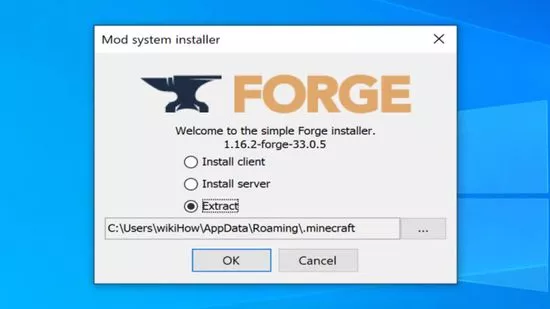
Now that you have your data secure, you can download and install the latest version of Minecraft Forge. The installation client will take you through the entire process, but you should pay attention to where it saves the local files. 

Once complete, open your Minecraft launcher and see if you can run the game in Forge mode.

Step 3: Download mods

The time has arrived for you to find your favorite Minecraft mods. There are several online locations available, but not all of them are safe. For instance, you can try CurseForge for some of the most secure and extensive MC game modifications.

You’ll mostly find Minecraft mods available in a .zip format. Before you proceed to the next step, ensure that the extract the folders.

Step 4: Copy files to the mods folder

You’re almost there. The mods won’t appear until you copy the above files to the correct location. You’ll need to follow these steps precisely before you can execute any of the modifications you downloaded:

  • Hold down the Windows button and ‘R’ at the same time
  • Insert “%AppData%” and press Enter again
  • Select “Roaming” and click on .minecraft
  • Paste the downloaded mods files into the mods folder

How to install Minecraft mods

Step 5: Run the Minecraft Mod

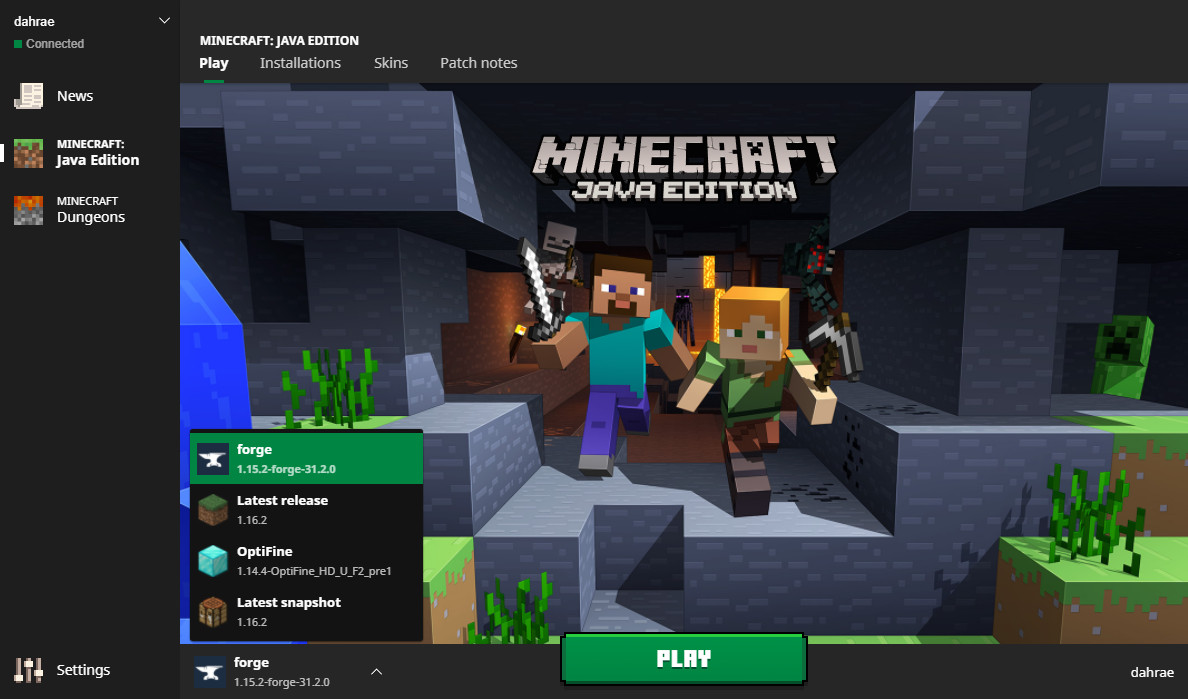
Now that you have Forge and the mods at hand, you can launch Minecraft with the Forge profile. You’ll have to do this every time you want to use the modifications. If you don’t run this mode, you’ll merely play the standard MC version.

Through new eyes

Running Minecraft mods is an exciting experience, letting you play with new skins, creatures, and items. While it can be risky, your saved game will be safe as long as you download the files from reliable sources. If you’re looking for a guide for creating weapons and tools, feel free to look at our MC crafting guide.

The best antiviruses of 2016

What are the best antiviruses to protect your Windows machine in 2016? We analyze results from the four of the most prestigious, independent antivirus comparison services to bring you the top five.

And do not miss the video towards the bottom of the page where we summarize all these results for you!

With Windows 10 and its built in security features gaining more followers, plus protection in web browsers increasing, you may be thinking that there is little need to install dedicated antivirus software. But with the level of threats constantly growing, proper protection is more important than ever.

So, what is the best antivirus to protect your Windows machine in 2016? We are here to analyze the results of four independent comparison sites to find out.

Powerful independent comparisons

As we did last year, we have collected and analyzed the results of four independent comparison sites. Our selection of antiviruses is limited to those that’s detection data appeared in at least two comparisons.

AV-Comparatives

In November, AV-Comparatives became the first laboratory to receive an EICAR certificate in recognition of its excellent work. For this comparison we use protection data from real scenarios in October 2015. We have also used the performance test results from the same month.

AV Comparatives

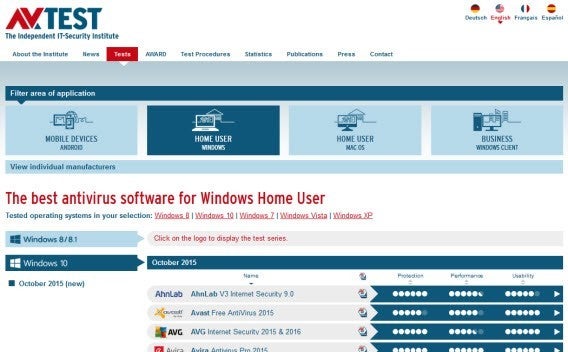
AV-TEST

AV-TEST is a veteran of independent testing, with its proof of zero-day attacks similar to that of AV-Comparatives. Again, we have used data from October 2015. Windows-TEST also provides performance data relating to the speed at which operations are performed.

AV Test

Dennis Technology Labs

Dennis is less well known, but uses its own methodology to analyze antivirus software. The test measures not only how many threats are detected but also the number of false positives, allowing for an overall accuracy. It also includes Norton, a company that is traditionally reluctant to be analyzed. Results here span July-September 2015, and covers the most popular antiviruses.

Dennis

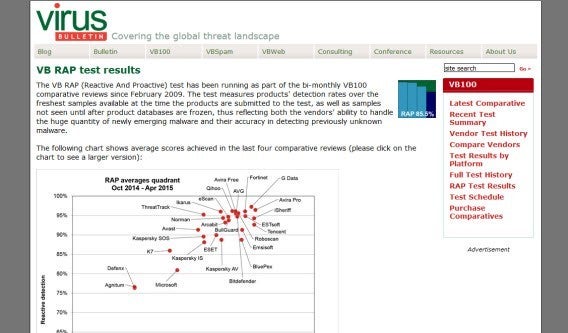
Virus Bulletin (VB100)

Since 1989, VB has been one of the foremost authorities on antivirus and malware analysis. Its antivirus index, VB100, is subjected to rigorous screening in which neither false alarms nor failed attempts are allowed. We have taken the reactive and proactive (RAP) detection data, which measures the percentage of unknown viruses that have been successfully blocked.

Virus Bulletin

Results of protection: What’s better at detecting malware?

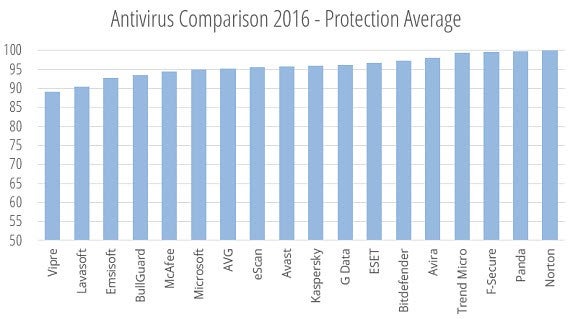
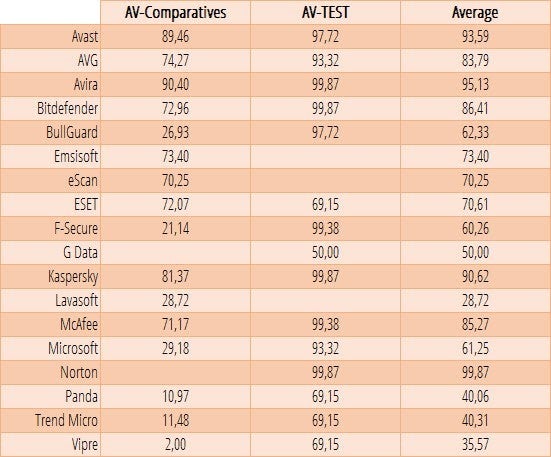
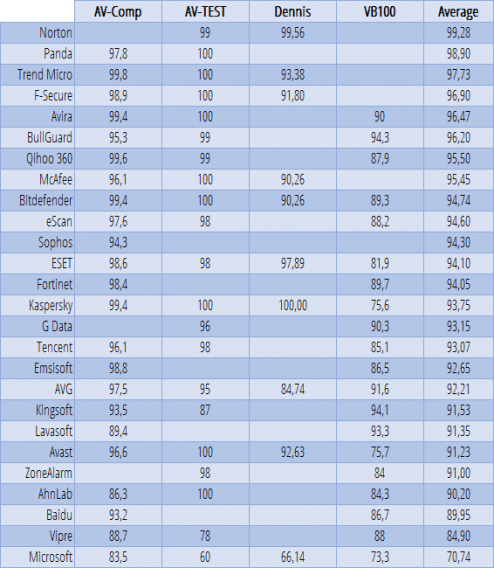
How effective is your antivirus at stopping the latest threats? Here we have used averages of the protection scores offered by the four comparison sites. Do note, however, that AVG, BullGuard, ESET, and Kaspersky were the only antiviruses to take part in all four tests – scoring them top marks in transparency if nothing else.

Protection Table

Scores for protection range from 0 to 100, with a higher score being better. The antiviruses that fare best in terms of protection are Norton, Panda, and F-Secure. That said, like last year, Norton does not participate in AV-Comparatives nor in VB. Microsoft’s performance is mediocre, while Vipre and Lavasoft bring up the rear.

av-comparative-2016-protection

Sorted by average antivirus protection, a higher score is better

Performance results: which impacts your PC’s performance the least?

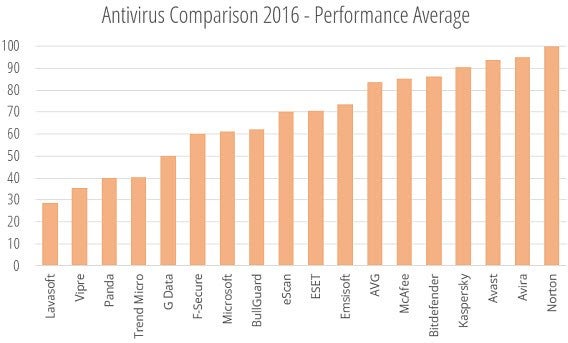
Antiviruses running in the background of your PC can slow it down. To know which will impact your machine’s speed the least we looked at performance scores from AV-Comparatives and AV-TEST, before averaging their percentages. In the below table you can see the results of these analysis.

performance chart

As with protection, performance scores range from 0 to 100 with a higher score being better. Norton – who only participated in one performance comparison – ranks first, followed by Avira and Avast. The later of these is a notable improvement over last year‘s results. Again, like last year and in the protection test, we found Vipre and Lavasoft bringing up the rear.

AV comparative 2016 performance

Antivirus ordered by the average yield, a higher score is better

Overall scores and winners of comparative

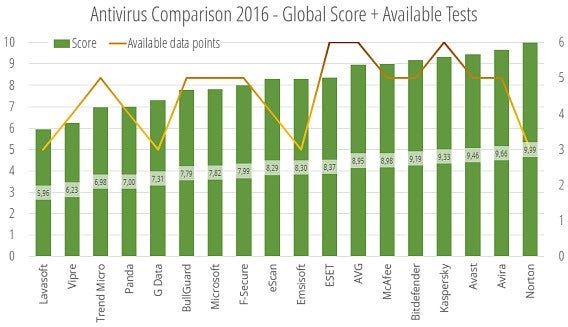
In this final comparison we use protection and performance data, both with the same 50-50 weighting. This enables us to consider the importance of good security, alongside the impact on the operating system, to provide an overall result.

The results are shown below on a scale of 0-10 (green bars), along with the amount of protection and performance tests it has participated in (orange line, up to a maximum of six).

Comparative 2016 available data

Final grade of protection and performance (green) and number of tests available (orange)

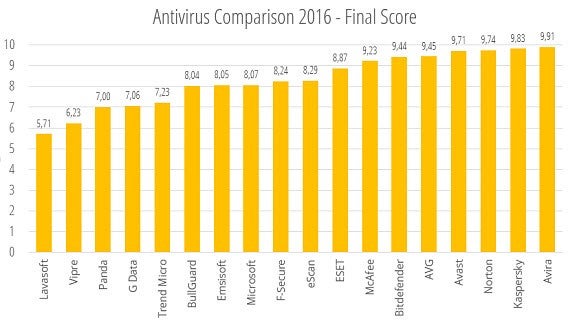
To reward the antiviruses involved in more comparison tests (over those that only participated in a couple), we have applied a correction factor: 1 – Number of tests / 4. This penalizes products that only participated in three tests. The final results vary slightly because of this, as can be seen in this final chart:

Final scores after applying the correction factor of tests performed

The winners: Avira, Kaspersky, Norton, Avast, and AVG

This year at the top of the best antivirus products we have two paid options – Norton and Kasperky – plus three free classics – Avast, AVG, and Avira. With the overall winner, taking into account performance and efficiency, being the German developed Avira.

Microsoft antivirus has improved a lot , making it an acceptable solution for those who do not want to spend money or install additional programs. It is particularly good at detecting malware.

At the back of the pack come Lavasoft, Vipre, Panda, and G Data – all of which were particularly impacted by their low performance scores, an aspect that cannot be overlooked.

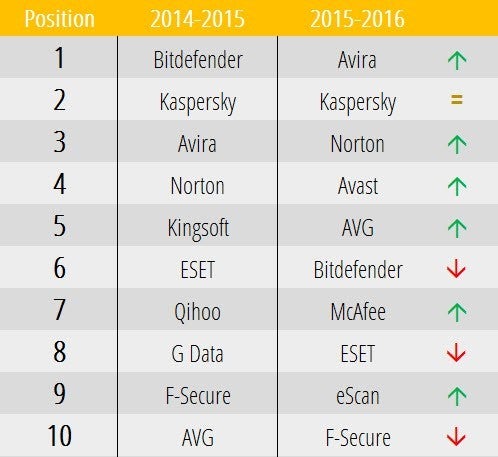
How does this compare to 2015’s antivirus results? You can see the ups and downs right here.

final table

This year Avira is in the lead, jumping two places from last year’s comparison. Kaspersky is a solid second place and remains the best paid solution, while Norton is up a position.

More spectacular are the climbs of Avast and AVG, both of which have taken a huge step up – especially in terms of performance. BitDefender has had a notable fall from the number one slot to number six, and ESET falls slightly.

While Windows 10 is a more secure system – and its virus protection is significantly better than Windows 8.1’s – additional protection is still highly recommended. Will it remain so next year? That all depends on Microsoft…

What antivirus do you recommend for 2016?

Previous comparisons:

Best Windows Antivirus Comparison 2015

Softonic’s big antivirus comparison: Software to stay safe in 2014

Comparison: Free Antivirus suites 2012

Best Android browser comparison 2015

What is the best browser for Android ? We compared the most popular to see which of them is best suited to your needs.

The browser is perhaps the most interesting app on our mobile device. We use it to read news, find information, play games, and download files. Along with messages, calls, and maps, we spend most of our time on our mobile devices using a browser. As a slow or inefficient browser negatively affects our experience, it’s important to choose one that boasts high performance and best meets our needs. But this is not an easy task.

There are hundreds of browsers for Android. Which is the best?

There are more Android browsers than ever before. All the big names have a browser on Google Play – all except for Microsoft’s Internet Explorer. And while some have more than a 30% share of the market, others have been downloaded less than one million times. Through this comparison, we want to help you choose the browser that suits you. To do this, we applied the same philosophy as in our browser comparative for Windows, with tests focused on everyday use cases.

Nine browsers, nine different styles

For this test, we chose the most popular browsers on Google Play. Aside from the big names (Chrome, Firefox, Opera, and Opera Mini), we also included some notable independent browsers: UC Browser, Dolphin, Puffin, CM, and Javelin, all of which use existing technology, but offer various different features and enhancements.

Chrome Browser: the one to beat

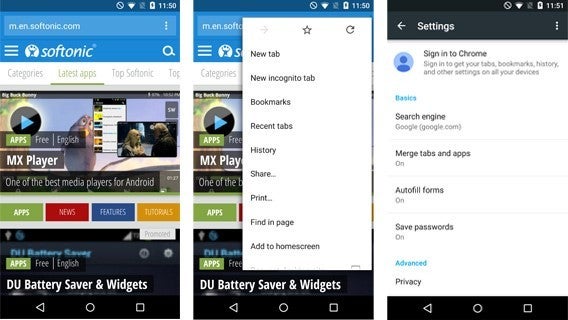
While Chrome may be Google’s official browser, it’s not always offered as the default on an Android device. Chrome’s popularity is undeniable: it is in installed on almost all mobile phones and tablets, but only if you use Android 4.0 or higher. The highlight is the data synchronization between different devices running Chrome (if you are signed in).

Chrome has the (unfair?) advantage of being a Google product

Version analyzed: 41.0.2272

Compatible with: Android 4.0 or higher

Space occupied: 73 megabytes

Number of downloads on Google Play: 500.000.000 – 1.000.000.000

Opera and Opera Mini: the veteran contenders
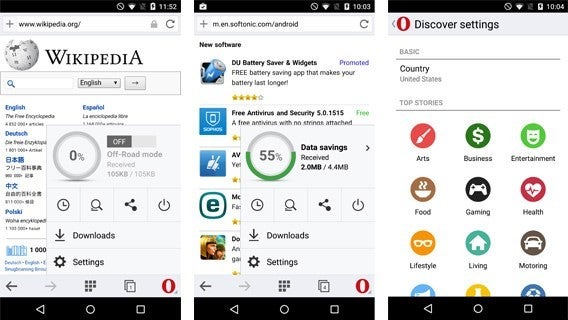

Opera was one of the first browsers to appear on mobile devices, and this experience is demonstrated in the quality of its features. There are different versions for Android, but the latest is the redesigned Opera Mini. In this comparative, we analyze both the regular version and Mini, because they meet different needs.

After the latest update, Opera and Opera Mini look practically identical

Version analyzed: 28.0.1764 (normal) and 8.0.1807 (mini)

Compatible with: Android 4.0 or higher (normal) and Android 2.3 or higher (mini)

Space occupied: 24,9 megabytes (normal) and 12,8 megabytes (mini)

Number of downloads on Google Play: 50.000.000 – 100.000.000

Firefox Browser: the truly free choice

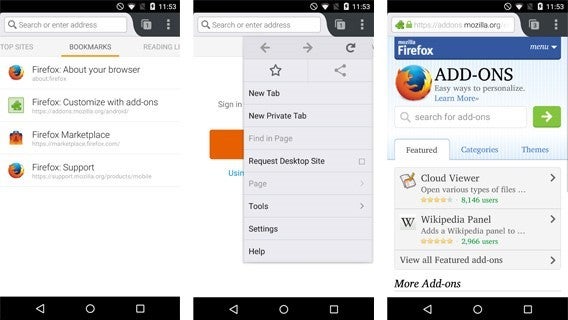
While the Mozilla browser may have only recently arrived on Android devices, it already has a lot of fans. It uses a different technology base to other browsers (for better or for worse). With its extensions and tools, Firefox has all the necessary components to compete with Chrome and Opera.

If there is a browser that can compete against Chrome then it is Firefox

Version analyzed: 37.0.1

Compatible with: Android 2.3 or higher

Space occupied: 44,7 megabytes

Number of downloads on Google Play: 100.000.000 – 500.000.000

UC Browser: the most famous independent option
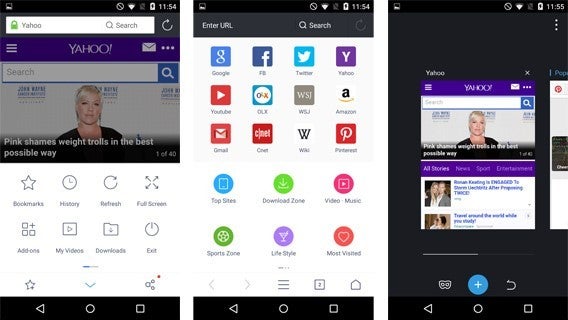

Outside the big names, the most downloaded browser for Android is UC Browser, which is available in different versions. Here we analyzed the standard version, which comes with unique features, such as a night reading mode and themes. It is one of the only browsers that supports Flash.

UC Browser is well designed and includes lots of tools

Version analyzed: 10.3.0

Compatible with: Android 2.2 or higher

Space occupied: 47,4 megabytes

Number of downloads on Google Play: 100.000.000 – 500.000.000

Dolphin Browser: what Chrome could have been (but isn’t)
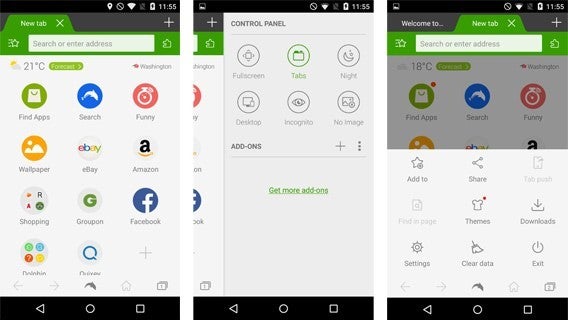

Dolphin Classic, one of the first alternative browsers for Android, it is stable, attractive, and has a variety of plug-ins and customizable themes. If you install Dolphin Jetpack – which is entirely optional – you can enjoy playing games on the web in the highest quality possible.

Extensions, data synchronization, support for Flash… Dolphin has it all

Version analyzed: 11.4.4

Compatible with: Android 4.0 or higher

Space occupied: 43,6 megabytes

Number of downloads on Google Play: 50.000.000 – 100.000.000

Puffin Web Browser: for those addicted to Adobe Flash
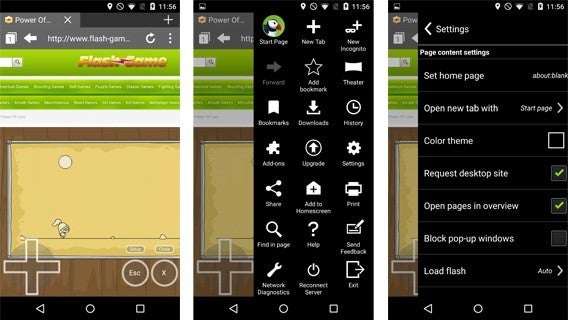

Better known on iOS, where it is used as a method of running Flash, Puffin is a fast browser which has been optimized for open source web games. It even gives you the option to activate a virtual trackpad, as if you were using a laptop. The free version has ads that appear from time to time, but you can still use it with few limitations.

Puffin opens web pages in the same way as on a PC, including flash animations

Version analyzed: 4.1.4

Compatible with: Android 2.3 or higher

Space occupied: 24 megabytes

Number of downloads on Google Play: 5.000.000 – 10.000.000

CM Browser: the most secure Android browser
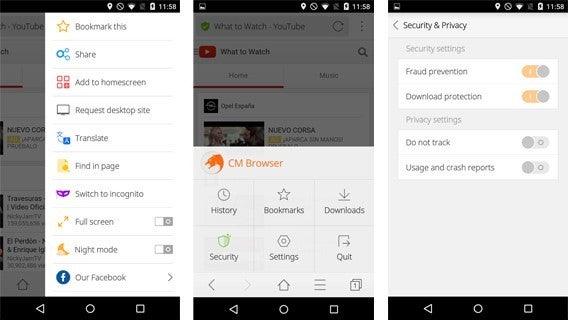

The developers of Clean Master have release their own browser, or rather their own version of Chrome, as the technology behind both is the same. CM Browser emphasizes safety and privacy when browsing: it scans downloads with its excellent integrated antivirus program, as well as blocking dangerous sites.

CM Browser’s strength is its security, with its integrated antivirus program being one of the best around

Version analyzed: 5.1.80

Compatible with: Android 4.0 or higher

Space occupied: 7,2 megabytes

Number of downloads on Google Play: 50.000.000 – 100.000.000

Javelin Browser: the most promising and original
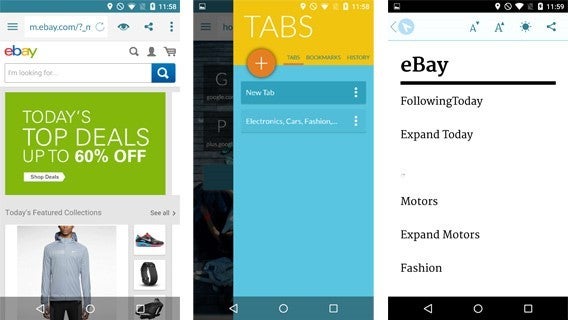
Javelin is a browser unlike any other. Softonic editor Sam chose it as his web browser of 2014 for its unconventional design and reading mode, something found in very few of its competitors. Using this browser is like entering a parallel universe.

Javelin is not like any other browser we tested

Version analyzed: 4.1.10

Compatible with: : Android 4.0 or higher

Space occupied: 16,5 megabytes

Number of downloads on Google Play: 100.000 – 500.000

Performance and memory consumption

How lightweight and powerful are the nine browsers in this comparison? We tested browsers on a Nexus 5 with Android 5.1 installed. Before starting the test, we restored the Nexus to its factory settings. We used versions from April 14 2015.

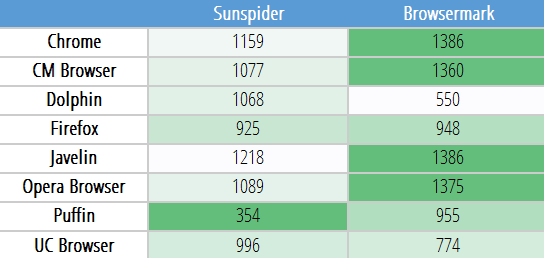
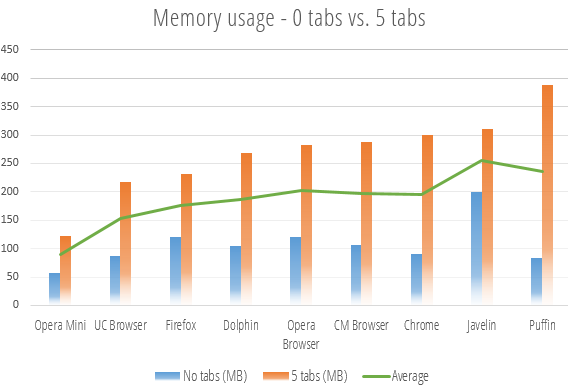
For the tests measuring memory consumption, we used the Android Apps Settings panel. The five tabs loaded as part of the test were Google.com, Yahoo! Weather, eBay, Reddit, and Softonic. The SunSpider and Browsermark benchmarks were carried out after deleting the browsing history, with the Nexus plugged in.

The best browser in terms of memory consumption is Opera Mini. The new version barely went above 100 MB, even with five tabs open. This was followed by UC and Firefox. Brining up the rear was Puffin, which by default opens the pages in PC version. The memory consumption of the browsers powered by the WebKit software engine(Chrome, Opera, Dolphin, and CM) is pretty similar.

The benchmark, on the other hand, yielded conflicting results, and some tests had to be repeated several times due to unexpected crashes (that was the case with both Dolphin and Puffin). We were unable to test Opera due to its compression technology, which prevented us carrying out the load tests.

The highest scorers are marked in dark Green (for Sunspider, lower is better. For Browsermark, higher is better)

As you can see in the table, browsers that use the WebKit engine, led by Chrome, took first place in the Browsermark benchmark. In the SunSpider test, Puffin took first place, followed by Firefox. When considering the four tests, the browsers with best performance and memory consumption were UC Browser, Firefox, and Opera.

What can they do?

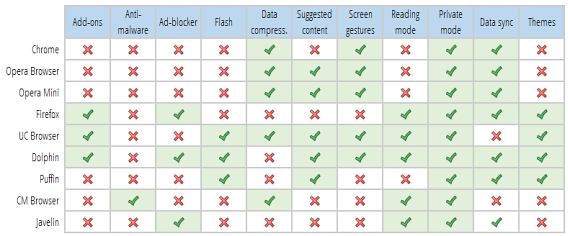
How well each feature works is really important in a mobile browser. Do you read a lot? Then a reading mode (night or not) will come in handy. Do you visit pages using Flash? Not all browsers load this content. Each browser has its specialties, and some try to cover everything.

Dolphin Browser and UC are the two most comprehensive browsers in terms of features. Dolphin, in particular, provides everything you can find in a browser for Windows. They are followed by Firefox, the only major browser with support for extensions and themes. Chrome pales in comparison, with relatively limited features.

And the winners are …

We had a long discussion about which browsers to choose as the winners of this comparison. In the end, we decided to reward the most complete and lightweight browsers. The overall winner is the one that had a good balance between the two. Thus, if your priority is a lightweight browser over a powerful one – or vice versa – then we have the perfect options for you.

The most complete: Dolphin Browser

Dolphin not only has everything you could ask for, but also offers elegant integration no matter what device you are using. As well as support for Flash, it also has impeccable data synchronization, lots of add ons, and a Web App Store. True, it doesn’t have the best performance, but it’s the best browser for powerful tablets (and games look great with the Jetpack mode).

Dophin Browser’s HD version is ideal for next-gen tablets

The most lightweight: Opera Mini

Hundreds of millions of people surf the web with slow connections and under-powered mobile devices. Opera is the only company that has taken this into account. Opera Mini 8 has modern features, but is more lightweight and efficient when consuming data. Even if you don’t have access to high-speed internet, this browser is still impeccable.

The new Opera Mini 8 looks similar to its big brother, Opera Browser

The best of 2015: Firefox

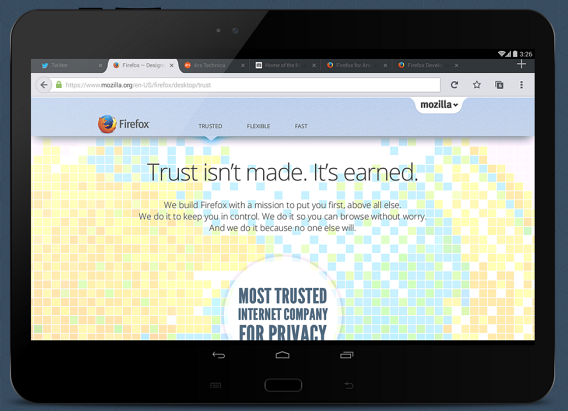
We think Firefox is the best browser for Android at the moment for several reasons. Firstly, its integration with Firefox for desktop is excellent. And don’t forget that Firefox for desktop won the Windows browser comparison.

Of all the browsers we analyzed, Firefox had the best design with its clean interface familiar to those who use the browser for PC and Mac. It doesn’t overdo it, nor does the design get too abstract.

As for performance, while Firefox does not stand out in the Browsermark test, it does in the Sunspider one. Firefox also has the third best memory consumption, second only to UC and Opera Mini.

Finally, Firefox is open source and, thus, independent. It is independent of large corporations (such as Google, Microsoft, and Apple) and it doesn’t have any corporate sponsors (which is common in alternative browsers).

In short, if you want a solid and elegant alternative to Chrome, choose Firefox. Although don’t forget about Opera Mini and Dolphin, which both meet specific needs.

What browser for Android do you recommend?

Related Articles

Softonic’s Browser Comparison 2014

The best web browser for Android – Sam’s choice

Top 25 apps for your Android tablet

Follow me on Twitter: @remoquete

Best Windows Antivirus Comparison 2015

Which is the best antivirus program for Windows in 2015? We’ve analyzed the results of four independent comparisons to bring you the winners.

For many people, the PC is still the place where we keep our most important files and what we use for a large part of our work and leisure activities. Protecting your PC is the equivalent of protecting the value of your digital identity.

A good antivirus is the cornerstone of security in Windows. While the industry may be in crisis, especially as Windows has improved its own security defenses, most of us still need an antivirus program.

To save you time and effort, we’ve analyzed the result of the most prestigious independent benchmarks. The results, together with our interpretation, will help you choose the best antivirus for 2015.

Which comparisons did we use?

AV-Comparatives

This Austrian company has been carrying out a monthly analysis of the best antivirus programs on the market since 1999. Its comparison involves testing infecting websites. For this comparison, we used data from August to December 2014. We also used the results of the performance test, which measures the time it takes a PC to carry out various operations such as copying archives or opening a PDF.

AV-Test

In its German lab, the team from AV-Test analyzes many antiviruses each day. Its security test uses a proprietary program, which verifies if malware has been blocked, and how this is done. We’ve used data from December 2014 here. AV-Test also analyzes performance, measuring how long it takes to perform 13 common actions, such as downloading archives, installing programs, or opening Office.

Dennis Technology Labs

Dennis’s antivirus labs uses its own methodology to analyze the best antivirus software. The test not only measures how many threats are detected, but also how many false positives show up. The test’s score indicates the accuracy of each antivirus scan. The most recent results from the period October to December 2014 give scores for the ten most important antivirus programs.

Virus Bulletin (VB100)
Since 1989, VB has been one of the leading authorities on antivirus programs and malware analysis. Its VB100 test subjects antivirus software to the most rigorous of tests, which takes into account false positives and failed attempts. For the comparison, we’ve taken data from its Reactive and Proactive (RAP) test, which measures the percentage of previously unknown viruses that have been successfully blocked.

Protection: which program best detects malware?

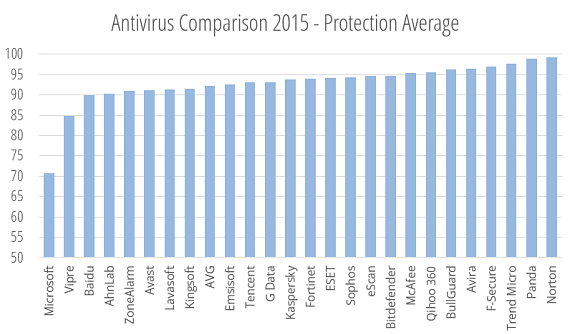
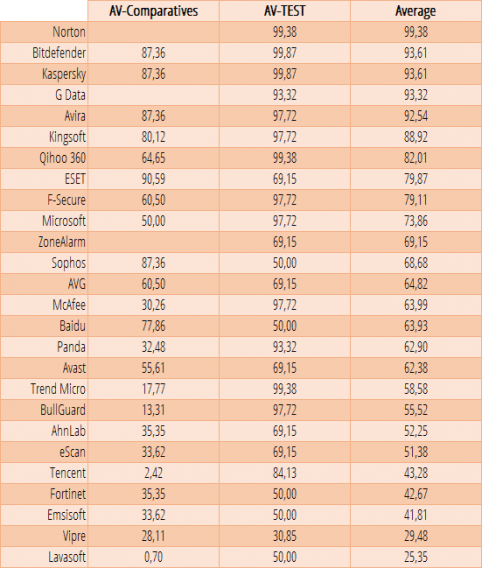
How effective are antivirus programs at detecting newly emerging malware? The average of the four benchmarks was used to produce global protection scores for each of the antivirus programs analyzed.

Below are the results of the 26 antivirus programs that have been analyzed, ordered according to their average score. Only six antivirus programs – Avast, AVG, Bitdefender, ESET, Kaspersky, and Microsoft – feature in all the benchmarks.

Protection score from 0 to 100. A higher score is better

The antivirus programs that scored best in the protection category were Norton, Panda, and Trend Micro. Bringing up the rear was Microsoft, with its Windows Defender program scoring a mediocre 70. It’s worth noting that Norton isn’t involved in either the AV-Comparatives or the VB tests.

Antivirus programs ordered by protection score. A higher score is better

Performance: which ones least impact your PC’s performance?

Does antivirus software affect the performance of your PC? To find out, we converted performance scores from AV-Comparatives and AV-TEST into percentages and took an average.

In the table below, you can see the results of the 26 antivirus programs we analyzed. Only Solo G-Data, Norton, and ZoneAlarm are missing from AV-Comparatives’ performance test.

Antivirus programs ranked by performance scores. A higher score is better

Norton took first place again, followed by Kaspersky and Bitdefender. Microsoft achieved a mid-table position, while Vipra and Lavasoft brought up the rear.

Global scores and comparison winners

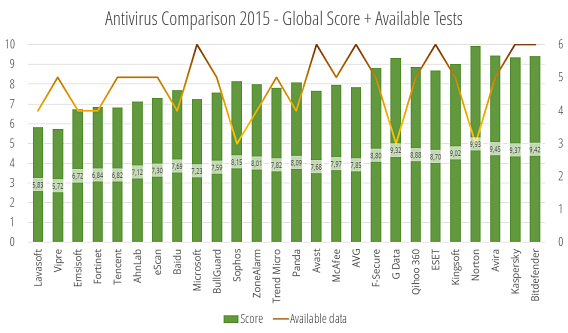
In this year’s benchmarks, we decided to only use protection and performance data (an approach we also took in our browser comparison). The same weighting applies to both: 50%.

The result is shown below on a scale of 0 to 10 (the green bars), together with the number of protection and performance tests that each program featured in (represented by the orange lines).

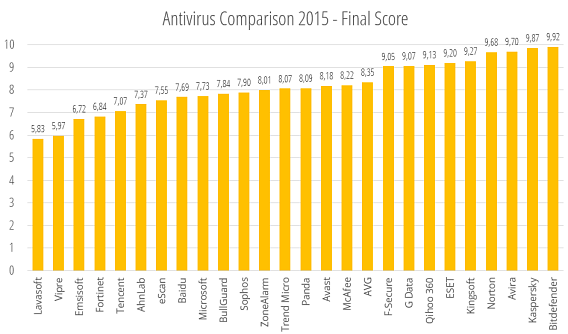
As it wouldn’t be fair for an antivirus to win if it only appeared in two tests compared to others that feature in six, we’ve applied a correction factor where we add or subtract points accordingly.

This means that the only antivirus programs that were penalized were those that only featured in three tests: G-Data, Sophos, and Norton. This significantly altered the final result.

Final scores after adding the correction factor according to how many tests programs feature in

Bitdefender wins, followed by Kaspersky and Avira

There was a clear winner: Bitdefender, followed by Kaspersky and Avira, two solid antivirus programs. The presence of Qihoo isn’t particularly surprising: the company’s 360 Total Security program is one of the most popular antivirus suites at the moment.

Avast, AVG, and Panda were all mid table, while Microsoft showed itself to be an acceptable solution in terms of performance, but it comes up short when faced with a large percentage of malware.

Gold for Bitdefender, silver for Kaspersky and bronze for Avira. All three are outstanding antivirus

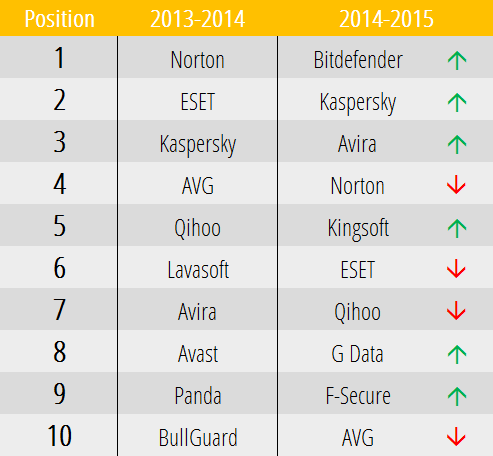
How do the top 10 antivirus  programs rank compared to last year? You can take a look for yourself in the table below.

The rise of Bitdefender has been spectacular. Kaspersky and Avira have cemented their positions, while Qihoo maintains its spot in the first division. AVG and ESET lost ground, while Avast lost its top spot and slid down the table, accompanied by Lavasoft, Panda, and BullGuard.

In the current climate of antivirus crisis, the programs that emerged as winners were those that focused on performance: today’s user doesn’t want to sacrifice speed for security, especially when it’s not always effective.

Which antivirus program would you recommend for 2015?

Related Stories

Softonic’s big antivirus comparison: Software to stay safe in 2014

Comparison: Free Antivirus suites 2012

Best free antivirus

10 cool tricks for using Google Maps

Google Maps turned 10, so here are 10 cool tricks for using Google Maps that you might not know. And if you already are a master of Maps, share this article with your friends and family, so they will never get lost ever again (hopefully).

Most people know how to use the basic features of Google Maps: write an address or a place name, hit search, and the map will slide to the right place. If you want to see more information, you can click on the location; if you want to check out street view, you drag the little orange dude onto the map. Although useful, these are also pretty basic functions of Google Maps.

Surprisingly, many people don’t go beyond the basics, missing out on some of the most interesting features of Google Maps. The fact that Google hasn’t given them more visibility is probably because they aren’t essential, but they’re still pretty cool! Let’s take a look.

You can save your favorite places in the map to find them later

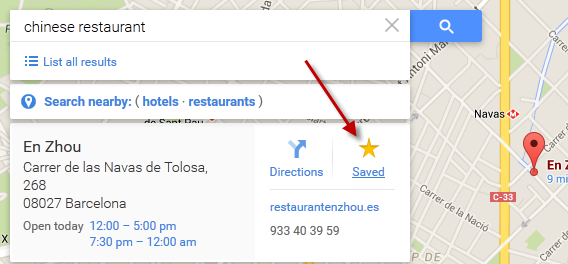
You took your time to scour the area for the ten nearest ATMs and the best Chinese restaurants. That’s great. If you want to remember them later, the wisest thing to do is to save them on your map. It’s like adding a tack to a corkboard. To save a place on the map, just press the star icon.

You can correct incorrect information on the map

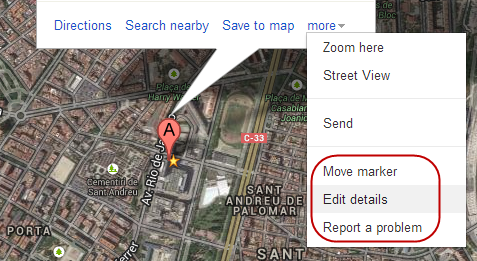
You’ve probably found an error or two in Google Maps: a store that’s on the wrong street, a street name that’s wrong, or maybe a place that’s closed down. Surprisingly, Google Maps will let you correct this information right on the map. When you’re on a location, tap the “more” link and select one of the editing options.

Google Maps edit

You can move the marker up to 200 meters to more accurately pinpoint the location, edit the details of the palce, or report a problem, including duplicates, closures or places that aren’t publicly accessible.

Zoom with one hand (on mobile)

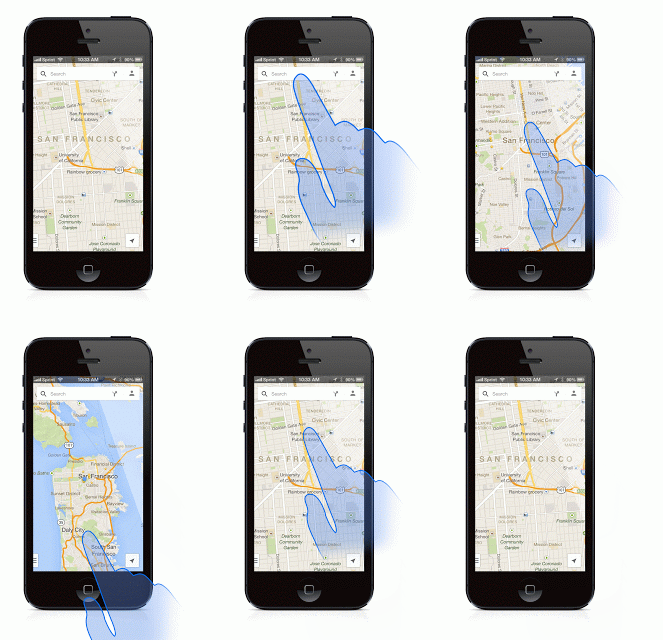
When you’re on your phone, you can control Google Maps zoom with one hand. How? Just tap once and then slide up to zoom out, or down to zoom in.

Google Maps touch and slide

Touch and slide: that’s how the single-handed zoom works (source)

Tilt the map using two fingers (on mobile)

Another move on Google Maps for mobile that few know about? If you slide the map with two fingers, the map will lean forward or backward. This is a cool feature if you appreciate the satellite view.

Google Maps finger swipe

You can see the complete list of Google Maps moves for mobile or tablet on the Google support page.

Save maps to consult them offline

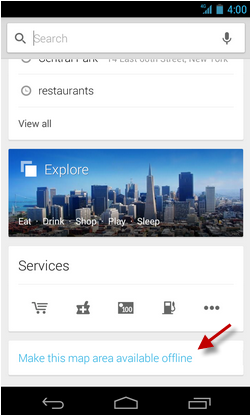
Google Maps lets you download sections of the map to your device, a great feature to use when travelling abroad, especially if you’re not in an WiFi zone ad don’t want to pay ridiculous amounts of money for an international data connection.

Google Maps offline

To download a section of a map to your phone, select an area, press Search, and once you’ve found it, select the “Make this map area available offline” option, or search “ok maps” to save the map.

Google Maps offline

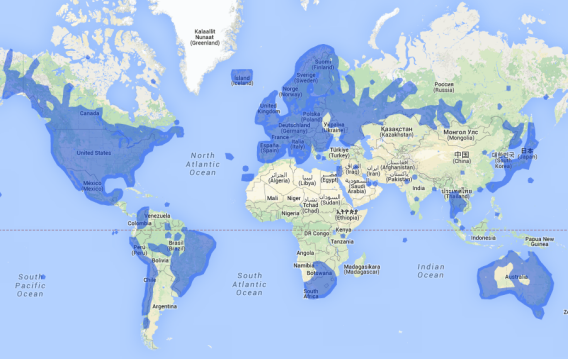
See where Street View is available

Google cars travel the world’s roads daily to take panoramic photos that make up Google Stree View.  But there are still many miles to go.

Google Maps street view

If you want to see where Street View is at this very second, and which parts of the world have been photographed, you can go to the official site, where you’ll find all the information.

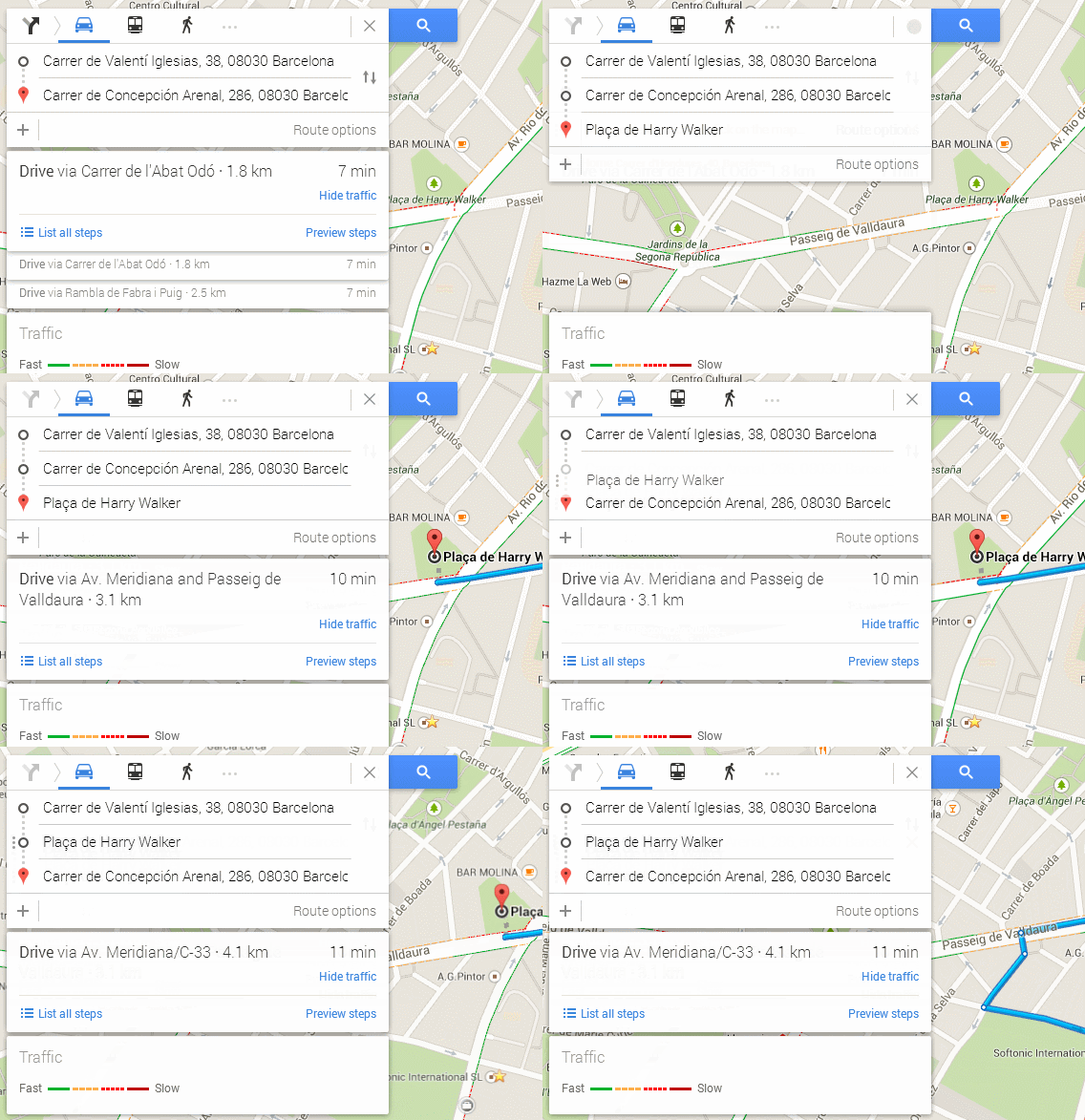
Get alternative routes by dragging the markers

Google Maps doesn’t always offer the most logical route. To get a better route, or to force a route through the points you want, drag any points to indicate the way you want to go.

Google Maps alternate routes

Create routes with more than one stop

You can also add more than one stop on your route. Press the “+” button, select a place on the map and you’re done. To reorder the stops, simply drag the markers.

Create more than one stop

See all the recommendations for an area

If you’re all out of ideas but want to explore a particular area, zoom in on a section of the map and get Google’s suggestions on the map by entering a star (*) in the search bar.

Google Maps recommendations

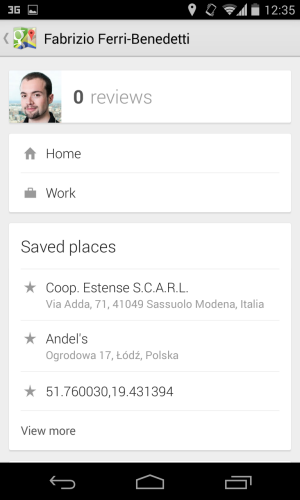
Check your activity on Google Maps

Your Google Maps history is available by going to history.google.com, and then entering the section for Maps.

Google Maps history

Another option is to press the button on the mobile app, which is right next to the search box. One touch, and you’ll see a summary of all your activity.

Google Maps history

Google Maps: easy to use, but with an advanced layer

Like all of Google’s apps, Maps is notable for its simplicity, hiding most of its advanced features to avoid overloading the basic interface. Most of the tricks here only took a bit of curiosity to stumble across, but we’re sure there are plenty more still to be discovered.

Which are your favorite tricks for Google Maps?

[href^=”http://www.google.com/aclk?”] {display:none !important;}

[href^=”http://www.google.com/aclk?”] {display:none !important;}

Computer security should be simple

Most people don’t understand computer security. You might know that having it is important, but you might not know how it works or what the most relevant features are.

For the average user, “computer security” means using apps that speak some weird language or perform some strange function. For many people, it becomes a myth as you clean cookies, scan files, and change passwords without actually knowing what you’re doing, actions that ultimately fail to prevent disasters like data theft or file hijacking.

A perfect example of one of these fairly mysterious apps is the antivirus. As far as you’re probably concerned, it’s a program that prevents bad things from happening to your computer. Only when it notifies you is there cause for concern. If you’re on a particular website and the antivirus reacts, normally you’d close the browser and wait for the red flag to disappear. Like some warnings tend to do, however, the antivirus can do more harm than good– as least in theory– scaring you into thinking you’re at risk when in fact, the problem isn’t as dangerous as you’d think.

If your antivirus were to disappear from your PC tomorrow, you probably wouldn’t miss it; it’s a fairly loud and annoying application, and aside from disturbing you, it never actually explains what it’s doing. But if it did explain what it was doing, would you be more likely to use and trust in its warnings? I think so.

Security applications fail to communicate

Computer security isn’t difficult to understand because of its complexity. It’s difficult to understand because it’s poorly explained. Instead of using plain and accessible language, many developers of antiviruses, firewalls, and security programs use jargon like “rootkit” or “port scan” to explain things. Those who don’t learn the terminology are excluded from the conversation, which is quite worrying.

Is anyone able to explain what’s going on in this window?

Instead of reassuring people, antiviruses tend to show constant alerts, along with global infection maps, scaring you with lights and loud noises. Not even the virus classification (supposedly educational) can help you understand what’s happening; when people read “W32 / Trojan.B”, they think that they’re being attacked by an inhabitant of Troy. In short, when it comes to communication, antiviruses and other security apps don’t know how to do it properly.

To be successful, an antivirus has to communicate clearly

There are some people who like the feeling of control that an antivirus or a firewall provides, but there aren’t many. People want security that’s less intrusive. However, an invisible security program just wouldn’t sell. Nobody would remember to renew their antivirus if it didn’t complain every now and again that something’s going wrong, which is why there’s such a large number of notifications and alerts, not to mention in a barely comprehensible language. The assumption is that if security programs communicated more clearly, you might stop using them altogether.

Clean Master (Android) manages to communicate simply and effectively

The question is, can an antivirus be informative and profitable at the same time? I think yes, but only if communication improves. Software developers should strive to create products that speak in a language that’s easy to understand to be able to find complicity with the user. Antiviruses, firewalls and password managers should act as advisors, as well as a guardians. If an antivirus can teach you about computer security while it’s protecting you, then its job will be done.

In short, in order to be reassuring, security programs need to be understood, and to be understood, they have to communicate clearly. The first major security application that does this will surely win the hearts and minds of millions of people.

More about anti-virus

The best free antivirus

How to set up AVG Antivirus 2015 for optimal protection

How to configure Avast 2015 to maximize speed

Original article published on Softonic ES in Spanish.

Follow me on Twitter: @remoquete

Decrypting WhatsApp’s blue double check (and other icons)

The blue double check mark indicating ‘read’ messages in WhatsApp has gotten a lot of attention since it’s debut last week. But it’s also got a lot of people confused. Didn’t the double check mark already mean that? Well, no, and you’re probably not the only one having trouble making sense of all of WhatsApp’s icons.

Before you start freaking out over people not responding to messages, and to make things a little less confusing, we’ve made a handy guide to WhatsApp icons to help you understand exactly what each icon means.

What do WhatsApp icons mean?

WhatsApp Icons

Timestamps for read and received messages

On top of showing status icons, WhatsApp lets you know at exactly what time someone has read and received a message. This is particularly useful in group chats, where WhatsApp only displays the grey check.

To know who’s read the message and at what time, press and hold down on the message and click on Info for iPhone, or click the small info button on Android. You’ll get a new Window which shows exactly who has read the message, and when.

Be careful with the double blue check

Seeing the double blue check doesn’t necessarily mean the message has been read. It could be that the person left the conversation open, and then switched to another conversation or closed the app without actually having read or noticed the message.

The moral of the story here is, if someone hasn’t responded to your message, don’t freak out: people get easily distracted.

Related Stories:

WhatsApp is testing a ‘message read’ blue double tick (Update)

10 WhatsApp features you might have missed

How to restore deleted WhatsApp chats on Android

Original article written in Spanish on Softonic ES.

Follow me on Twitter @remoquete

How to configure Avast 2015 to maximize speed

Lots of people will simply install Avast and leave it at that. The antivirus, however, is more than just an orange icon in your system tray. By spending a couple of minutes configuring the options, you’ll be able to consume less resources and increase privacy.

You might have an old PC, you might dislike your antivirus moving things around on you, or you might just want to turn off those annoying notifications. Whatever your issue is, Avast 2015’s options seem to have many of the answers.

In this video, we’ll show you a few options so that you can modify Avast 2015 to make it consume less resources and send you fewer notifications, while still maintaining a high level of security.

Default player


brightcove.createExperiences();

Find the setting that suits you best

Avast is one of the most customizable antiviruses: you can configure just about any one of its multitude of tools. Play around with the options and find the best settings for your antivirus so that along with helping, it doesn’t hinder.

Download Avast Free Antivirus 2015

Download Avast Pro Antivirus 2015

Download Avast Internet Security 2015

Download Avast Premier Antivirus

Original article published in Spanish on Softonic ES.