I Remember the Time: Increasing Memory Performance in Windows

Has your Windows gotten older, slower, and short on memory? Maybe you aren’t ready to migrate to Windows 10 and you’re still trying to glean as much life as possible off of your beloved Windows 7. If so, there are some ways to improve the memory and performance of Windows. These tricks don’t cost anything and can be done even by a user with minimal tech skills.

Turn Off Aero

Aero is a visual experience in Windows, but it does take up memory and bring a downtick in performance. If you’re more into speed and performance and less into how the Windows desktop looks, you can turn off Aero. Go to your Desktop and right-click on an open area. Select the option “Personalize” on the menu, and then choose one of the “Basic and High Contrast Themes”.

Increase the Virtual Memory

Heavy computer users who open lots of windows and programs all at the same time can boost the performance of their system by allowing Windows 7 to utilize more virtual memory in the RAM. Right-click on My Computer on the Desktop. Choose the option “Properties”. Select the Advanced tab, and choose Performance. In the next window, navigate to the Advanced tab and click on the Change button under the option “Virtual Memory”. This might also be called “Paging File”. This will likely be set at 1.5 of the RAM. Try something like 4605 MB in the Initial Size and Maximum Size fields. Be sure to hit the Set button to save the changes. You might also play around with this number to get the speed and performance you want, just don’t go under the recommended size.

Turn Off Visual Effects

Visual Effects is another Windows feature that adds a whole lot of looks, but does put a hit on memory and performance. It particularly sucks RAM and VGA. Right-click on My Computer and go to Properties. Choose the Advanced tab and select “Performance”. There, hit the “Settings” button. Navigate to Visual Effects and choose the option to Adjust for Best Performance. This will cause all visual effects to revert to a standard level, but the performance difference should be noticeable.

Turn Off Sidebar Gadgets

Sidebar gadgets not only consume too much RAM and deteriorate the performance of Windows, but they have also been identified as serious security vulnerabilities and have been eliminated on the latest versions of Windows. You can turn off sidebar gadgets yourself by closing each of the gadgets on the sidebar individually. This shuts down the entire sidebar process.

Turn Off Windows Defender

Most users (and you should be one) are using third-party antivirus software and Windows Defender is no longer necessary. You can turn this feature off by clicking the Start menu and navigating to the Control Panel. There, you can choose to disable Windows Defender. While you’re at it, update your antivirus software and run a scan…just to be sure.

Love Windows 7? Get a copy of Windows 10 for free!

Outdo Yourself: Tips for Better Windows Performance

Over time, any operating system will experience some deterioration in performance. As you add and delete programs, the computer ages, and other factors, things just slow down. But there are some ways to recoup some of the zip you experienced when Windows 7 and your computer were brand new. Here are some tips to do just that:

Check Out Windows Performance Troubleshooter

The developers planned ahead and empowered users from the beginning with a tool to get performance back on track. The Performance Troubleshooter allows you to find and eliminate the problems that are slowing Windows down. You can get to the Performance Troubleshooter by clicking the Start button and selecting Control Panel. When the search box comes up, type in “troubleshooter”. Then click on Troubleshooting. Locate “System and Security” and select the option “Check for Performance Issues”.

Get Rid of the Programs You Don’t Use

It’s easy to download more programs than you think you need, and firmware manufacturers don’t help matters much by stuffing their products with bloatware. You can get rid of the useless programs pretty easily. Click on Start and then select Control Panel. Choose Programs and then select Programs and Features. Choose a program you don’t want anymore and select it. Then click Uninstall. (You can also repair programs here that you’re having problems with.) You can only uninstall one program at a time, but going through and eliminating the ones you don’t use can seriously boost your system’s performance.

Don’t Allow Unnecessary Programs to Start Up with Windows

Much of the time, when you download or install new software, it inserts itself into the task bar and starts up automatically whenever Windows starts. The problem is, most of these are unnecessary upon boot, and having lots of programs running can deteriorate the performance of both your machine and the Windows operating system. To find out what programs begin running upon startup, click on the Show Hidden Icons button, which is located on the right side of the task bar. Stop the programs you don’t want running upon Windows startup by opening AutoRuns for Windows and unchecking the box beside the name of the program you don’t want to start up with Windows.

Keep Your Hard Disk Defragged

As you install and uninstall programs, create and delete files, and other normal activities, the hard disk becomes fragmented. This just means that the information isn’t stored in the most efficient manner. It’s a lot like your closet: when you organize it, you put all of the sweaters together, all of the slacks together, etc.

Over time, things get put back out of order, and soon the entire closet is disorganized. The disk defragmenter puts everything back in the most efficient order, making it faster for Windows to get what it needs, thereby improving performance. To defrag your hard drive, click Start and type Disk Defragmenter. Under “Current Status”, choose the disk you want to defrag (which will generally be the C drive). If you like, you can determine whether or not it needs defragging first by clicking “Analyze disk”. Anytime the Analyzer finds a fragmentation of 10 percent or greater, the disk needs to be defragged. Click on “Defragment Disk”. This process can take either just a few minutes up to  a number of hours, so it’s best to do this when you don’t need the computer for anything for awhile.

Stay protected online. Read up on The Best Antiviruses of 2016!

5 Interesting Facts About Grand Theft Auto: San Andreas

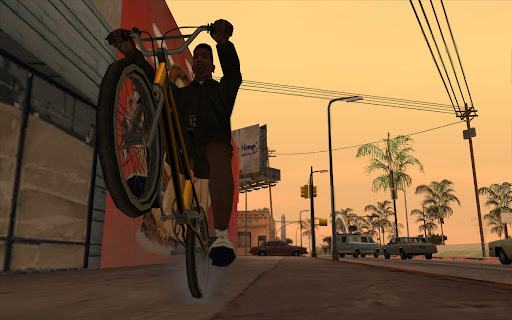
The Grand Theft Auto Series is known around the world as being one of the biggest gaming franchises ever; but, there are facts most people don’t know about this classic line of games. The truth is that, due to the massive success of Grand Theft Auto: San Andreas and the huge open-world design it unfolds, there are bound to be plenty of unknown facts. Below are 5 interesting things you likely never knew about Grand Theft Auto: San Andreas:

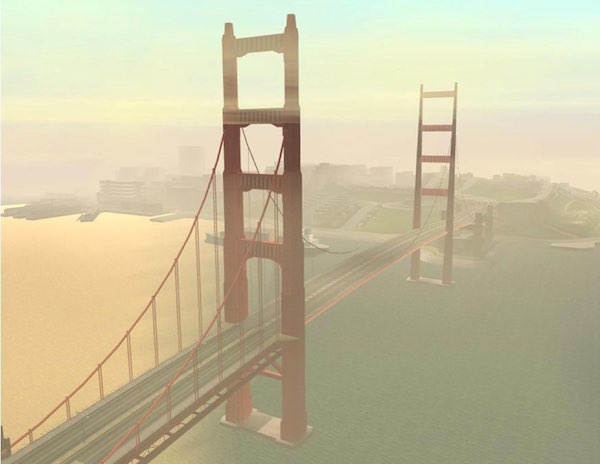
1. Although it’s pretty clear that the Gant Bridge in Grand Theft Auto: San Andreas was modeled off of the Golden Gate Bridge in San Francisco, many players are unaware that the Garver Bridge in the game is modeled after the Forth Road Bridge, located in Edinburgh, Scotland. Part of the reason for this is because much of the development team was located in Scotland.

GTA - San Andreas - Gant Bridge
The Gant Bridge in GTA San Andreas looks strikingly familiar to the Golden Gate Bridge in San Francisco.

2. The name San Andreas was used because the fictional cities and towns in the game are meant to resemble the Los Angeles area in the 1990s. This region sits on the San Andreas Fault, which is a major cause of earthquakes in the area. In the game, the city of San Fierro shows signs that a quake has caused damage and you can even hear about it on the in-game news reports.

3. Grand Theft Auto: San Andreas ran into a storm of controversy over something that wasn’t even technically in the game, yet was discovered across all versions. Although not meant to be played in the final product, there was a mini-game included in GTA: San Andreas that allowed the player to guide CJ, the main character, into salacious behavior. This content was not initially playable in the shipped product, but it was found to be accessible as far back as the first versions of the game on PS2. Rockstar Games was then forced to reconfigure and submit new versions of the game in order to avoid further controversy.

4. The voice actor for the main character in Grand Theft Auto: San Andreas was by discovered by pure luck. The producers of the game overheard Rapper Young Maylay when they were speaking with a musician about the game’s score. The producers immediately knew that Maylay had the perfect voice for the character and CJ was born.

5. Grand Theft Auto: San Andreas was the first and only game in the series to include role-playing elements, including the main character’s need to eat in order to survive. In addition, the player can have the character work out in order to gain strength. This element of the game was not received well, and as a result, Rockstar decided to drop the idea in future Grand Theft Auto games.

Think video games are bad for youngsters? Think again! Check out this article to learn more: Why Video Games Are Good for Kids (and You Too).

Grand Theft Auto: San Andreas Cheats (If You Dare)

Grand Theft Auto: San Andreas can be difficult … but it doesn’t have to be when you use cheats. Not everybody likes to use cheat codes when playing video games, because they give you a really unfair advantage and take a lot of the difficulty (and fun) from the game. But if you’re finding yourself stuck, or in need of some all-important boosts, here are some of the best Grand Theft Auto: San Andreas cheat codes.

Cheat Codes for Grand Theft Auto: San Andreas (PC Version)

Get Better Weapon Sets

If you want to go ahead and spruce up your arsenal without having to put in the time to collect them individually, you can enter one of the the following cheat codes to the the listed weapons.

Bat, pistol, shotgun, mini SMG, AK-47, RPG, Molotov cocktail, spray can, and brass knuckles

LXGIWYL

Knife, pistol, sawed-off shotgun, Tec-9, sniper rifle, flamethrower, grenades, fire extinguisher

PROFESSIONALSKIT

Chainsaw, silenced 9mm, combat shotgun, SMG, M4, homing missile, stachel charges

UZUMYMW

Clear Wanted Level

If you’re having a hard time when you have a high wanted level, use this to clear it immediately. Wasn’t that easy?

TURNDOWNTHEHEAT

Infinite Ammo

Tired of running out of ammunition in the game? Now you can make it so that you will never run out of ammo again. Here’s the cheat:

FULLCLIP

Full Health and Armor With $250k

Receive full health, full armor, and $250k in your bank account with this code. You’re ready to rock and roll!

HESOYAM

Never Wanted

Tired of always increasing your wanted level? Use this code and you’ll never be wanted by the cops, regardless of what you do:

AEZAKMI

Riot Mode

If you want to experience full-on insanity, enter the following to enter Riot Mode:

STATEOFEMERGENCY

Destroy All Cars

It would be nice to be able to destroy all of the cars in the game, at least temporarily, right? Use this code to make that dream a reality:

CPKTNWT

Flying Cars

Ever wanted to just fly around in a vehicle in Grand Theft Auto: San Andreas? Well, now you can; just enter the following code for PC:

CHITTYCHITTYBANGBANG

Spawn a Stretch Limousine

Instead of running around trying to find a stretch limo, you can simply spawn one when you enter the following code:

CELEBRITYSTATUS

Speed It Up and Slow It Down

If you’re frustrated by the speed of Grand Theft Auto: San Andreas, you can speed things up or slow things down using the following codes:

Speed things up:

SPEEDITUP

Slow things down:

SLOWITDOWN

Funhouse Theme

Make things fun with the Funhouse Theme; after all, everybody could use a little fun amidst the mayhem, right? All you have to do is enter the following code to get the party started:

CRAZYTOWN

For even more fun with GTA: San Andreas on PC, try the San Andreas Mod Installer!

Power to the People: How PowerPoint Packs a Punch

PowerPoint may not be new, but its power is still largely untapped by most users. Since the basic functions are so simple, it’s easy to under-utilize this amazing tool. But by learning just a few of the more advanced secrets, you can power up your PowerPoint presentations like a pro.

Deliver a Professional Design, Even if You Aren’t a Professional Designer

One of the beautiful things about PowerPoint is that it comes packed with professionally-designed templates that you can apply to all of your presentations, making them look sleek and sophisticated. Go to the Formatting tool bar and click on the Slide Design button. (If you are working in PowerPoint 2007, go to Design Group and select a Design Template.)

After you choose a design, that doesn’t mean you can’t change your mind later. At any point, you can select another design using the same steps. Once you select the one you want, it will be applied to all of your slides and none of the content (text, images, and formatting like bold, italics, numbering, or bullet points) will be lost.

Or, you can change the design only for certain slides without changing the template of your whole presentation. Go the Slide Sorter View and pick the thumbnails of the slides you would like to change. Then, click on Apply a Design Template and Apply to Selected Slides. The changes will be made automatically to the selected slides.

Convert a PowerPoint Presentation Into a Word Document to Print

If you need to make handouts to go along with your presentation, PowerPoint only prints views of specific slides. You will need to send the presentation over to Word to make additional enhancements and change the formatting for your handouts. Go to the Office menu and choose Publish. Then pick Create Handouts in Microsoft Office Word. Then click OK.

Now that your PowerPoint presentation is in Word, you can choose the formatting and printing options you would like.

Don’t Forget a Powerful Ending

If you keep clicking during your presentation after the last slide is shown, your audience is likely going to get a behind-the-scenes look at all of your work and it’s better not to end an extraordinary presentation that way. Instead, create a “The End” or “Goodbye” slide that says “Thank You for Participating”, or whatever is most appropriate for the audience and situation. Additionally, consider ending your presentation with a relevant quote, image, or perhaps a slide displaying your company’s logo. Whatever fits, just be sure to end with pizzazz.

Once mastered, PowerPoint can empower you to deliver powerful sales presentations, killer financial reports, extraordinary school projects, and much more.

To learn more, check out this video: App of the Week: Microsoft Office 2016, the Best Office Yet!

Take Office 2007 to the next level and gain some clarity with themes!

Themes are a collection of style options that can be applied to all or part of a document. Themes include a variety of style options, including the font, color, style, point size, etc. Themes can be used to keep your documents consistent, especially business documents that need a cohesive look and feel. This option is also excellent for students who need to keep their style consistent with the guide recommended by their instructor (such as MLA or APA). Themes are incredibly useful if you’re developing newsletters, too, because you can make your newsletters unique while keeping them all in line with your organization’s tone and voice.

Apply a Preset Word Theme

Office 2007 makes it easy to apply themes within your documents. Word 2007 comes with a wide selection of themes and more are available for download. You can even create your own!

To set up and begin using themes, create a new document. First, try out a few of the native themes available in Word 2007. The advantage of using a pre-made theme is that these are designed by professional graphic artists. It’s actually quite hard to develop a theme if you don’t have typographical skills and a little experience. Word has the themes organized to help you find the right one according to the type of document you are creating.

Go to Page Layout and select Themes. This will bring a drop-down menu into view, showing the available theme. Position your pointer over any theme to see how it will look if you choose to use it in your document. To apply a theme you’ve chosen, just click on it.

Find More Pre-made Themes Online

For business purposes, or just to be unique, you may opt to download one of the themes available online. These are available for download, and many are offered for free. Please see Microsoft for more information.

Make Your Own Theme

To customize your own theme, you can go to Page Layout and then to Themes and customize each setting individually there. You can preview your newly created theme just as you did with the pre-made themes that are already programmed into Word 2007.

Office 2007 is full of customizable options; play around some and see what you might like to change.

If you’re interested in getting the right theme using graphic design, check out the tools in Adobe Photoshop Lightroom.

Customize Your Office 2007 Experience

Office 2007 is loaded with great features, but its default settings can sometimes be best described as quirky. But that’s no problem, because changing the defaults and customizing the software for your needs isn’t hard at all.

Default to Save Somewhere Besides My Documents

For most users, My Documents is the best place to store newly created documents, but some users have different needs. You can tell Office 2007 to save wherever you like by opening Word and selecting the Save option, which is listed on the left side of the menu. The topmost section is headed Save Documents. Look at the last line of that section which is labeled Default File Location. There, enter the name of the folder where you would like to save to by default. When you’re done, click OK to save your changes. Alternately, you can use the Browse button to look around and choose which folder to default save to.

Change the Default File Extension from .docx to .doc

Windows defaults to .docx and this usually isn’t a problem until you go to share your file with someone else. Anyone with a version of Office older than 2007 won’t be able to open it without using a utility. But, you can change this without having to “Save As” and select .doc for each individual document. Make it the default by opening the window Word Options (the same one you used to save to another folder outside My Documents), and choose Save Options. There, under the listing Save Files in This Format, select Word 97-2003 (*.doc). Then hit OK to save your changes. From now on, Word will save in .doc instead of .docx and users of the older versions of Office can access your files conveniently.

Change the Default Font

Office 2007 uses the default of Normal-style Calibri in 11-point font. However, it comes loaded with tons of beautiful and interesting fonts and many users prefer the Times New Roman or Courier in 12-point font or some other font and size. To change this default setting, type in a bit of text into a new document. Select some (or all) of the text. Change the text to whatever font and size you prefer.

Now right-click on the Normal button and select Update Normal to Match Selection. This action resets what the Normal style is in this document to the setting you chose. Go to the View tab and click on the topmost half of the button marked Macros, which is at the far right-hand side. This brings up the Macros window. Select the button that says Organizer, which will then open the Organizer window. Select the Styles tab.

There will be two styles shown, one that is your current document and one for Normal. Choose the Normal style in your current document and then hit the Copy button. This brings up a message box that will ask if you would like to overwrite the Normal style in the template. Select Yes and you’re all set.

Find Out What’s New in Office 2016 for Windows!

Avoid These Beginner Mistakes in Paint Tool SAI

Everyone has to start somewhere when it comes to graphic design tools, but there are some mistakes you can easily avoid when you follow these tips:

Don’t Get in a Rush

It’s likely that you’re excited to get started creating and showing off your art in Paint Tool SAI, but it would be a good idea to take your time and get to know the program and its tools first. Rushing ahead is one of the biggest mistakes beginners make because they are so eager. Instead, learn how to maximize Paint Toll SAI before showing off your work. This will likely lead to better art and a more consistent workflow.

Study Others

Although you’re always encouraged to develop and nurture your own unique style when creating art in Paint Tool SAI, take some time to study the work that others have done using the program first. This can not only serve to help you find your own style, but it may also inspire you in creating new works of art.

Avoid Blending Too Much

One of the things about Paint Tool SAI and other graphic design tools is that the artist has the ability to use digital blending tools. At first, these tools can seem like a miracle in that they help to hide mistakes and make a piece of art seem more cohesive and even surreal. Too much blending, however, can ruin a great work of art. As a result, use blending only when necessary and avoid blending to hide mistakes. If you messed something up, go back and correct it.

Create Off of Good References

When using a reference to create from, you want to make sure it’s a good one. If you’re attempting to replicate a piece of work that simply doesn’t measure up, you’re going to be the one who suffers in the end. Take some time to really think about what adds up to good art for you before settling on a reference piece. Has the subject been conveyed properly? Are you wanting to also replicate the style and tone? The answers to these questions will help you to become a better artist in Paint Tool SAI.

Concentrate on Shade As Well As Light

Shading is one of the most basic, yet powerful, tools you can use when creating art, but light is equally important. After all, shade is the byproduct of subjects being caught within light. Therefore, you need to ensure that your creations take into account both of these elements. Shade without light will appear strange, and light without shade will simply come across as awkward. As with other pieces of art, make sure that you maintain directional permanence when working with shade and light in Paint Tool SAI.

If you love Paint Tool SAI, check out The Gimp for free!

Speaking Different Languages: Syncing Subtitles in KMPlayer

When it comes to video playback, KMPlayer offers extensive tools, including the ability to sync subtitles. This comes in really handy when you come across a film that is in a different language or in a language that you don’t speak fluently. Syncing subtitles is also great for when you want to share movies with friends that are in your language but not theirs. In addition, subtitles can be used by people who are experiencing difficulty with their hearing to enjoy a film like everyone else, and syncing them means that the viewer can choose for the subtitle to appear before or after an event for easier viewing.

How to Sync Subtitles in KMPlayer

To check out your options, open the Main Menu and click on Subtitles. This will bring up the Subtitles Menu list to the right. From there, click on Subtitle Explorer. Once the Subtitle Explorer is open, you’ll be able to see all of the subtitles included with the film and their associated time codes. Using the markers in the top left corner of this window, you can then choose to change the time at which each subtitle appears on the screen.

Sync During Playback

Alternately, you can sync a subtitle during playback. Simply play the film and wait for the moment to which you would like to sync a particular subtitle. Once you hit that moment, pause the playback and open the Subtitle Explorer. Find the specific subtitle you want synced to that moment and press the S button in the Subtitle Explorer’s tool bar. This will bring up that specific subtitle at the moment you’ve selected during your next playback.

Editing Subtitle Text

There may be times in which you need to add your own subtitle to a video. This could be because the video does not have any subtitles associated with it or it could be because you want to point out something specific or clarify something for the viewer. In any case, KMPlayer allows you to easily add your own subtitle text.

Open the Subtitle Explorer and find the time in the video playback where you would like to add your subtitle. Next, click on the E button in the menu tool bar. This will open up a box where you can select the specific moment where you would like to add your subtitle, and you’ll also be given the ability to add your text. You also have the chance to change the format of the subtitle in this window as well.

Play a wider variety of media with the K-lite Codec Pack!

The Interesting History of the Web Browser

The modern web browser is an indispensable tool for almost everyone these days, but you may not realize just how this invention got its start. Although the “Internet” as you know it today began back in the 1970s, the modern Internet did not come to exist until around 1990, the same year that the first web browser came along.

The WorldWideWeb

The first actual web browser was called the WorldWideWeb, its name meant to symbolize the expansion, or planned expansion, of the Internet. In 1992, the MidasWWW debuted, and in 1993, Cello, one of the first graphical web browsers, was released. As the Internet grew, Microsoft decided to jump into the fray with Internet Explorer in 1995.

Netscape and Internet Explorer

Although Internet Explorer is still around today and is lauded as being the best (and worst) choice in a web browser by many, at one time, it faced a formidable foe: Netscape Navigator. Around 1996, Netscape Navigator was the go-to web browser, leading Microsoft’s Internet Explorer by a very large margin. Microsoft, however, got the upper hand when it began including Internet Explorer as the default web browser within its Windows operating system. Within a few years, Internet Explorer cam to dominate the Internet surfing landscape, causing usage of Netscape Navigator to plummet. Netscape Navigator, developed by America Online, or AOL, was eventually discontinued due to a lack of interest by the general public on the Internet.

Firefox and Beyond

In the early 2000s, the Internet saw a series of new and free browsers come on the market, including Mozilla’s Firefox. Firefox quickly gained attention and credibility as a contender in the web browser world, and around the same time, Microsoft announced that Internet Explorer would be only available for Windows, causing Apple to create its Safari browser. Opera also came along, and while used on many desktops, it is often the choice for users of mobile devices when browsing the Internet.

Chrome and the Future

Currently, Google Chrome is one of the most popular web browsers due to its simplicity, speed, and functionality. Although Internet Explorer remains a heavily-used web browser, especially among businesses, Chrome sets itself apart by providing an intuitive experience for users across all markets, demographics, and generations. Both tools are available for free, and users can offer feedback to give both Microsoft and Google information regarding what works and what does not work.

Enjpy safer web browsing with a free download of Malwarebytes Anti-Malware!