How to update KMPlayer

KMPlayer is a well-known video and audio player that supports a wide range of formats. However, updating this program to its latest version is not that obvious. In this video tutorial we’ll show you how to update KMPlayer.

How to update KMPlayer por softonic-en

  1. First, open KMPlayer. If you don’t have it installed yet you can download it on Softonic or from the developer’s website.
  2. Right-click on the program, go to Options and click on About.
  3. A pop-up windows will appear, and you’ll find an Update button at the bottom. You just need to click it in order to update the program.
  4. If you go back to Options, you’ll see that there’s a Check Updates options where you can check if your KMPlayer is up to date.

And that’s it! You’ll never have to worry about having an outdated version of KMPlayer again!

Did You Know About These 3 Features in KMPlayer?

While KMPlayer has a lot of obvious and easy-to-use features, it also provides many more that you likely don’t know about. These features not only extend the efficiency of KMPlayer, but they also make it one of the most powerful media players on the planet:

Subtitle Control

Another awesome feature in KMPlayer is the ability to control and sync subtitles. In fact, you can even add your own. To do this, you need to open the Subtitle Explorer from the Main menu. When you do this, you’ll be presented with a list of the current subtitles included in the media that you’re viewing, even if you do this in real-time. Once inside the Subtitle Explorer, you can change, remove, or add subtitles and even change at what times they appear on the screen.

Customizable Audio Settings

Audio is one of the most important components to a good viewing experience when watching a movie, but the sad truth is that some movies just don’t have the right sound. This could be because the audio in the movie was recorded poorly, the equipment you’re using to listen to the movie might not be the best, or the room you’re viewing in might have poor acoustics. Thankfully, many of these issues can be solved within KMPlayer.

Within the Preferences menu, you have the ability to select the Audio Processing option and make changes to things like volume and equalization, but you also have advanced options that allow you to make changes to things like reverb based on the room you’re in and filters that cancel out harsh tones that may be affected by your computer’s speaker system. When you play around with these options, you can often get the best sound possible, making your movie-watching experience all that much better.

Support for 3D Movies

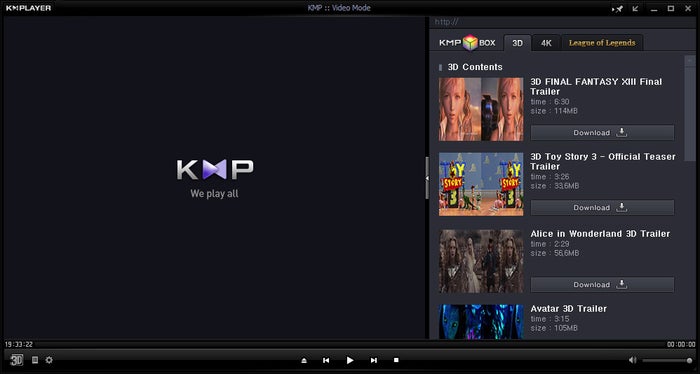
3D is still one of the most innovative technologies available today in media, but sadly, most media players can’t provide support for 3D; thankfully, KMPlayer does offer 3D compatibility. To access this, you’ll need to download and install the 3D Service Plus app in KMPlayer. This will give you access to all kinds of 3D content, including videos by Discovery 3D World. You can also change 3D settings while playing back a 3D movie by right-clicking on the screen. A menu will pop up that offers you the chance to change different 3D technologies and even add on support for 3D apps.

Don’t forget to check out VLC Media Player for more easy multimedia experiences!

A Movie Theater in Your Pocket: KMPlayer Goes Mobile

KMPlayer offers all kinds of benefits and value on desktop, but with the release of KMPlayer for Android, you can now take this powerful media player with you wherever you go! Whether you want to watch movies or stream video content, KMPlayer for Android can make it happen. It’s like a movie theater in your pocket! Below are just some of the features of this awesome app:

KMP Connect Provides Streaming Support for Your Movies

One of the biggest innovations in the KMPlayer for Android app is that it offers you the chance to stream movies from your home PC to your mobile device. This is achieved through KMP Connect, a service found within the mobile app. After you set up your account through a simple three-step process, you can connect to your home PC through your Android mobile device and access your movies from virtually anywhere that has an Internet connection. This means no more loading up your SD card with large files and no more long file transfer times.

File Information

One of the major problems with having a variety of files on your Android device is that they can become difficult to identify over time, especially if they are given generic file names. When searching for a specific video file, you may spend more time looking for the right file as opposed to actually watching it. KMPlayer for Android solves this issue by providing you with a number of organizational features, including the ability to break down file categories by date, by file, by category, and more. This means that you’ll be able to access your media faster and more efficiently so that you can spend more time enjoying it.

Gestures and the Locking Feature

On-screen controls are a big help when watching movies on mobile devices, but they can also be distracting and get in the way due to accidental touching of the screen. To solve this, KMPlayer for Android not only features gesture controls, allowing you to swipe on the screen to make changes to things like volume, but it also features a lock function. When you initialize the lock function, the playback becomes completely controlled by gestures instead of simply touching the screen. This ultimately saves you from accidentally getting too close when holding your phone, something that could result in the on-screen controls popping up and ruining the scene.

Take a look at this video to learn how to: Watch Multiple Videos in KMPlayer

Connect With Your Media Anywhere Using KMPlayer

KMP Connect, made by KMPlayer, lets you connect your mobile device to your computer to stream content. This means that even if you’re not home, you can have access to your digital videos quickly and easily. In addition, KMP Connect is secure as it uses a pin code four-digit pass code system that reduces the possibility that anyone else can access your content. After you’ve connected your device to your PC, all you’ll need to do to access your media on your device is to enter in your pin code and pass code.

Setting Up KMP Connect

The first step in setting up KMP Connect is to make sure your mobile device and PC are both connected via the same router. Launch KMPlayer and select the KMP Connect Execute option in the top right corner. You’ll be prompted to download the KMP Connect app. When asked, choose to Run the installer. Follow the prompts to complete the installation.

Once installed, you’ll be asked to set up your account. First, you’ll be provided with a pin code that is automatically generated by the app. For your pass code, enter four digits that you’ll remember as you’ll need to enter these to use KMP Connect going forward. For the Share Name section, enter in a unique name for your computer. This will be the name you see when you use KMP Connect to connect to your PC in the future. The Share Folder name is going to be the name of the folder where you will be streaming your media. After these items have been completed, make sure KMP Connect is set to On and then do a Connect Test.

Using KMP Connect on Your Mobile Device

To use KMP Connect on your mobile device, download the KMP Connect app, install it, and open it. Once the app opens, tap the Cloud folder at the top left of the screen. You’ll then be prompted to input your pin number and pass code. Once accepted, you’ll see a list of any PCs that you’ve connected to the device. Simply tap the PC you want to access, then tap the folder you’d like to access. There, you’ll see your shared media on your PC. All that’s left to do is sit back and enjoy your media!

For more multimedia fun, check out BS.Player PRO!

The Exciting Mobile Features of KMPlayer

KMPlayer is one of the most feature-packed desktop multimedia programs, but did you know KMPlayer is also available on your mobile device? On top of playing your favorite videos, music, and more, KMPlayer for mobile can also let you connect directly with media on your PC at home using KMP Connect. Read on to learn more about the exciting features in the KMPlayer mobile app:

Slow Motion Playback Support

There are times when you want to slow down the action to catch subtle details, and this is where KMPlayer’s mobile app can save the day. When you come across a piece of video that needs to be slowed down, you can easily make it happen in the KMPlayer mobile app. This feature is also helpful when you want to show friends and family members cool details in your own videos without having to use a special effect in your camera.

Gesture Support for Easy Access

When you’re playing a video or movie, the last thing you want to do is be distracted by changing settings on your phone. Thankfully, KMPlayer for mobile supports gestures that allow you to change things like volume and screen brightness while playing media. All you have to do is swipe in the appropriate direction and your changes get made, no interruption necessary. You also get the ability to create a floating screen on your mobile device’s homepage so that you can take care of other tasks while still watching your video or movie.

KMP Connect Makes It Easy to Share Media

When you’re away from home, you don’t have to leave your media files behind when you use KMP Connect. KMP Connect is simple to set up and provides you with the ability to securely connect to your PC back at home when you’re on the go. Once connected, your mobile device connects with your PC to stream videos and movies directly to you using a secure pin code and pass code. When you use KMP Connect, it’s like you’re sitting in front of your PC!

Subtitles for Mobile Viewing

Subtitles are the perfect solution for when you want to watch a movie that is in a different language or for when you’re trying to learn a language. While many desktop media players support subtitles, unfortunately, most mobile media players do not. When you use KMPlayer for mobile, you have the ability to view subtitles and even sync them for a better viewing experience.

You can also check out GOM Media Player if you’re into digital media creation!

Speaking Different Languages: Syncing Subtitles in KMPlayer

When it comes to video playback, KMPlayer offers extensive tools, including the ability to sync subtitles. This comes in really handy when you come across a film that is in a different language or in a language that you don’t speak fluently. Syncing subtitles is also great for when you want to share movies with friends that are in your language but not theirs. In addition, subtitles can be used by people who are experiencing difficulty with their hearing to enjoy a film like everyone else, and syncing them means that the viewer can choose for the subtitle to appear before or after an event for easier viewing.

How to Sync Subtitles in KMPlayer

To check out your options, open the Main Menu and click on Subtitles. This will bring up the Subtitles Menu list to the right. From there, click on Subtitle Explorer. Once the Subtitle Explorer is open, you’ll be able to see all of the subtitles included with the film and their associated time codes. Using the markers in the top left corner of this window, you can then choose to change the time at which each subtitle appears on the screen.

Sync During Playback

Alternately, you can sync a subtitle during playback. Simply play the film and wait for the moment to which you would like to sync a particular subtitle. Once you hit that moment, pause the playback and open the Subtitle Explorer. Find the specific subtitle you want synced to that moment and press the S button in the Subtitle Explorer’s tool bar. This will bring up that specific subtitle at the moment you’ve selected during your next playback.

Editing Subtitle Text

There may be times in which you need to add your own subtitle to a video. This could be because the video does not have any subtitles associated with it or it could be because you want to point out something specific or clarify something for the viewer. In any case, KMPlayer allows you to easily add your own subtitle text.

Open the Subtitle Explorer and find the time in the video playback where you would like to add your subtitle. Next, click on the E button in the menu tool bar. This will open up a box where you can select the specific moment where you would like to add your subtitle, and you’ll also be given the ability to add your text. You also have the chance to change the format of the subtitle in this window as well.

Play a wider variety of media with the K-lite Codec Pack!

KMPlayer introduces Connect media streaming

Popular music and video app KMPlayer has been updated with a new feature called Connect, turning your PC into a media server so that you can access your files remotely from Android and iOS apps.

KMPlayer connect is not a cloud service – instead, it streams over the web from your PC to your device. The developer claims that this is faster than most cloud services, although it only works when your PC is turned on. When you activate Connect, you get an automated PIN number and assign a password. With these two codes, you can access files from any other device that has KMPlayer installed. This also means that you can share your files with anyone you give the pin and password to.

KMPlayer is a free app for Windows, Android and iOS. Like BS. Player and VLC media player, it supports tons of file types and codecs, so you can watch and listen to almost any music or video without worrying about conversion. KMPlayer Connect means that you don’t need to store big movie files on your mobile device, although streaming could be costly unless you’re using Wi-Fi.

Download KMPlayer for Windows, Android and iOS.

Follow Jonathan on Twitter @jonathanriggall

RELATED STORIES

App of the Week: KMPlayer for iOS and Android (video)

Softonic’s App of the Week highlights some of the coolest, unique, and most interesting mobile apps for iOS and Android. KMPlayer is one of the most popular video players for Windows, and last month, it finally arrived on iOS and Android.

Given that it’s a video player, we thought, what better way to tell you about it than to show you in a video? I tested all the features of KMPlayer on an iPhone and iPad to see how it stacks up against it’s Windows counterpart. Check out the video below to see how it works.

Default player

<!–
By use of this code snippet, I agree to the Brightcove Publisher T and C
found at https://accounts.brightcove.com/en/terms-and-conditions/.
–>

<!–
This script tag will cause the Brightcove Players defined above it to be created as soon
as the line is read by the browser. If you wish to have the player instantiated only after
the rest of the HTML is processed and the page load is complete, remove the line.
–>
brightcove.createExperiences();

If you like what you see, download KMPlayer for iOS or Android.

Make sure to check out some of our past App of the Week features:

Exclusive download: KMPlayer 3.6 update

For the next 24 hours, you can download the latest version of KMPlayer 3.6 exclusively from Softonic.

Like the hugely popular VLC media player, KMPlayer is a lightweight audio and video player for Windows that supports a wide range of different file formats, including AVI, ASF, WMV, AVS, FLV, MKV, and many more. Version 3.6 is recommended because it fixes various bugs and adds a few features such as https streaming and Instant View.

Continue reading “Exclusive download: KMPlayer 3.6 update”

How to: Watch multiple videos at once in KMPlayer

KMPlayer is one of the most powerful video players for Windows. The multimedia application has a huge range of settings that help you customize your entertainment experience.

One neat trick with KMPlayer is to watch multiple videos at the same time with picture-in-picture viewing. Rather than just having different player windows open, this feature embeds smaller videos over the top of a large one.

So if you don’t have time to watch four movies in one night, just watch them all at the same time using KMPlayer!

Watch the video tutorial or follow the steps below to enable picture-in-picture viewing in KMPlayer.

1. Download KMPlayer from Softonic and install it on your PC. Open the player and right click on the main window. Choose Options, then Preferences.

2. In the General Settings section of the Preferences menus, deselect Disallow Multiple Instances.

3. Load up your first video. This will become the one that appears in the background.

4. Pause the movie and right click on it. Go the Screen Controls option, choose On Top, then Never.

5. Open another video in a new window. Right click on this one and go to Screen Controls. Choose On Top, then Always.

6. Right-click on the video window and choose Skins, then Default Control (Auto Hide).

7. Repeat steps 5 and 6 for all of the videos you want to load.

8. Now maximize the first video to full screen and position all the other videos in front of it, resizing the windows as necessary.

9. You’re now ready to start enjoying the benefits of picture-in-picture viewing with KMPlayer!