Google released the first public version of the company’s Chrome OS Flex operating system. The special version of Google’s Chrome OS operating system is designed for PCs and Macs specifically.
Chrome OS Flex is a cloud-based operating system with deep Google ecosystem integrations. Google highlights the fast boot time, security of the system, background updates and web compatibility.
The operating system is free to download and use. All it requires is an USB device with enough free storage to put the operating system on. Interested users may run Chrome OS Flex from the USB device without installation, or use it as an installer to turn a PC or Mac into a Chrome OS Flex system.
Who is it for?
Chrome OS Flex is a special version of Chrome OS, the operating system that Google uses on Chromebooks. The operating system is compatible with most PCs and Macs.
Several versions of Windows and Mac OS will run out support in the coming years. Windows 7 and 8.1 reach end of support in January 2023. Devices that run these versions of Windows or Mac won’t receive security updates anymore, and software may stop working as developers drop support for the systems.
Apple and Microsoft hope that customers upgrade to new versions of Windows, or buy entirely new systems with the latest versions of the operating system.
A viable choice up until now was the installation of Linux on these devices. Linux is easy to install and some distributions, for example Ubuntu or Linux Mint, resemble Windows in many regards.
Chrome OS Flex is a new option. The operating system supports old and new devices, but one of its main appeals is the installation on out-of-support devices.
As has been noted, it is a good option to keep on using older devices that can’t be upgraded to new Windows or Mac versions.
Overall, it is a valid choice for users who do not mind using a cloud-first operating system.
Chrome OS Flex system requirements
Chrome OS Flex has the following system requirements:
- A 64-bit processor from Intel or AMD.
- At least 4 Gigabytes of RAM.
- At least 16 Gigabytes of internal storage.
The device needs to support booting from USB. Most processors and graphics adapter are compatible, especially those released after 2010.
Google maintains a list of certified models and devices, which you may access here.
The system requirements exclude 32-bit only processors, which means that certain netbooks and older devices can’t run Chrome OS Flex. Most devices released in the past 15 years are compatible with the operating system though.
Note: Chrome OS Flex is an early access version that is not ready for production environments. Google plans to release a stable version in the coming months. Since Chrome OS Flex does not need to be installed on devices, it is still useful to take a look at the operating system.
Chrome OS Flex installation
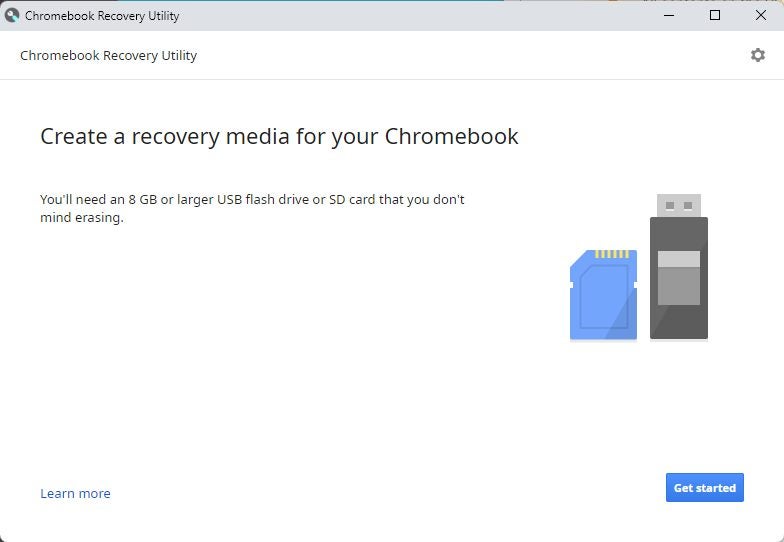
Installation of Chrome OS Flex requires an USB device with at least 8 Gigabytes of storage. A device with the Chrome web browser is required to start the installation.
Here is the process in details:
- Open the Chrome web browser on the computer.
- Open the Chrome Web Store page of the Chromebook Recovery Utility extension.
- Install the official extension in Chrome.
- Select Menu > Extensions > Manage Extensions.
- Make sure that the Chromebook Recovery Utility extension is turned on.
- Activate the icon of the extension in Chrome to start building the USB installer.
- Select “get started” when the main window opens (Create a recovery media for your Chromebook).
- When asked to select a Chromebook model, pick “select a model from a list”.
- Select “Google Chrome OS Flex” as the manufacturer.
- Select “Chrome OS Flex” as the product.
- On the next screen, select the USB device. Note that all data on the device will be erased in the process. Backup important data before continuing.
- The process takes between 10 and 20 minutes to complete.
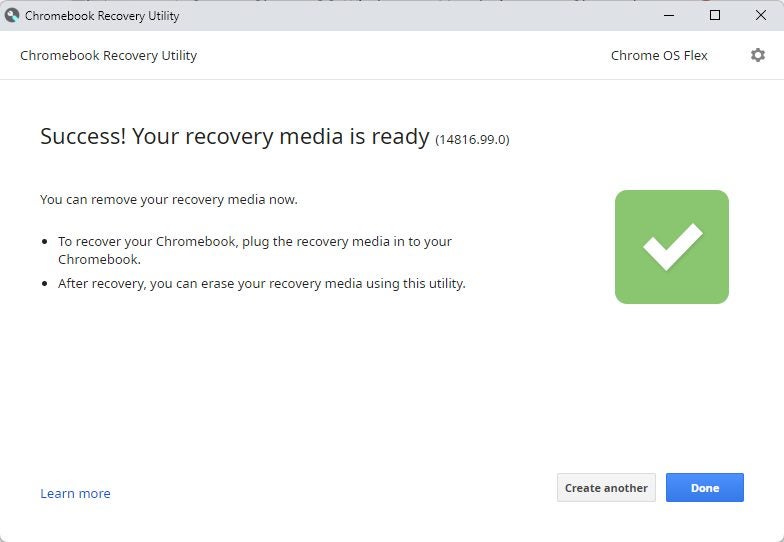
Google downloads the required operating system files to the local system in the next step. The data is copied to the USB device and a “success! your recovery media is ready” message is displayed in the end.
Select “done” to end the process. The USB device contains the full Chrome OS Flex operating system now.
Using Chrome OS Flex
To start using Chrome OS Flex, boot the PC or Mac from the USB device; this may require making a change in the BIOS to change the boot order of devices.
Check out Google’s support page for instructions on changing the boot order of devices or entering the BIOS.
All things considered, it is clear that the installation process is not as straightforward. Many Linux distributions provide USB installers that require fewer steps to complete.
Verdict
Google launches the first version of Chrome OS Flex at an ideal time to the market. Windows devices with Windows 7 and 8.1 run out of support in January 2023. Not all of the devices are compatible with Windows 11, which leaves customers with a tough choice.
Some will continue running unsupported versions of Windows, even though that is not advised. Others may install Linux or Chrome OS Flex on the devices to continue using them.
